Getting Started with Stylist Mode
Stylist Mode lets you work with your clients' wardrobes directly in GetWardrobe.
This guide shows you how to set up Stylist Mode, add your first client, and start working with their wardrobe.
Switching to Stylist Mode
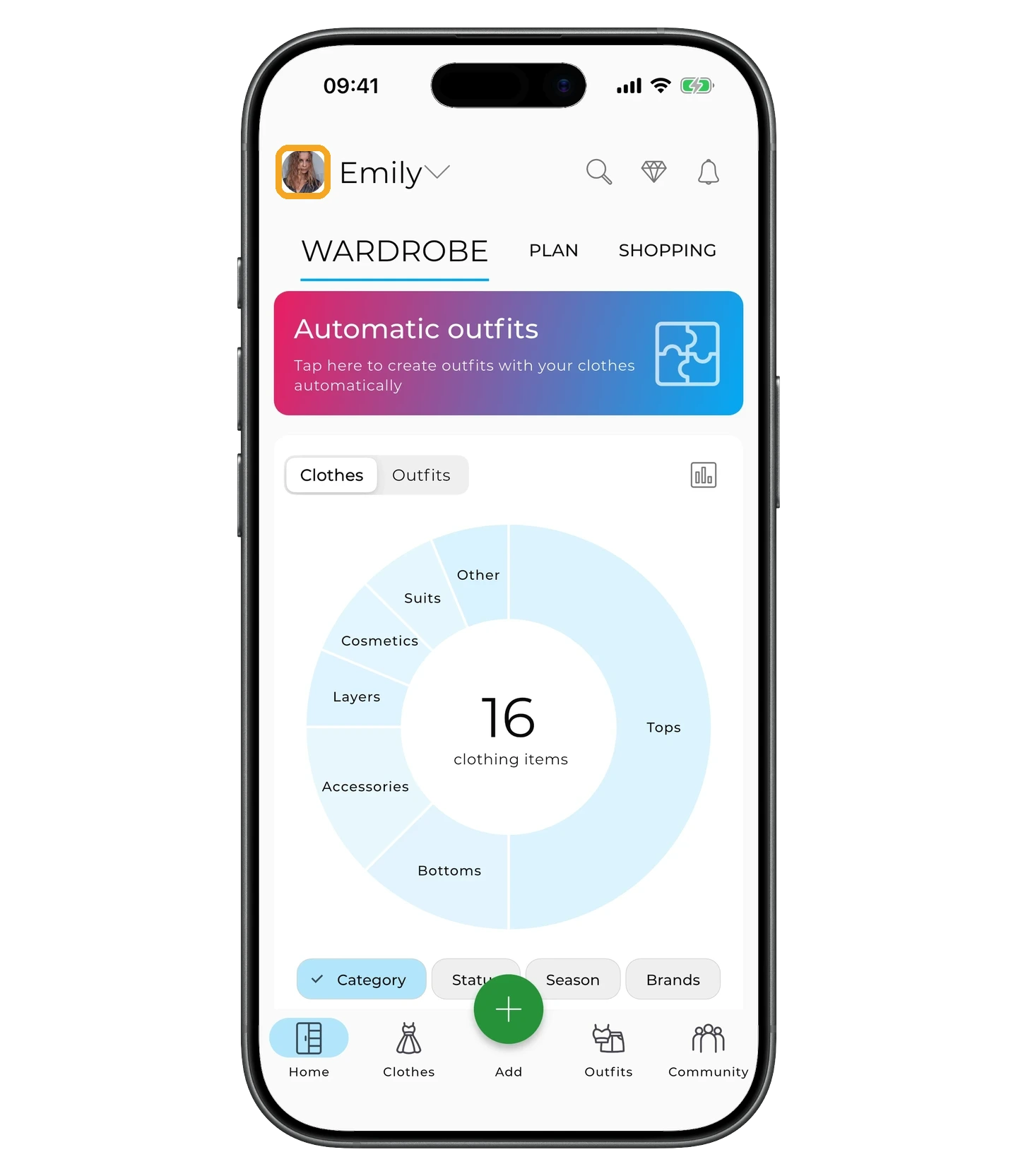
Tap your avatar in the top-left corner of the main screen.
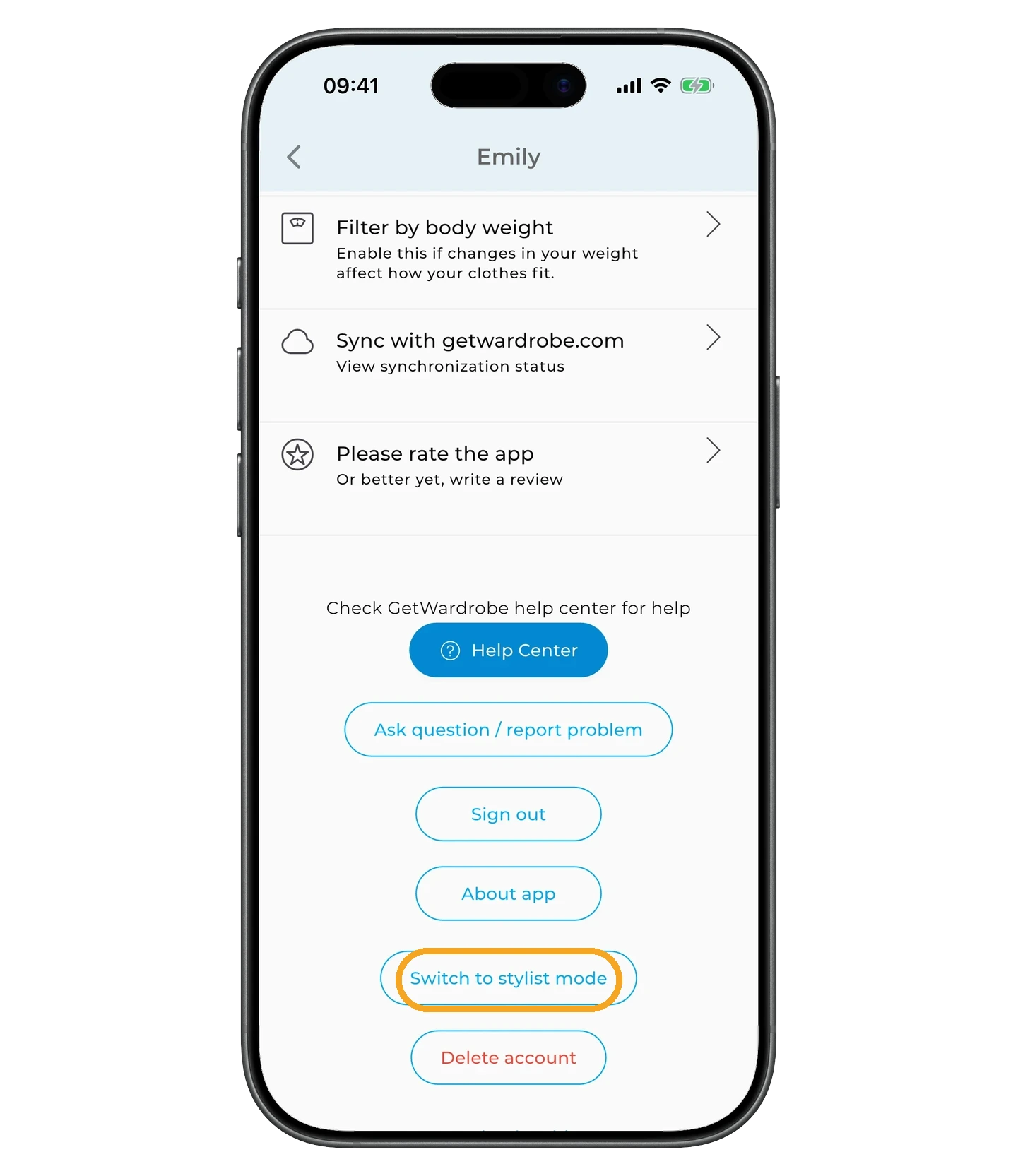
In Settings, scroll down and tap "Switch to Stylist Mode".
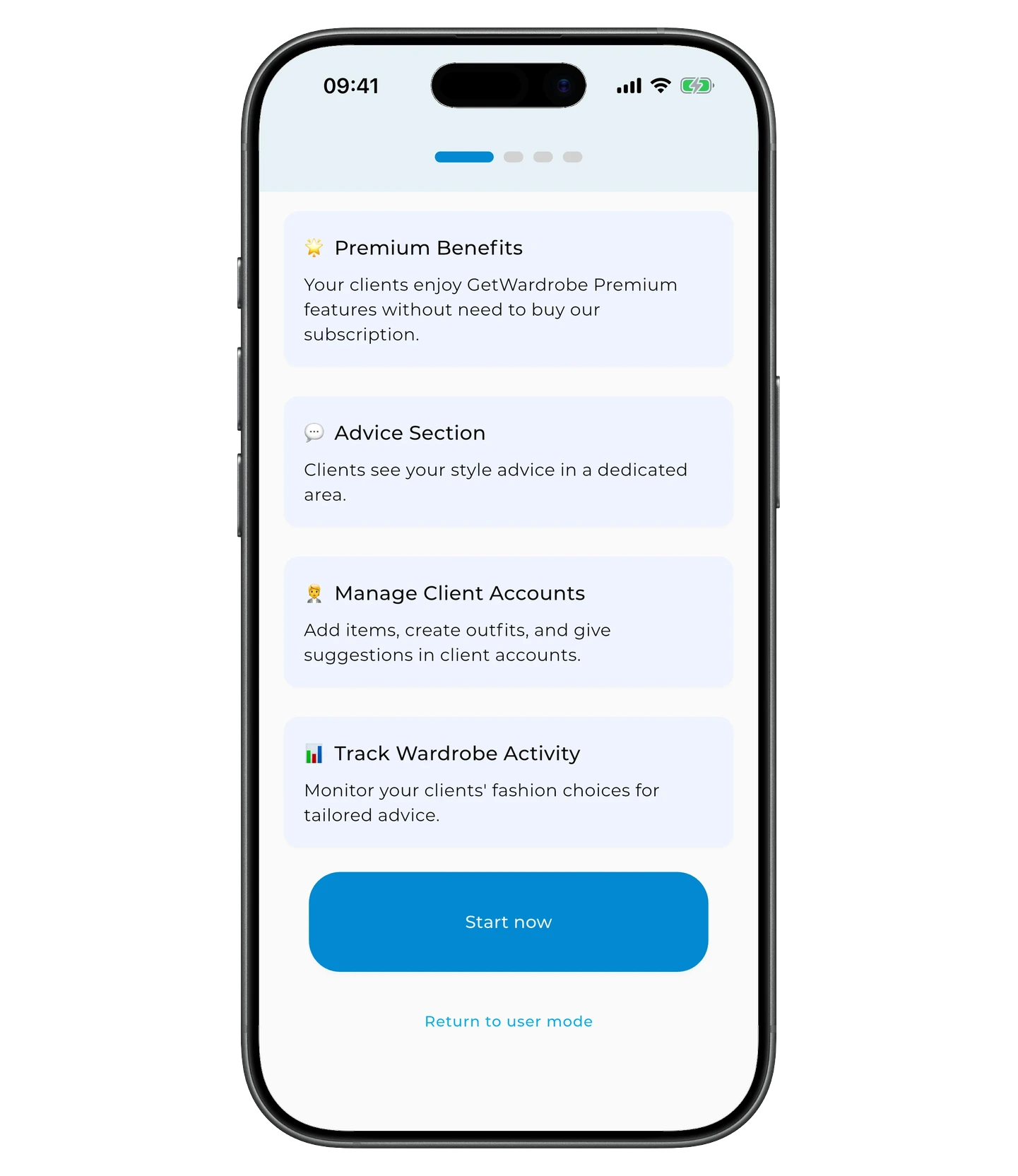
On the Stylist Mode screen, scroll down and tap "Start Now".
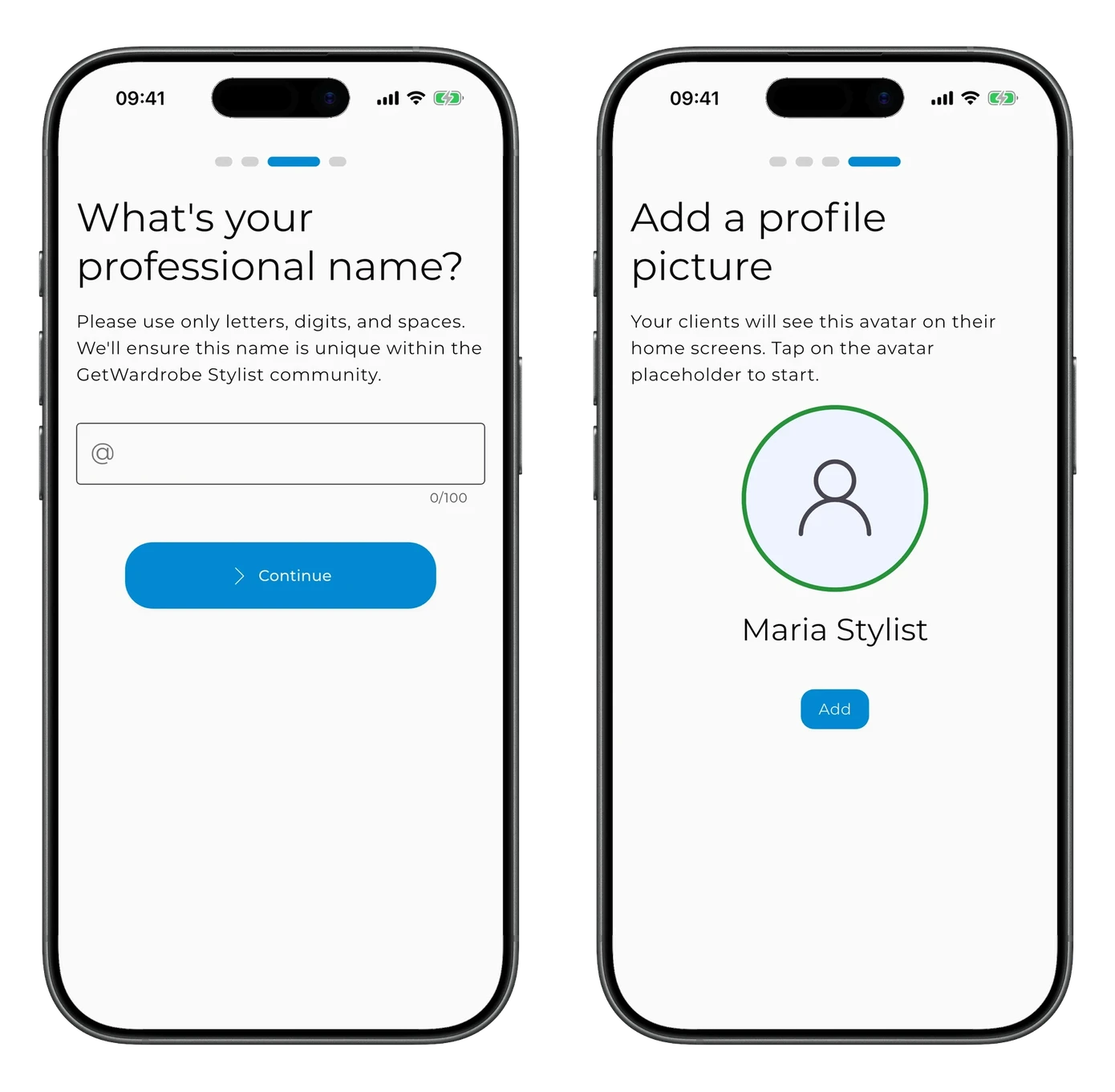
Setting up your profile
Enter the name your clients will see and tap "Continue". On the next screen, add a profile photo and tap "Continue".
After that, a screen appears where you can add your first client.
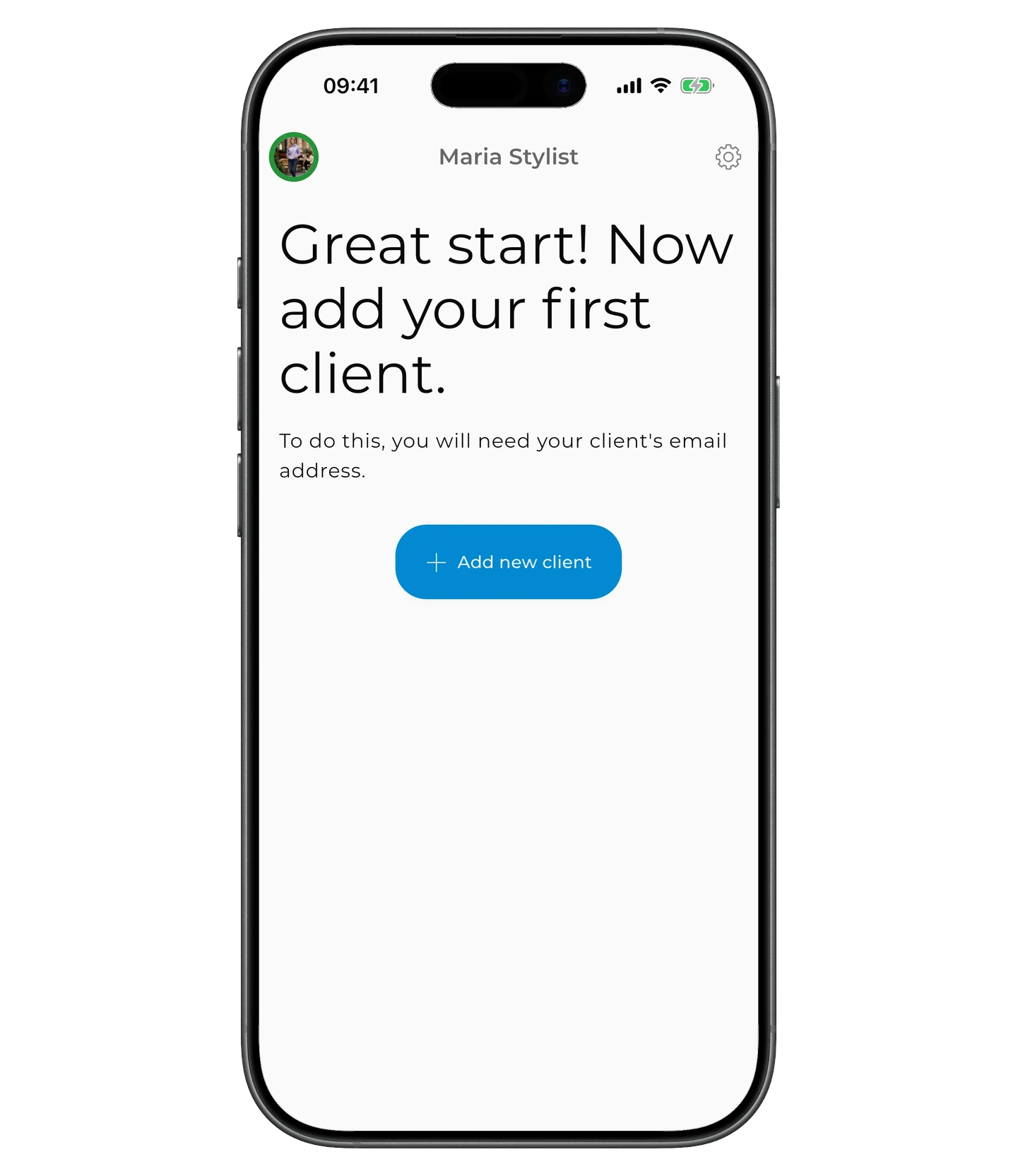
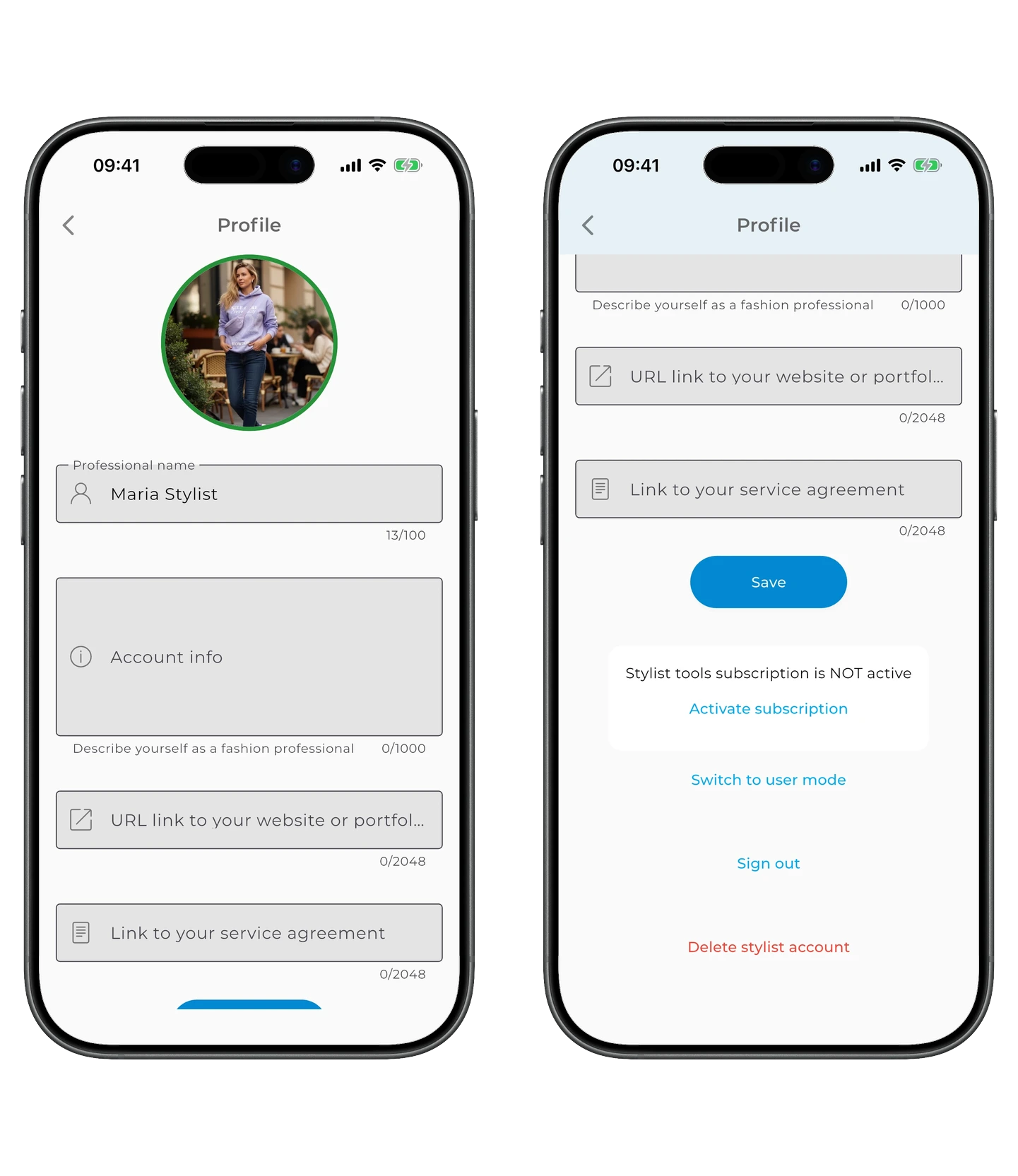
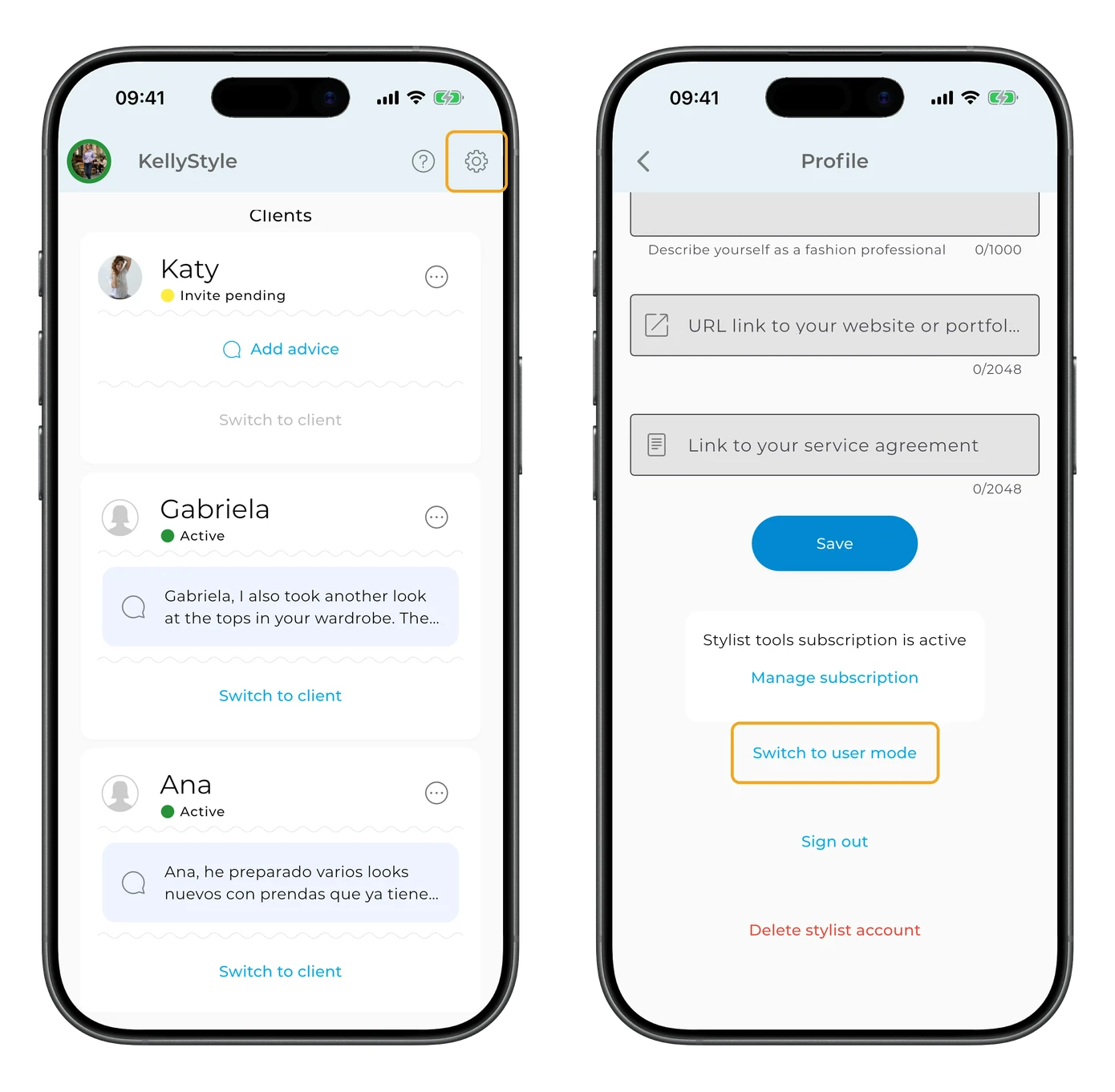
Your basic profile setup is complete. You can add more profile details later by tapping the gear icon in the top-right corner of the client panel.
Here you can add your professional skills, a link to your website or social media, and upload a service agreement.
After making changes, tap "Save".
GetWardrobe Pro
Working with clients in Stylist Mode requires a GetWardrobe Pro subscription. If you don't have one yet, the app will prompt you to subscribe when you add your first client.
Adding your first client
The client already has a GetWardrobe account
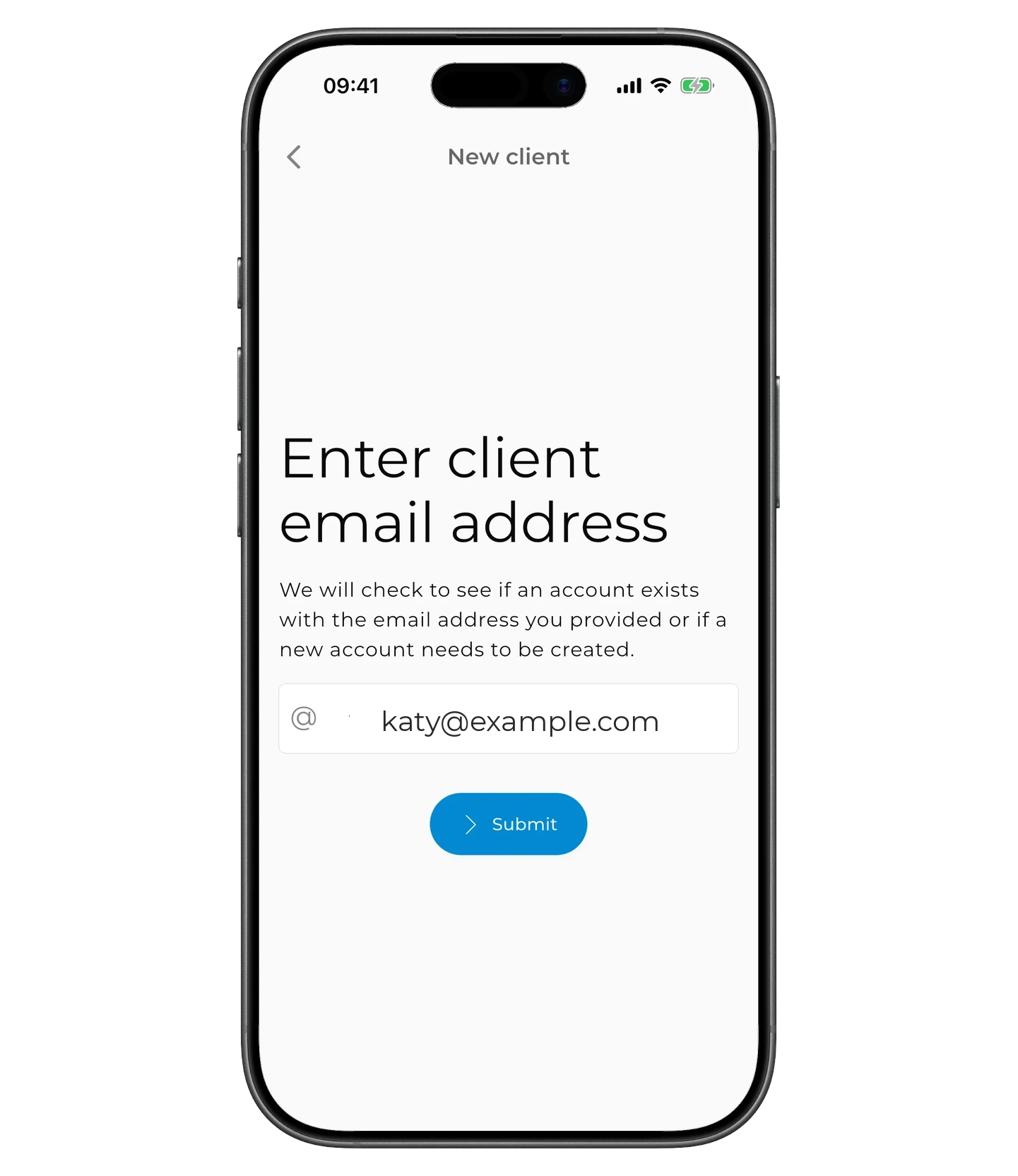
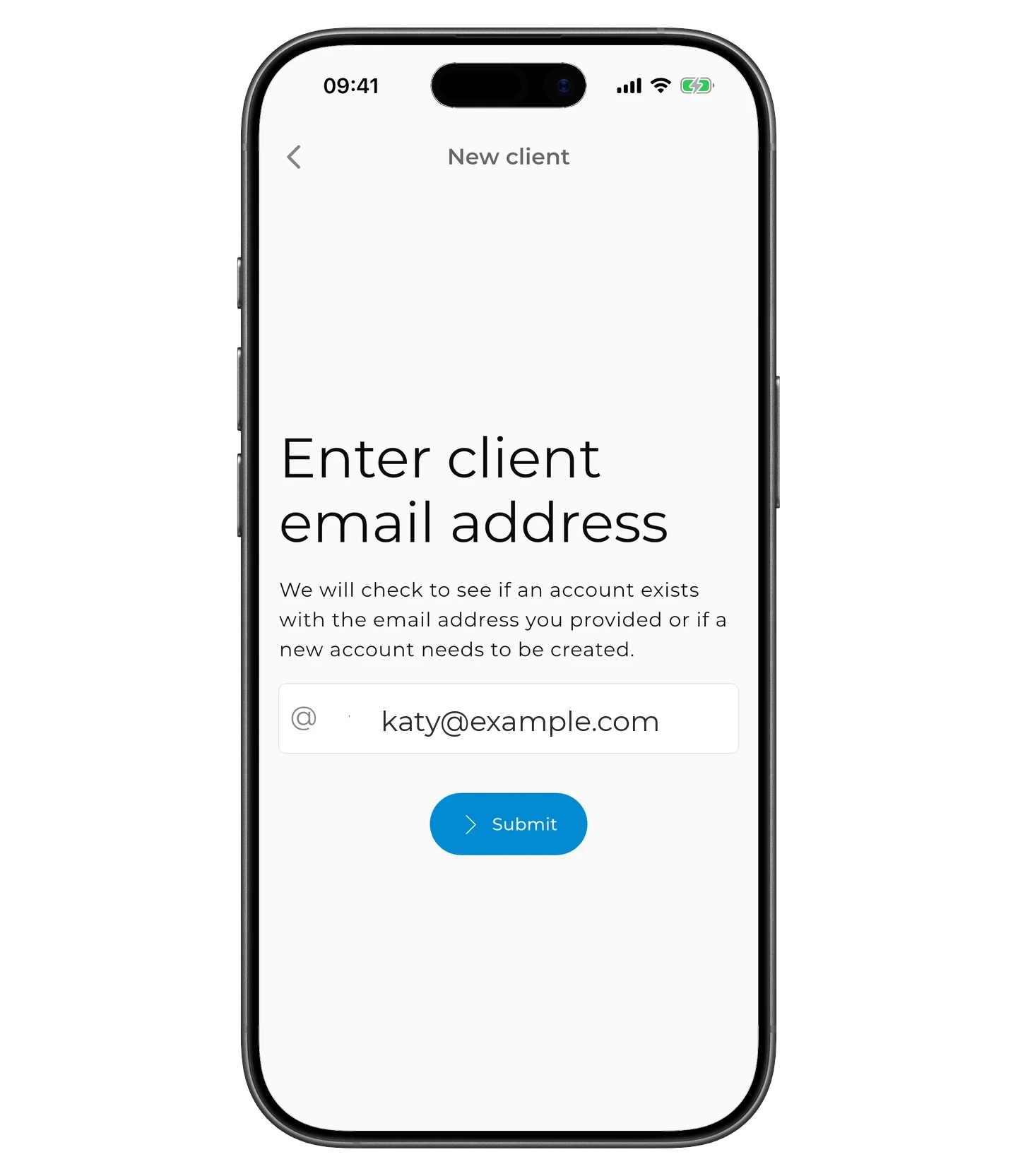
Tap "+ Add New Client", enter the email address the client uses for GetWardrobe, and tap "Submit".
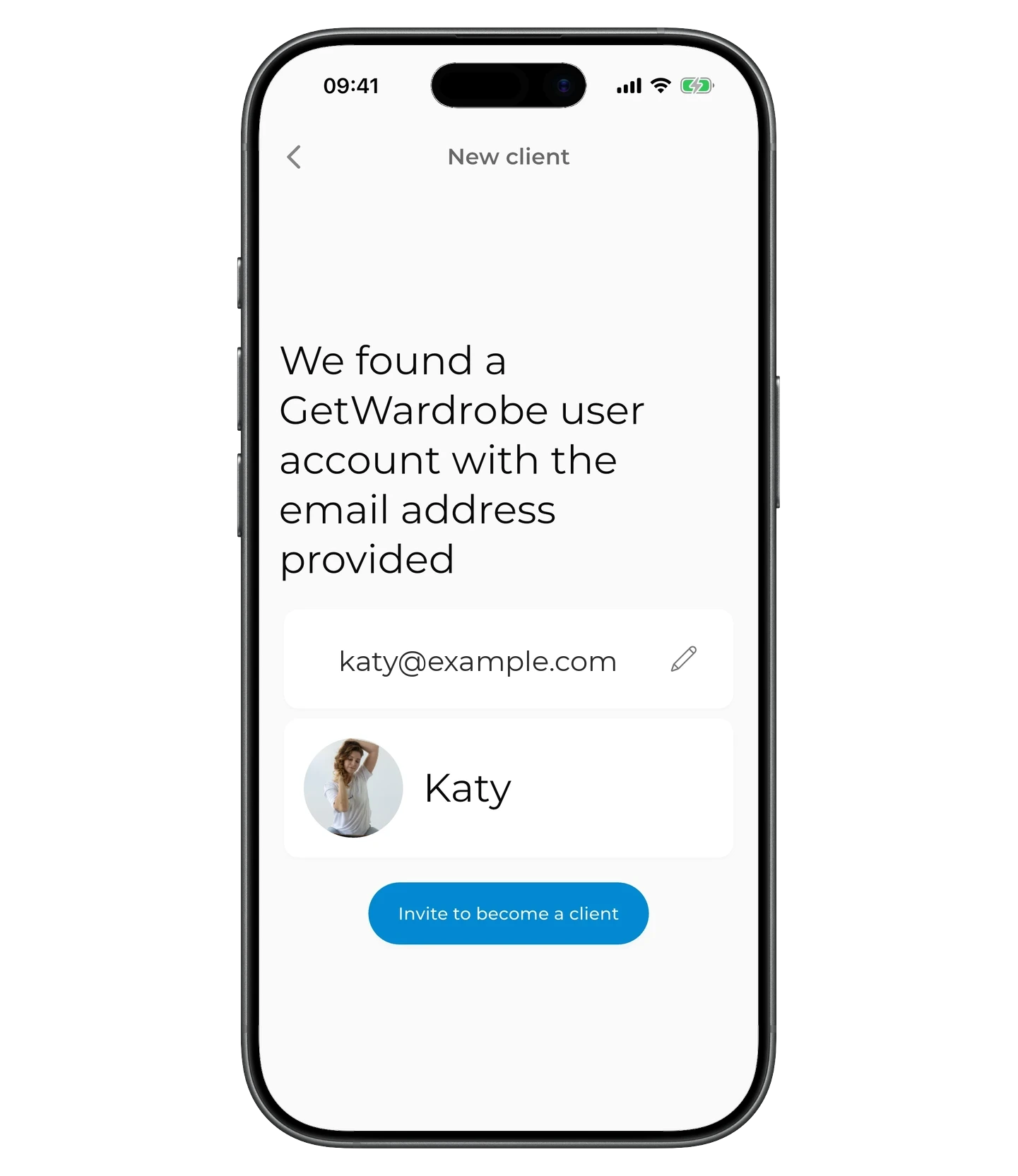
If an account with that email is found, you'll see the client's name and avatar. Check that it's the right person and tap "Invite to become a client".
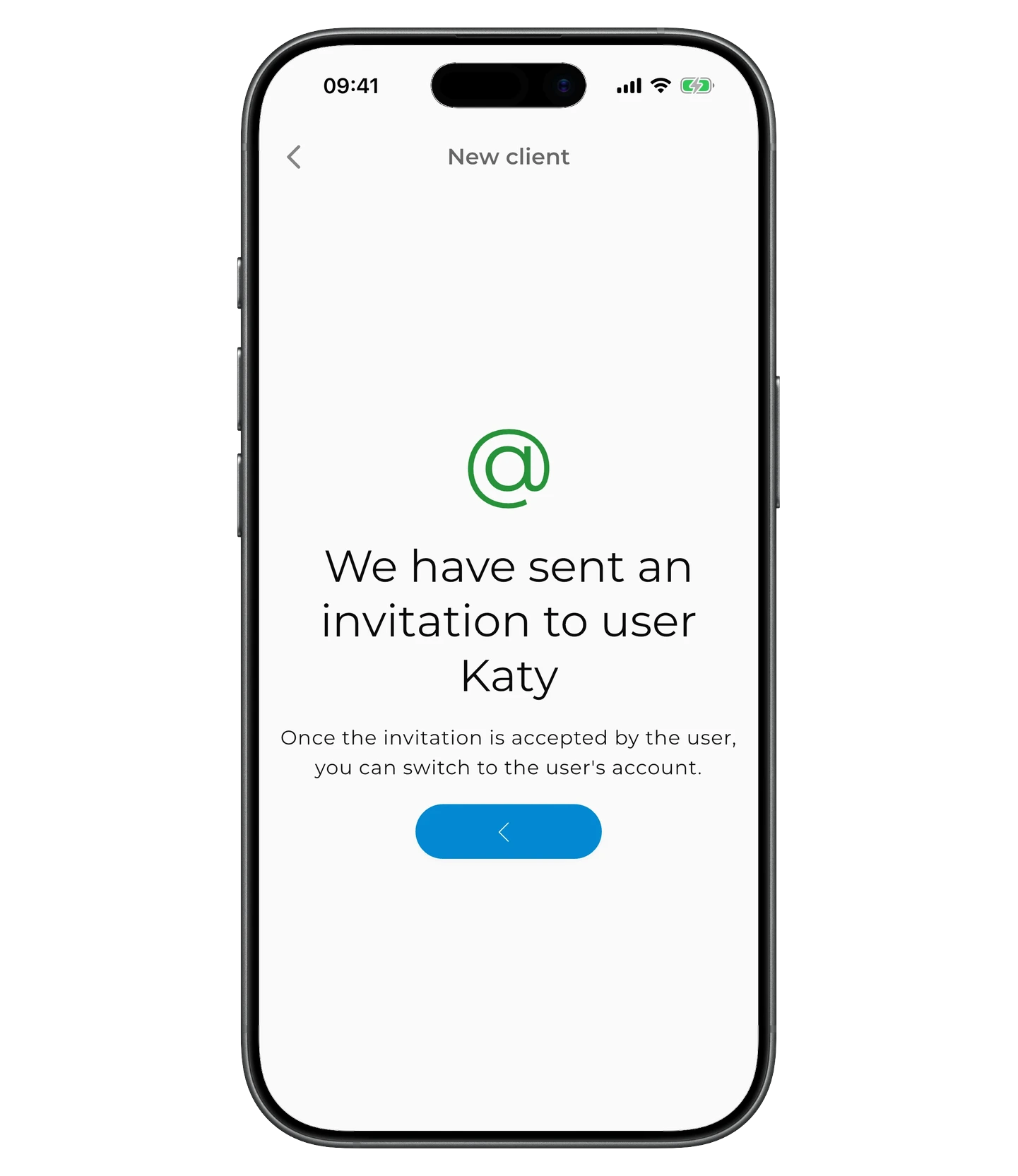
Now the client needs to open GetWardrobe and accept the invitation. It appears on the app's main screen and is also available in Settings → Wardrobe Access.
Until the invitation is accepted, the client's card shows "Invite pending".
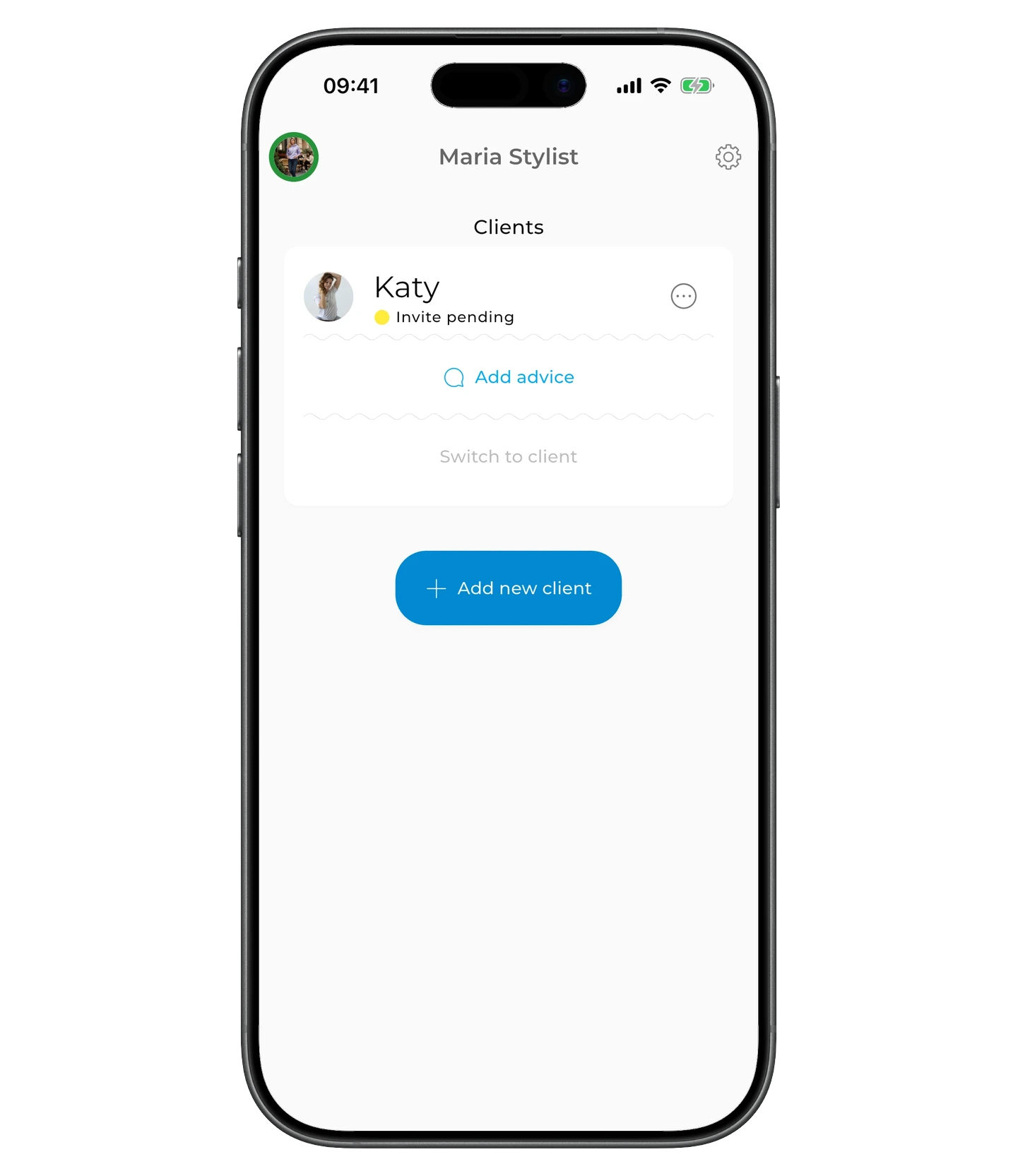
Once the invitation is accepted, the status changes to "Active", and you'll be able to switch to the client's account from the panel and start working with their wardrobe.
The client doesn't have a GetWardrobe account
Tap "+ Add New Client", enter the email the client will use for their GetWardrobe account, and tap "Submit".
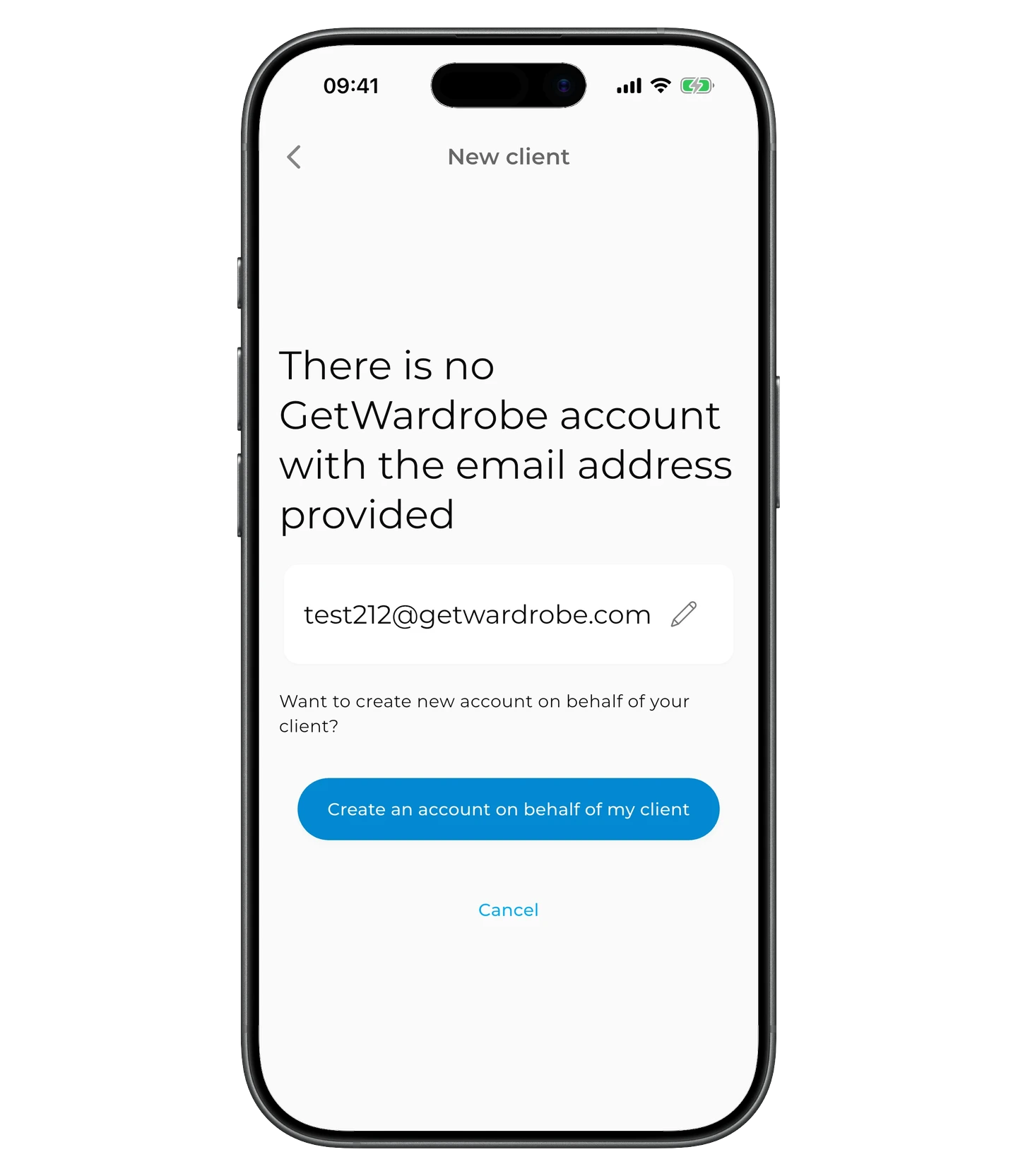
If no account with that email is found, tap "Create an account on behalf of my client".
Creating a client account
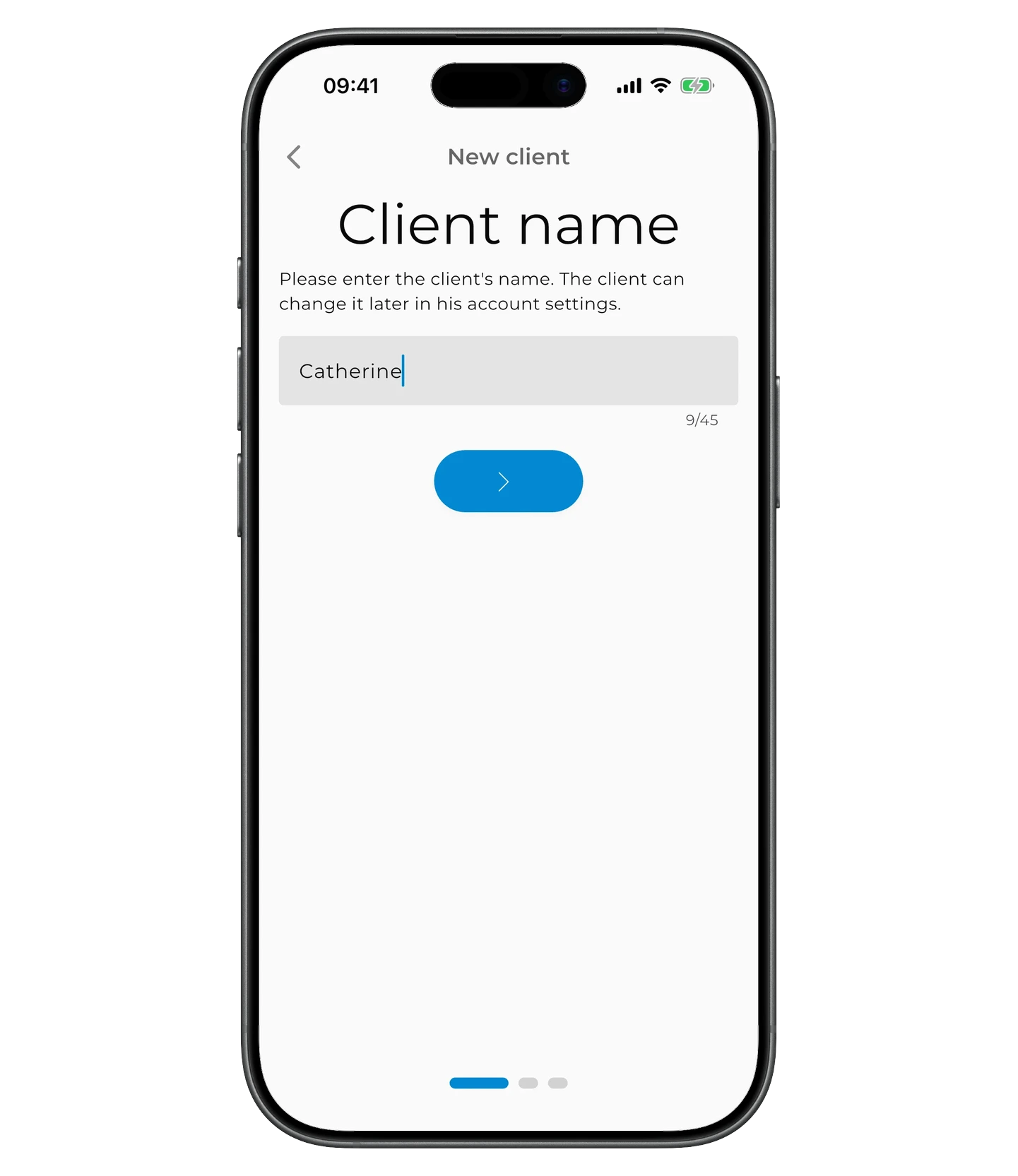
Enter the client's name and gender. The selected gender determines which clothing categories appear in the app.
Review the details and confirm the account creation.
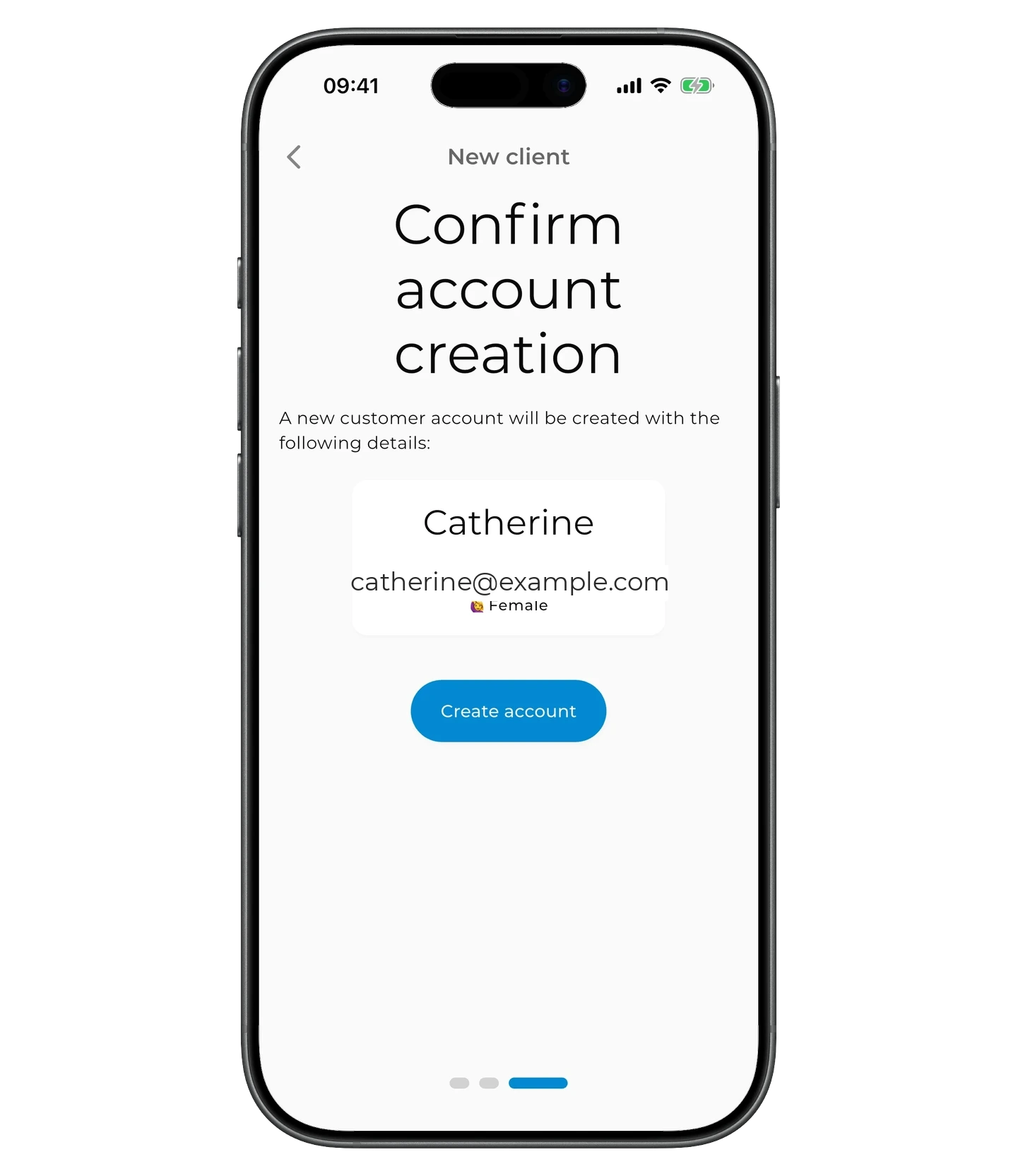
Once the account is created, you can switch to it right away and start building the client's wardrobe — there's no need to wait for the client to activate the account.
The client only needs to activate the account when they're ready to sign in to GetWardrobe and access the wardrobe you've prepared.
Activating the client's account
Once the account is created, an activation link and a one-time activation code appear on the client's card. Send them to the client when they're ready to sign in to GetWardrobe.
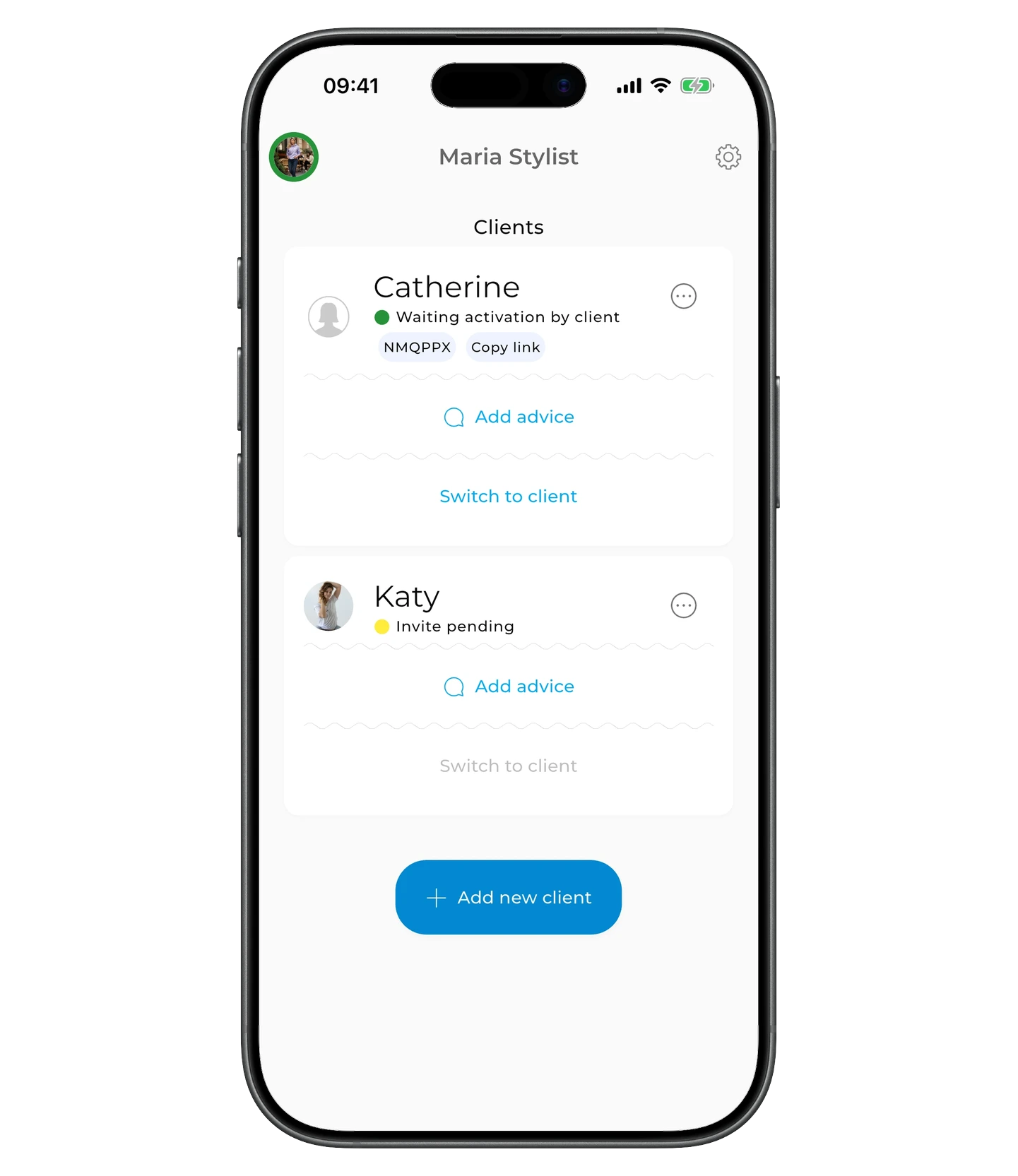
Until the account is activated, the active code remains available on the client card, so you can copy and resend it if needed.
The client can activate the account by following the instructions in Activating an Account with a Stylist Code.
You can check the status on the client's card:
- "Waiting activation by client" — the client hasn't activated the account yet;
- "Active" — activation is complete.
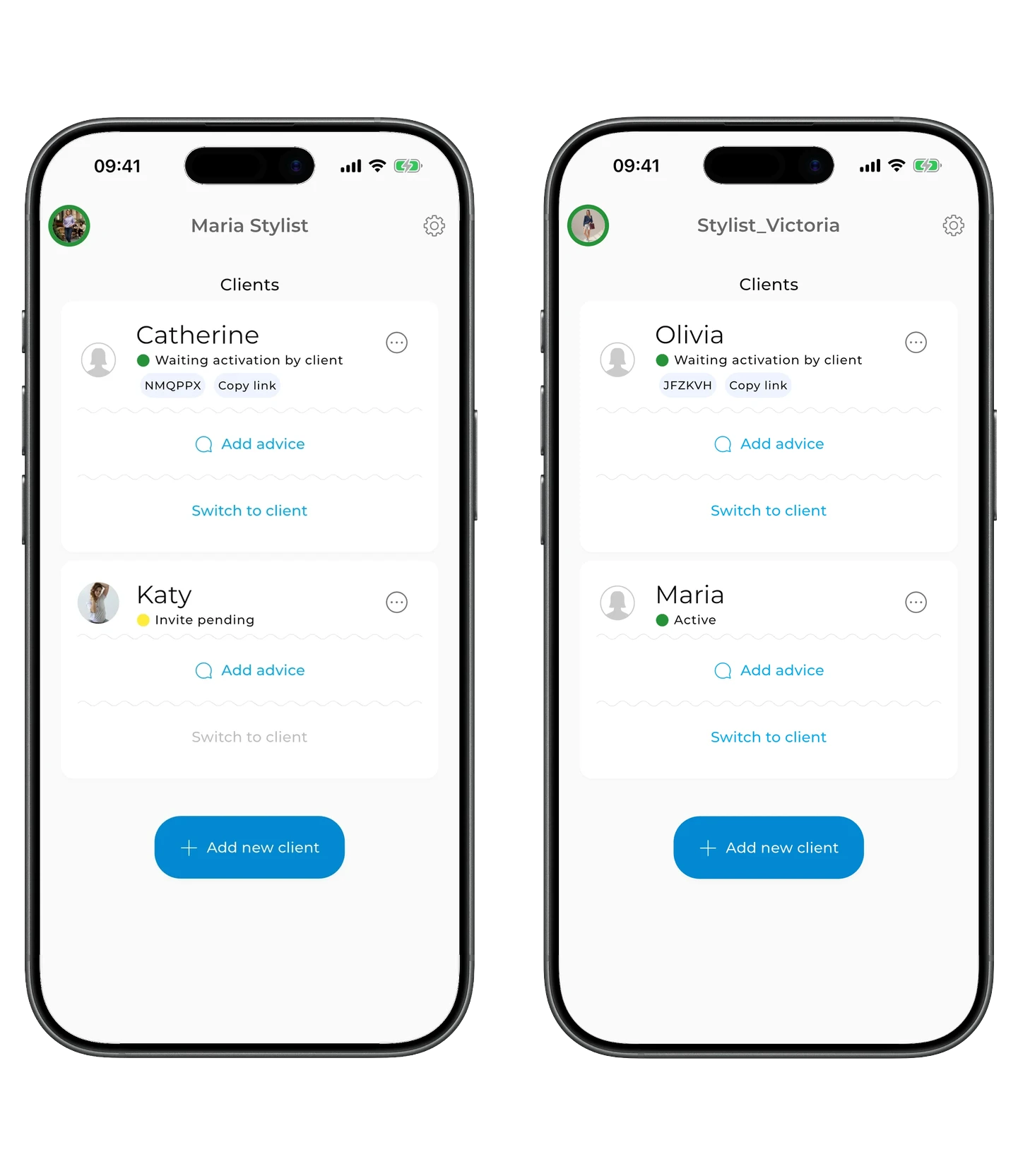
After activation, the client can sign in to their GetWardrobe account. On the main screen, they'll see a welcome card explaining that Premium is available through their stylist and that the stylist's advice will appear here.
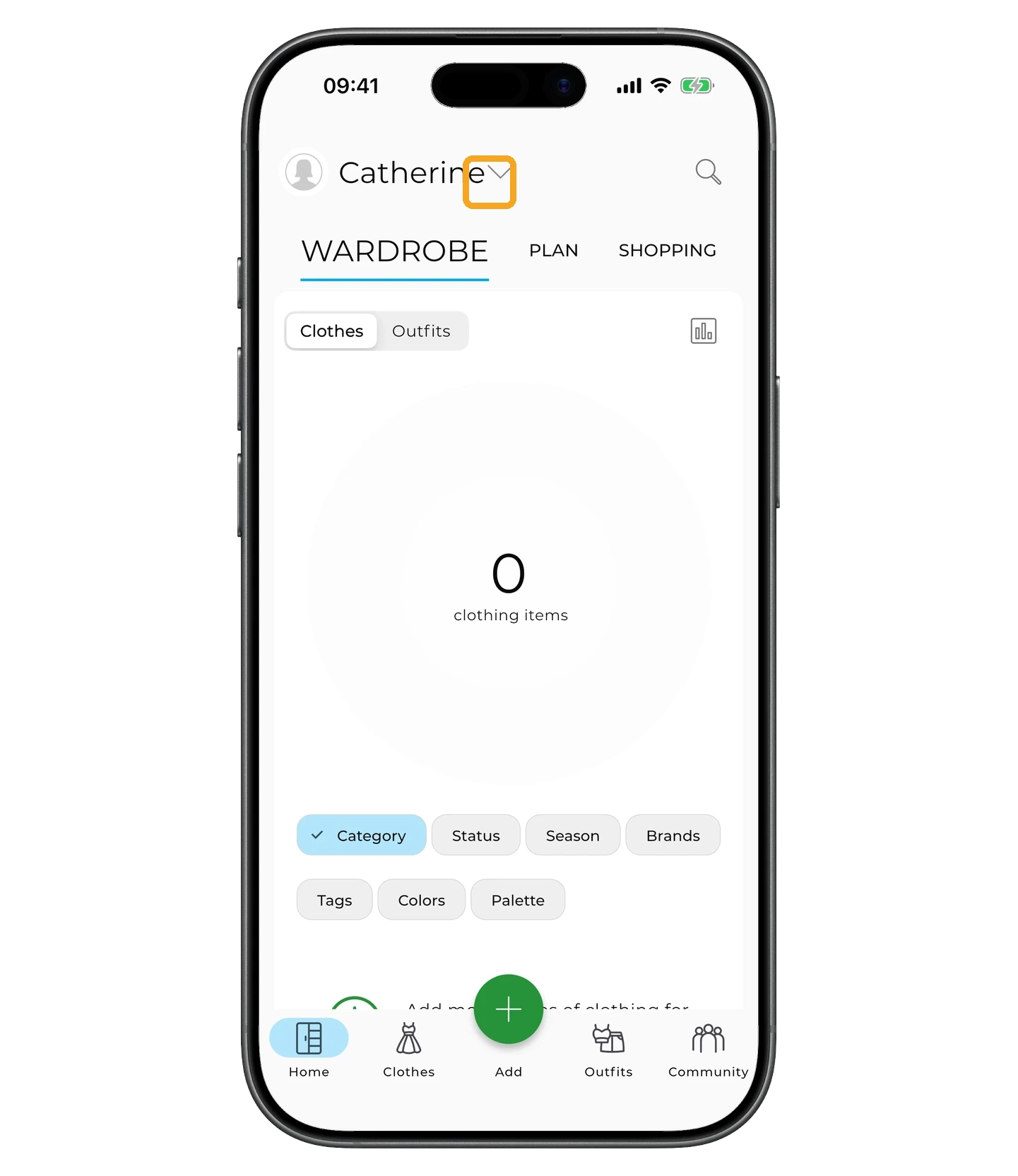
Don't test the code on your own device
The code is meant for the client and can only be used once. If you activate it on your own device to test it, the client won't be able to use the code themselves.
Switching to the client's account
On the client card, tap "Switch to Client".
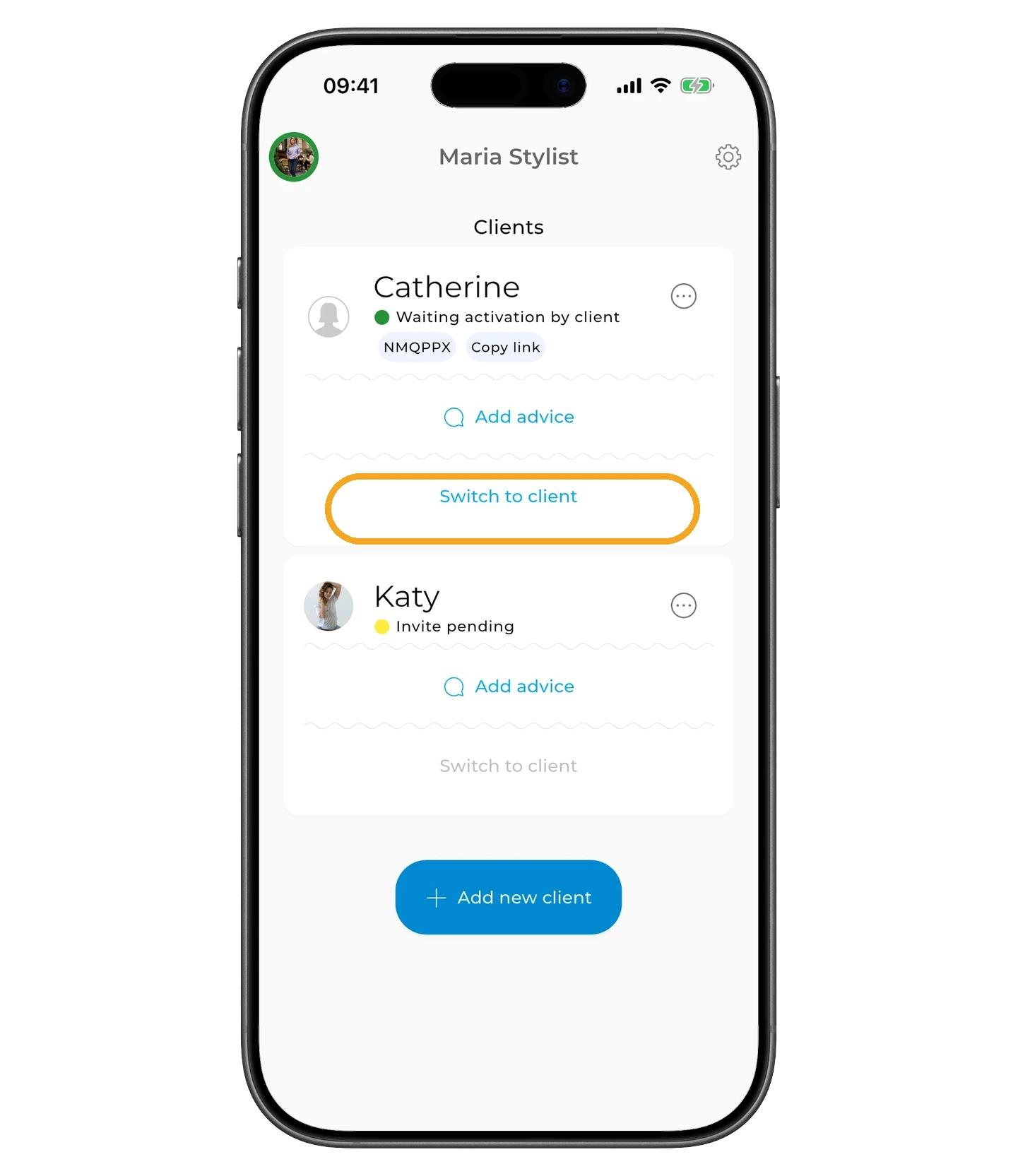
If you created the client's account yourself, you can switch to it right away. If the client already had a GetWardrobe account, the button becomes available once the client accepts the invitation.
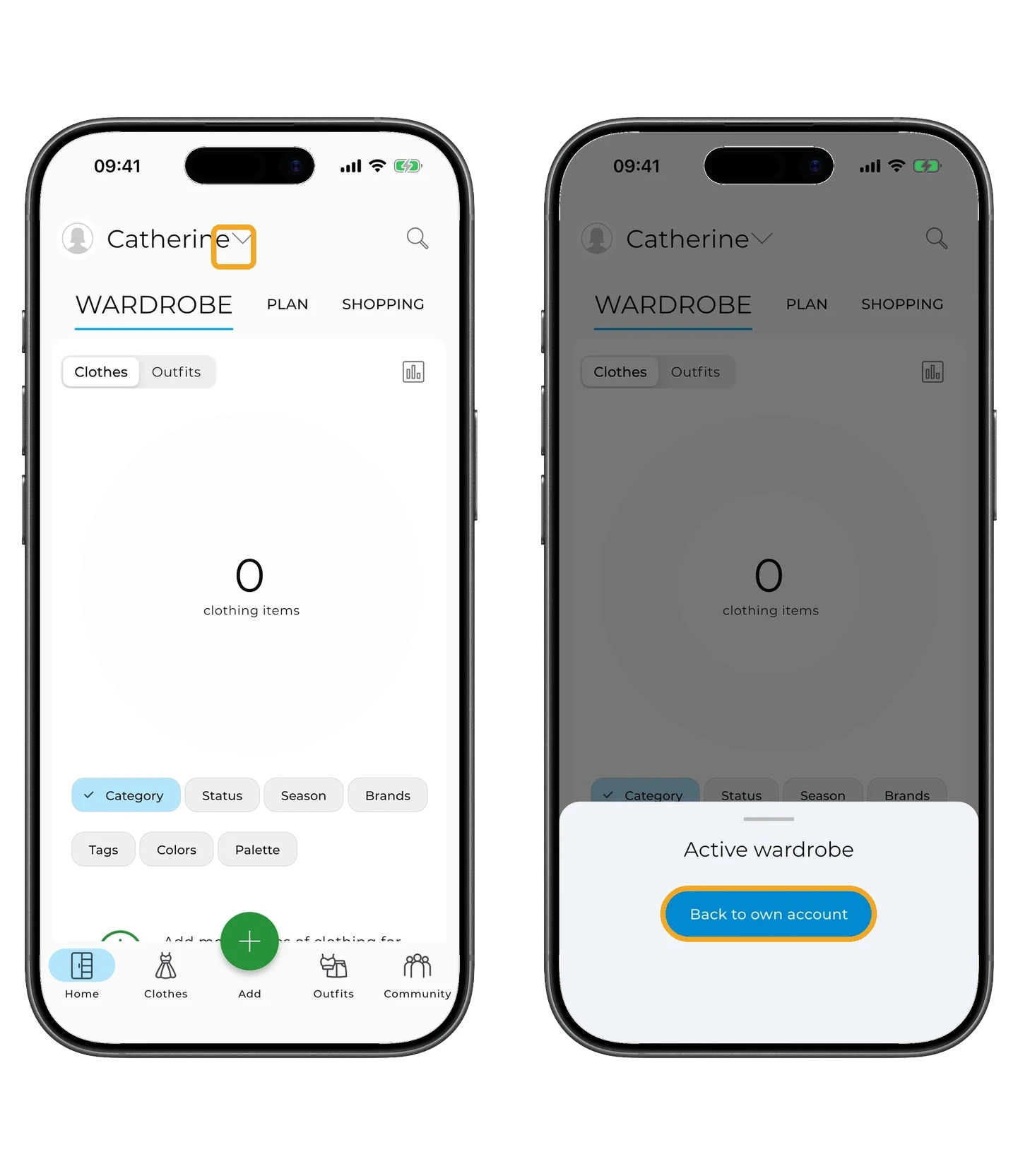
After switching, the client's account opens, where you can work with their wardrobe.
To return to your stylist account, tap the arrow and select "Back to own account".
Leaving advice for a client
On the client card, tap "Add Advice".
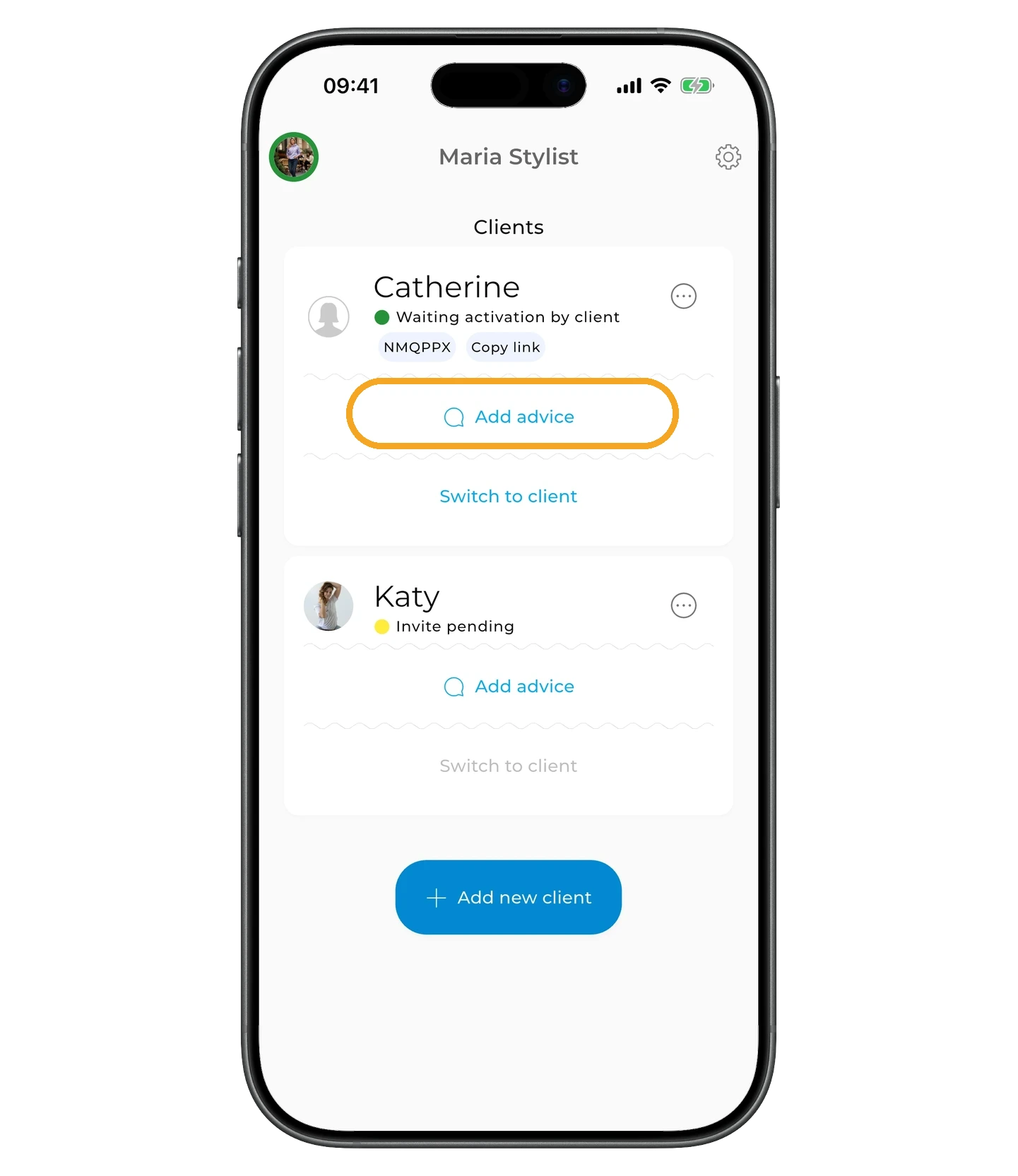
Write your advice and, if needed, add a link — for example, to a PDF, an item, or a store.
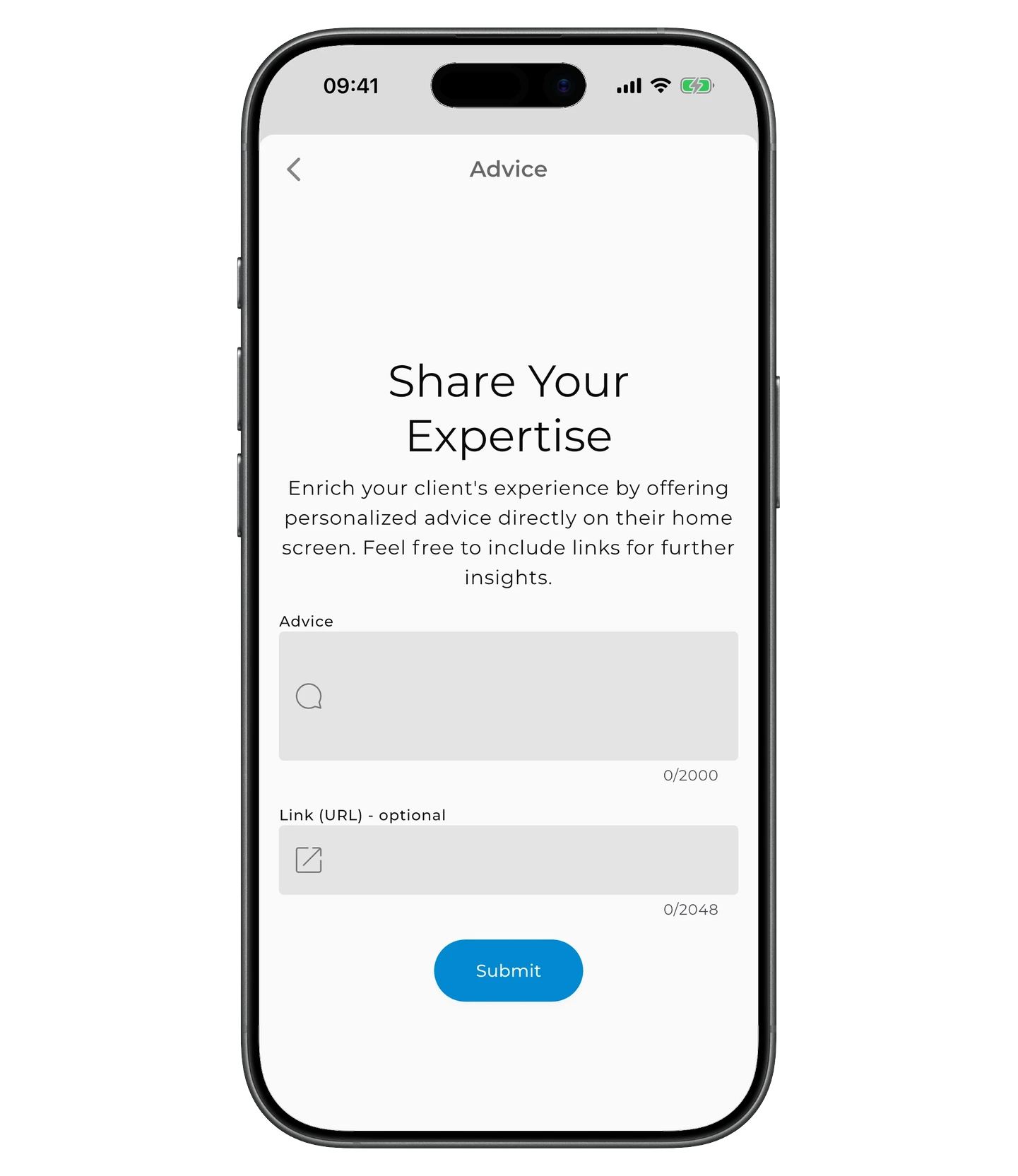
Tap "Submit".
This is what the advice looks like from the client's side. On their main screen, an "Advice from [stylist name]" card appears with the beginning of the latest advice.
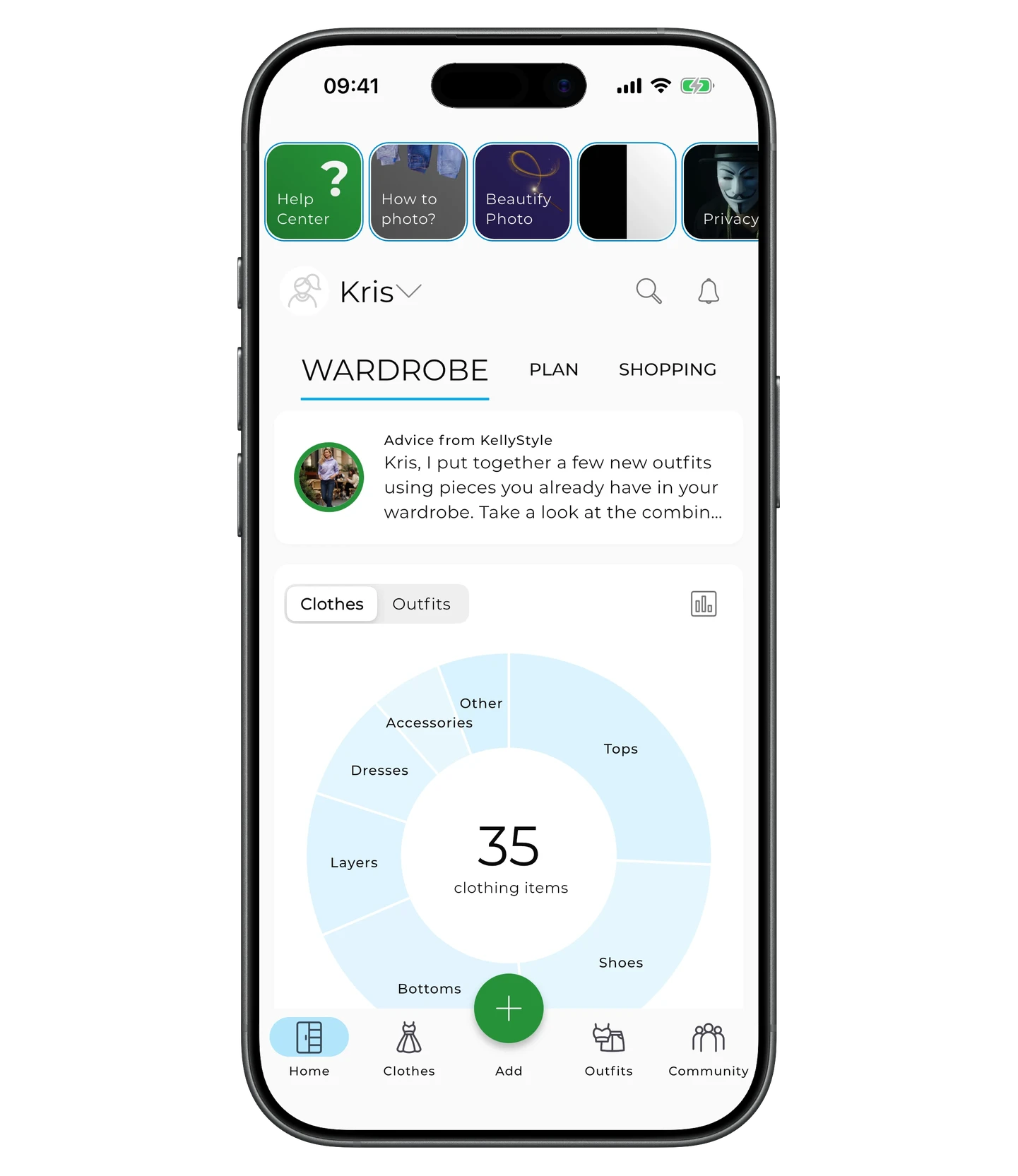
Tap the advice card to see all the advice you've sent to this client.
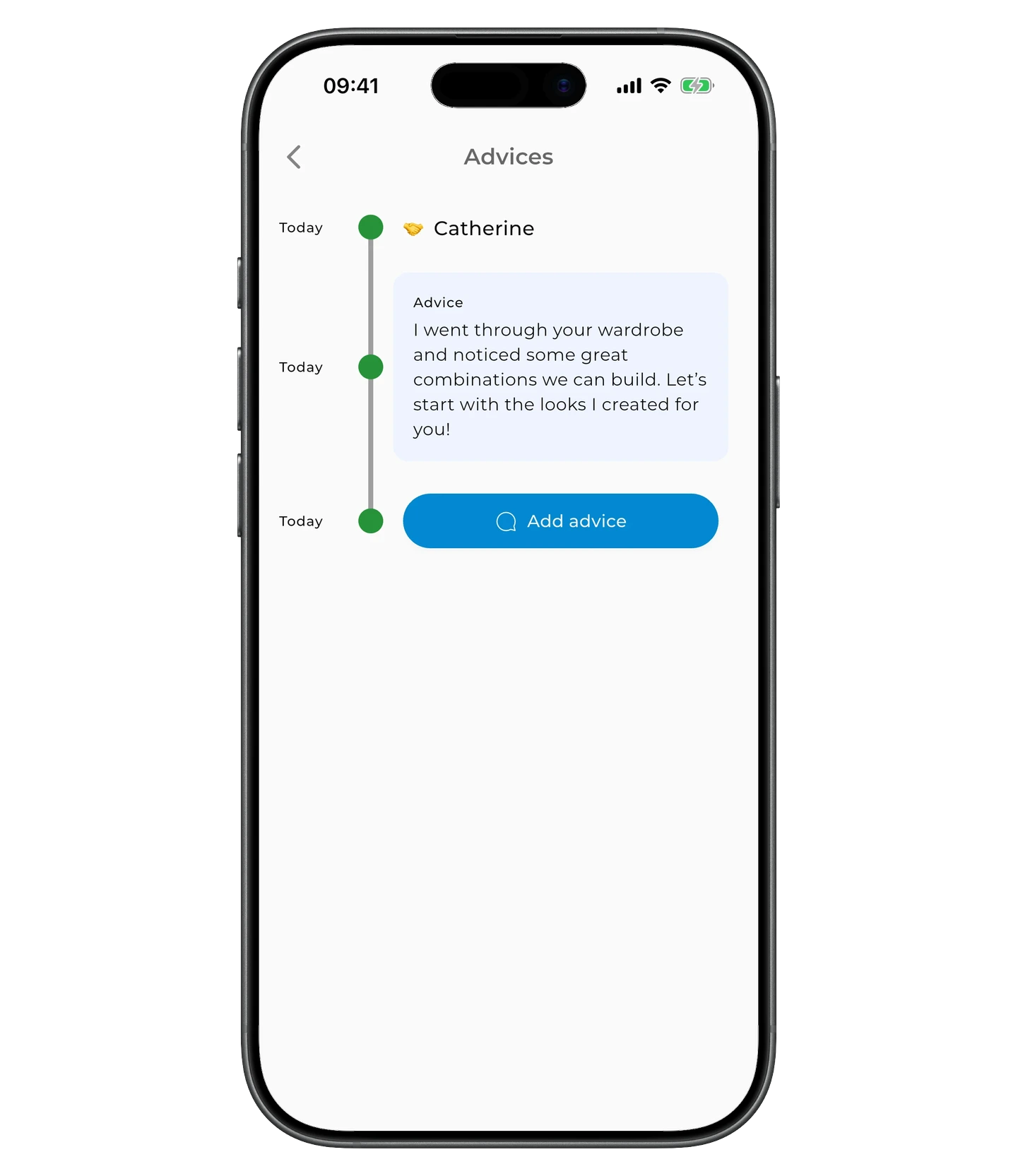
The client doesn't receive a separate notification when you add new advice.
Finishing work with a client
When your work with a client is done, you can remove them from the client panel.
The client's account and wardrobe are not deleted.
For more on what happens to Premium after disconnection and how to reconnect a client later, see GetWardrobe Pro: Subscription for Stylists.
Switching to user mode
To switch back to user mode, tap the gear icon in the top-right corner of the client panel, scroll down, and tap "Switch to user mode".
FAQ
What if the client doesn't see the invitation?
Ask the client to open GetWardrobe and check for the invitation on the main screen or in Settings → Wardrobe Access.
Can I start working before the client activates their account?
Yes. If you created the account on the client's behalf, you can switch to it right away and start adding items and building outfits. The client only needs to activate the account to sign in to their own GetWardrobe account.
Need help?
Get in touch at support@getwardrobe.com