Activate Your GetWardrobe Account with a Code from Your Stylist
If your stylist created a GetWardrobe account for you, you don't need to sign up yourself. To activate your account, just enter the code your stylist sends you.
Open GetWardrobe, enter the code, and create a password — it only takes a couple of minutes.
Important
The activation code can only be used once. Don't share it with anyone or use it on someone else's device. If you're a stylist, don't enter a client's code on your own phone — once the account is activated, the code will no longer work.
How to activate your account
Install GetWardrobe from the App Store or Google Play — or open the web version — and launch the app.
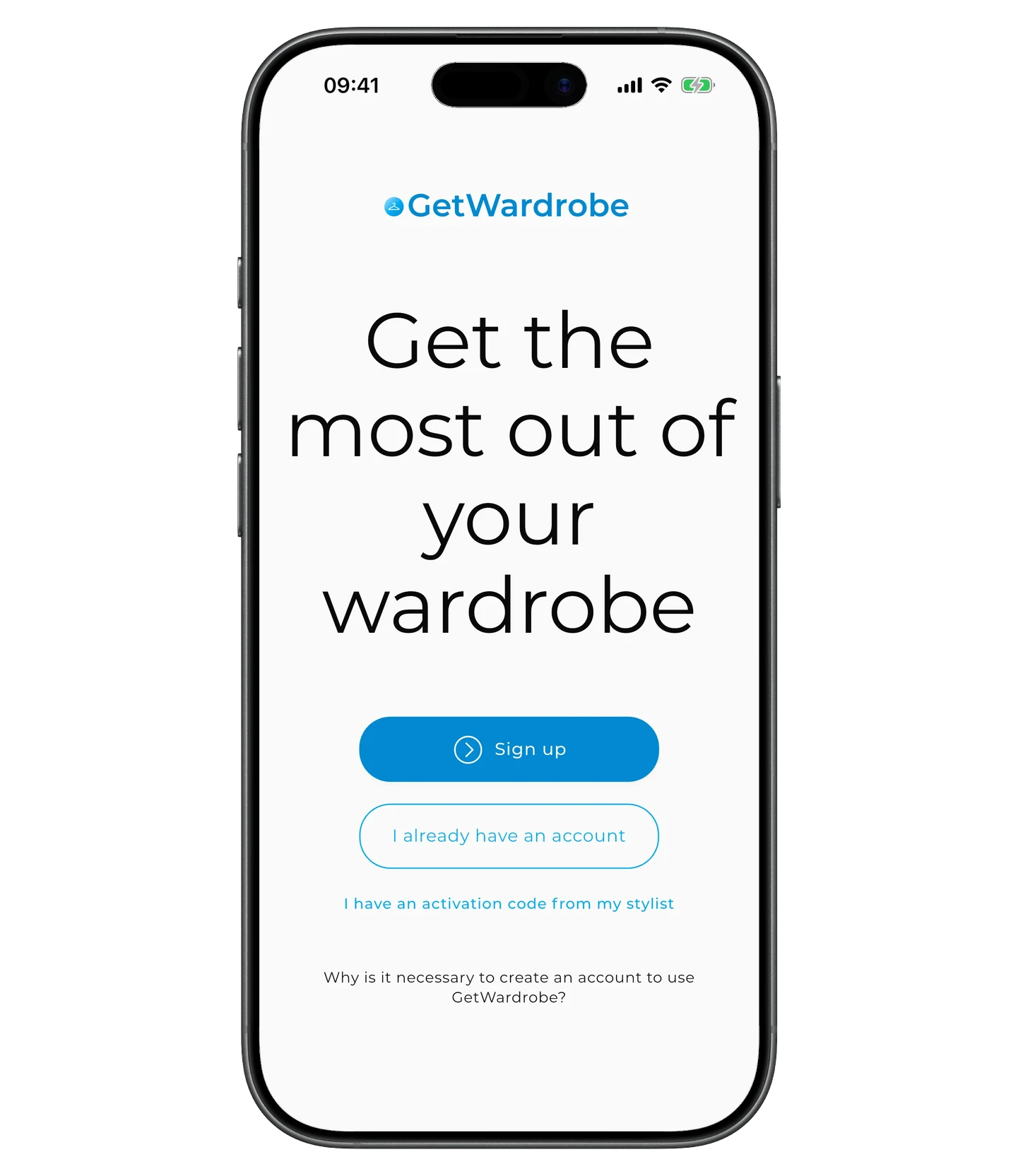
On the welcome screen, tap "I have an activation code from my stylist".
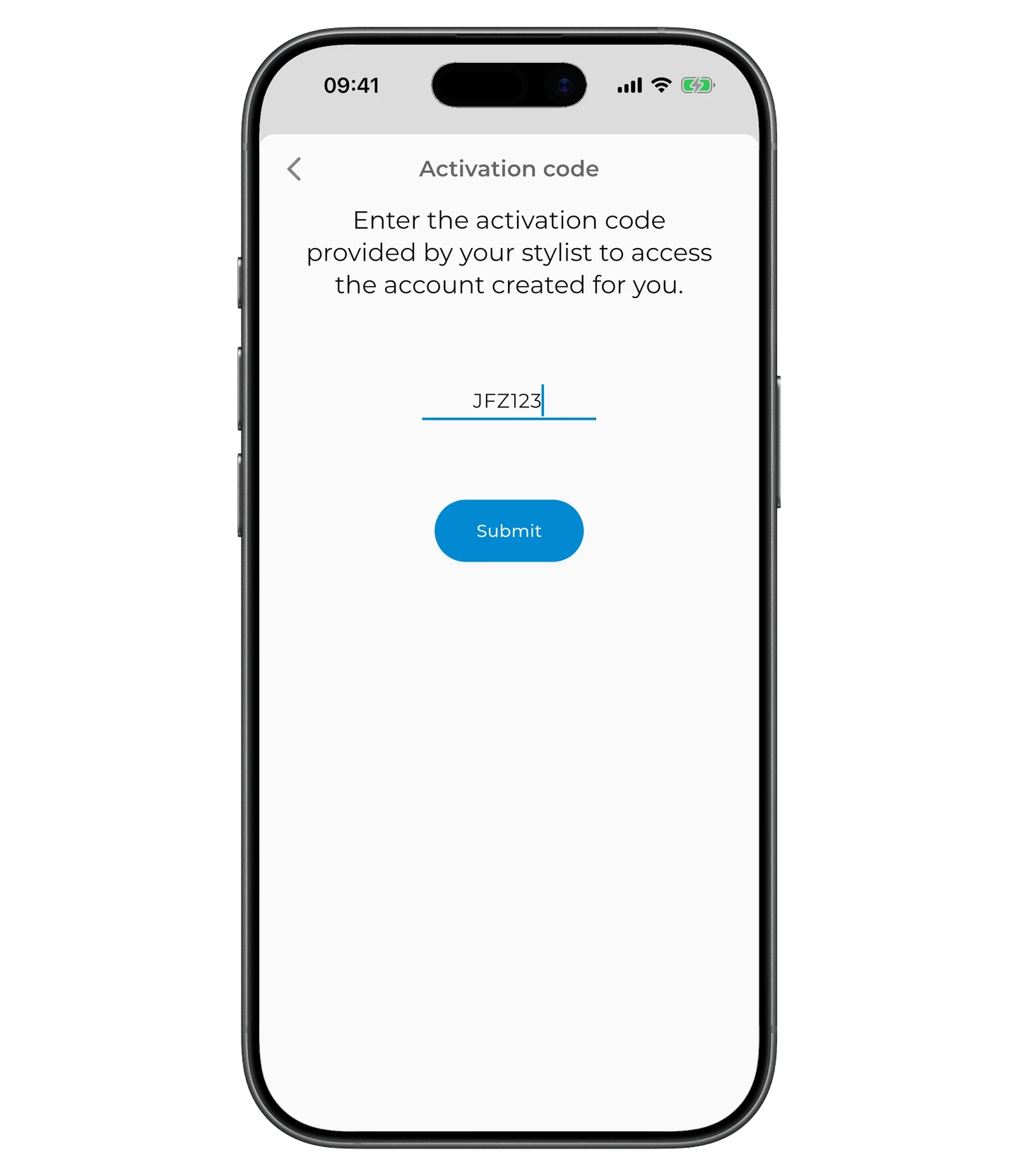
Enter the code your stylist sent and tap "Submit". If you're pasting it from a message, make sure no extra spaces or characters are included.
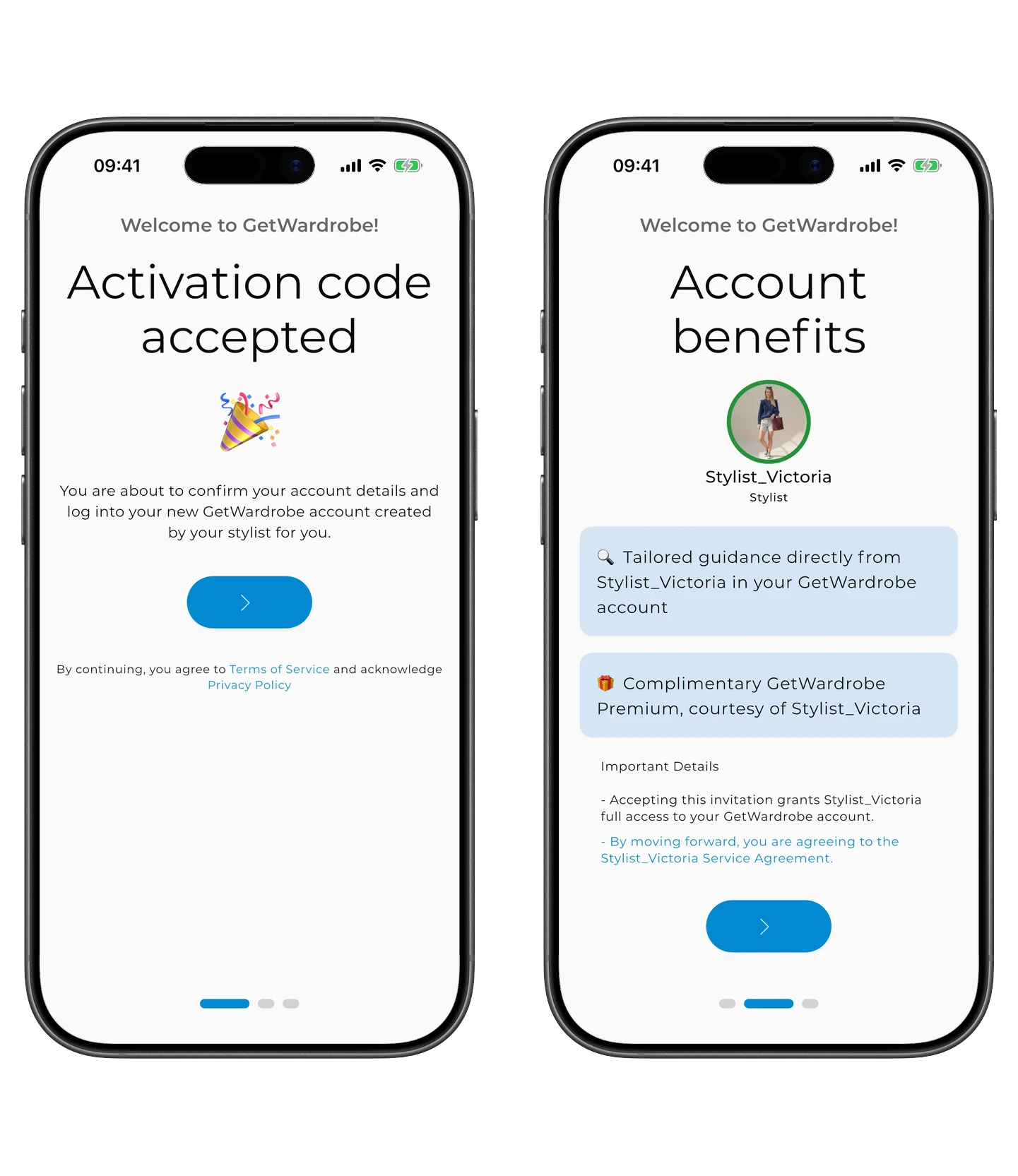
After activation, you'll see a personalized invitation from your stylist. As part of your stylist's service, you also get access to GetWardrobe Premium, including an unlimited wardrobe and all Premium features.
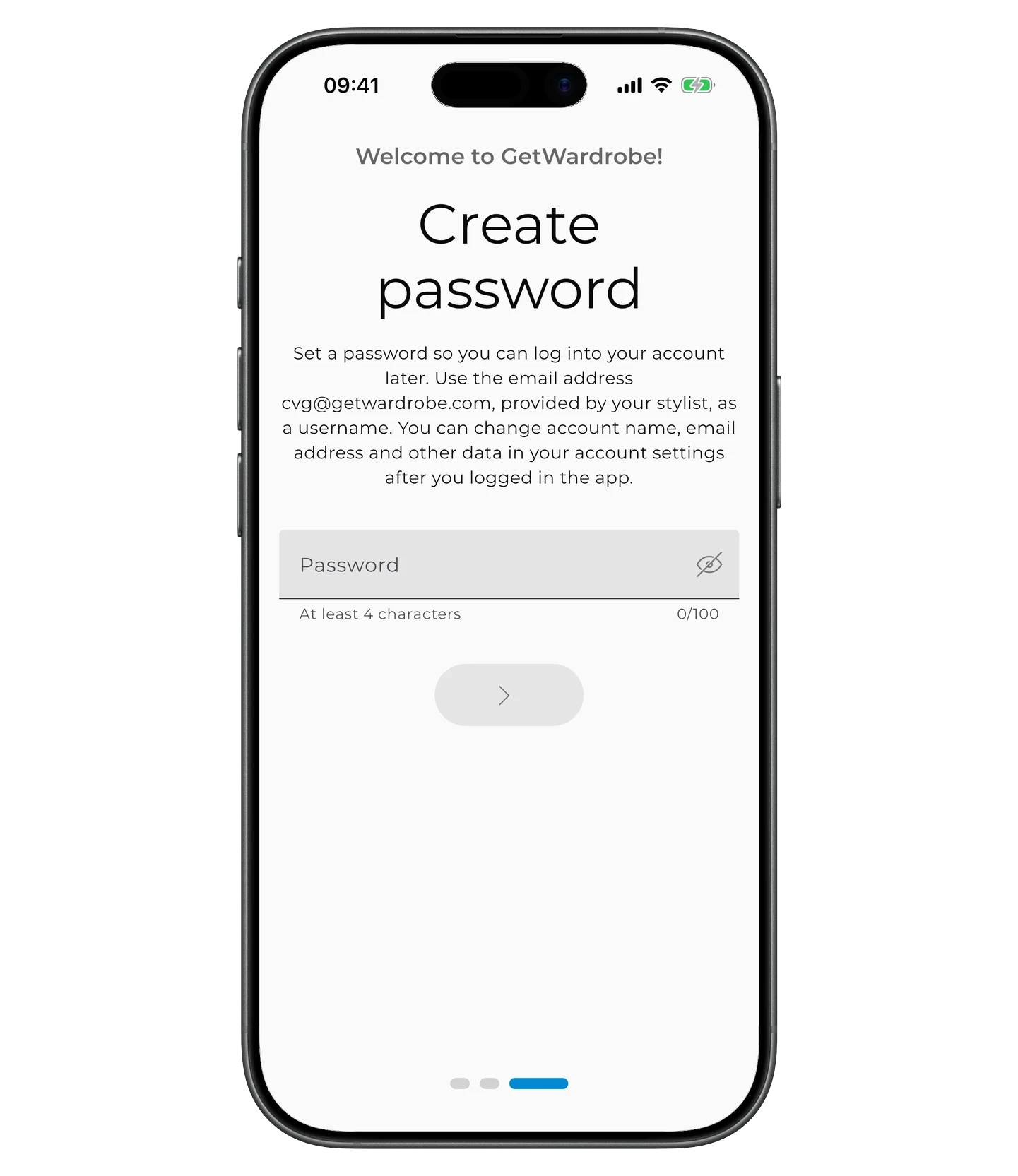
Create a password for your account.
That's it — you're signed in to the account your stylist prepared for you.
Your account may already include items, outfits, and recommendations, depending on what your stylist prepared in advance.
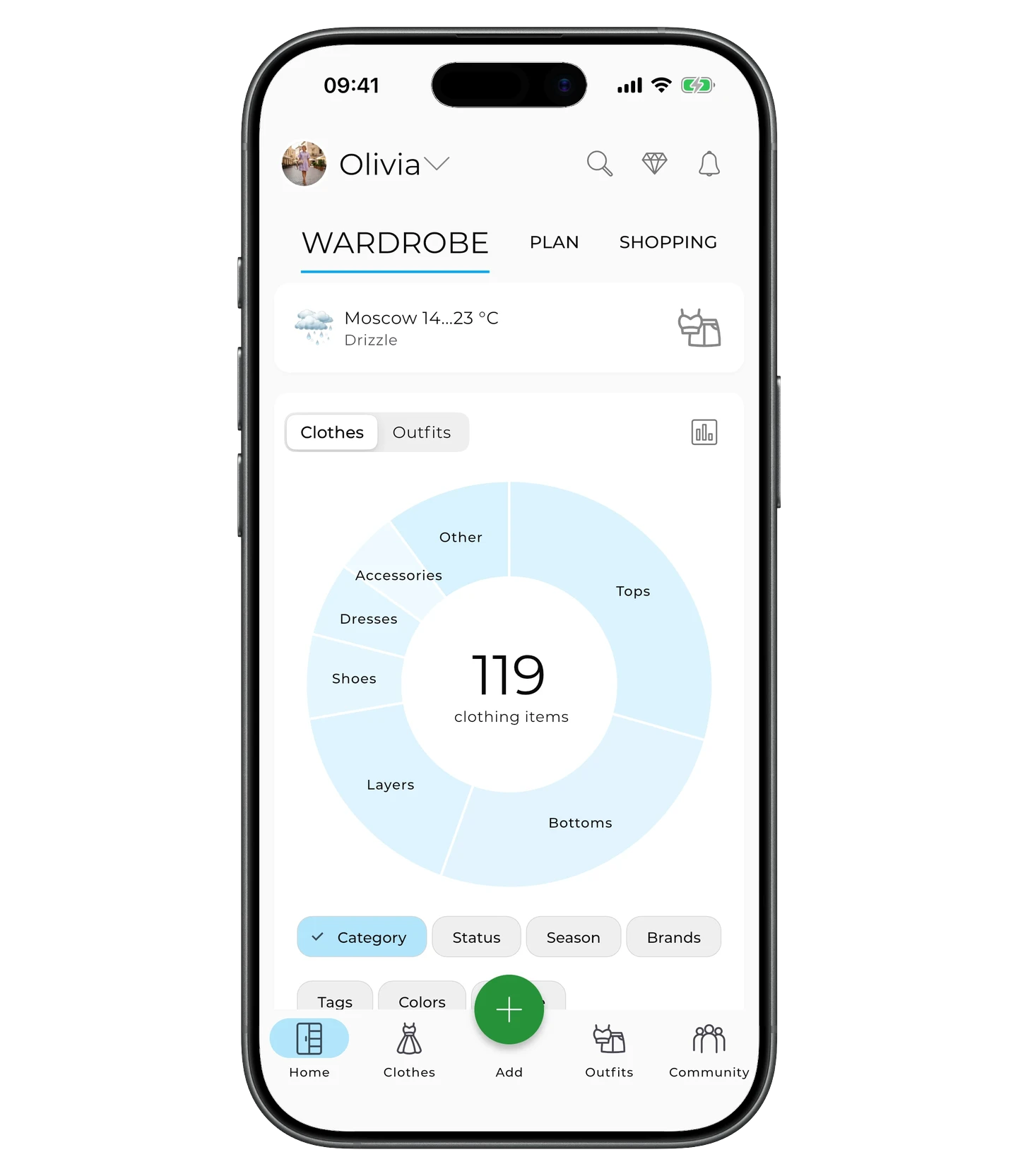
How to sign in after activation
After activation, you no longer need the code. To sign in to GetWardrobe, use the email address your stylist used to create your account and the password you set during activation.
You can use the same login details on other devices. If needed, you can change the email later in your account settings.
If the code doesn't work
If you see a "Code not found" error, check the code and try entering it again. If you're copying the code from a message, make sure no extra spaces or characters were pasted with it.
If the code is entered correctly but still doesn't work, the account may already be activated. In that case, you don't need to enter the code again — sign in with the email address your stylist used to create your account and the password you set during activation.
If you can't sign in, contact your stylist or write to us at support@getwardrobe.com. Include the email your stylist used to create your account so we can find it faster.
FAQ
Can I use the same activation code on two devices?
No. The code can only be used once, for the initial activation of your account. After that, you can sign in on any device with your email and password.
I activated my account but can't sign in. What should I do?
Don't enter the code again. On the welcome screen, select "Log in" and sign in with your email and password. If the password doesn't work, reset it. If you still can't sign in, write to us at support@getwardrobe.com.
What does my stylist see before and after activation?
Before you activate your account, your stylist sees the status "Waiting activation by client". Once activation is complete, the status changes to "Active".
Need help?
Contact us at support@getwardrobe.com