App Settings
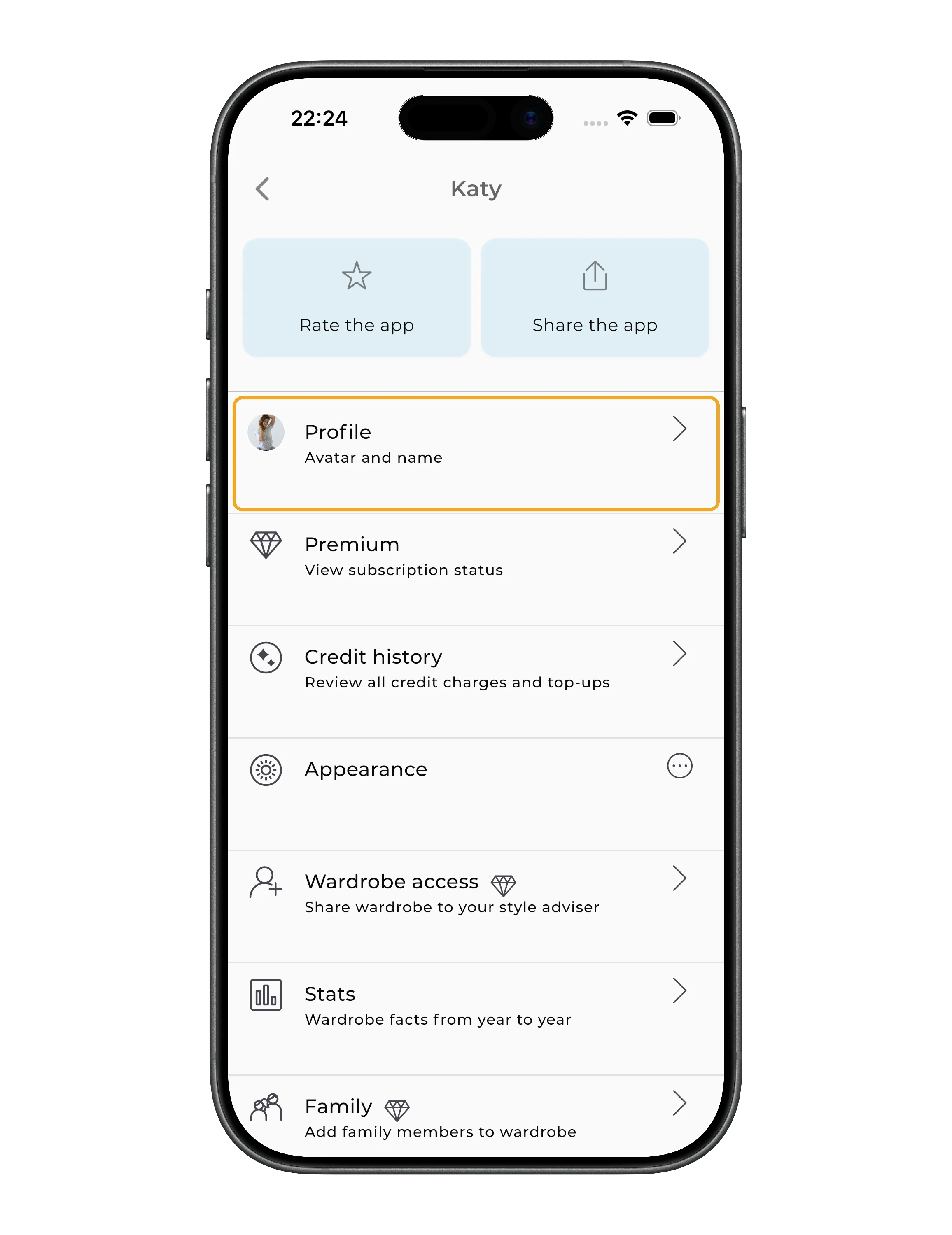
In GetWardrobe settings, you can edit your profile and appearance, manage your subscription and credits, set your language and city, and adjust notifications, wardrobe access, and other preferences.
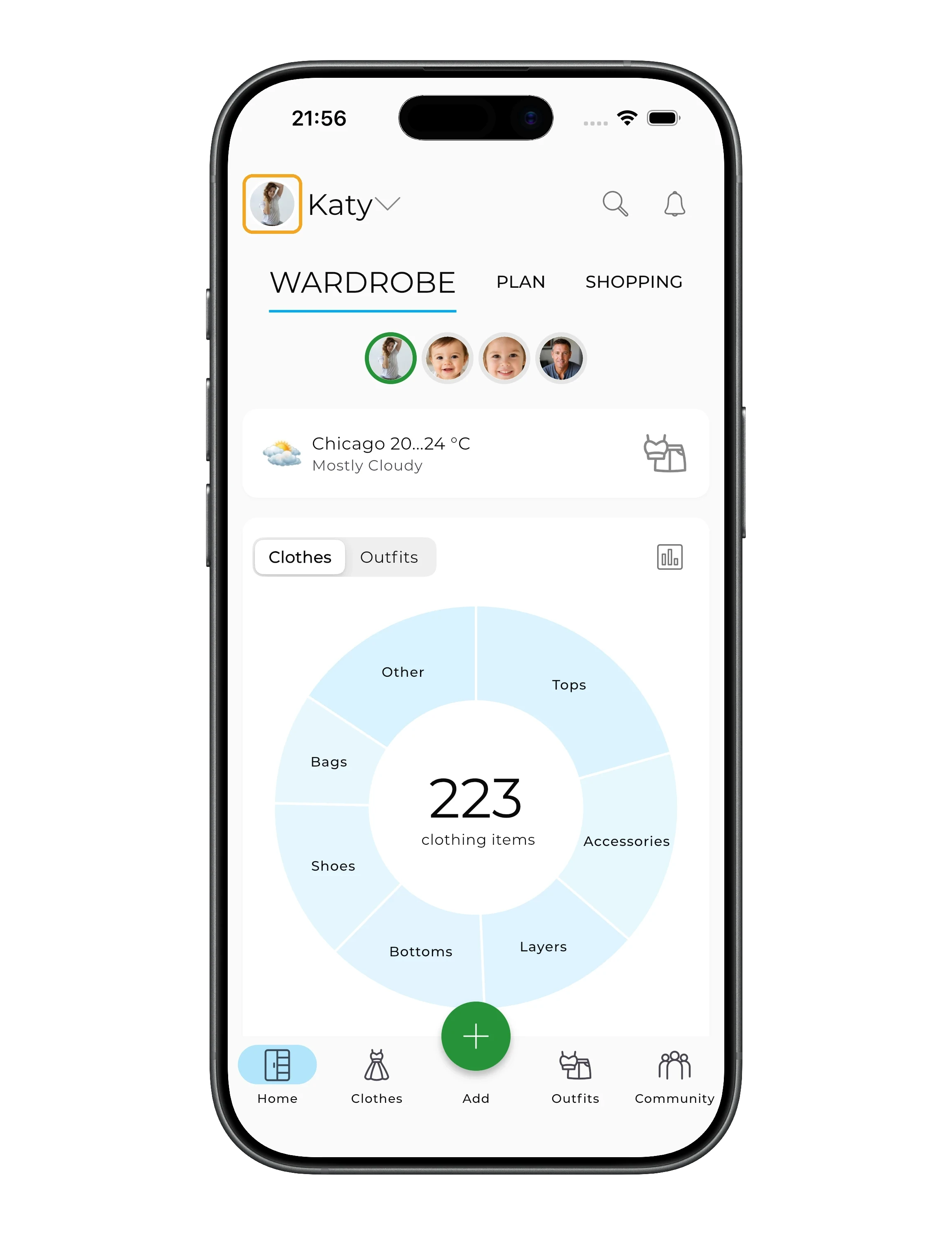
To open settings, tap your avatar in the upper-left corner of the main screen.
In this guide:
- Profile
- Premium
- Credit history
- Appearance
- Wardrobe access
- Statistics
- Family
- Language
- City
- Notifications
- Privacy & Data
- Password
- Gender style
- Currency
- Units
- Filter by body weight
- Sync with getwardrobe.com
- Help and feedback
- Stylist mode
- Account and data archive
Profile
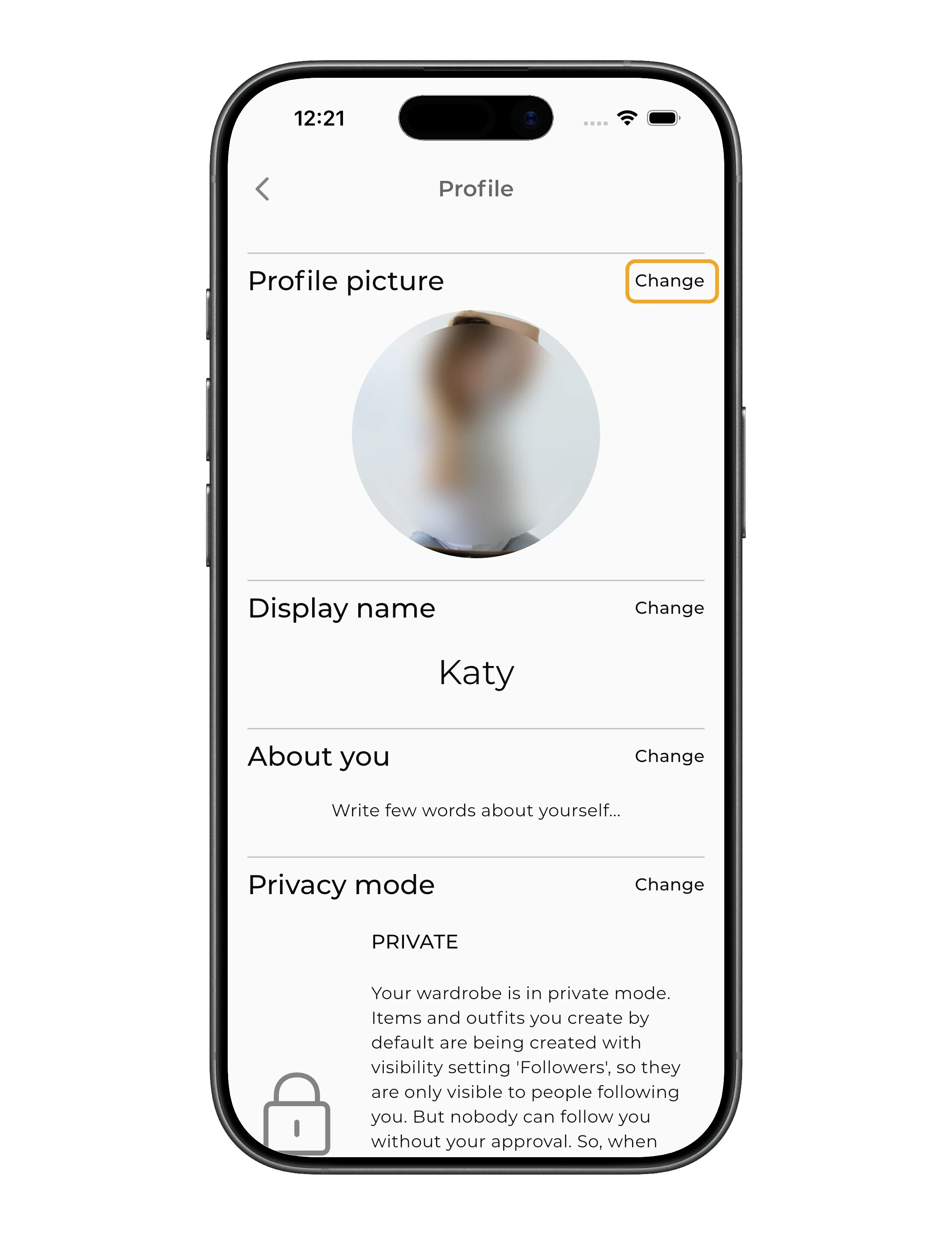
In the Profile section, you can change your name and profile photo, add information about yourself, and set your account privacy.
Profile photo
Tap "Change" next to the profile photo.
In the "Add photo" menu, you can:
- take a new photo ("Take a photo");
- choose from your photo gallery ("Choose from gallery");
- choose from files ("Choose from files").
Name and about you
You can change your name in the display name field.
In the "About you" field, you can add a short bio that other users will see, such as a link to your Instagram or TikTok.
Profile privacy
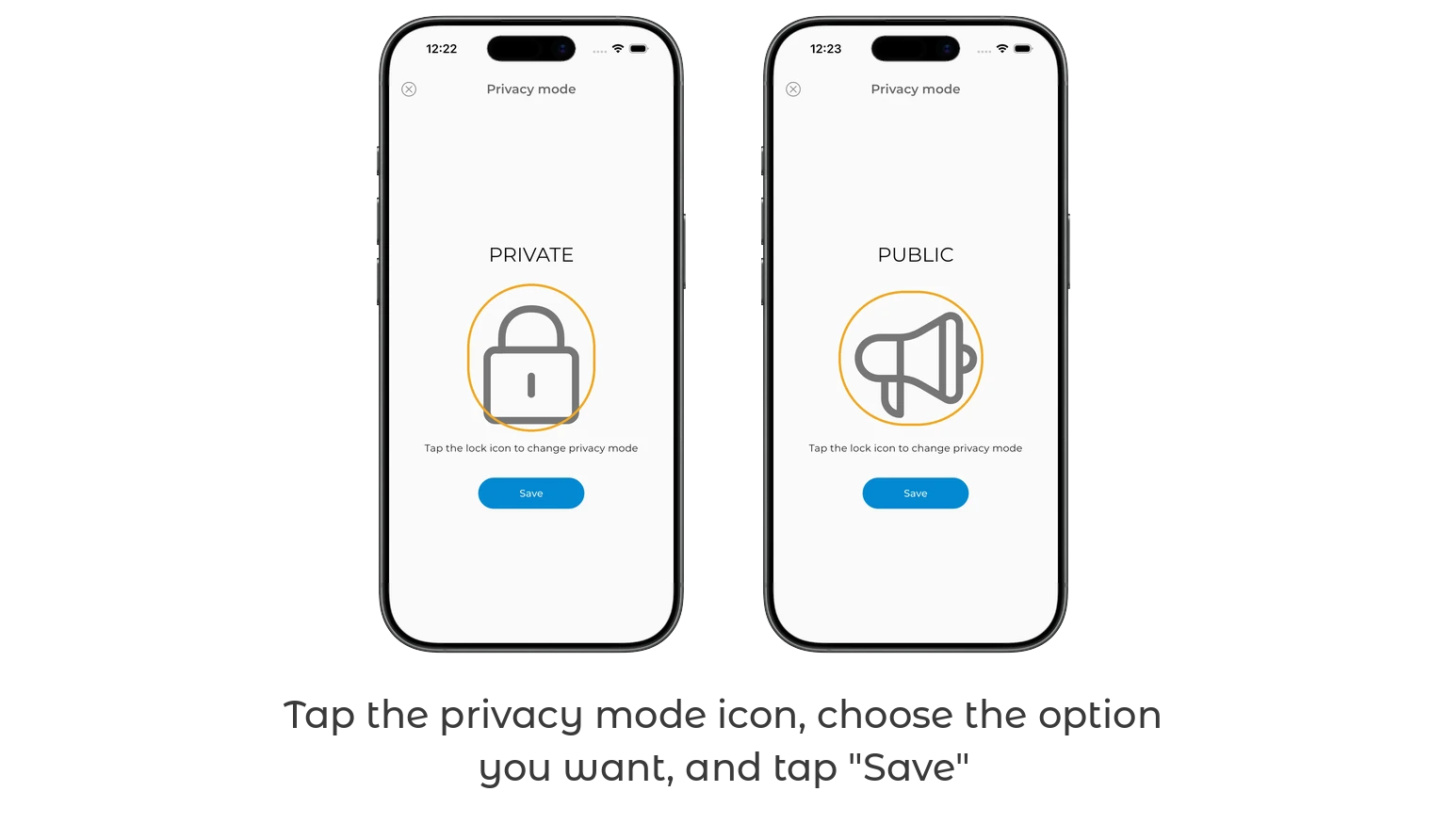
Here you can choose who can see your published outfits in the Feed and follow you.
In private mode, only approved followers see your outfits in the Feed. In public mode, other users can see your outfits in the Feed and follow you without additional approval.
Your wardrobe itself stays private in either privacy mode. Other users cannot open and browse all your items.
Other users can see an item only when it appears in an outfit published in the Feed, and only if the item's visibility is set to "Everyone" or "Followers".
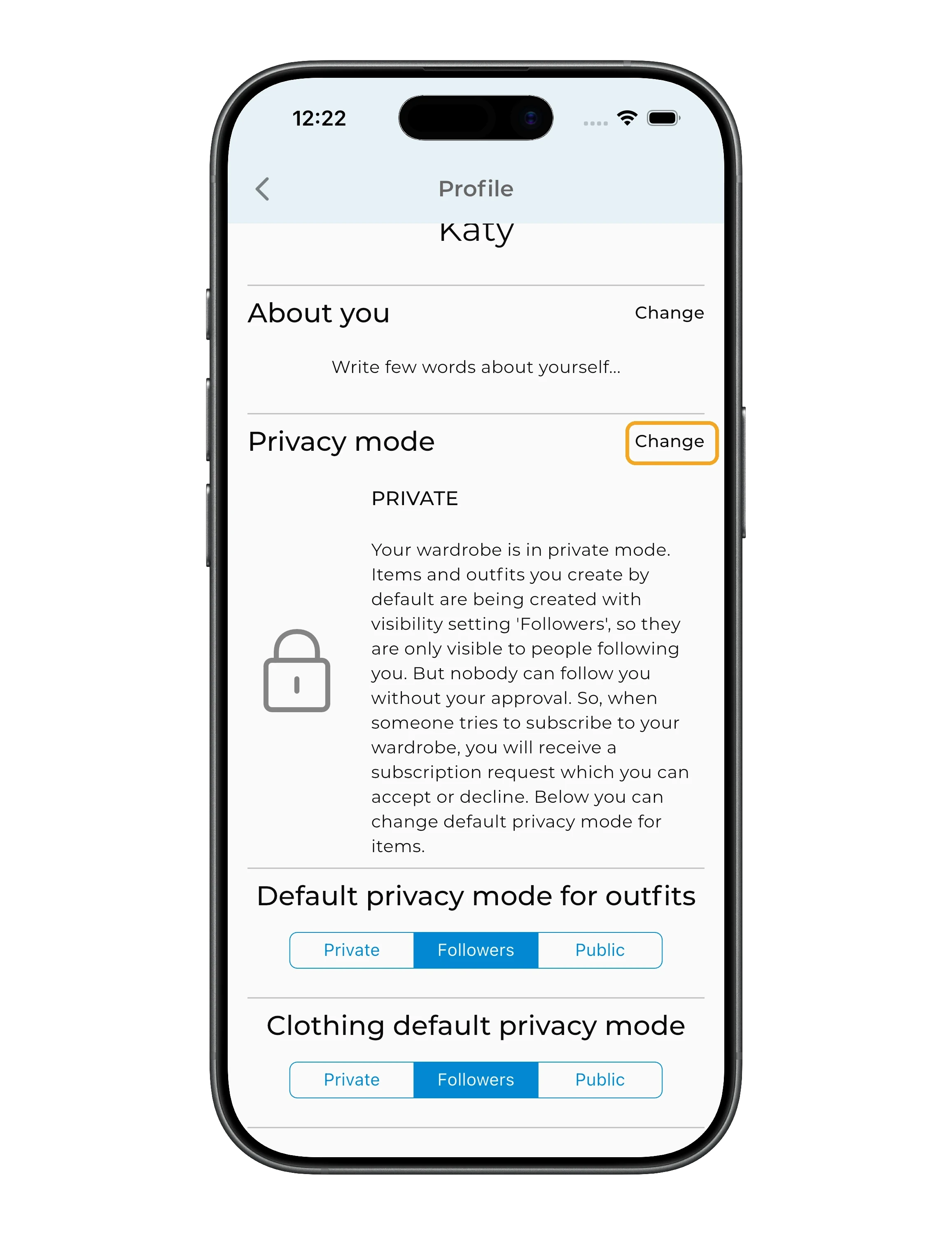
To change your overall account privacy, tap "Change", then tap the privacy mode icon, choose the option you want, and tap "Save".
Premium
In the Premium section, you can check your subscription status, subscribe to Premium, or manage an active subscription.
If your subscription is active, you can manage or cancel it here. After cancellation, you'll keep access to Premium until the end of your paid period.
Credit history
In Credit history, you can see:
- your current credit balance;
- which features they were spent on;
- how many credits each action used;
- the date and time of each action;
- your top-up history.
You can also tap "Buy credits" here if you've run out or want to top up your balance.
Learn more about how credits work in AI Credits.
Appearance
In Appearance, you can switch between light and dark themes.
Wardrobe access
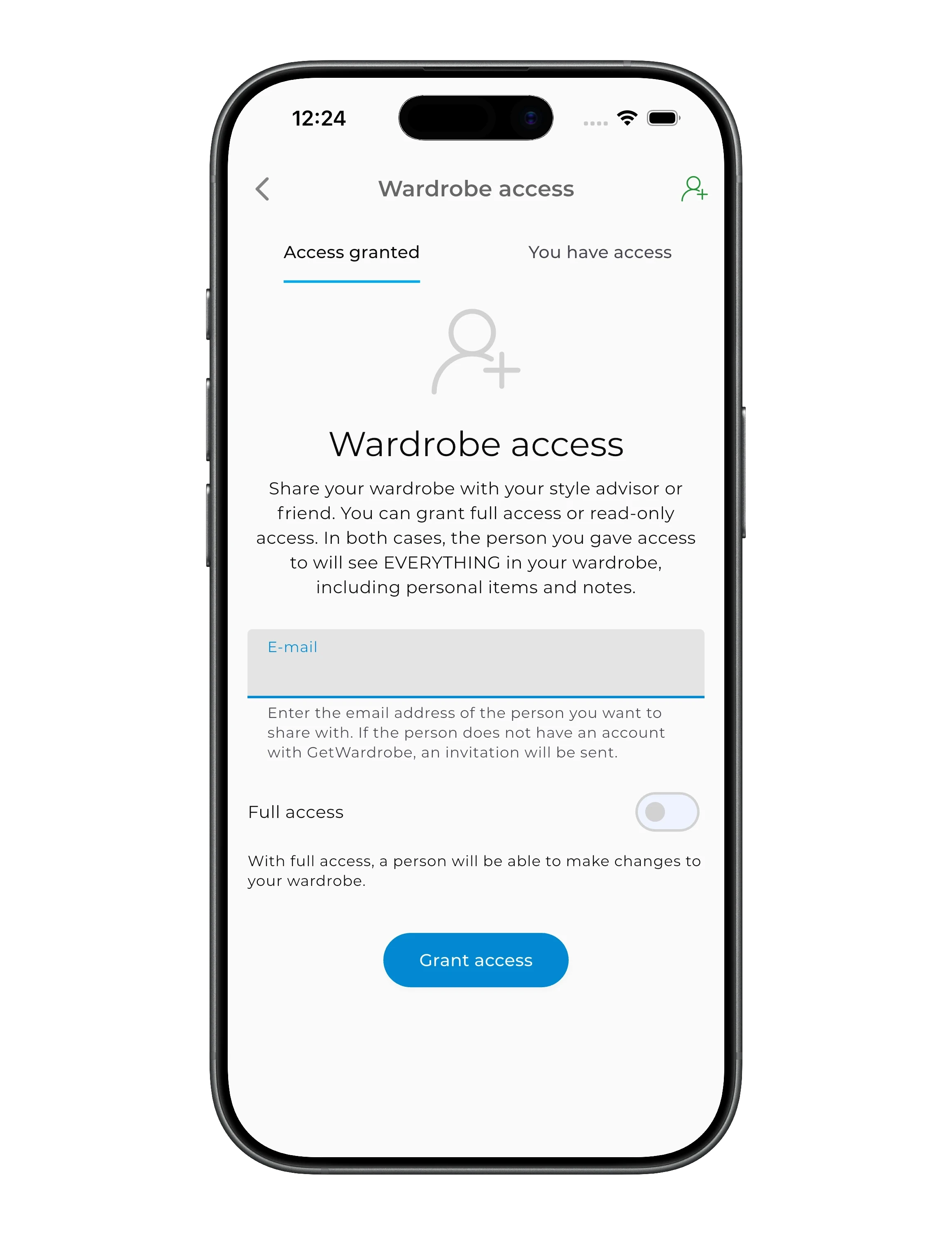
In Wardrobe access, you can share your wardrobe with a stylist or friend and see wardrobes that others have shared with you.
Learn more in Stylist access.
Access granted
The "Access granted" tab shows everyone who has access to your wardrobe.
To grant access, tap the person icon with a "+" in the upper-right corner.
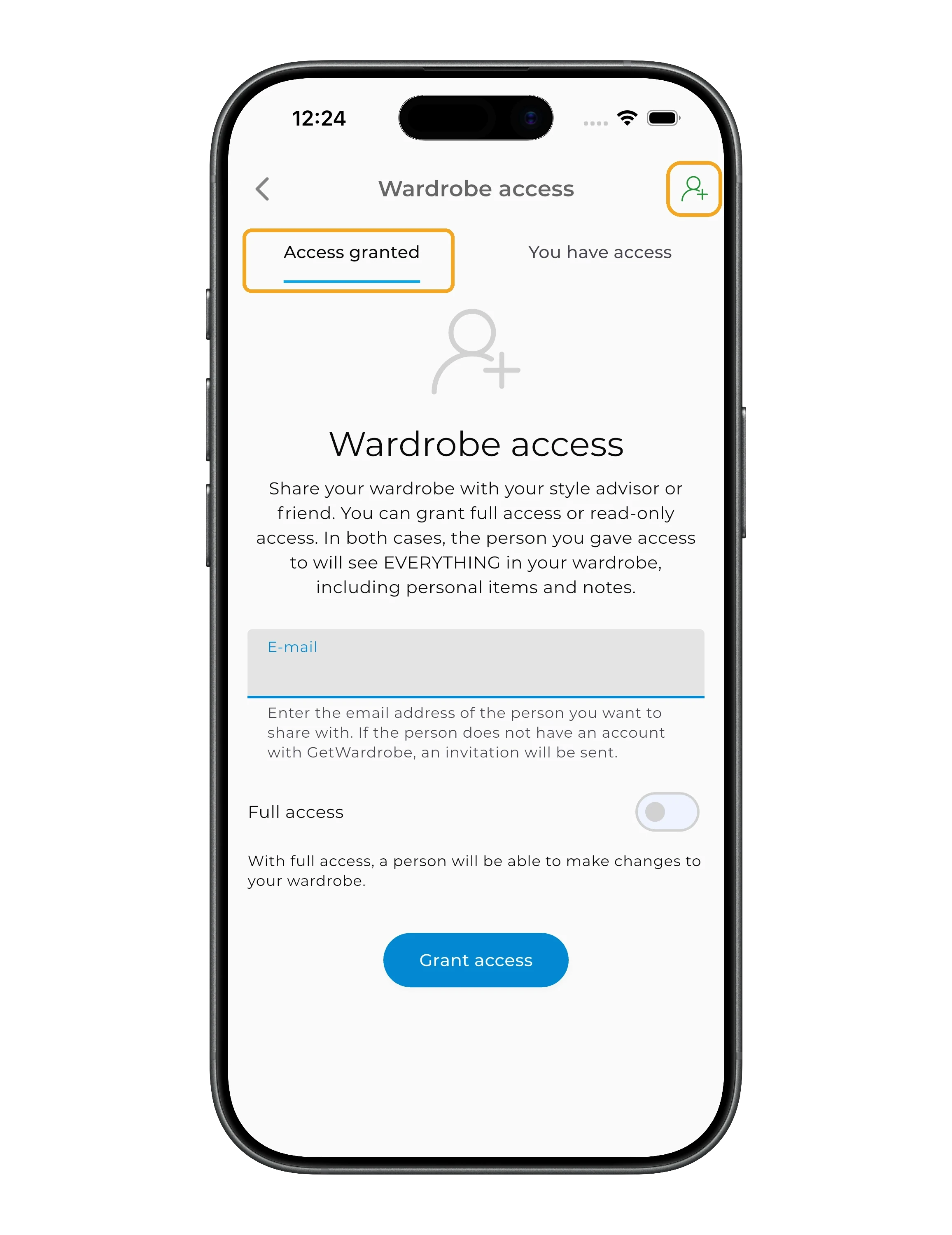
Enter the person's email and choose the access level:
- view only — the person can see your wardrobe;
- full access — the person can also make changes to your wardrobe.
Tap "Grant access".
You have access
If someone has shared their wardrobe with you, open the "You have access" tab.
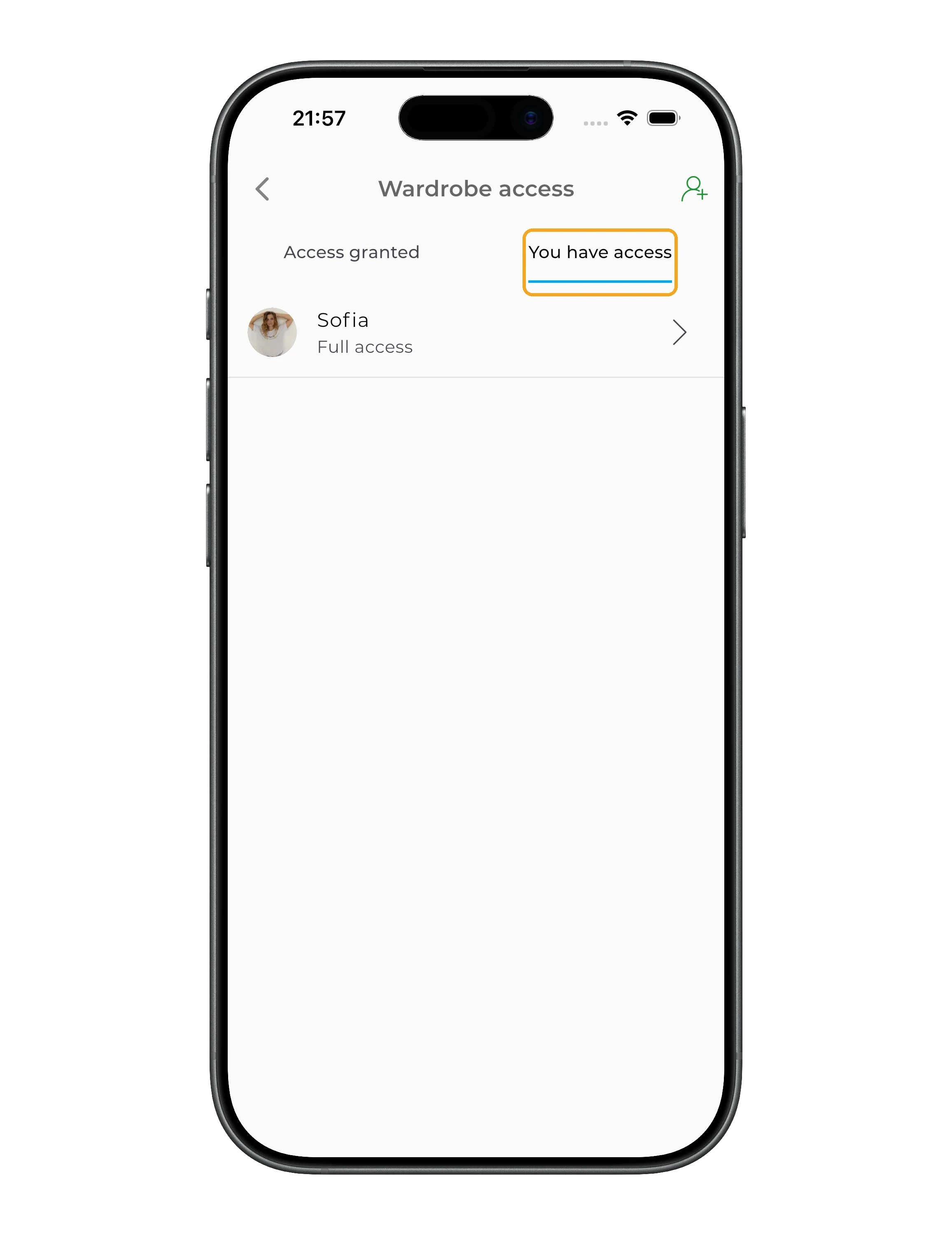
Here you'll see all the wardrobes shared with you. Tap a profile to open it.
Info
You need a Premium subscription to grant access to your wardrobe. The person you share it with doesn't need Premium.
Statistics
In Statistics, you can see how you use your wardrobe, how much it's worth, and what it contains.
Select a time period and, if you use family wardrobes, choose the relevant profile. Statistics has four tabs:
- Usage — the percentage of your wardrobe in use, wear frequency, and cost per wear (CPW);
- Value — the total value of your wardrobe and information about item costs;
- Clothes — how your wardrobe breaks down by category, color, season, and tags;
- Outfits — outfit statistics by occasion, season, hashtags, and weather.
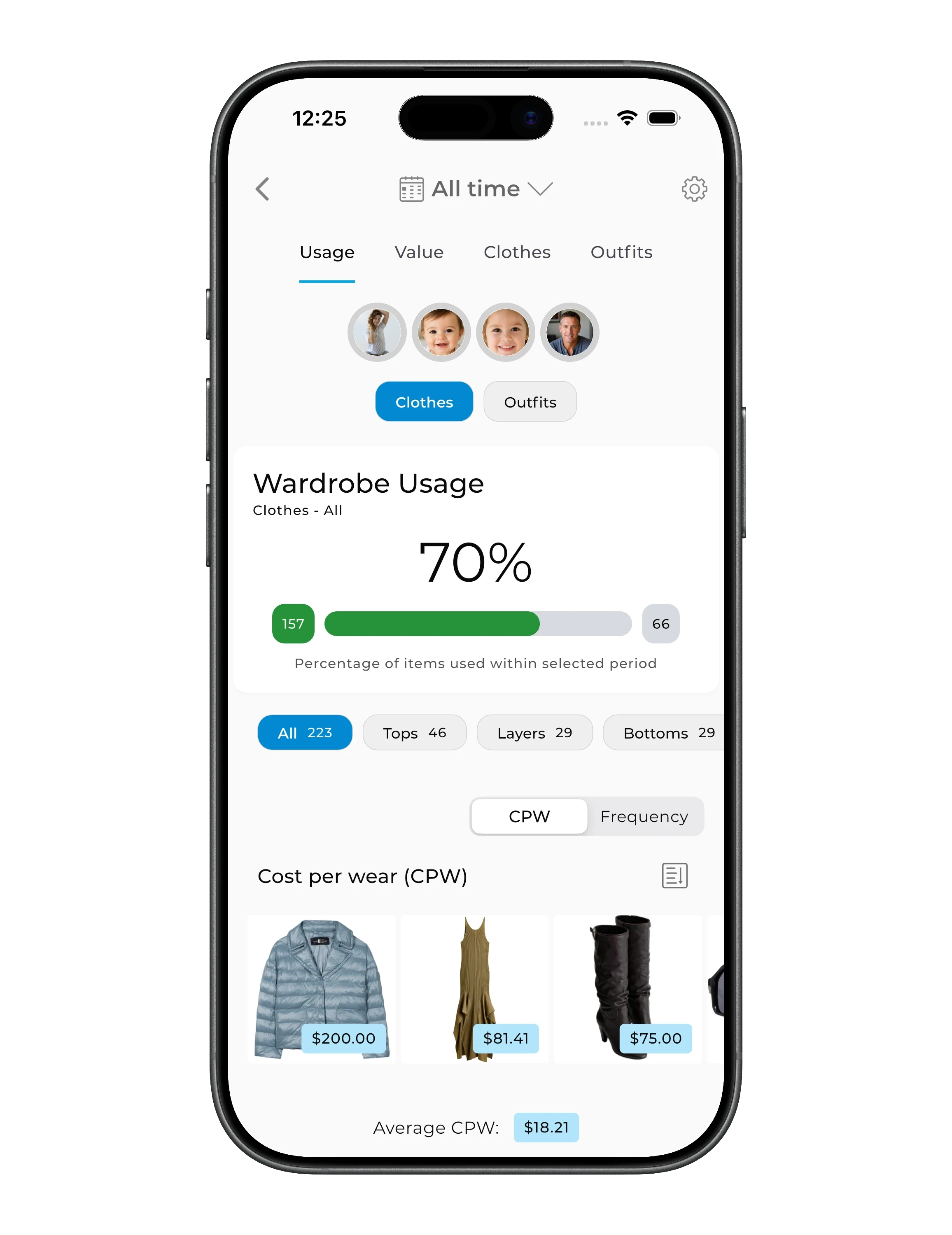
The more often you plan outfits and record the cost and purchase date of your items, the more complete your statistics become.
Family
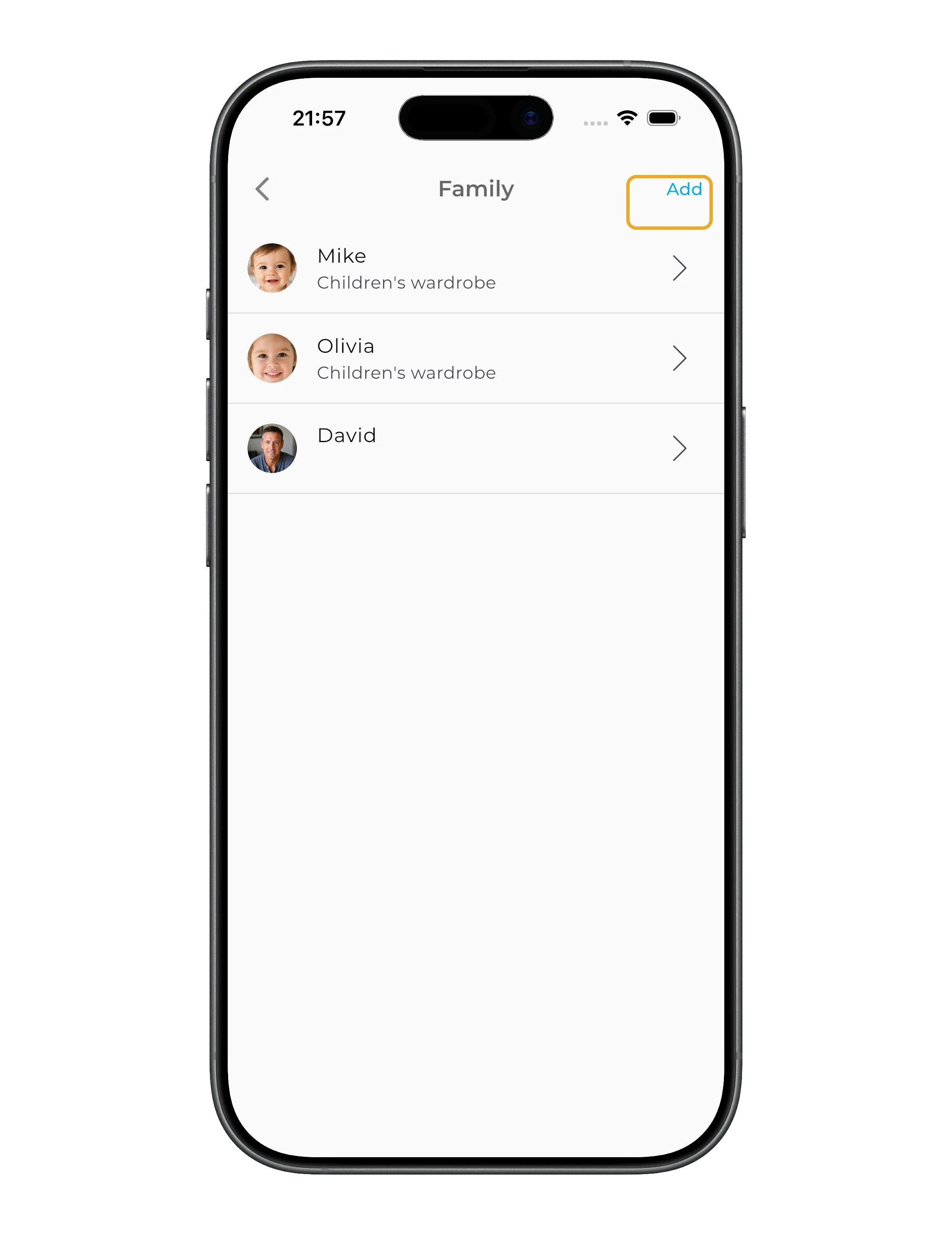
The Family section lets you manage wardrobes for your children and other family members in one account.
To add a new wardrobe, tap "Add", enter a name, add a photo, and choose the appropriate wardrobe type.
For each family member, you can view items, outfits, and statistics separately. You can also delete a family member's wardrobe if you no longer need it.
Learn more in Family wardrobe.
Info
Family wardrobes are available with a Premium subscription.
Language
To change the interface language, open "Language", select your preferred language, and confirm the change.
City
Your city is used to provide local weather forecasts.
Open "City", start typing the city name, and select your city from the list. This helps GetWardrobe provide more accurate weather for outfit planning.
E-mail
In the "E-mail" section, you can change the email address linked to your account.
Enter the new address and save the changes.
Notifications
In Notifications, you can choose which notifications you receive and how often.
For example, you can set up notifications about:
- comments;
- likes;
- new followers.
If you don't need notifications, you can turn them off.
Privacy & Data
Here you can manage:
- Crash reports — allow crash and error reports to be sent automatically;
- Usage analytics — allow usage data to be collected to help us understand how features are used and improve the app;
- News and tips — receive information about new features, selections, and recommendations.
Strictly necessary data is required for sign-in and core app functionality, so it is always enabled.
Password
In the "Password" section, you can set a new password for your account.
Enter the new password and save the changes.
Gender style
In "Gender style", you can choose the gender setting for your wardrobe. This determines which clothing categories GetWardrobe shows.
Currency
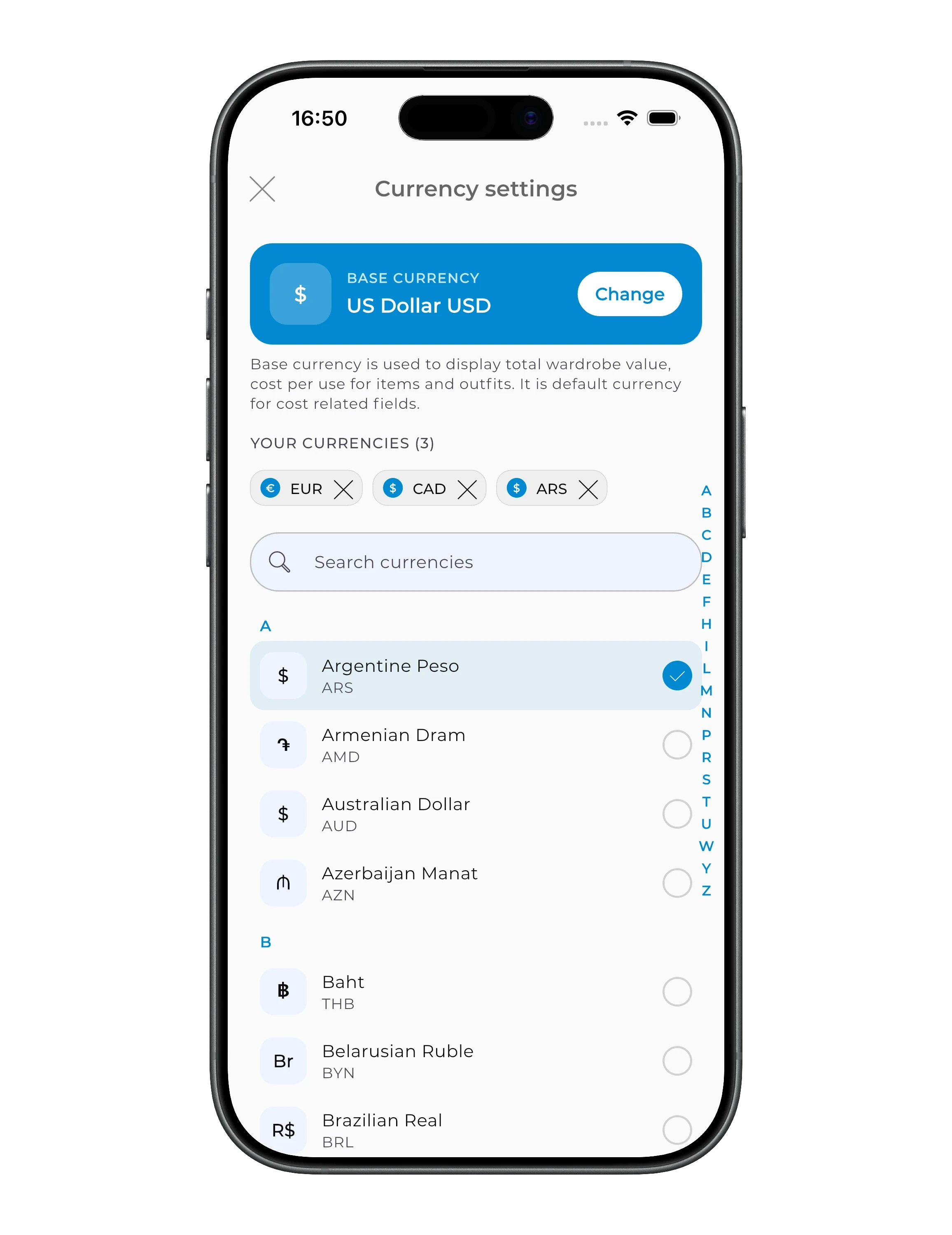
In the "Currency" section, you can choose your main currency and the additional currencies you use.
The main currency is used to display expenses and calculate wardrobe statistics. Additional currencies are useful for items purchased in other countries.
Units
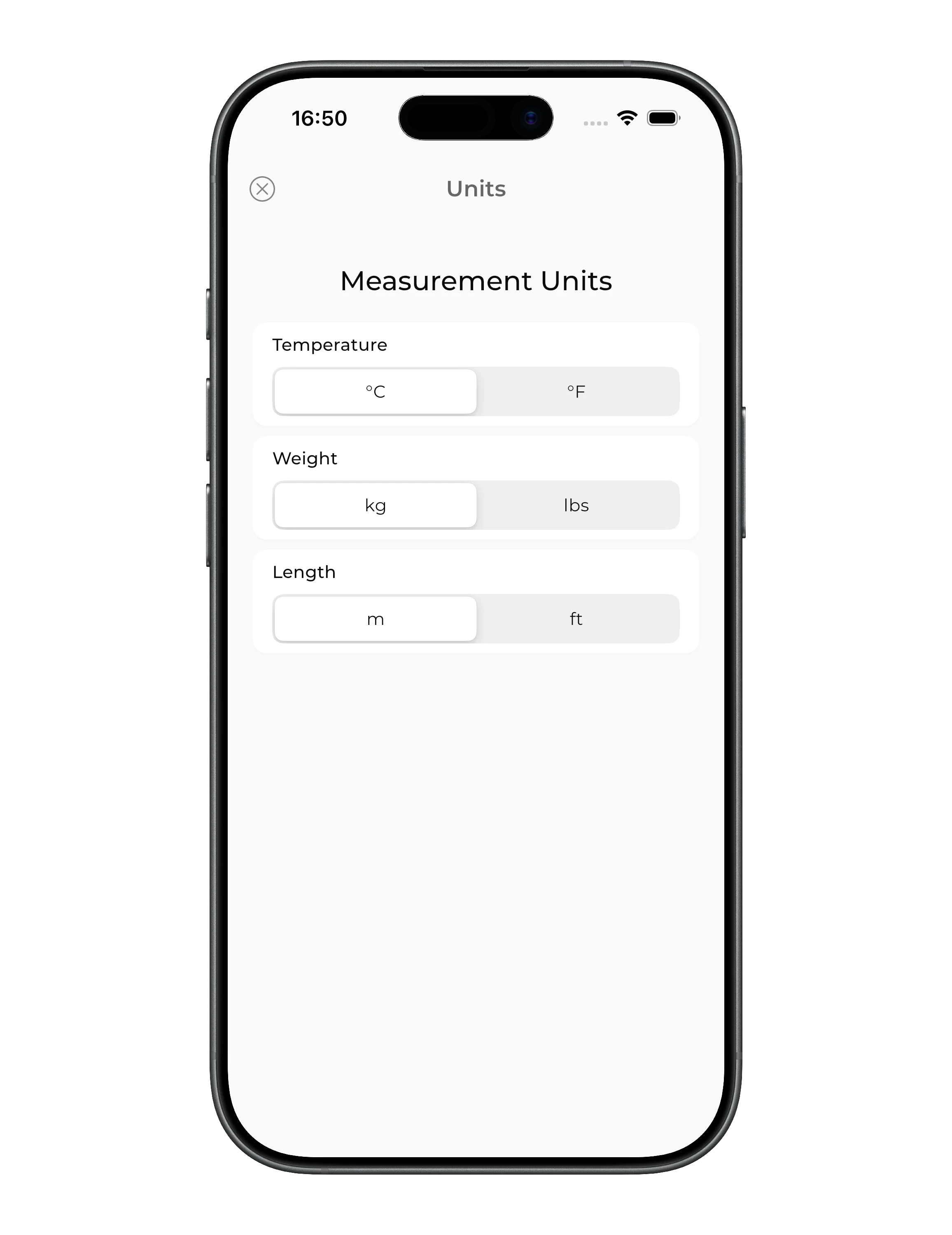
In the "Units" section, you can choose your preferred units for:
- temperature;
- weight;
- length.
For example, you can switch between °C and °F, kilograms and pounds.
Filter by body weight
Turn on "Filter by body weight" if your weight tends to change or some items fit you well only within a certain weight range.
After that, you can set a suitable weight range for items and filter your wardrobe to see only the items that fit you at your current weight.
Sync with getwardrobe.com
Your GetWardrobe data syncs automatically.
In "Sync with getwardrobe.com", you can check the sync status and start a manual sync if you need to refresh your data across devices.
Help and feedback
Rate the app and share GetWardrobe
At the top of settings there are quick actions:
- "Rate the app" — leave a rating or review of GetWardrobe.
- "Share the app" — send a link to GetWardrobe to a friend.
GetWardrobe Help Center
For answers to common questions, tap "Open Help Center".
This opens the GetWardrobe Help Center, where you'll find articles about items, outfits, planning, settings, and other features.
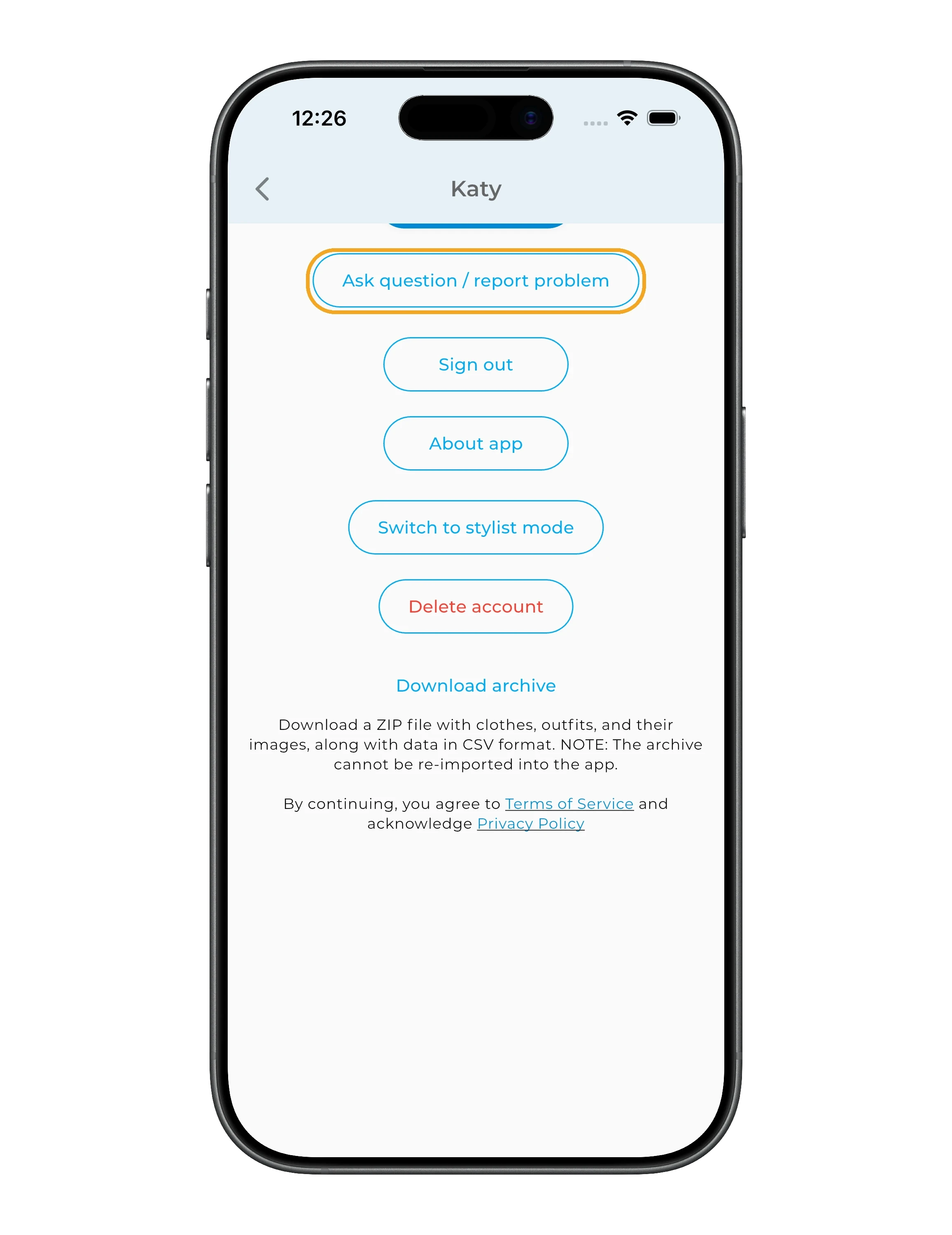
Ask question / report problem
If you couldn't find an answer or something isn't working as expected, tap "Ask question / report problem".
Describe your question or problem in as much detail as possible. If the issue is related to a specific screen or action, attaching a screenshot can help us investigate it more quickly.
Stylist mode
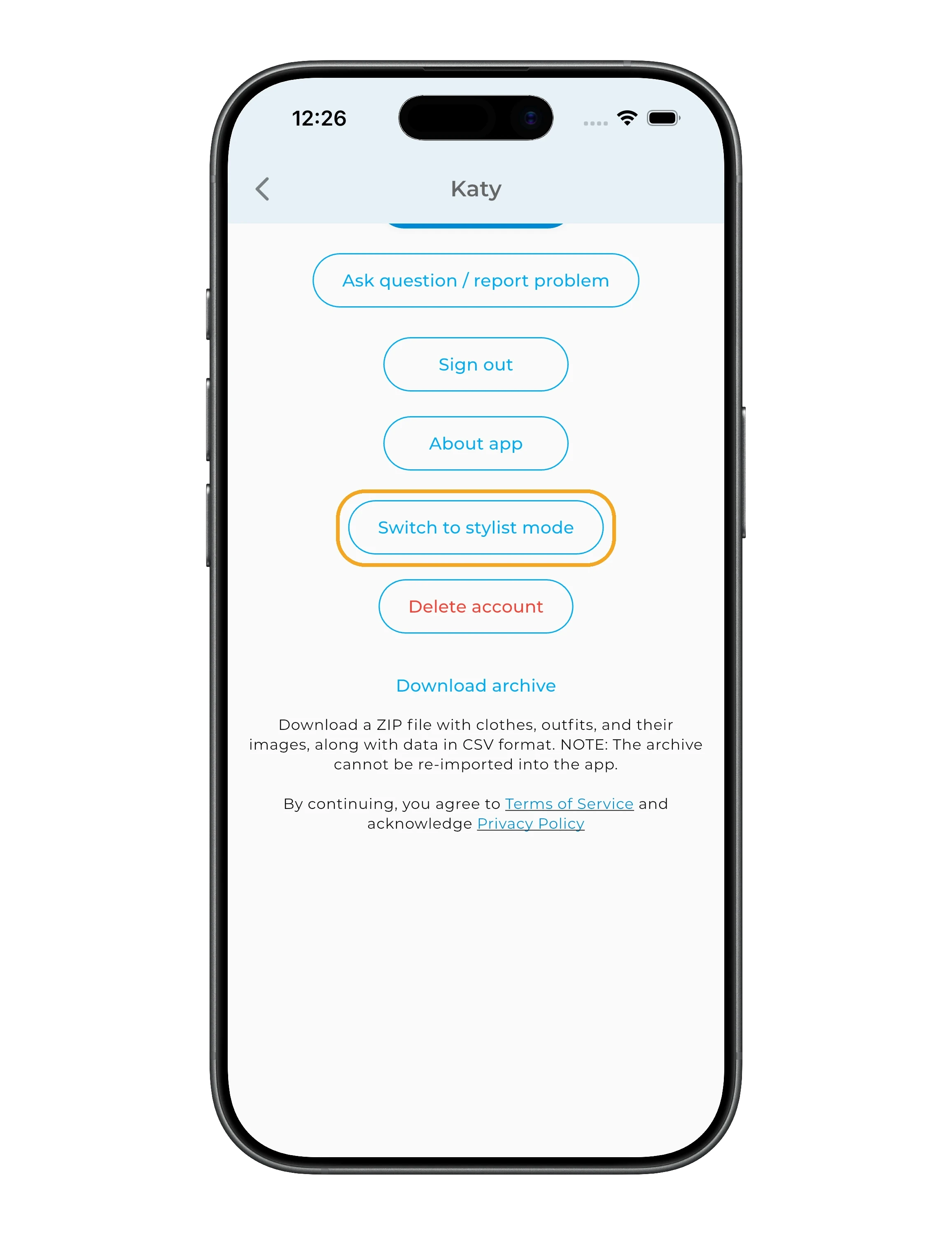
If you use GetWardrobe as a professional stylist, tap "Switch to stylist mode" to go to the tools for working with clients' wardrobes.
Account and data archive
Sign out
Tap "Sign out" if you want to log out of your current account.
Your data isn't deleted — you can sign back in to the same account later.
About app
In "About app", you can see the GetWardrobe version, build number, and license information.
The version and build number are especially useful when contacting support.
Delete account
Tap "Delete account" if you want to completely delete your account.
This is different from signing out: signing out doesn't delete your data.
Download archive
If you want to keep a copy of your data, tap "Download archive".
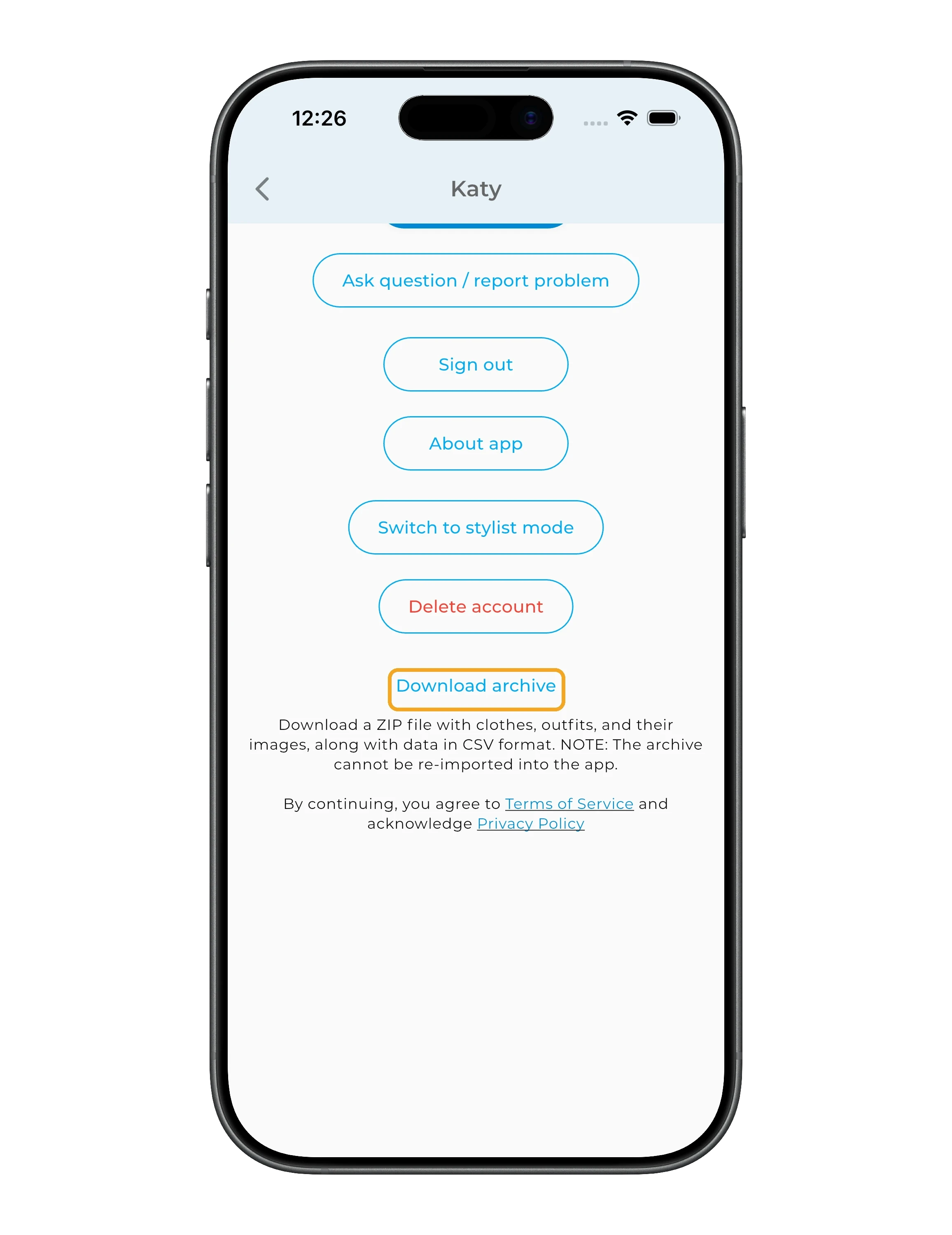
A ZIP archive will be created containing your item and outfit data in CSV format, along with their images.
Important: this archive is meant for downloading and storing your data. It can't be uploaded back into GetWardrobe.
Need help?
Contact us at support@getwardrobe.com