Try-on
Try outfits on a virtual avatar. Upload a photo to create your avatar, then choose a background — select one of the presets, upload your own, or describe the atmosphere you want — and AI will create a realistic image.
For virtual try-on, you can use:
- outfits from your wardrobe
- outfits created by the AI stylist
- outfits from the Community
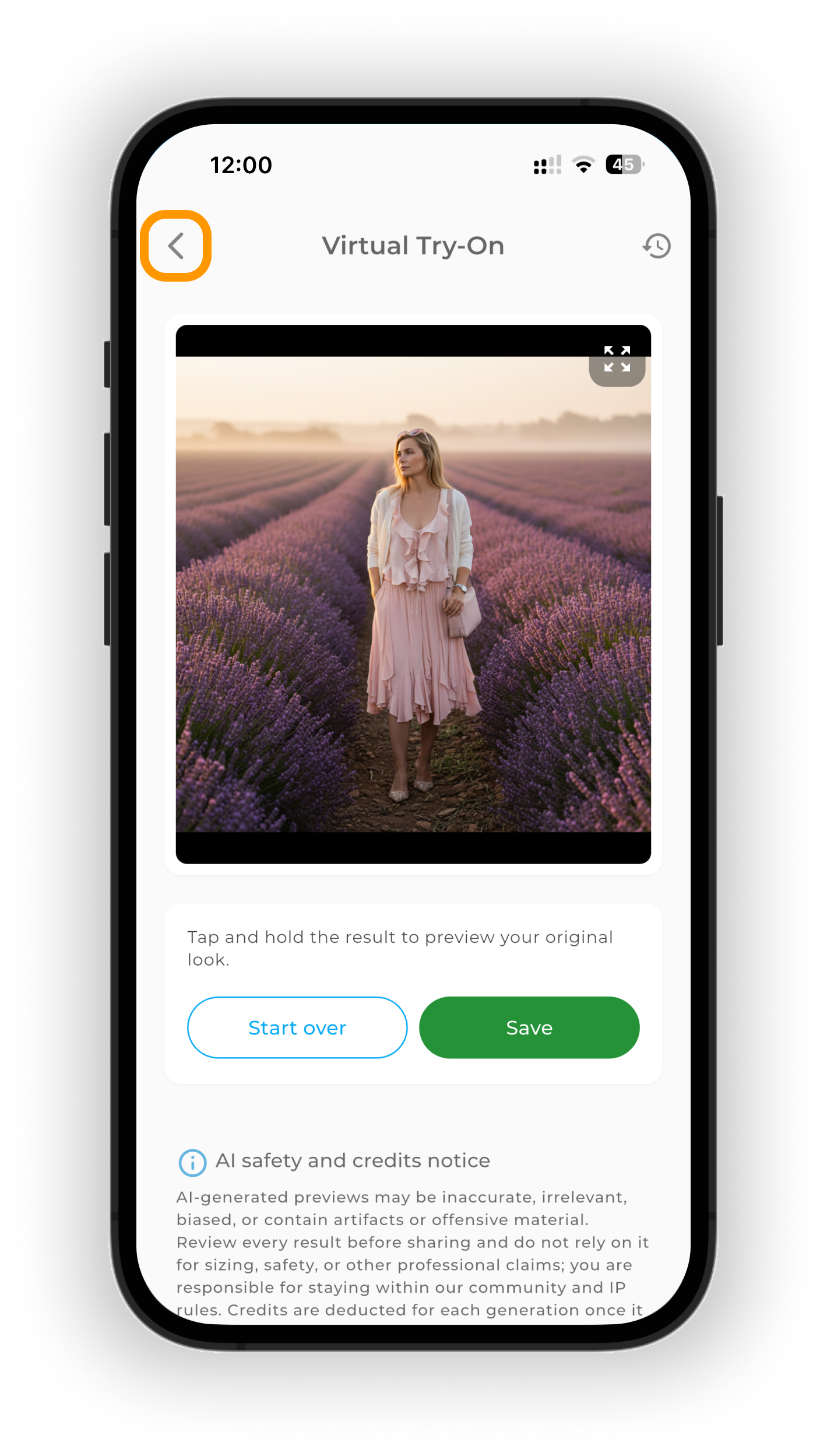
You can pick a preset background, upload your own, or describe the atmosphere you want — for example, the Eiffel Tower, a red carpet, or a lavender field.
How to start a try-on
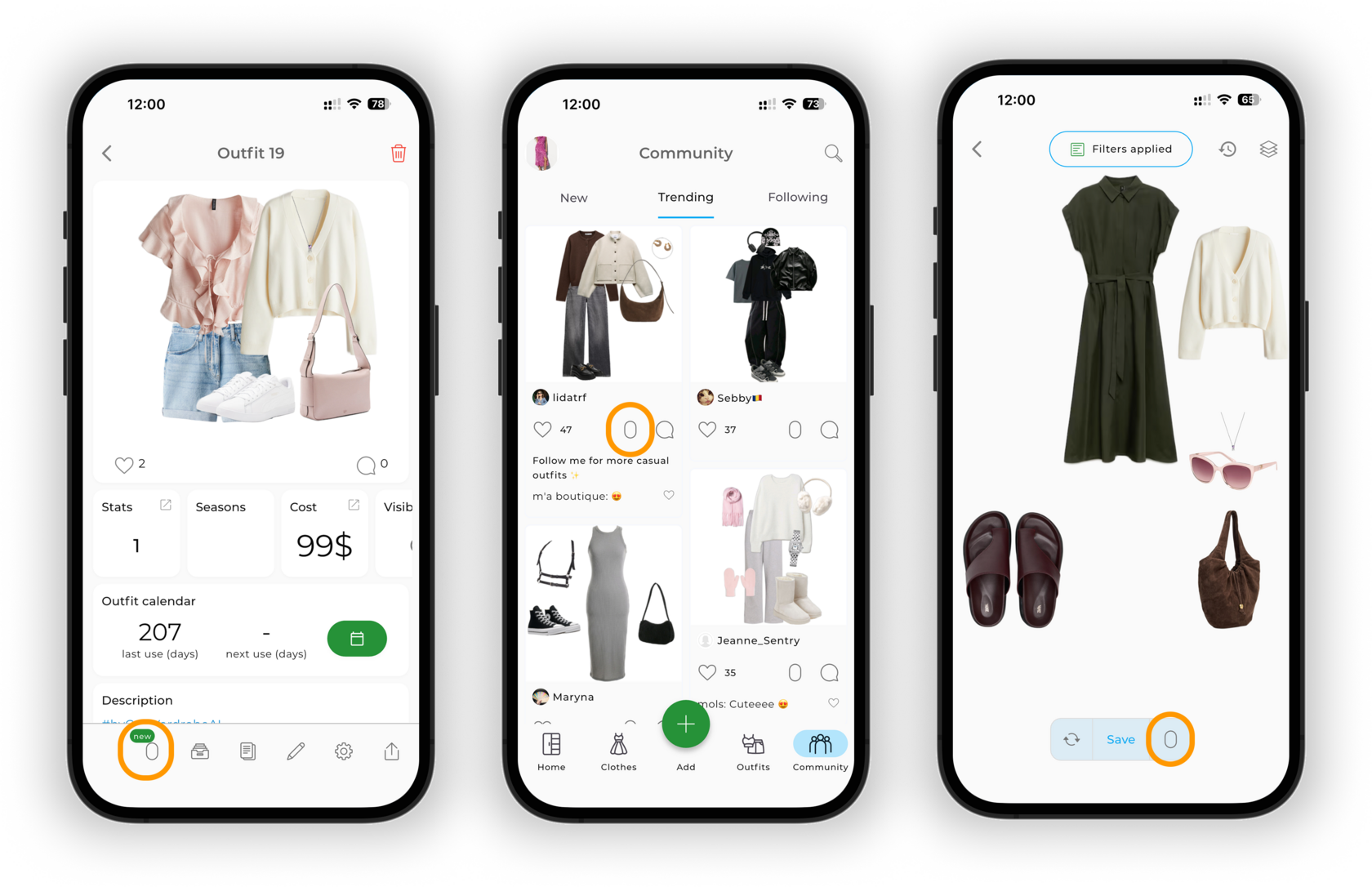
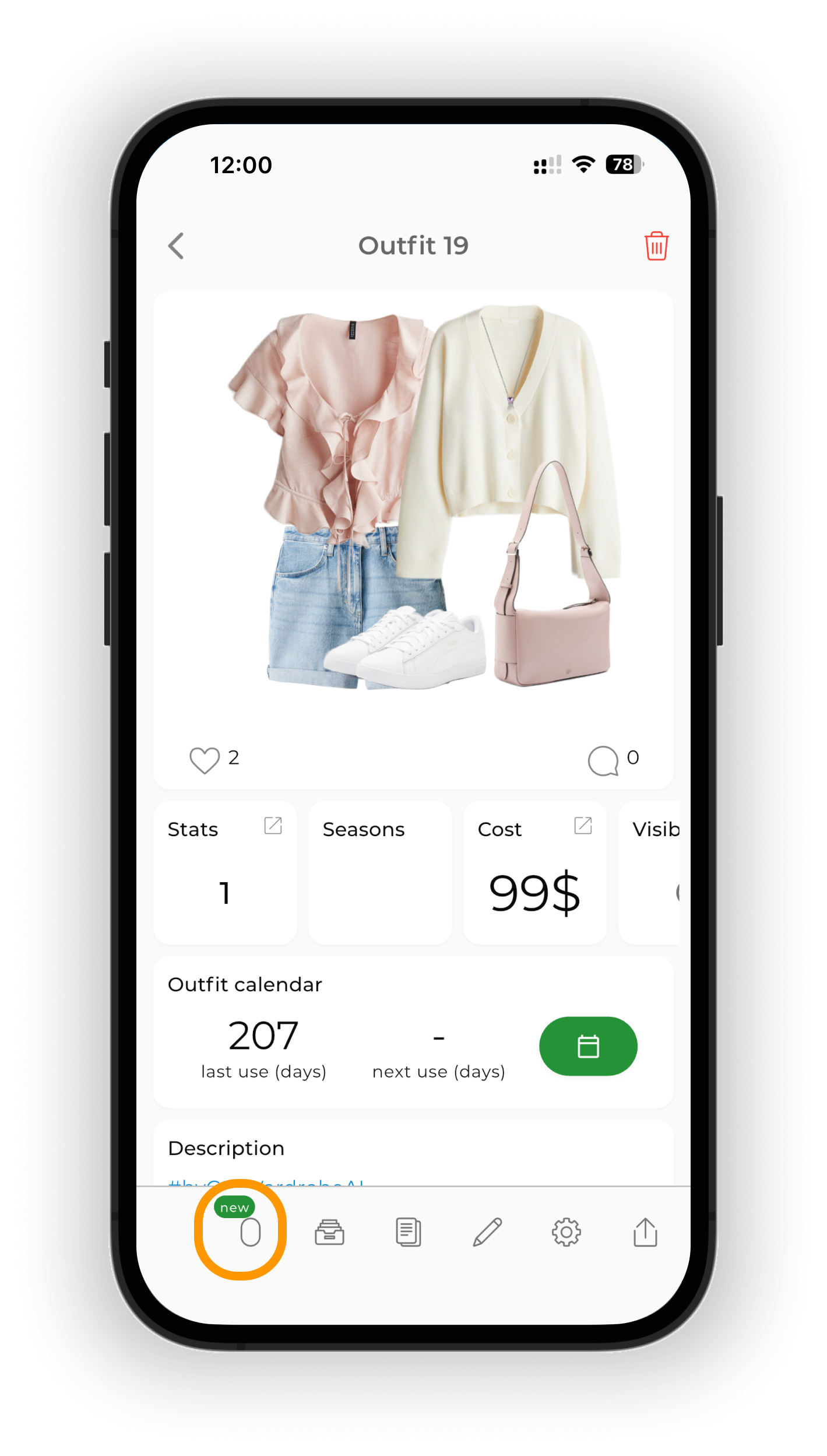
On the outfit page, tap the Mirror icon.
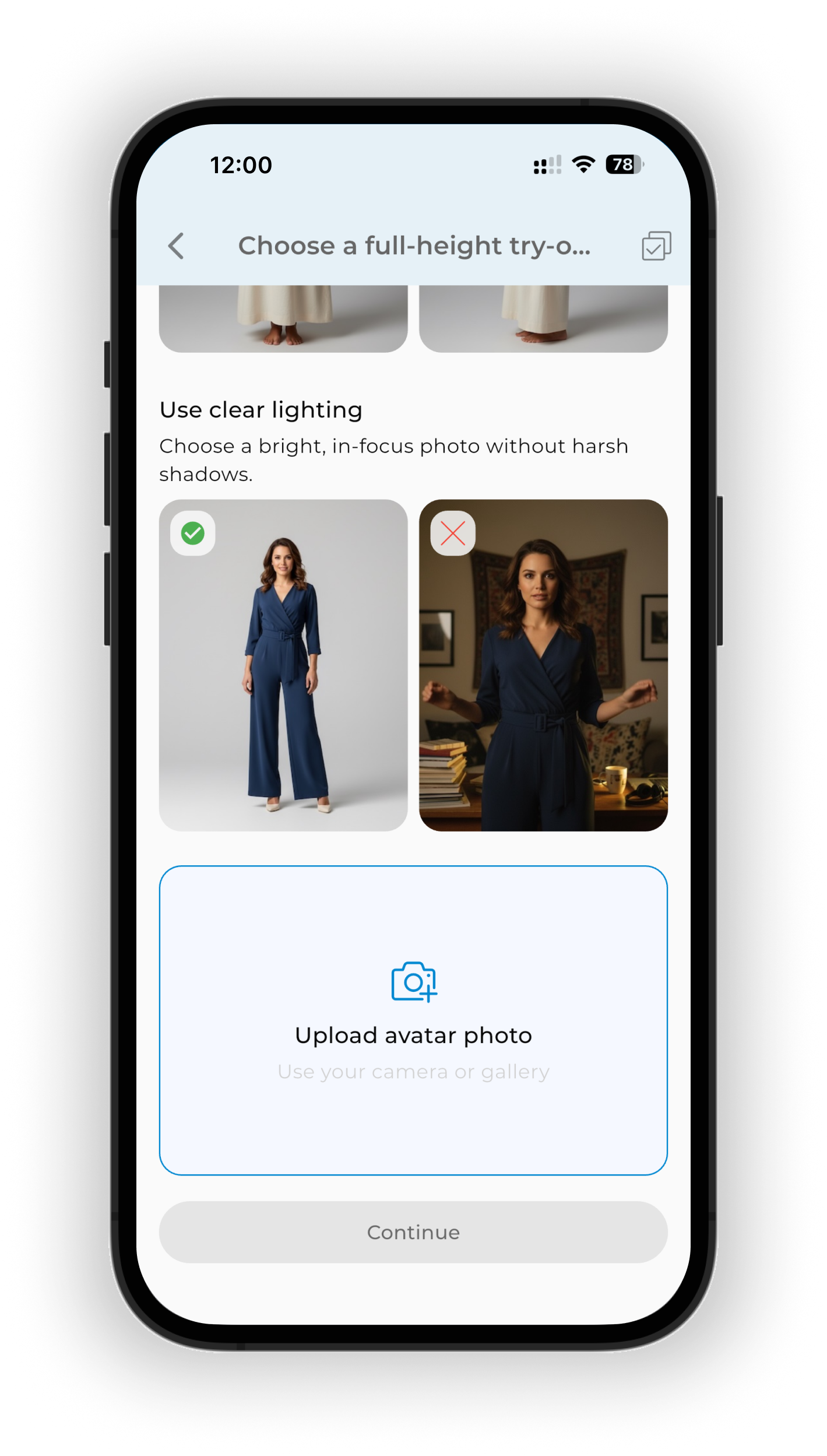
Before your first try-on, upload a clear full-body photo of yourself facing the camera.
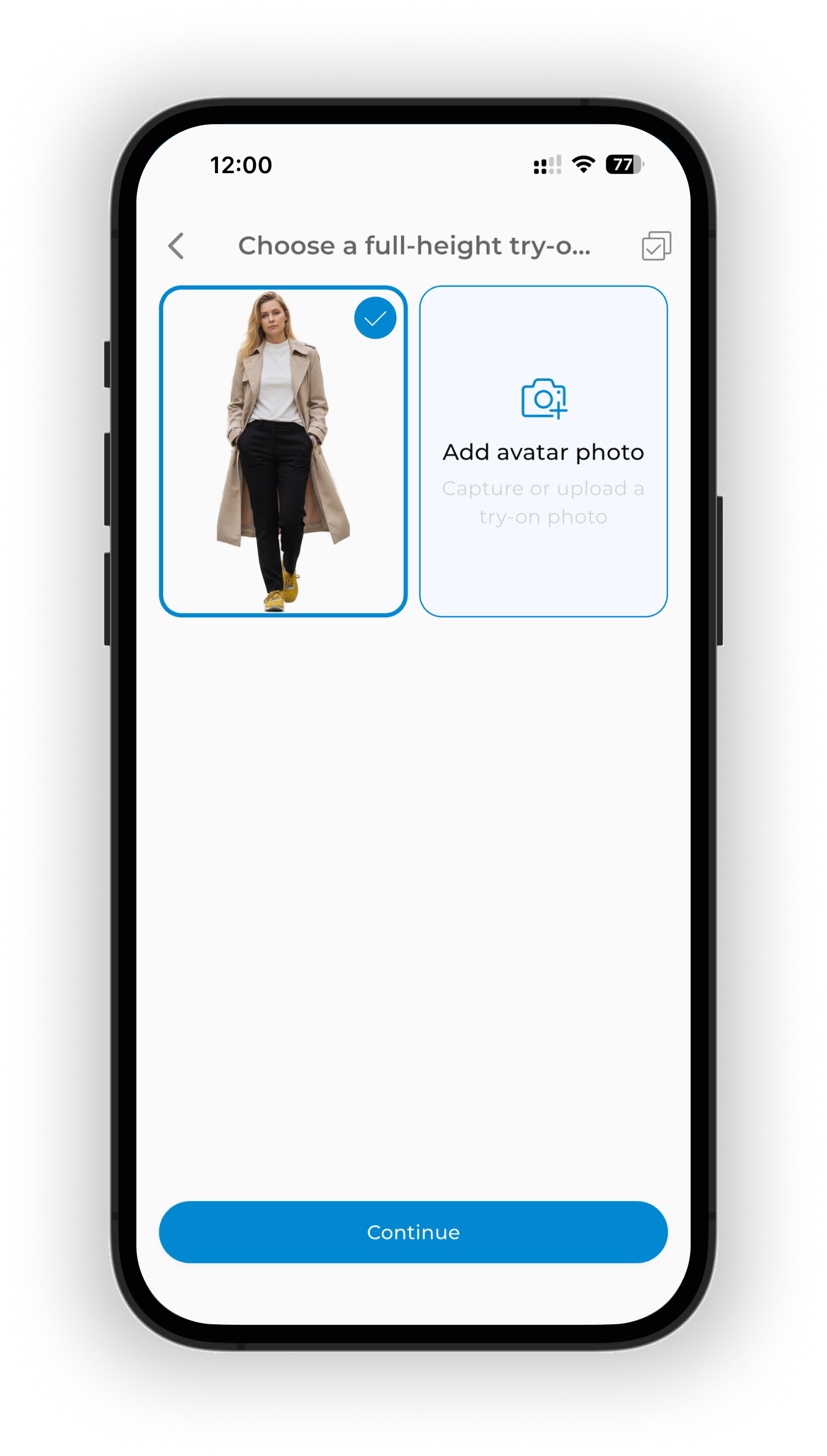
Tap Continue.
Choose a background and atmosphere
You can choose a background:
- from the available options, or
- upload your own — tap Add yours.
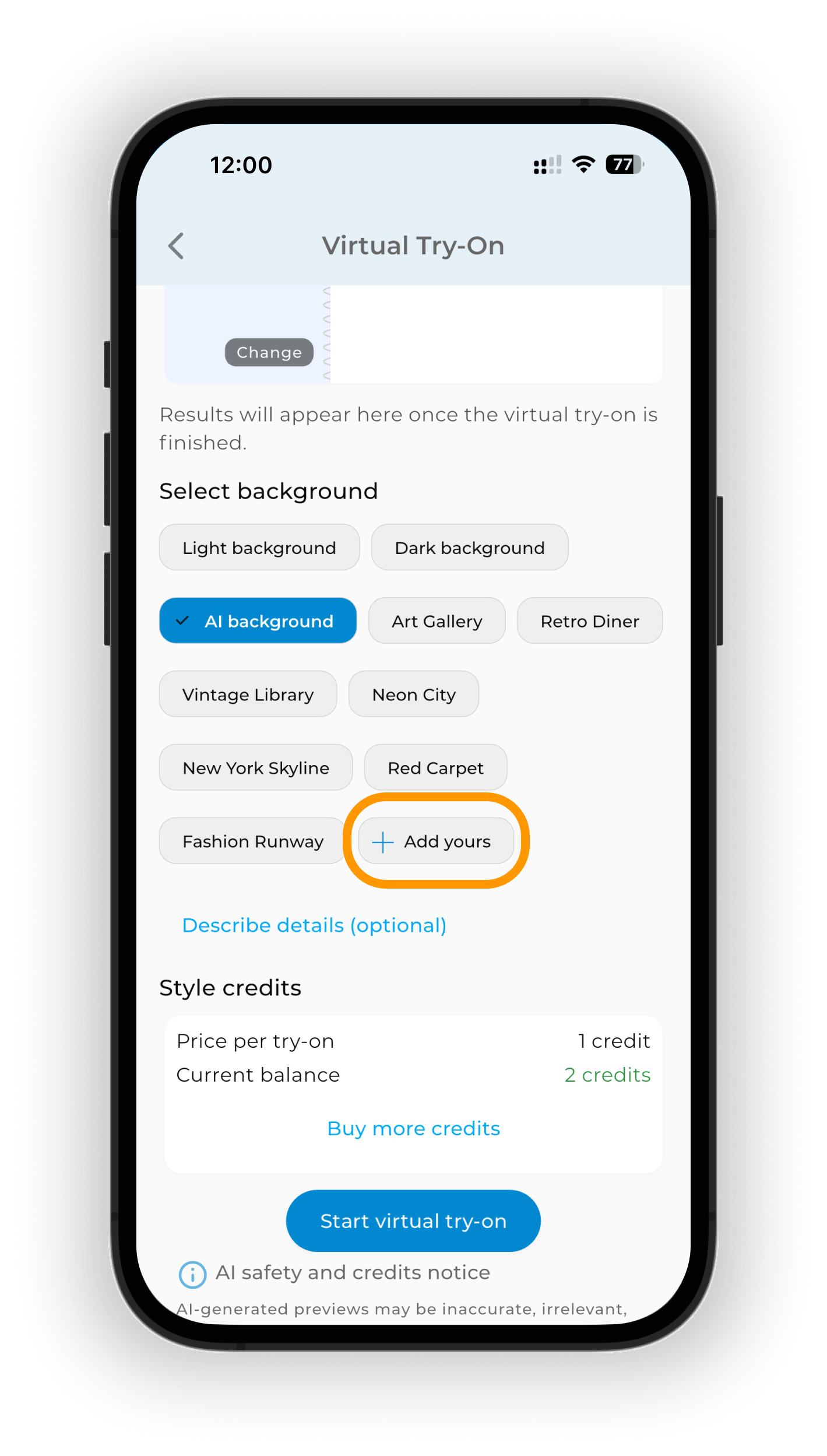
Want a special atmosphere? Tap Describe details and describe how you want the result to look. For example: “Romantic style, lavender field at sunrise, dreamy mood.”
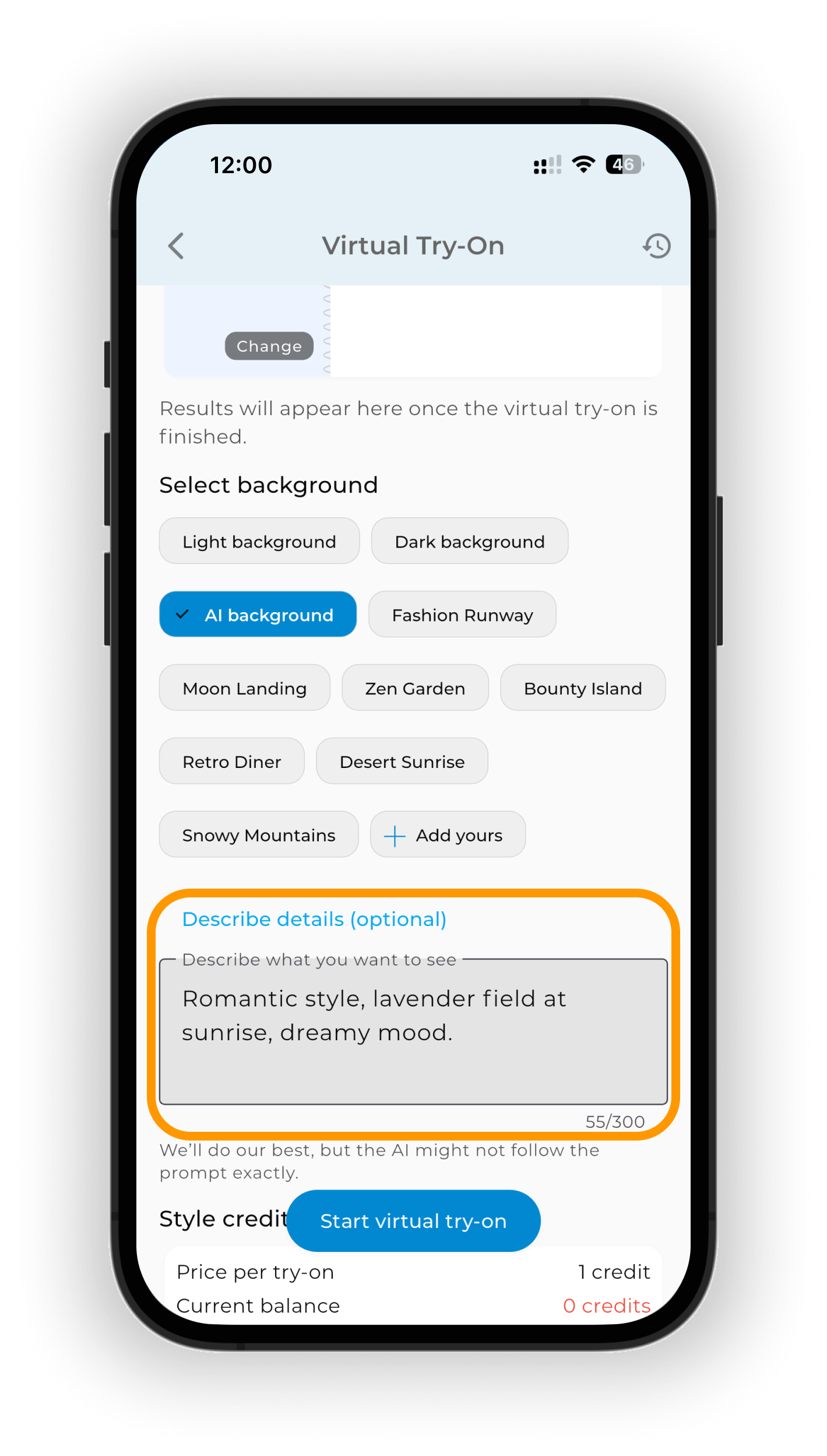
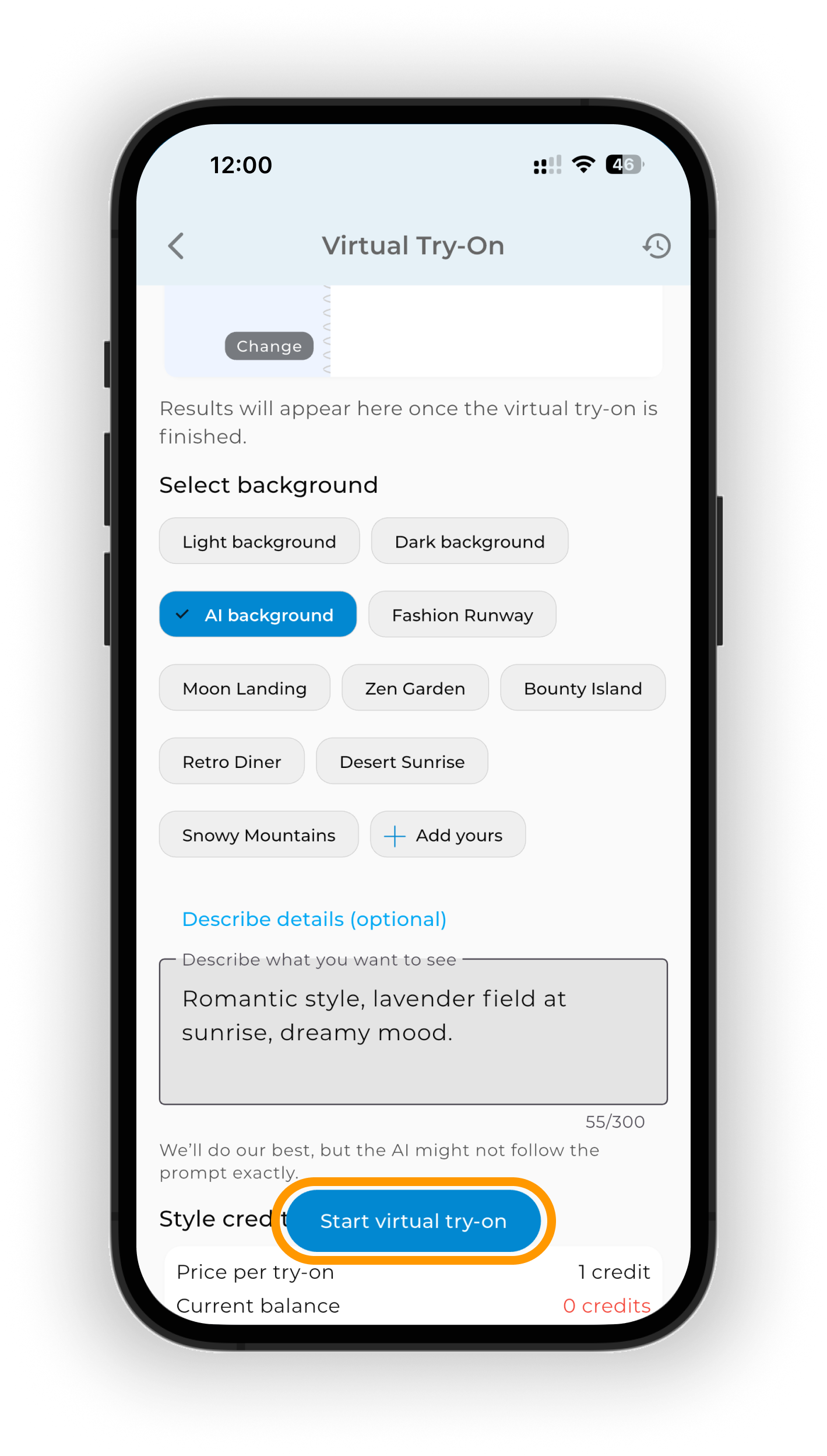
Once you’ve selected the background, tap Start virtual try-on.
One virtual try-on uses 1 AI credit. The credit is deducted when generation starts. Learn more about your balance, buying credits, and using them in How AI Credits Work in GetWardrobe.
Save or start over
To save the created image, tap Save. You can save it to your gallery or files, or share it via a messaging app or social media.
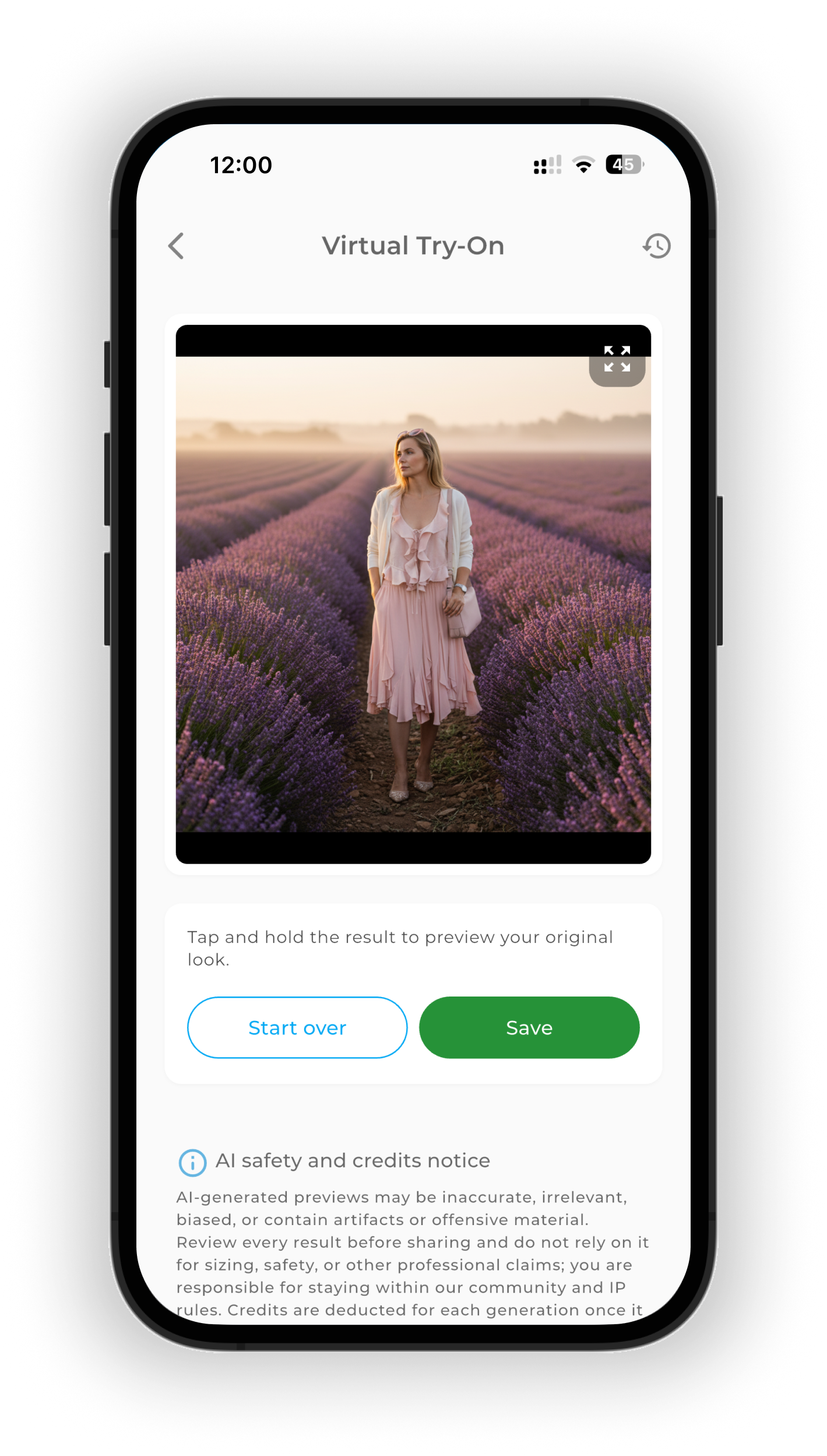
Want to try a different background or create a new look? Tap Start over. To exit Try On, tap the arrow in the top-left corner.
Share your looks in the Community — we’d love to see your try-ons.
Frequently Asked Questions
How many virtual try-ons can I do?
There’s no set limit on the number of try-ons, but each virtual try-on uses 1 AI credit. So the number of try-ons available to you depends on your credit balance.
Learn more about your balance, buying credits, and using them in How AI Credits Work in GetWardrobe.
What kind of photo works best for the avatar?
A clear full-body photo of you facing the camera works best. Good lighting and a simple background help AI create a more accurate result.
Can I share try-on results?
Yes. After the image is created, tap Save and choose where to send it. You can save the result to your gallery or files, send it via a messaging app, or share it on social media.
Need help?
Contact us at support@getwardrobe.com
También disponible en Español.