Planning
Some of the smallest decisions are the hardest — like what to wear in the morning.
Planning helps you decide ahead of time what to wear to work, a meeting, a trip, or the weekend. It also makes sure you don't forget about combinations you've already put together.
GetWardrobe takes the weather into account, suggests outfits that work for the day, and keeps every plan in one place.
In this guide
- Why plan ahead
- Outfits
- Items
- Notes
- Planning in the calendar
- Weather and recommendations
- Locations and trips
- Device calendar sync
- Packing lists
Why plan ahead
When outfits are planned in advance, mornings are calmer. You don't have to rummage through the closet again or try to remember what you meant to wear to that meeting.
Planning also helps you understand your wardrobe better. Planned and worn outfits feed into stats that show you:
- which items you wear most often;
- the cost per wear of every item.
Outfits
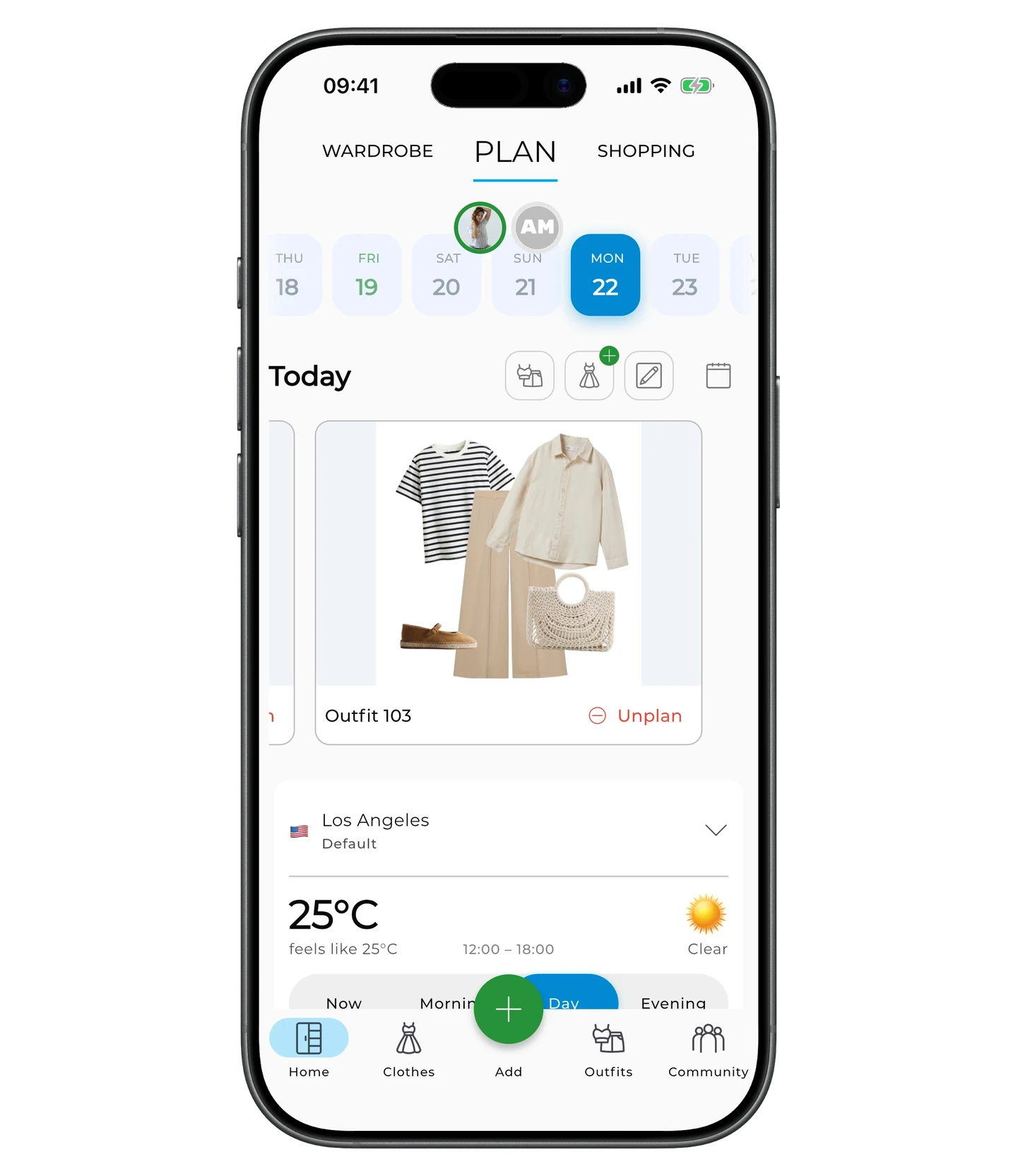
Open the Plan tab on the home screen.
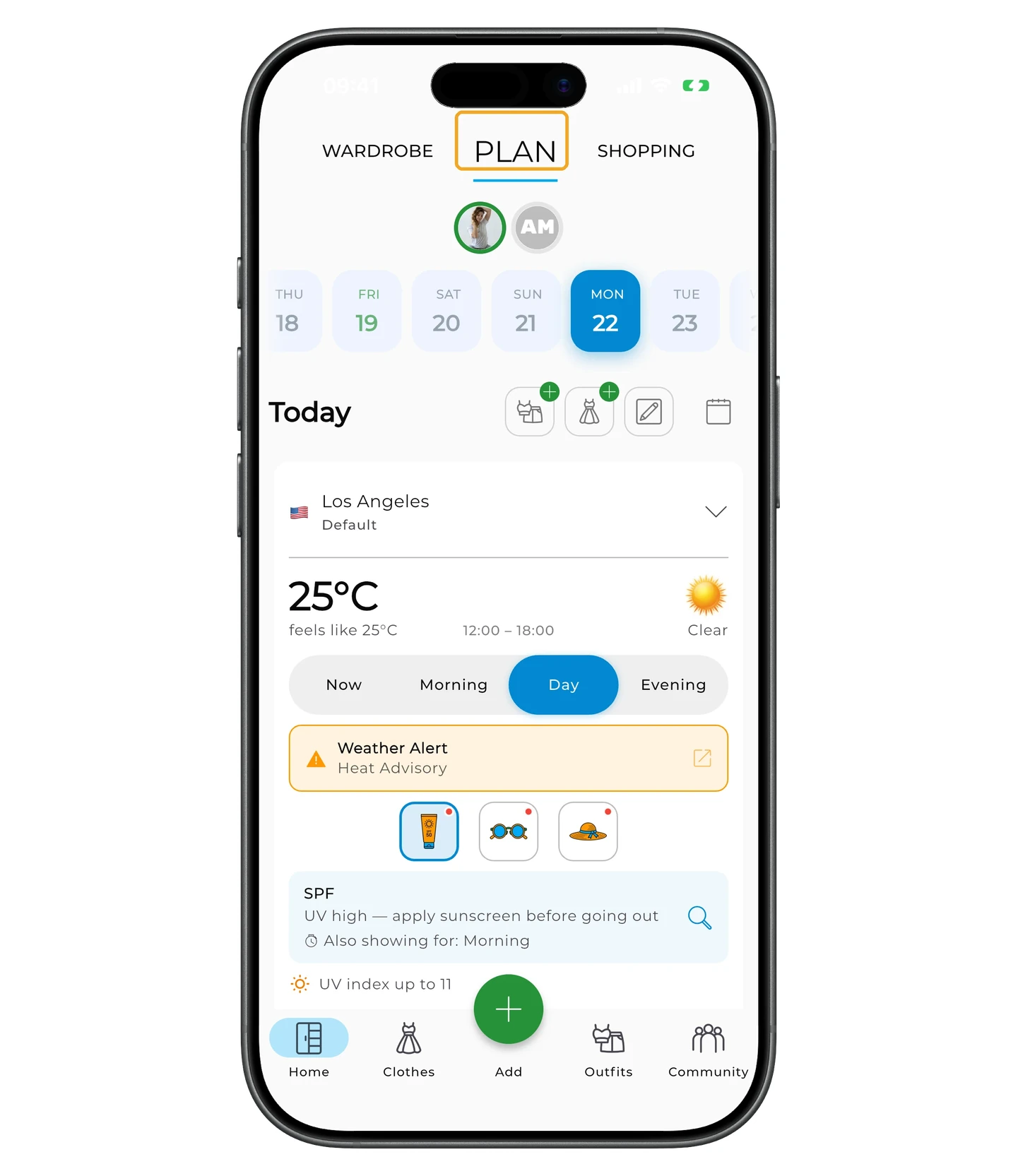
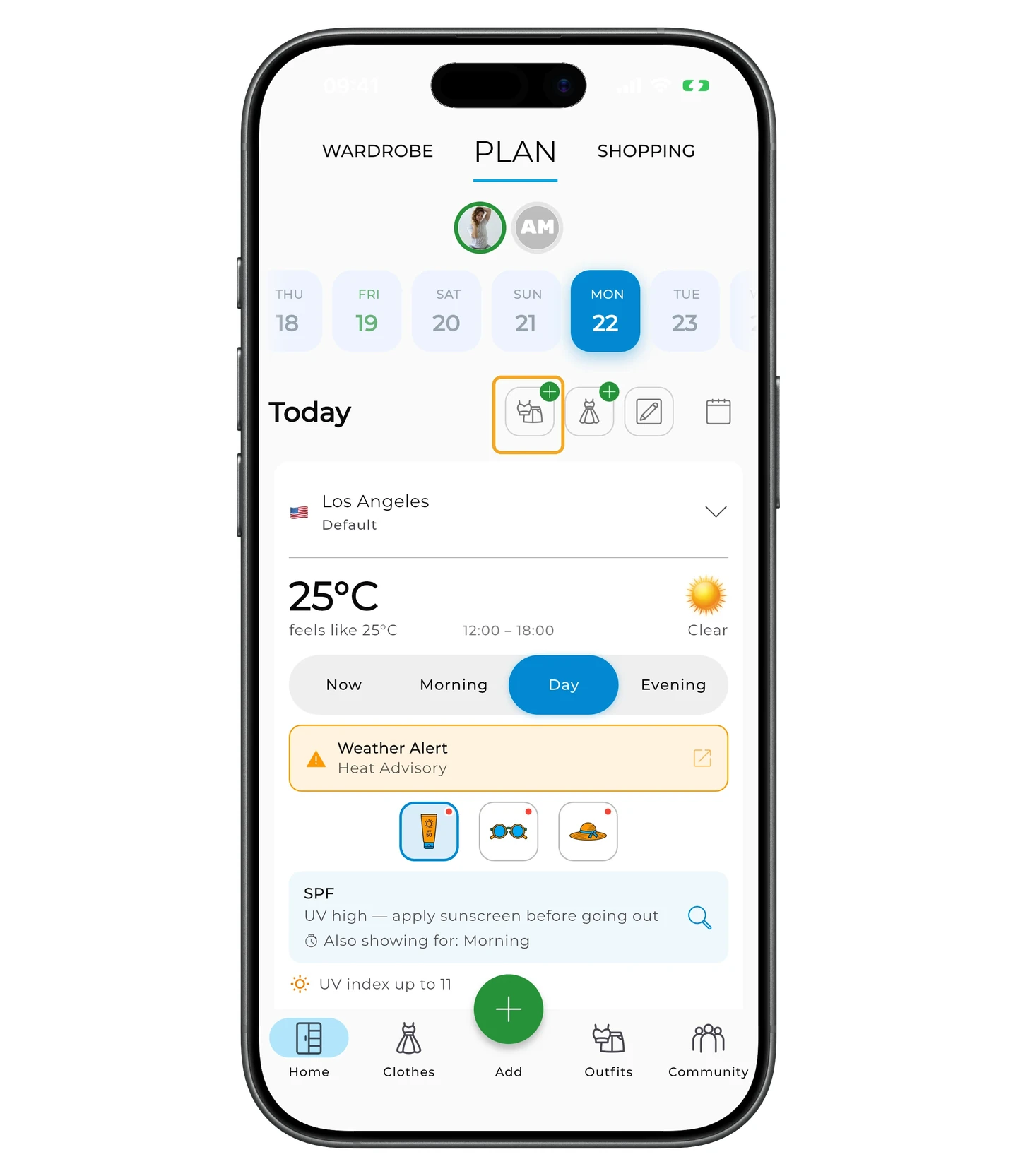
To add an outfit, tap the outfit icon with the +.
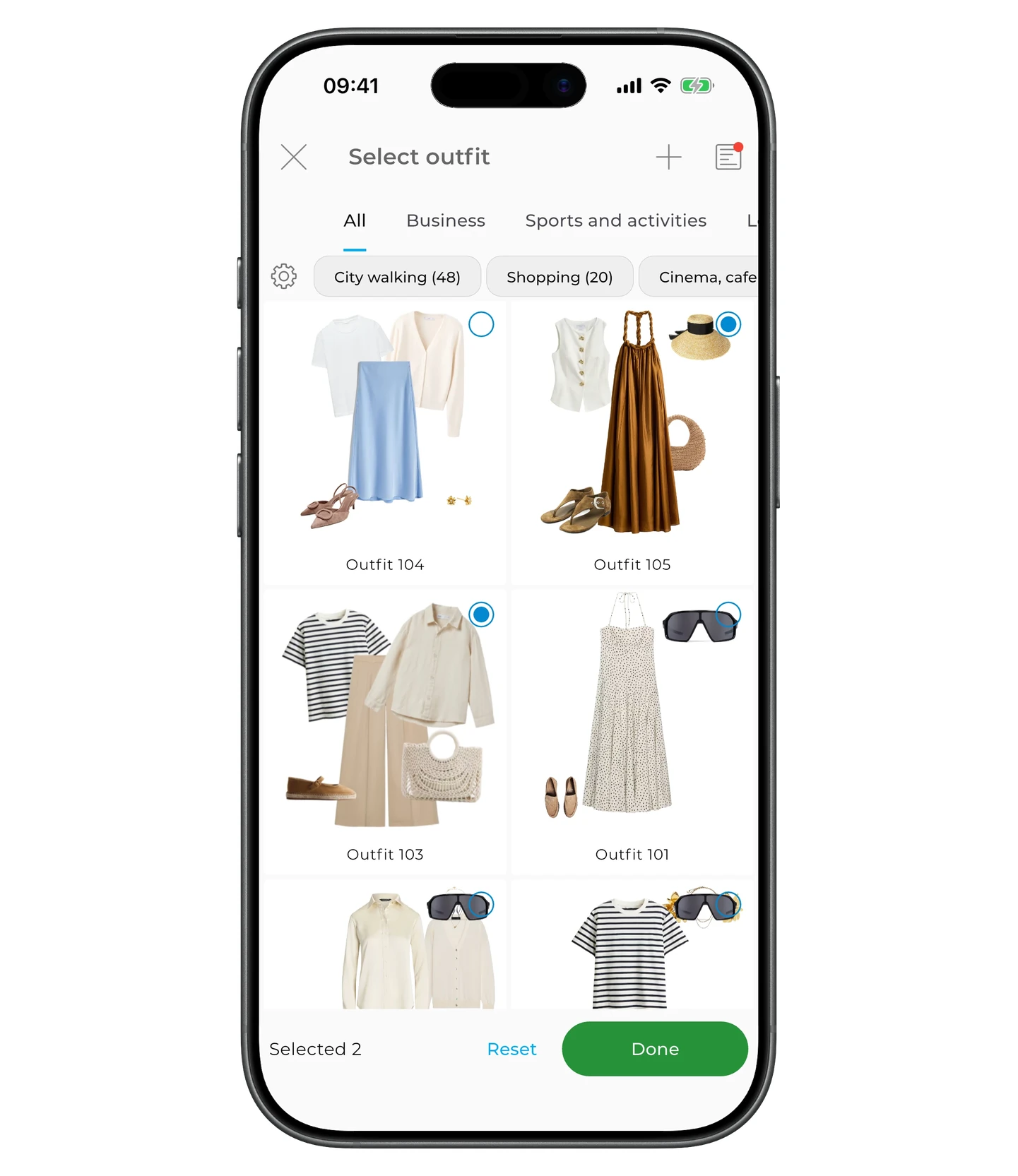
Pick an existing outfit or build a new one.
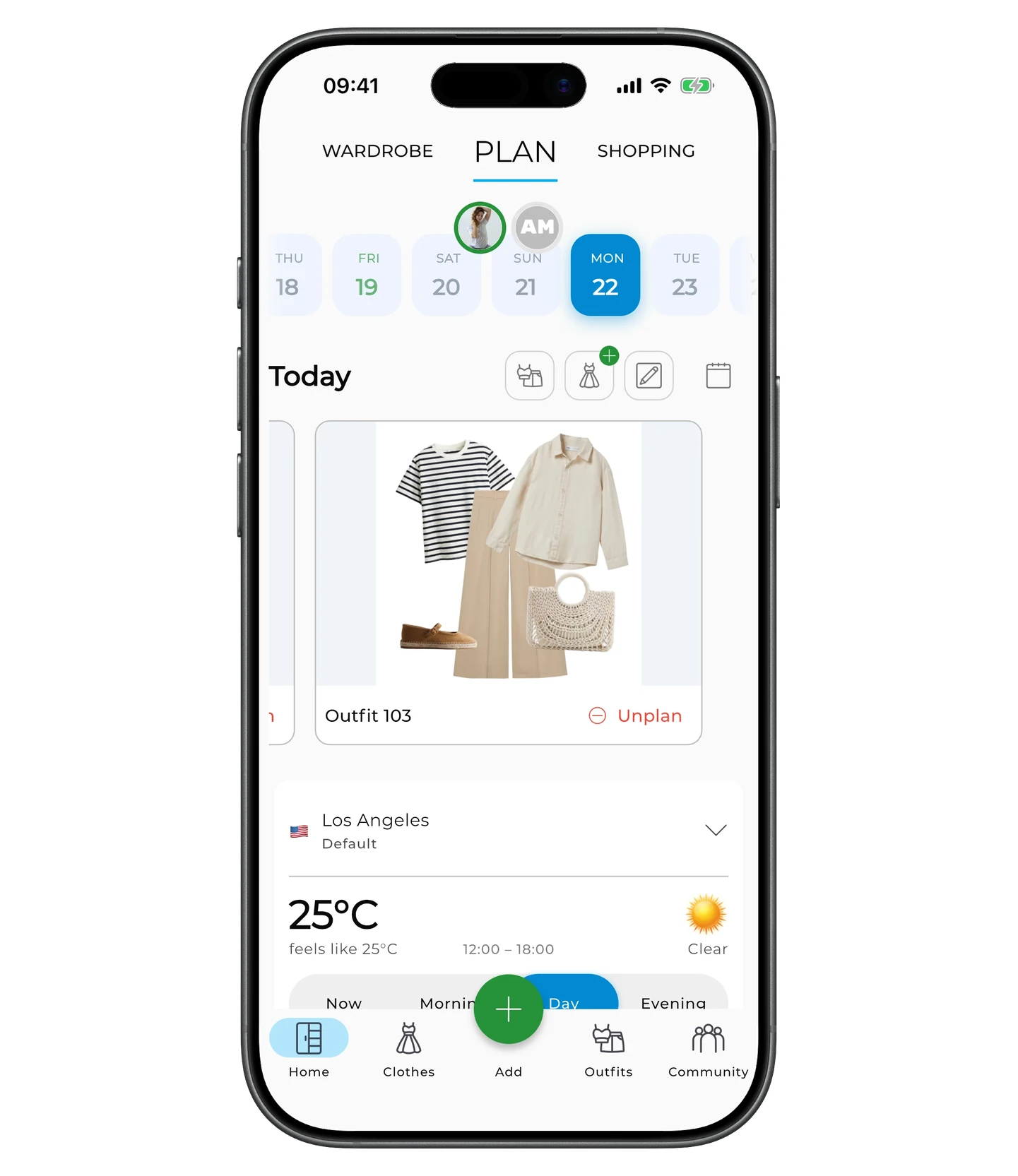
Once added, the outfit shows up on the chosen date.
You can add several outfits to the same day — for example, one for the workday and one for an evening event.
To unplan an outfit, tap Unplan under it.
Items
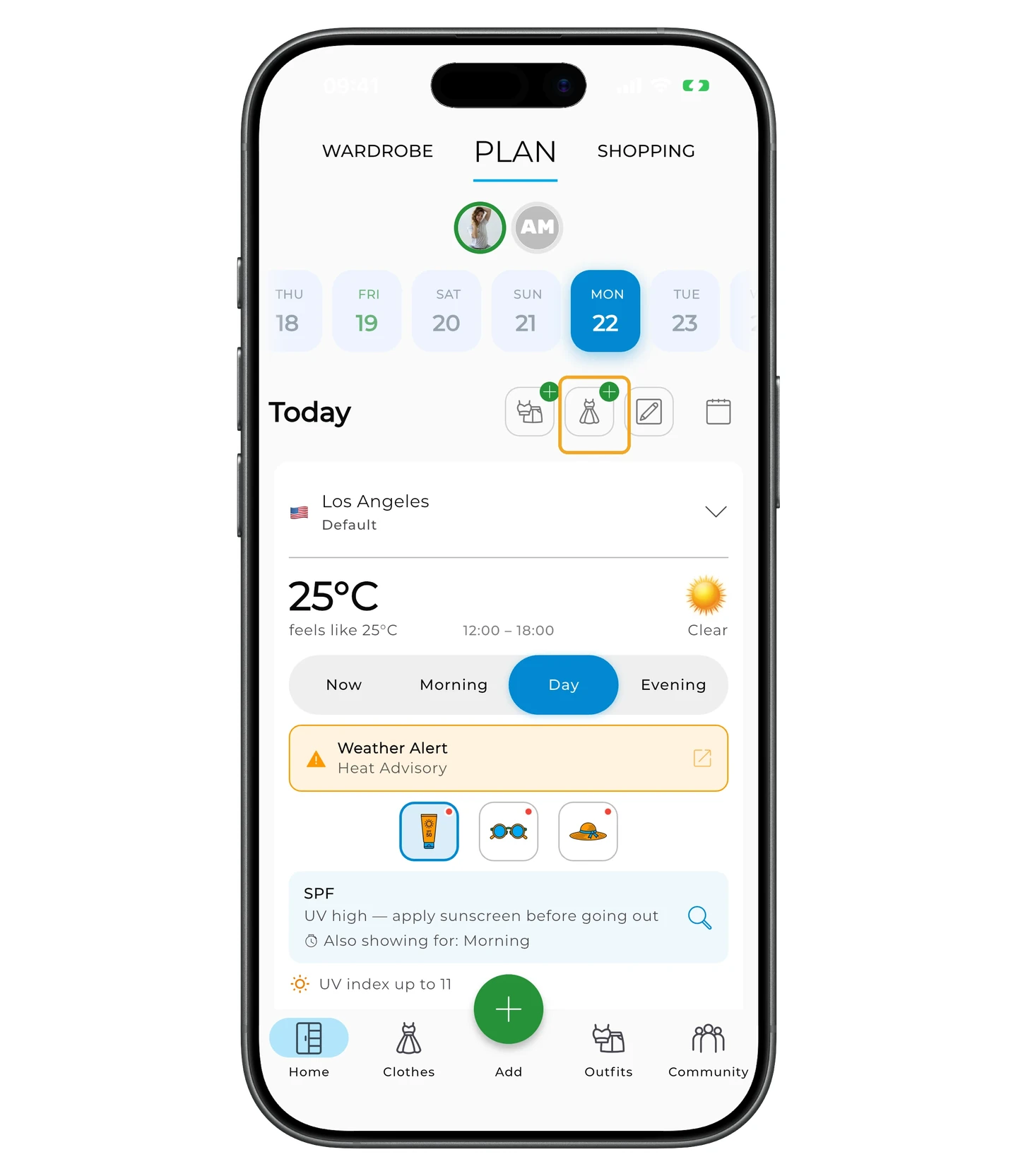
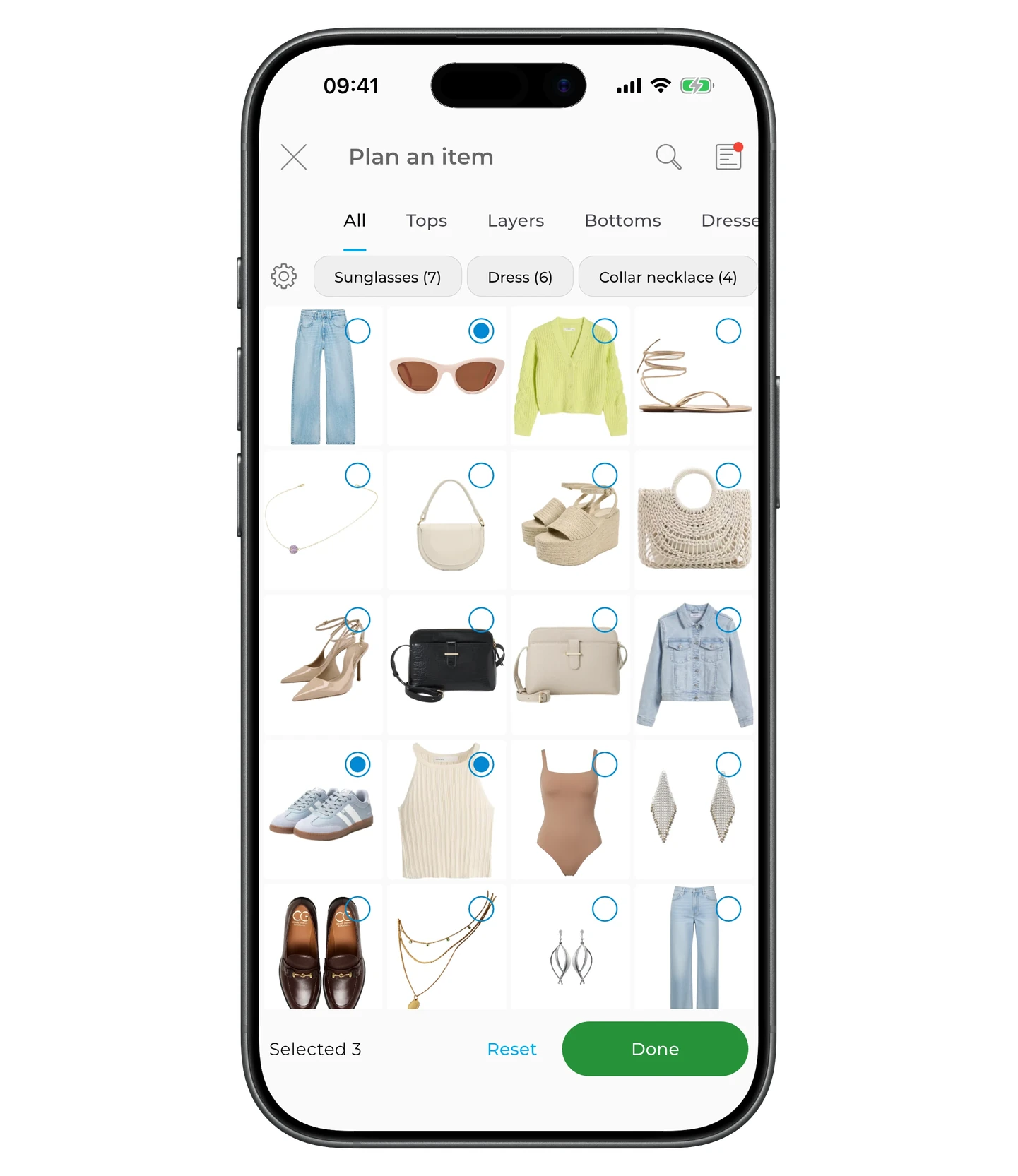
To plan individual items (instead of a full outfit), tap the Item + icon.
Pick the items and tap Done.
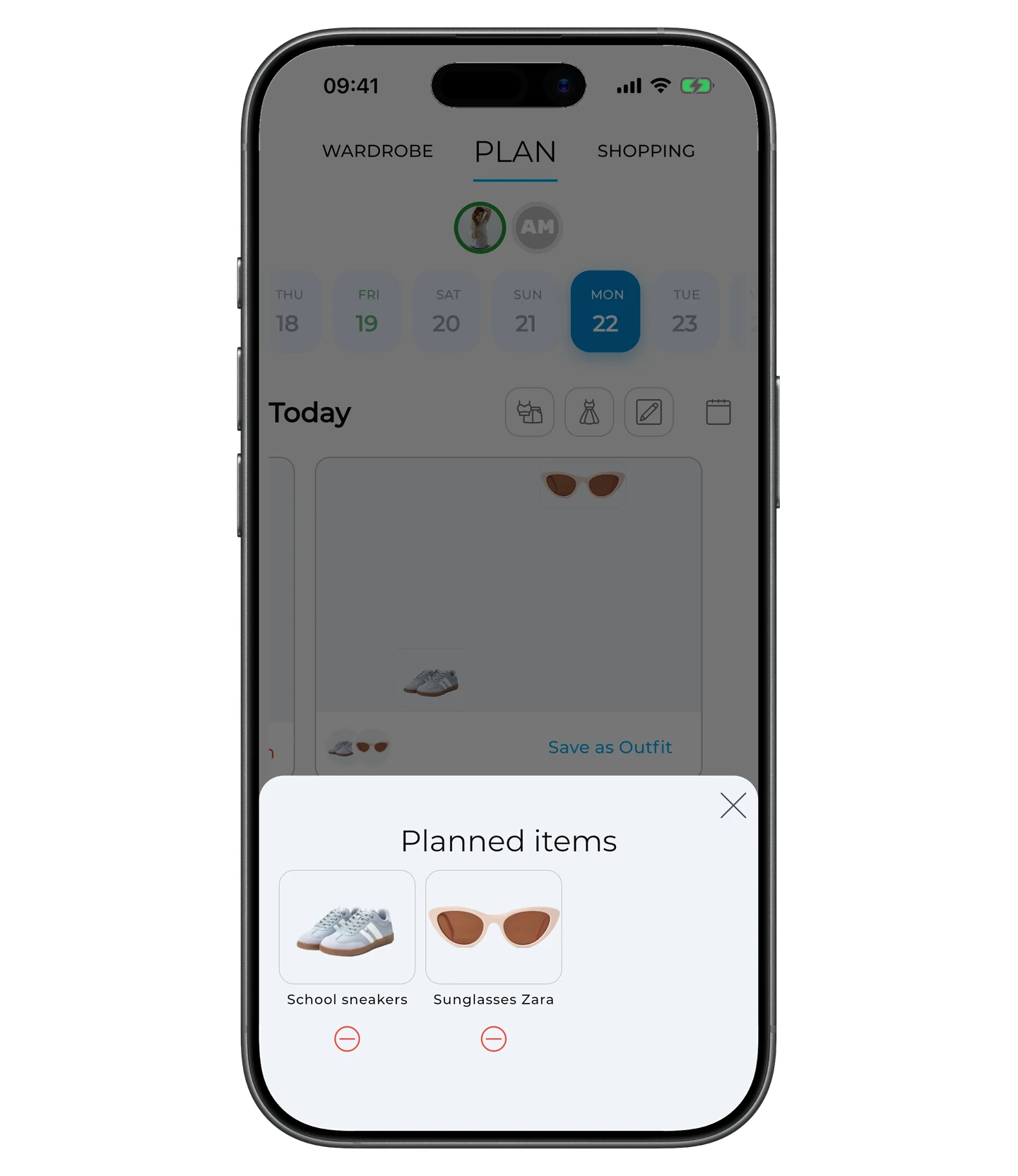
To unplan items, tap the planned-items area.
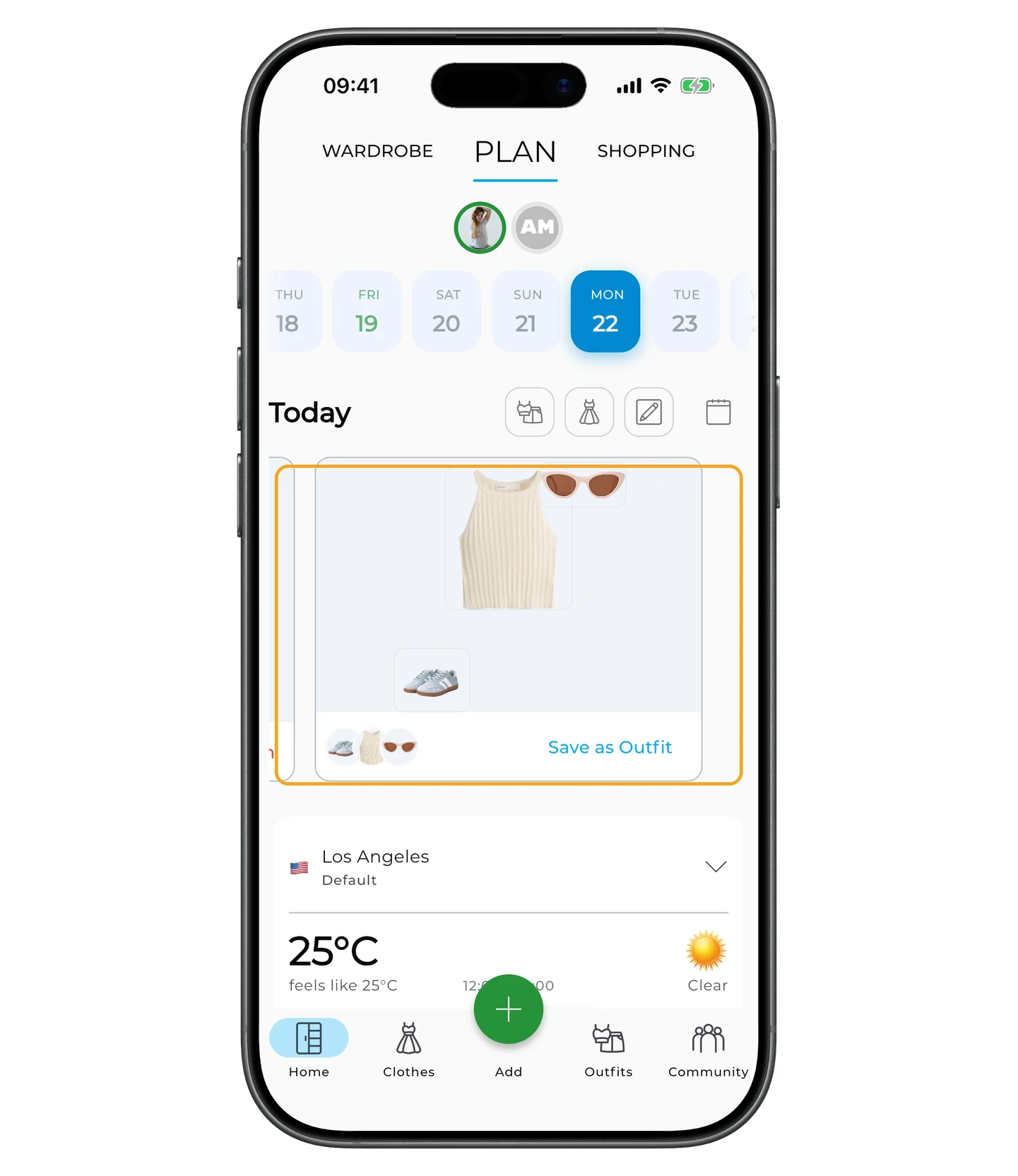
Then tap the ⊖ icon under an item to remove it from the plan.
Notes
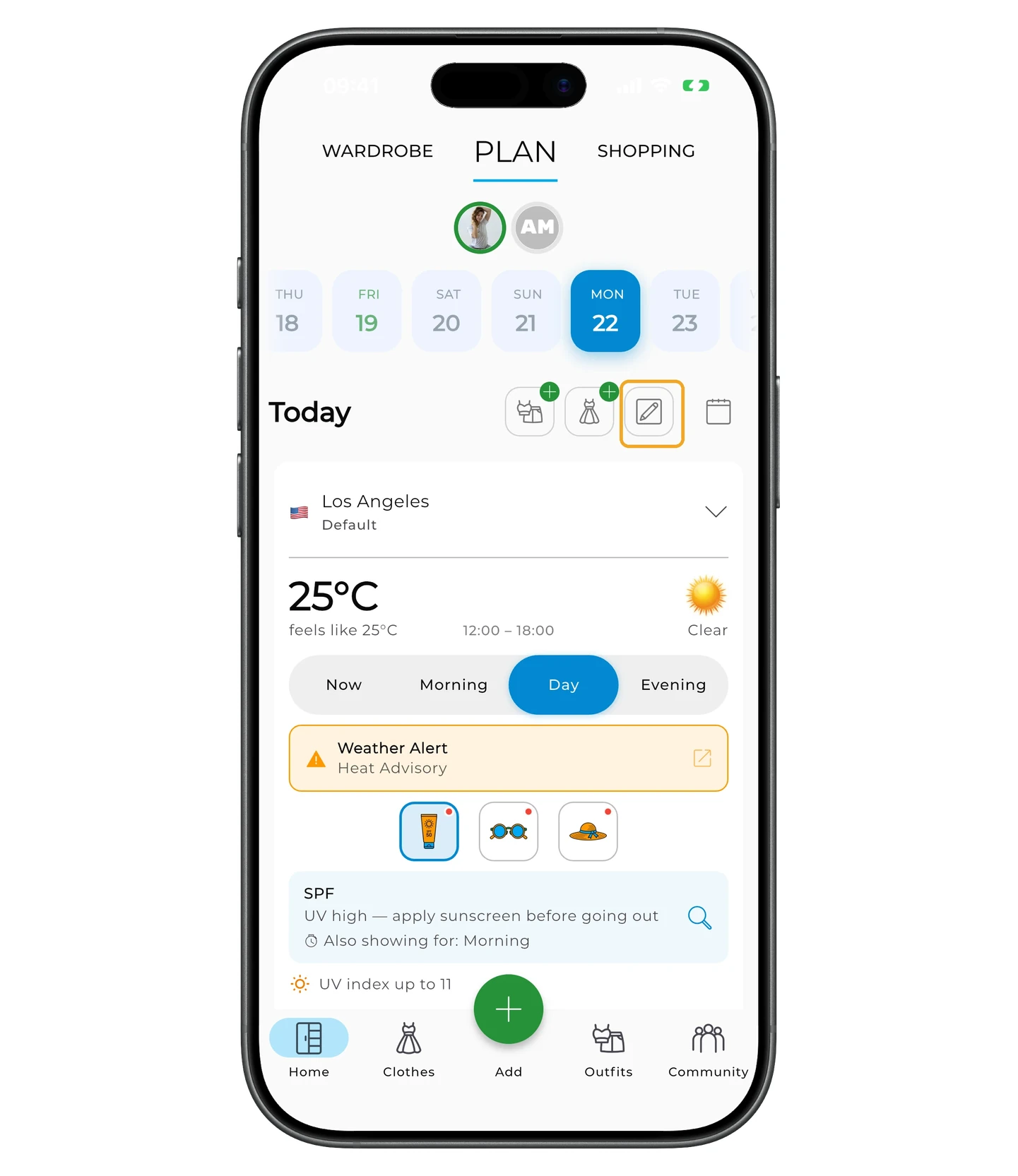
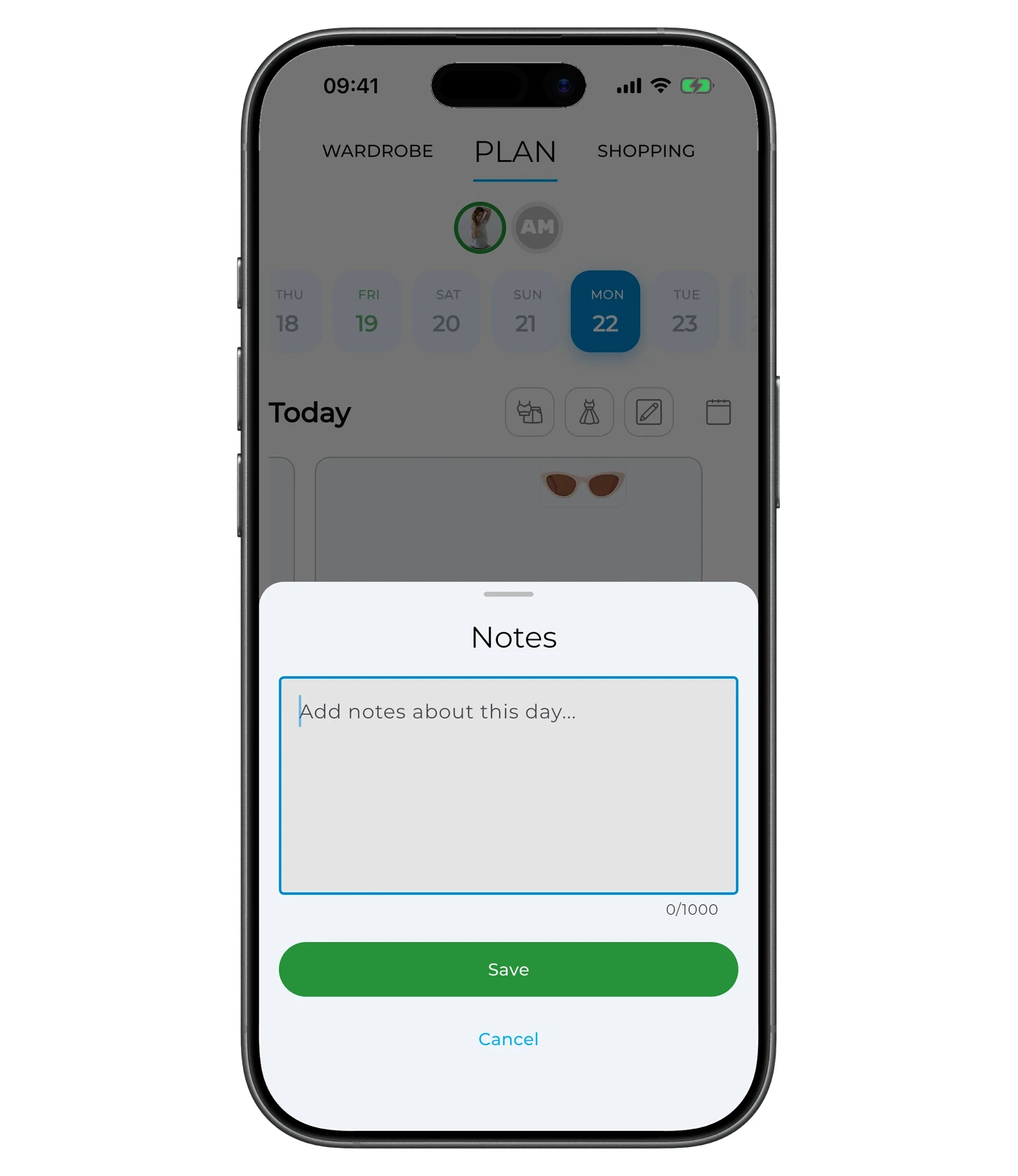
To add a note for the day, tap the pencil icon — next to the plan-item icon.
Write your note and tap Save.
Planning in the calendar
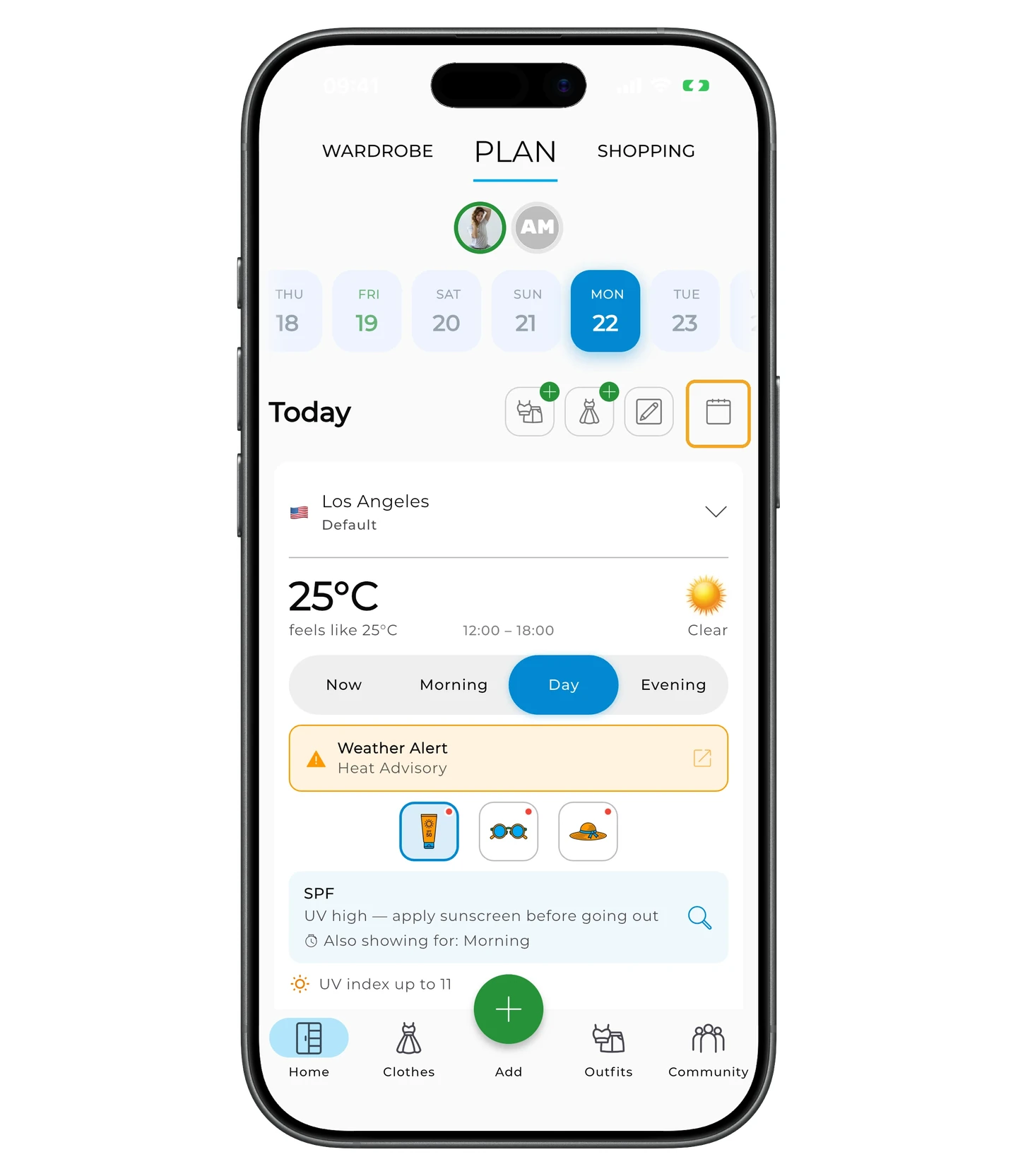
To plan an outfit for a date a week, a month, or further out, open the calendar. Tap the calendar icon on the Plan tab.
Pick a date — a planning screen for it will open.
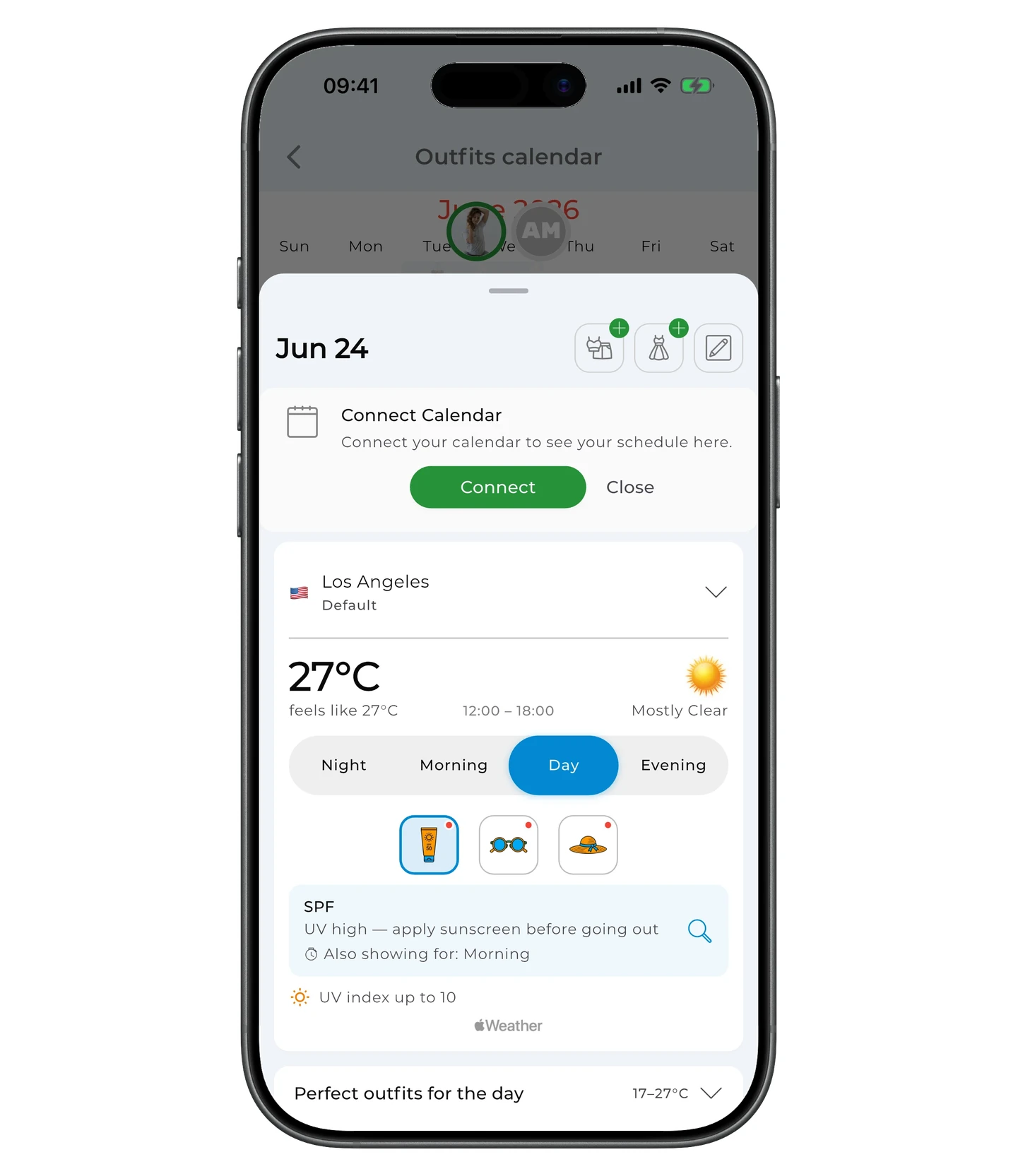
Tap the plan-outfit or plan-item icon and add what you want.
Weather and recommendations
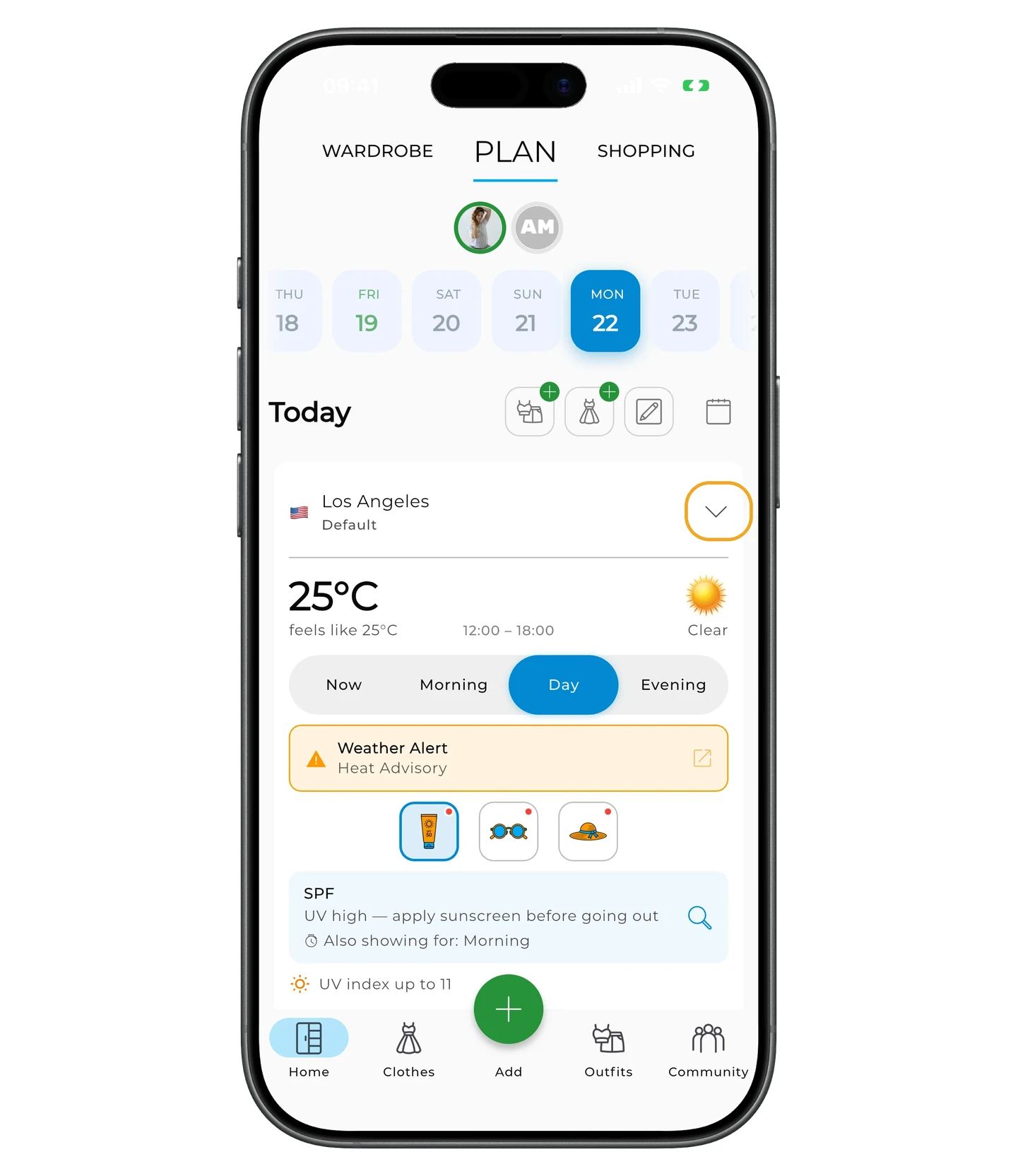
The planning screen shows the forecast for your selected city: temperature, "feels like", general conditions (for example, Partly cloudy), and a time range.
The forecast is split into parts of the day: Night, Morning, Day, and Evening. Switch between them to see conditions and recommendations for each.
Under the forecast, GetWardrobe shows recommendations for what to take or wear given the weather — for example, an umbrella when rain is likely, a light jacket when it's cool, or sunscreen when UV is high. Below the recommendations you'll find extra details: chance of precipitation, UV index, and which parts of the day the tip applies to.
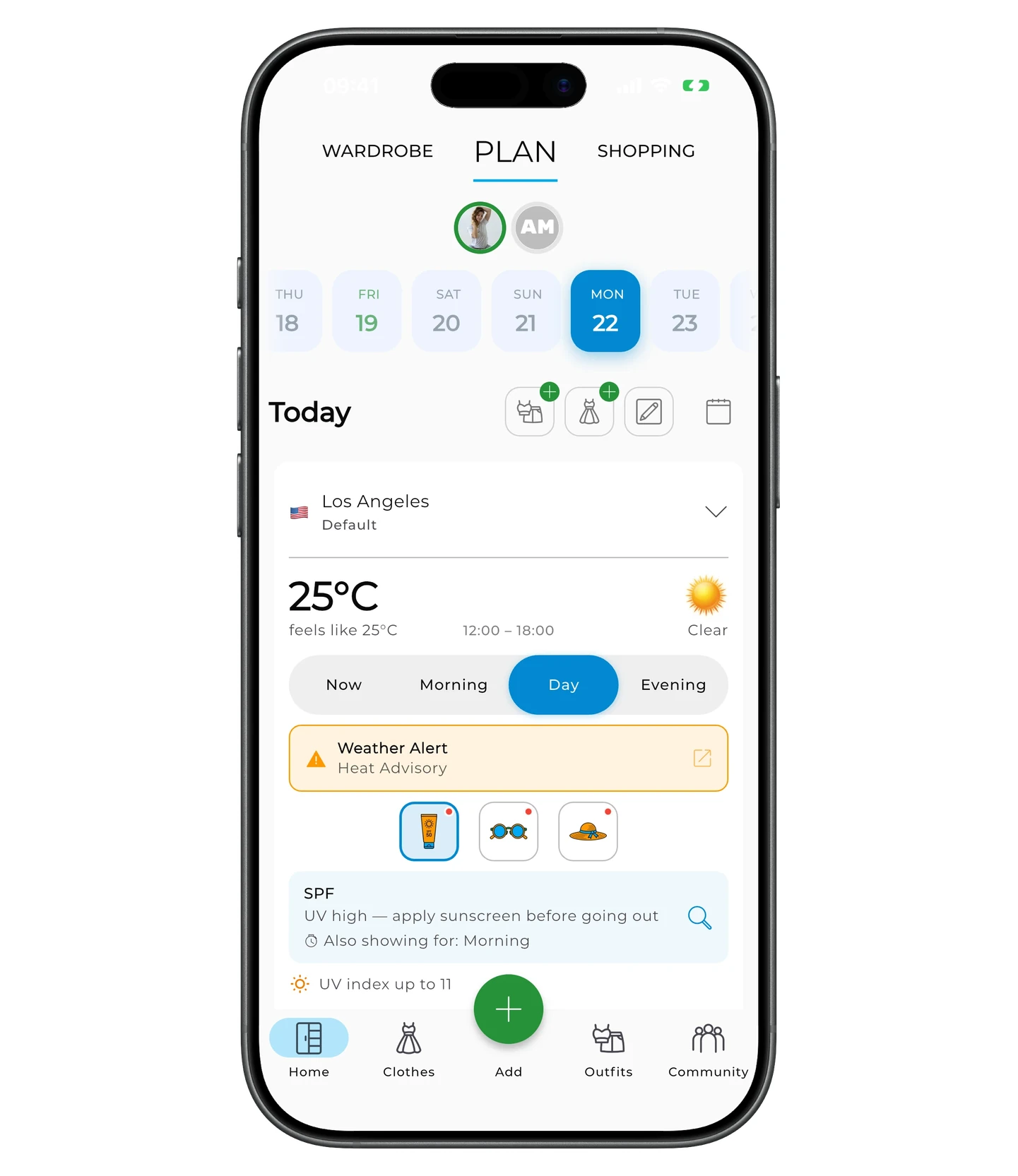
Tap a recommendation icon to see the details — for example, SPF, sunglasses, or hat. Below the icons you'll see a detailed description of the tip and which part of the day it applies to.
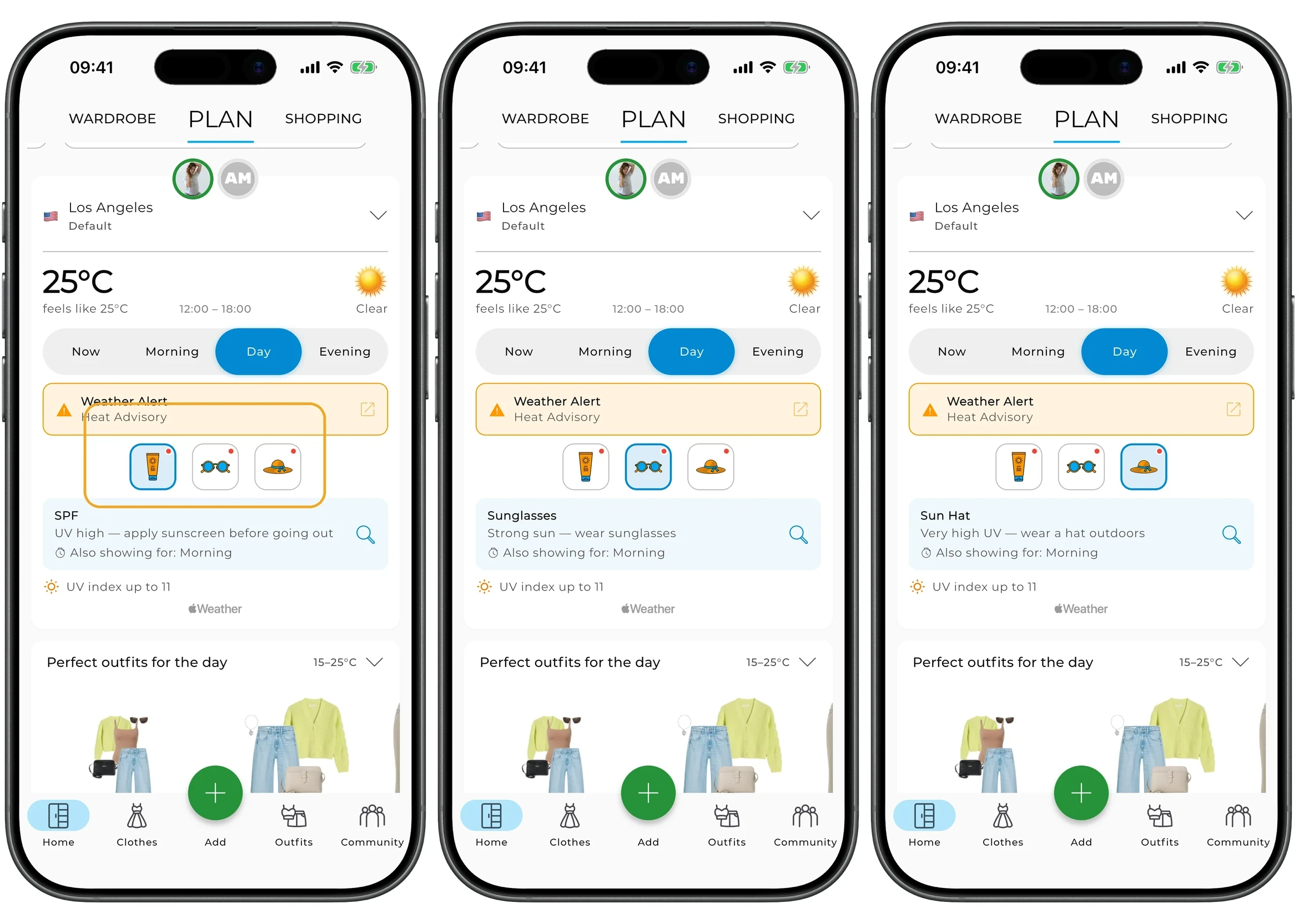
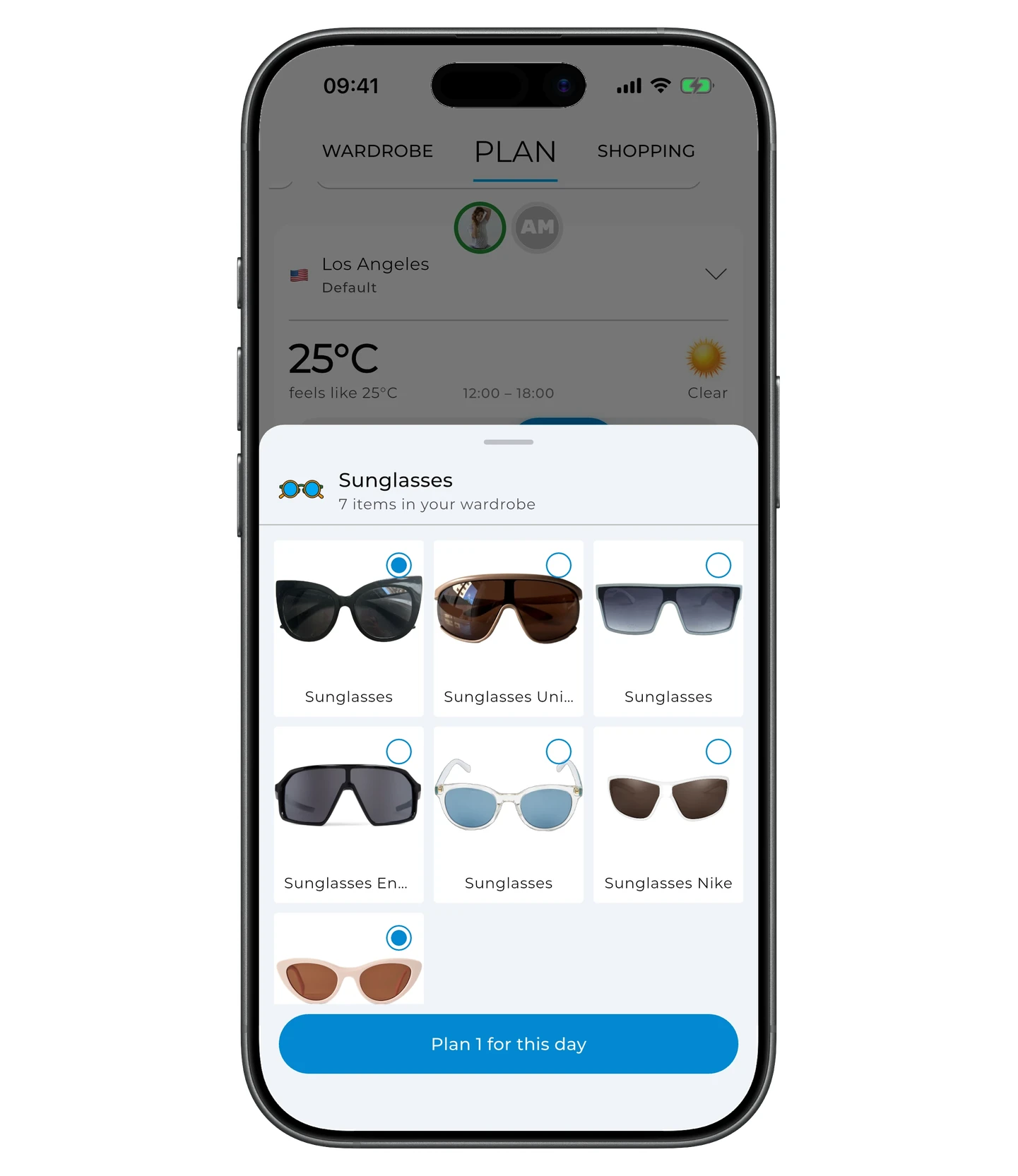
Each recommendation also has a magnifying-glass icon — tap it to see matching items from your wardrobe. For example, all the sunglasses you own.
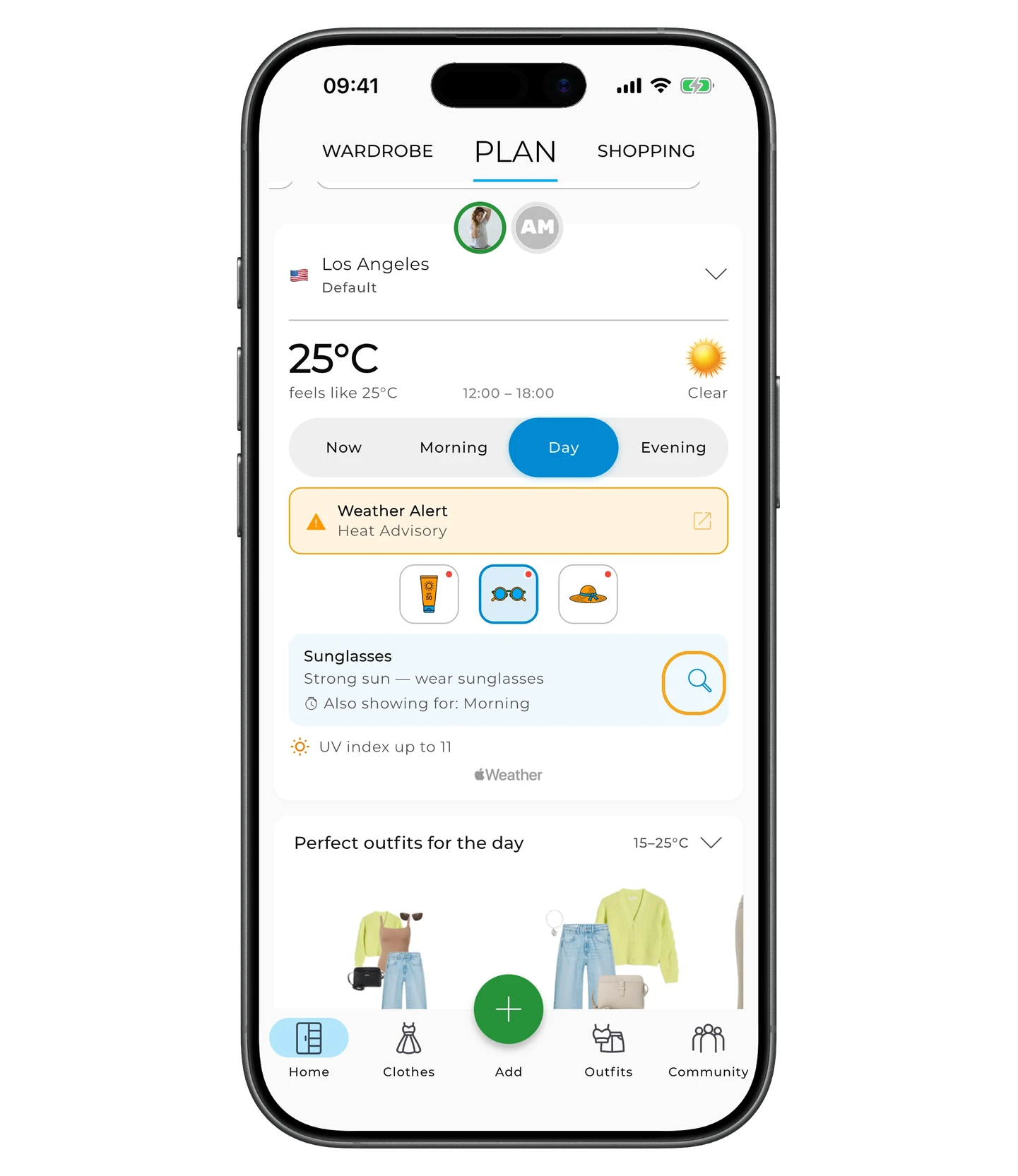
Select an item and plan it by tapping Plan for this day.
Info
Weather history and viewing conditions for past dates are available only with a Premium subscription. Useful if you want to remember what you wore on a given day or look back at previously planned outfits.
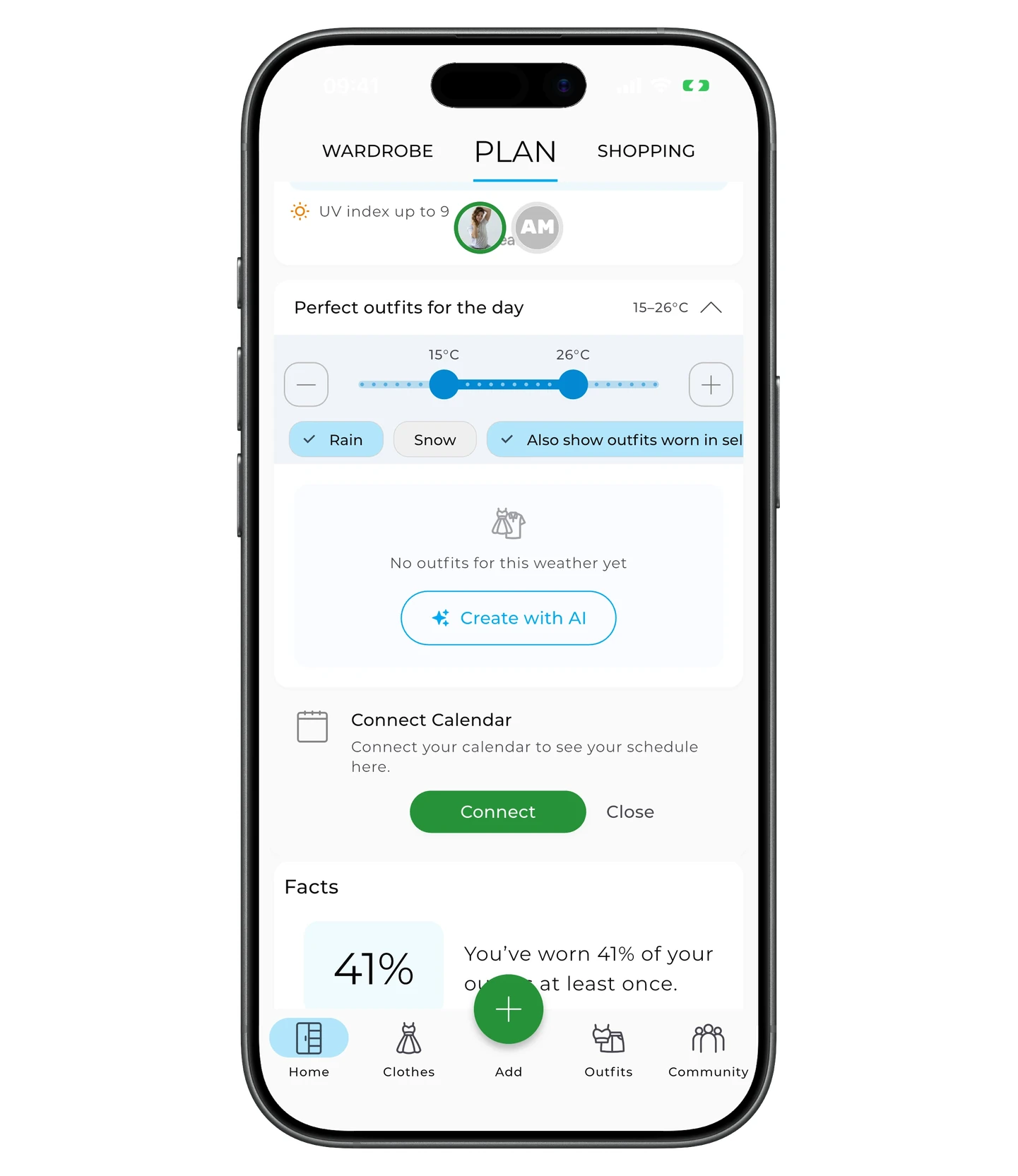
Perfect outfits for the day
In the Perfect outfits for the day block, GetWardrobe shows outfits from your wardrobe that match the weather for the selected date.
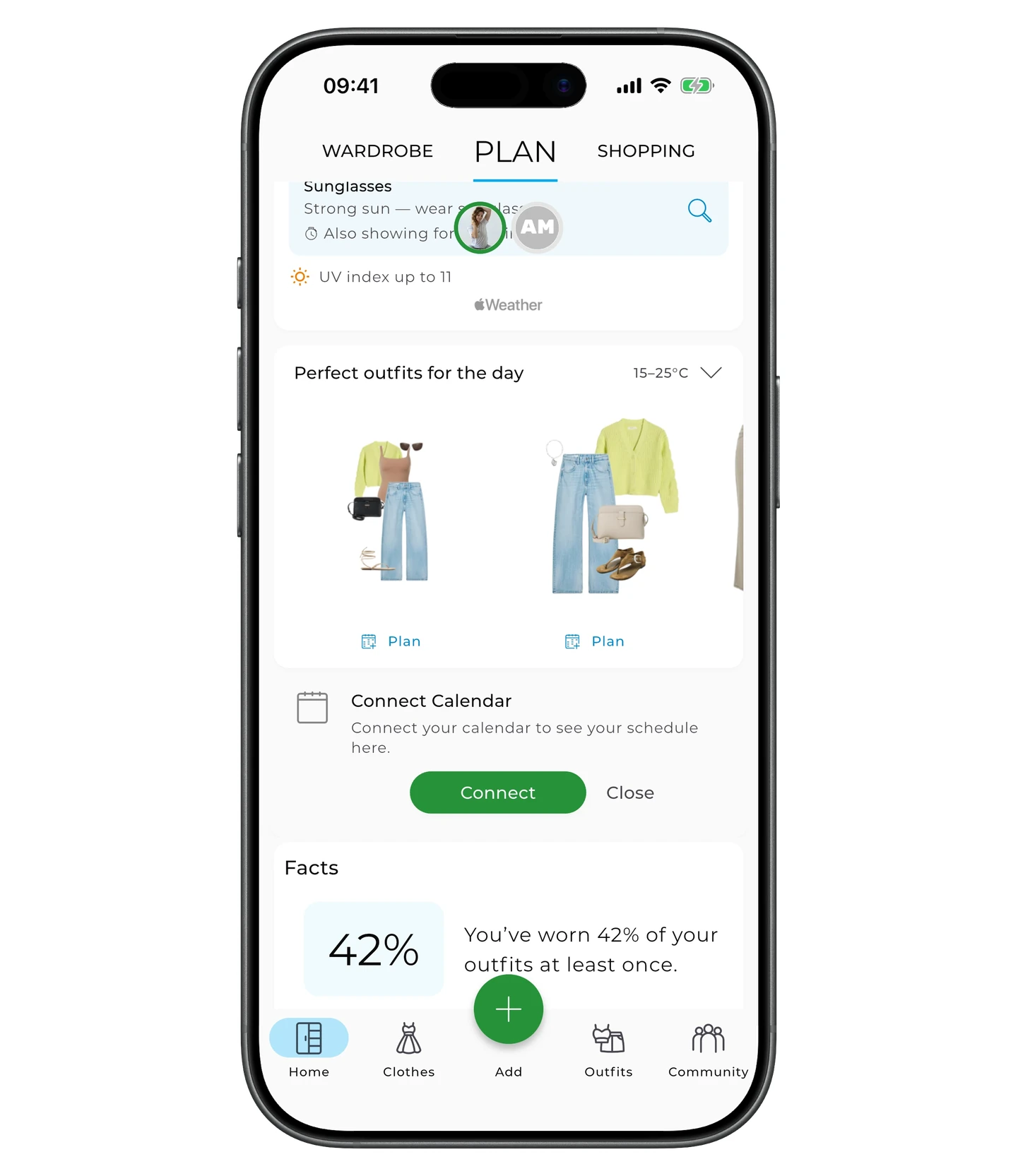
When picking matches the app uses:
- temperature and weather conditions for the selected date;
- the outfit's own settings (temperature range, weather parameters);
- the selected location.
You can plan a matching outfit right away — tap Plan under it.
To change how outfits are matched for the day, tap the arrow next to Perfect outfits for the day.
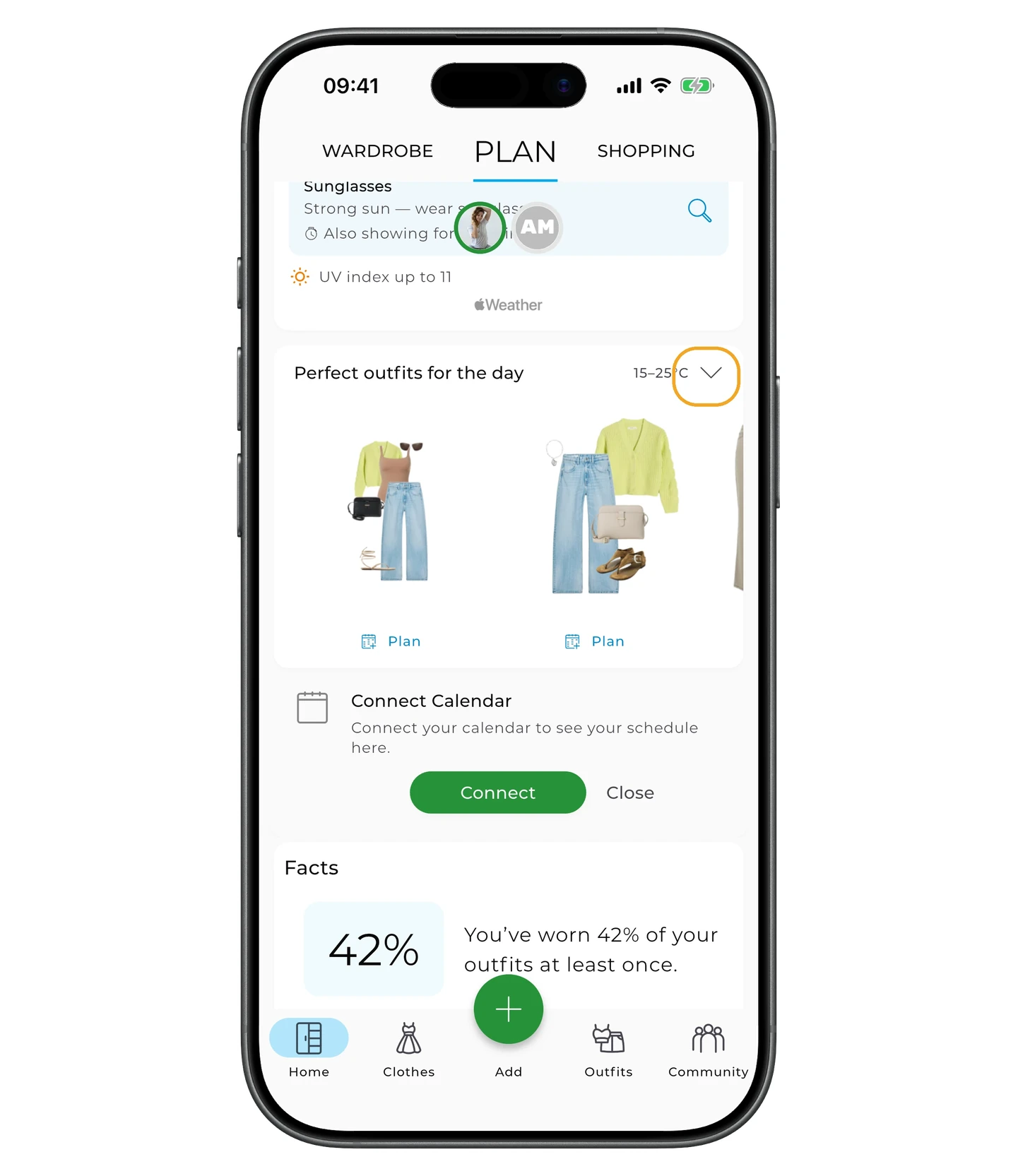
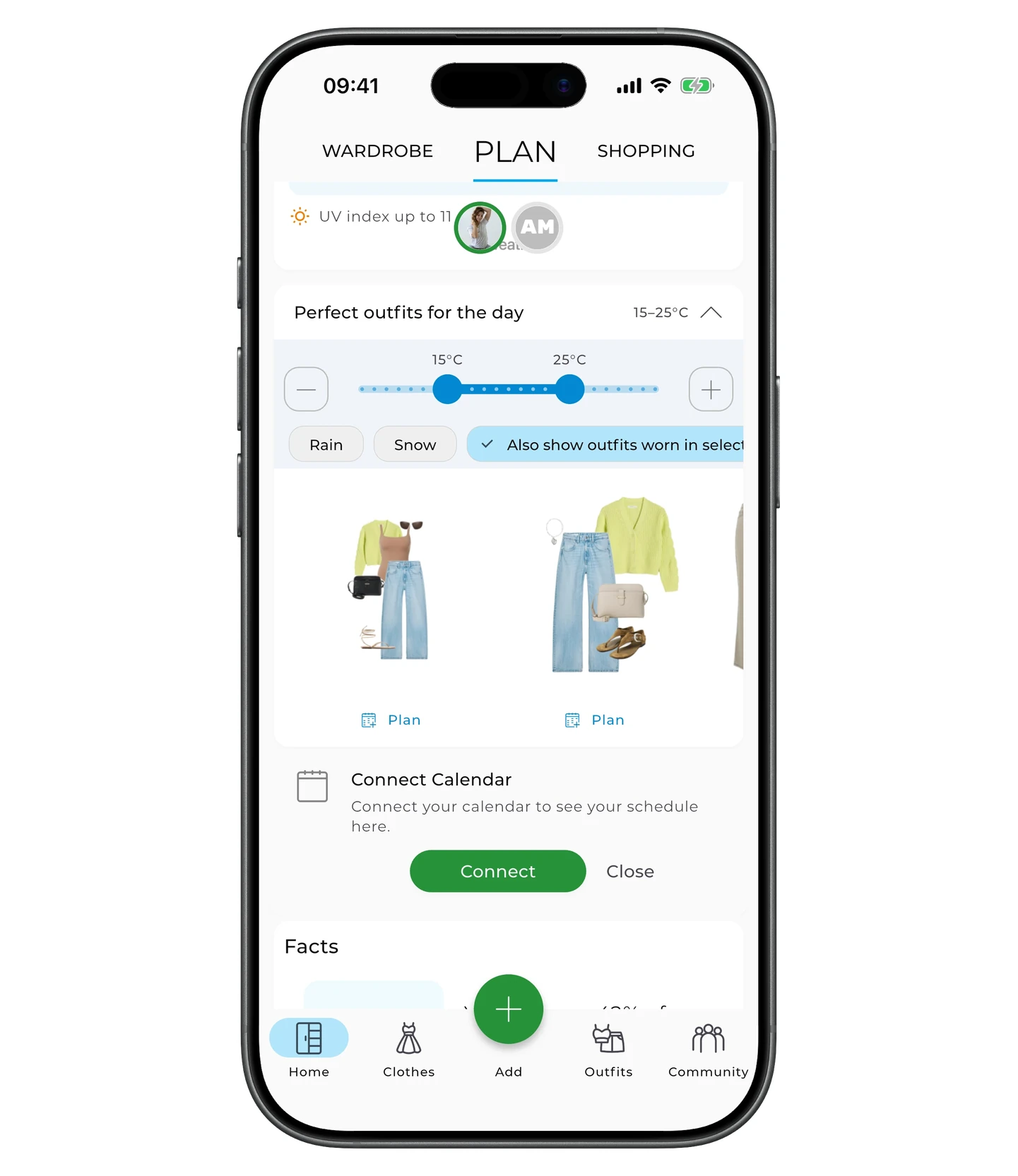
Here you can:
- adjust the temperature range;
- mark weather conditions — Rain or Snow;
- tap Show outfits worn in this weather — the app pulls up outfits you've already planned or worn in similar conditions.
If there are no matching outfits in your wardrobe, you can build them for this exact weather — tap Create with AI, and the AI generator will put together outfits for the selected conditions.
Tip
Matching outfits may not appear if:
- no city is set in your profile;
- no forecast is available for the selected date;
- your wardrobe has no outfits with matching temperature and weather settings.
Locations and trips
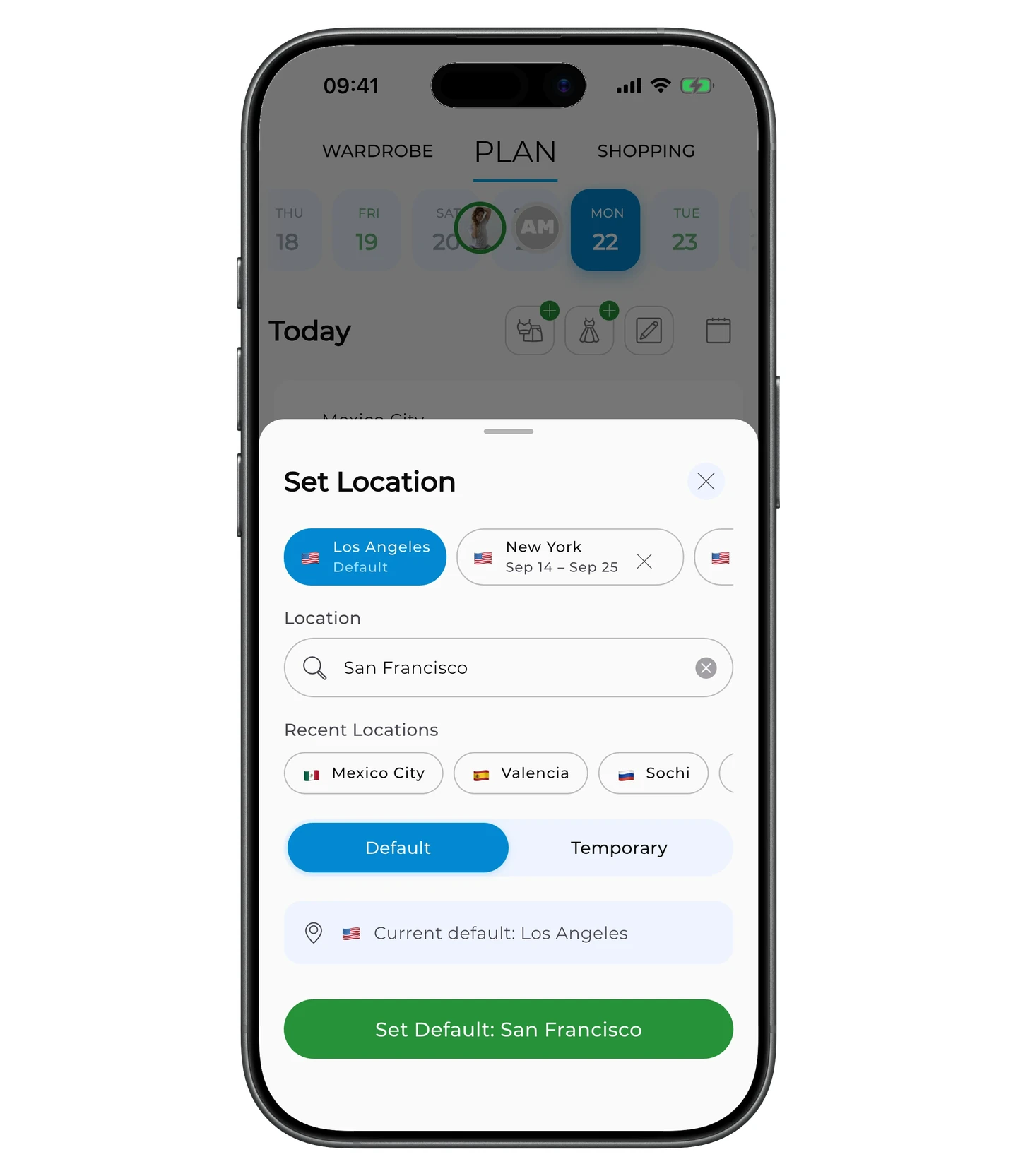
Default location
To change the location the forecast uses, tap the down arrow next to the city.
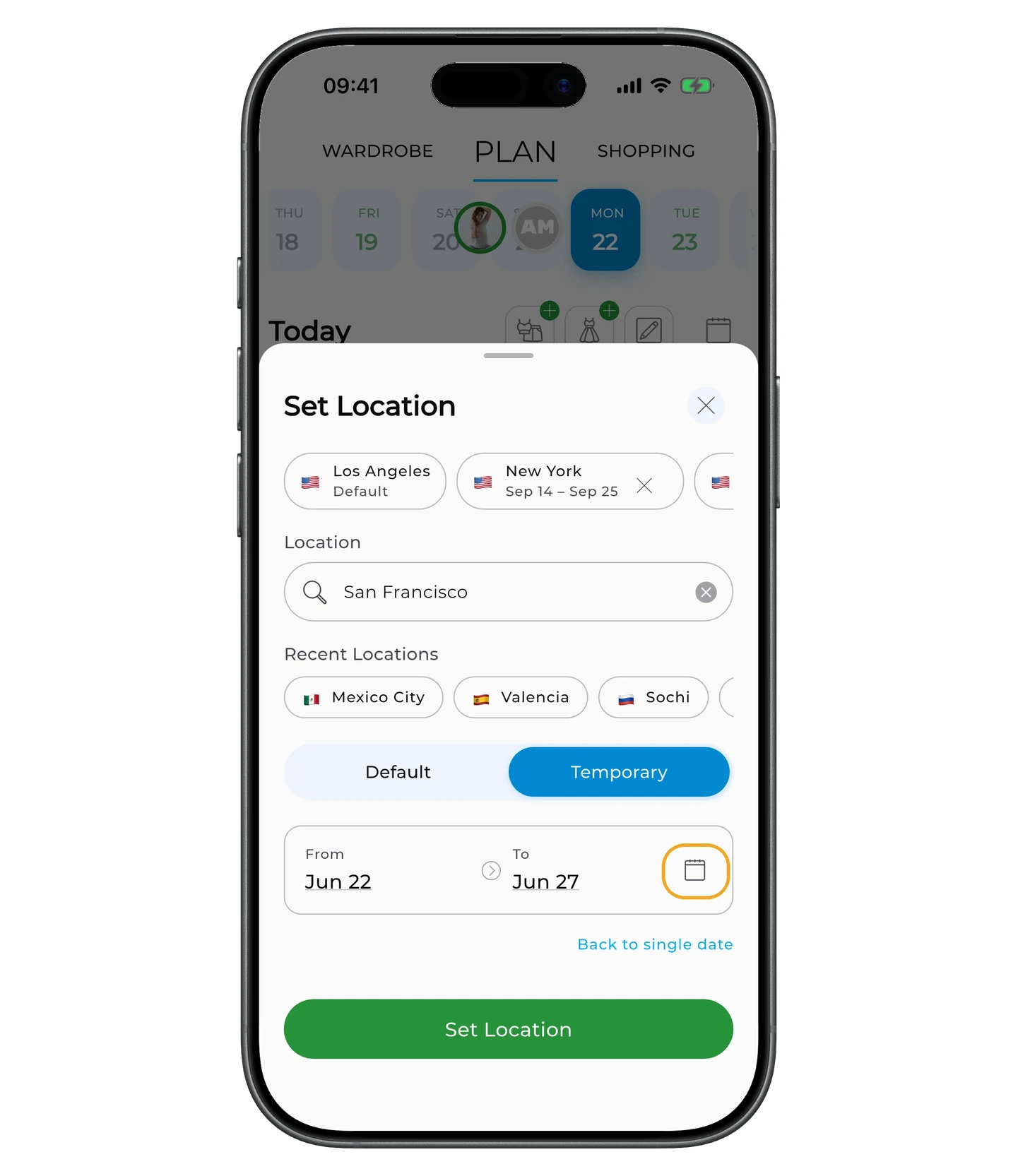
Enter a new location. If it's a new permanent location, pick Default and tap Set.
Temporary location for trips
Info
Setting a temporary location for the forecast is available only with a Premium subscription.
Going on vacation, a work trip, or away for the weekend? GetWardrobe can use different locations for the forecast.
Enter a city, pick the trip dates, and choose Temporary. This mode is designed for trips.
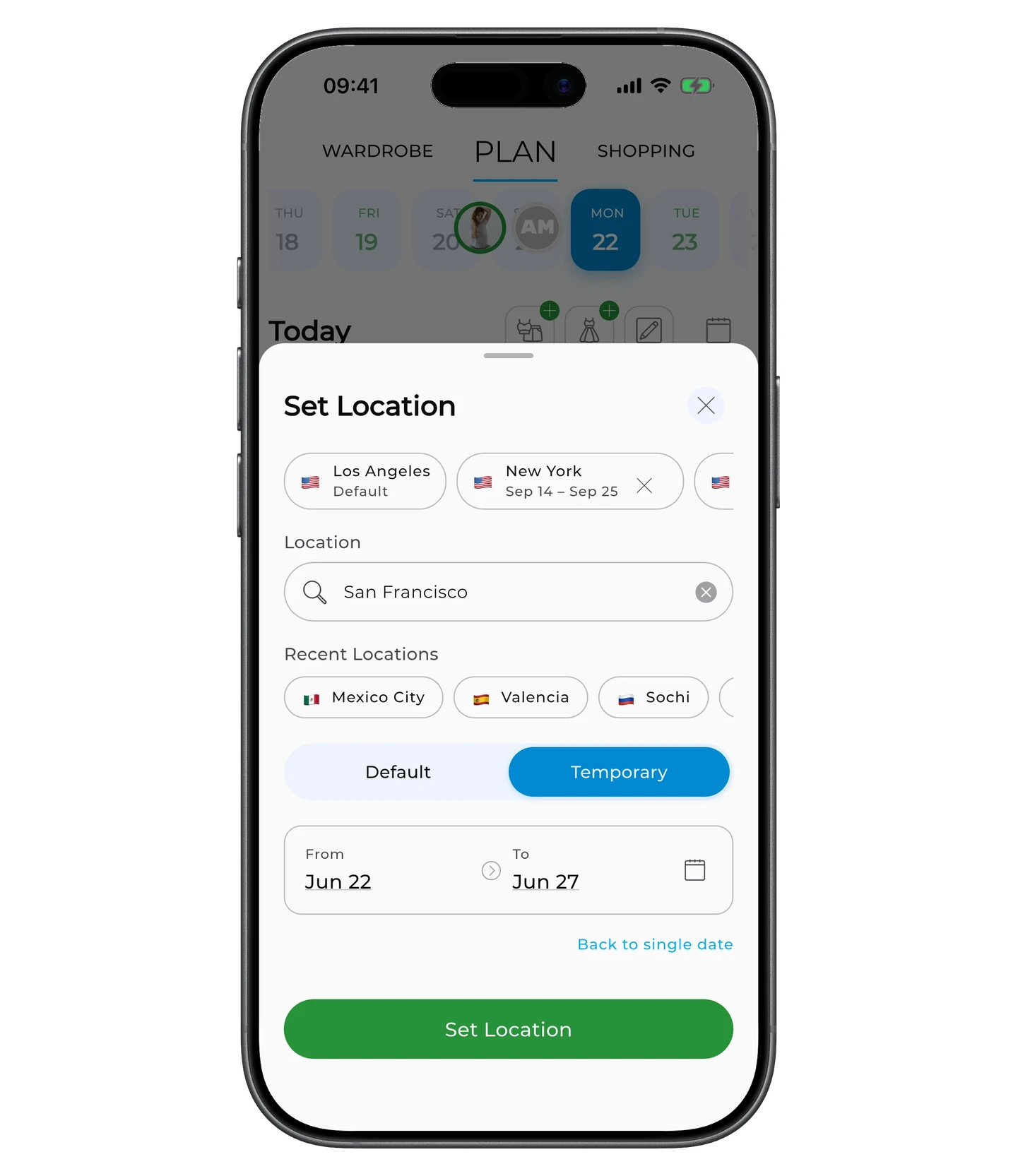
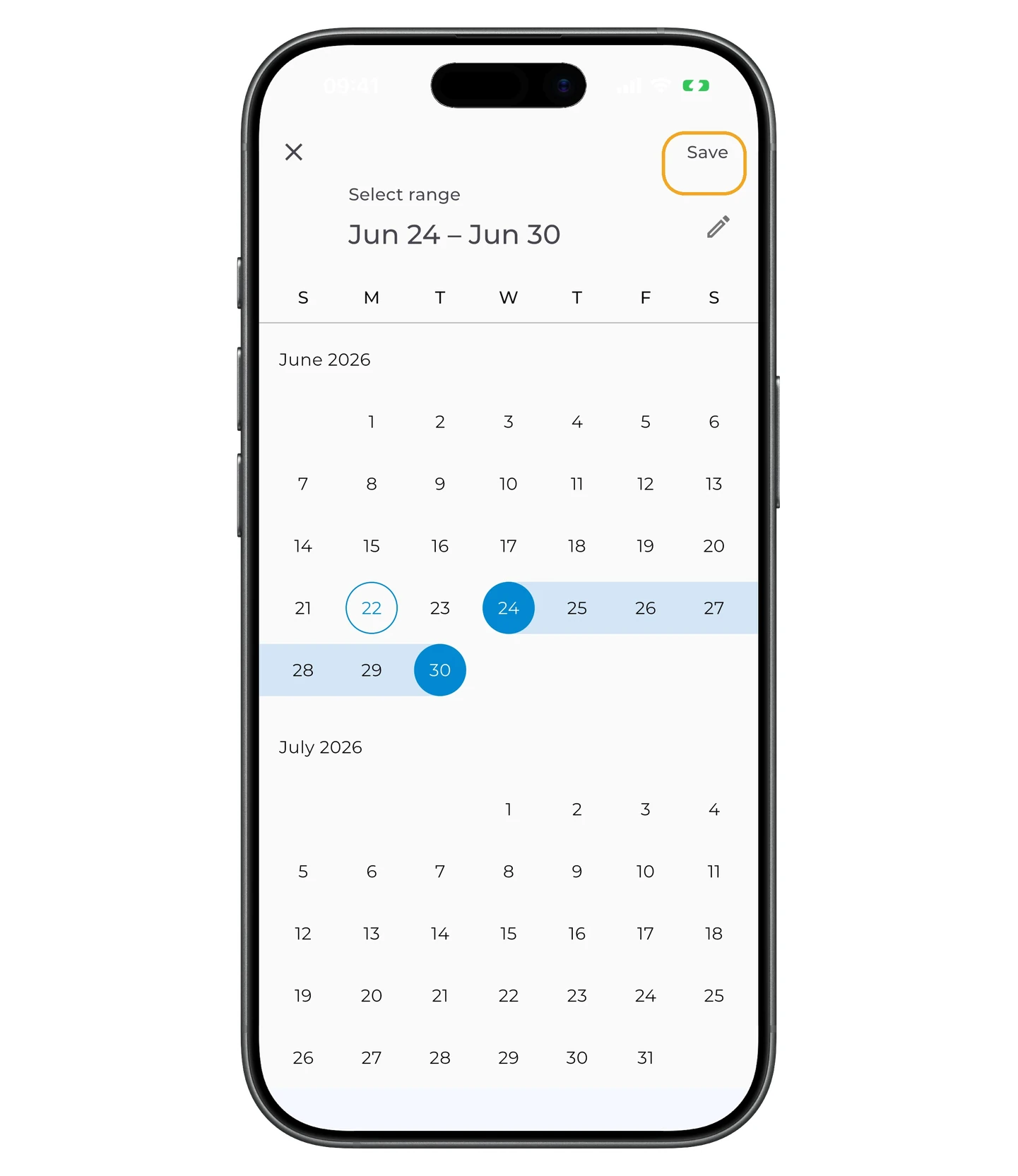
To pick trip dates, tap the calendar icon.
Pick dates and tap Save.
While the trip is active, the app shows the forecast for that location and picks outfits with the local weather in mind.
Device calendar sync
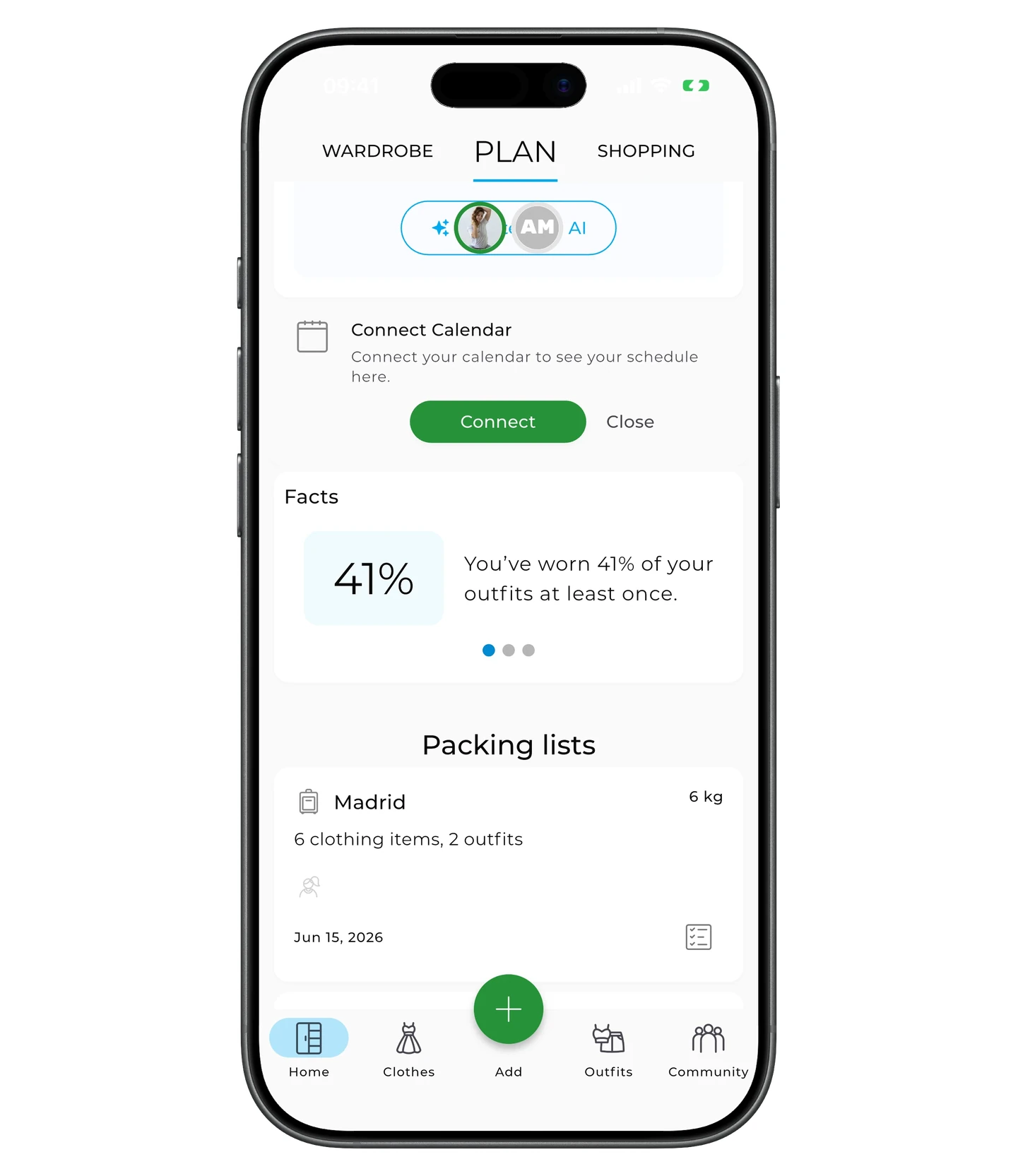
If you use your phone's calendar, you can connect it to GetWardrobe. On the planning screen there's a Connect calendar block — tap Connect to grant access to the device calendar.
Once connected, calendar events show up next to your plans. That makes it easier to prep an outfit for a meeting, a trip, a holiday, or any other event.
Packing lists
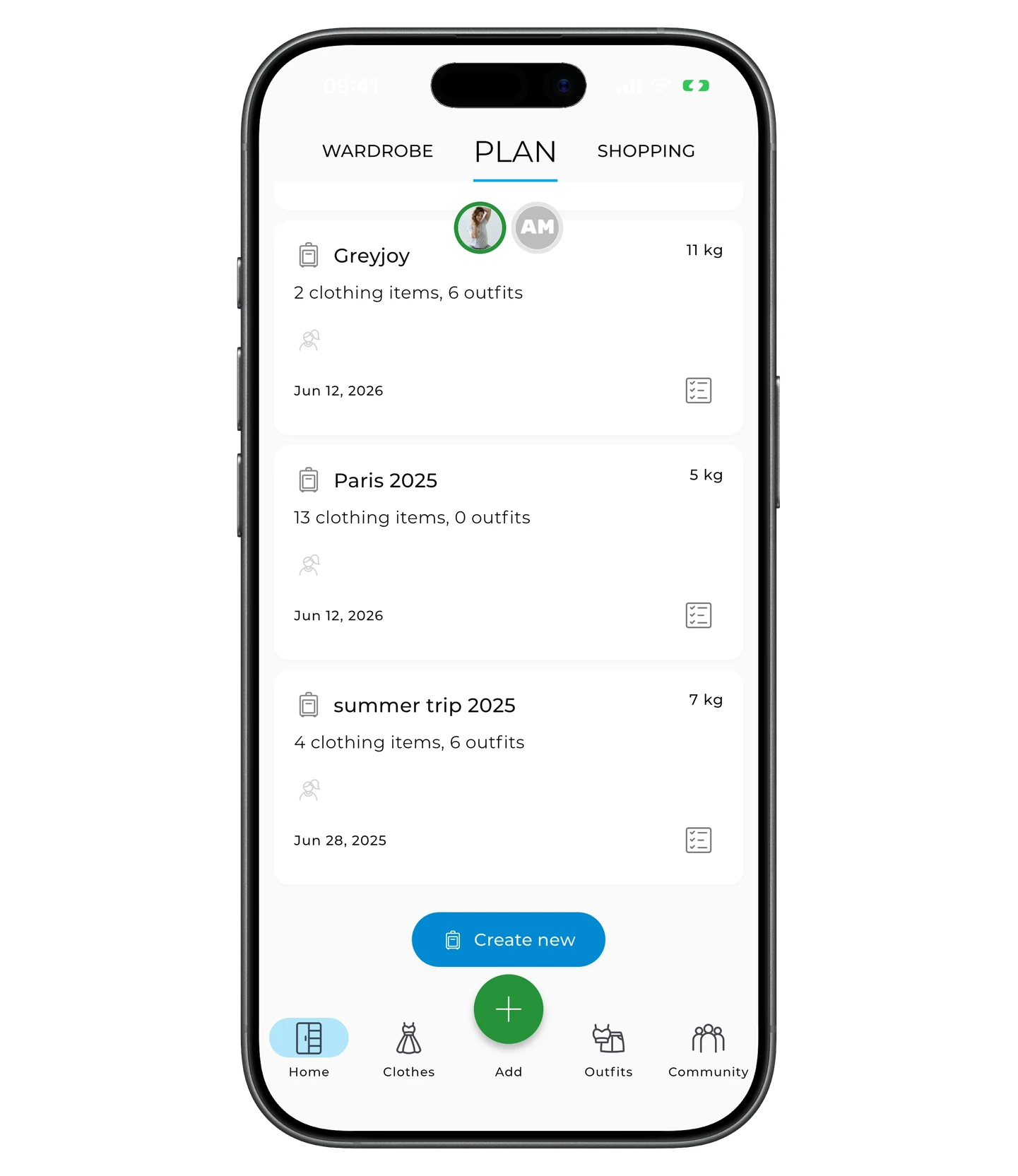
Below the planning section you'll find Packing lists — every packing list you've already created.
Tap a packing list to open it and add items or outfits. To see the packing checklist, tap the list icon to the right of the packing list name.
To create a new packing list, tap Create new at the bottom of the list.
Ready to start? Try planning an outfit for tomorrow.
After a while you'll notice you spend less time picking what to wear, you forget about your favorite pieces less often, and you understand which combinations actually work for you.
FAQ
Can I plan multiple outfits for one day?
Yes. You can add several outfits, items, and notes to the same date.
How does the app know which outfits work for the weather?
GetWardrobe takes the temperature and weather parameters set on each outfit and matches them against the forecast.
What's the difference between "Default" and "Temporary"?
"Default" is the city you live in or where you spend most of your time. "Temporary" is a city for a trip — only used for a limited period.
Can I plan outfits for trips?
Yes. Pick a temporary location, set the trip dates, and the app will use that city's forecast.
Can I see the weather for a past day?
Yes. Weather history is available with a Premium subscription.
Can I plan outfits more than a week ahead?
Yes. Open the calendar and jump to any future date to plan ahead.
Do I have to connect the device calendar?
No. Planning works without it. The connection is only needed if you want to see your device events inside the app.
Need help?
Contact us at support@getwardrobe.com