Family Wardrobe
Create separate wardrobes for children, a partner, and other people close to you within one account. Keep each person's items separate, create outfits, and plan what to wear for them.
Info
Family Wardrobe is included in the Premium subscription.
- How Family Wardrobe helps organize children's clothes
- Family Wardrobe isn't only for children
- Adding a family member
- Adding items to a family member's wardrobe
- Tracking children's clothing sizes
- Viewing a family member's items and outfits
- Statistics and planning for family members
- Creating outfits from a family member's wardrobe
- Deleting a family member
How Family Wardrobe helps organize children's clothes
With children's clothes, it's easy to lose track of what you already have, what size your child wears now, and what you'll need for the new season.
In Family Wardrobe, all of a child's items are kept in one place. Before a new season, you can check what you already have and in which sizes. While shopping, you can quickly check your child's wardrobe before buying something new.
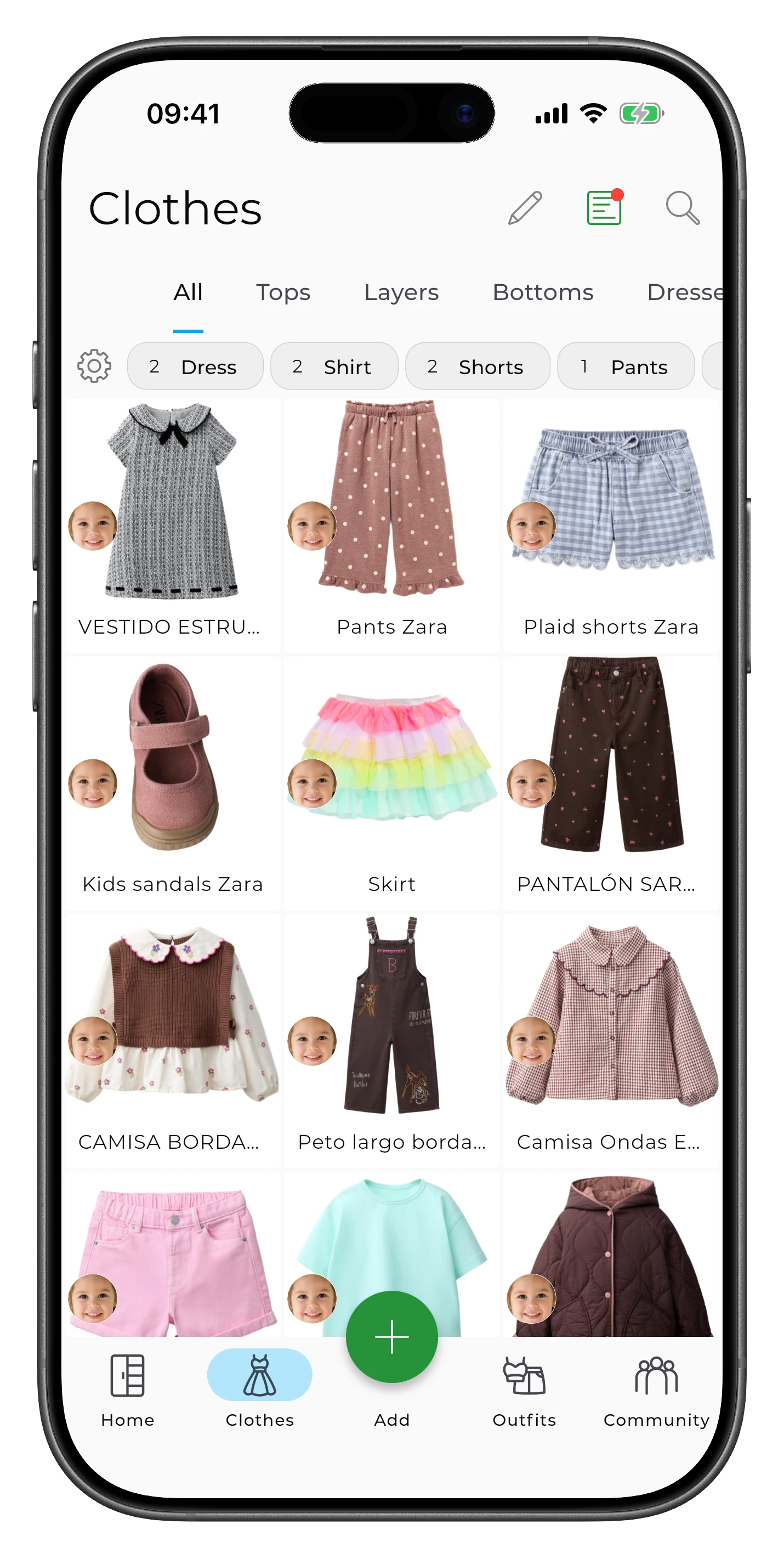
You can plan outfits for school or for the week ahead, and create a packing list before a trip. If you have several children, separate wardrobes help you keep each child's items organized and avoid duplicate purchases.
Family Wardrobe isn't only for children
You can create a separate wardrobe for a partner, parents, or anyone else whose wardrobe you want to manage in your account.
You can also use a separate wardrobe to build a Capsule Wardrobe — for example, for work, a specific season, or another purpose.
Adding a family member
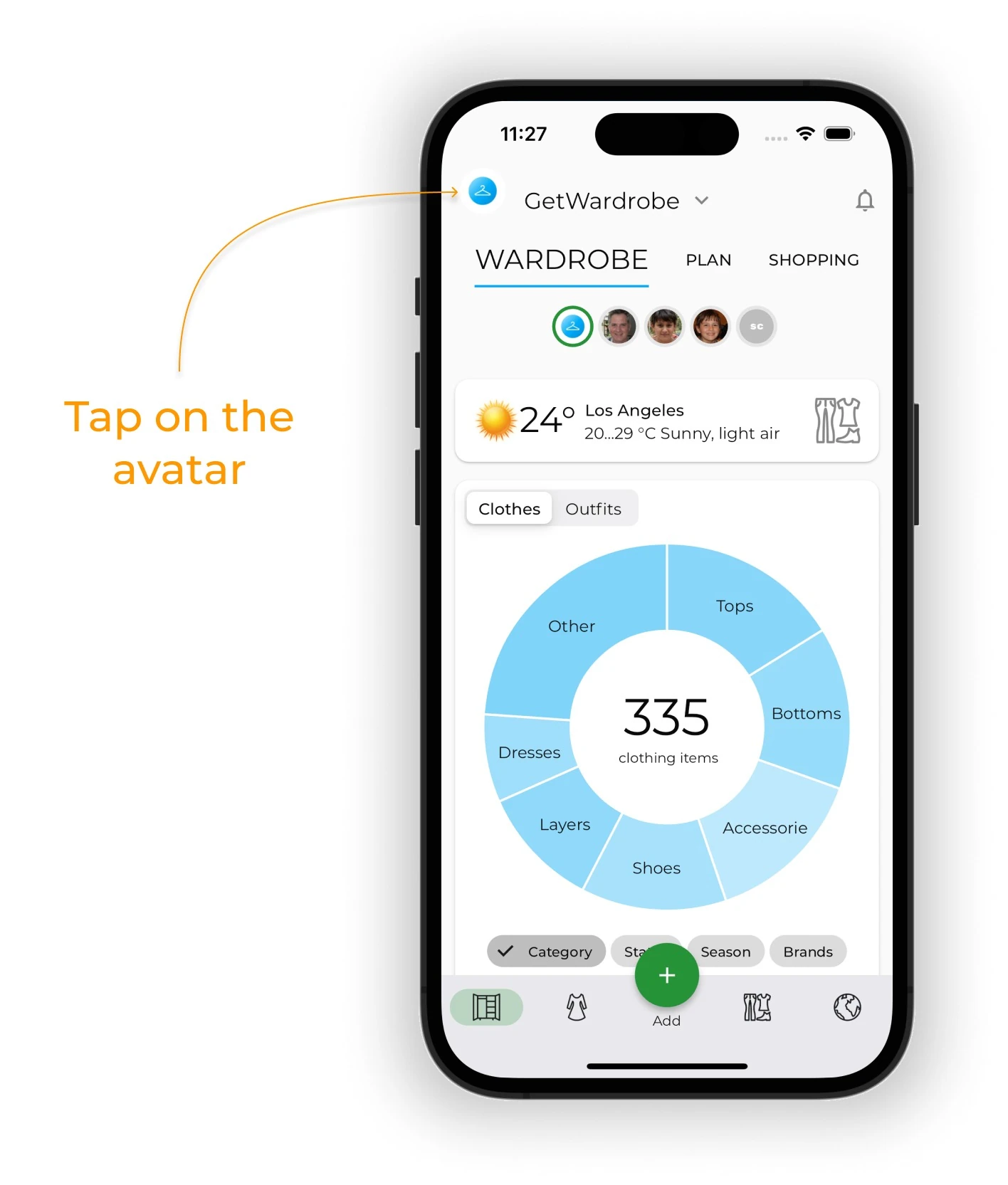
Tap your avatar in the upper-left corner of the main screen.
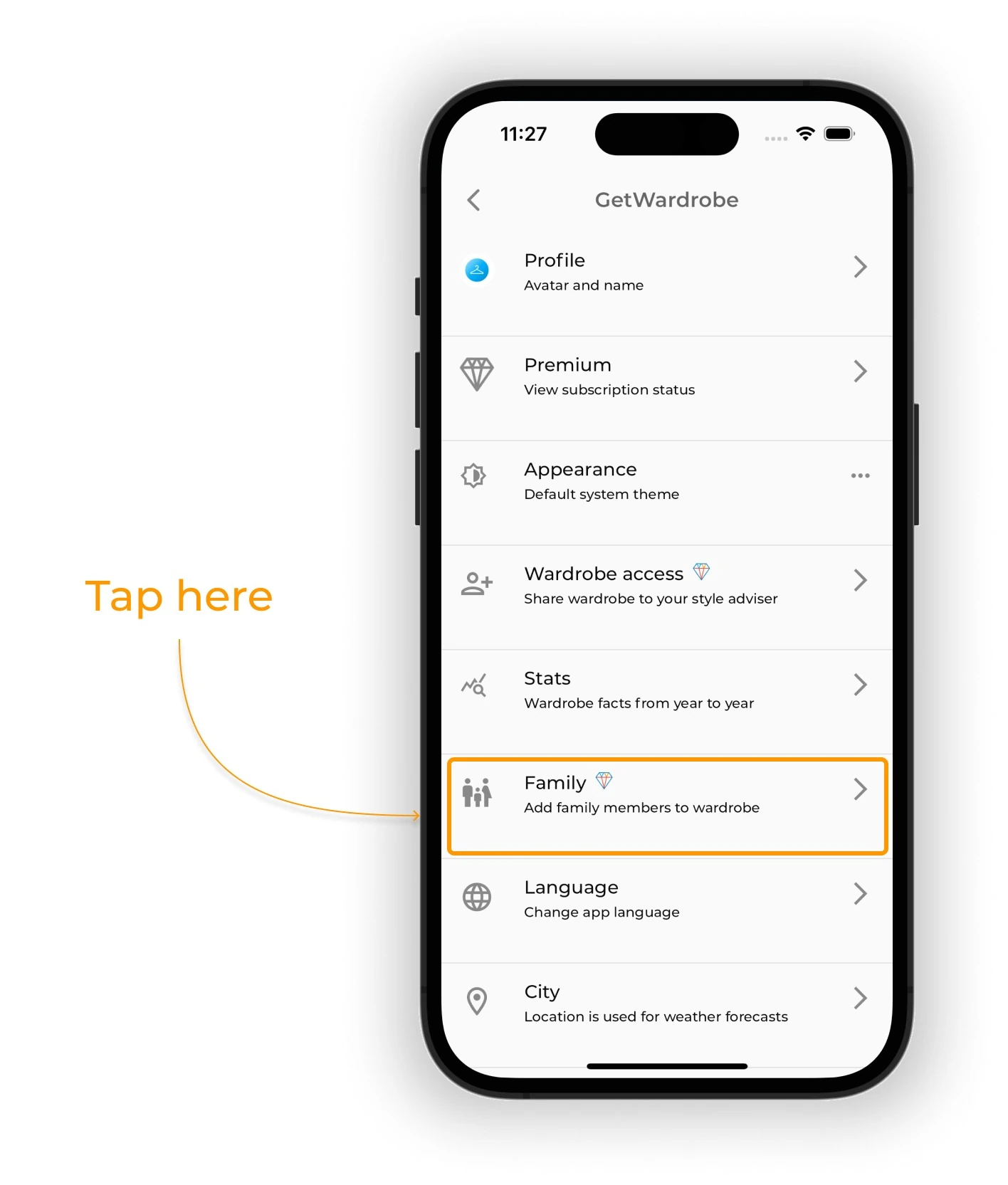
Tap the Family section.
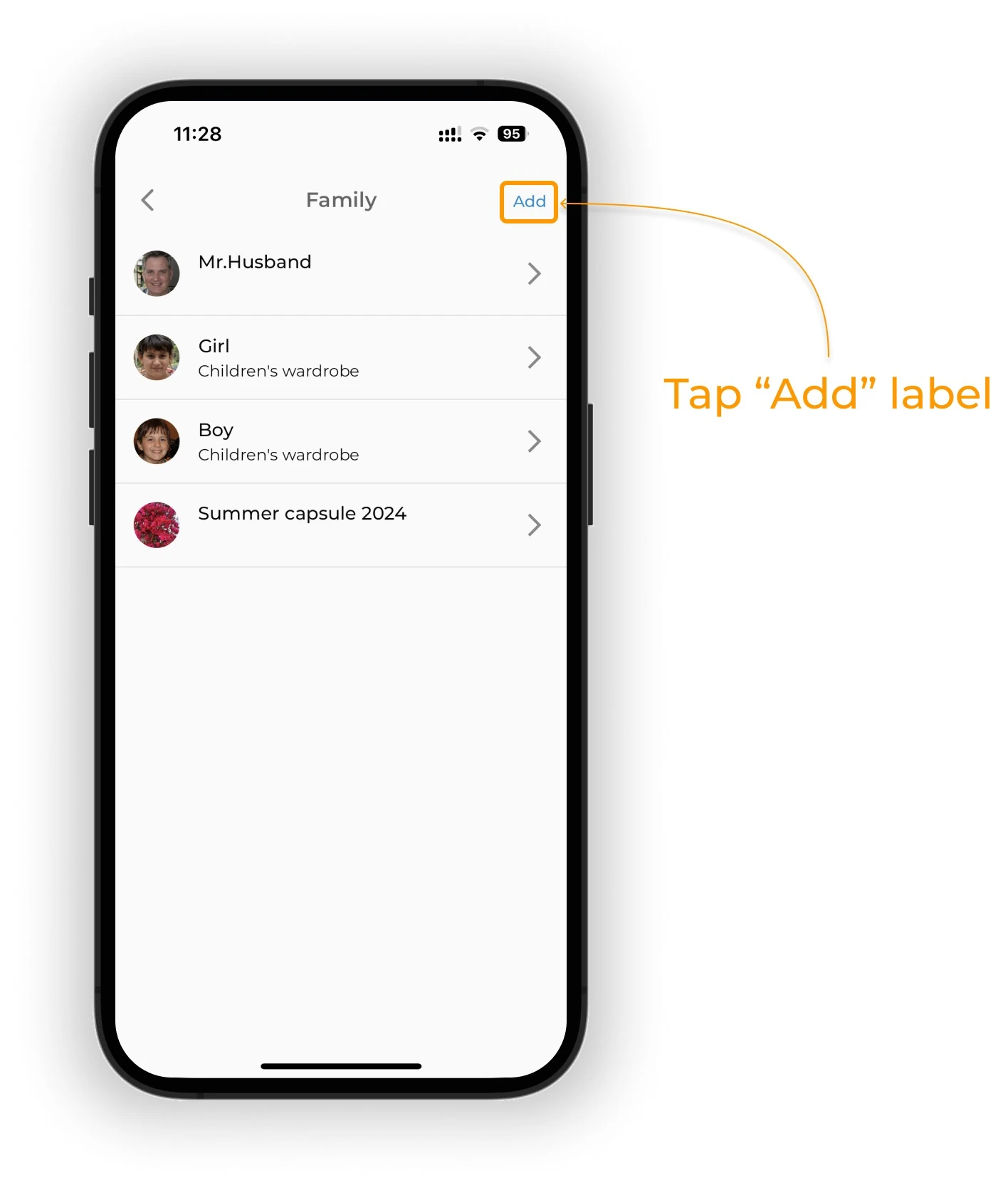
Tap Add in the upper-right corner.
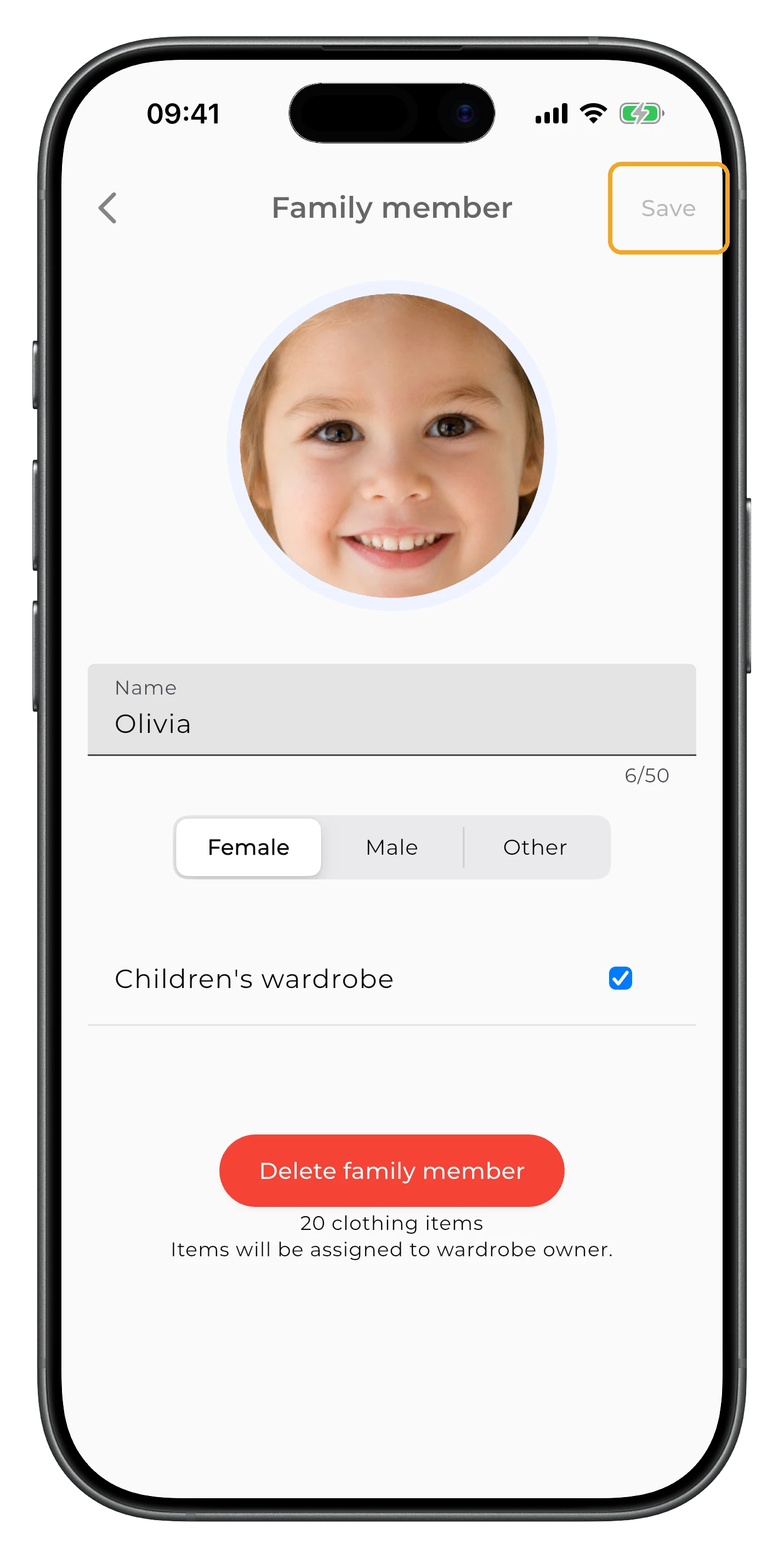
Enter the family member's name, add a photo if you like, and choose the wardrobe type. If you're creating a wardrobe for a child, turn on Children's wardrobe to use child-specific clothing categories.
Tap Save to finish.
Adding items to a family member's wardrobe
When adding or editing an item, specify who it belongs to in the Family member field.
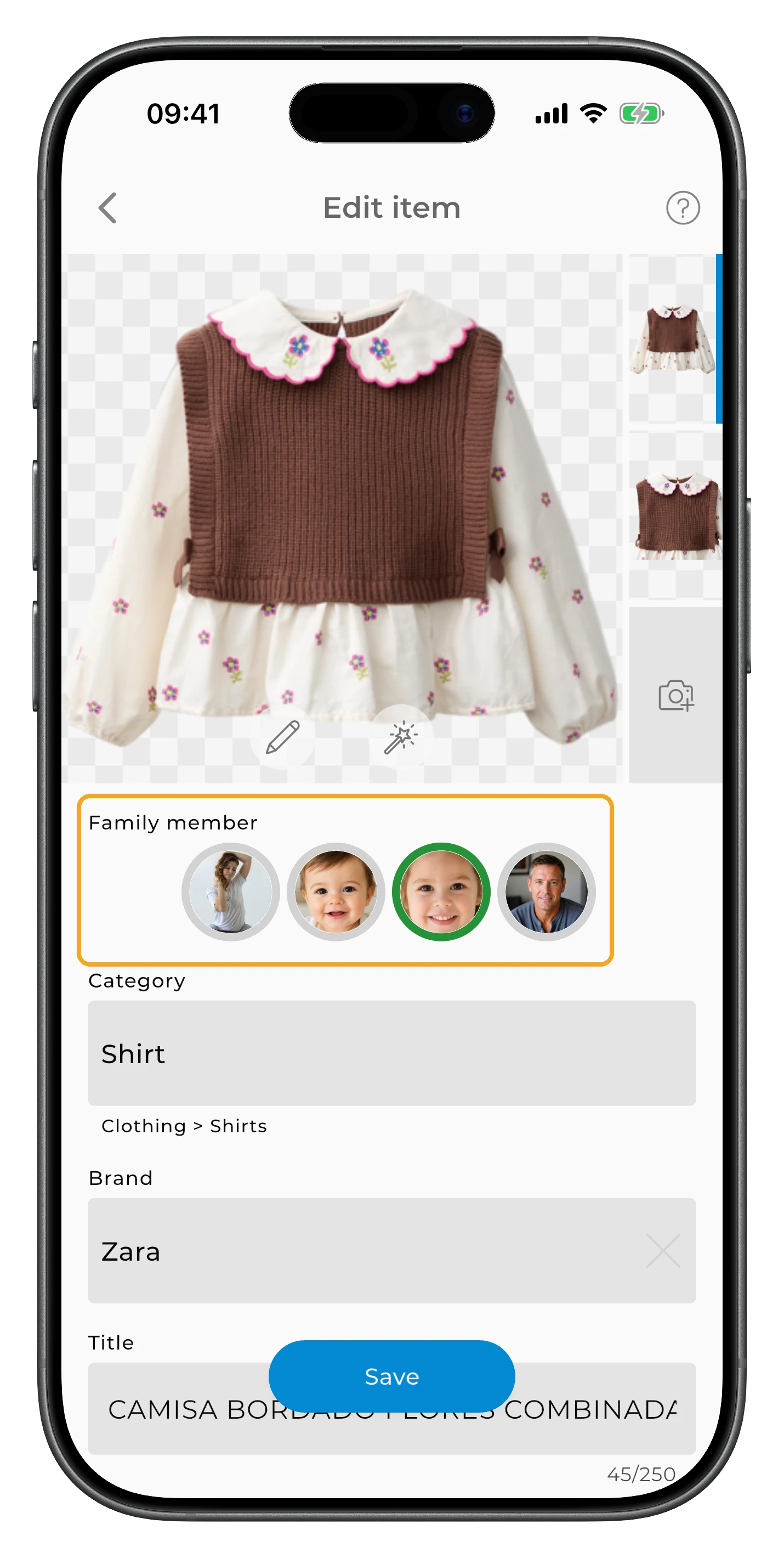
This keeps each person's items in a separate wardrobe and lets you filter by family member.
If an item is already in your wardrobe, open it for editing and change the selected family member.
Tracking children's clothing sizes
When adding an item, specify its size. This lets you quickly see which sizes are already in your child's wardrobe.
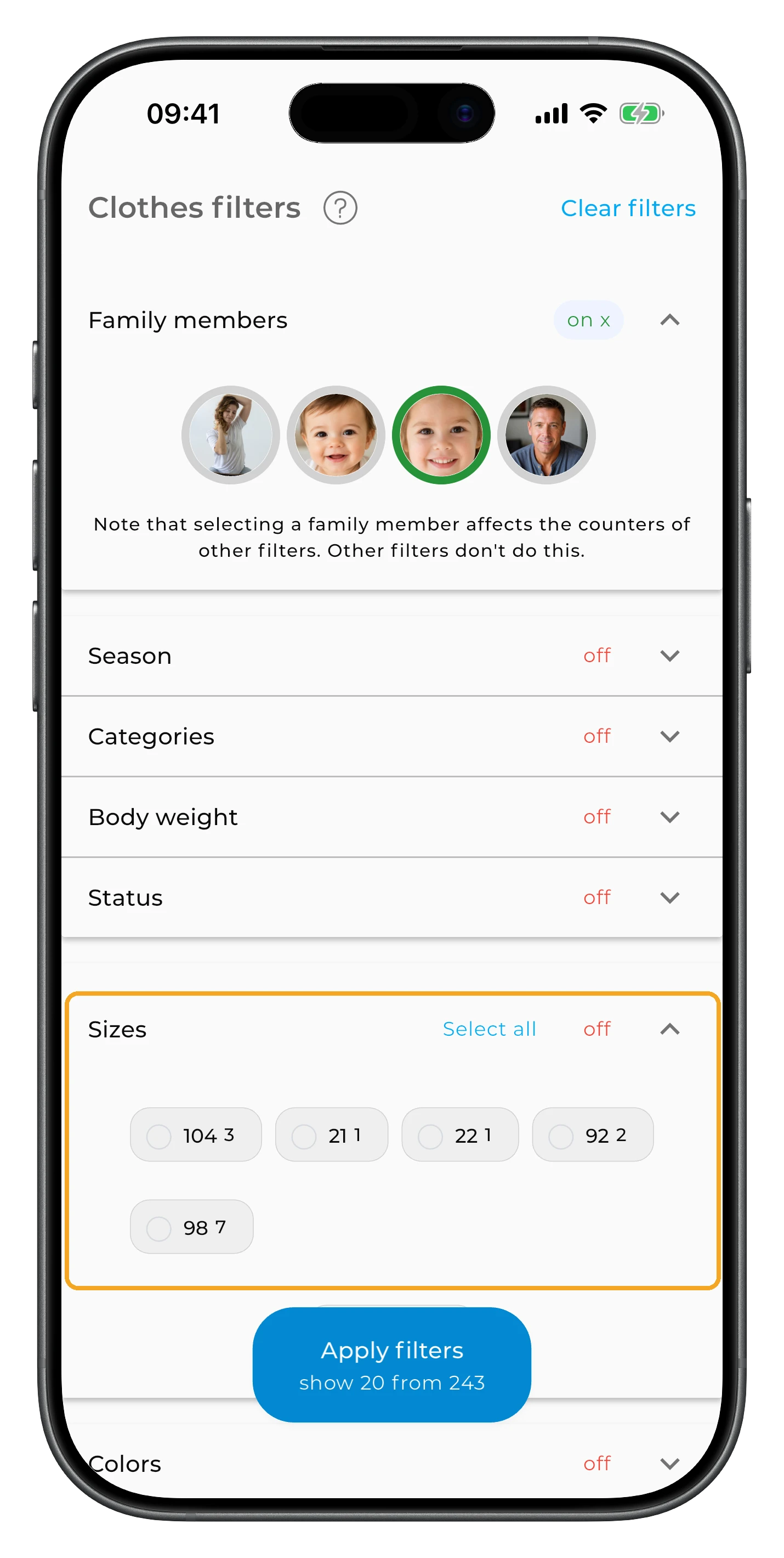
This is especially handy before a new season or a shopping trip: open your child's wardrobe and filter by Season, then by Sizes. You'll see which sizes you already have for that season and what may be missing.
Viewing a family member's items and outfits
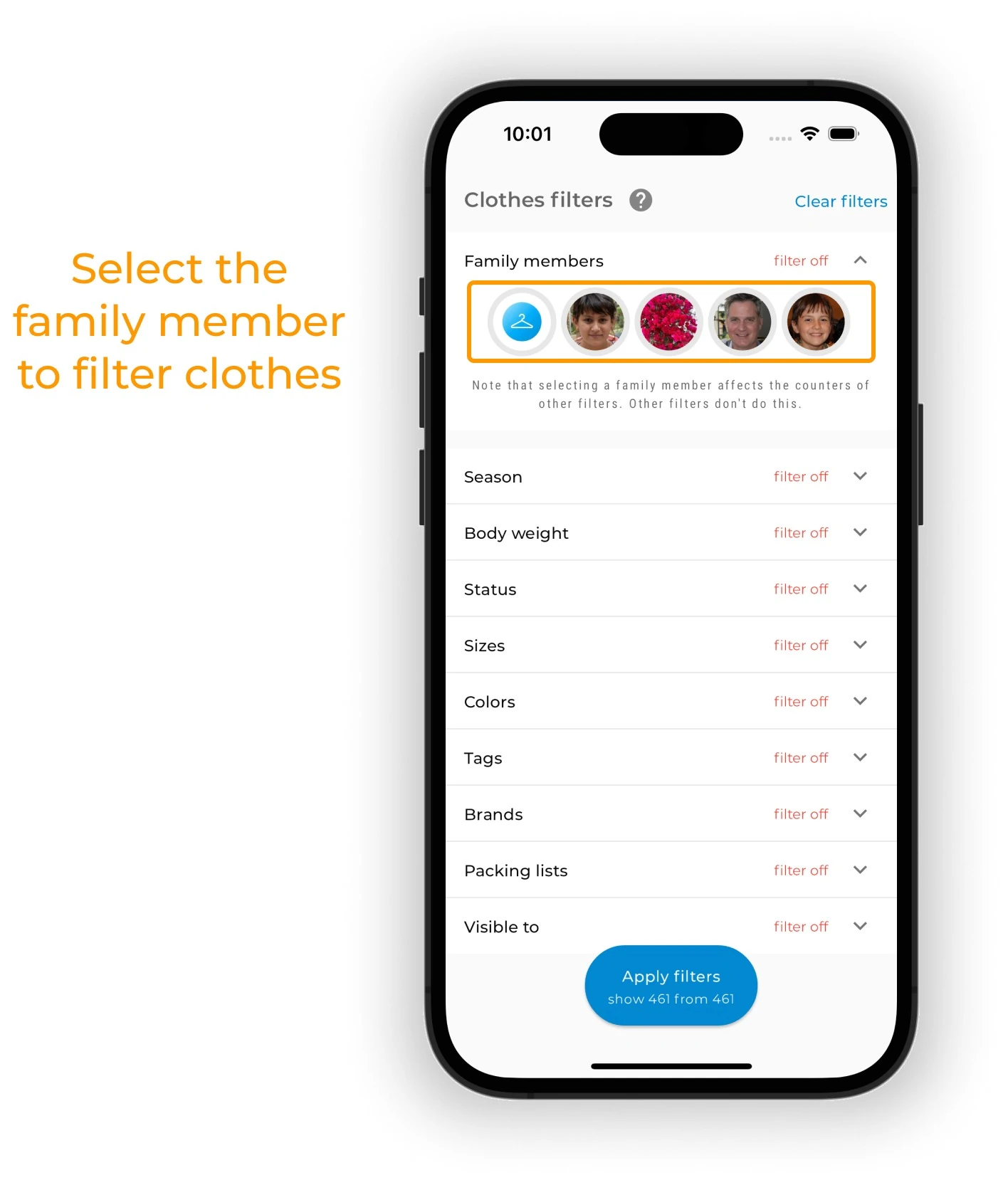
On the Clothes and Outfits screens, use the Family member filter.
Select the avatar of the person you want — including the account owner — to see only their items or outfits. You can select several family members at once. To switch to another family member, simply select a different avatar.
Statistics and planning for family members
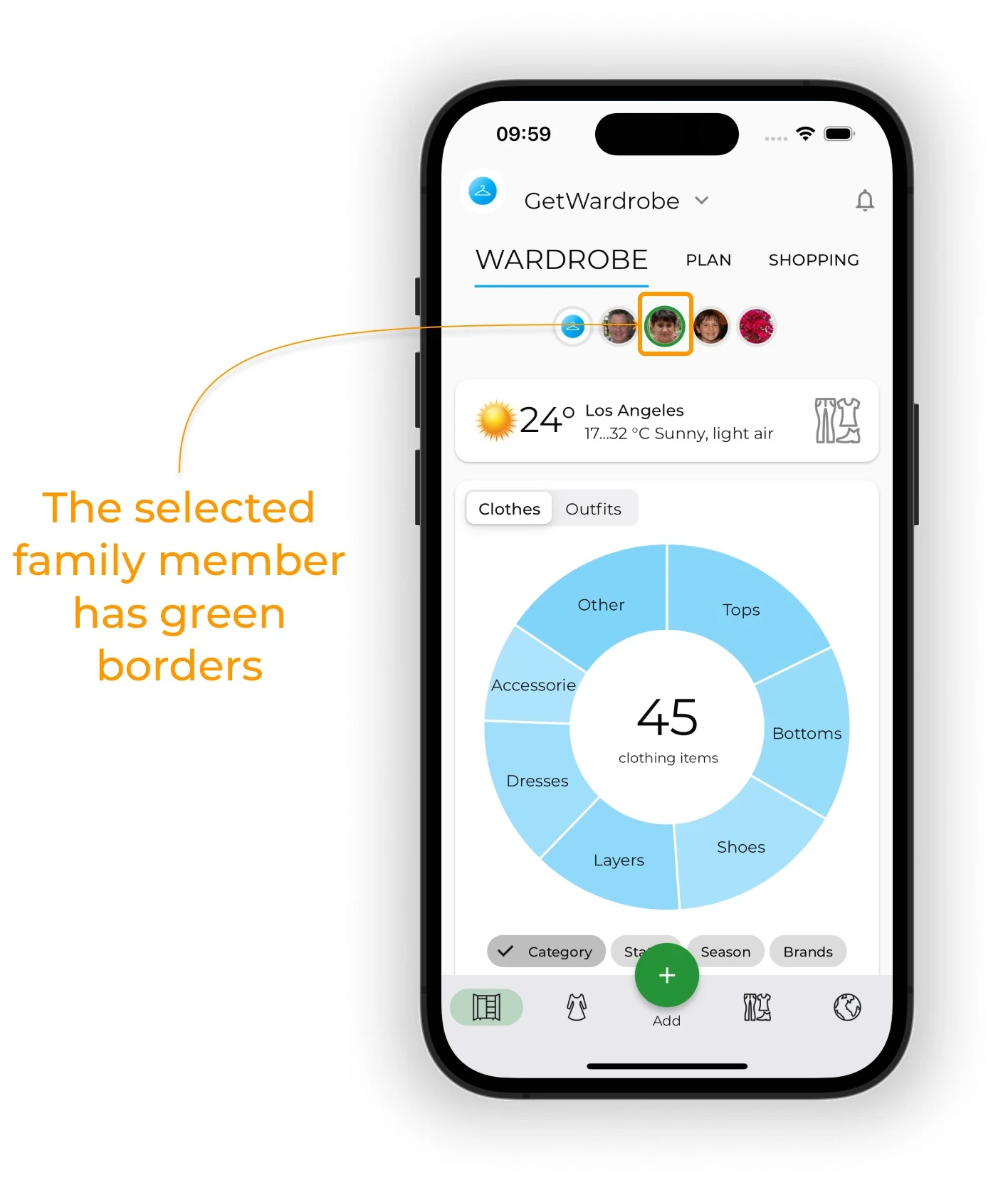
To view a specific person's statistics, select their avatar on the main screen.
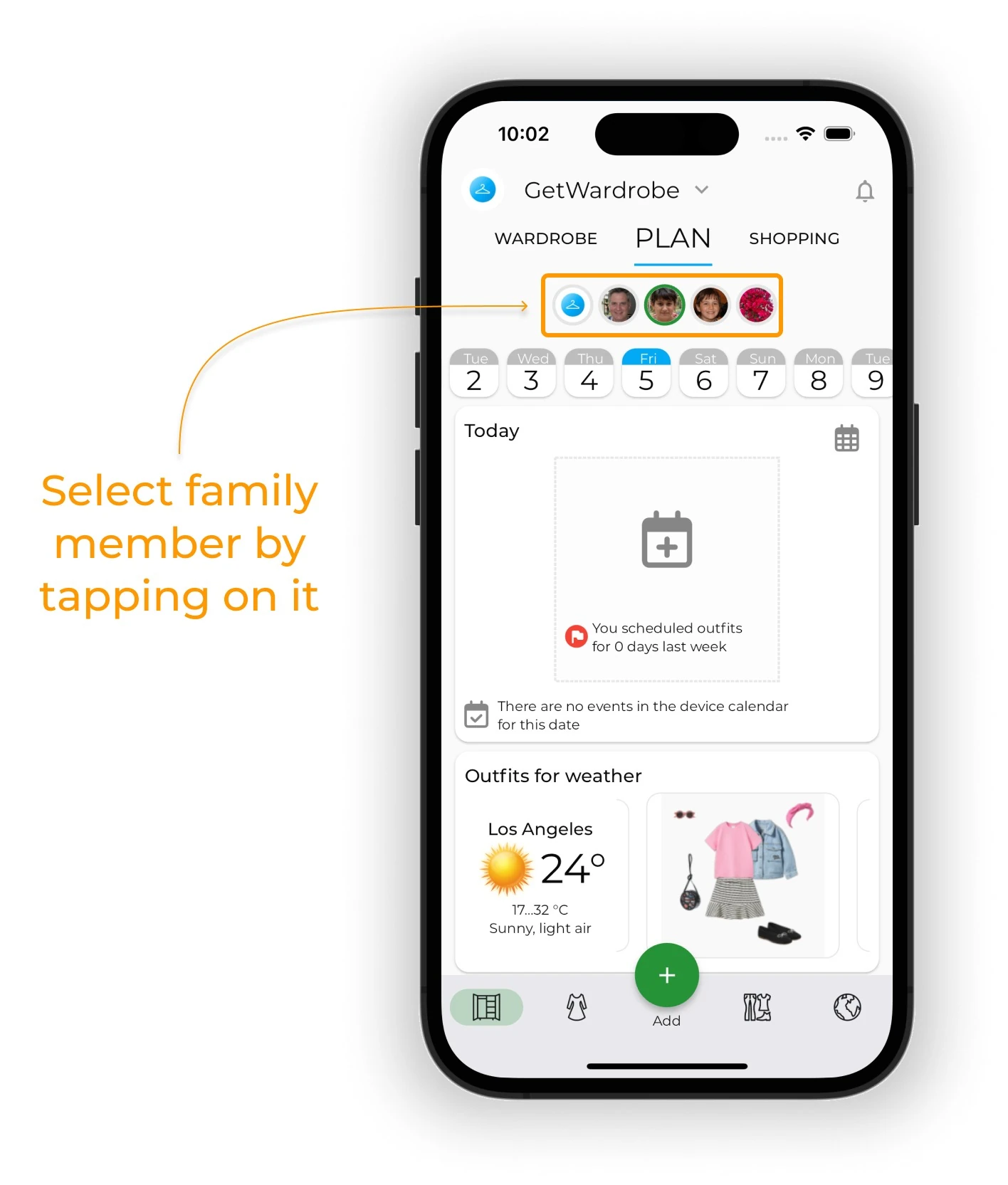
To plan an outfit, open Plan and select the relevant family member.
Creating outfits from a family member's wardrobe
Before creating or generating outfits, use the Family member filter to select whose wardrobe you want to use. If you select one person, only items from their wardrobe are used. If you select several people, items from all of their wardrobes are used.
Deleting a family member
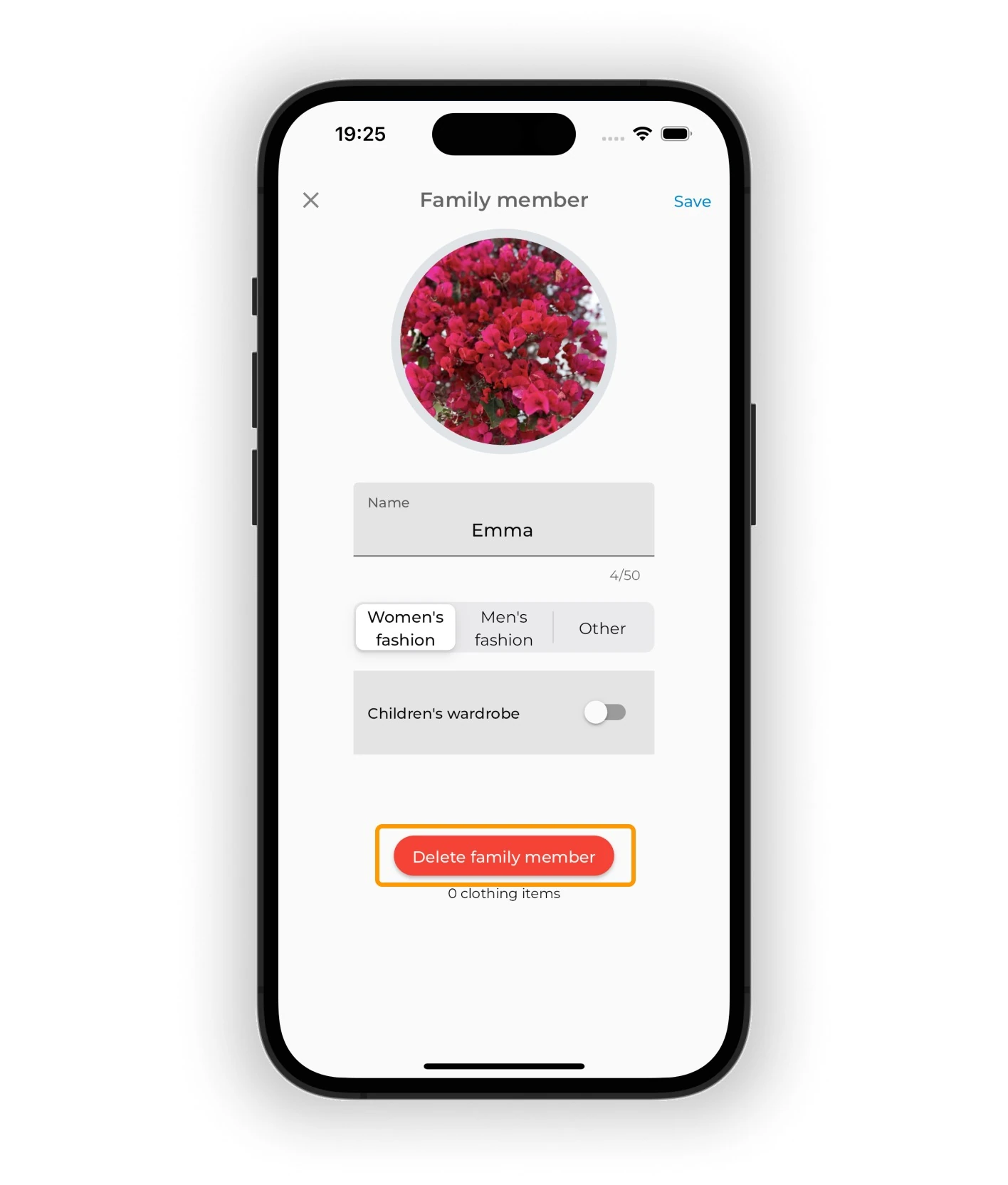
To delete a family member, open their settings and tap Delete family member.
A deleted family member's items are not removed — they are automatically moved to the account owner's wardrobe.
Frequently Asked Questions
Do I need a separate subscription for each family member?
No. Family Wardrobe is included in the account owner's Premium subscription. You don't need a separate subscription for each wardrobe.
How many family members can I add?
You can add up to 7 family members, each with a separate wardrobe in your account.
What's the difference between Family Wardrobe and a separate child account?
Family Wardrobe is a feature for managing a child's wardrobe inside your GetWardrobe account. The child doesn't have a separate login. You manage their wardrobe from your account: add their items and assign them to the child in the Family member field. All items stay in the same account, and you use the Family member filter to view each person's wardrobe separately.
A separate child account is for a child who wants to use GetWardrobe independently: they can add items, create and plan outfits, and manage their own wardrobe.
If they wish, the child can grant you access to their account so you can help with their wardrobe too. Learn more in Account access.
How is an outfit's ownership determined?
An outfit's ownership is determined by the items it contains.
If all items belong to the account owner, the outfit belongs to their wardrobe. If the outfit contains at least one item belonging to another family member, it belongs to that family member and no longer appears when you filter by the account owner. If an outfit contains items from several family members, it belongs to all of them and appears when you filter by any of those members.
To change an existing outfit's ownership, change the items it contains: you can't assign an outfit to a family member separately.
Can I move a child's existing wardrobe to their own account?
There's no automatic transfer, but you can download the items and outfits as an archive and then upload their images to the child's new account.
Need help?
Contact us at support@getwardrobe.com