AI Outfit Generator
When you want fresh ideas but don't have time to dig through your whole wardrobe, the AI Generator helps you see your clothes in a new light. It creates 10–30 personalized outfits in a single generation — based on the items you pick, the season, the weather, and the occasion.
In the final step, you can describe the style or mood you want in your own words. For example: "Bohemian chic for a seaside trip" or "Smart casual for work and an evening out."
How the AI Generator differs from AI Studio
| AI Generator | AI Studio | |
|---|---|---|
| Result | 10, 20, or 30 ready outfits per generation | One outfit at a time |
| When to use | When you want several new ideas quickly | When you need to build or refine a specific outfit |
| Working with a chosen item | Creates a set of outfits based on the conditions you set | Lets you build an outfit around a chosen item and change the rest |
| Working with a small collection | Good for generating multiple outfit options | Ideal for capsule wardrobes, seasonal collections, tags, and packing lists |
| Editing the result | Ready outfits can be viewed, saved, and edited | You can keep, replace, and remove individual items right during generation |
| Minimum number of items | 30 items | 15 items |
In this article:
- How to create outfits with the AI Generator
- Choose items for generation
- Set outfit parameters
- Choose a generation model
- Review and save outfits
- Where to find previous generations
How to create outfits with the AI Generator
The AI builds combinations from items already in your digital wardrobe. Before generating, you can choose which items to use, then fine-tune the season, temperature, and occasion.
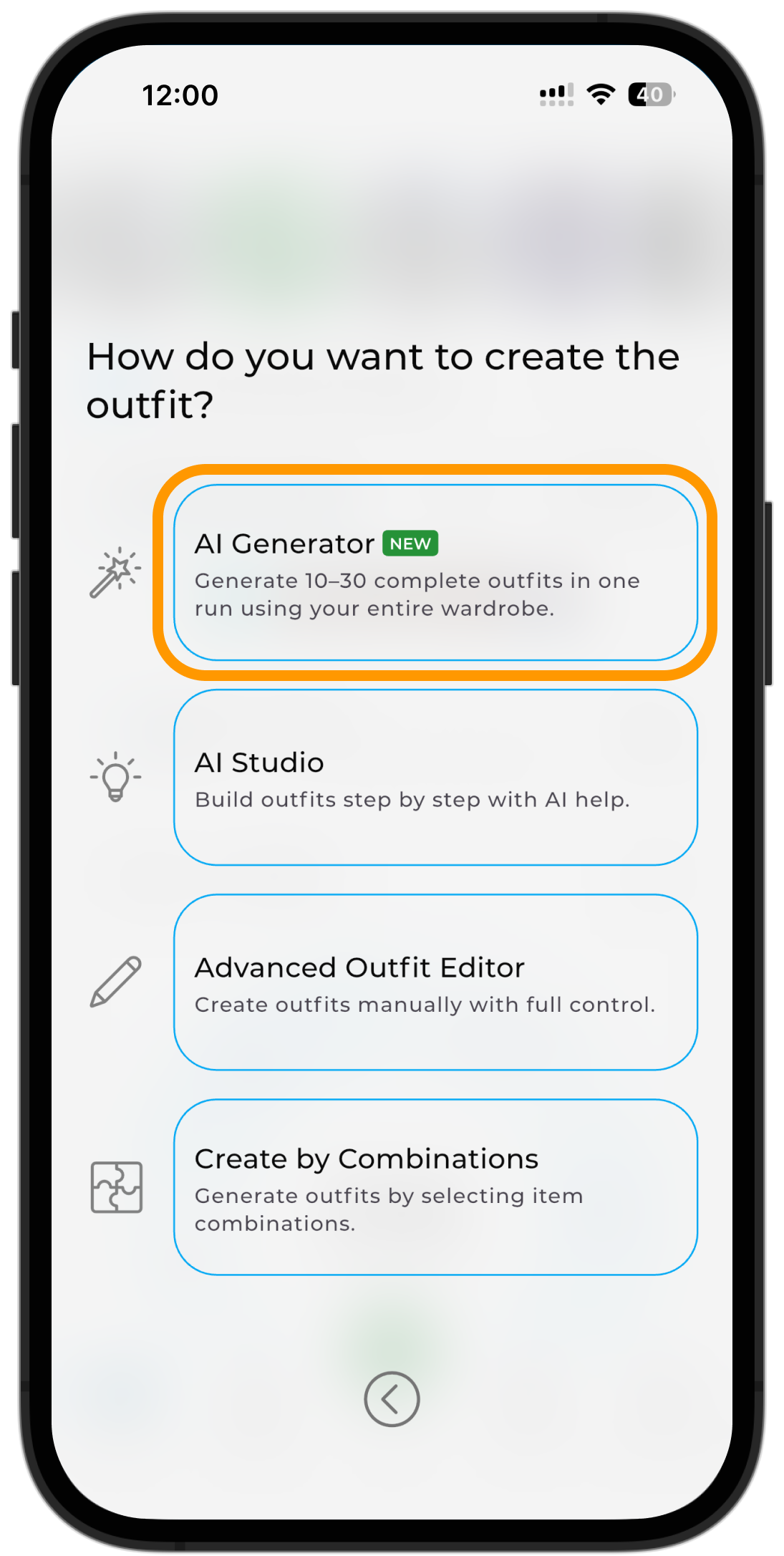
On the home screen, tap "+" → "Outfit" → "AI Generator."
Choose items for generation
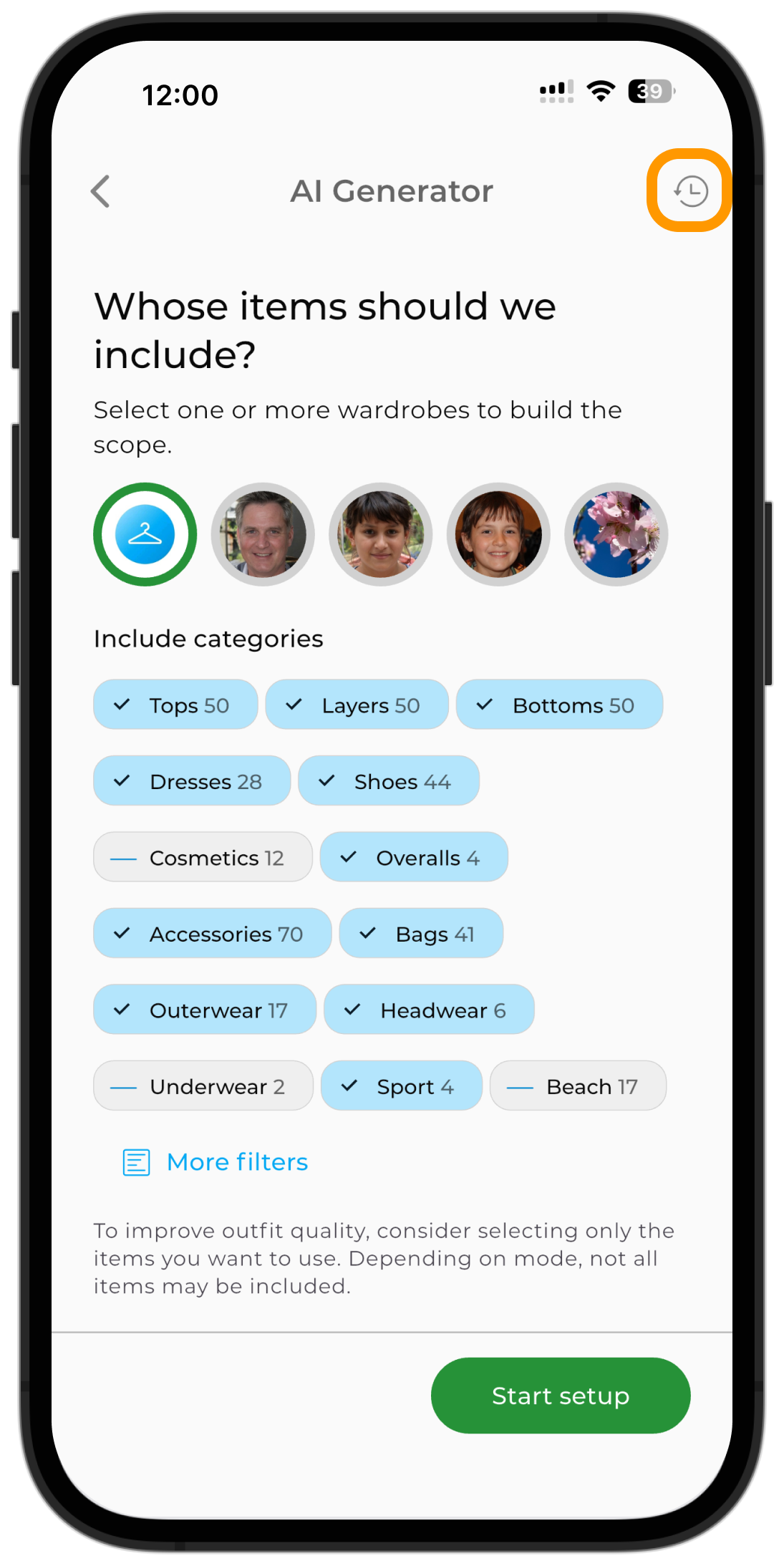
By default, the AI uses all suitable items from your wardrobe. Before generating, you can choose which categories to use in outfits and which to exclude.
The screen also shows whether you've selected enough items for varied outfits. If you have few items, or your selection is limited to just a couple of categories, GetWardrobe will warn you that your outfits may look similar. Individual categories also show when they don't have enough items for a large number of combinations.
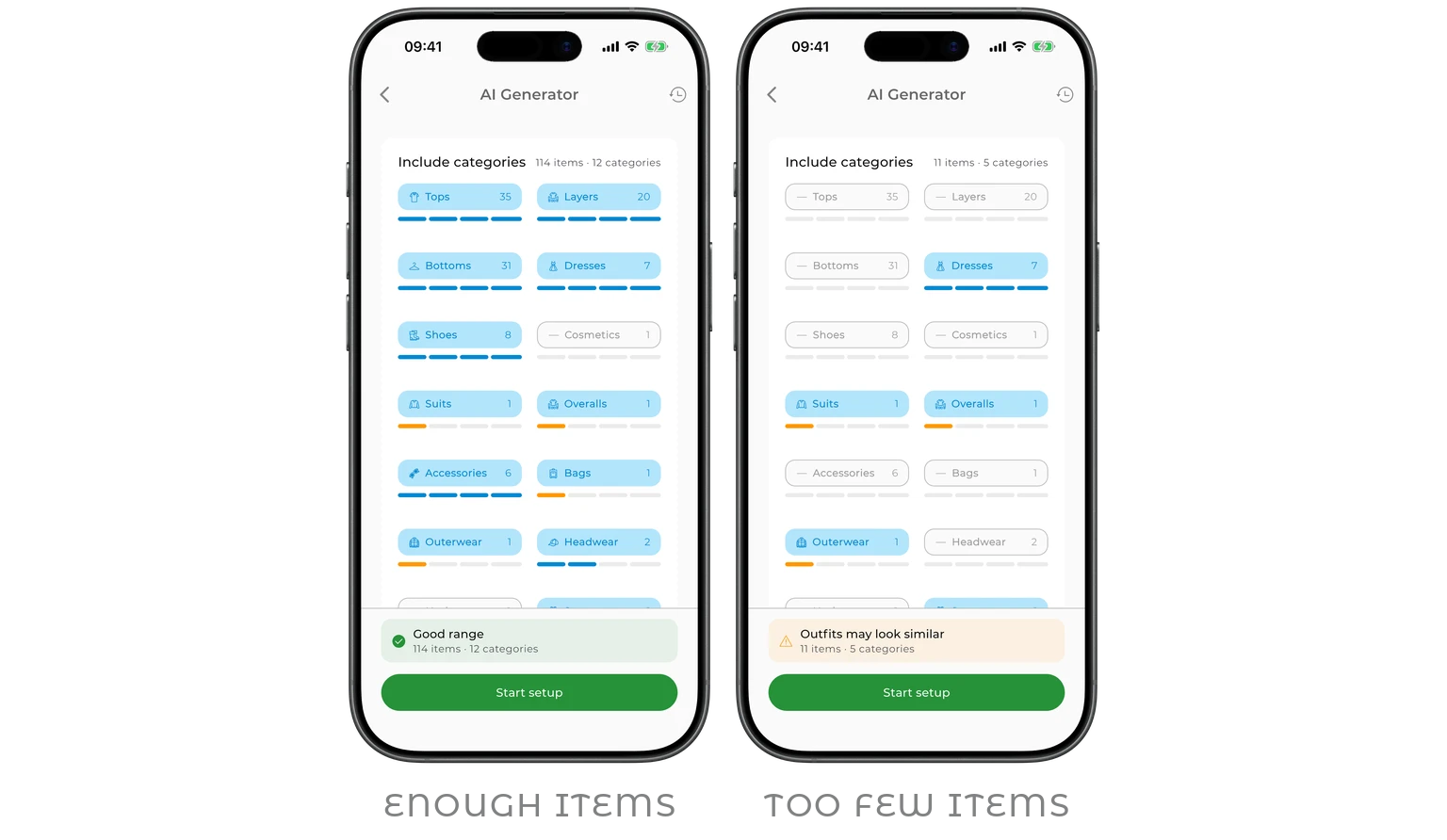
If you've only just started filling your wardrobe and added, say, 10–15 items, you can still run generation. But the more suitable items and categories the AI has to work with, the more varied the results will be.
Note
A minimal set of clothing — for example, a top and a bottom — is enough to generate outfits. But with a small selection, the same items will show up more often across outfits.
To fine-tune your selection, scroll down and tap "More filters."
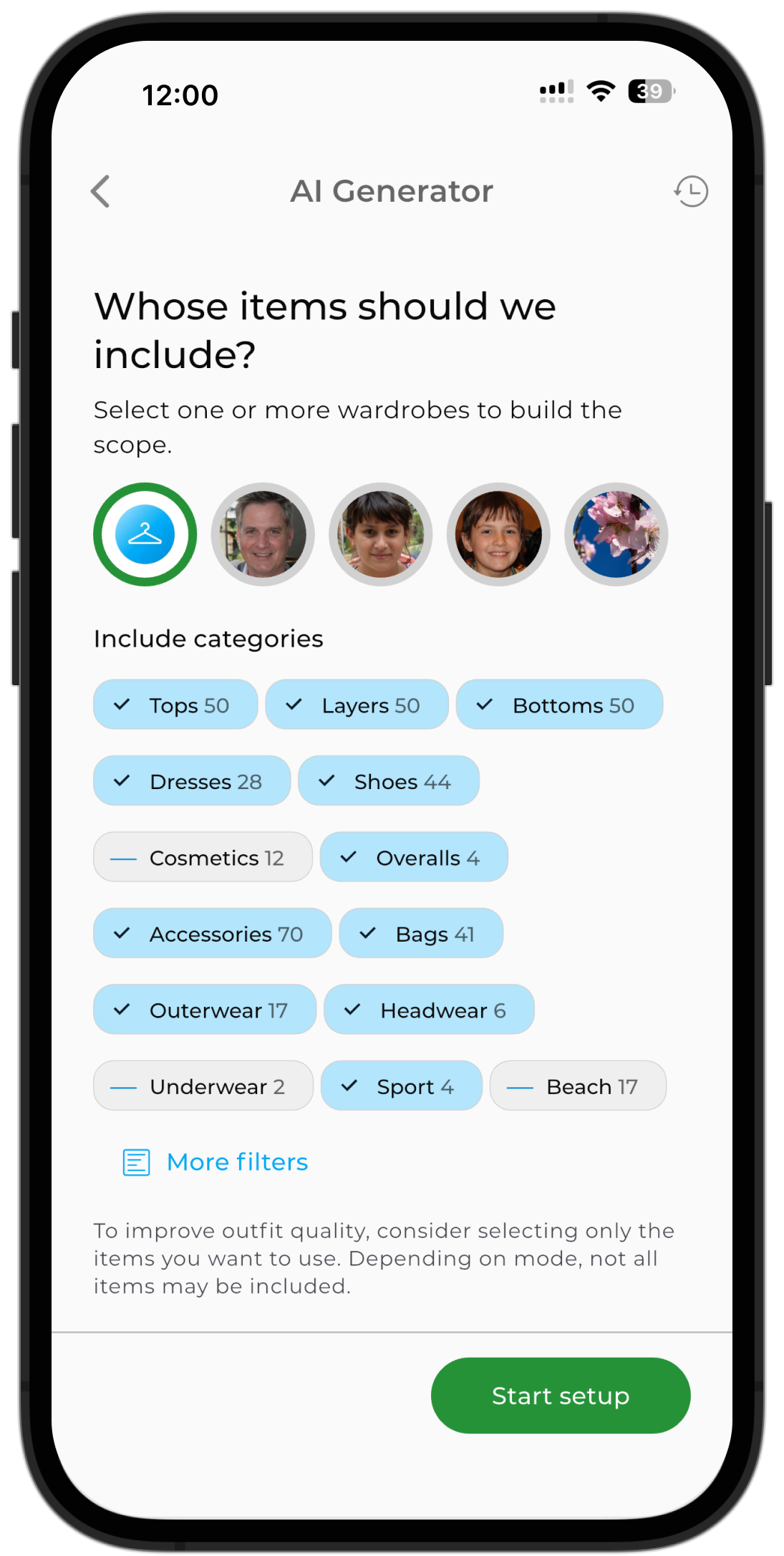
Here you can further filter items by colors, brands, sizes, tags, packing lists, and body weight range.
When you're done selecting, tap "Start setup."
Set outfit parameters
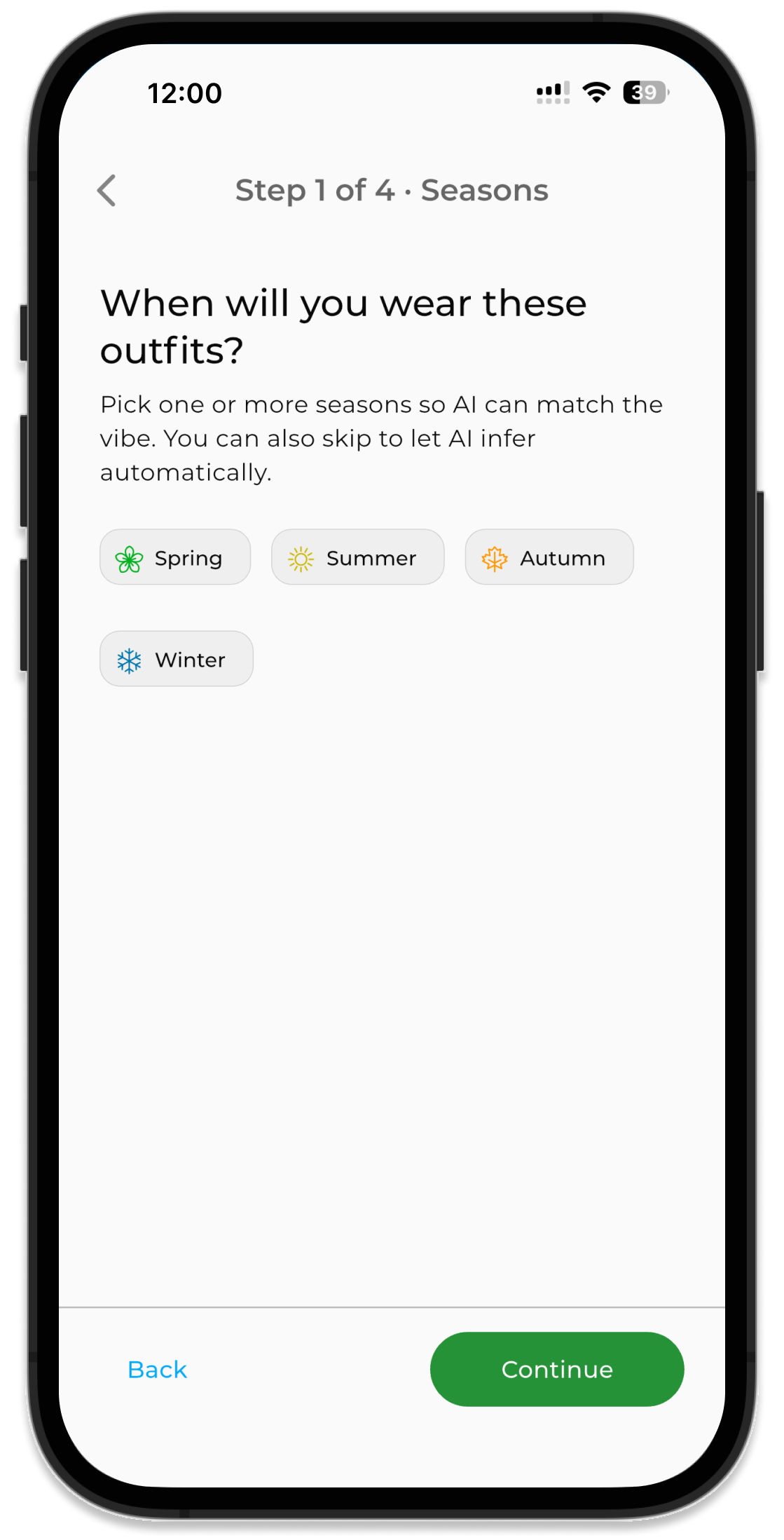
Choose a season
Pick one or more seasons. This step is optional, but it helps the AI choose more suitable combinations and the right number of layers.
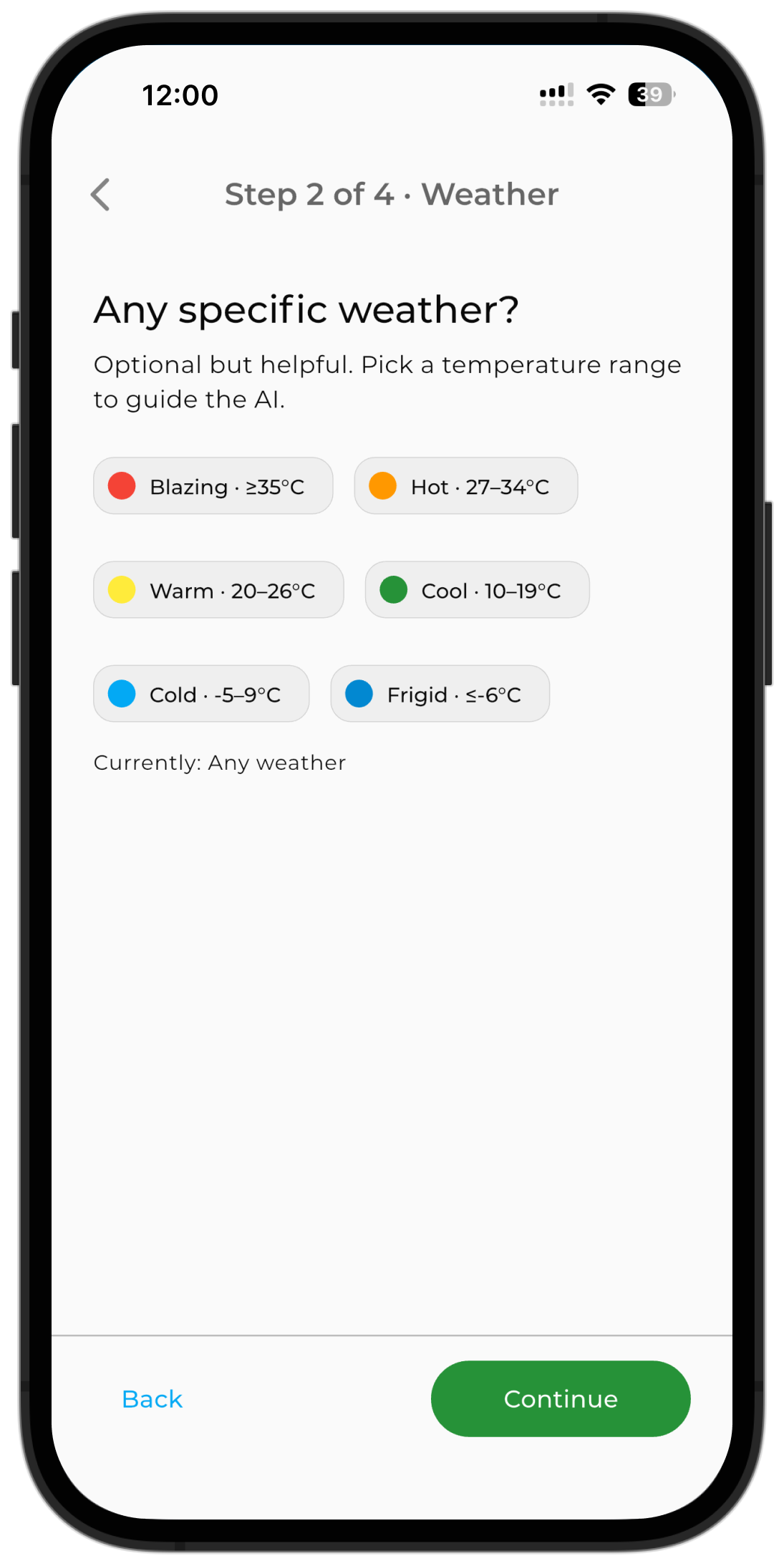
Set the temperature
Choose the temperature range you need outfits for. This helps the outfits better match the weather for the selected season.
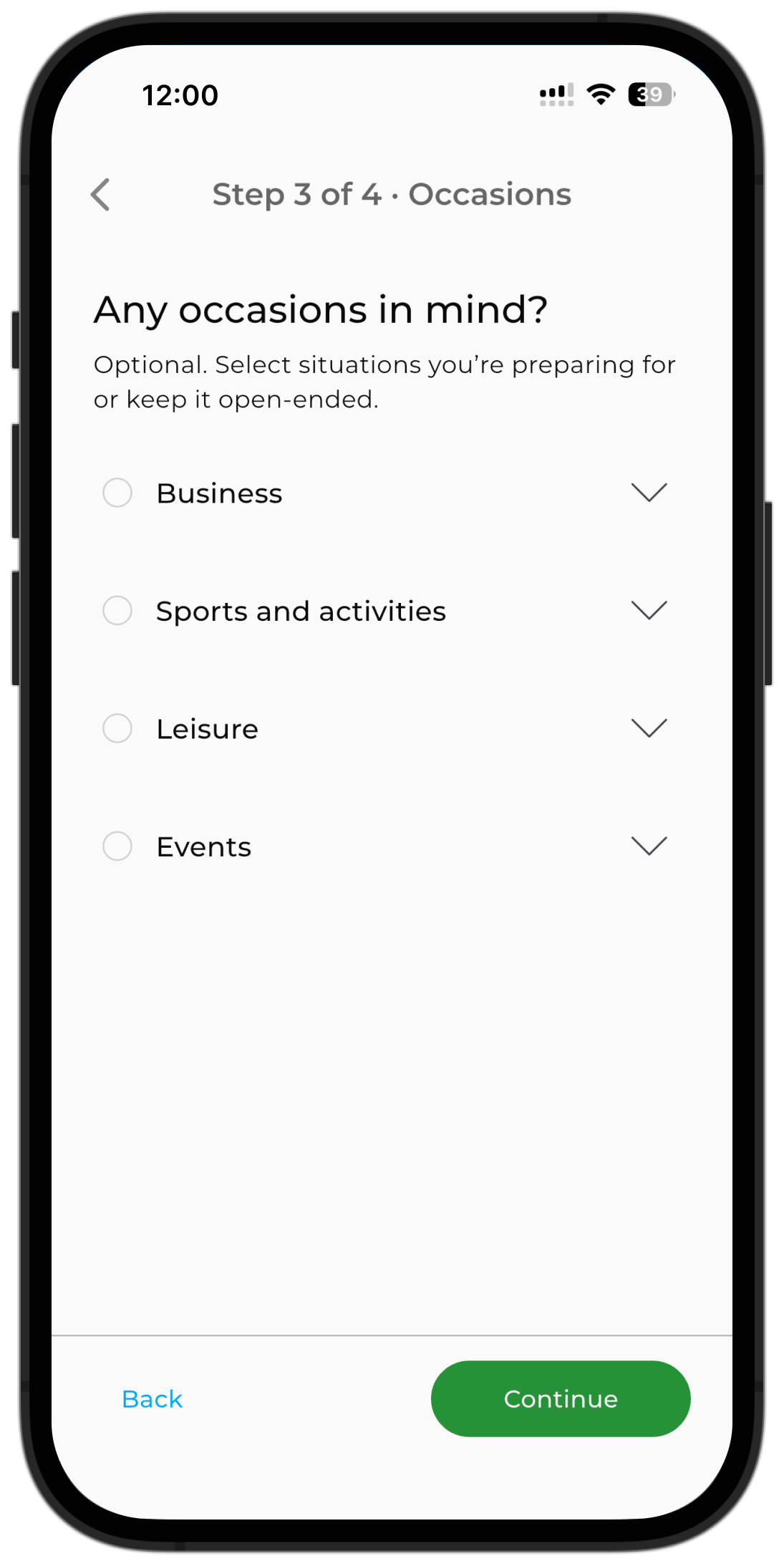
Choose an occasion
Pick one or more occasions you're dressing for. You can skip this step.
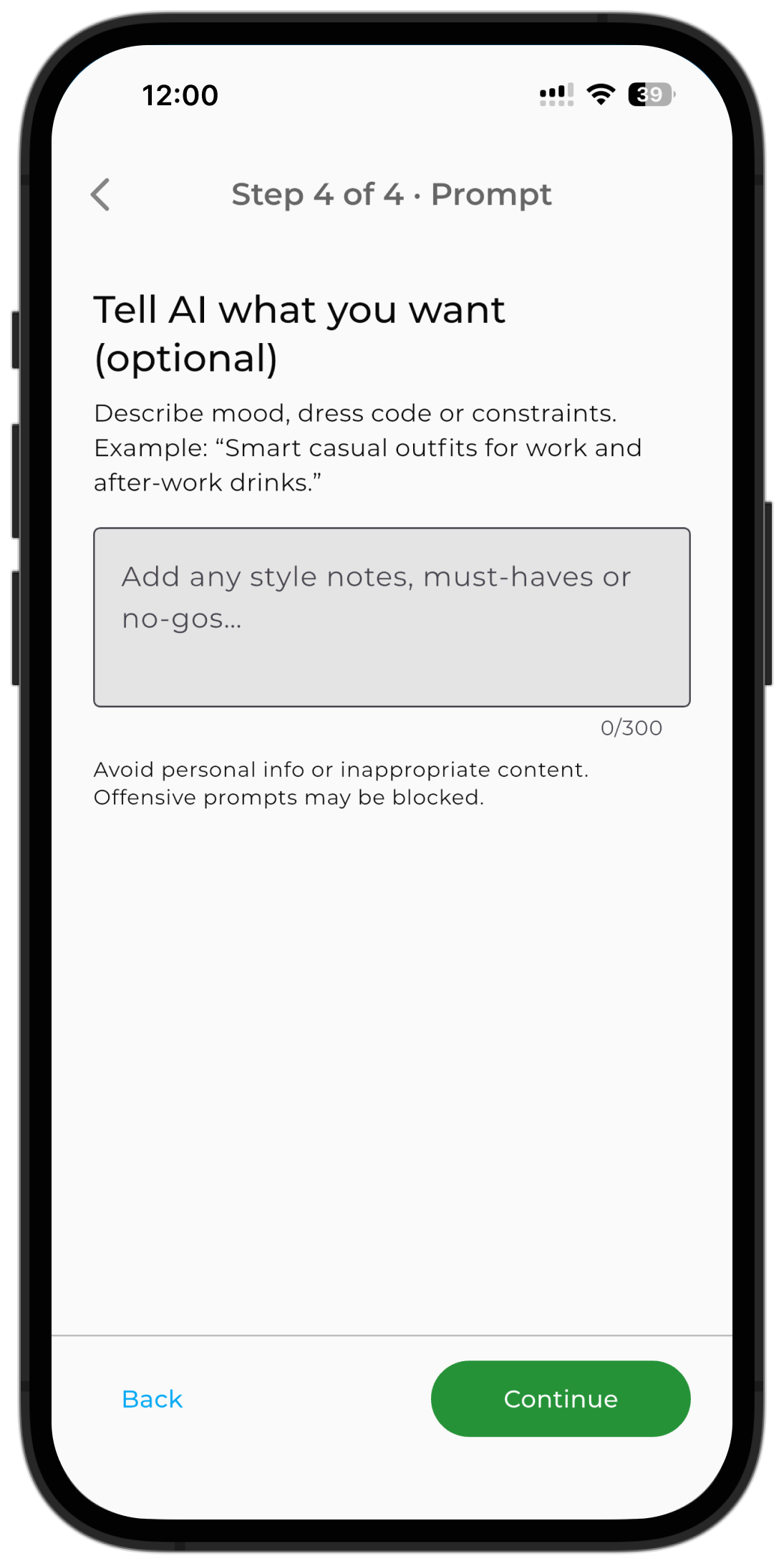
Tell the AI what you want
On the final step, you can describe the style, mood, or situation you're dressing for in your own words.
For example:
- "Bohemian chic for a seaside trip"
- "Smart casual for work and an evening out"
- "Modern city look for a date"
- "Sporty casual for an active day"
This step is optional, but it helps the AI generate outfits that better match your preferences.
Choose a generation model
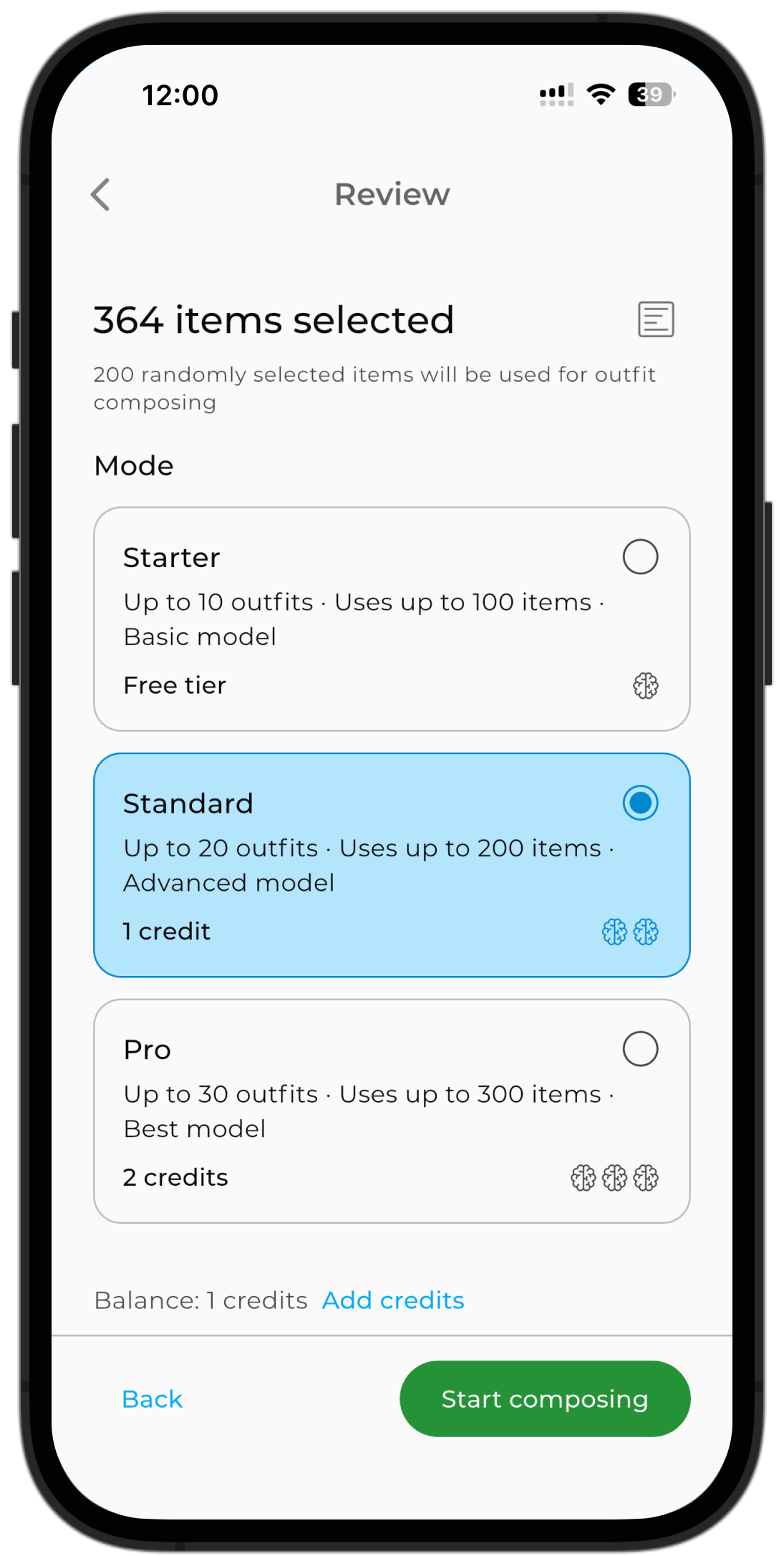
The number of outfits and available options depend on the model you choose.
Starter
- creates 10 outfits per run;
- great for smaller wardrobes;
- free for all users.
Standard
- creates 20 outfits per run;
- uses more of your wardrobe;
- offers more varied combinations;
- costs 1 AI Credit.
Pro
- creates 30 outfits per run;
- offers the most varied combinations;
- costs 2 AI Credits.
Once you've picked a model, tap "Generate Outfits."
Generation keeps running even if you close the app. When your outfits are ready, you'll get a notification. Make sure notifications from GetWardrobe are enabled in your device settings.
Review and save outfits
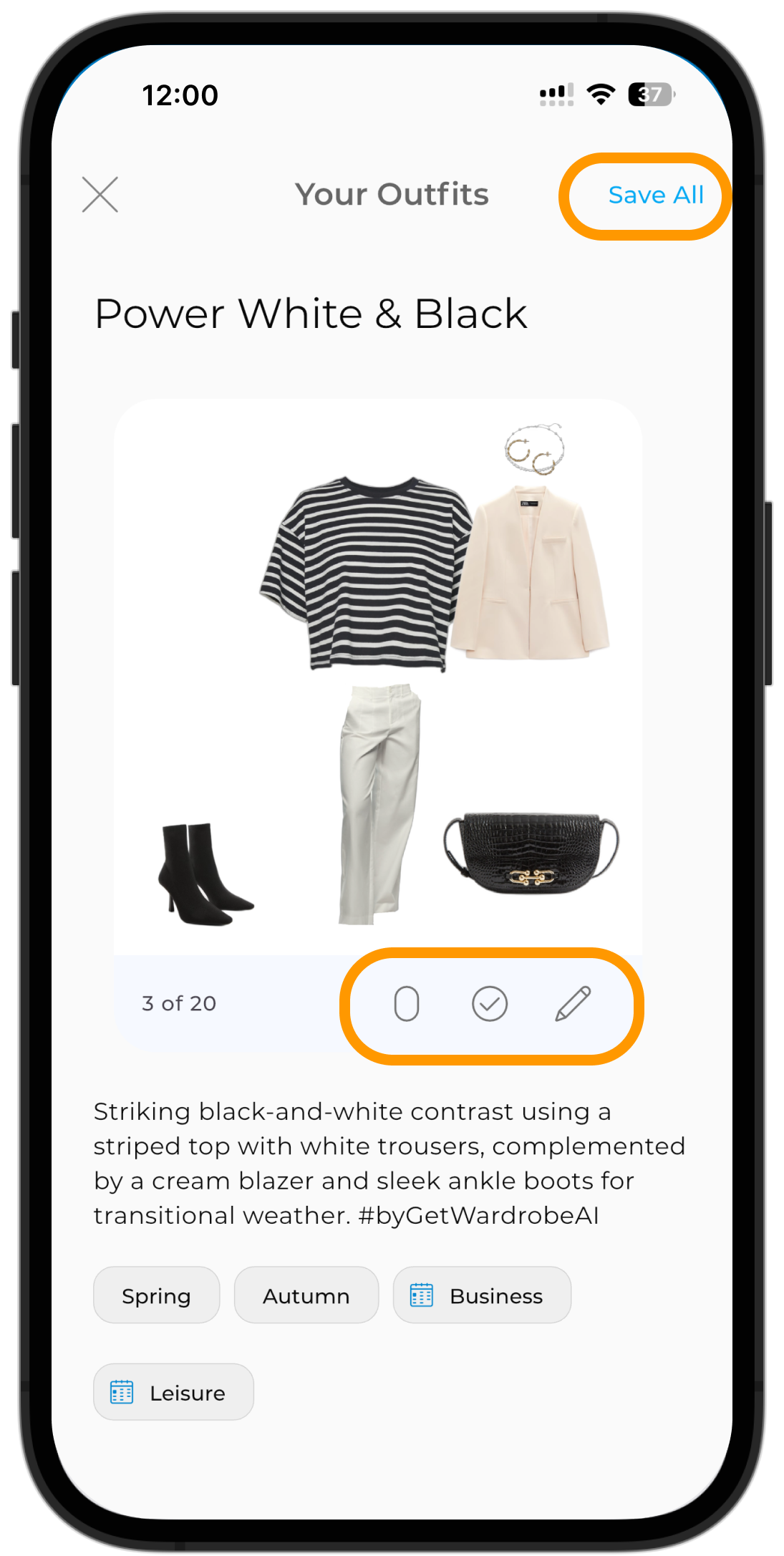
When generation finishes, swipe through the cards to see every outfit created.
With each outfit, you can:
- try it on with Virtual Try-On;
- save it;
- open it in the Outfit Editor and make changes.
To save the whole generation at once, tap "Save All."
Where to find previous generations
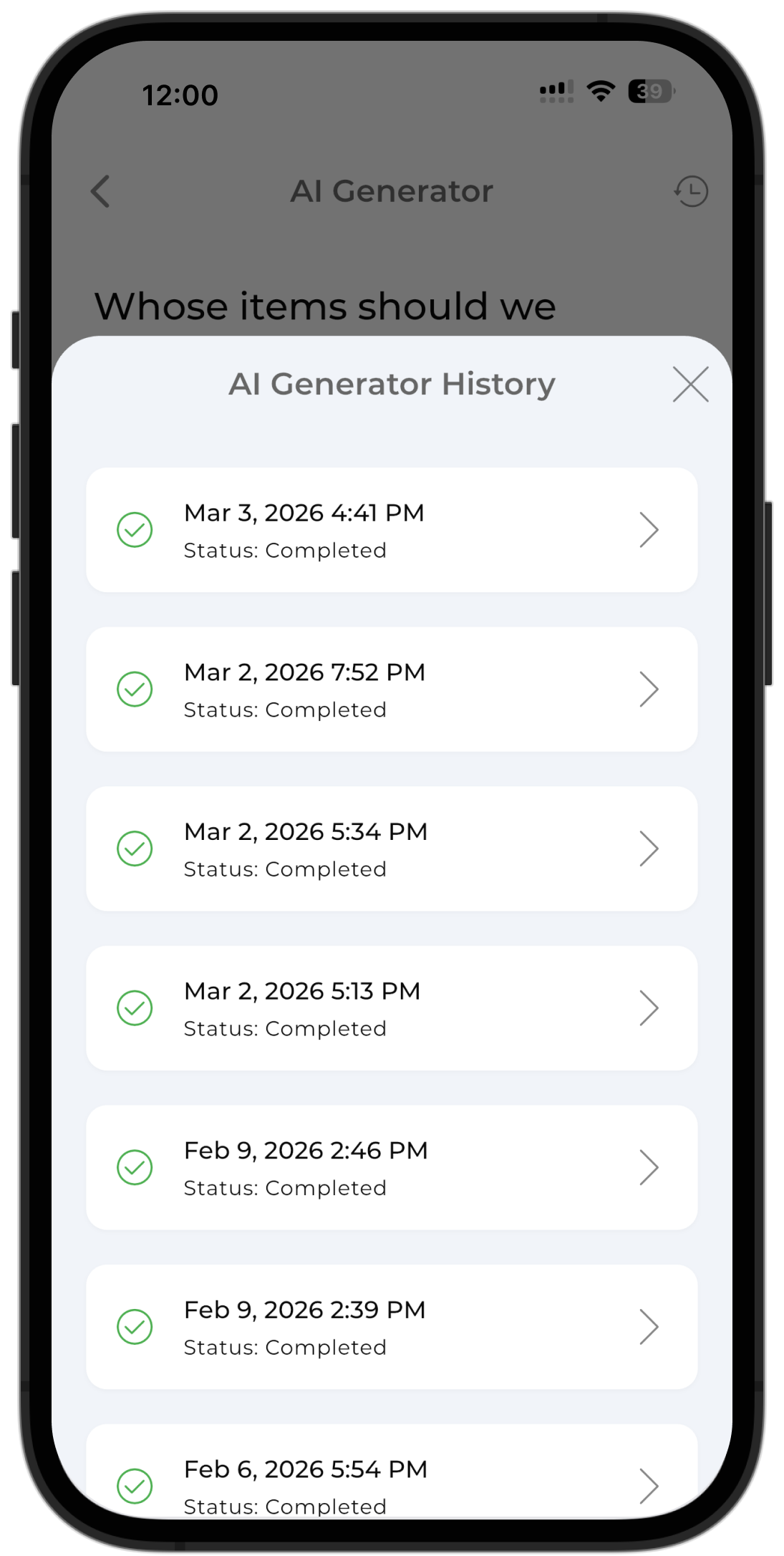
All previous generations are saved in the AI Generator history.
To open them:
- On the home screen, tap "+" → "Outfit" → "AI Generator."
- Tap the clock icon in the top-right corner.
On the "AI Generator History" screen, select the date and time you need. Open the generation to view its outfits, try them on, edit them, or save them.
See also
- AI Studio — build and refine one outfit step by step.
- Outfit editor — edit saved outfits manually.
- Virtual try-on — lets you try a created outfit on yourself.
- Explore Combinations — helps you find matching items for a selected piece of clothing.
FAQ
How many outfits can the AI generator create?
The Starter model creates 10 outfits and is free. The Standard model creates 20 outfits and uses credits. The Pro model creates 30 outfits and also uses credits.
Do AI-generated outfits cost credits?
The Starter model (10 outfits) is free. Standard and Pro models use AI credits.
What happens if AI generation is slow or fails?
You can close the app during generation. Once complete, you'll get a notification. If outfits don't appear, check your generation history using the clock icon.
Need help?
Contact us at support@getwardrobe.com