Use Filters
Narrow your wardrobe down to specific items by filtering by season, color, brand, tags, size, weight, status, and family members.
Available filters
- Family members
- Season
- Categories
- Body weight
- Status
- Sizes
- Colors
- Tags
- Brands
- Packing lists
- Visibility
- Advanced filters (AND / OR)
Open filters
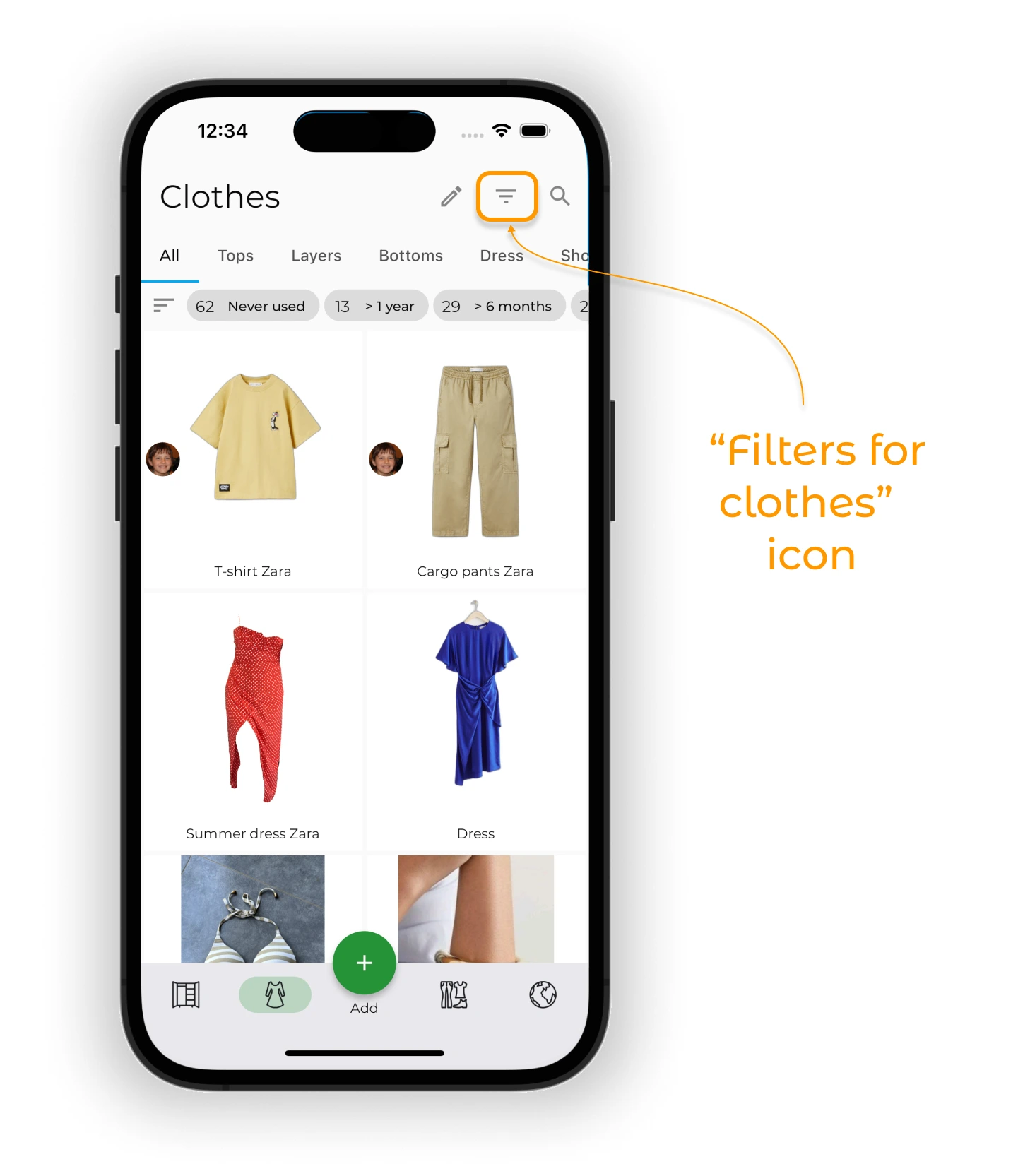
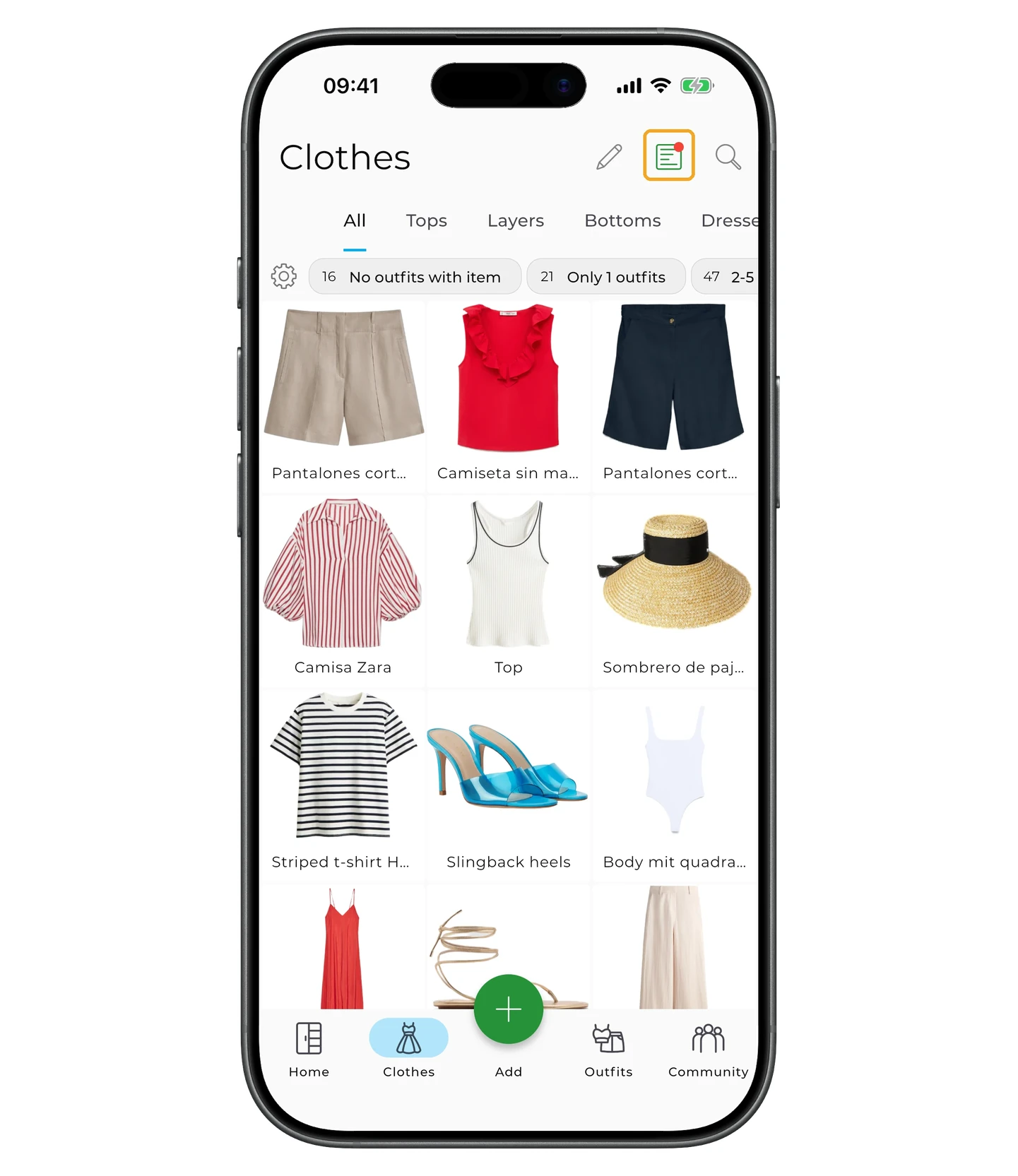
To open filters, go to the "Clothes" screen and tap the filter icon (three horizontal bars) in the upper right corner.
Family members
Info
The filter by family members is only available with a Premium subscription.
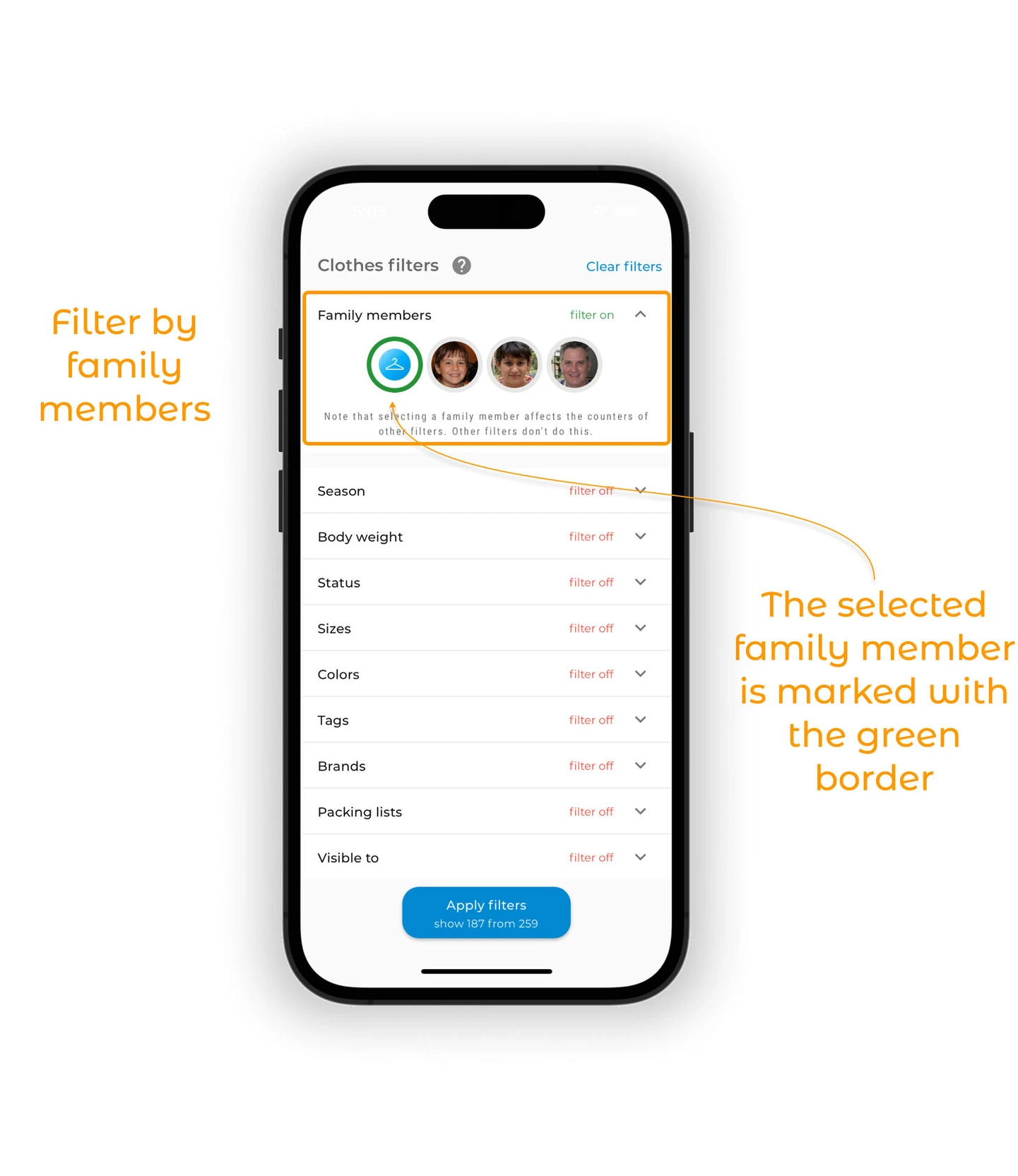
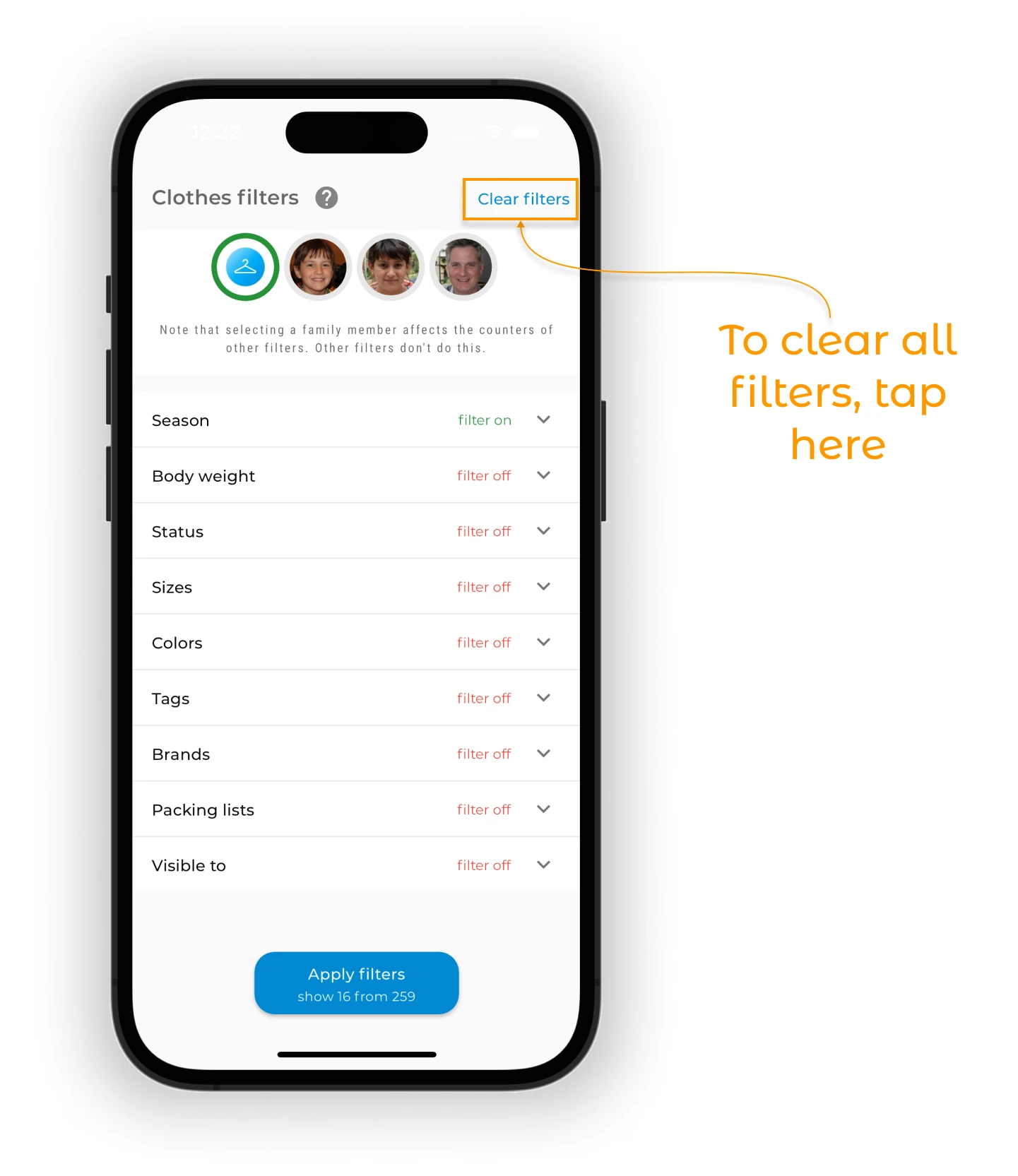
By default, all items in your wardrobe are shown and the filter is inactive — avatars have grey outlines.
To filter by family members, tap the avatar of the family member you want. The outline turns green and the filter is active.
Tip
When you select a family member, the counts on other filters update to match. Other filters don't do this.
Season
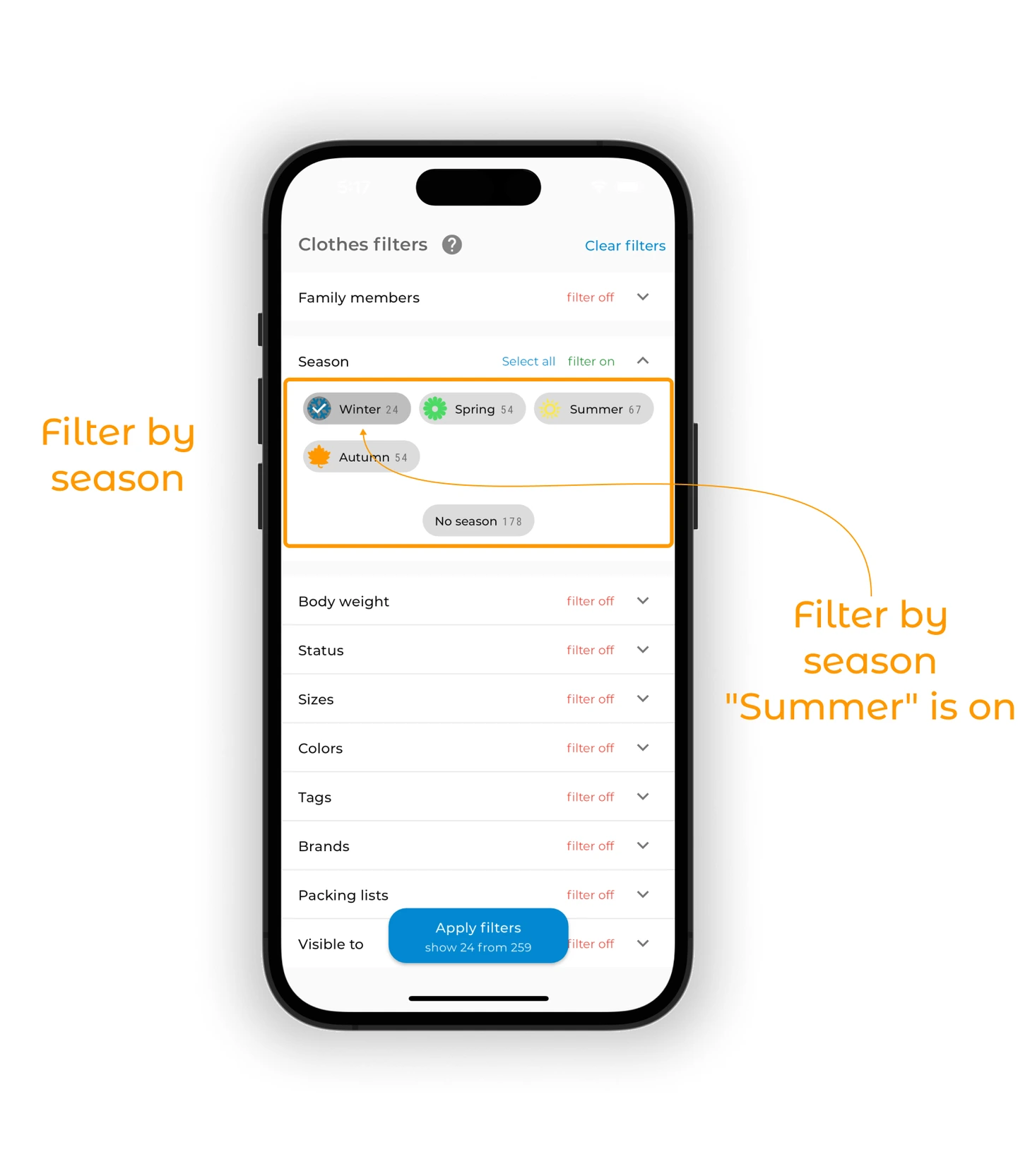
To filter by season, tap the expand icon and pick a season. For example, tap "Winter" to see winter clothes.
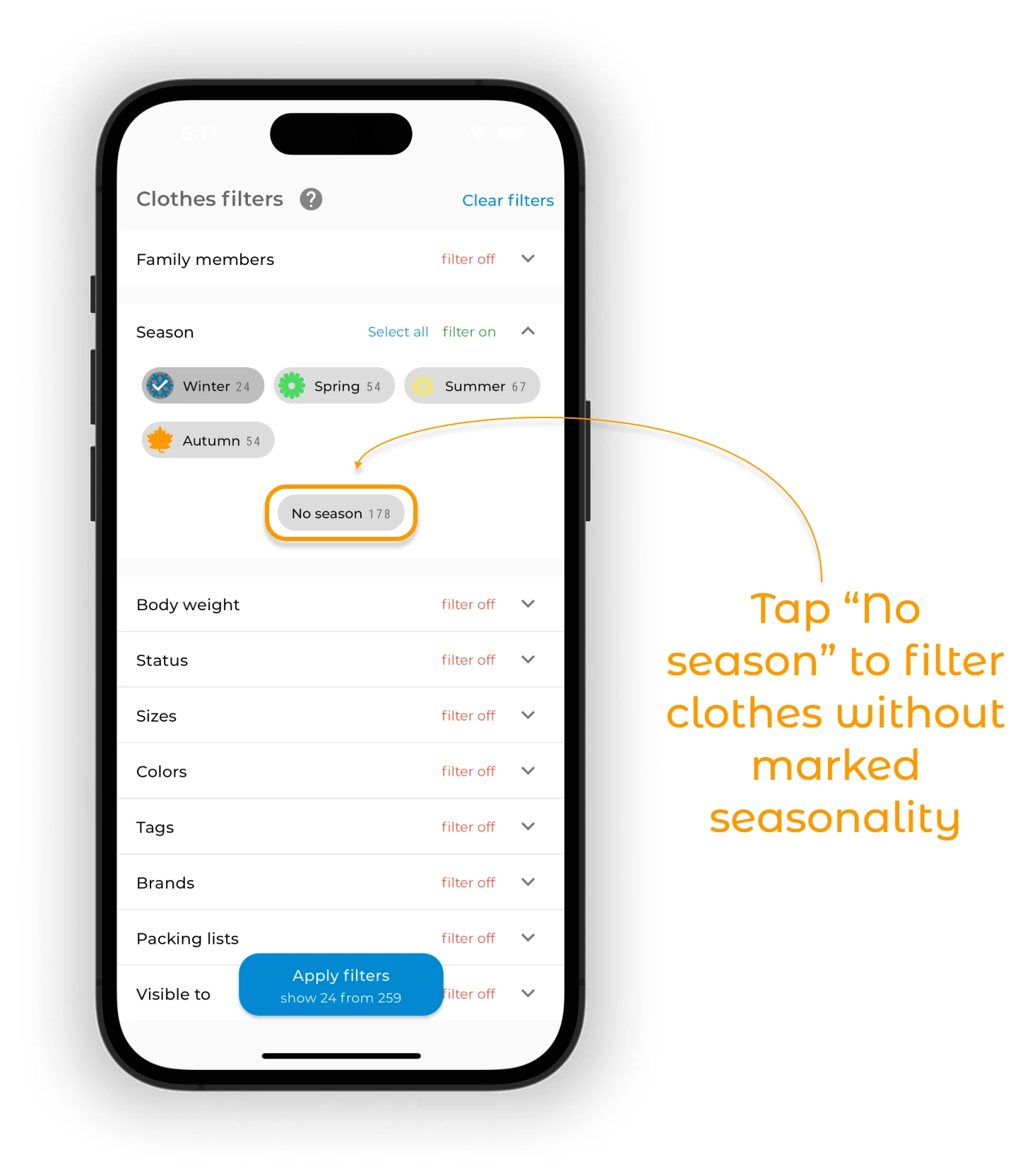
To see items with no season set, choose "No season".
Categories
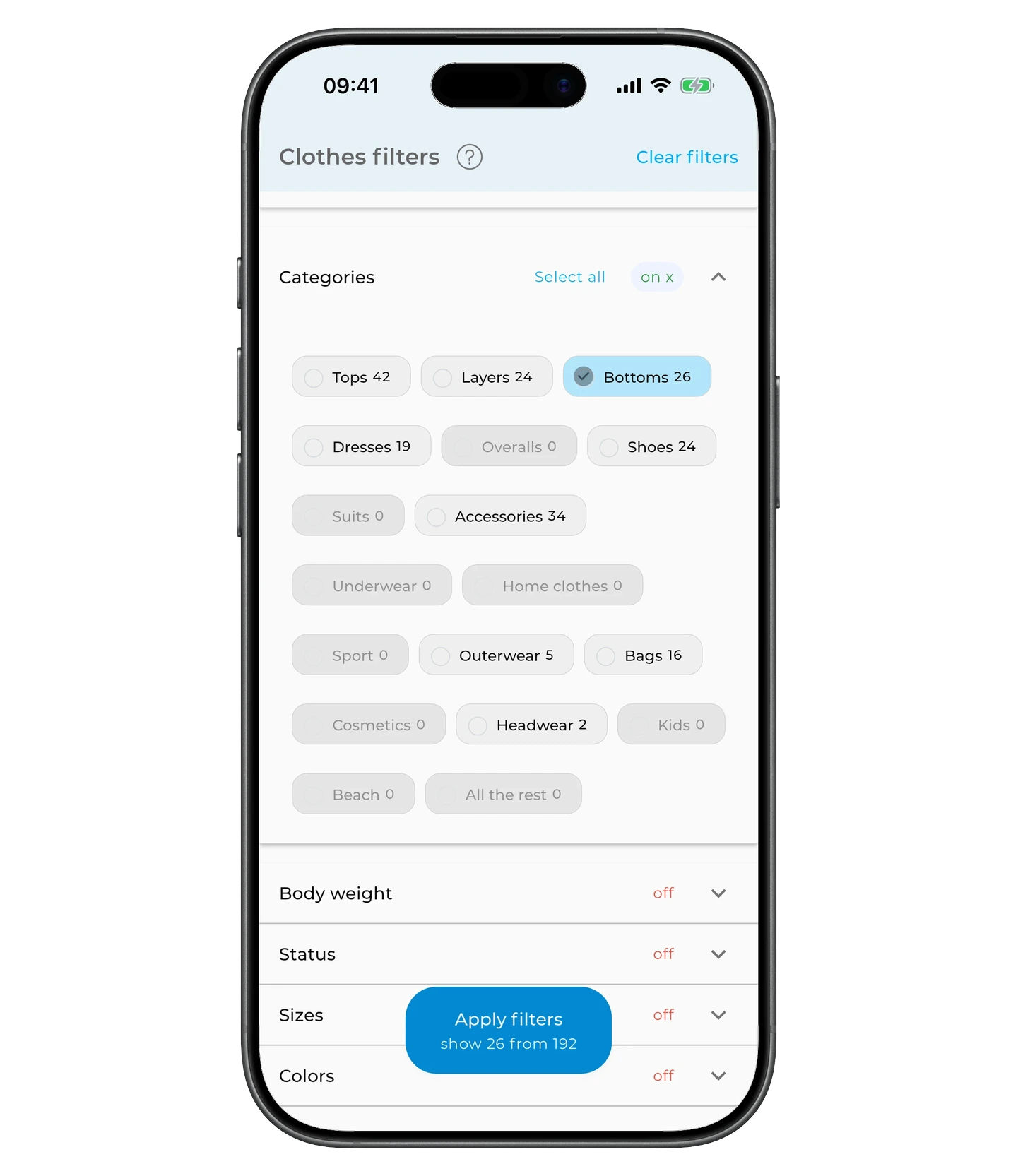
To filter by categories, tap the expand icon and pick the categories you want (for example, Tops, Bottoms, Shoes). You can select several at once.
Body weight
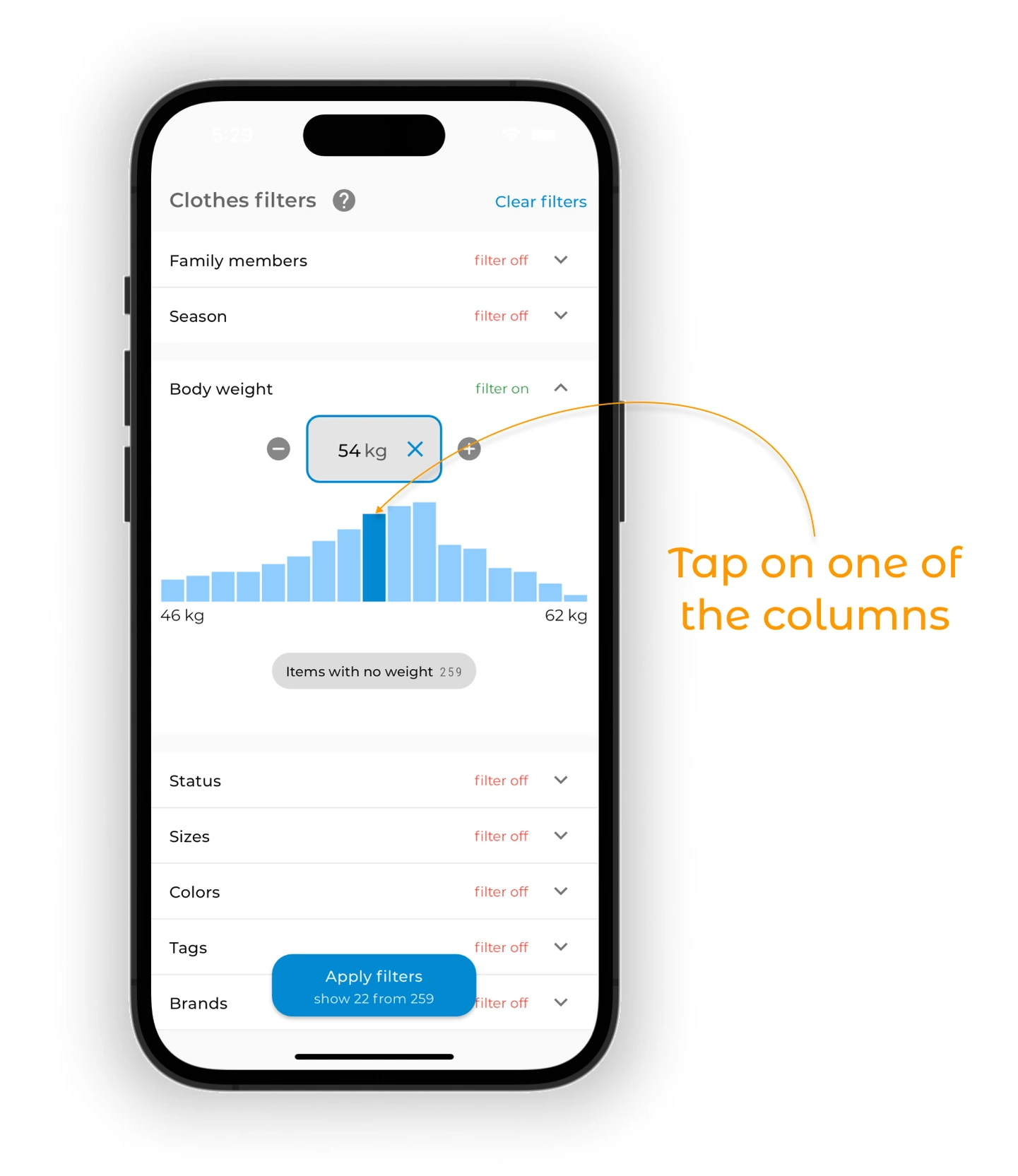
To filter by body weight, tap the expand icon. You can set the weight by tapping one of the columns, typing it in, or using the "+" and "−" buttons.
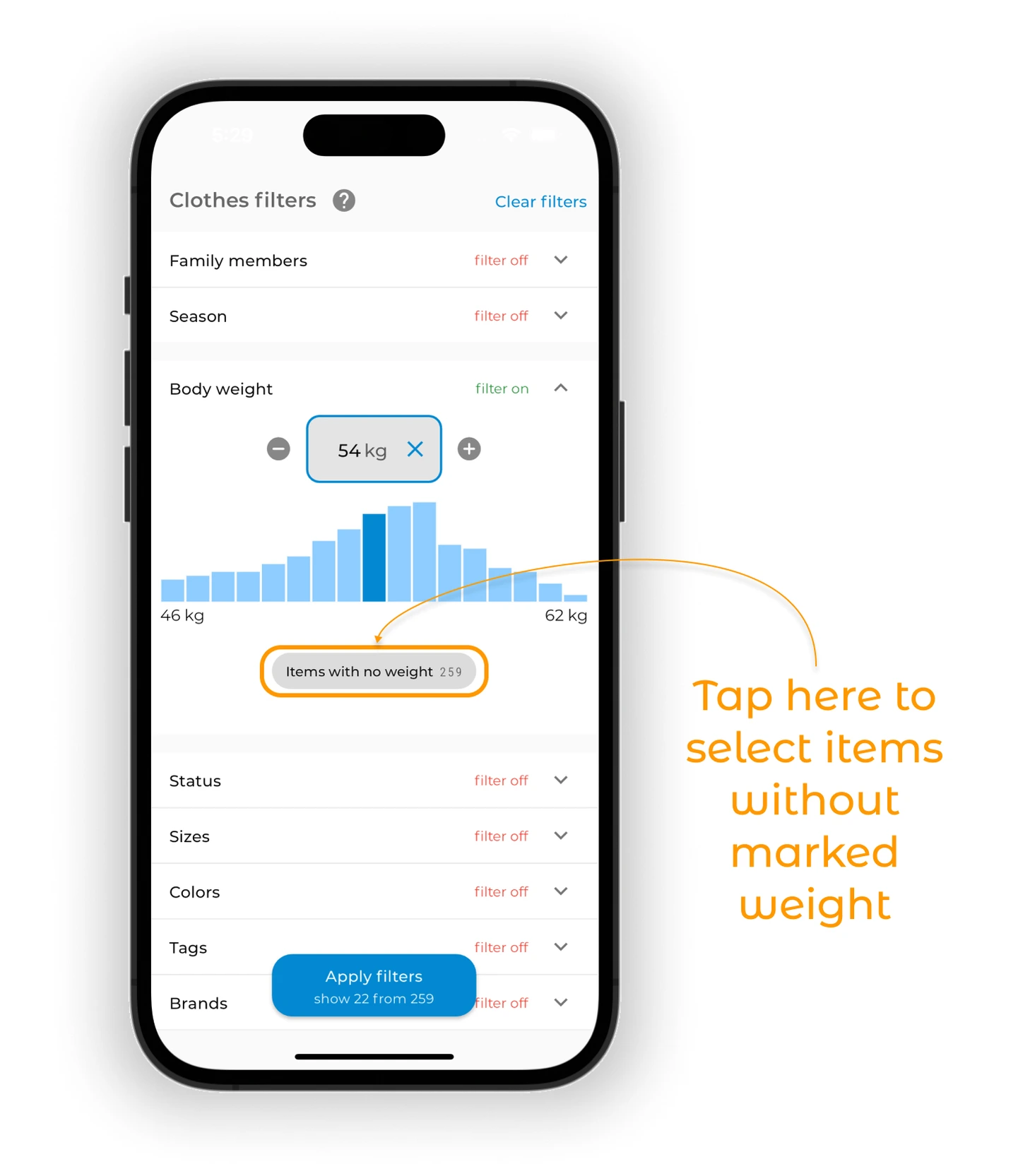
To see items with no weight set, tap "Items with no weight".
Tip
The body weight filter may be disabled in your app. To enable it, go to app settings.
Status
All items in the wardrobe have a status, so there's no filter for items without one.
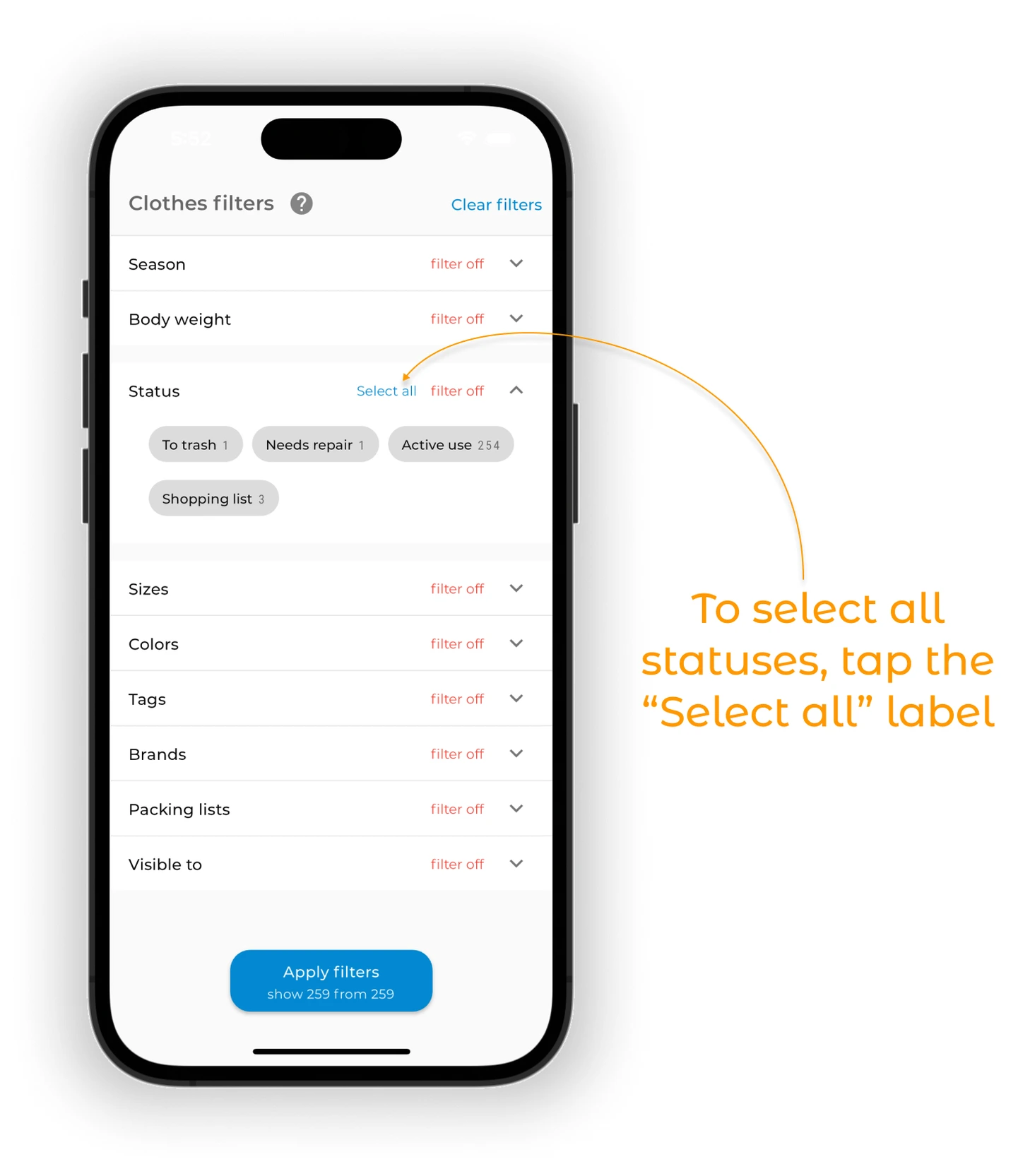
To filter by status, tap the expand icon.
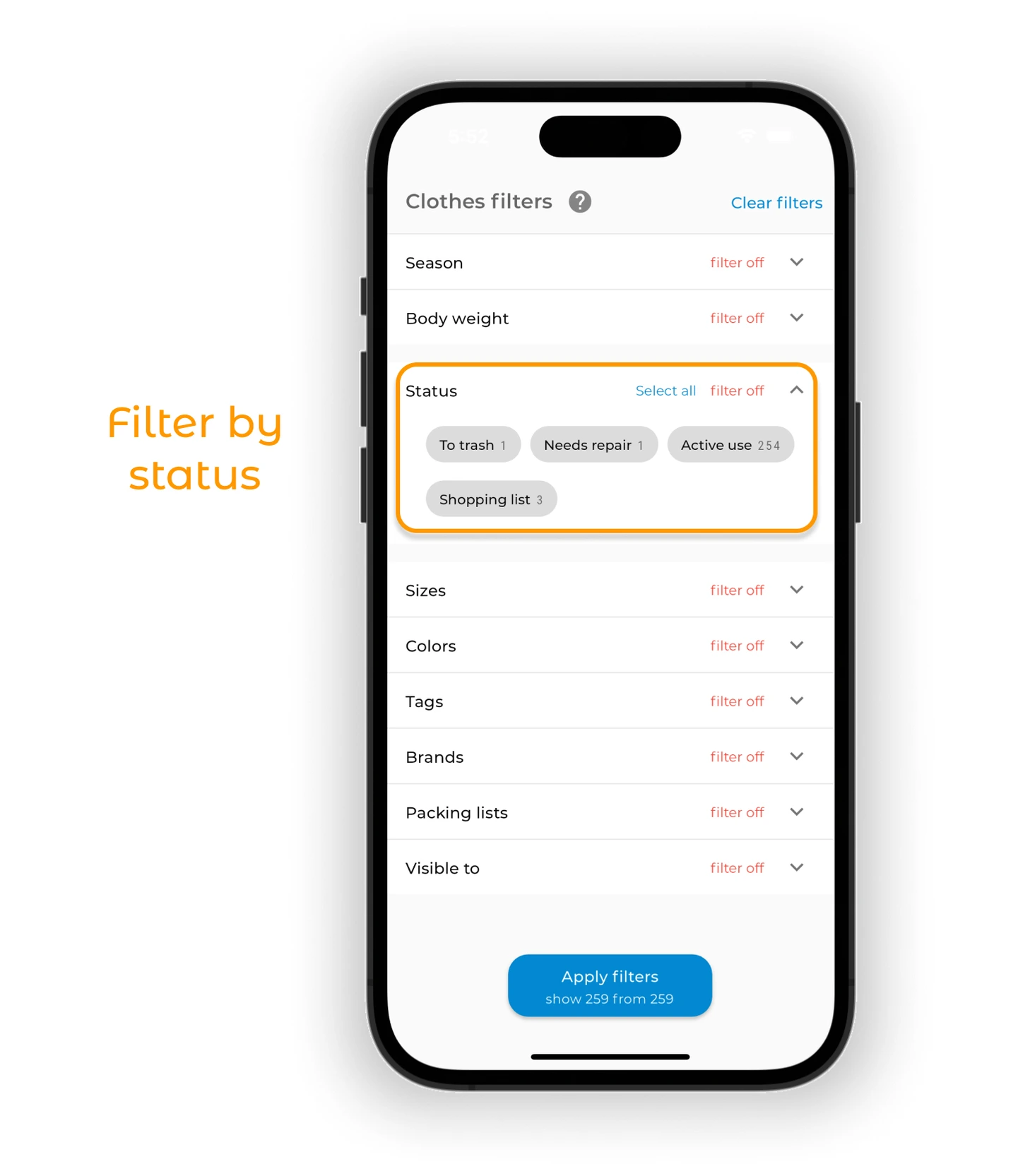
Tap one or more statuses to select them. To select all at once, tap the blue "Select all" link.
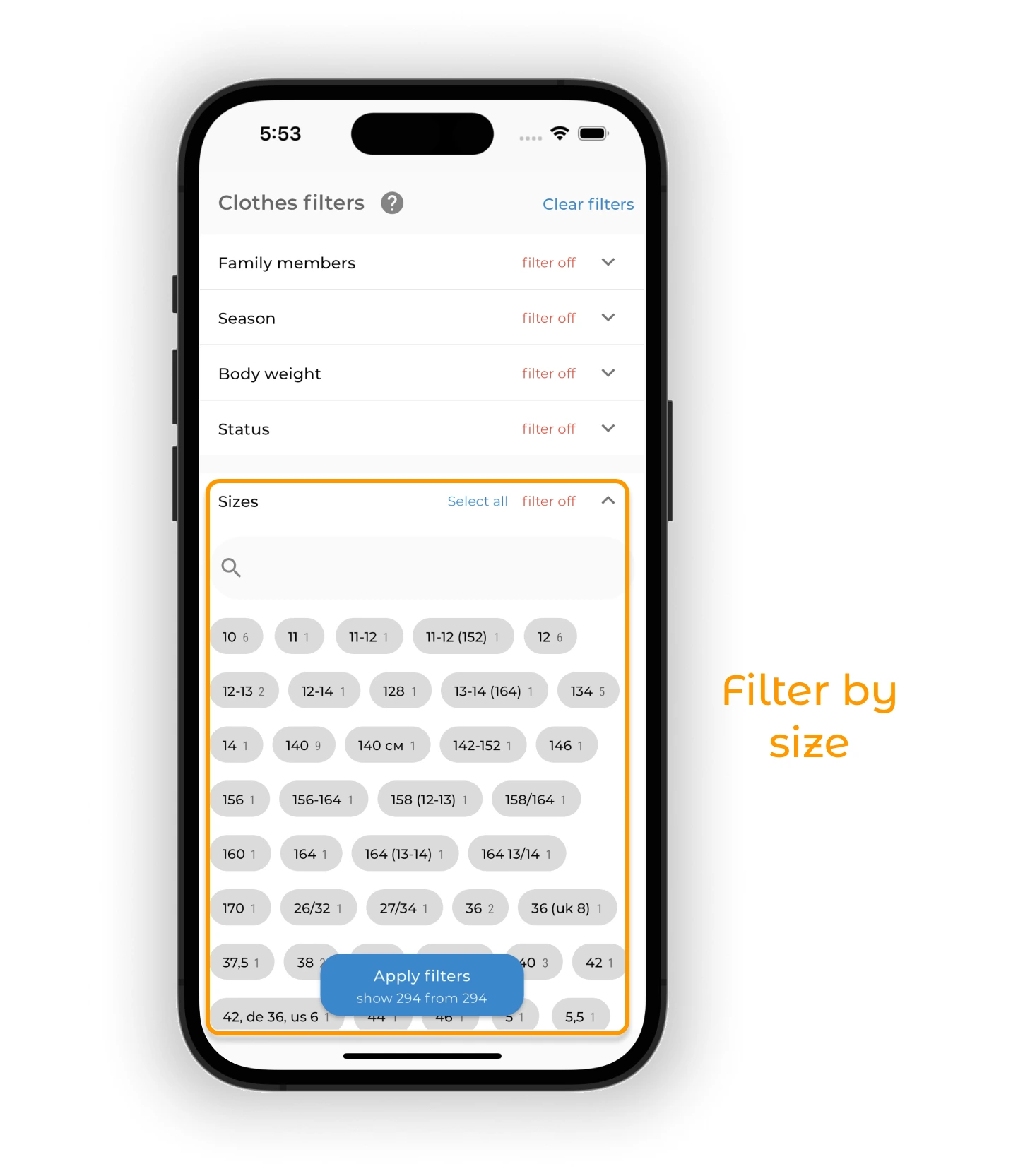
Sizes
To filter by size, tap the expand icon to see all sizes, then tap one or several to select them.
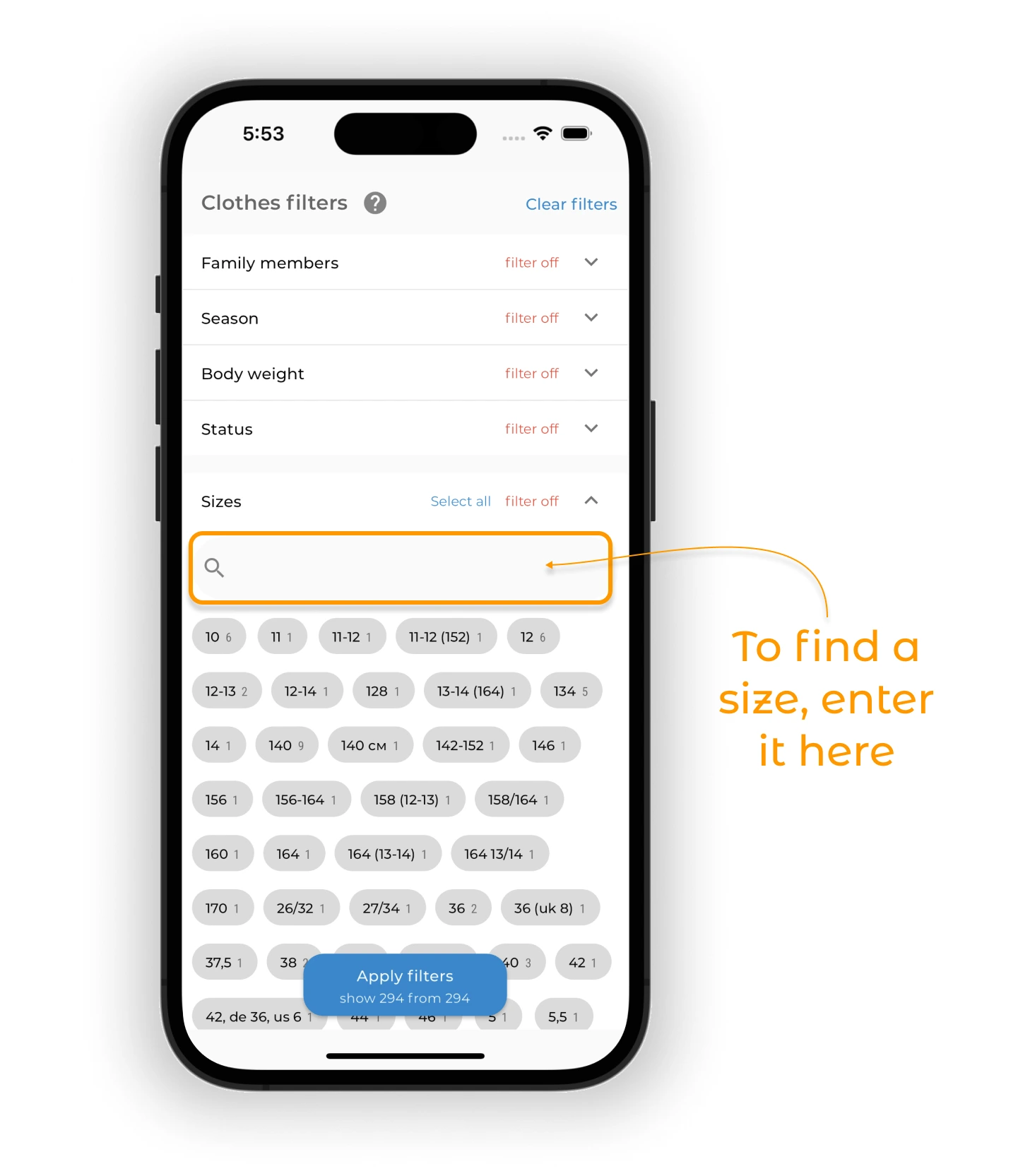
If you use multiple sizing systems, you can search them directly.
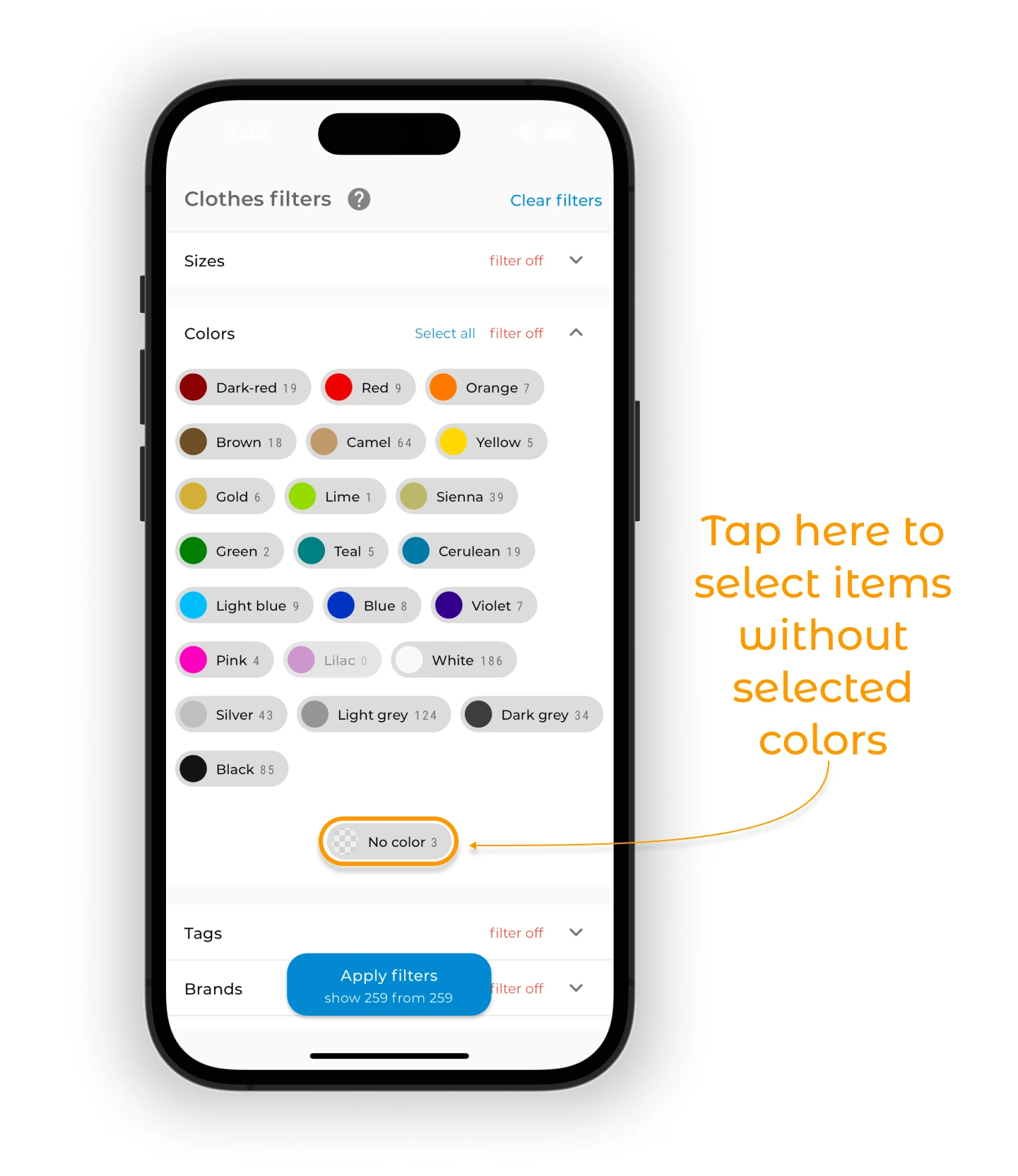
Colors
Tap the expand icon to see all color groups, then tap one or several to filter by them.
Tip
What are color groups? Every item color in the app is assigned to one of the color groups shown in the filter. GetWardrobe assigns each item to the closest color group.
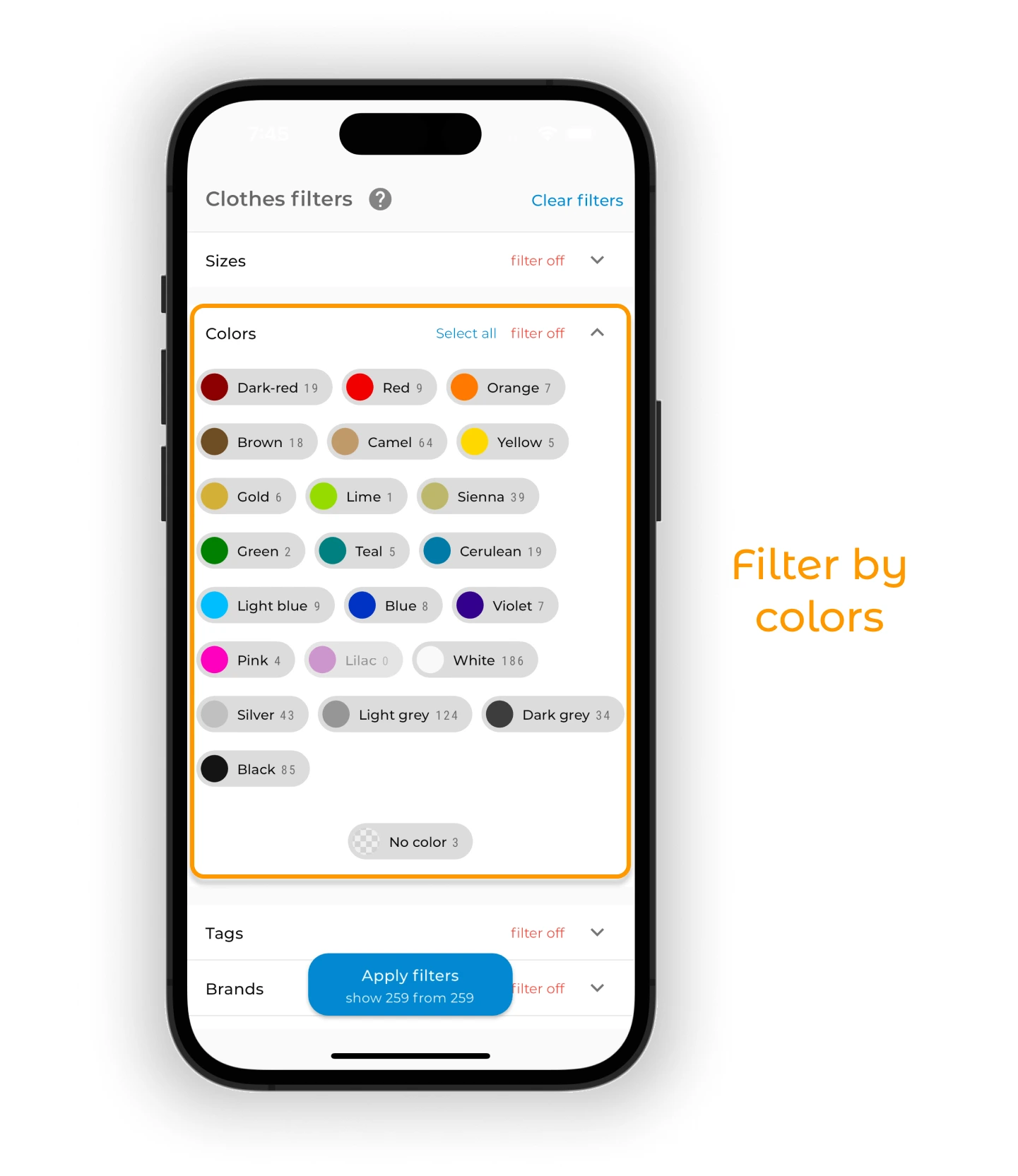
To see items without a color set, choose "No color".
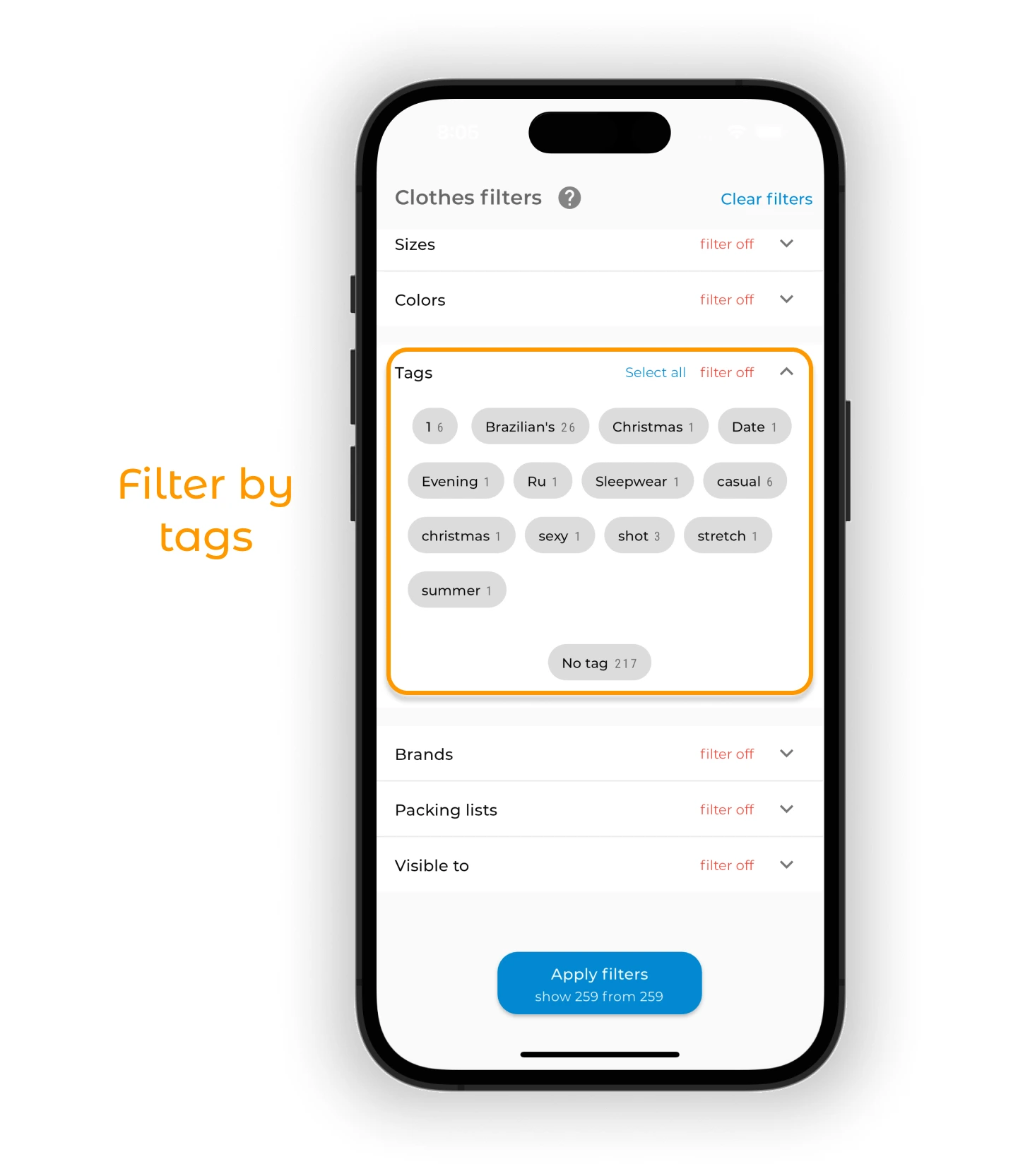
Tags
To filter by tags, tap the expand icon and tap the tag you want.
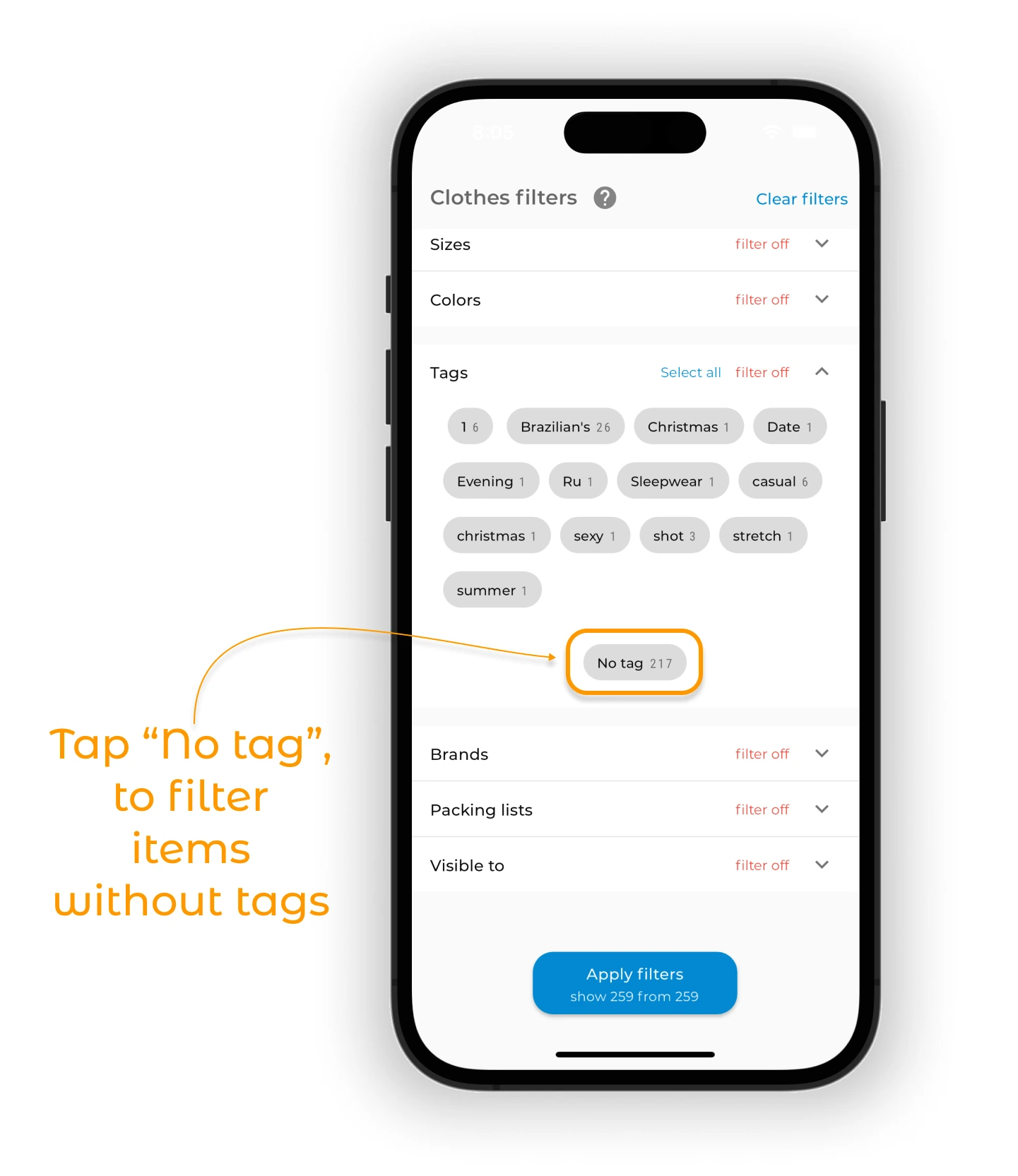
To see items without tags, tap "No tag".
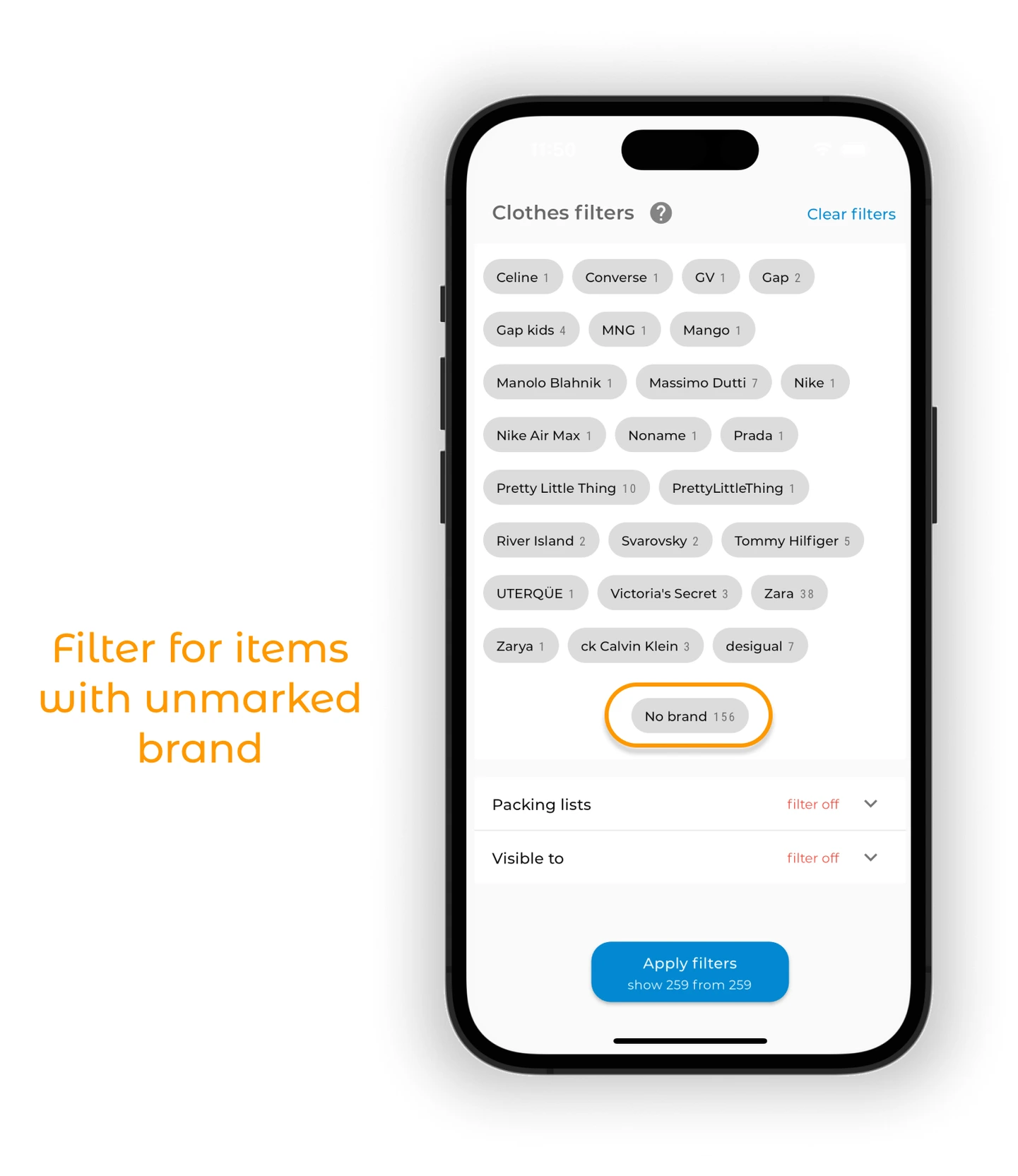
Brands
To filter by brand, tap the expand icon and pick a brand.
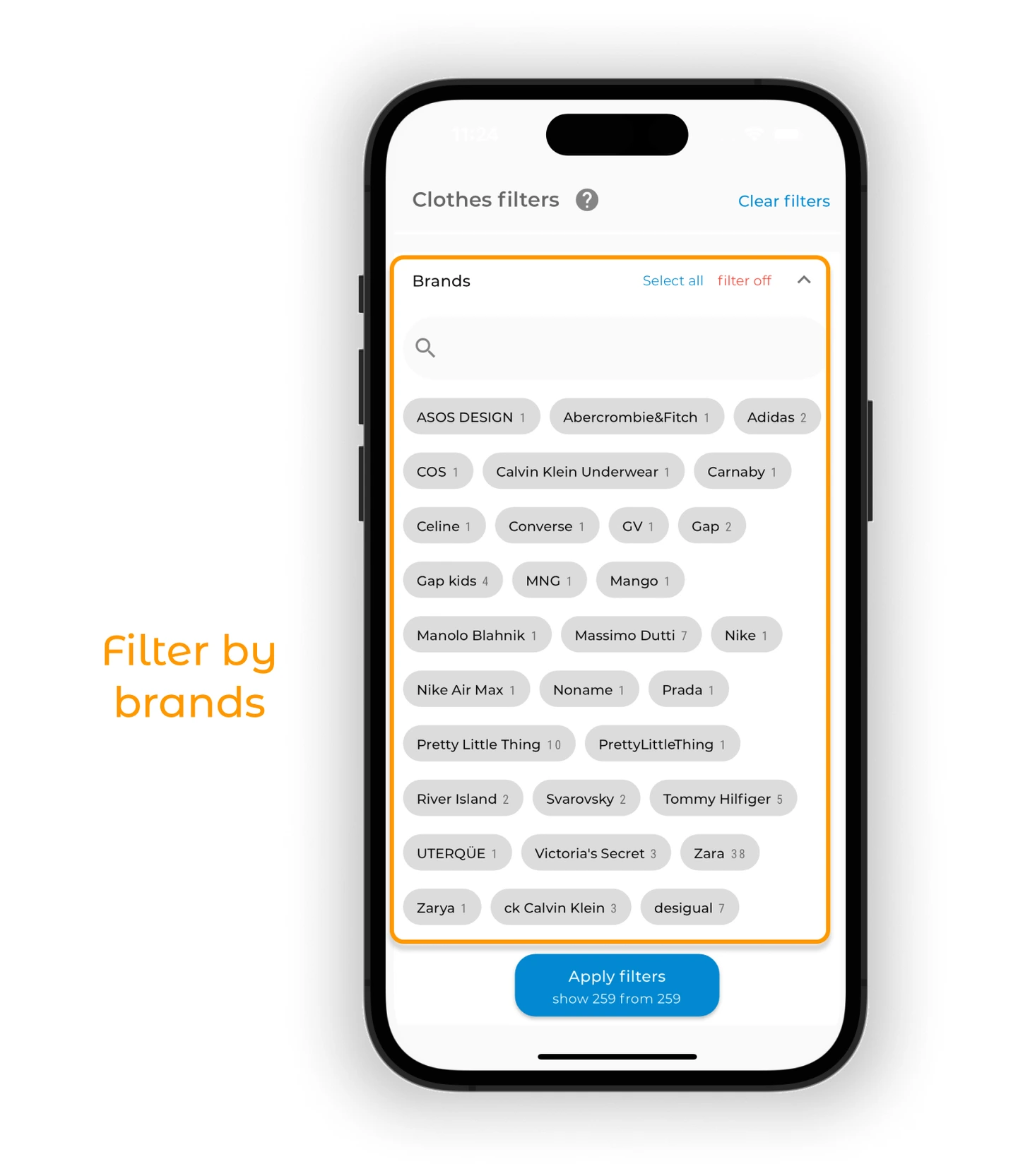
To see items without a brand set, tap "No brand" inside the brand list.
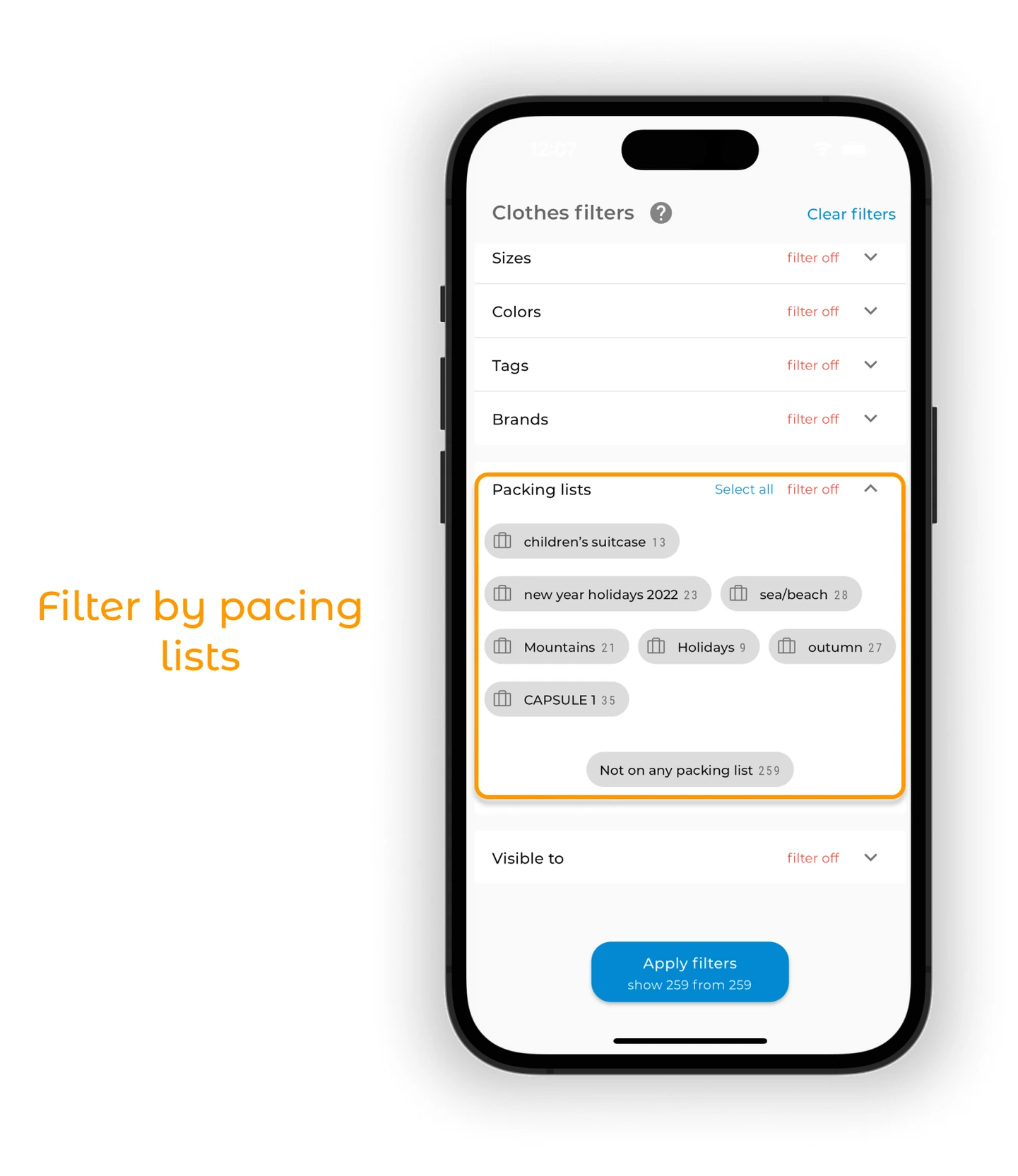
Packing lists
Info
The packing lists filter is only available with a Premium subscription.
If you have packing lists, you can filter by them. Tap one of the lists or "Not on any packing list".
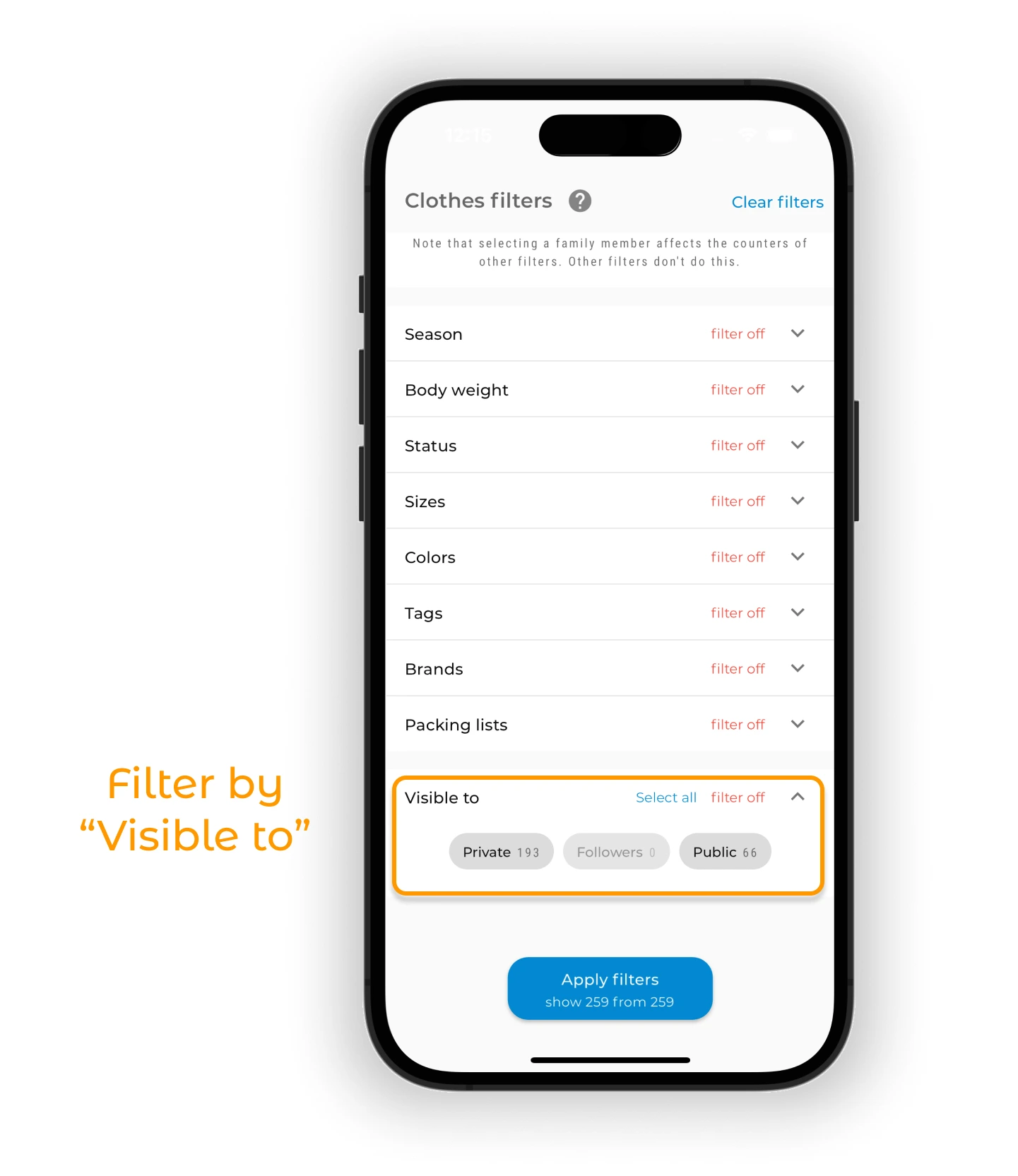
Visibility
This filter narrows items by their privacy — who can see them inside the app.
Tap the expand icon and choose a mode: private, followers, or public.
Advanced filters (AND / OR)
For filters with multiple options (Colors, Tags, Packing lists), you can choose how the selected values combine:
- OR — show items that match at least one of the selected values. For example, items that are blue or red.
- AND — show items that match all selected values at once. For example, items tagged "summer" and "work".
By default the filter uses OR logic. To switch to AND, tap the "OR / AND" toggle at the top of the filter section.
Apply and clear filters
Once you've set everything, tap the big blue "Apply filters" button at the bottom of the screen.
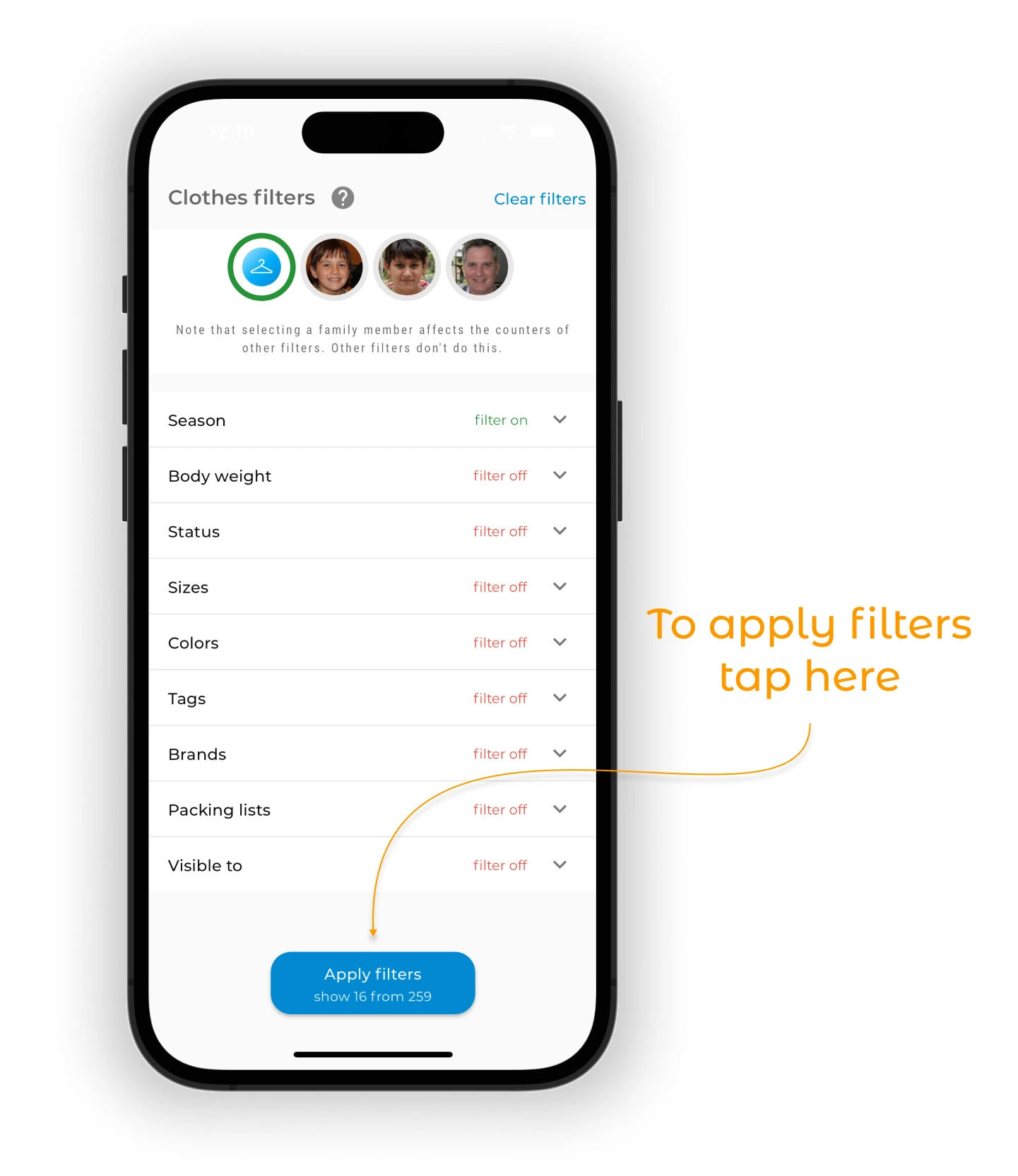
To clear all filters, tap "Clear filters" in the upper right corner.
When any filters are active, the filter icon (three horizontal lines) shows a red dot on the "Clothes" screen.
FAQ
How do I filter items by body weight?
First enable "Filter by body weight" in app settings. Then, in the weight section of filters, tap the expand icon and pick your weight range.
Can I combine multiple filters?
Yes. Use as many filters together as you need. When you select a family member, other filter counts update to show items for that person only.
Do filters save automatically?
No. You need to tap "Apply filters" at the bottom of the screen each time. Tap "Clear filters" to reset and show all items again.
Need help?
Contact us at support@getwardrobe.com