Edit Multiple Items
Change properties across multiple items at once — delete them, update status, assign to family members, add tags, or create outfits in bulk.
Info
Bulk editing is only available with a Premium subscription.
Available actions
- Delete
- Change status
- Change family member
- Change season
- Edit tags
- Edit price
- Create outfit
- Create outfit automatically
- Create packing list
- Share
Enter bulk edit mode
To start, tap the pencil icon in the upper right corner of the screen.
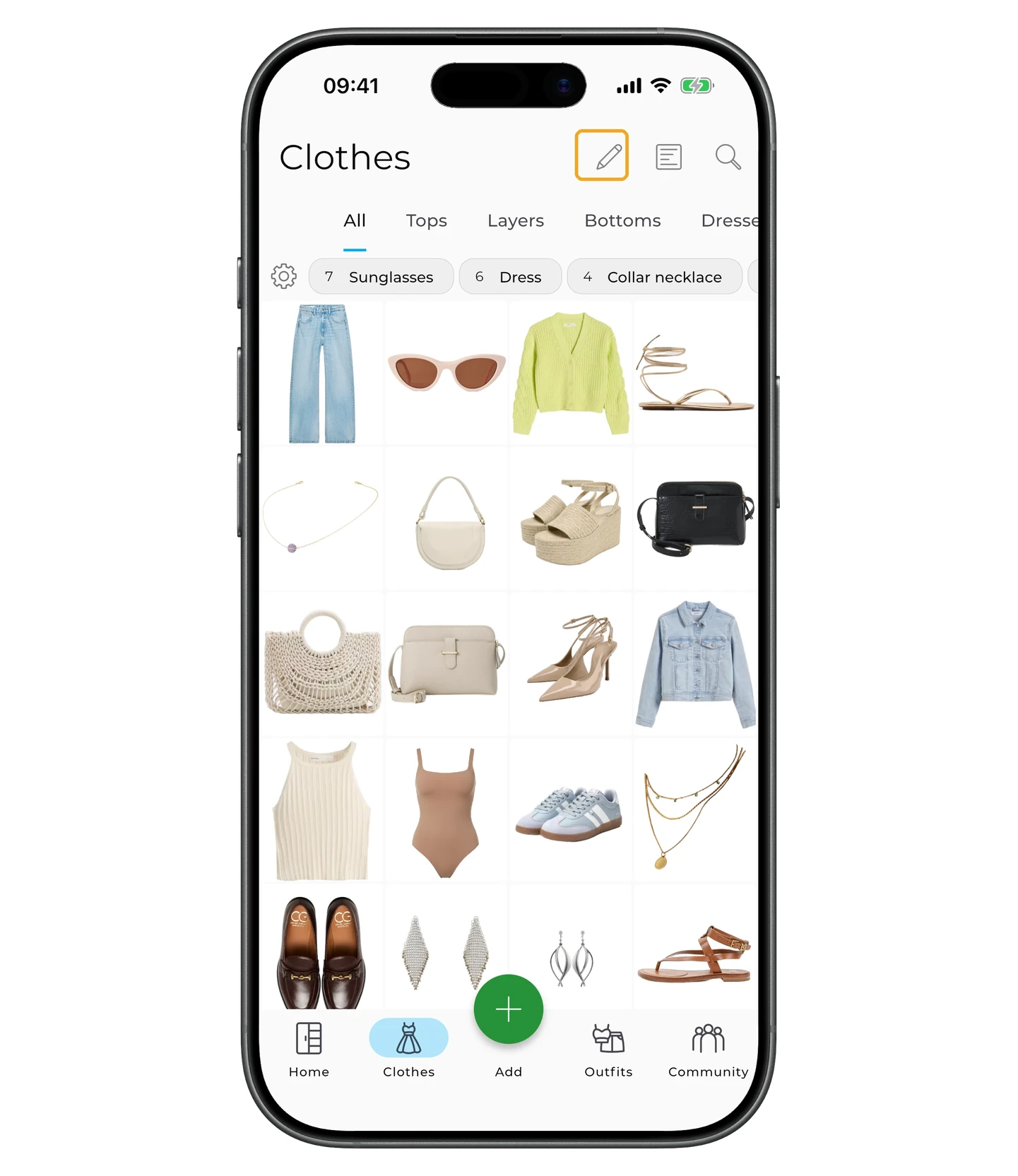
Then tap the items you want to edit. To select all items, tap the square icon with dots in the lower left corner.
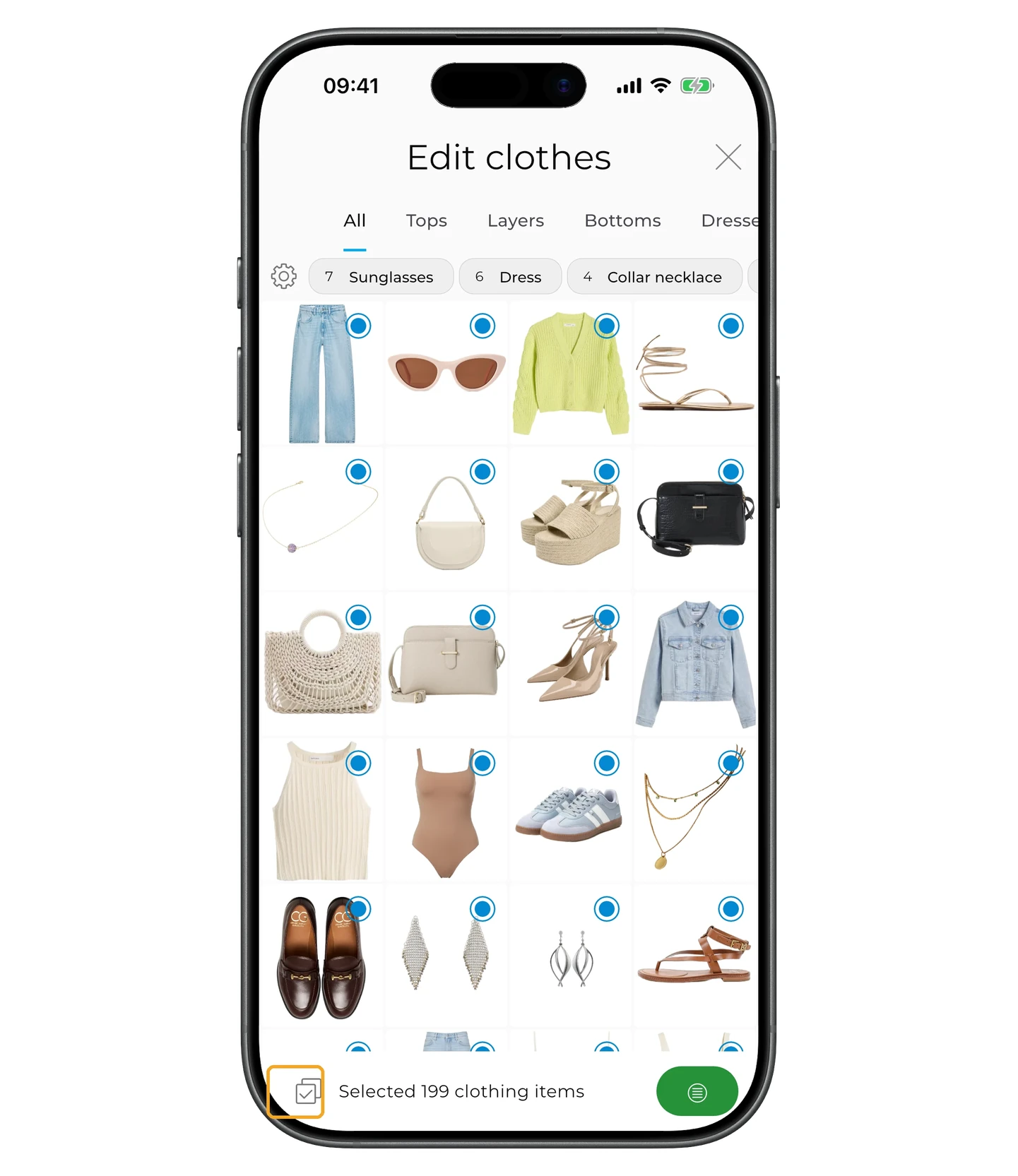
To pick an action, tap the green icon with three horizontal lines in the lower right corner.
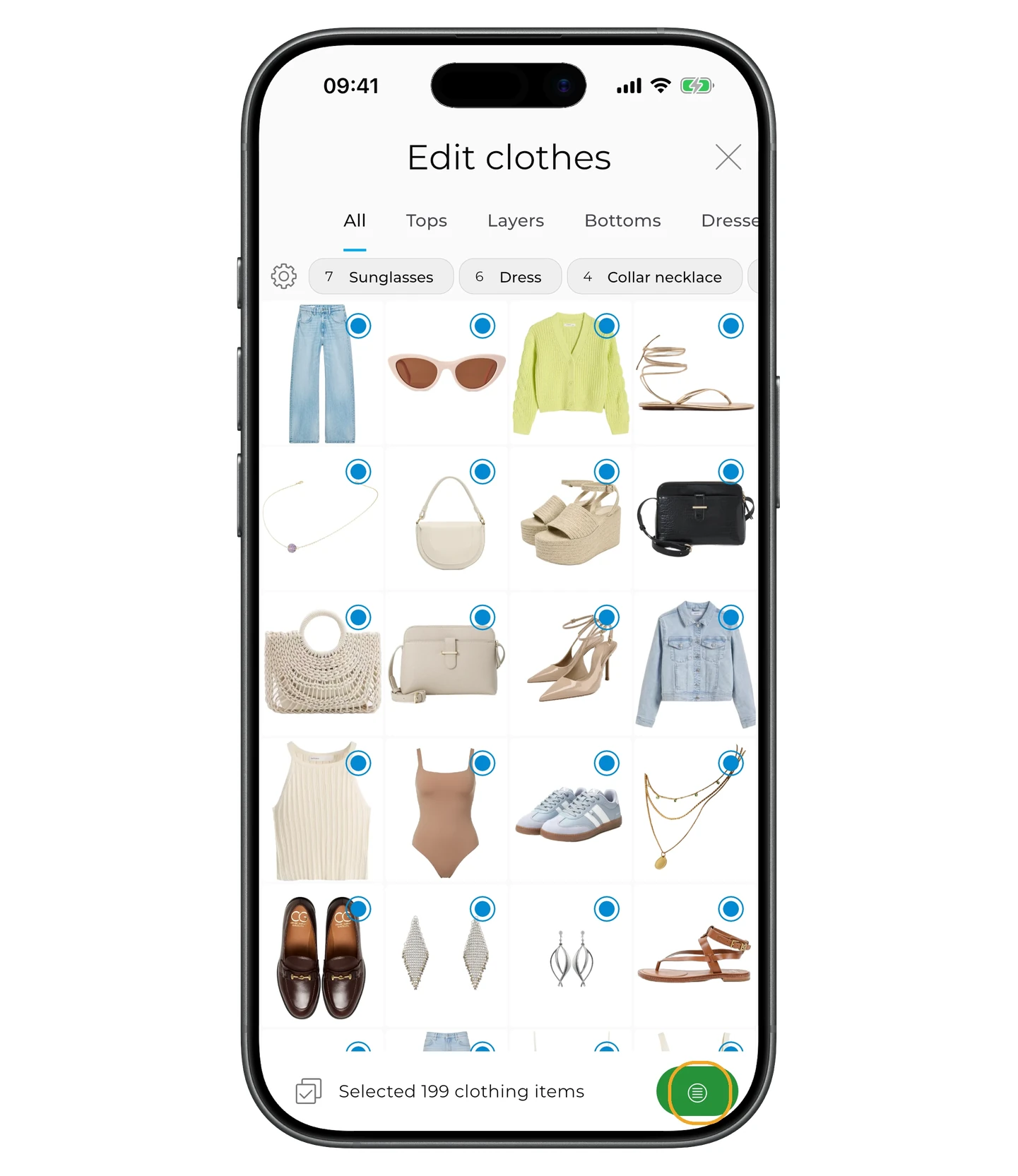
Choose an action from the list.
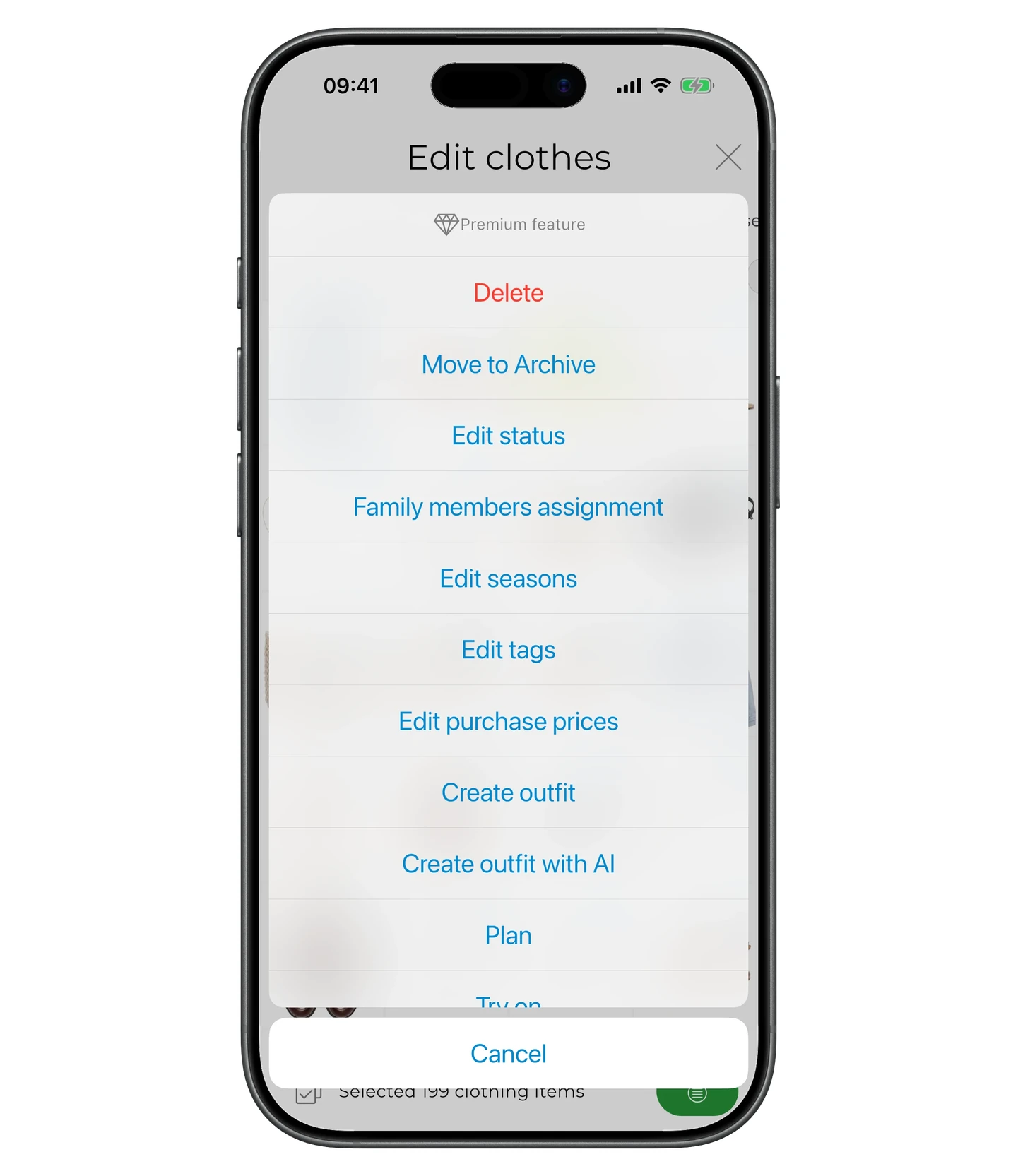
Delete
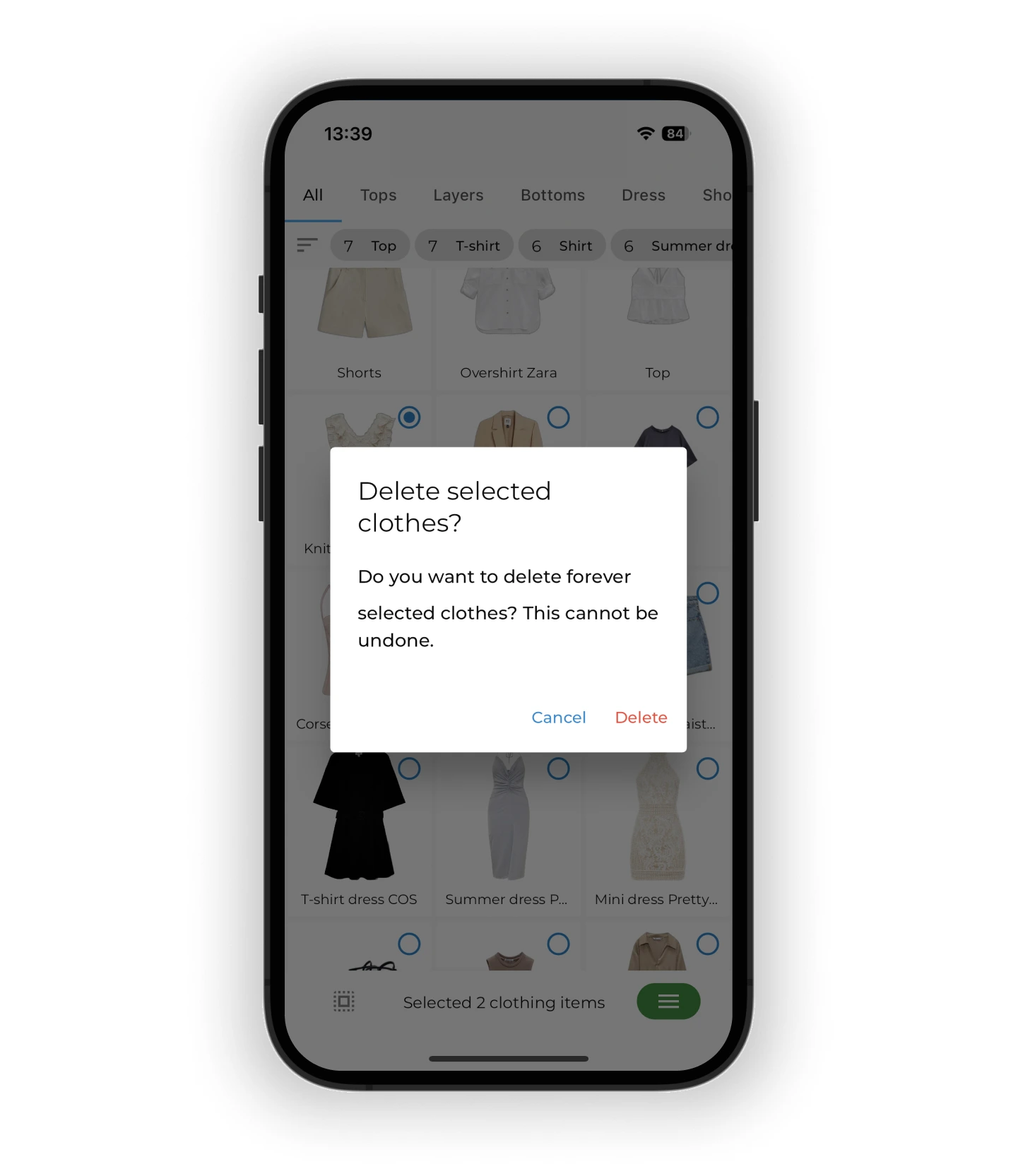
To delete the selected items, tap "Delete". The app will ask you to confirm.
Change status
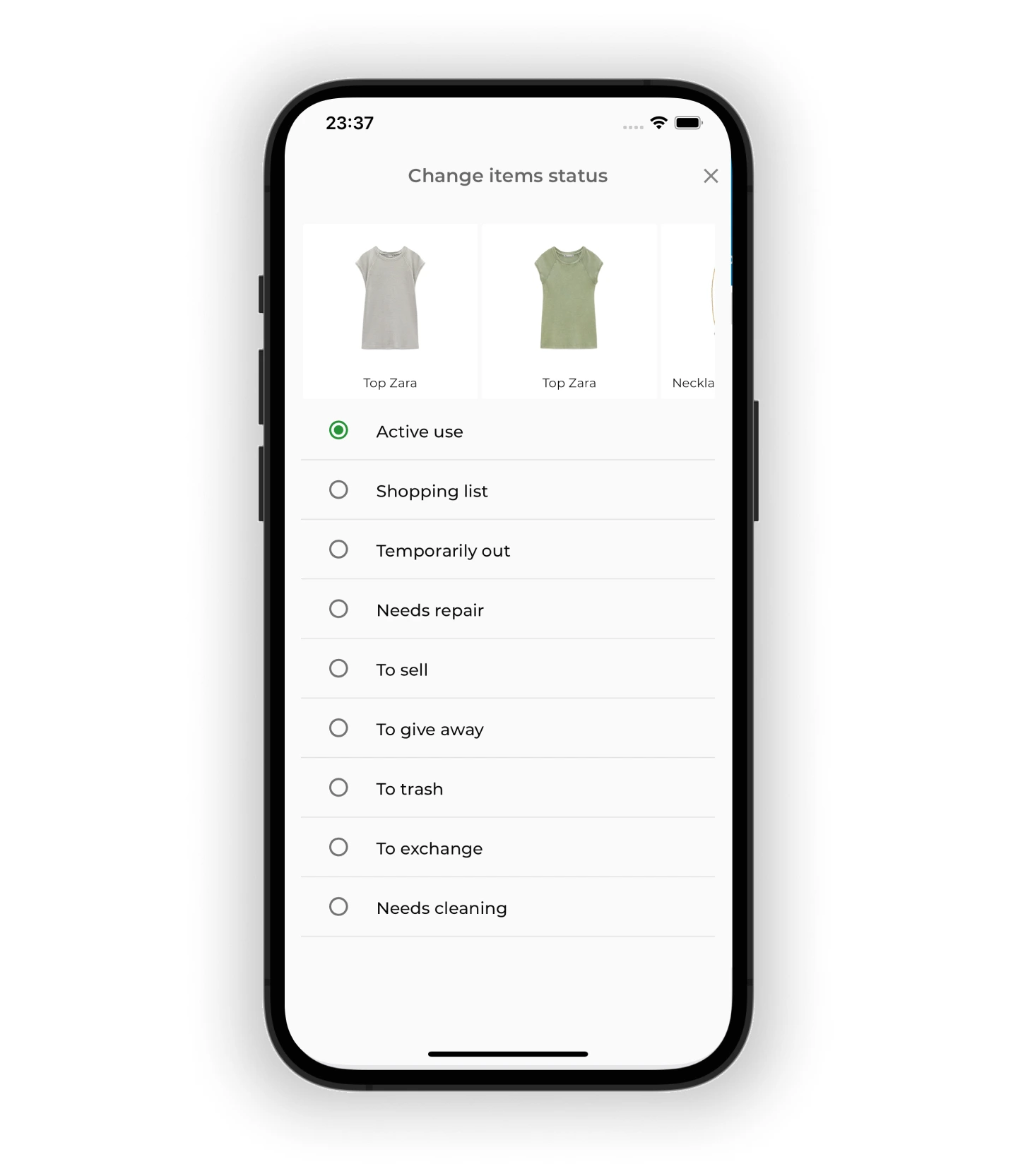
Tap "Edit status" and pick the new status.
To exit edit mode, tap the "x" icon in the upper right corner.
Change family member
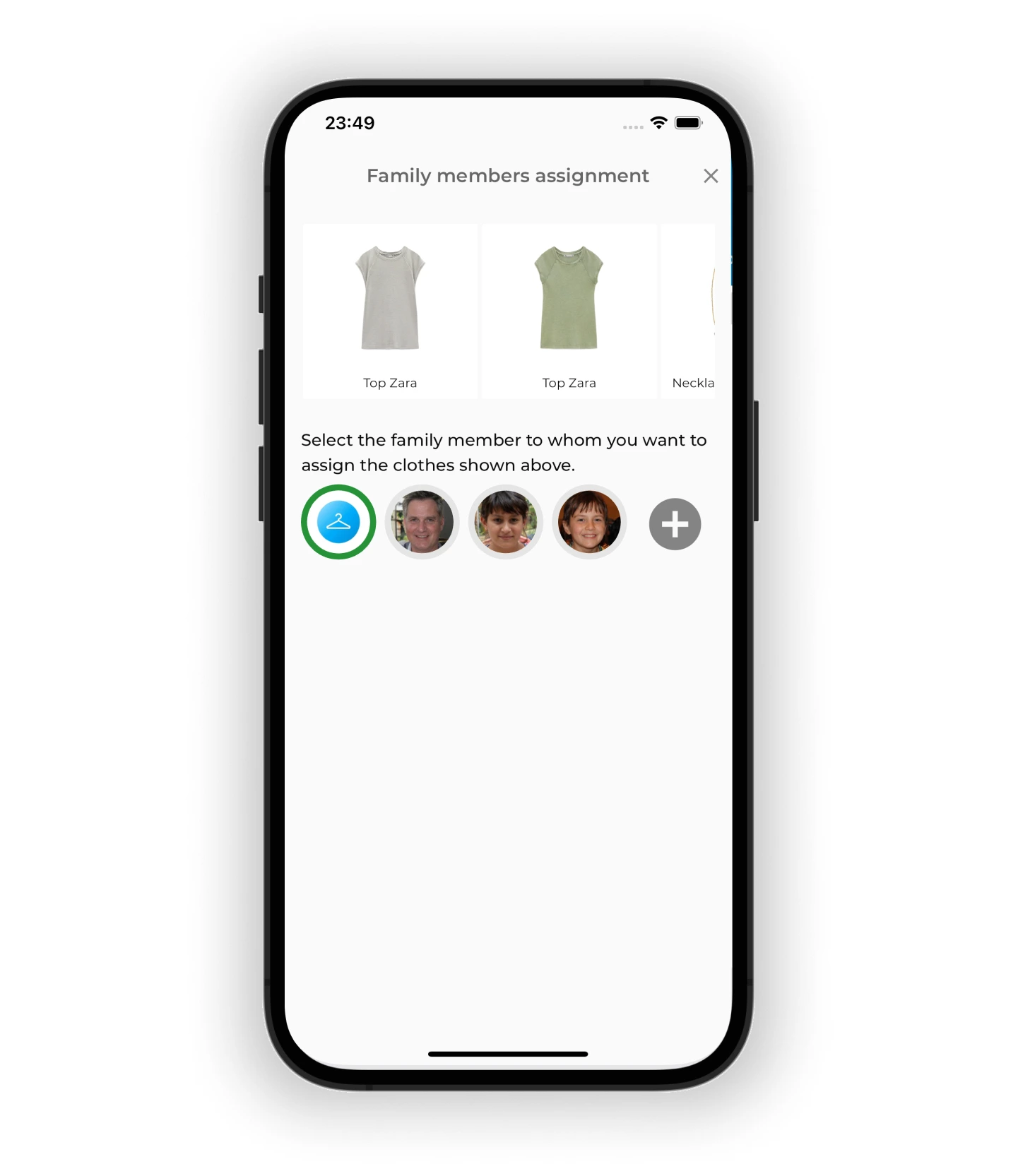
Tap "Family members assignment" and pick a family member, or add a new one with the "+" icon.
Change season
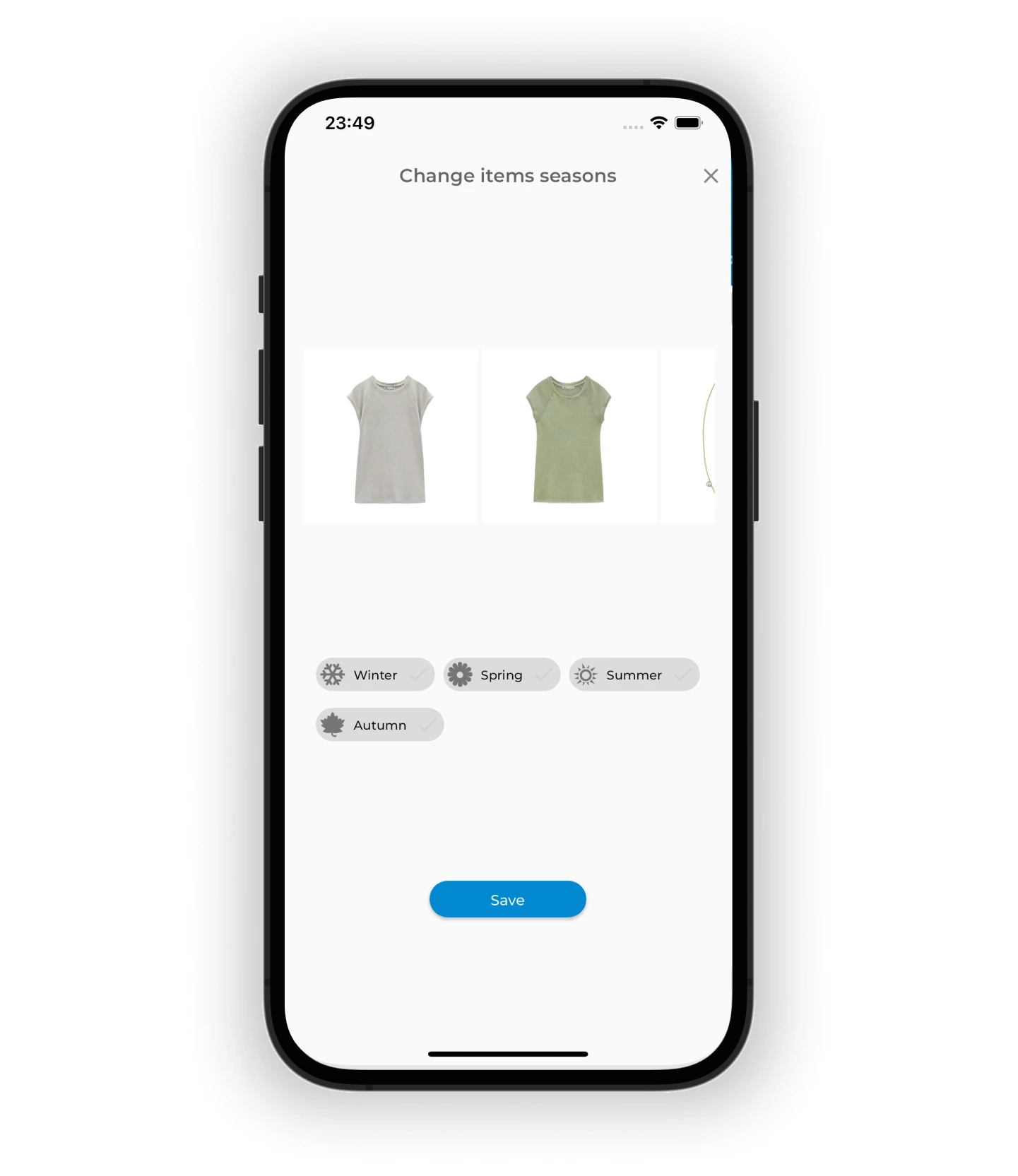
Tap "Edit season", pick one or several seasons, and tap "Save".
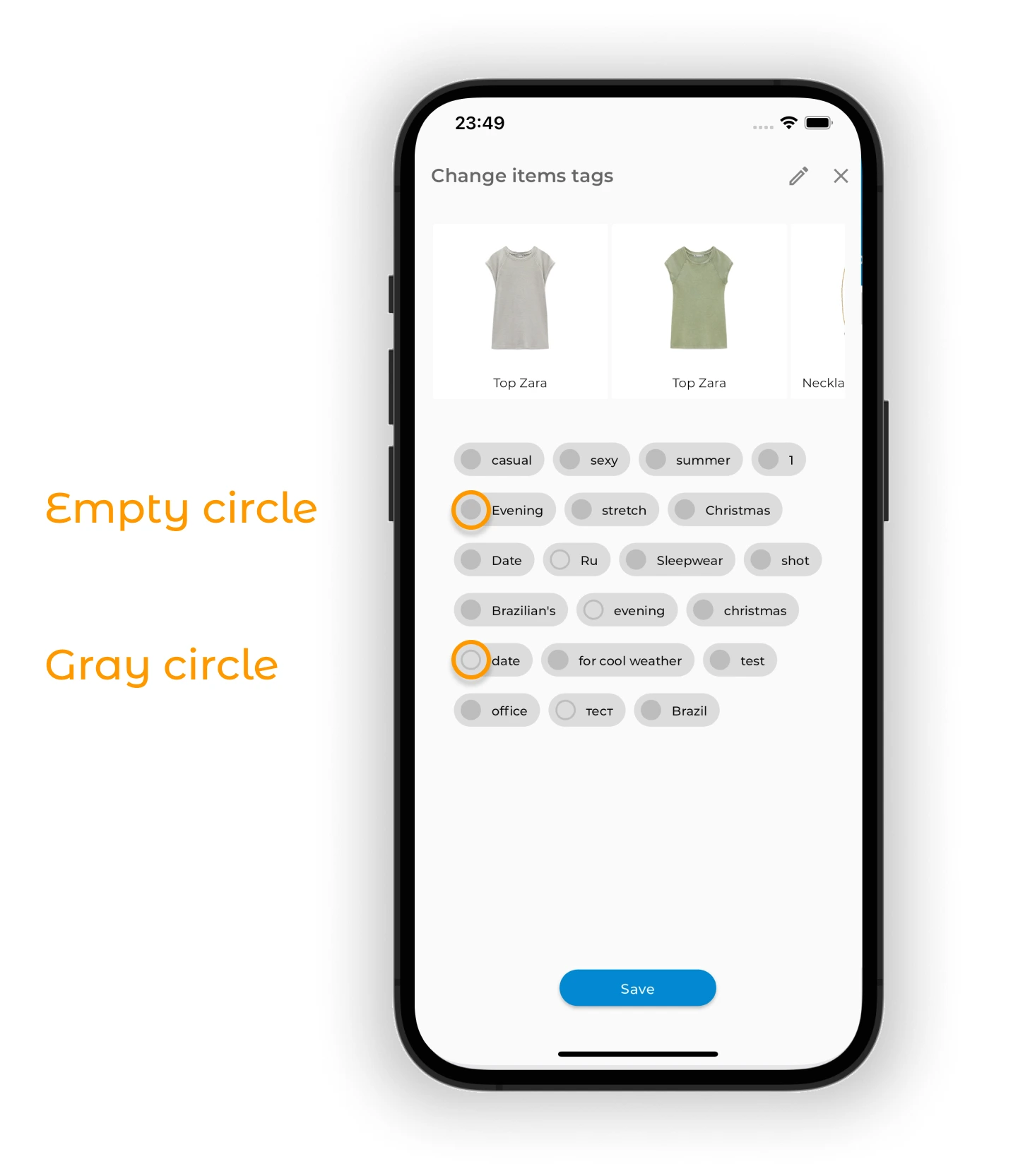
Edit tags
You can add or remove tags. To remove a tag, tap it once to select it, then tap it again to deselect.
- Empty circle — none of the selected items have this tag
- Grey circle — some items have this tag
- Circle with a checkmark — all selected items have this tag
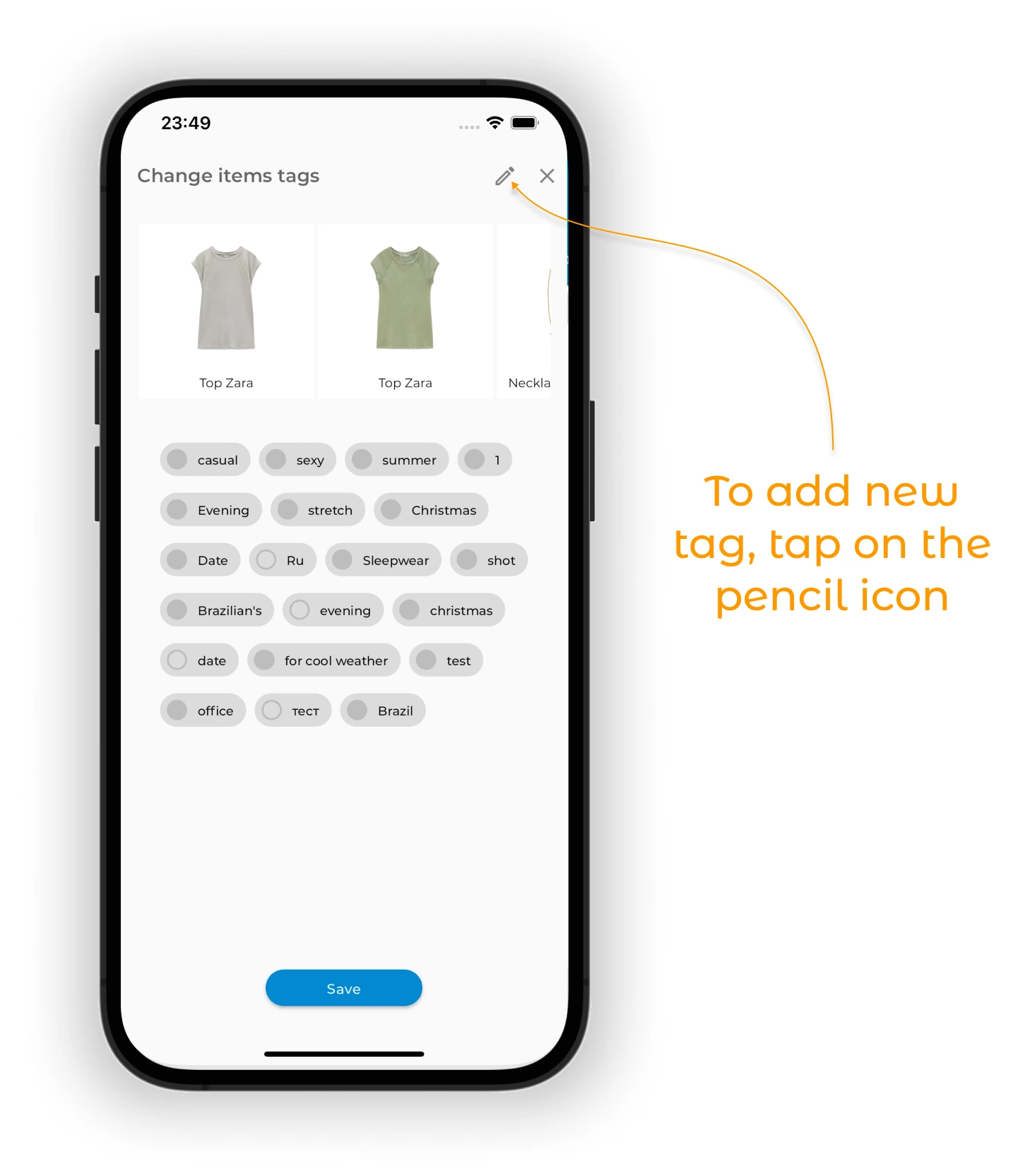
While editing tags you can also create new ones. Tap the pencil icon in the upper right corner.
Type the new tag name and tap "Save" to add it to the list.
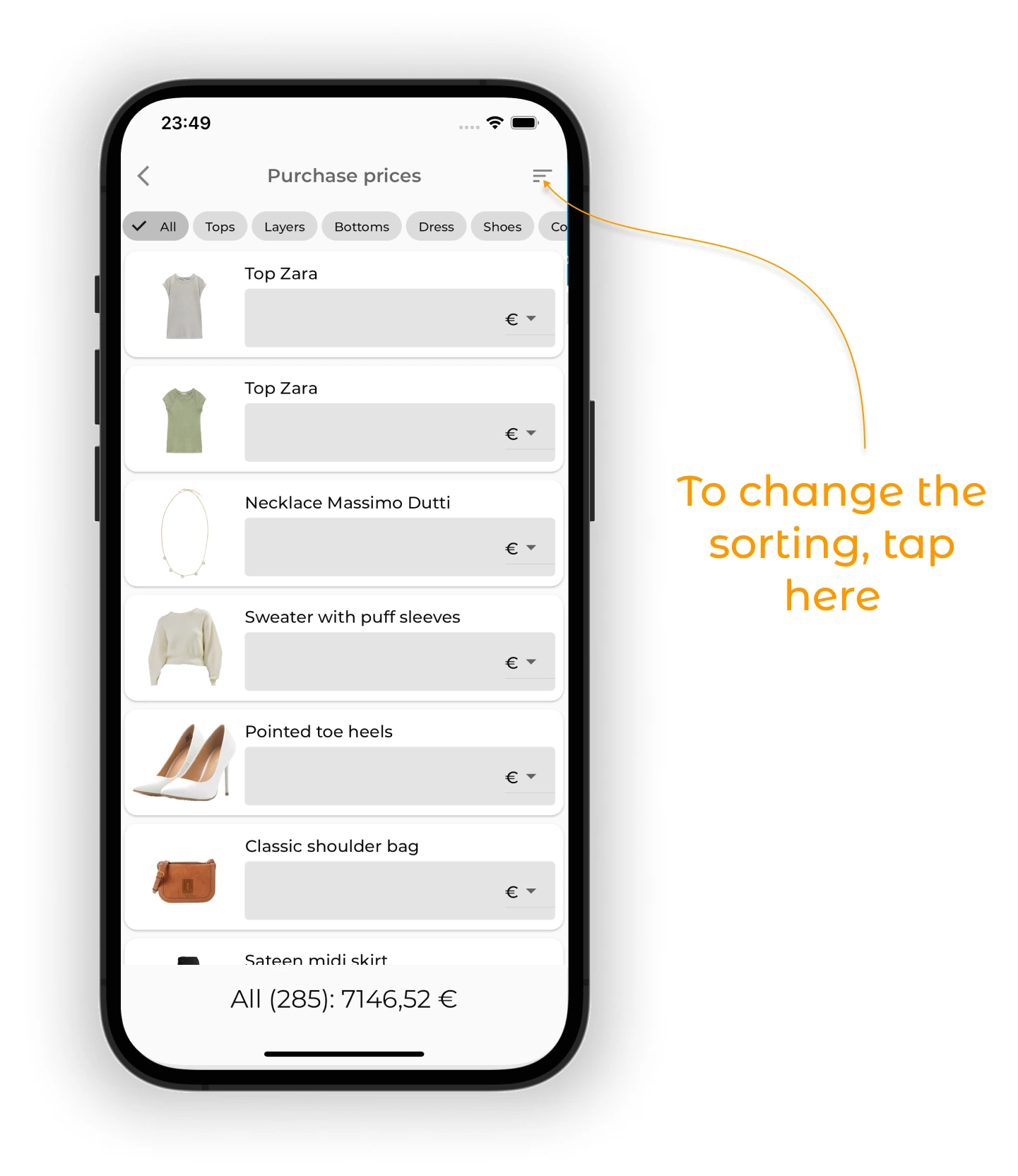
Edit price
Here you can quickly add or update the price of items. To sort items by price (ascending or descending), tap the icon with three lines in the upper right corner.
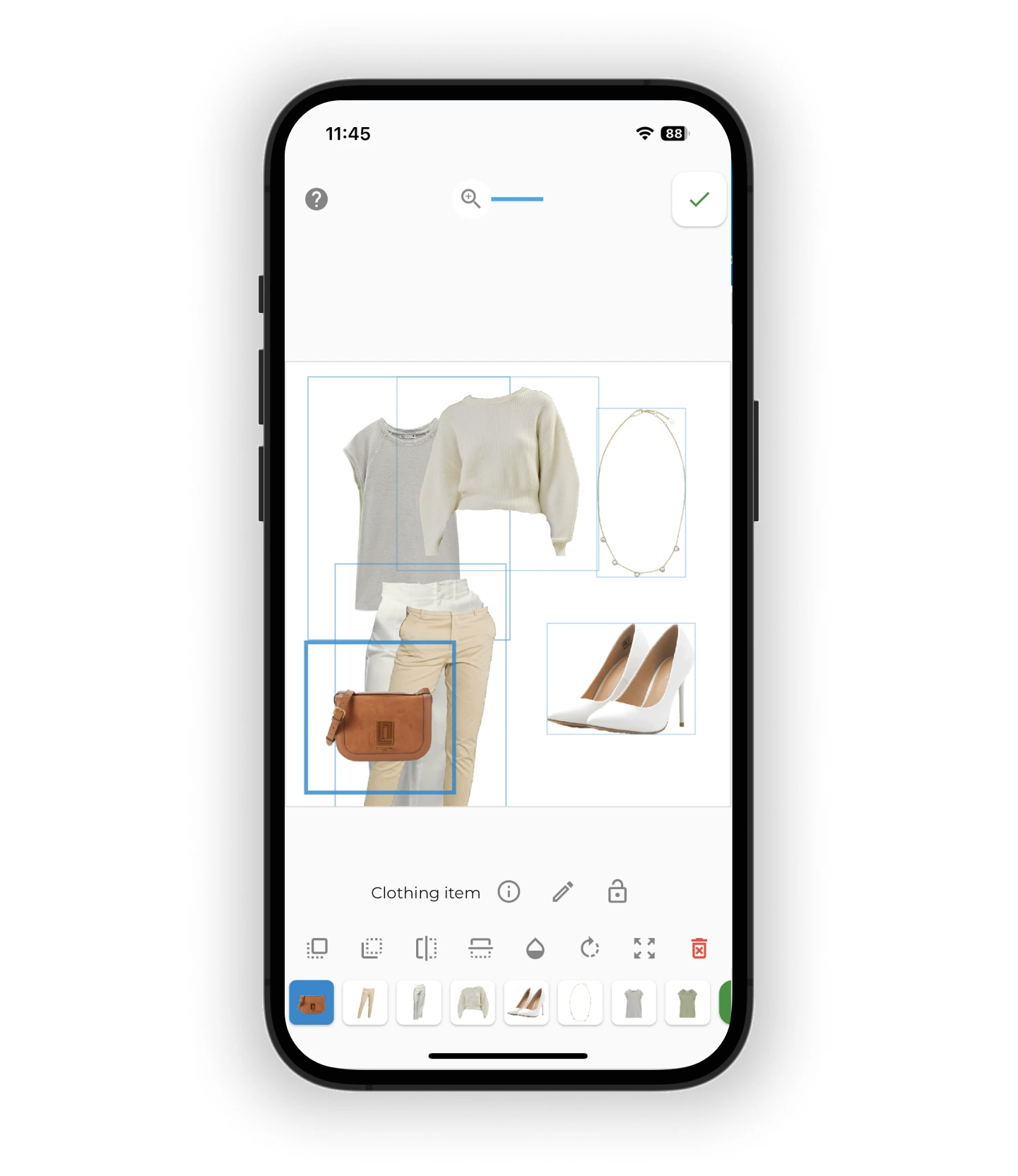
Create outfit
Tapping "Create outfit" takes you to the outfit editor with all selected items already in it.
Create outfit automatically
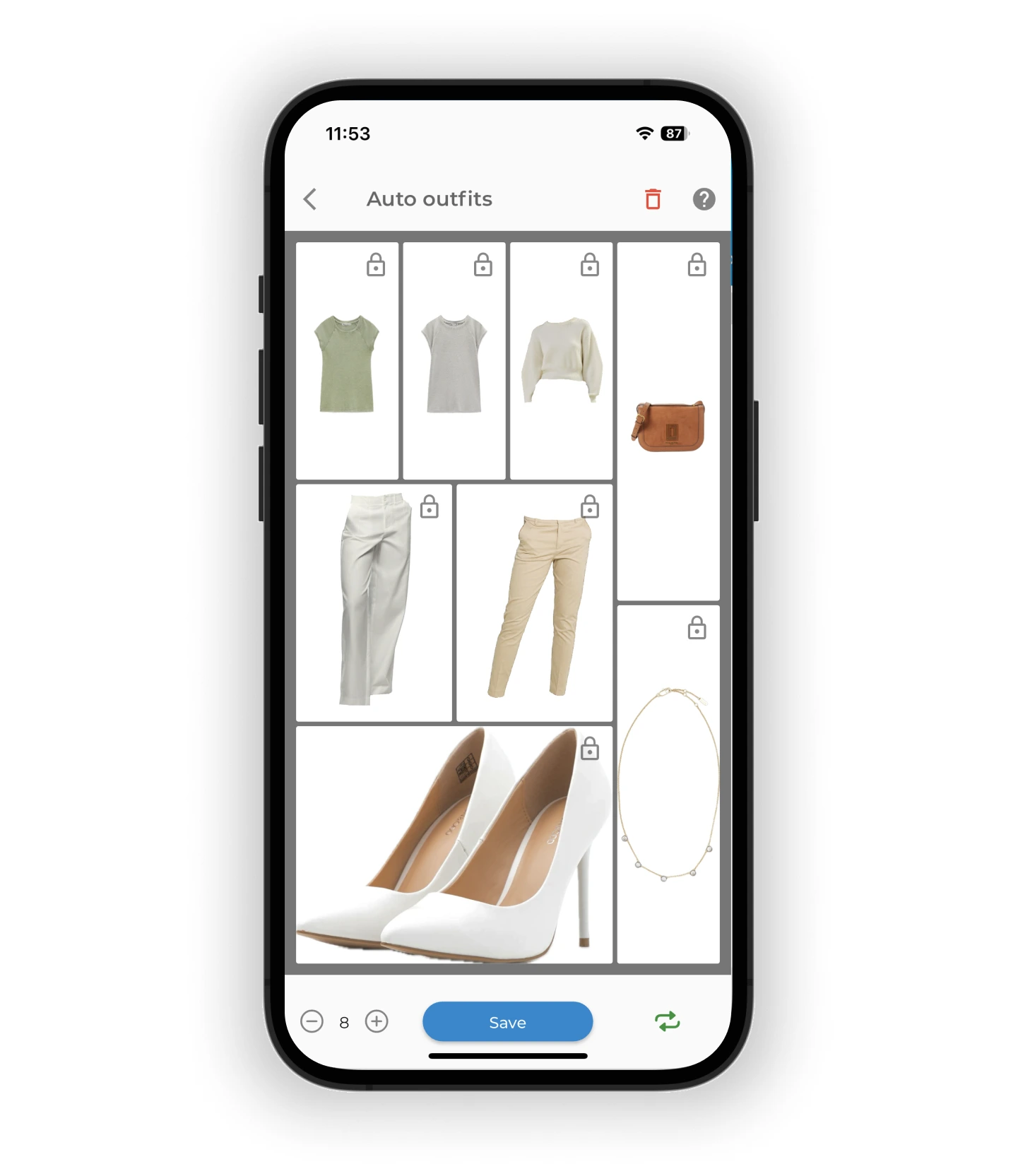
Tapping "Create outfit automatically" opens the AI Studio with the items you picked, and GetWardrobe AI builds an outfit from them.
Tip
"Create outfit automatically" works best when you select only two or three items — a top, a bottom, and shoes or a bag. If you select too many items, it may not work correctly.
Create packing list
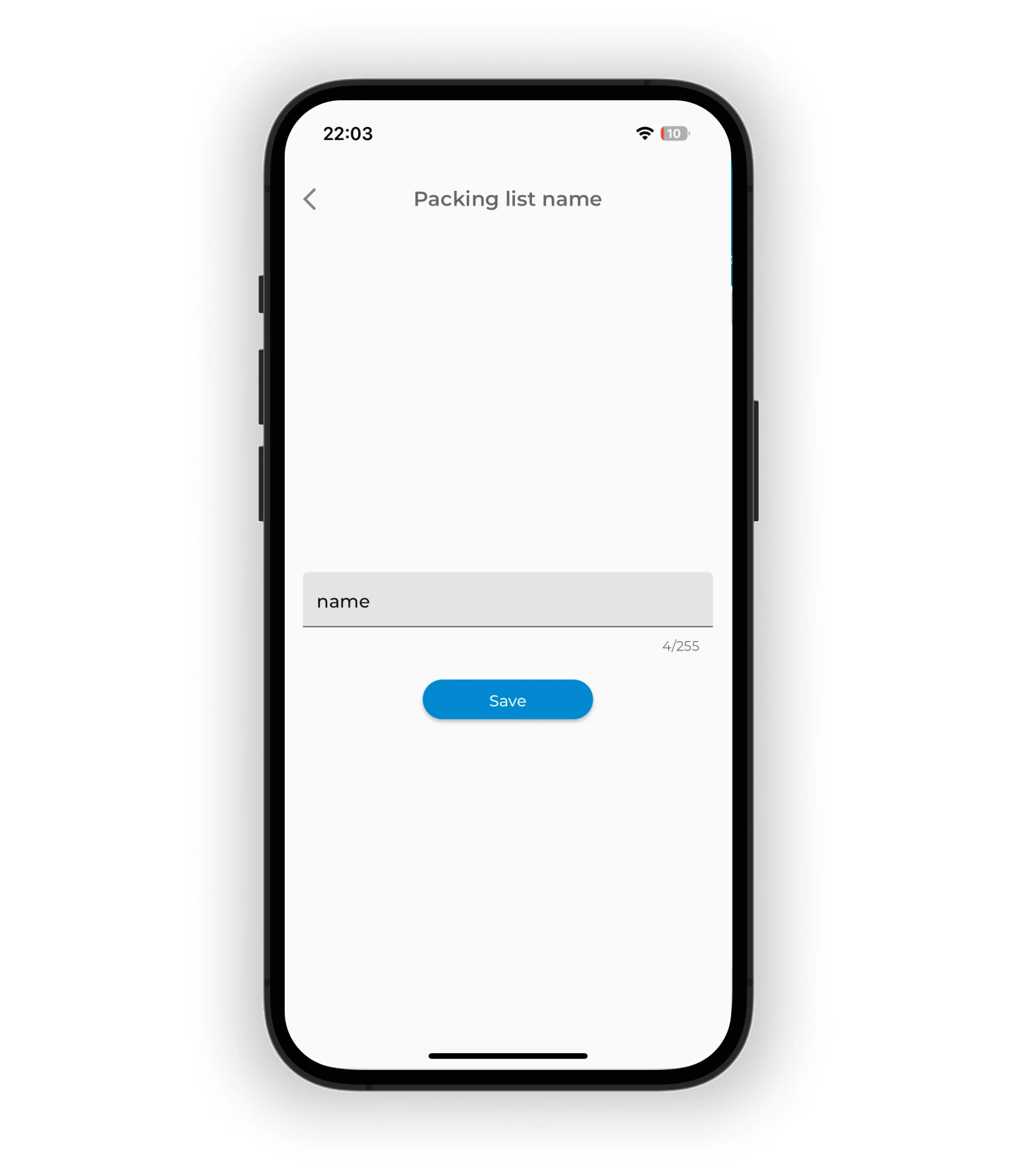
To create a packing list, give it a name and tap "Save".
Share
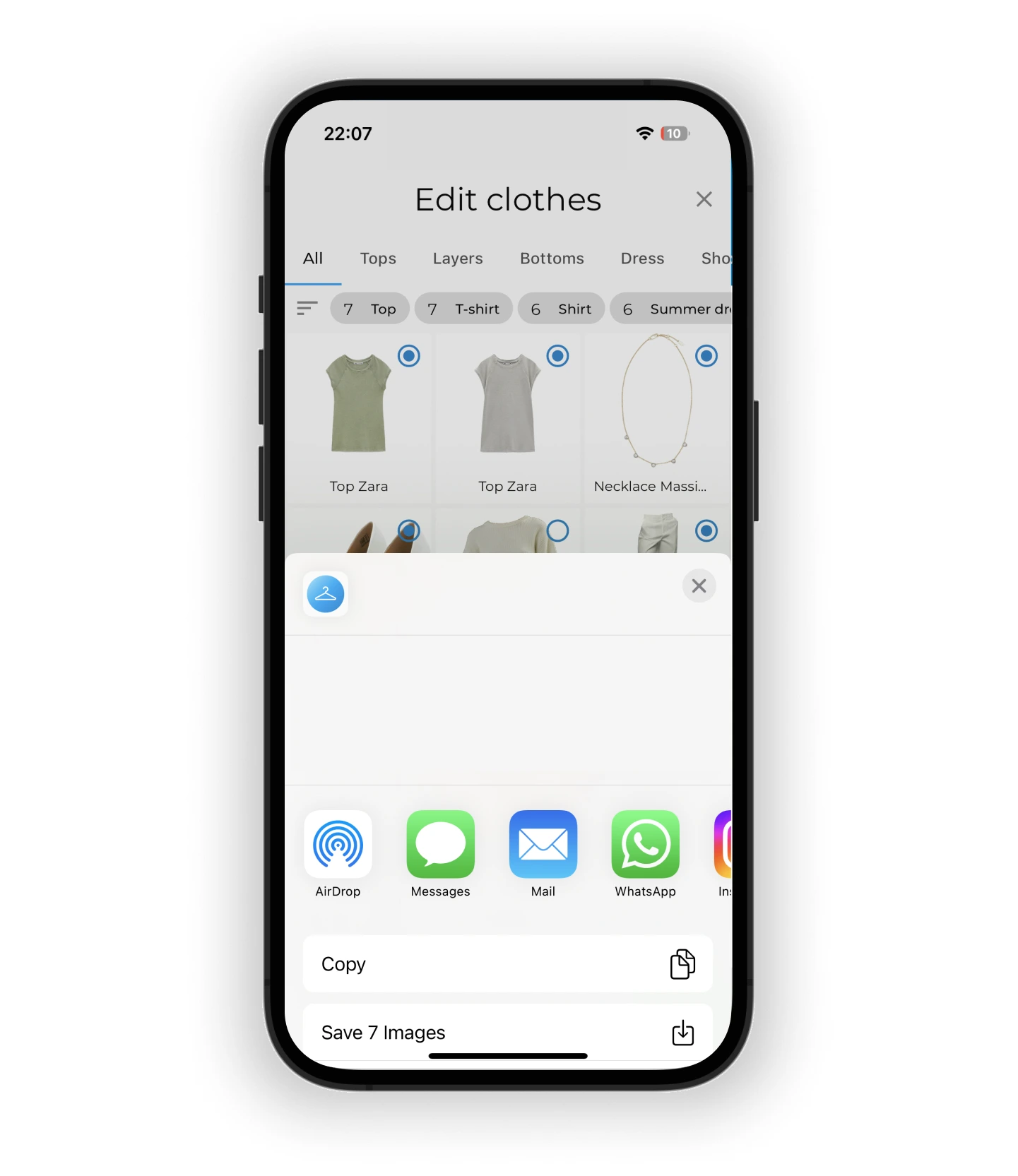
To share the items, choose how you want to share or save the images.
FAQ
Is bulk editing only for Premium members?
Yes — bulk editing is a Premium feature. With Premium you can change status, seasons, tags, and family assignments for multiple items at once.
Can I select specific items or only all at once?
You can do both. Tap items individually to select them, or tap the Select All icon to choose all items on the current view.
What happens if I accidentally delete items using bulk delete?
Bulk delete removes items permanently. Double-check your selection before confirming.
Need help?
Contact us at support@getwardrobe.com