Edit Your Items
Update any aspect of your items — photos, category, color, size, price, care instructions, and more — all from one detailed edit screen.
In this guide
Getting started
Item photo
Main info
Details
Organization
Save your changes · What's next
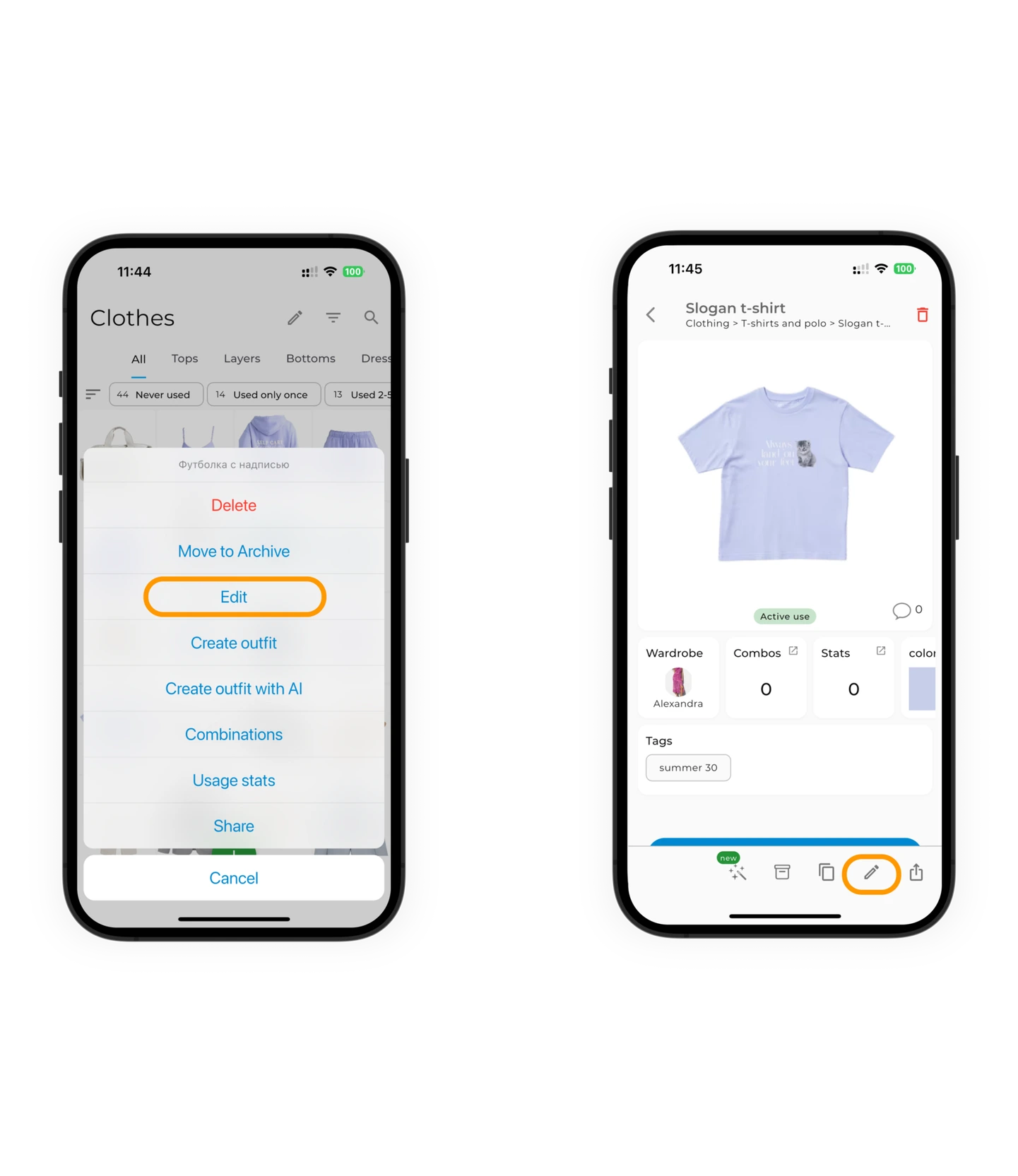
Open the item editor
On the "Items" screen, you can:
- Tap and hold the item card → select Edit
- Or open the item card and tap the ✏️ icon in the bottom right corner
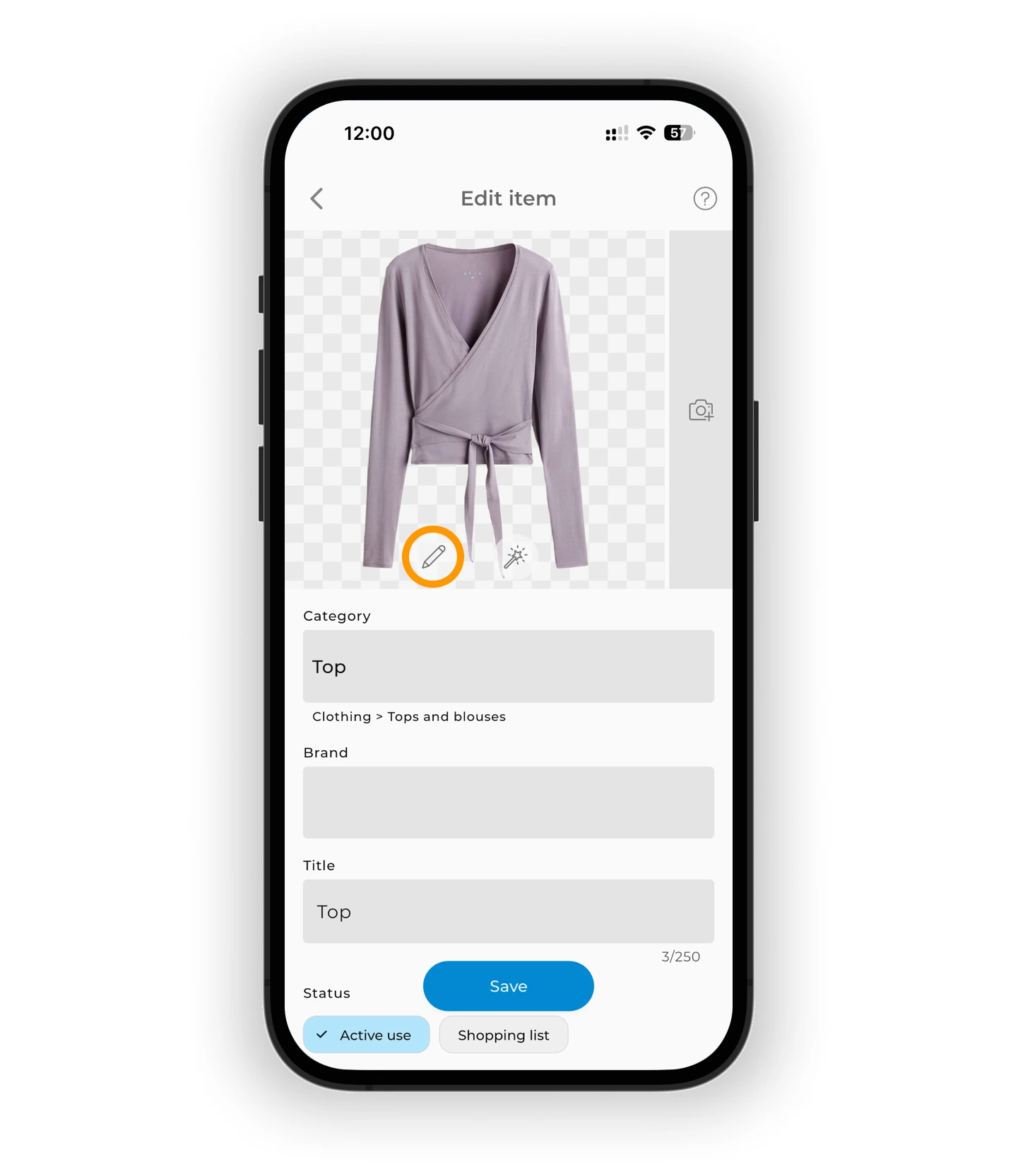
To edit the photo, tap the ✏️ icon below the image.
Choose an action.
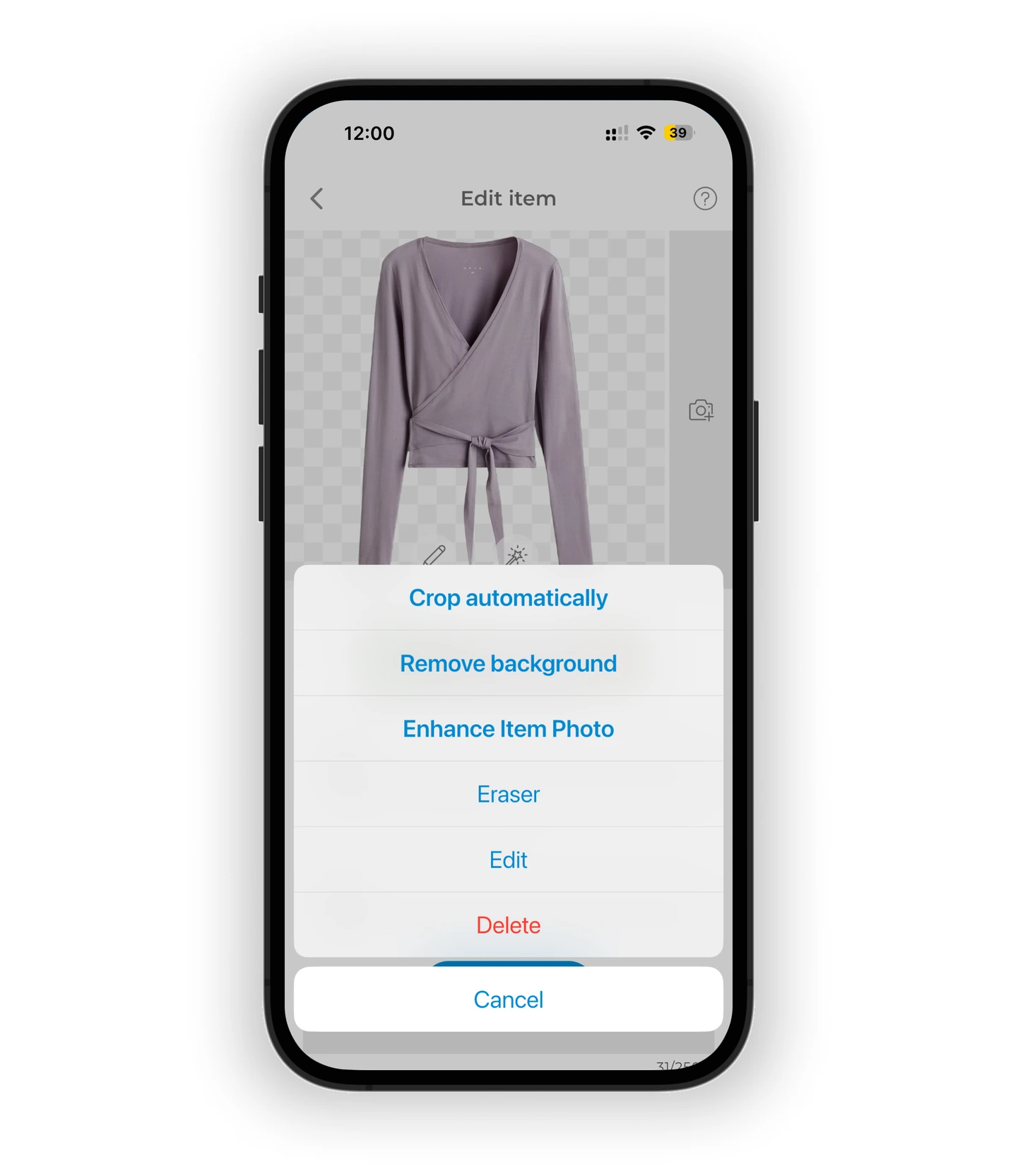
Crop automatically
GetWardrobe will automatically detect the edges of the item. If the boundaries look correct, tap Confirm.
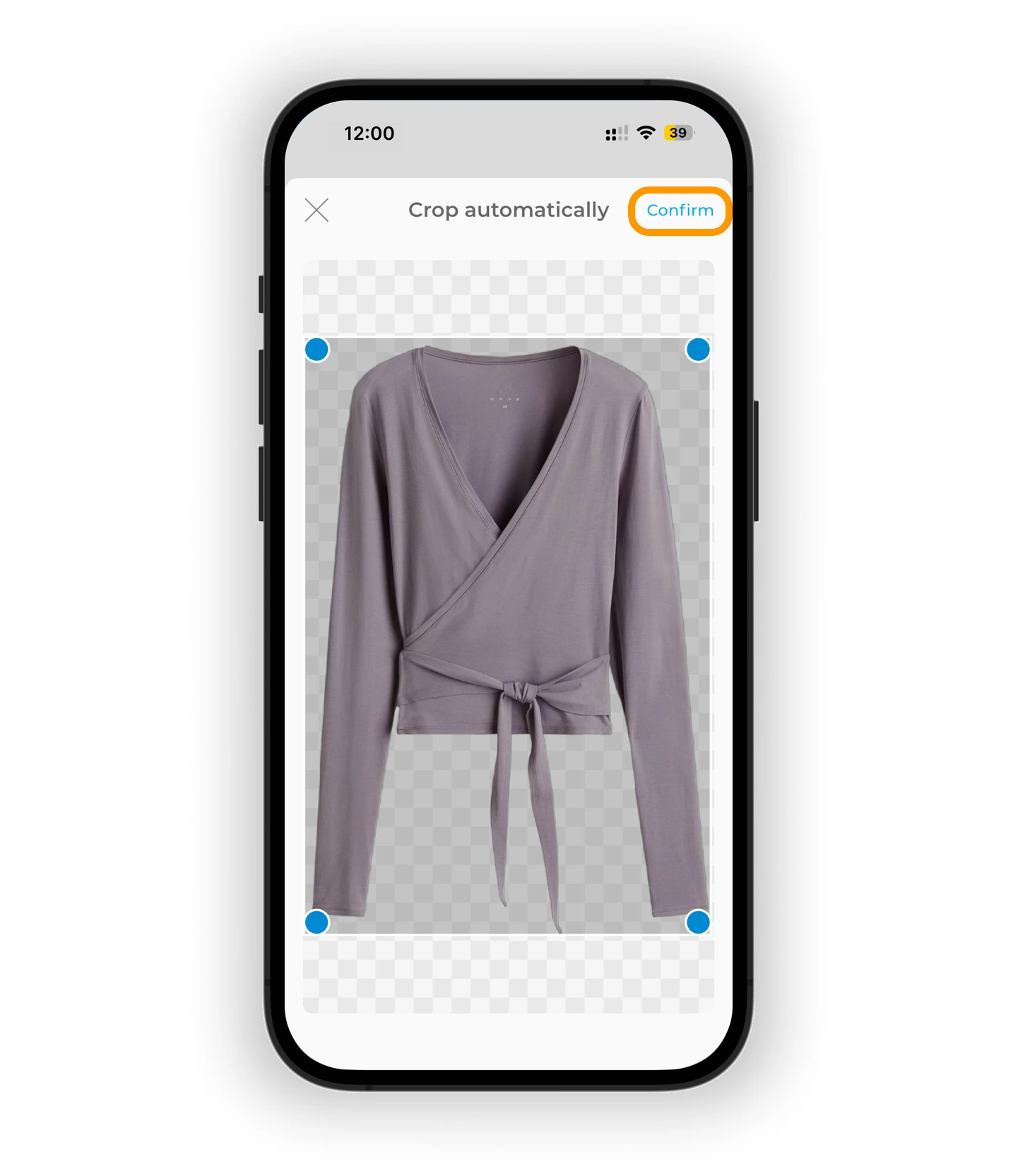
If the outline is inaccurate, adjust the frame manually.
Remove background
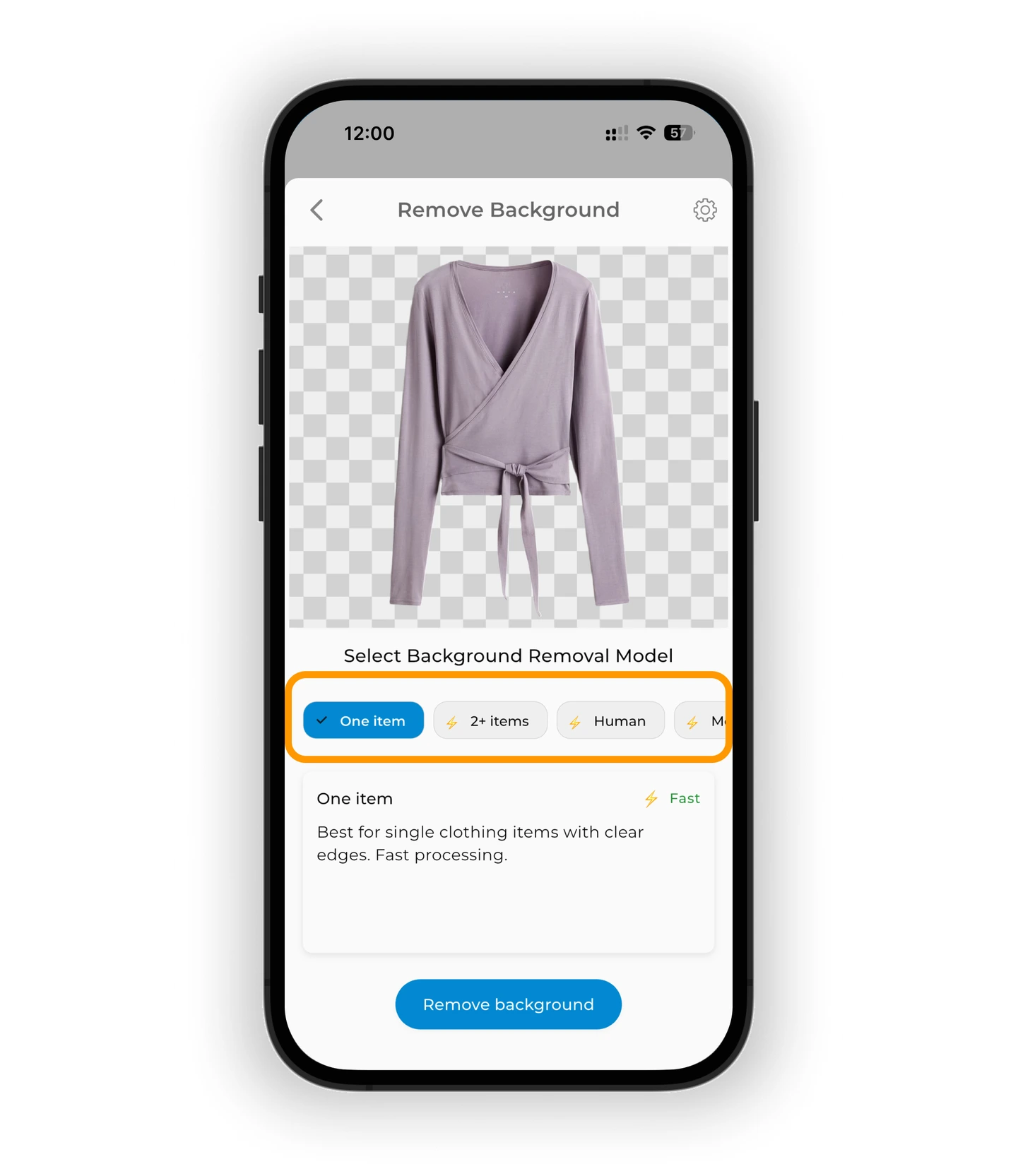
When you add an item, the background is removed automatically — but you can switch the removal method if the result isn't perfect. Choose the model that best fits your photo type.
🔹 Core modes
🧥 Single Item — for photos of one item with clear edges. Produces clean contour detection and a smooth outline.
👚 Multiple Items (2+ items) — for photos of outfits on a person (looks, mirror selfies, etc.). Removes the overall background and neatly separates individual items.
🧍♀️ Person — cleanly extracts the human figure in clothing with an even outline.
✨ More Details — best for photos with complex textures: fur, lace, fringe, patterns. Preserves fine details and small textures.
💎 Advanced models (Premium)
These modes use advanced AI models that improve contour, texture, and overlap detection.
🧥 Standard — balanced accuracy and processing speed. A universal option for most clothing items.
✨ High Detail — maximizes preservation of patterns, embroidery, and delicate textures. Slightly slower, but delivers the most precise edge detection.
🧷 Hidden Items — designed for photos with small or partially visible details: thin straps, belts, cutouts, etc. Helps keep tiny elements intact without "cutting off" parts of the clothing.
⚙️ Pro Mode — our most advanced and detailed option. Takes longer to process but provides the cleanest, highest-quality result.
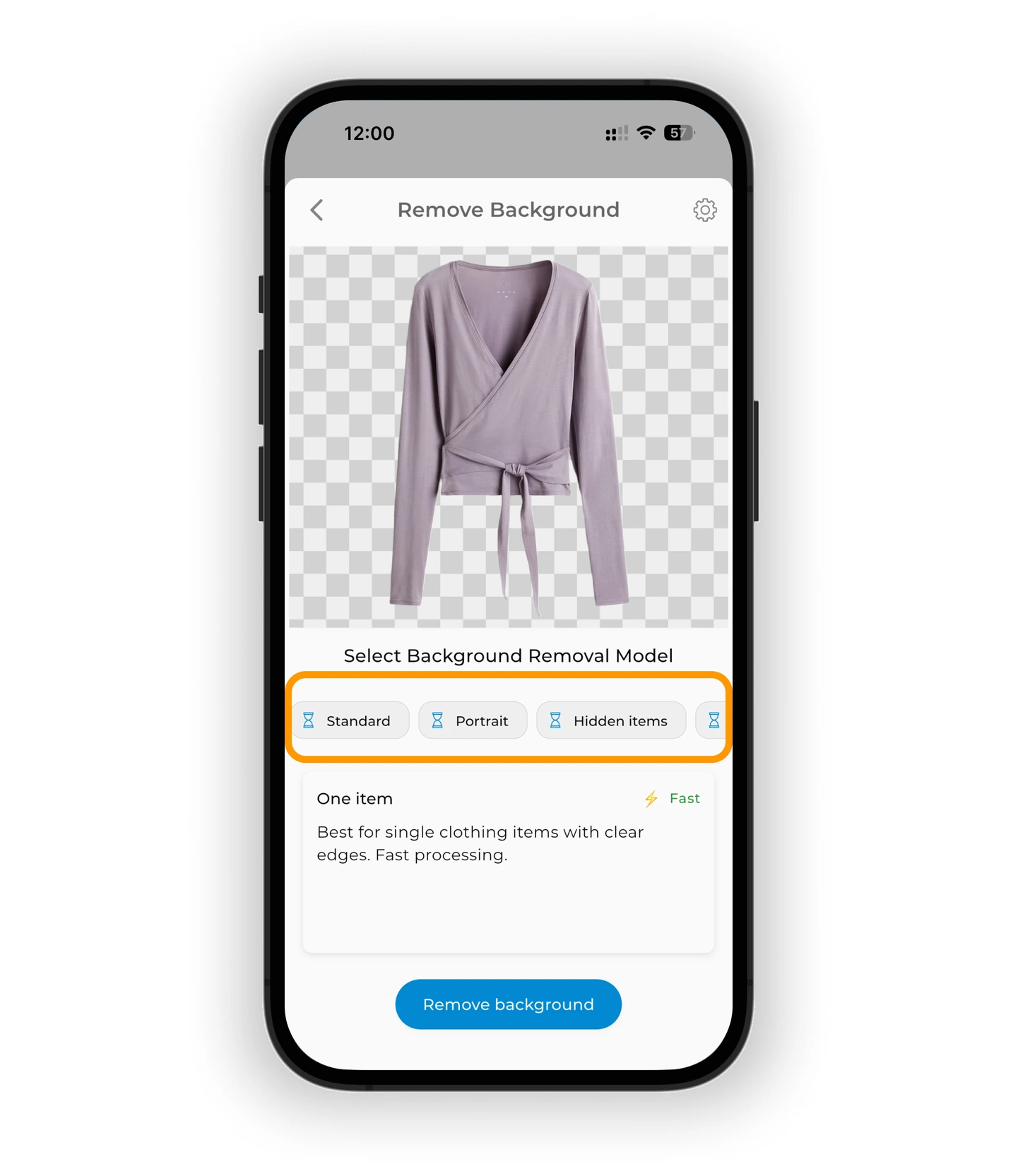
Tap Remove Background to apply the selected method. If the result isn't right, try a different model.
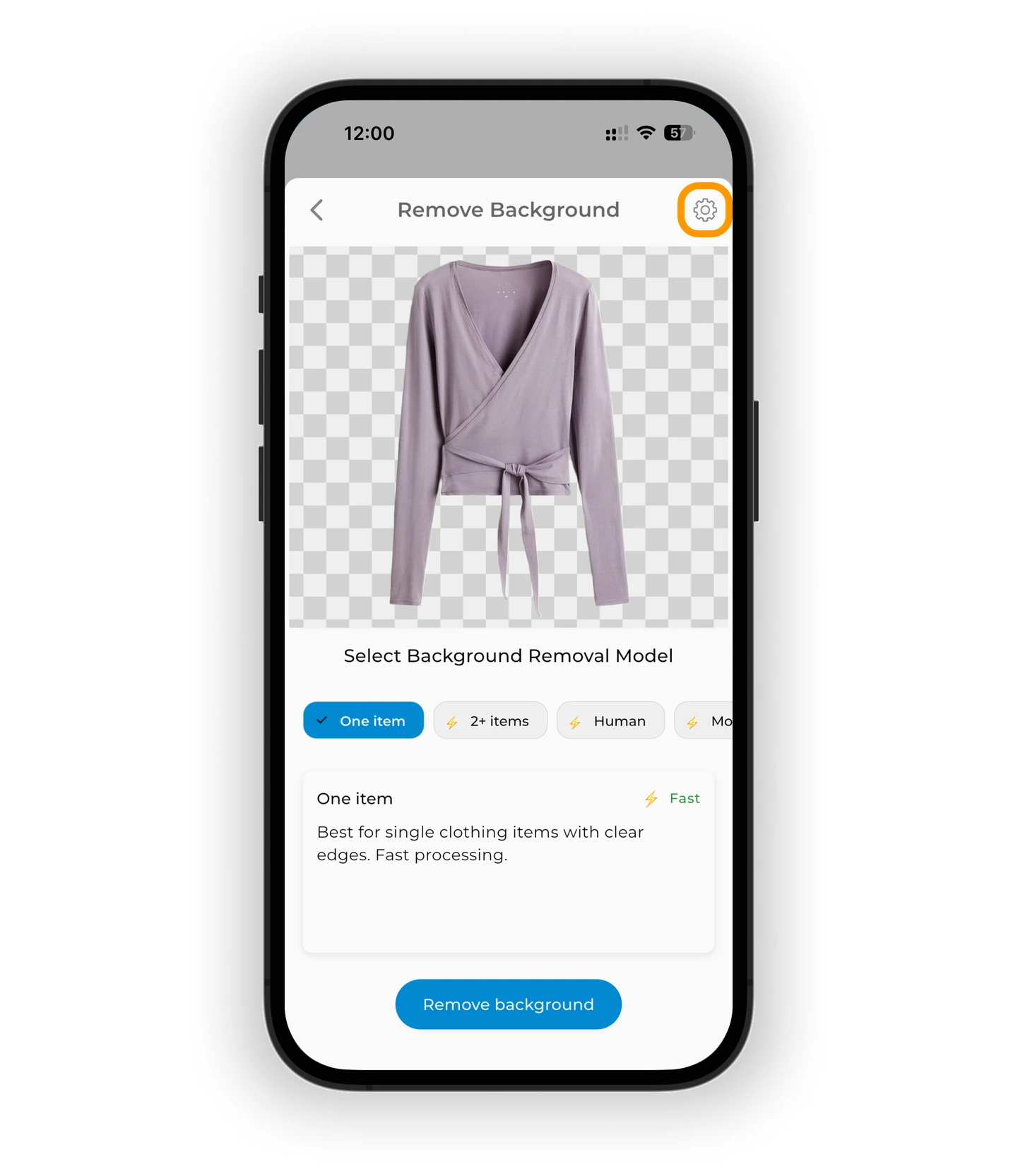
For most items, background removal works well with the standard settings. But fur, fringe, and lace need additional precision. If the outline looks "rough" after removal, switch to the advanced settings. On the background removal screen, tap the ⚙️ icon to open Alpha Matting.
There are three parameters on the settings screen:
- Foreground Threshold — preserves item details. The higher the value, the more details will remain.
- Background Threshold — the lower it is, the more background becomes fully transparent.
- Erode Structure Size — controls how soft the edges become. Zero gives the sharpest edge; raise it for a softer finish.
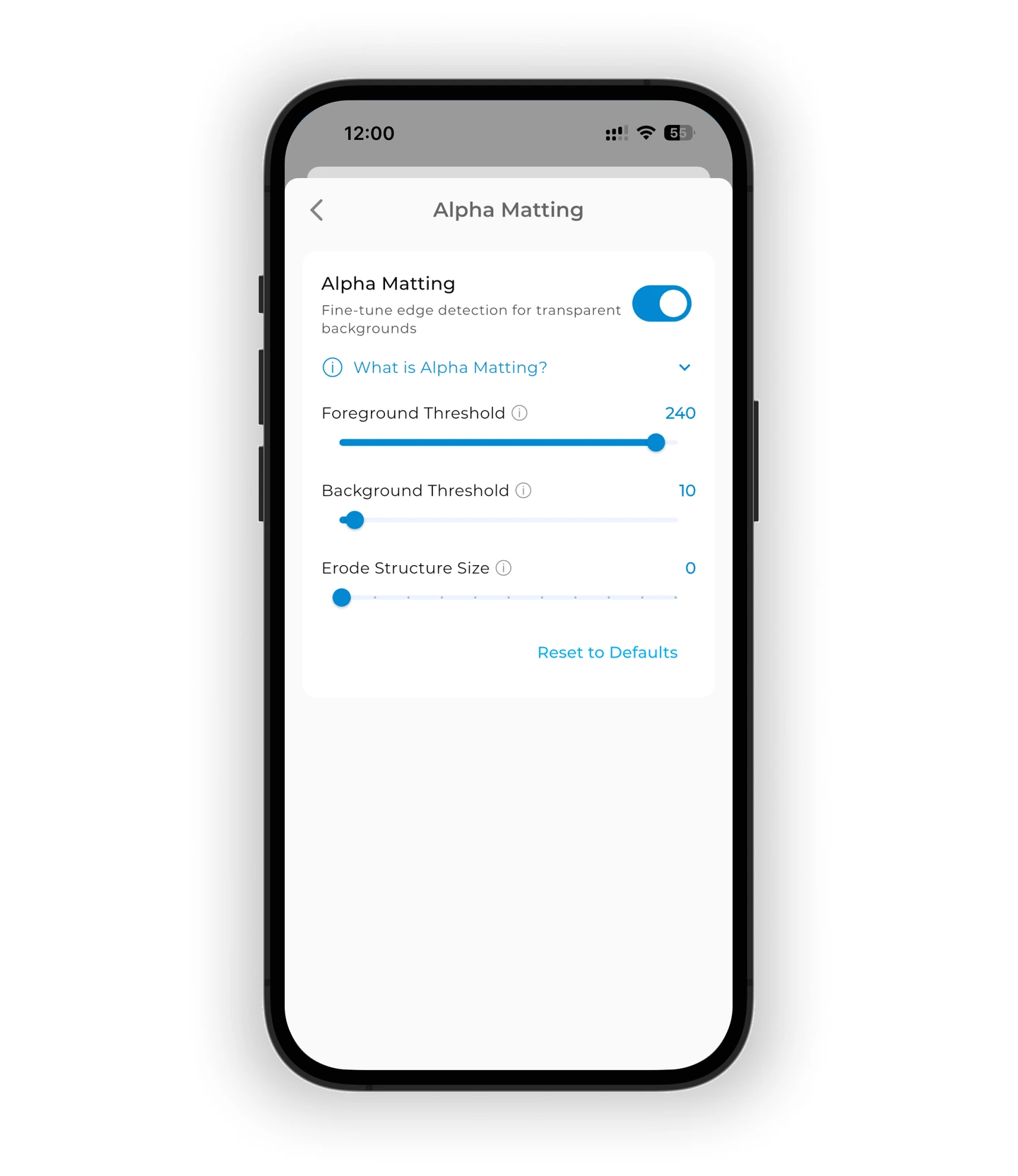
💡 Standard settings work for most items. For fur or fringe, raise the Background Threshold and increase the Erode Structure Size.
Eraser
Use the eraser to manually clean up leftover background areas. Adjust the brush size if needed. Tap ↩️ to undo your last action. Tap ✅ in the top-right corner to save changes.
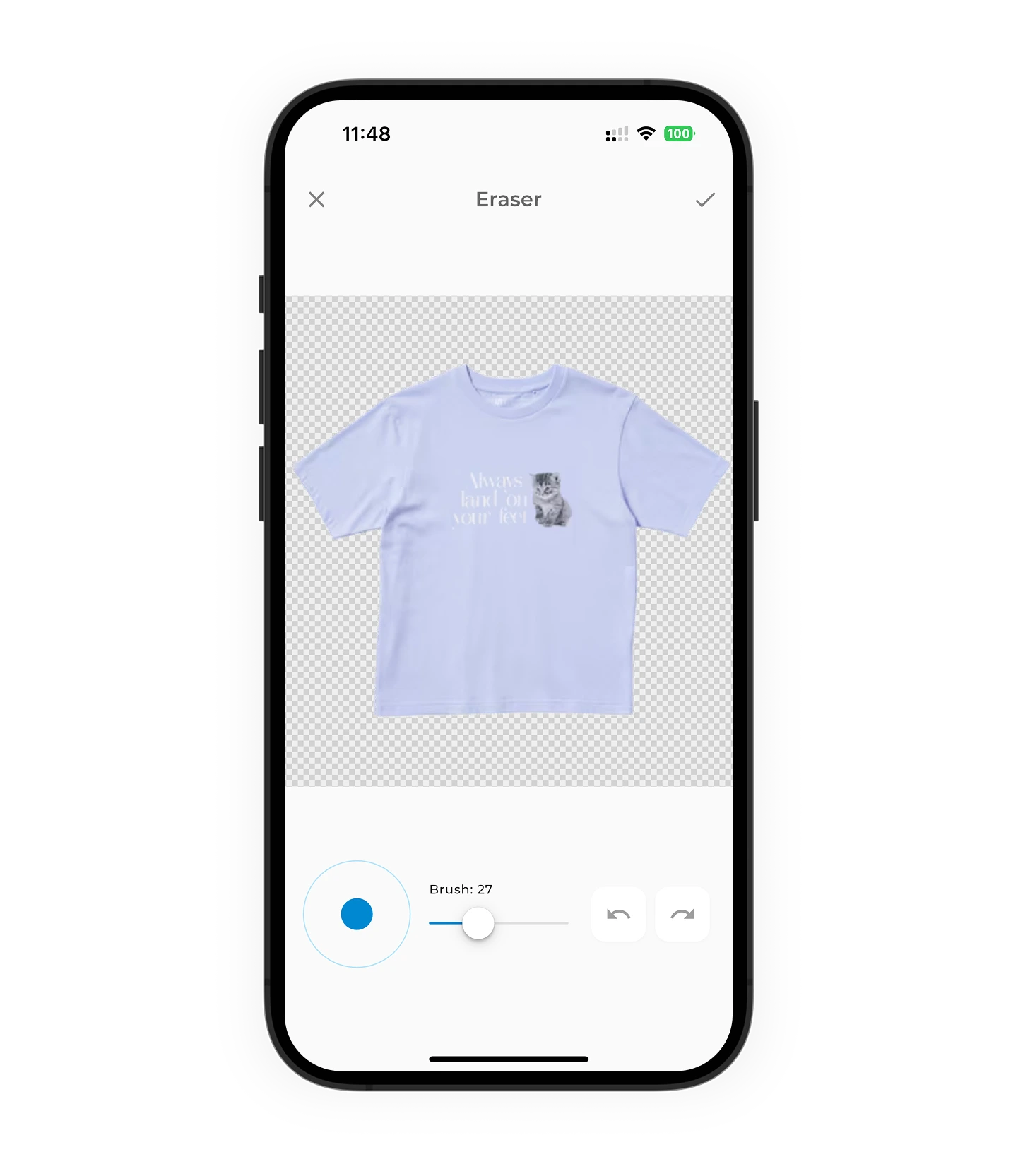
Photo editor
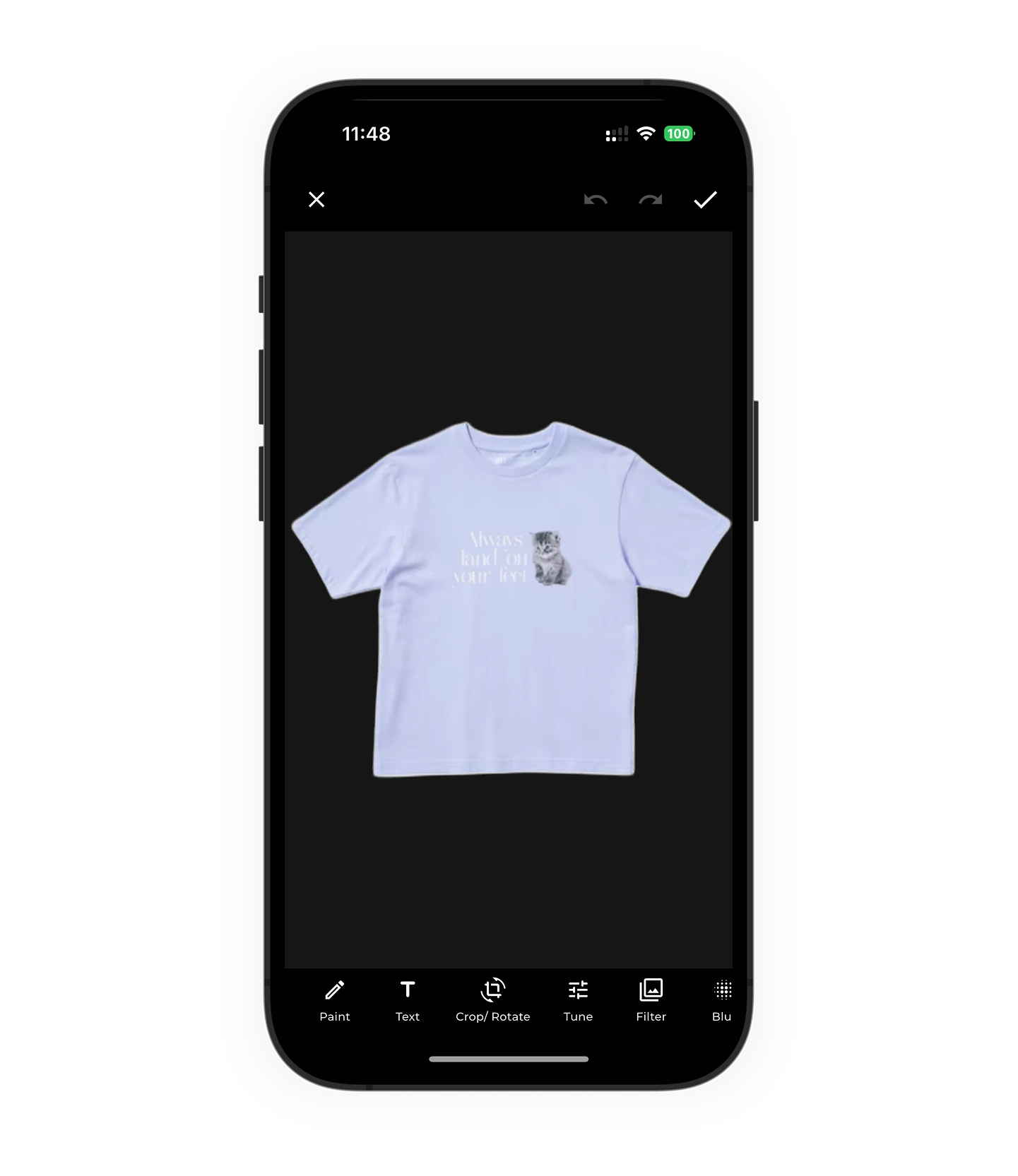
Use the photo editor to fine-tune the image. You can:
- ✂ Crop the image
- 🌗 Adjust brightness, contrast, and saturation
- 🎨 Apply style filters
- ↺ Rotate or flip the image
Tap ✅ to save and exit the editor.
AI photo enhancement
Info
💡 This feature does not require a Premium subscription. It uses AI credits, which can be purchased separately.
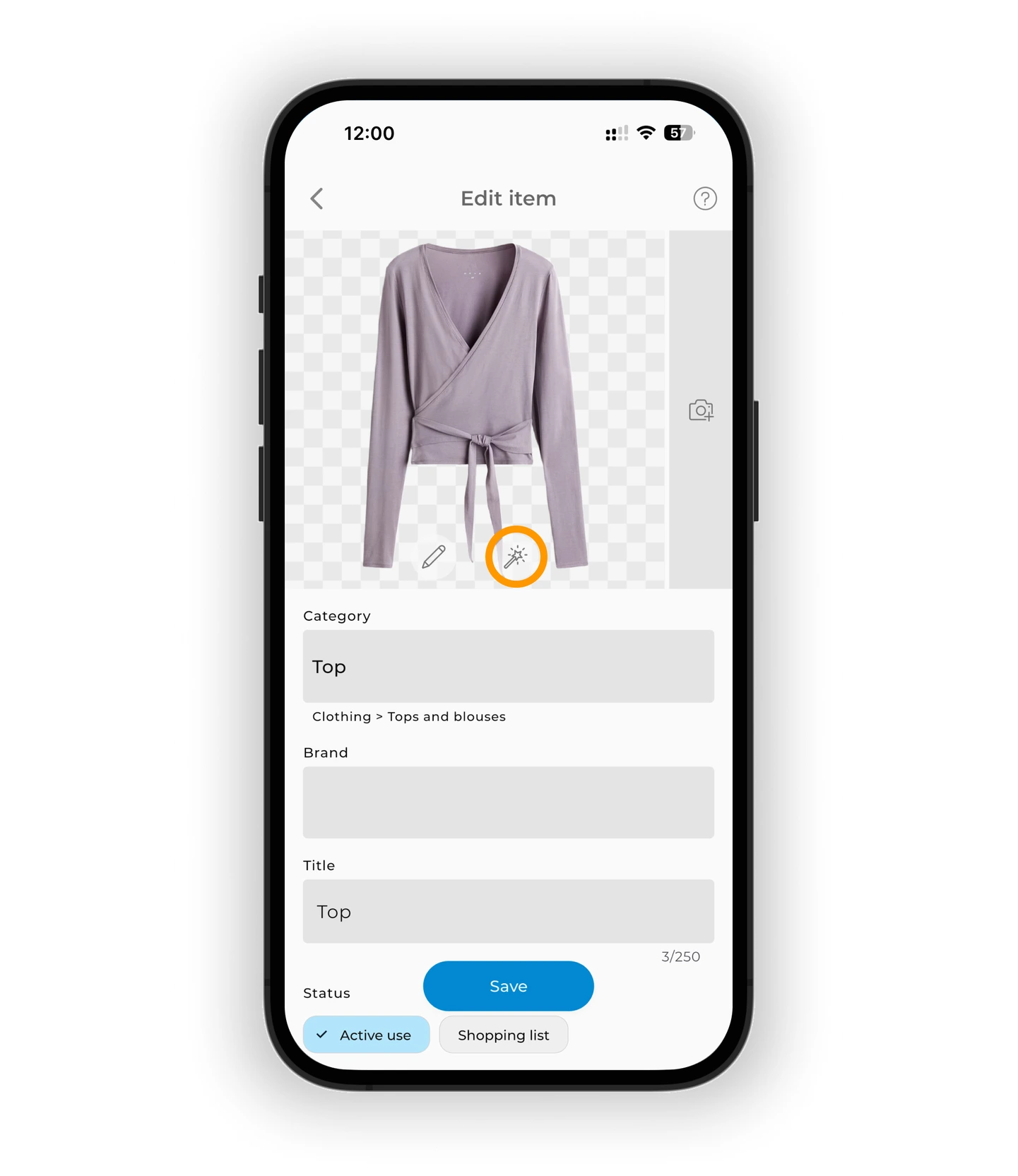
Transform your item photo with AI Enhancement — the tool creates a clean, polished image of your item. Tap ✨ under the item image. Select Enhance and wait for the processing to complete.
Learn more: AI Photo Enhancement
Assign to a family member
Info
Family wardrobe is available with Premium.
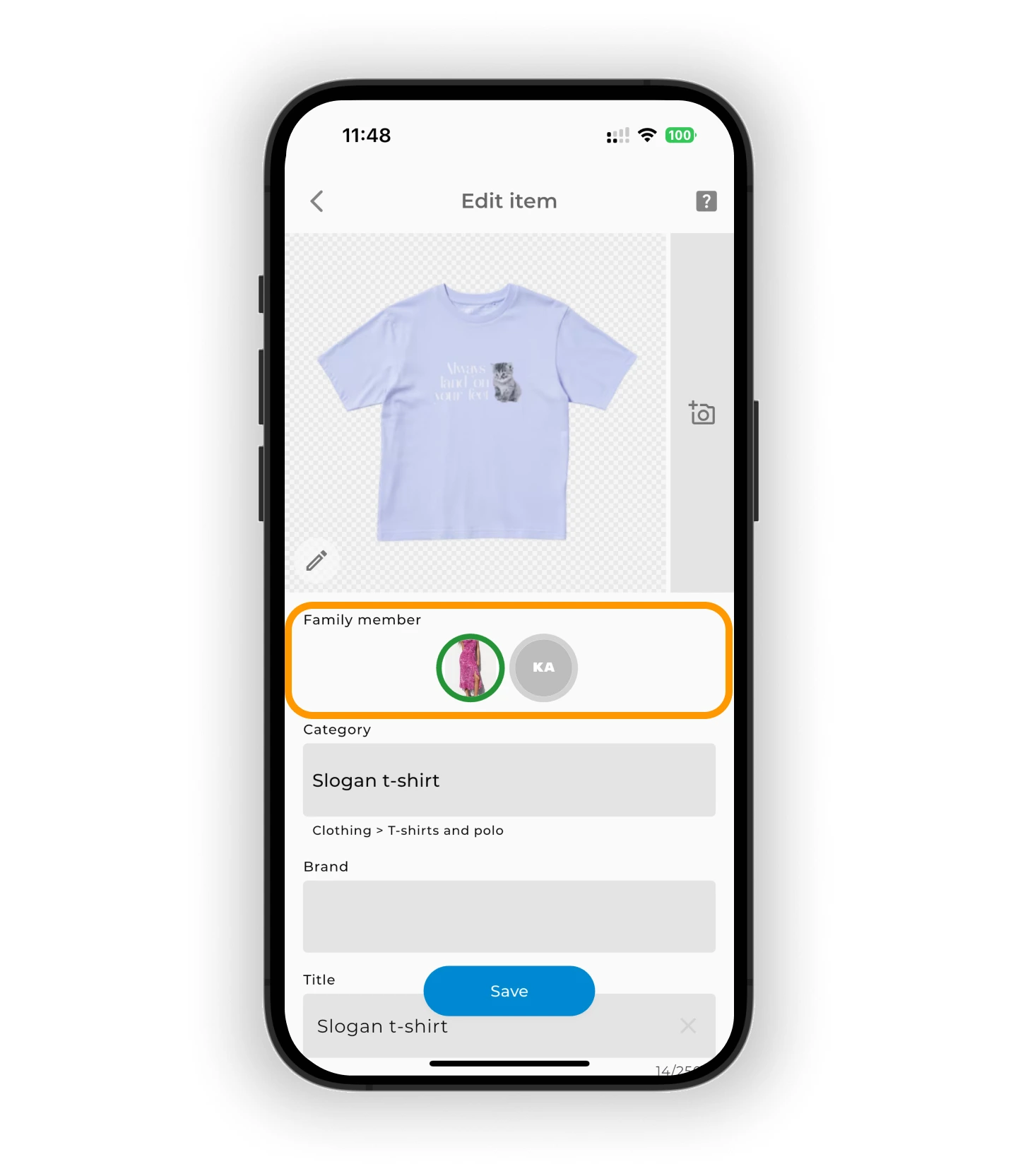
By default, each item is assigned to you. To assign it to someone else, tap their avatar. A green border will appear to confirm the selection.
Category, brand, and title
Tap the Category field.
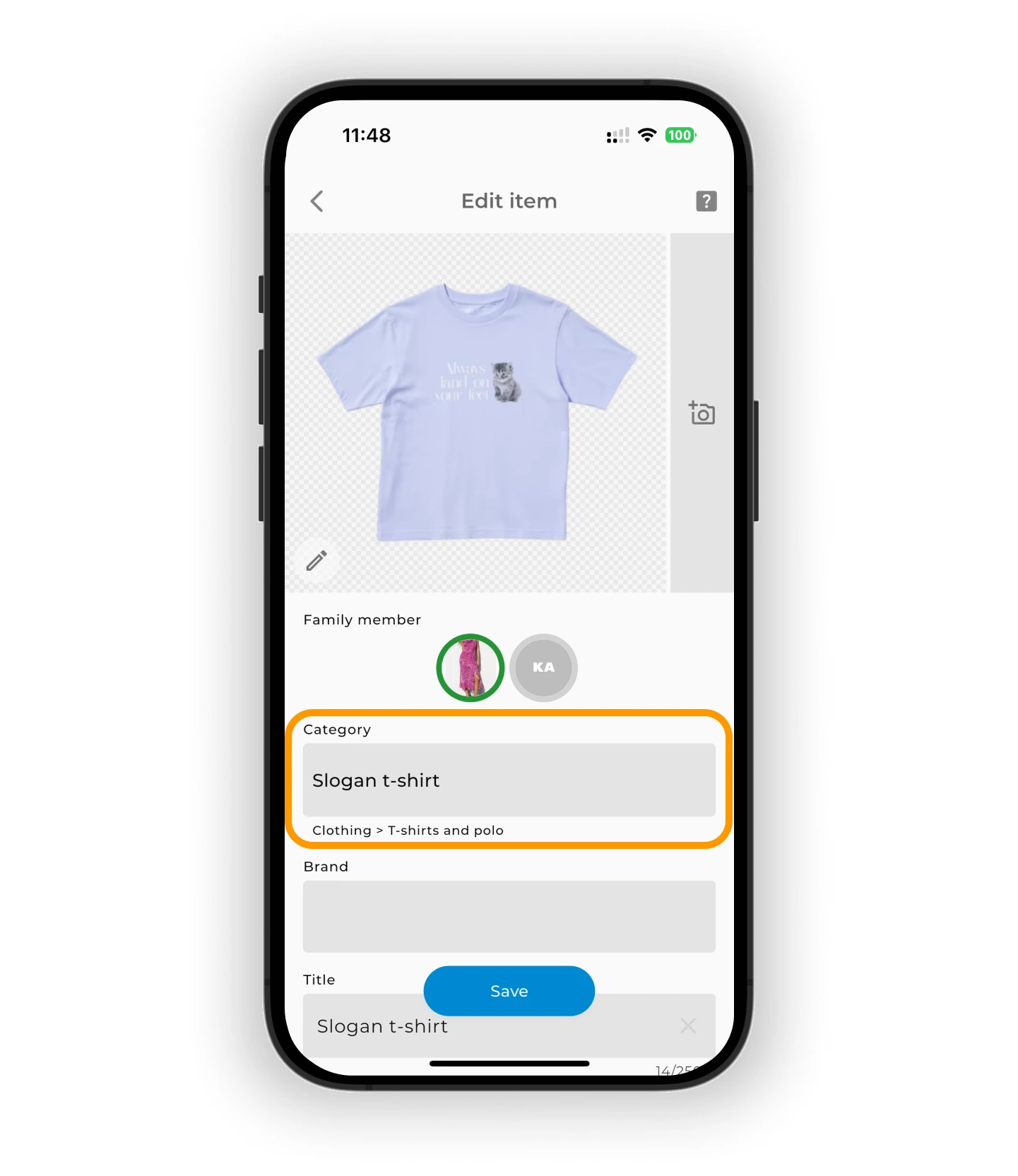
Enter a keyword like "coat" or "sweater".
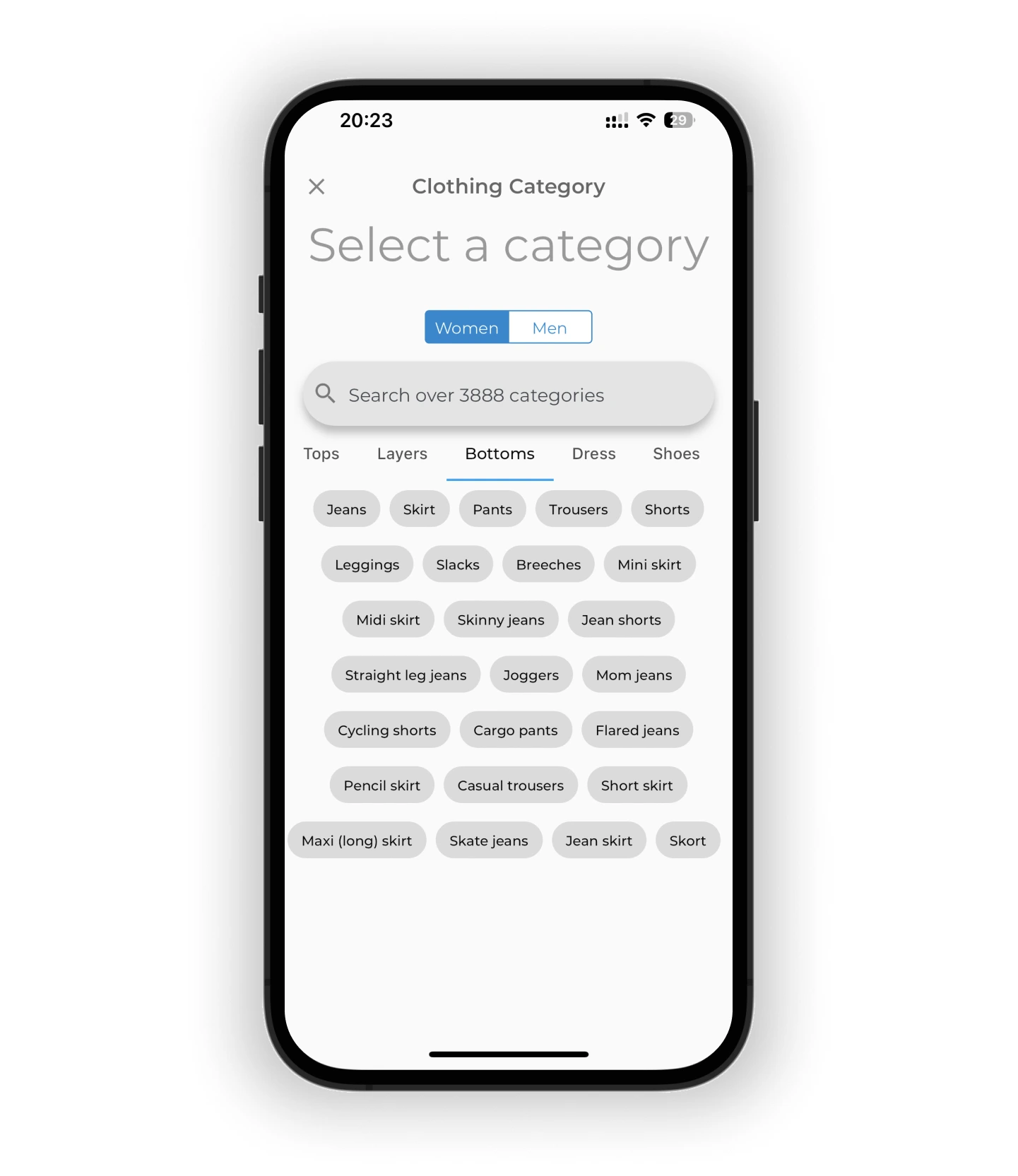
Warning
Some items appear in more than one section. For example, Shirt can be in Top or Layer:
– If you wear it under a sweater → choose Shirt → Top – If you wear it over a T-shirt → choose Shirt → Layer
This helps GetWardrobe place the item correctly in AI outfits.
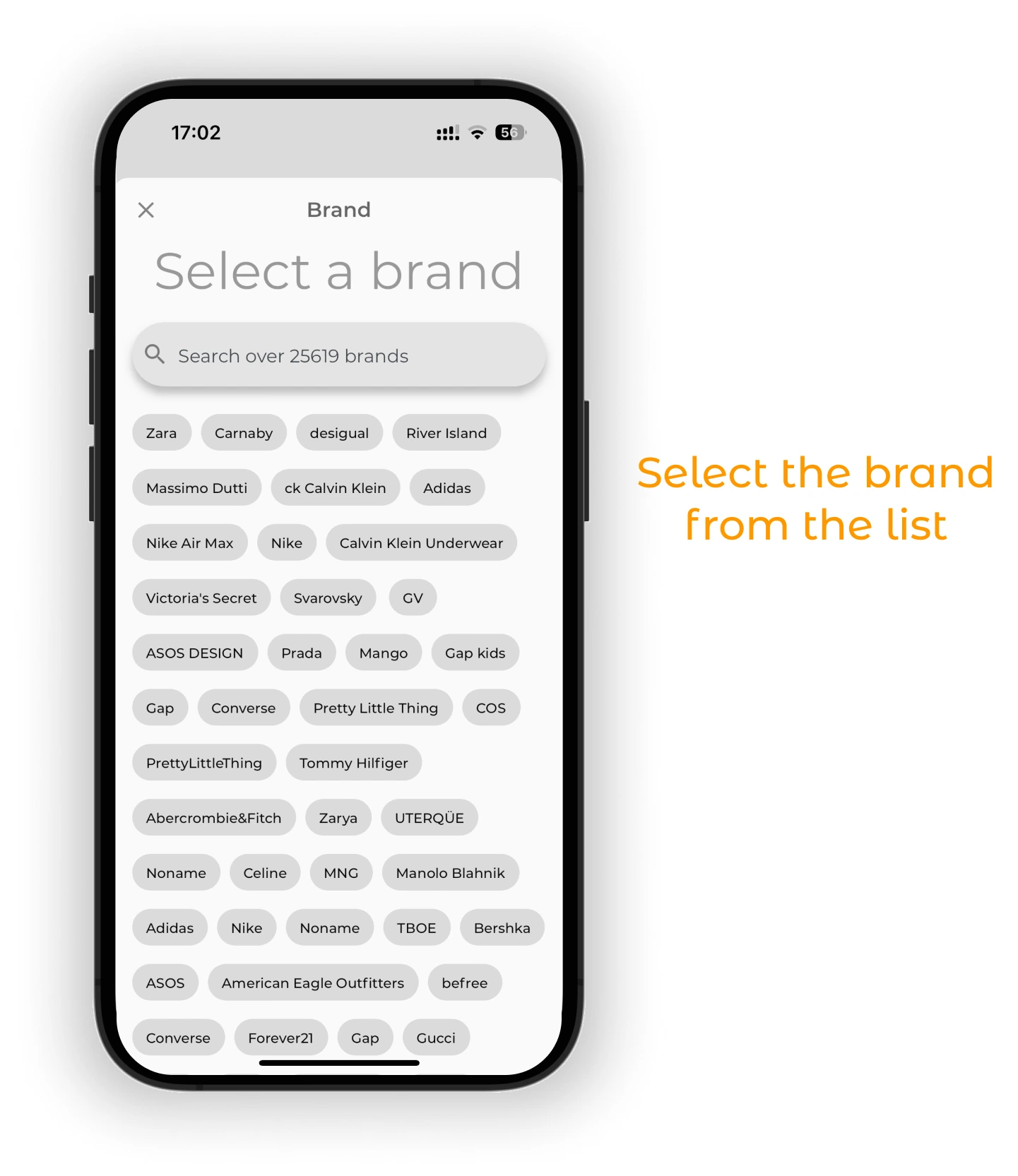
Tap the Brand field. Select from the list or use the search bar to find your brand.
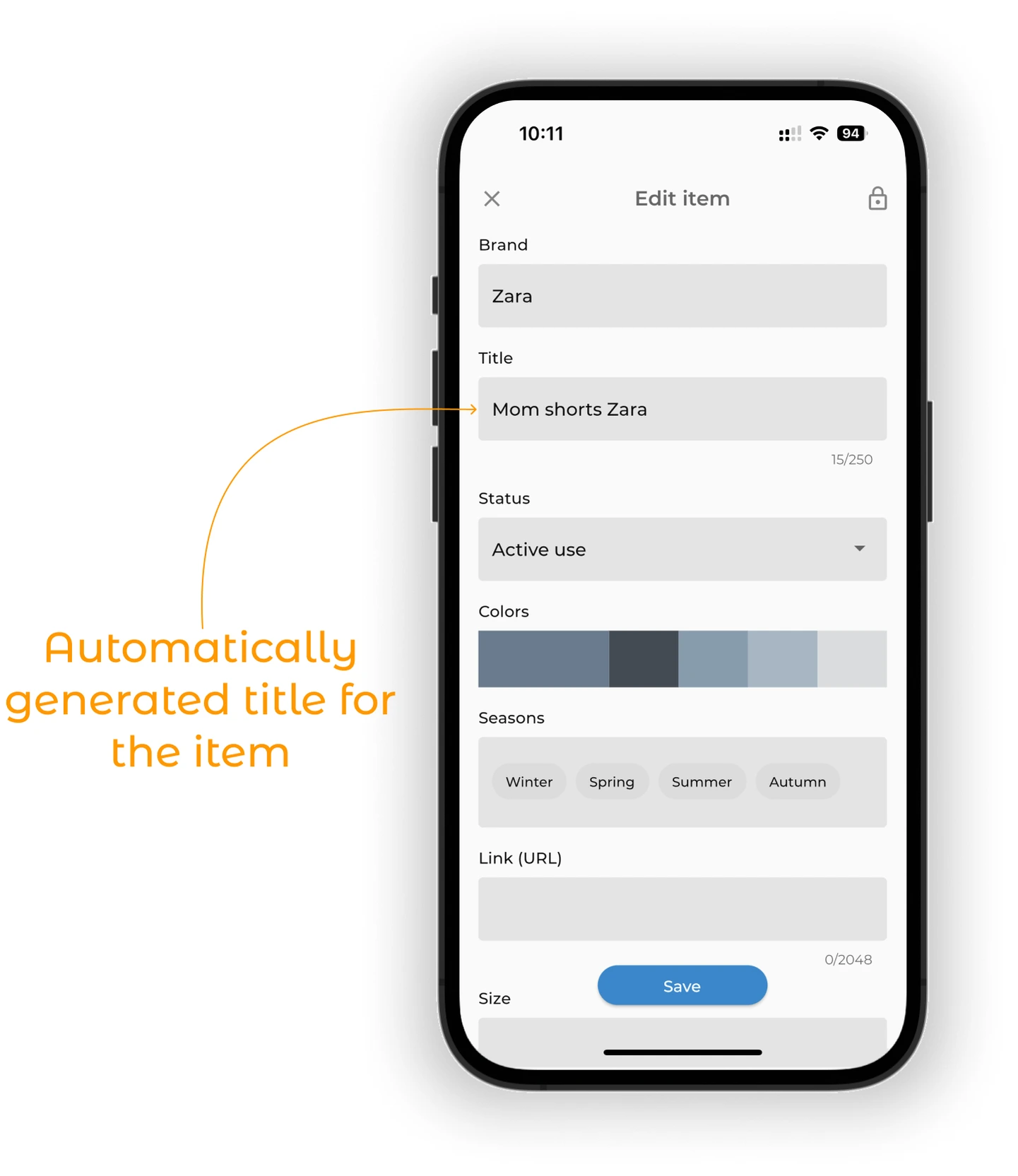
A title is generated automatically (e.g., "Nike Jacket"). To rename it, tap the title and enter your own (e.g., "Black turtleneck sweater").
Item status
By default, items are marked as Active use. Tap the status you need — like "Shopping list" or "Needs Repair".
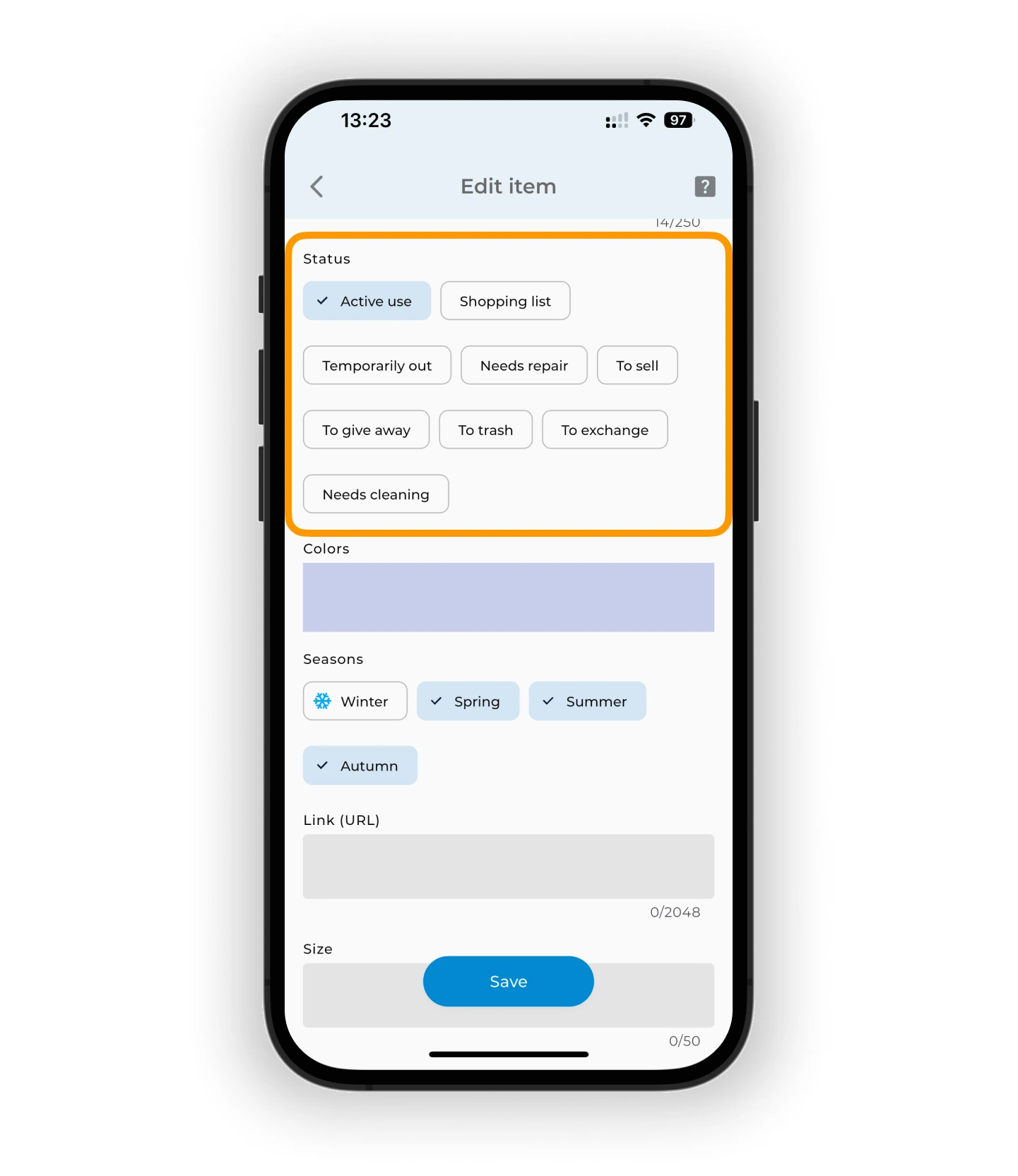
📌 If an item has any status other than "Active use", outfits that include it will be marked as inactive.
Colors
GetWardrobe detects the main color automatically. You can edit or add more shades if the item is multicolored.
Tap the color field.
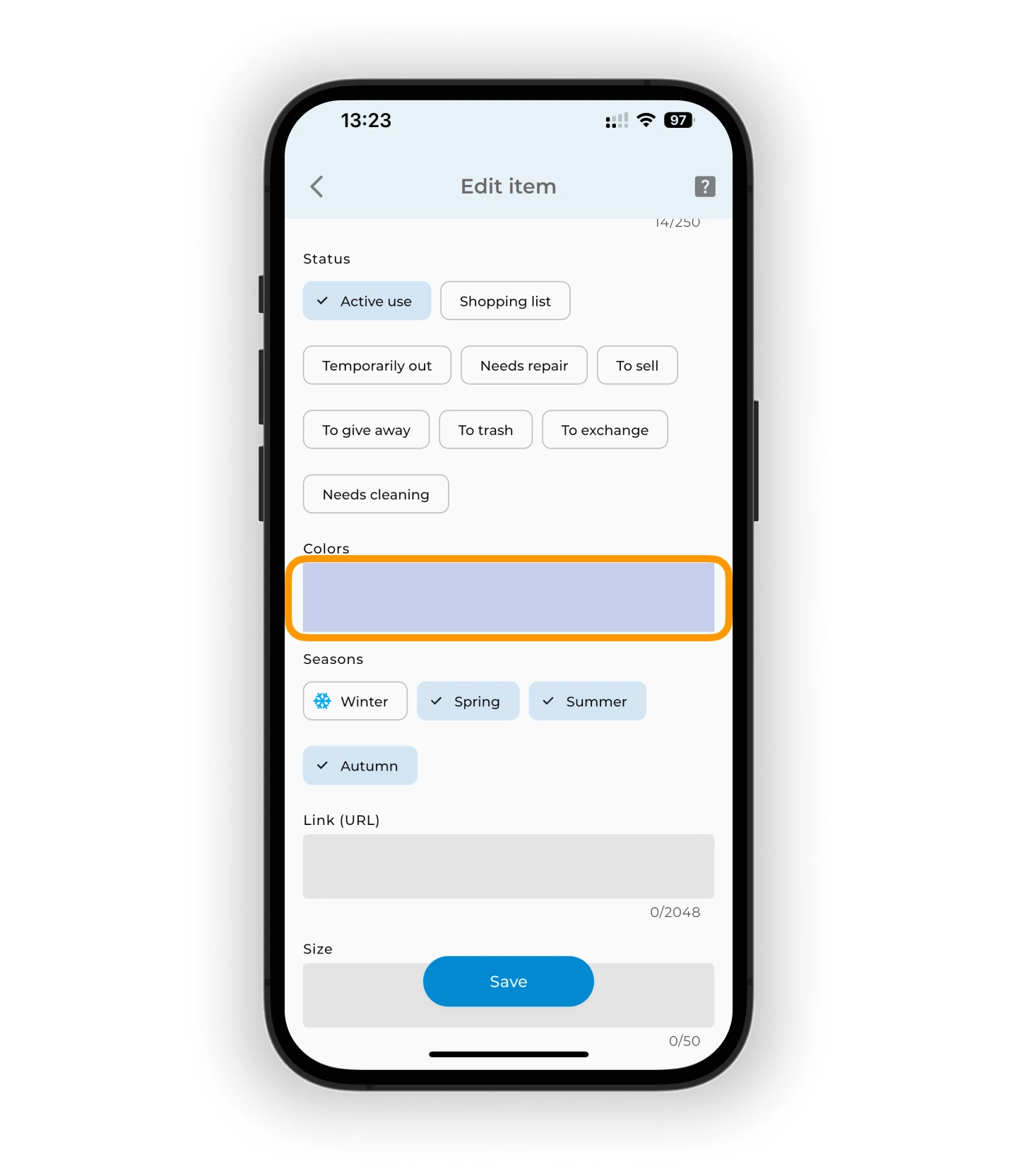
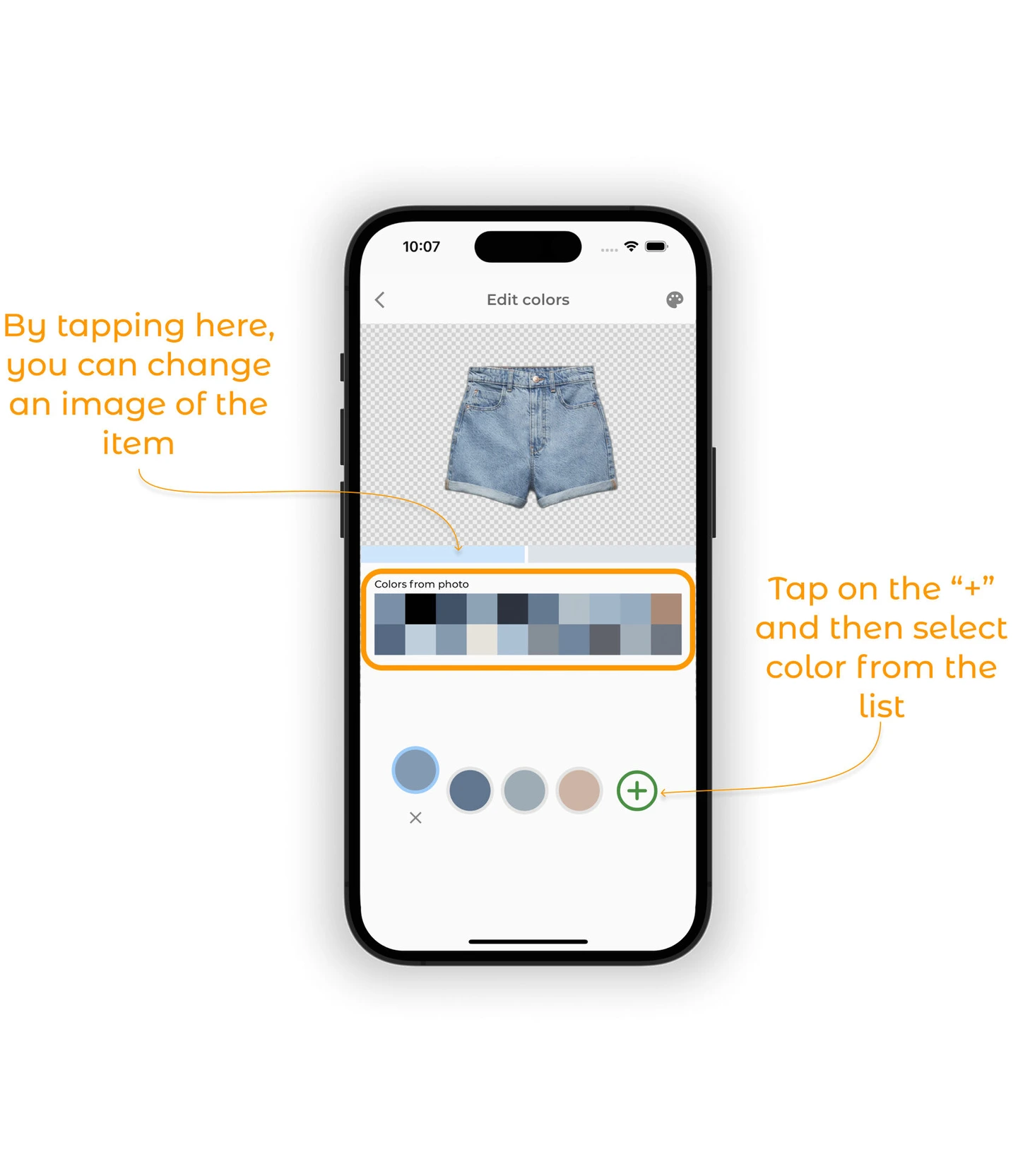
- Tap a shade to edit or replace it
- Tap + to add more colors
- Tap ❌ next to a color to remove it
- To change the main color, tap "Set as main color"
💡 You can assign up to 5 colors per item.
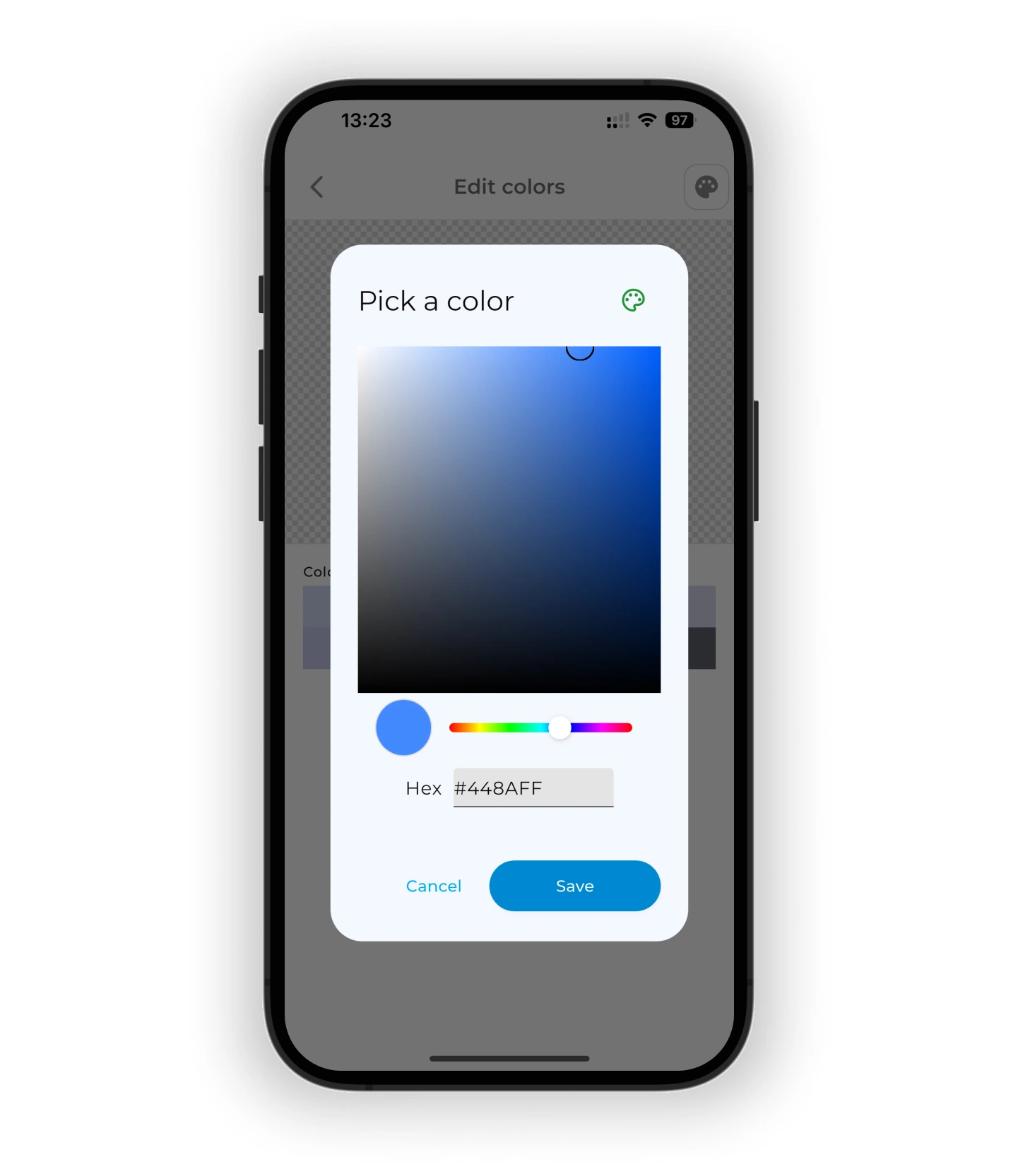
If the color you need isn't listed, tap the 🎨 palette icon in the top corner.
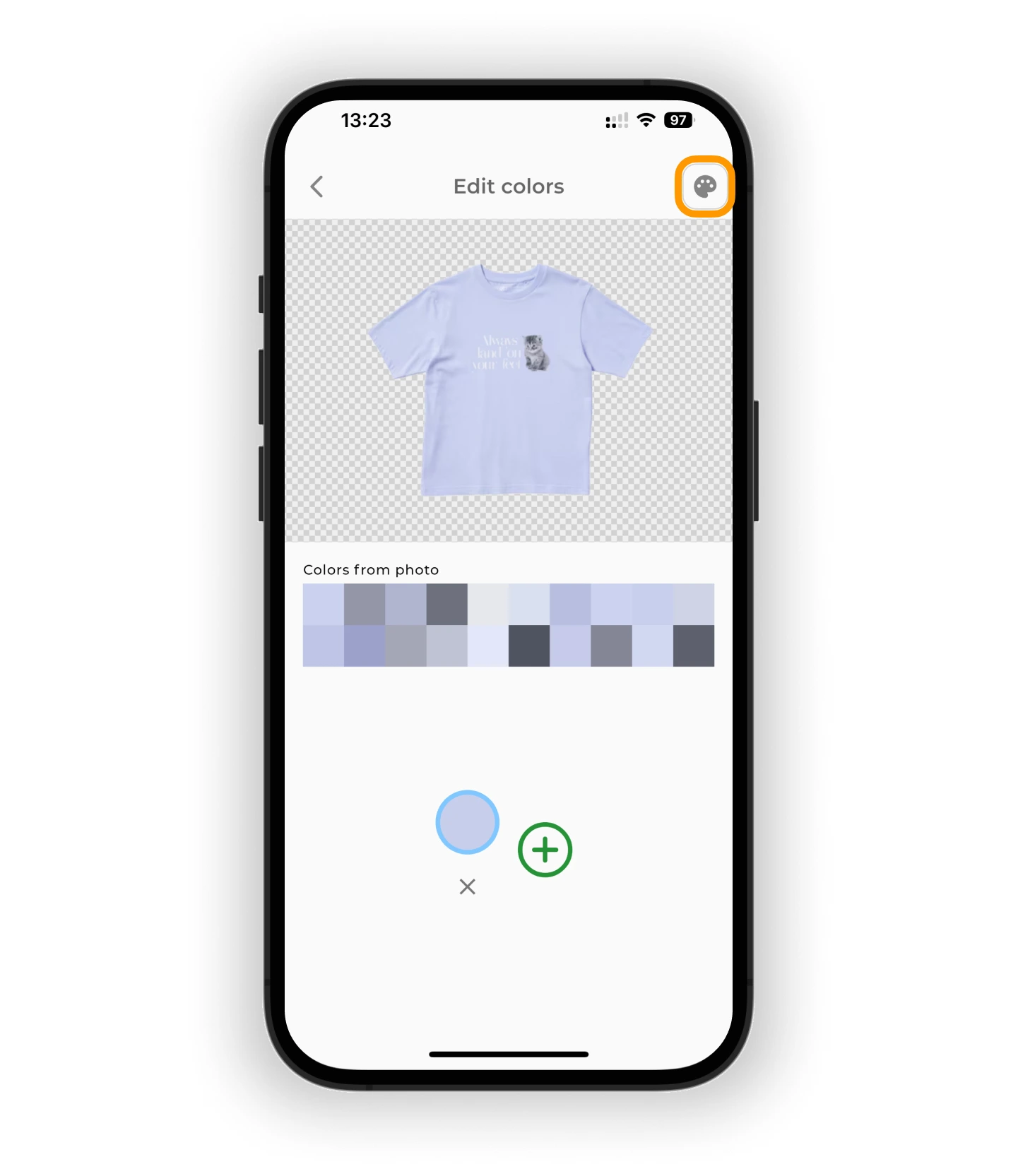
Choose a shade manually or enter a HEX code, then tap "Save".
Color groups
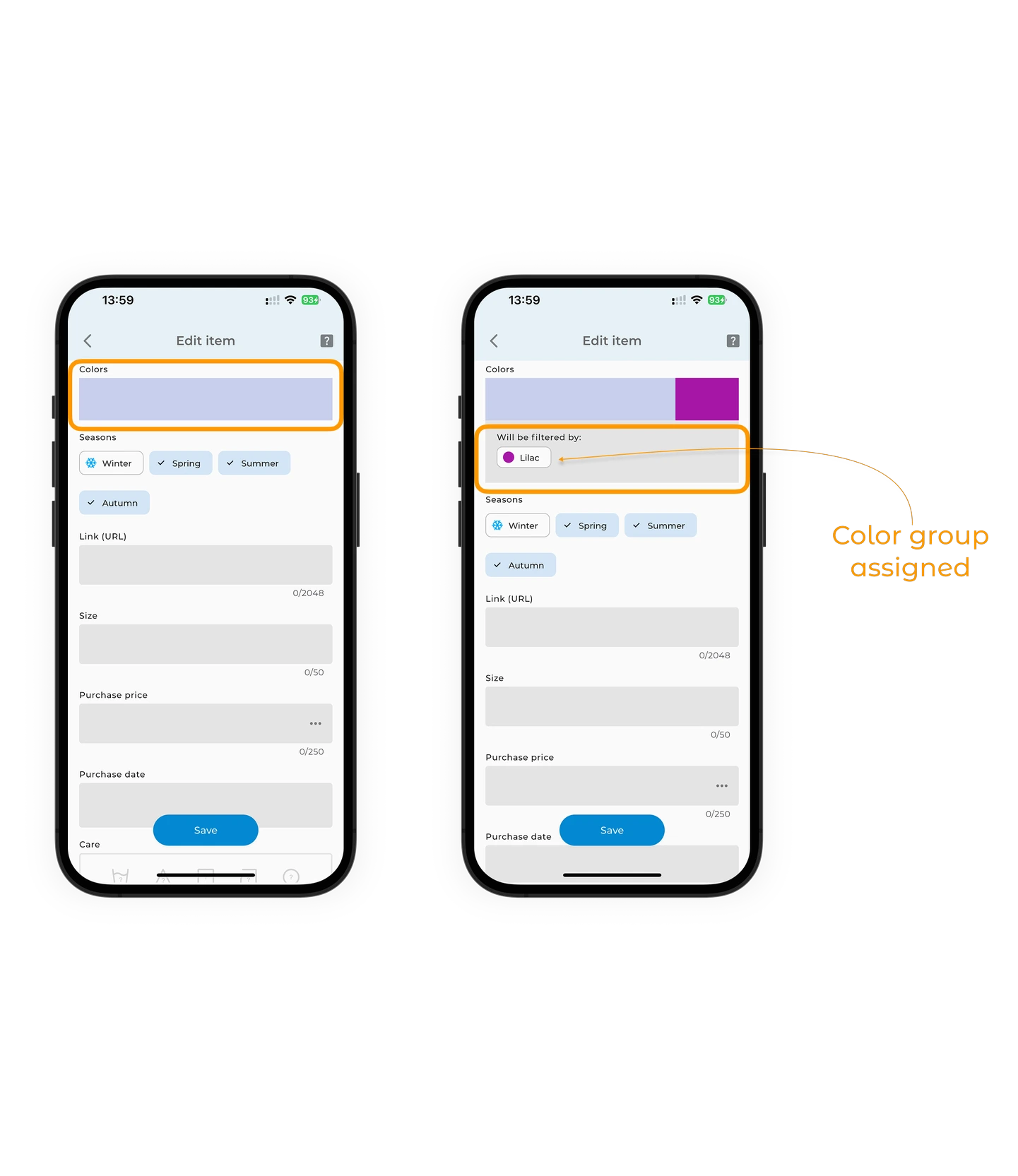
The GetWardrobe app assigns each item to a color group. This helps filter clothes by color. If the item isn't assigned to a color group, you won't see the note "Will be filtered by..." under the color field.
This can happen because there are thousands of color shades, but only 30 main color groups in the app. Sometimes the system doesn't recognize which group a shade belongs to — or assigns it incorrectly. To fix this, you can manually choose a filter color.
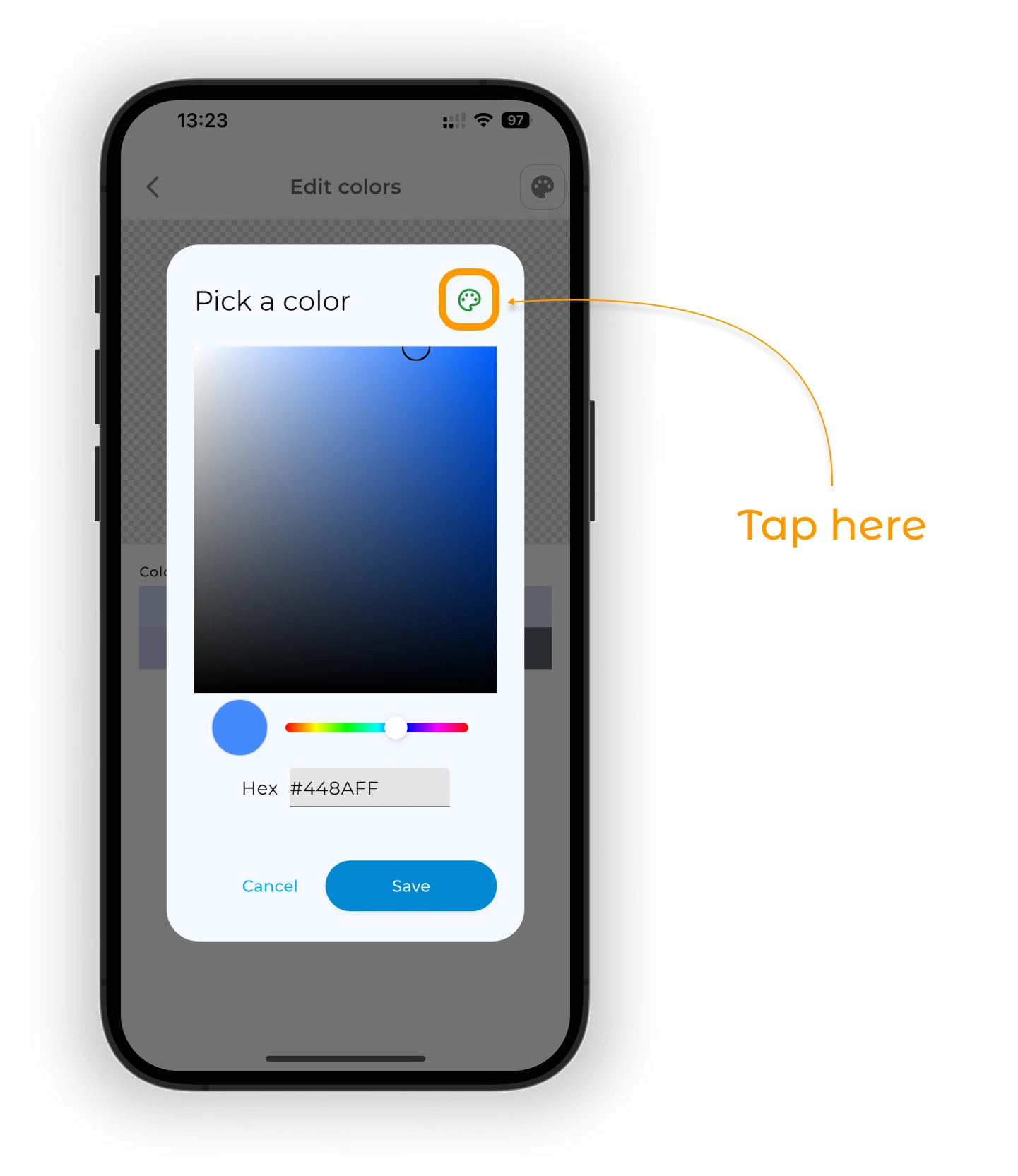
On the Pick a color screen, tap the 🎨 palette icon.
Select one of the 30 color groups and tap Save.

Seasons
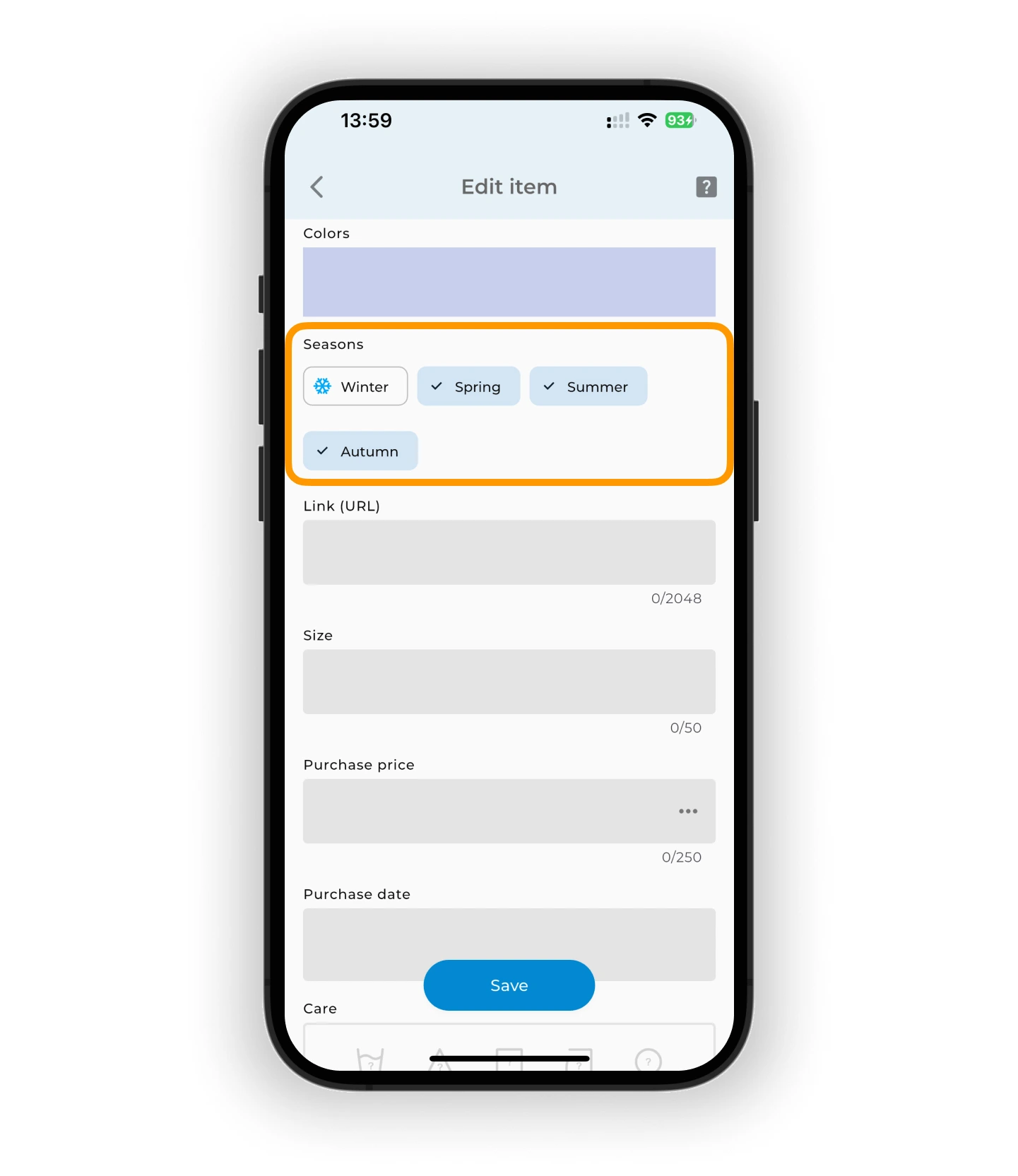
Mark which season(s) you wear the item in. You can choose more than one. This helps the app generate AI outfits for a specific season.
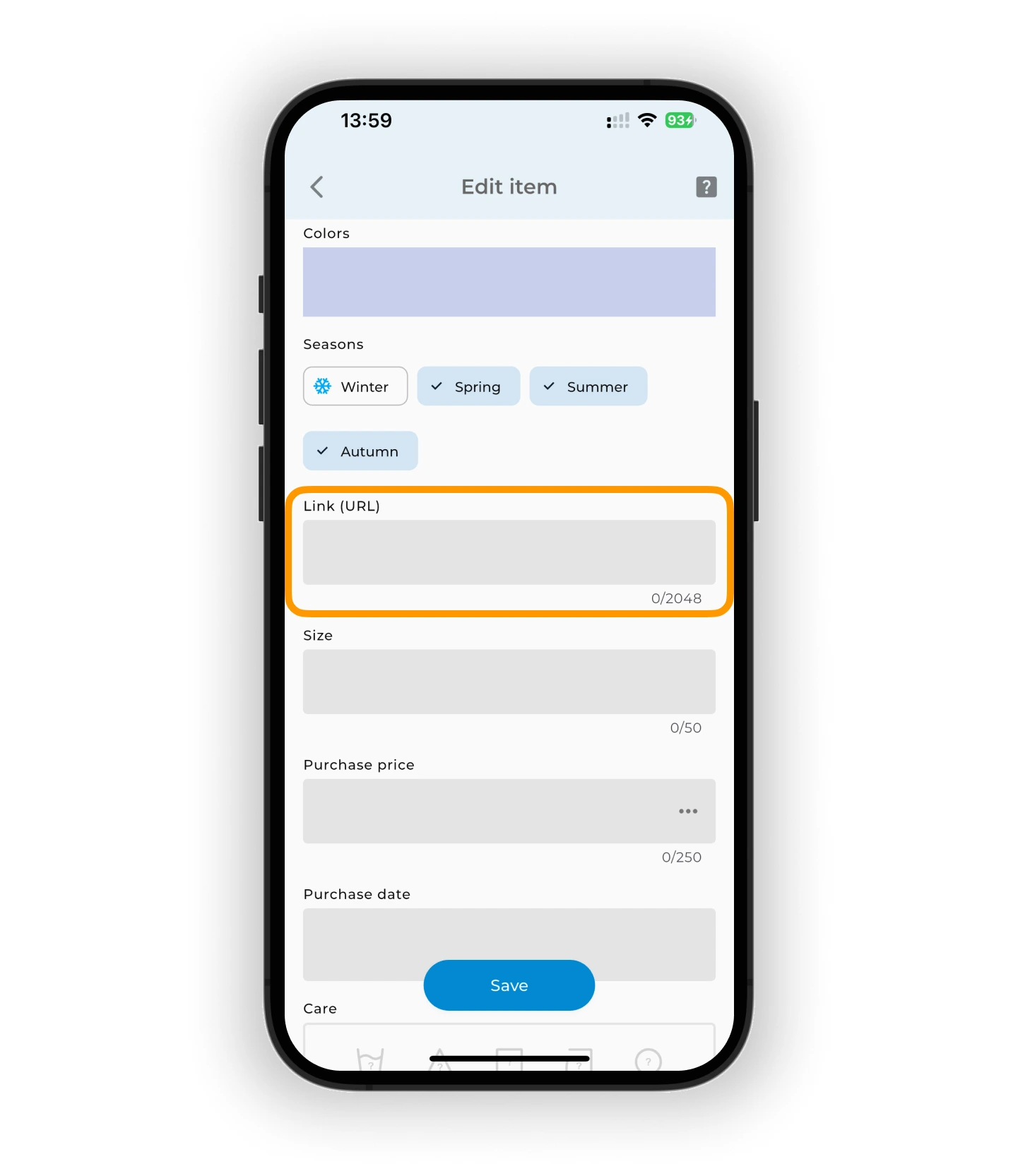
Link
If the item was added from an online store or screenshot, the link is added automatically. You can also paste a link manually.
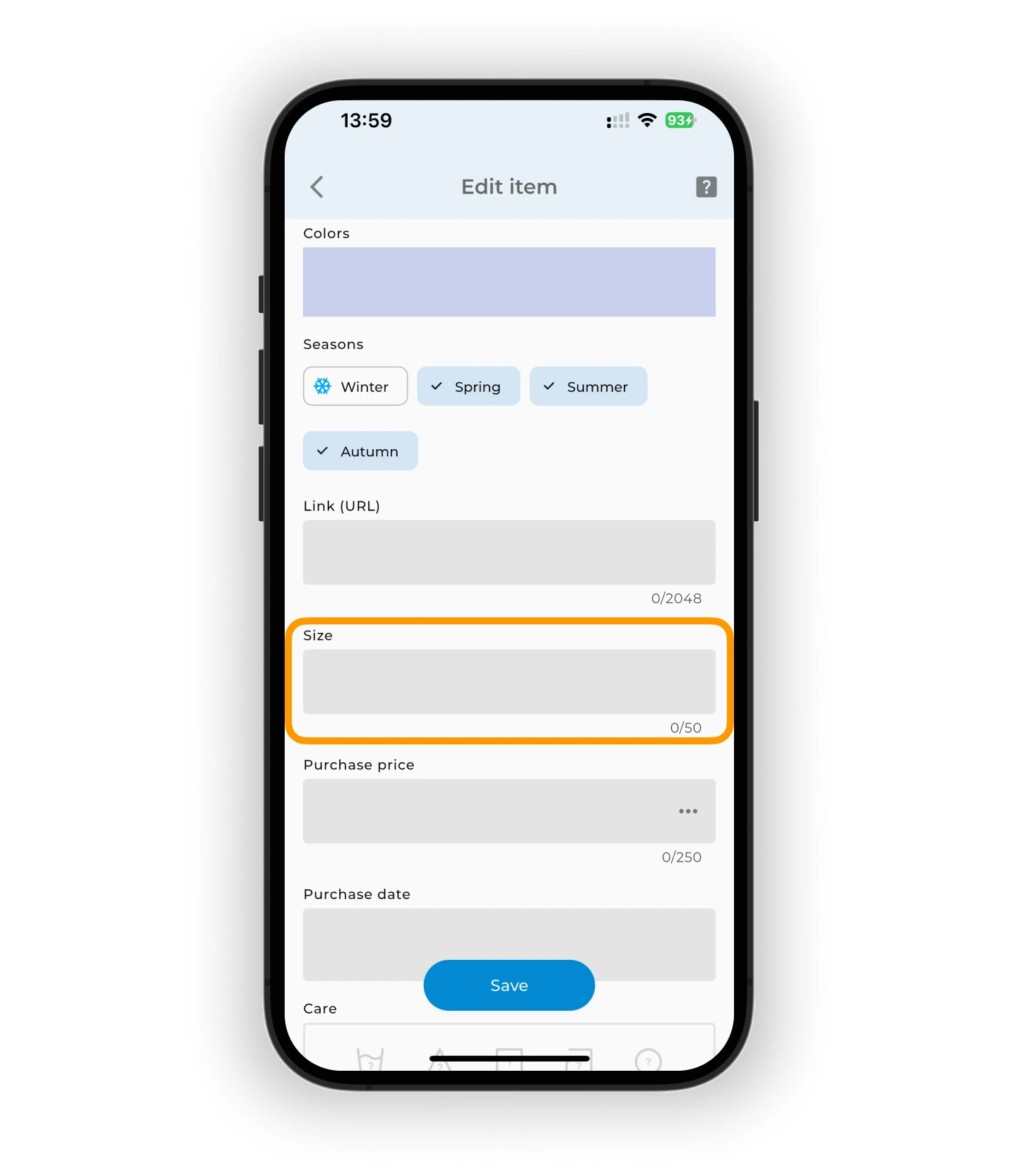
Size
Add sizing details — like S, 42, or 26/32.
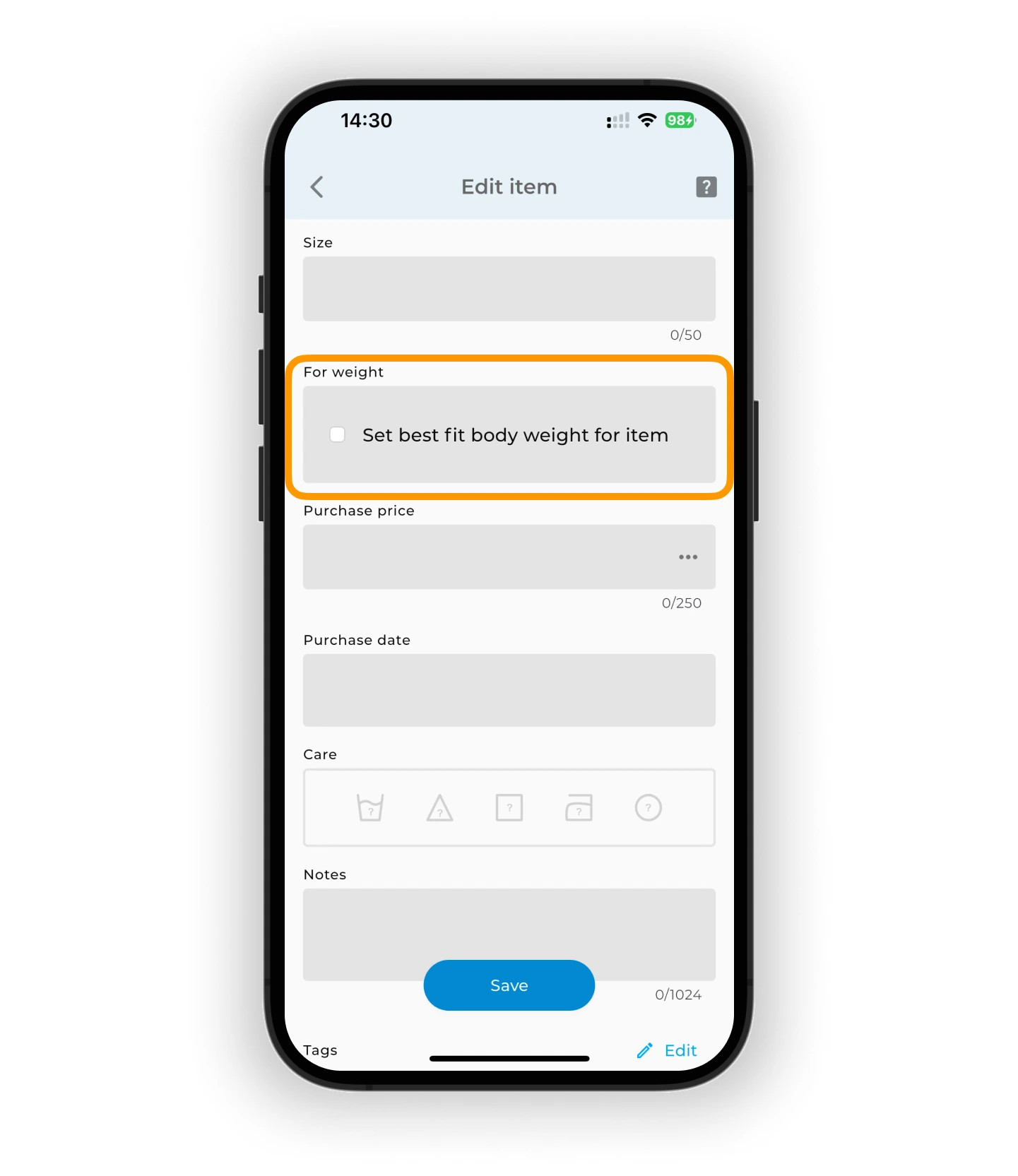
Best-fit weight
Warning
This field appears only after you activate the Body weight filter in your app settings.
Tap the ◽ icon to enter the weight range where the item fits best.
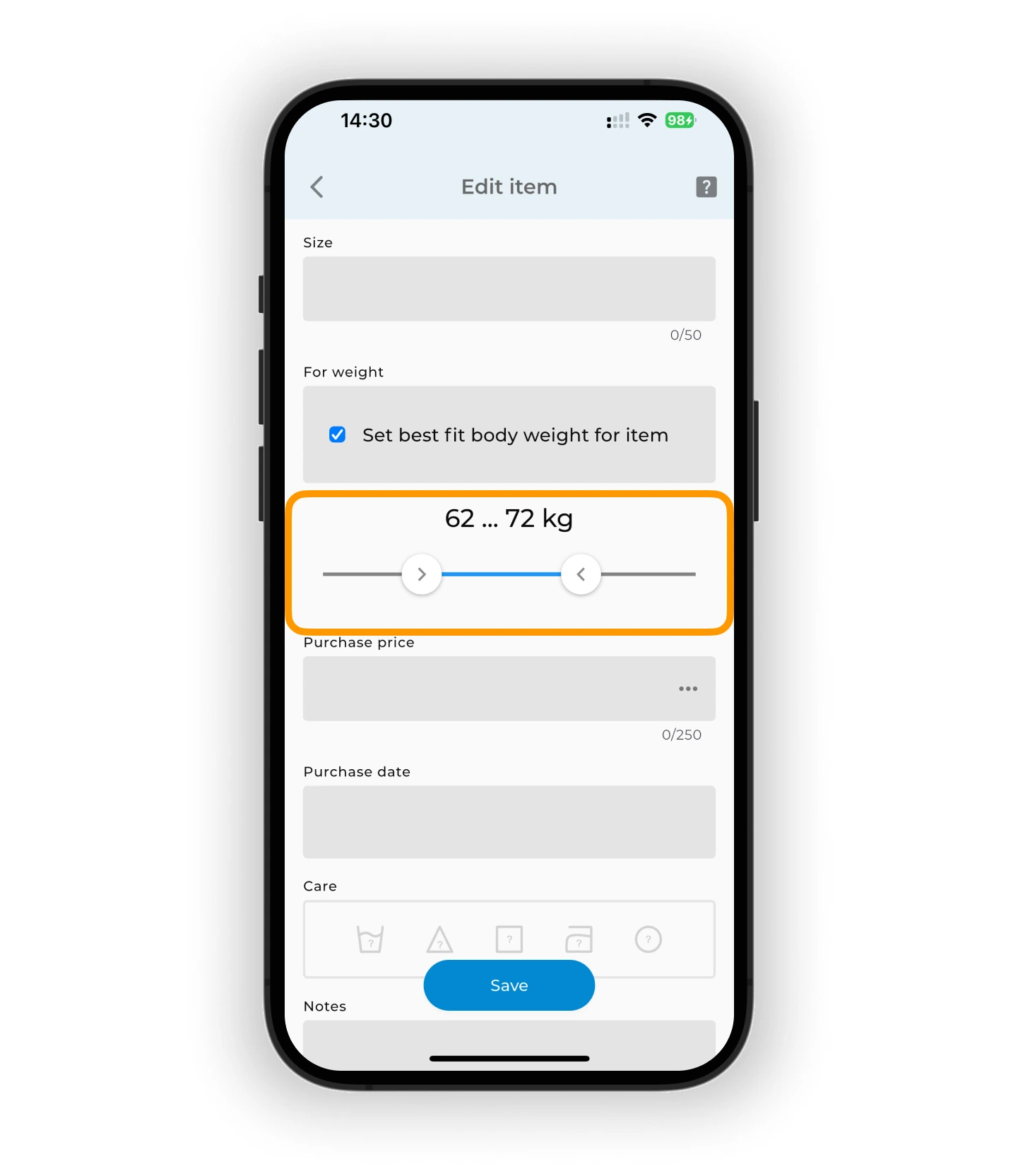
Use the sliders to select the weight range.
💡 You can choose between kg and lbs in your app settings.
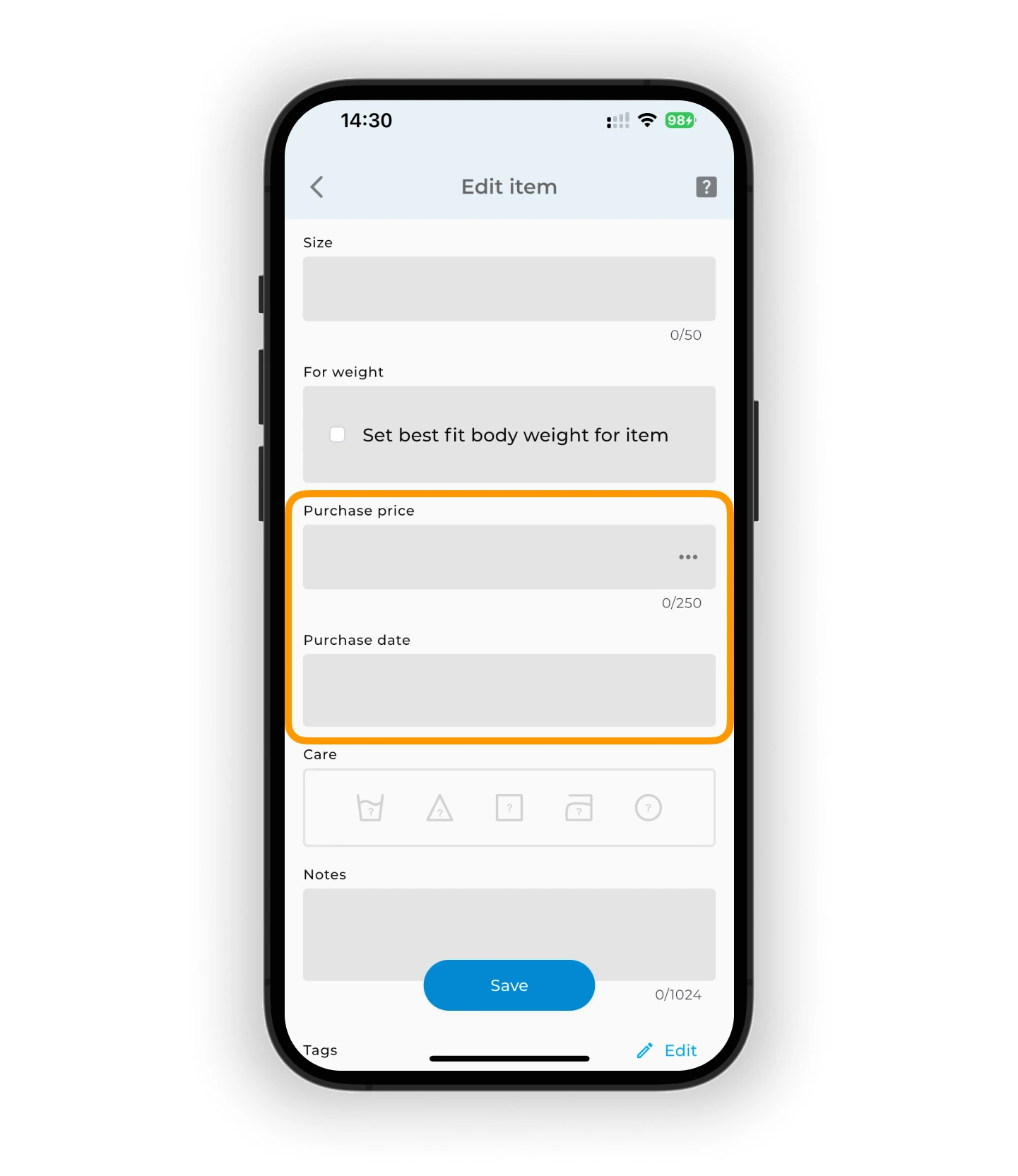
Price and purchase date
Enter the price and purchase date of the item.
This helps track how long the item has been in your wardrobe and gives you more accurate spending stats — including total wardrobe cost, outfit cost, and cost per wear. The currency follows your app settings.
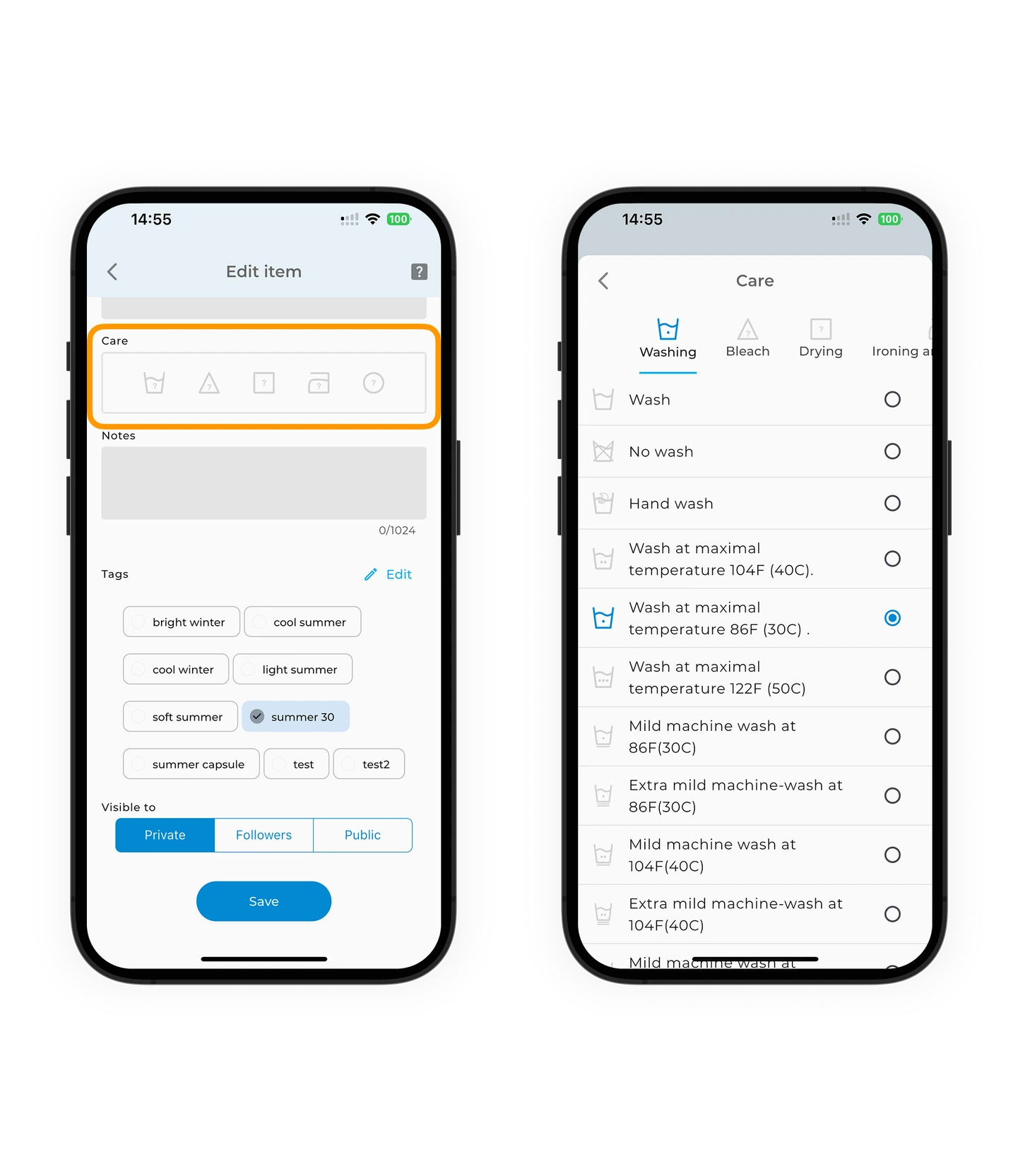
Care info
Mark washing, drying, and ironing preferences — helpful when labels wear off. Tap icons to add relevant care info.
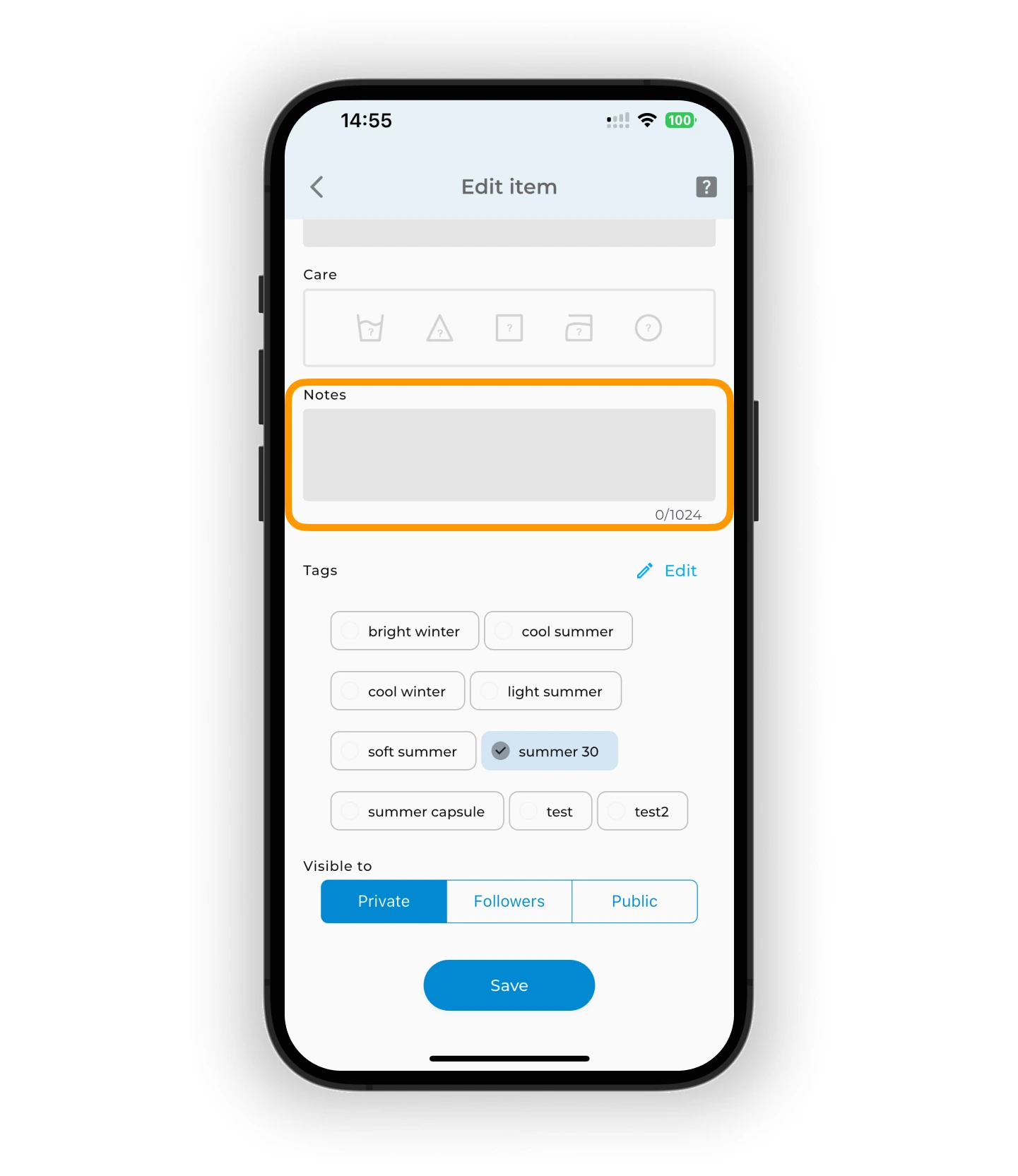
Notes
Add personal notes — they're visible only to you. Examples: "Wear to sister's wedding", "Pair with white jeans", "Needs tailoring".
Tags
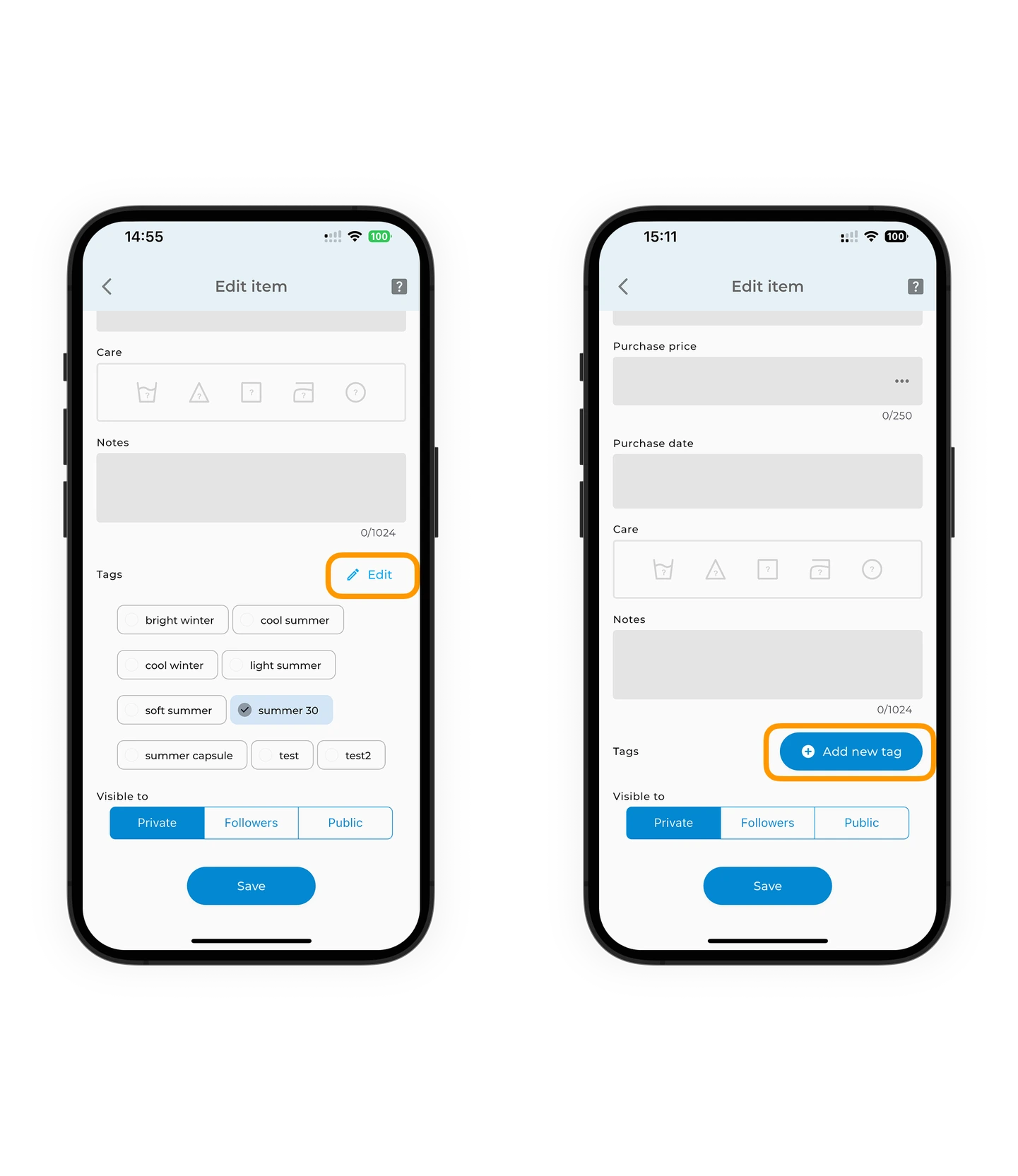
Tags help group items by activity, mood, or purpose. Tap a tag to assign it.
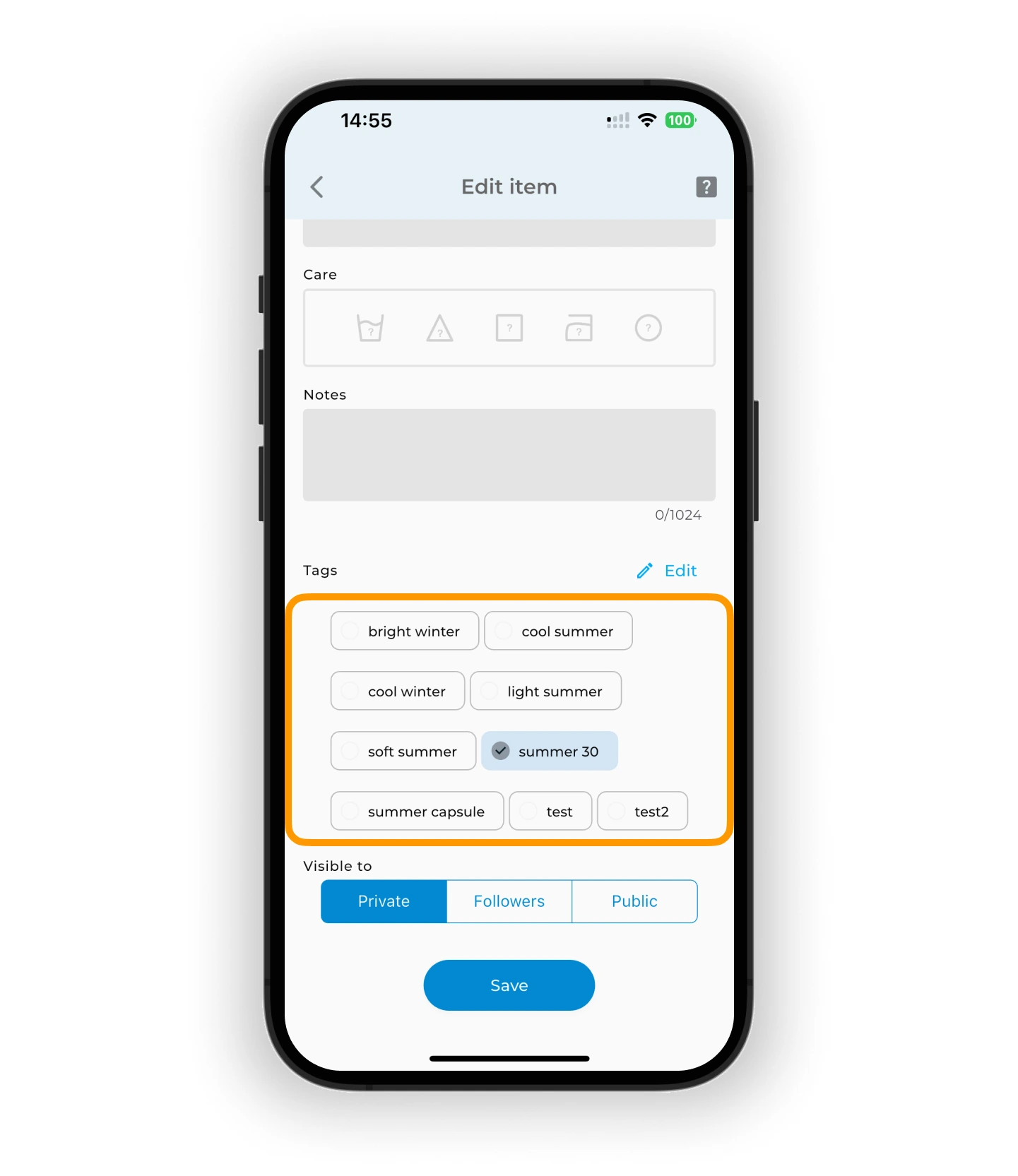
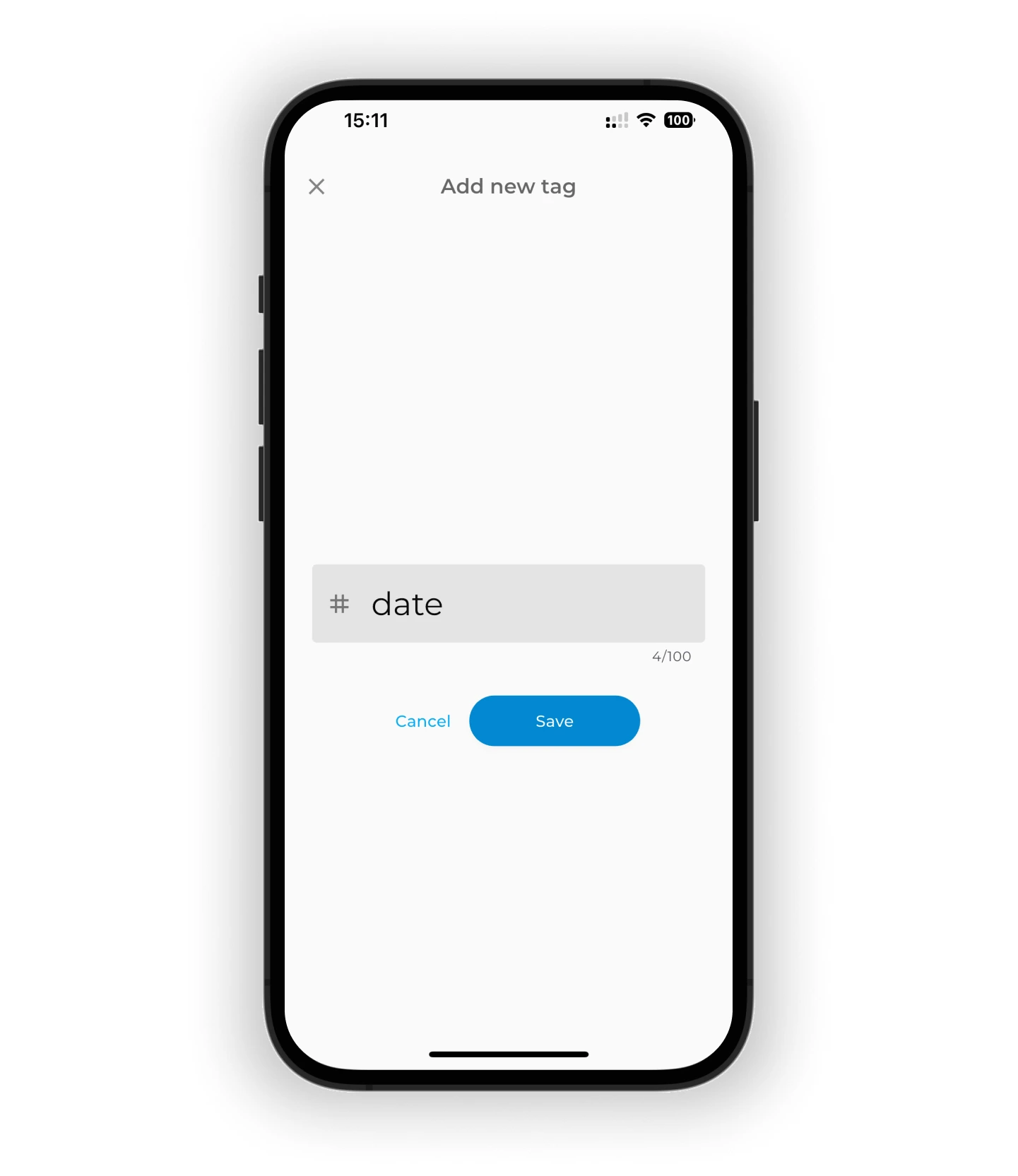
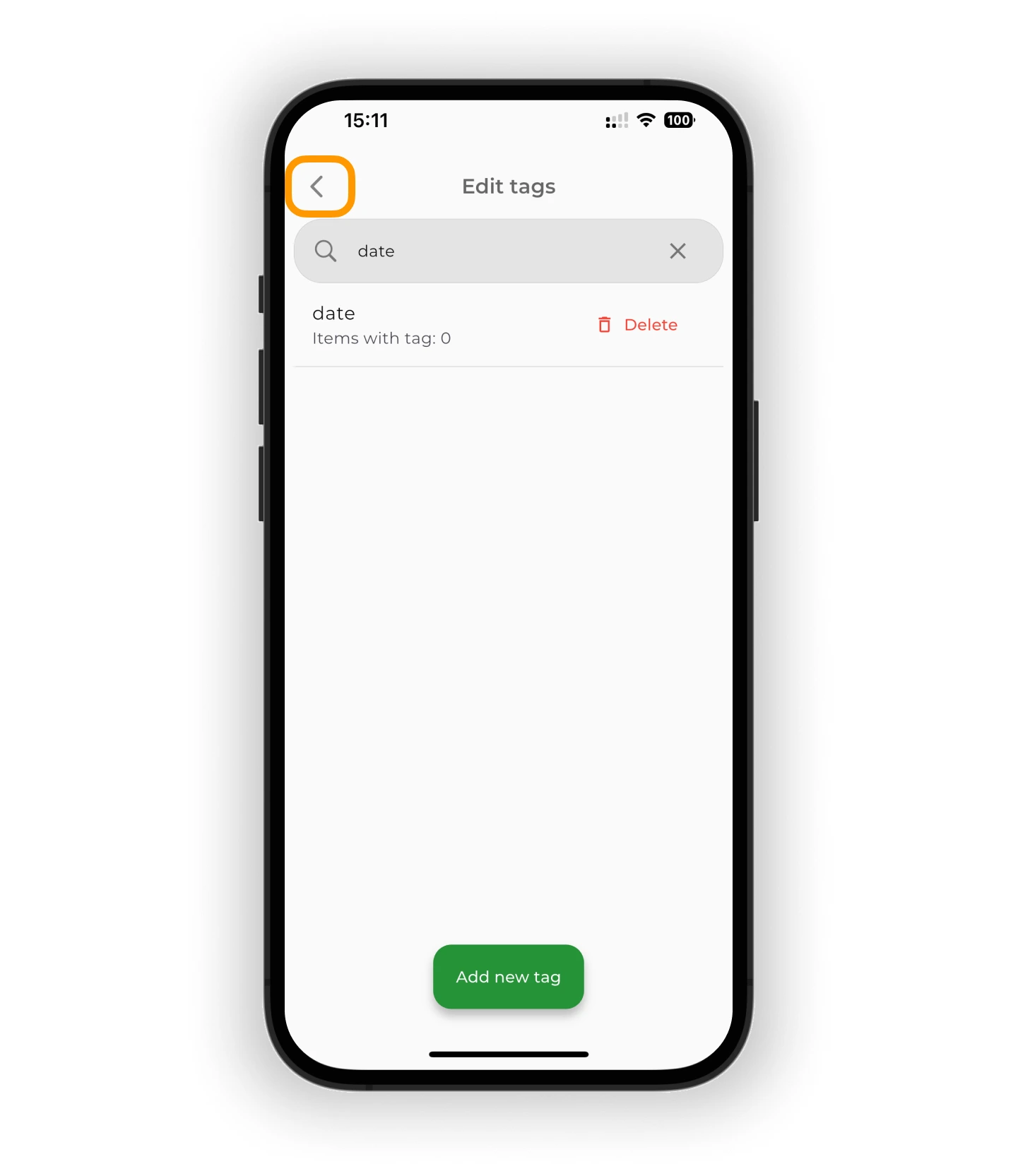
To create a new tag:
– If you don't have any tags yet, tap Add new tag – If you already have tags, tap the ✏️ Edit button
Type the name and tap Save.
Tap ◀️ to return to the item editor.
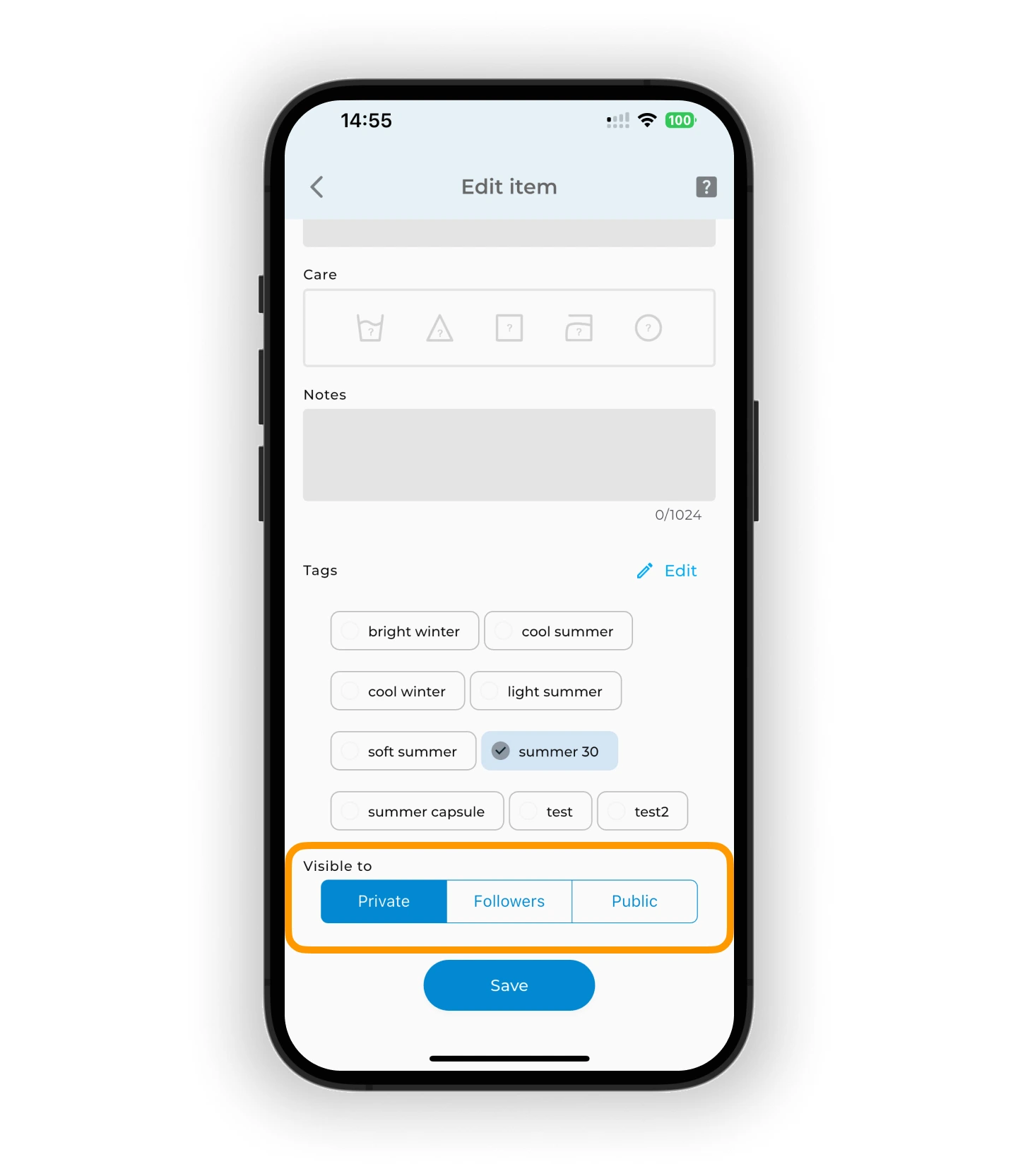
Privacy
Control who can view the item:
– Private — visible only to you – Followers — visible to your followers – Public — visible to all users
💡 The default privacy setting is taken from your profile. You can change it for each item individually.
Warning
No one can see your full wardrobe — only items in published outfits are visible.
Save your changes
After editing, tap Save to apply your changes.
What's next
Now that your items are updated, you're ready for the fun part — creating outfits. You can build looks manually or use AI to get smart suggestions based on your wardrobe.
FAQ
Does the app charge for using AI photo enhancement?
Photo enhancement uses AI credits, not a Premium subscription. You can purchase credits separately or they may be included with your plan.
Can I undo changes if I edit the wrong item?
Yes, all edits are saved individually. If you make a mistake, simply open the item again and correct it.
How many colors can I assign to one item?
You can assign up to 5 colors per item. This is helpful for multicolored pieces like patterns or prints.
Need help?
Contact us at support@getwardrobe.com