Add Items
Import your clothing into your digital wardrobe by taking photos, uploading from your gallery, adding files, or pasting online store links. The app automatically detects category, color, and removes backgrounds.
In this guide
- Getting started
- Take a photo
- From gallery
- From files
- Edit uploaded items
- Bulk edit
- Add from an online store
- Upload a screenshot
- What's next
Getting started
Tap the green "+" at the bottom of the main screen.
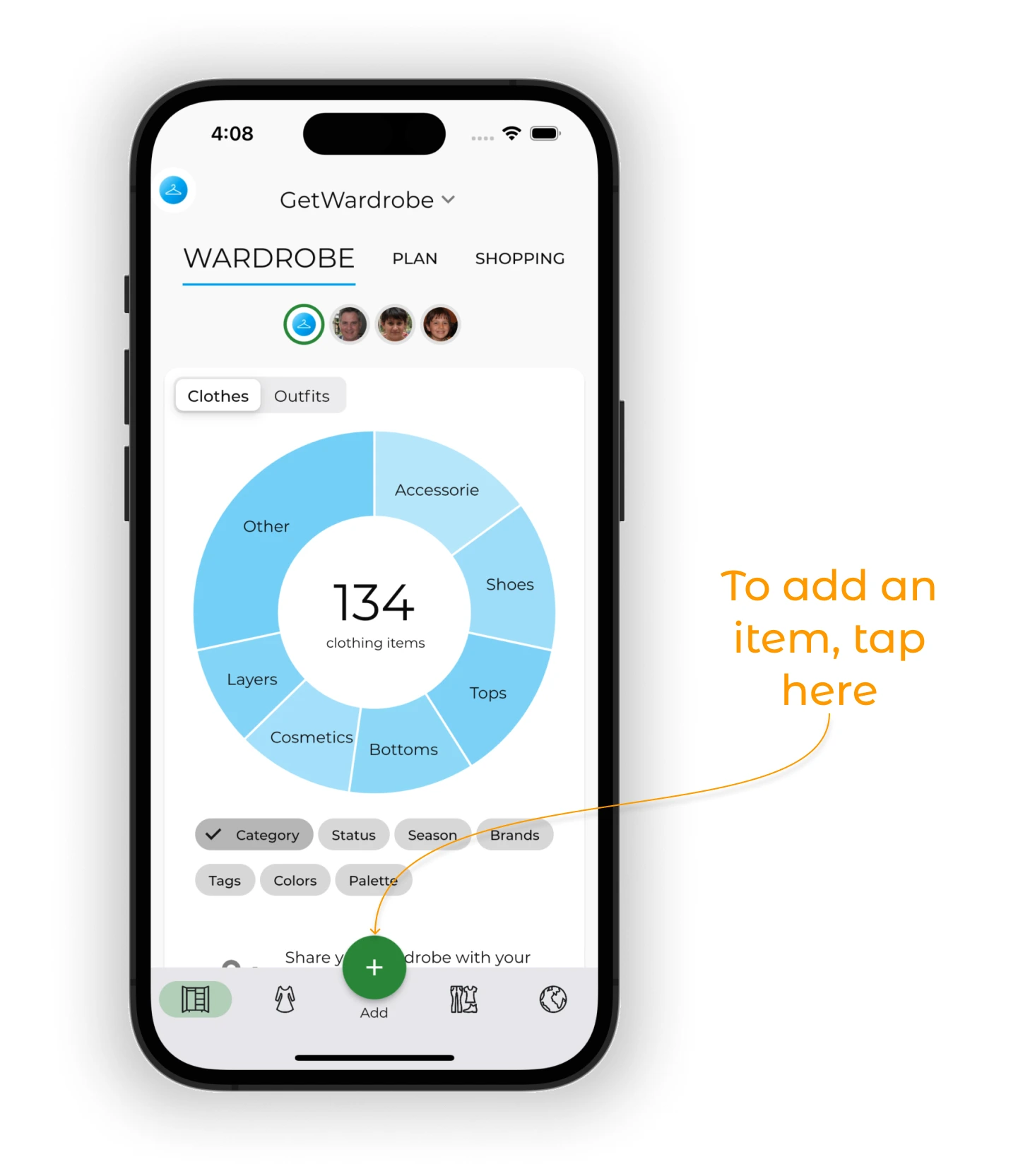
Select "Clothes".
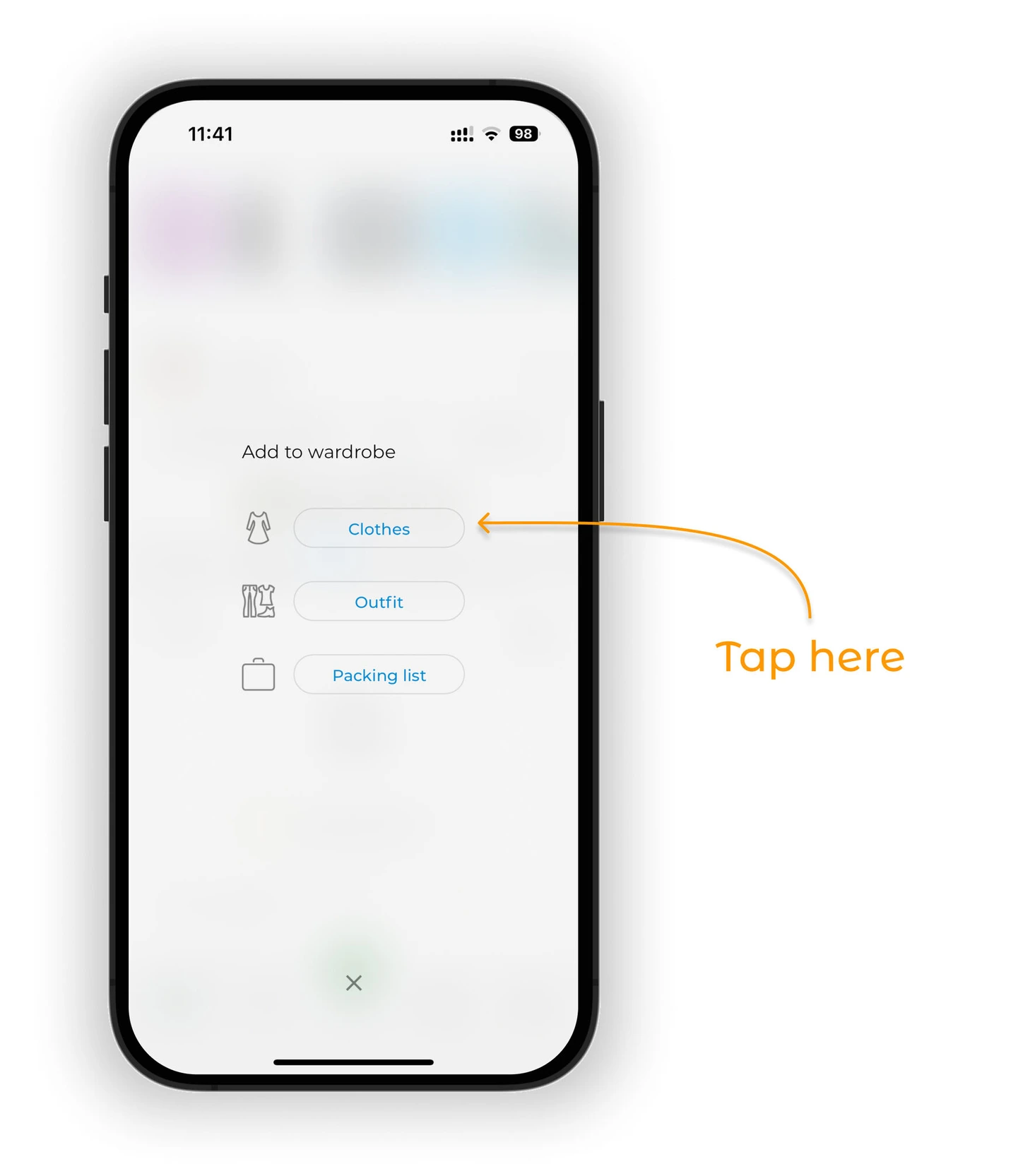
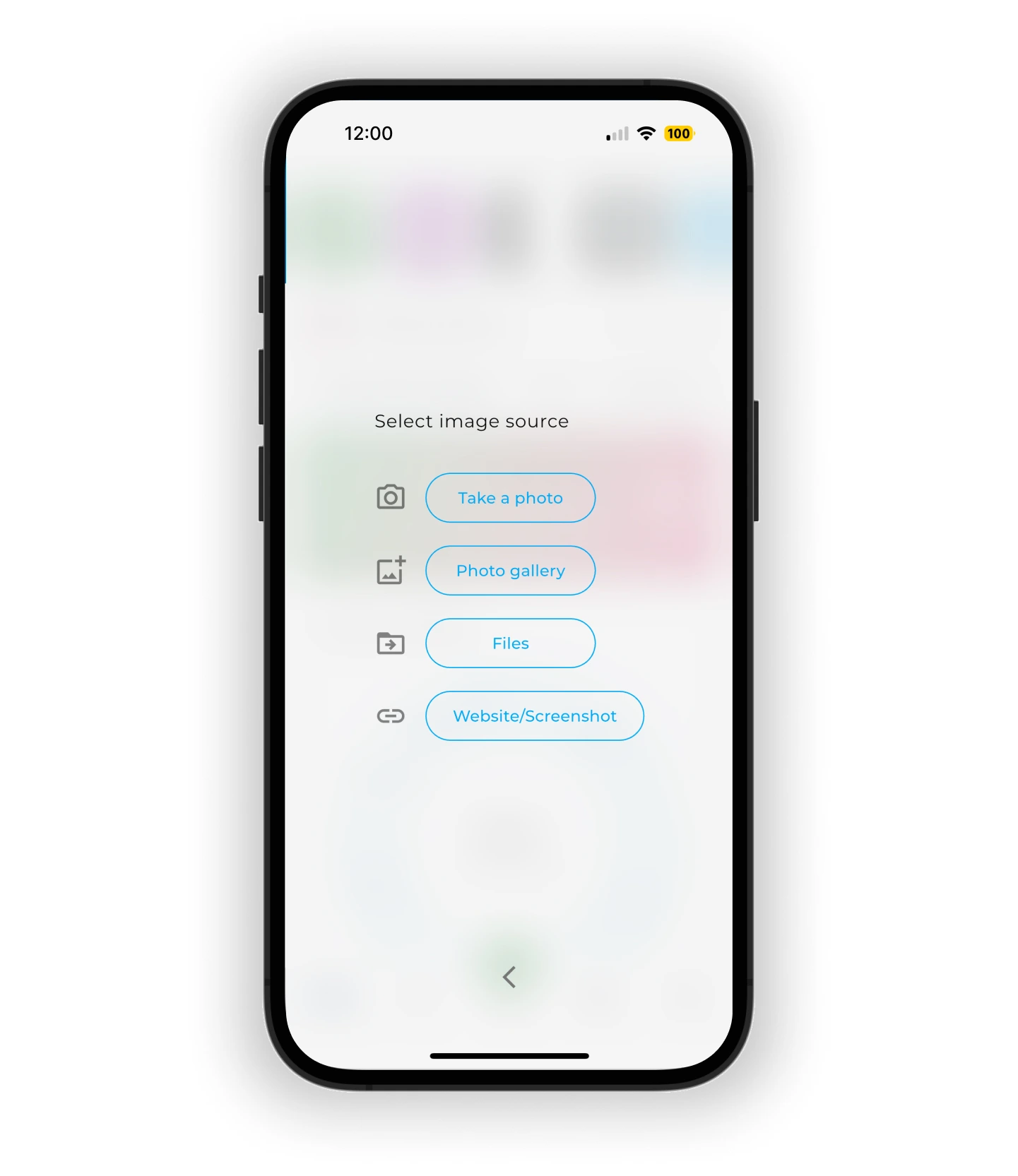
Choose how to upload images:
- 📸 Take a Photo
- 🖼 From Gallery
- 📁 From Files
- 🌐 From Website/Screenshot
The app will automatically:
- Remove the background
- Detect the item's category, color, and status
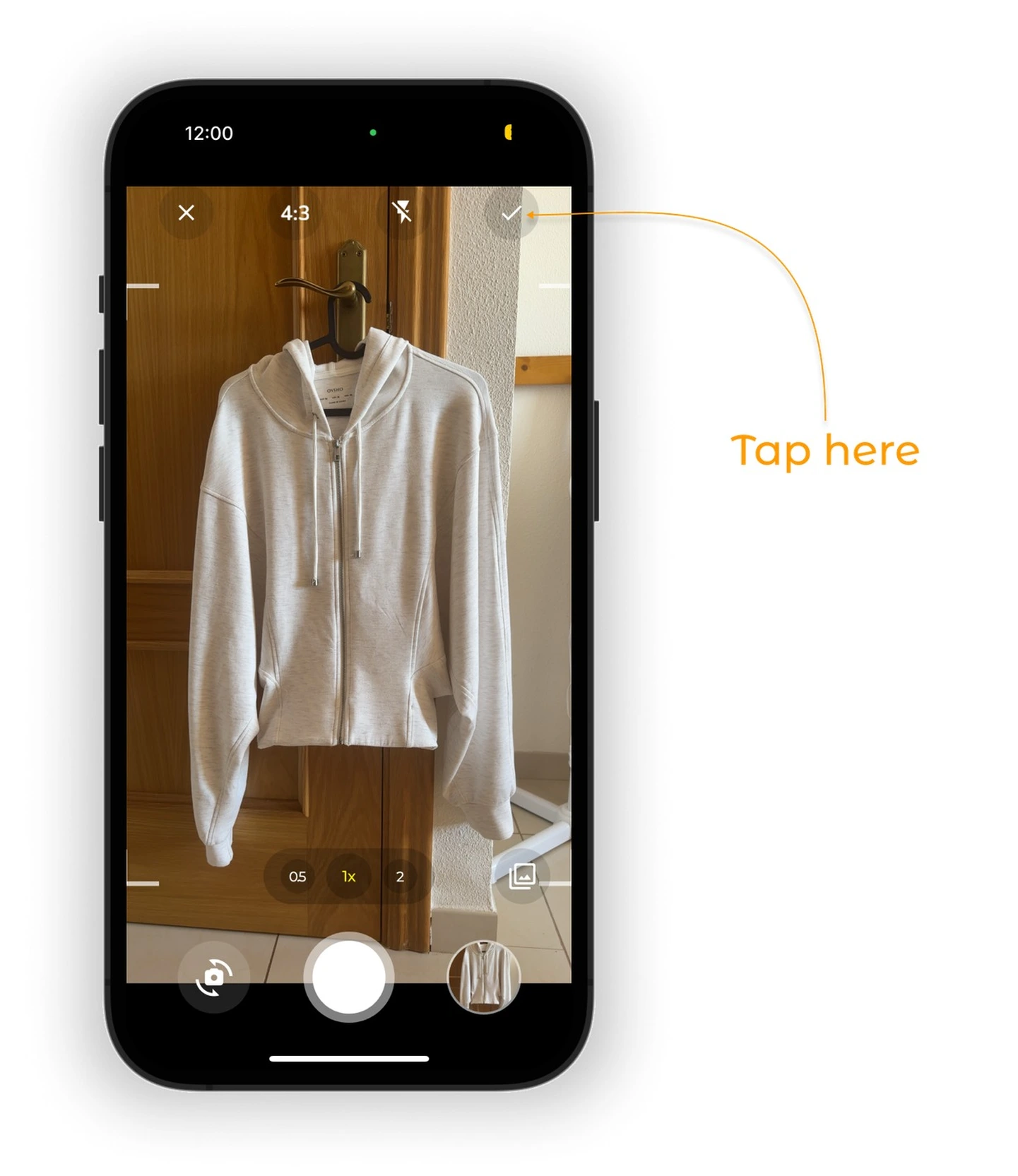
Take a photo
Use this if the item is right in front of you:
- Select "Take a Photo"
- Choose the frame size (4:3, 1:1, or 16:9)
- Take a picture and tap ✅
From gallery
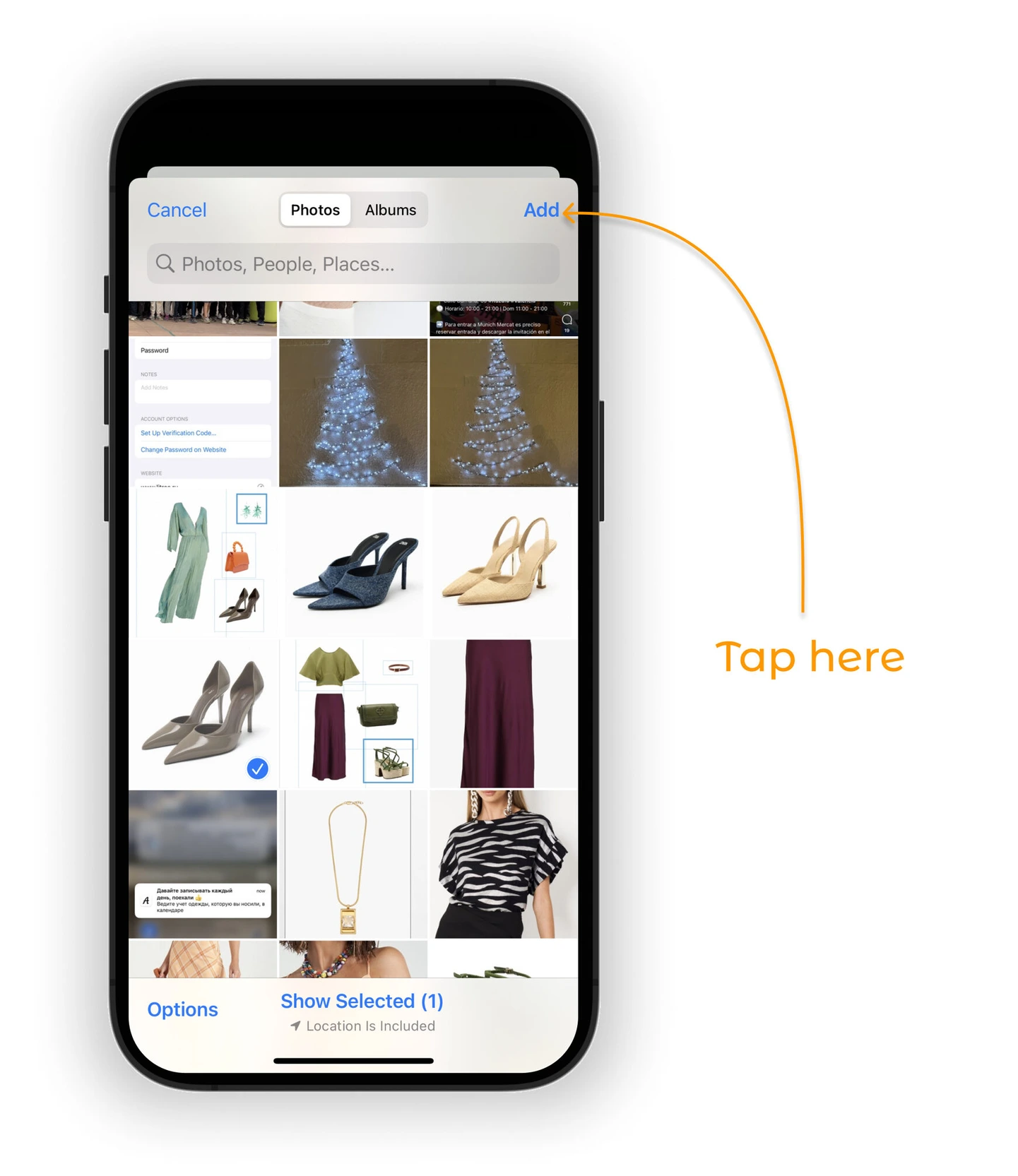
- Select "Photo Gallery"
- Choose one or more photos
- Tap "Add"
From files
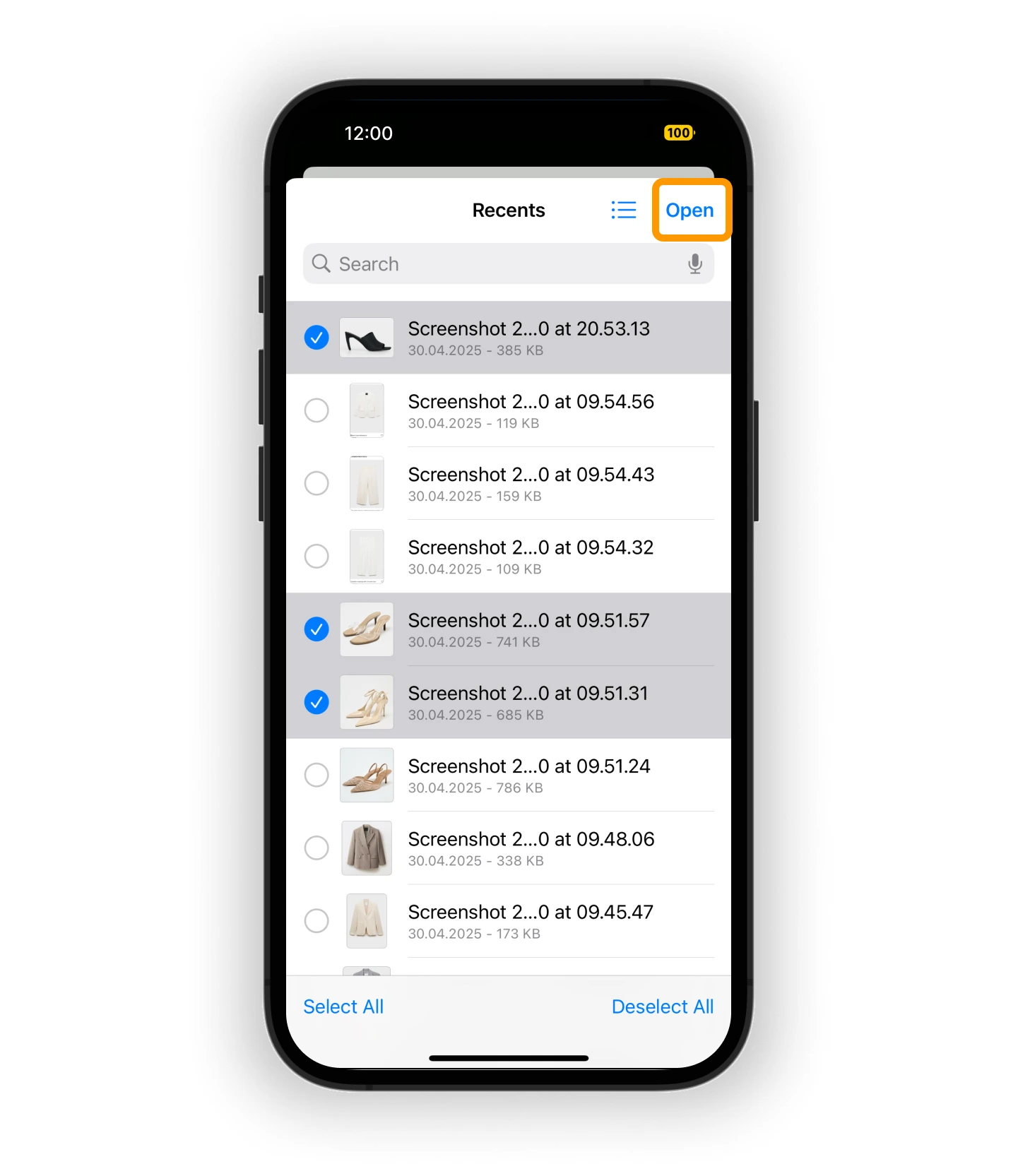
- Select "From Files"
- Select and upload image files
Edit uploaded items
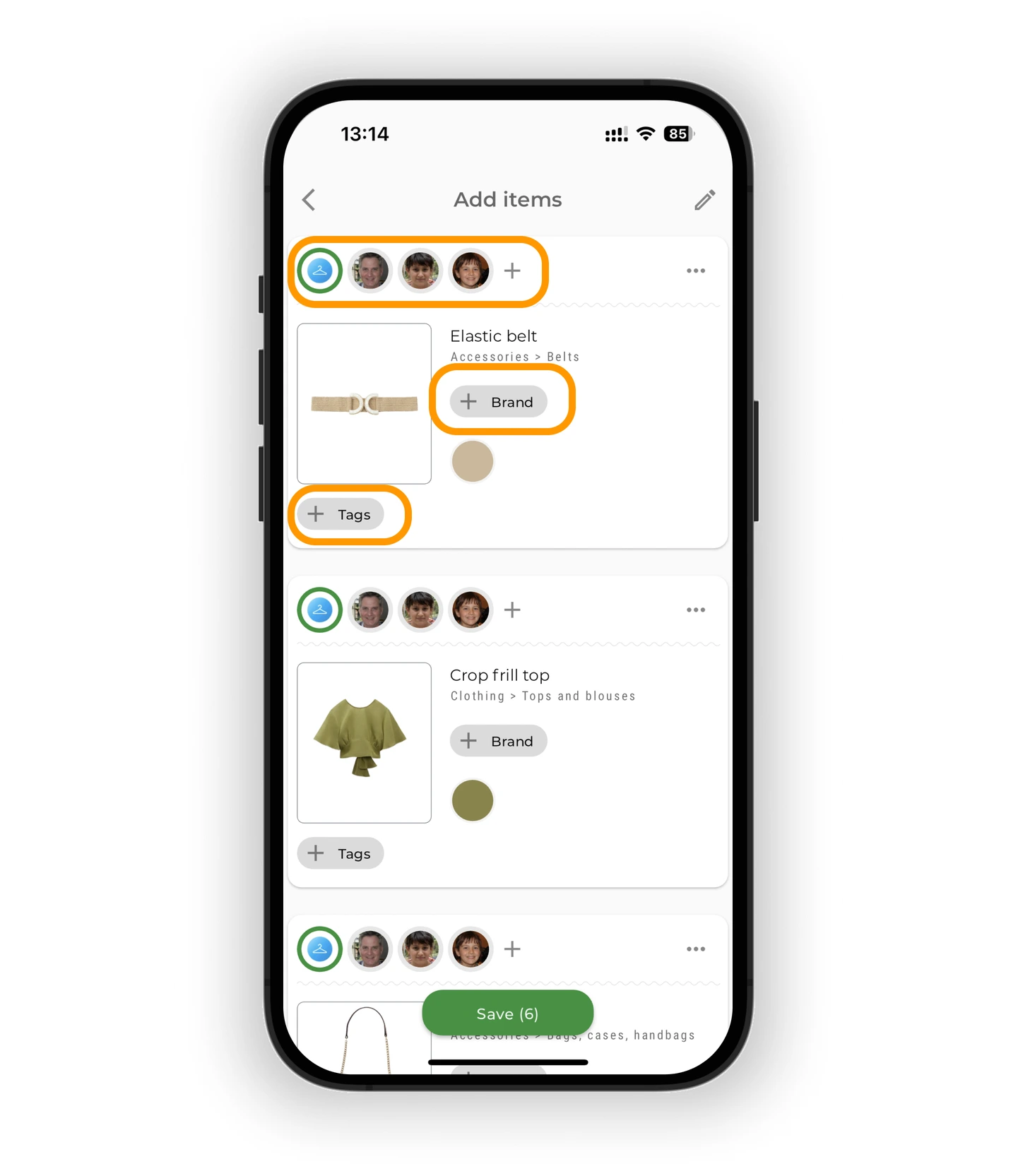
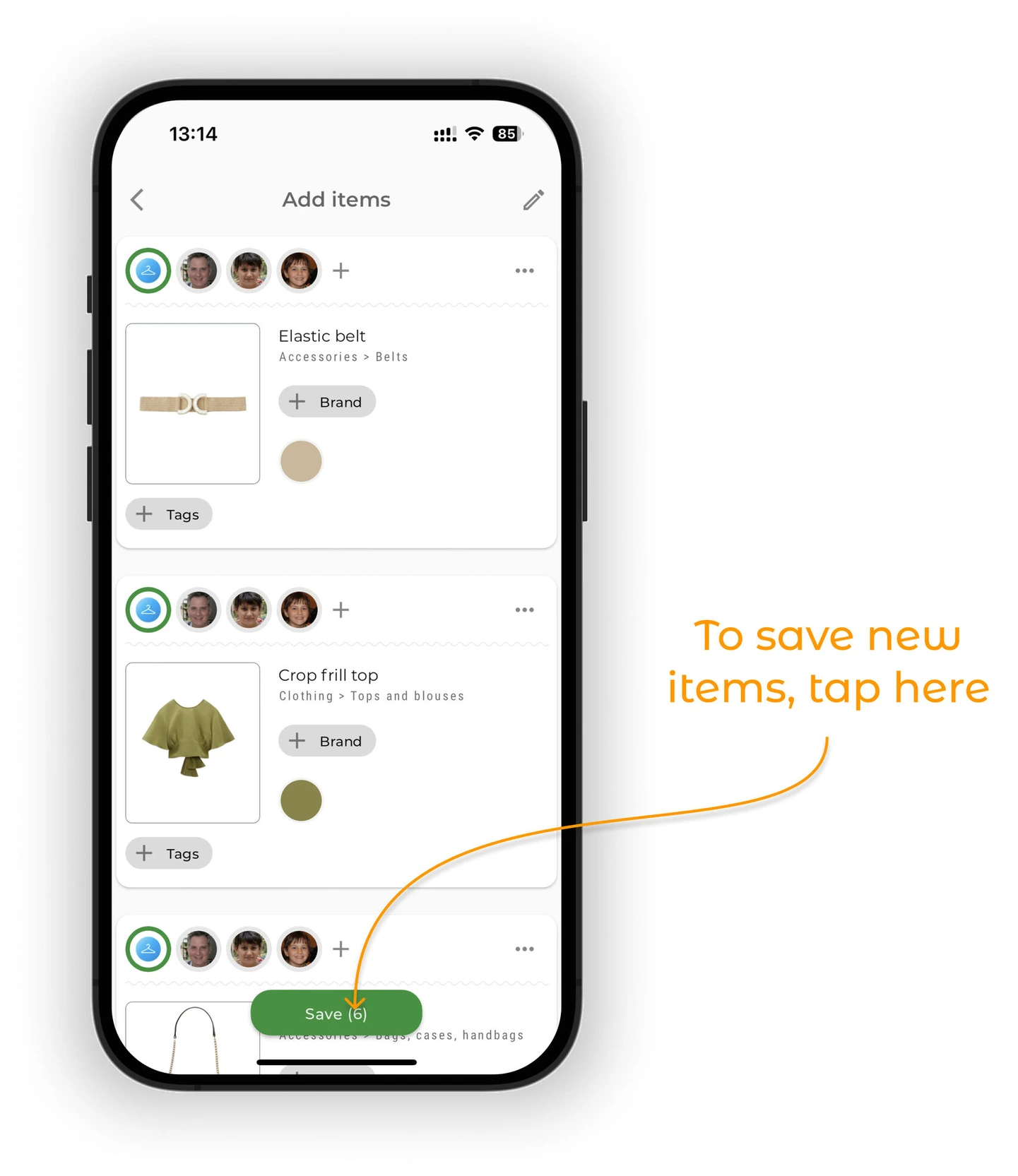
When you upload multiple items by photo, you'll land on the multi-item editing screen.
For each item, you can:
- Change category and color
- Add brand and tags
- Assign to another family member (Premium feature)
- Tap the image to restore the original background or reprocess it
Tap "Save" to confirm changes and finish adding.
Bulk edit
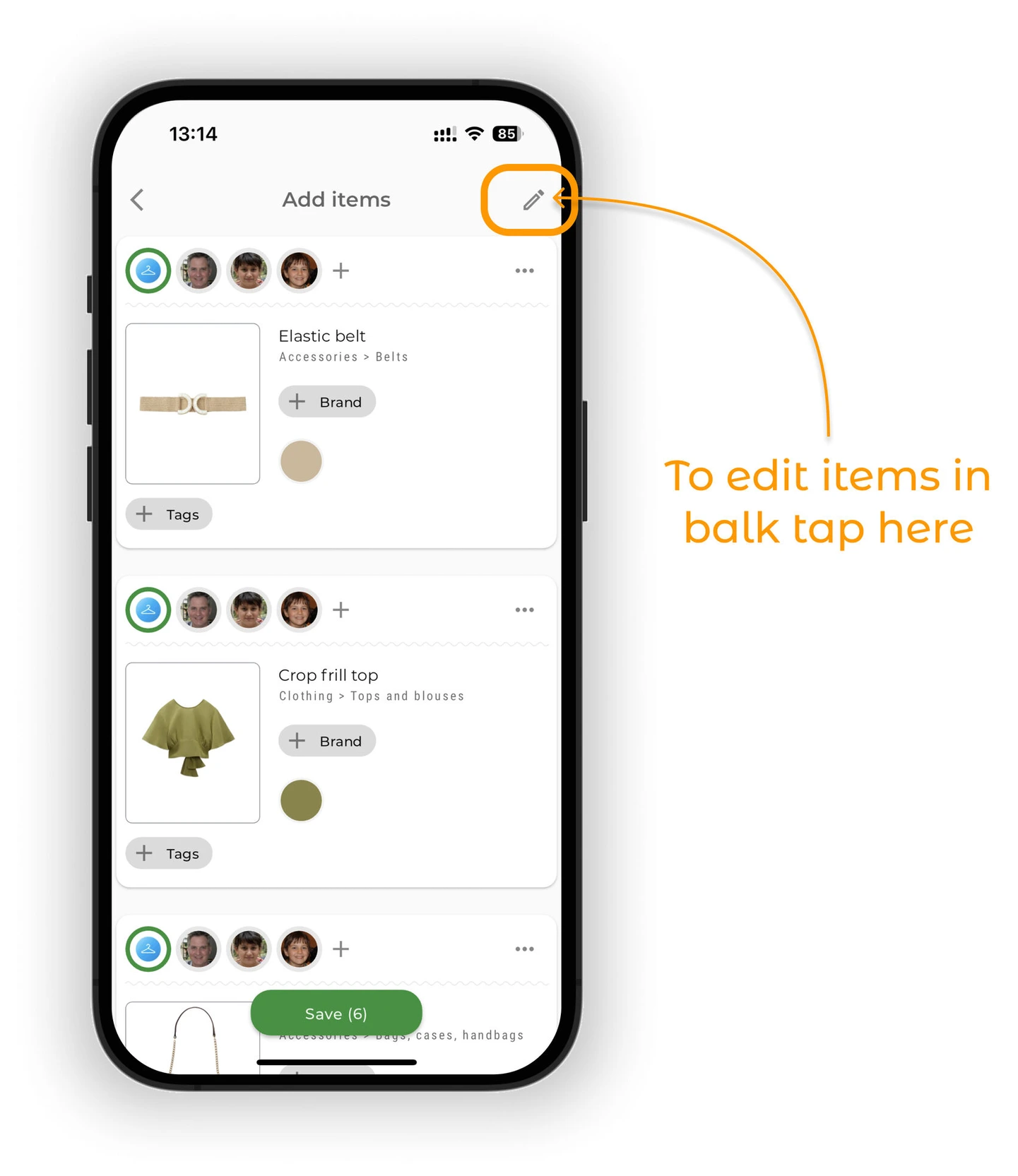
To edit categories, brands, colors, or tags for multiple items at once, tap the ✏️ icon in the top right corner of the screen.
Select items:
- Tap the checkbox next to each item manually
- Or tap Select All (square icon with dots) in the bottom left corner
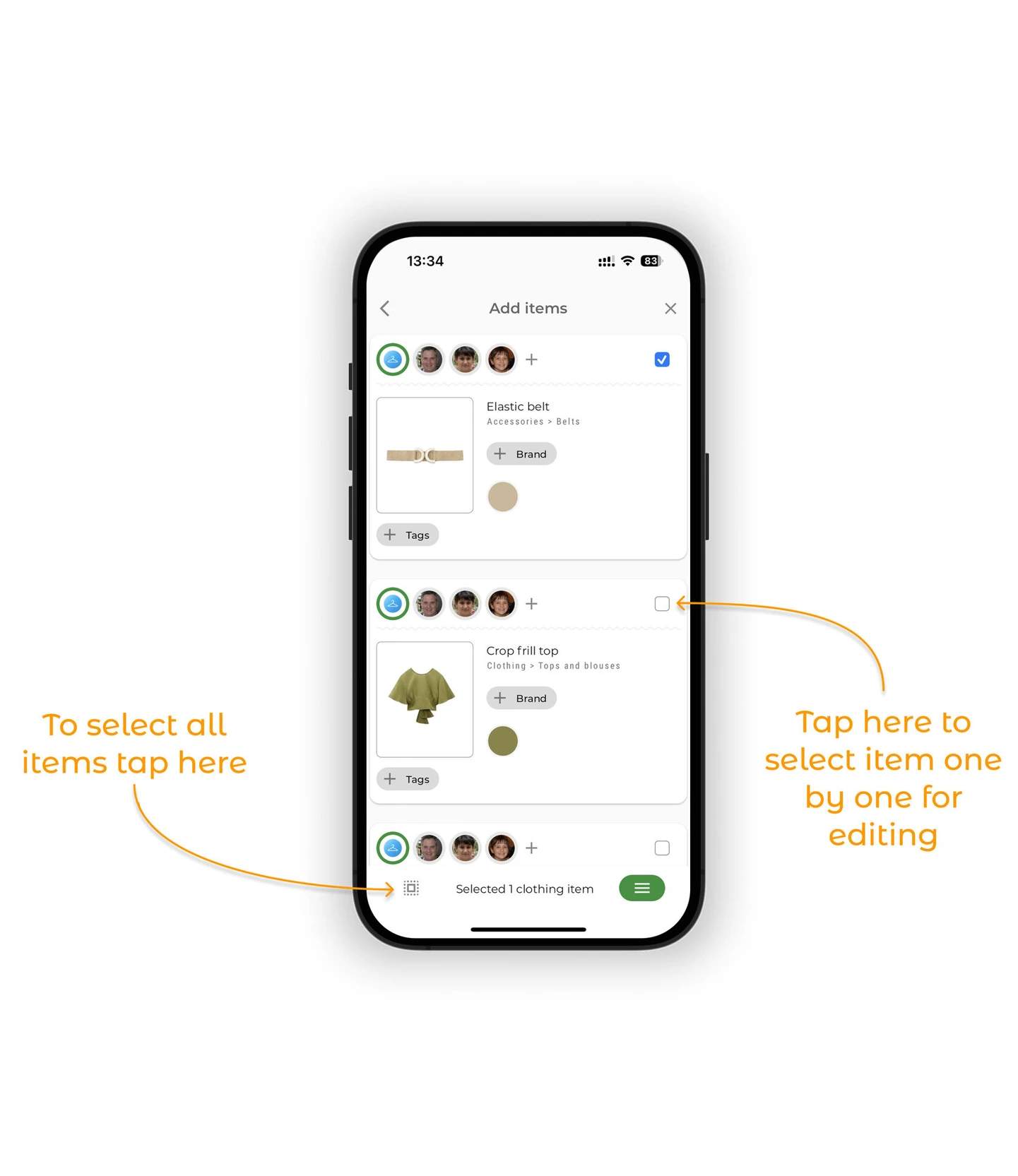
Tap the green action button (three horizontal lines).
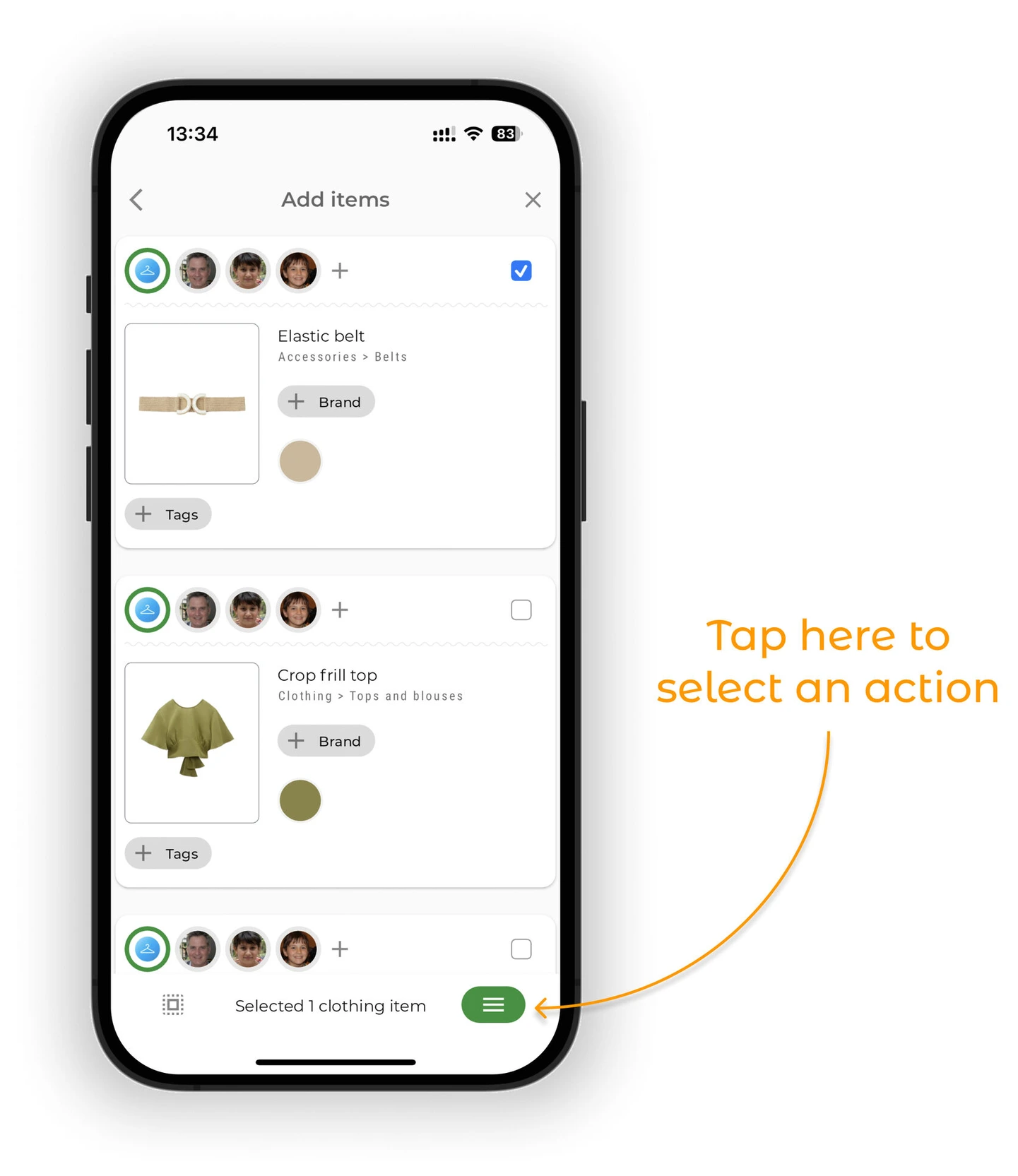
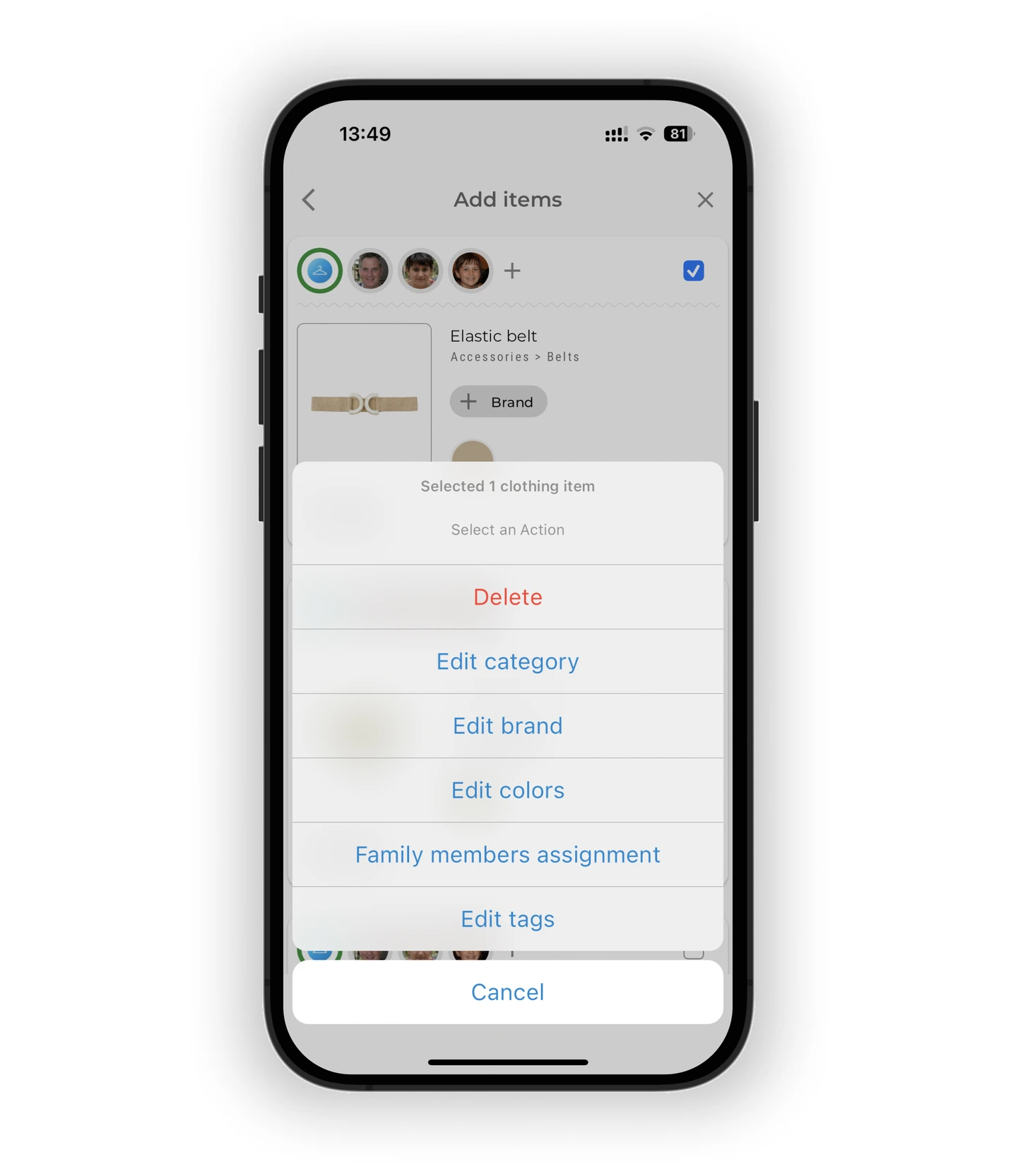
Choose an action:
- Change category, color
- Add brand or tags
- Assign to another family member (Premium feature)
- Delete selected items
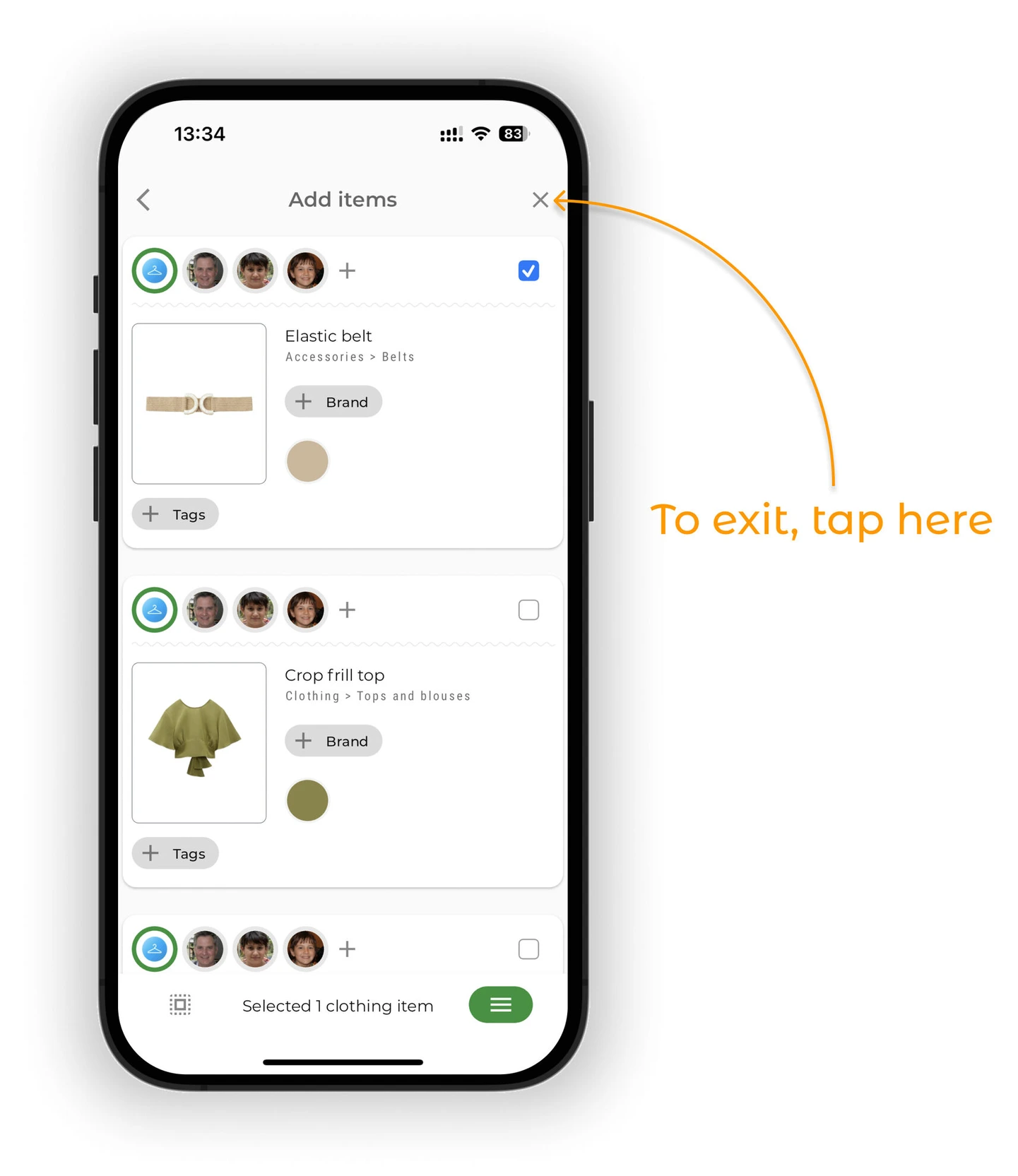
To exit bulk edit mode, tap the "X" in the top right corner.
Tip
Want to edit just one item in detail? Tap the "⋯" next to the item and select "Edit Details" to open its individual edit screen.
Add from an online store
To add an item from an online store:
- Tap "Website/Screenshot" in the add menu
- Copy the link to the item's page in the store
- Paste it into the field
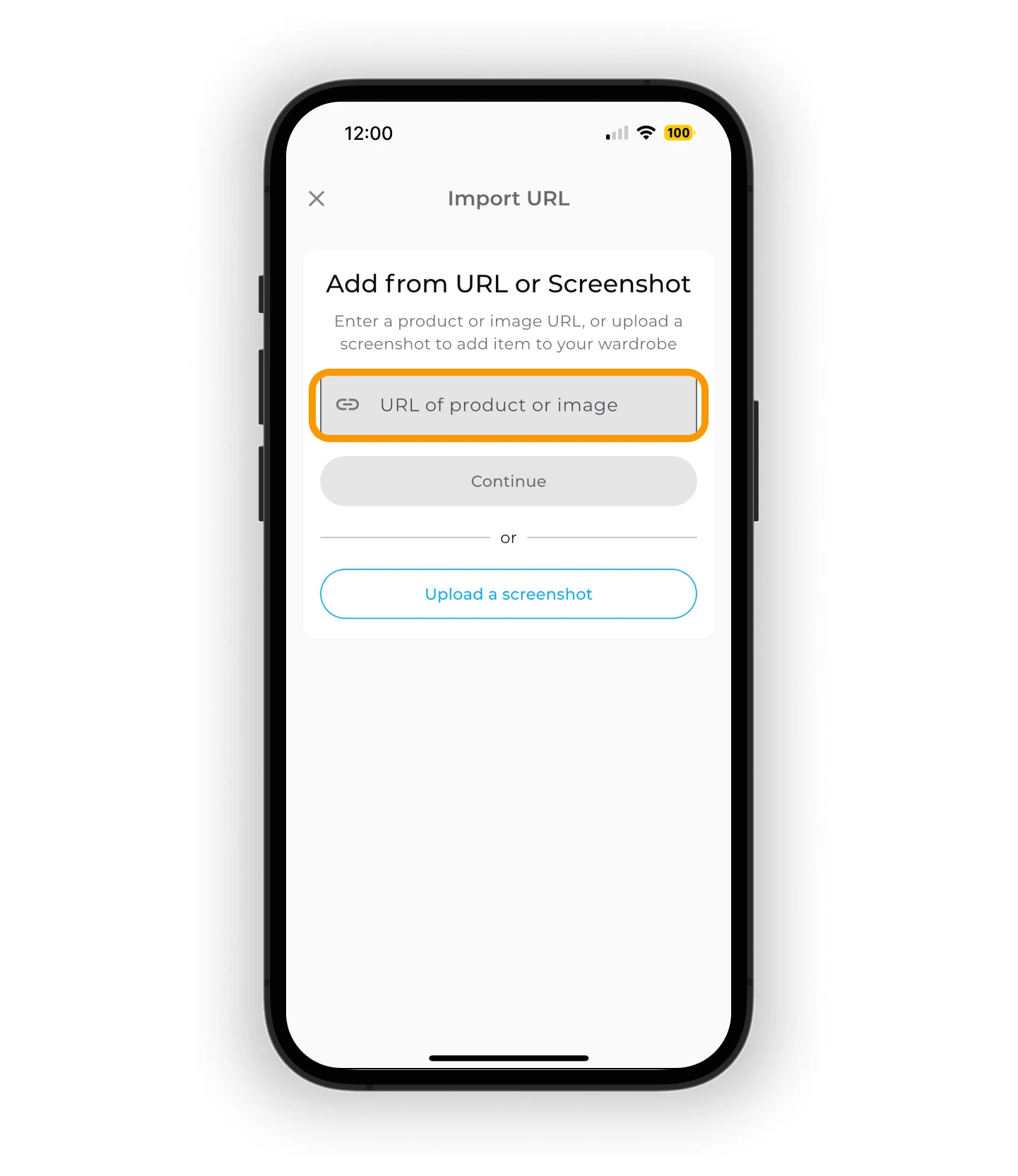
Tap "Continue".
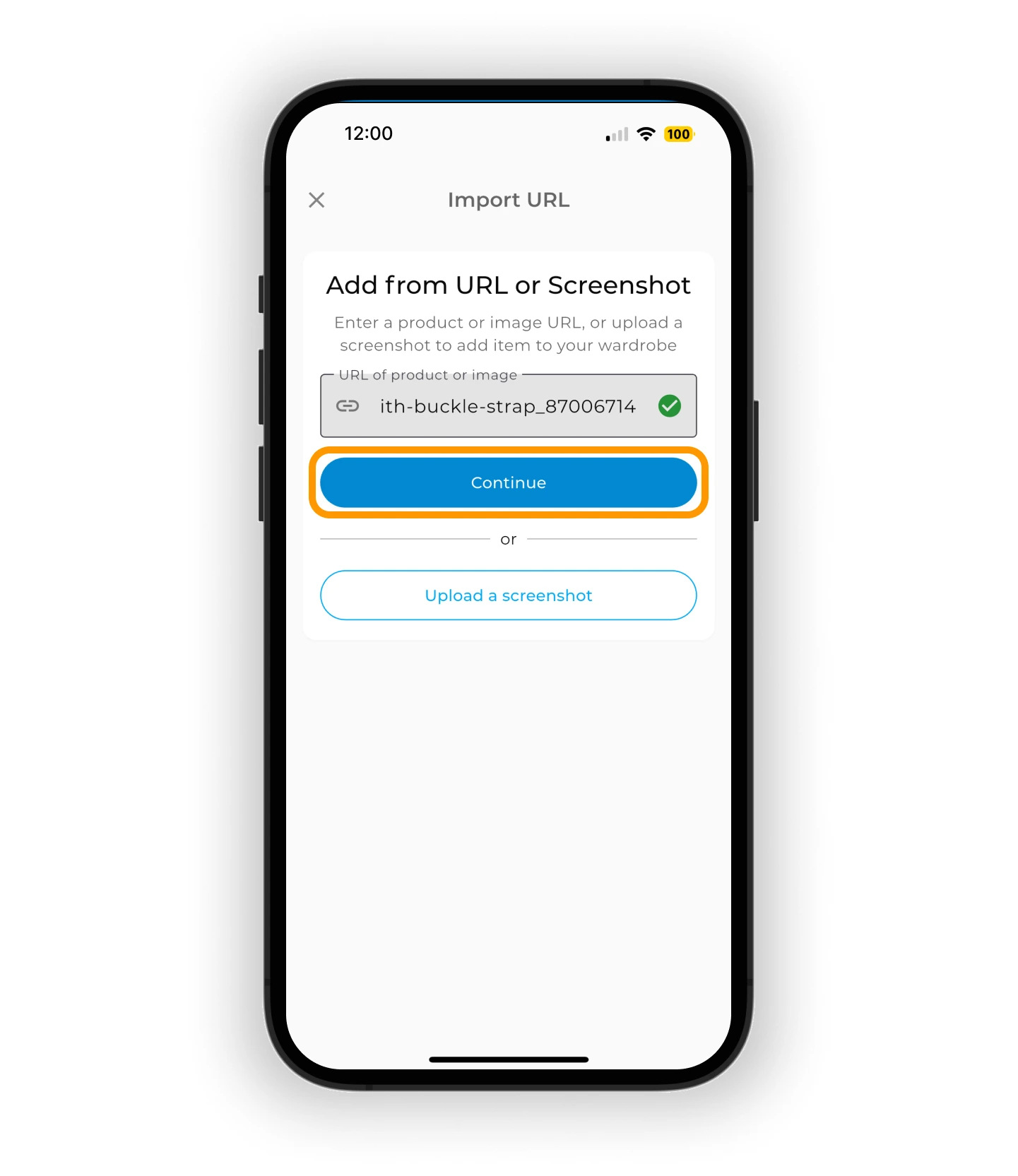
When the page loads:
- Tap "Take Screenshot"
- Or tap the product card preview (depending on how the site displays)
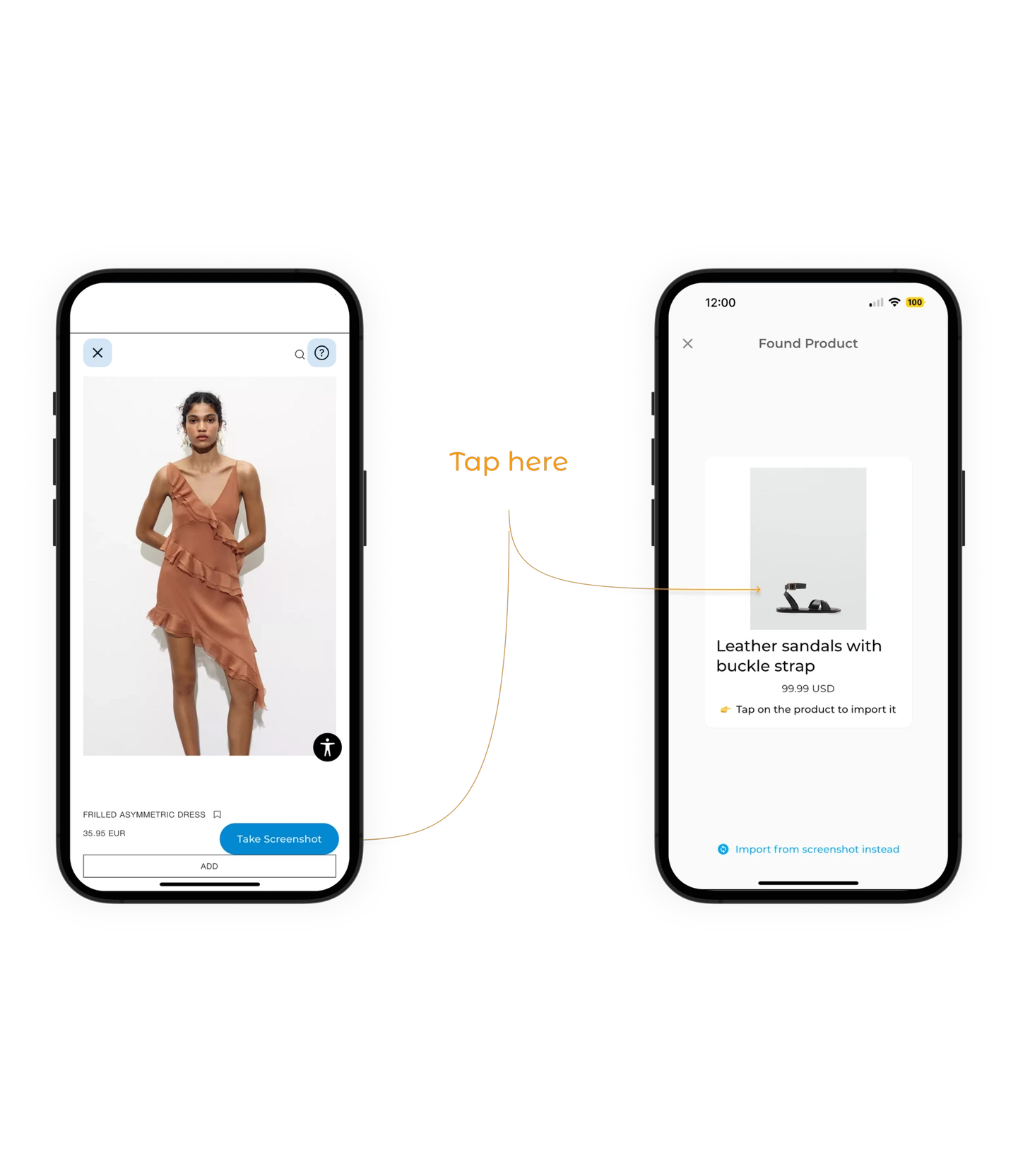
The app will extract:
- Background-free product image
- Category, color, and title
- Price, brand, and a direct link (if available)
Tip
💡 You can also add items from online stores by tapping the "Share" icon on a product page in your browser or shopping app, then selecting GetWardrobe from the list of apps. The app will automatically extract the same product details as when you paste a link.
Upload a screenshot
- Take a screenshot of a product page from an online store on your device
- Tap "Upload a Screenshot"
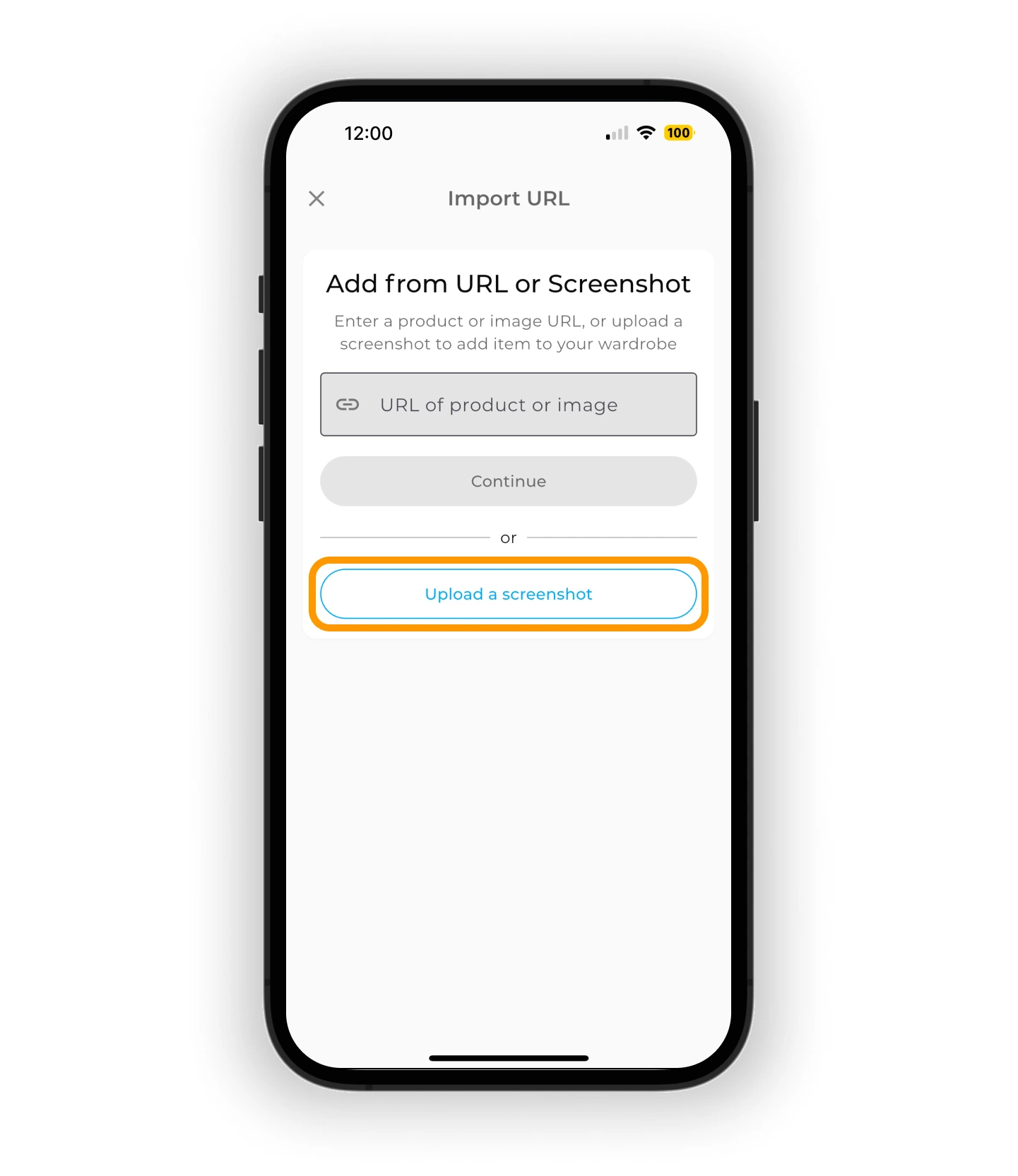
Tap "Save" to add the item to your wardrobe.
What's next
Your clothes have been added to your virtual wardrobe. Now you can:
- Create and plan outfits
- Organize by category, season, or tags
- Track the total value of your wardrobe
- Discover what you wear most often — and what you don't
FAQ
Can I add items without a photo?
The app works best with photos since it auto-detects category and color. However, you can add a sketch or placeholder and update it later.
What happens to the background when I add an item?
GetWardrobe automatically removes the background from your photo. You can switch removal modes or manually adjust edges if needed.
Can I bulk edit all items I just added?
Yes. After uploading multiple items, tap the edit icon and select all items to change category, brand, tags, or family member assignments together.
Need help?
Contact us at support@getwardrobe.com