Use GetWardrobe with ChatGPT
GetWardrobe connects to ChatGPT, OpenAI's AI assistant, so you can talk about your clothes in plain language. ChatGPT reads your real items, outfits and calendar and answers from them: what you own, what you haven't worn lately, or what to pack for a trip. With Premium, ChatGPT can also save outfits, plan days and tidy up your wardrobe for you.
- You add GetWardrobe to ChatGPT yourself as a custom MCP server. It isn't in the ChatGPT Plugins directory yet.
- You sign in to GetWardrobe and approve the connection yourself.
- ChatGPT only sees your wardrobe while you chat with it, and only what it needs for your request.
- You can disconnect at any time.
- The connection uses the GetWardrobe connector, a remote MCP server at
https://app.getwardrobe.com/mcp.
What you need
- A GetWardrobe account with some items in it. If you're new, add a few items in the app first.
- ChatGPT on the web (chatgpt.com) with Add custom MCP server under Plugins > Add. If you don't see it, your plan or workspace may not allow custom servers yet. See OpenAI's guide Developer mode and custom apps in ChatGPT.
- GetWardrobe Premium if you want ChatGPT to make changes. Asking questions is free.
What ChatGPT can do
| Free account | Premium | |
|---|---|---|
| Browse and search your items, with filters by category, color, season and tags | Yes | Yes |
| Read item details, including how often and when you last wore an item | Yes | Yes |
| Browse your outfits and see outfit and item pictures | Yes | Yes |
| Read your calendar: what you wore and what you planned | Yes | Yes |
| See archived items and outfits | No | Yes |
| Create, edit and delete outfits | No | Yes |
| Edit item details: name, brand, category, tags, seasons, price, notes | No | Yes |
| Change tags, seasons and other details on many items at once | No | Yes |
| Archive items and outfits, or restore them from the archive | No | Yes |
| Plan outfits on your calendar or log what you wore | No | Yes |
ChatGPT can't add new items, delete items, change item photos, or use AI Studio, Virtual Try-On or Enhance Item Photo. Do those in the GetWardrobe app.
Connect GetWardrobe to ChatGPT
Do this once in ChatGPT on the web.
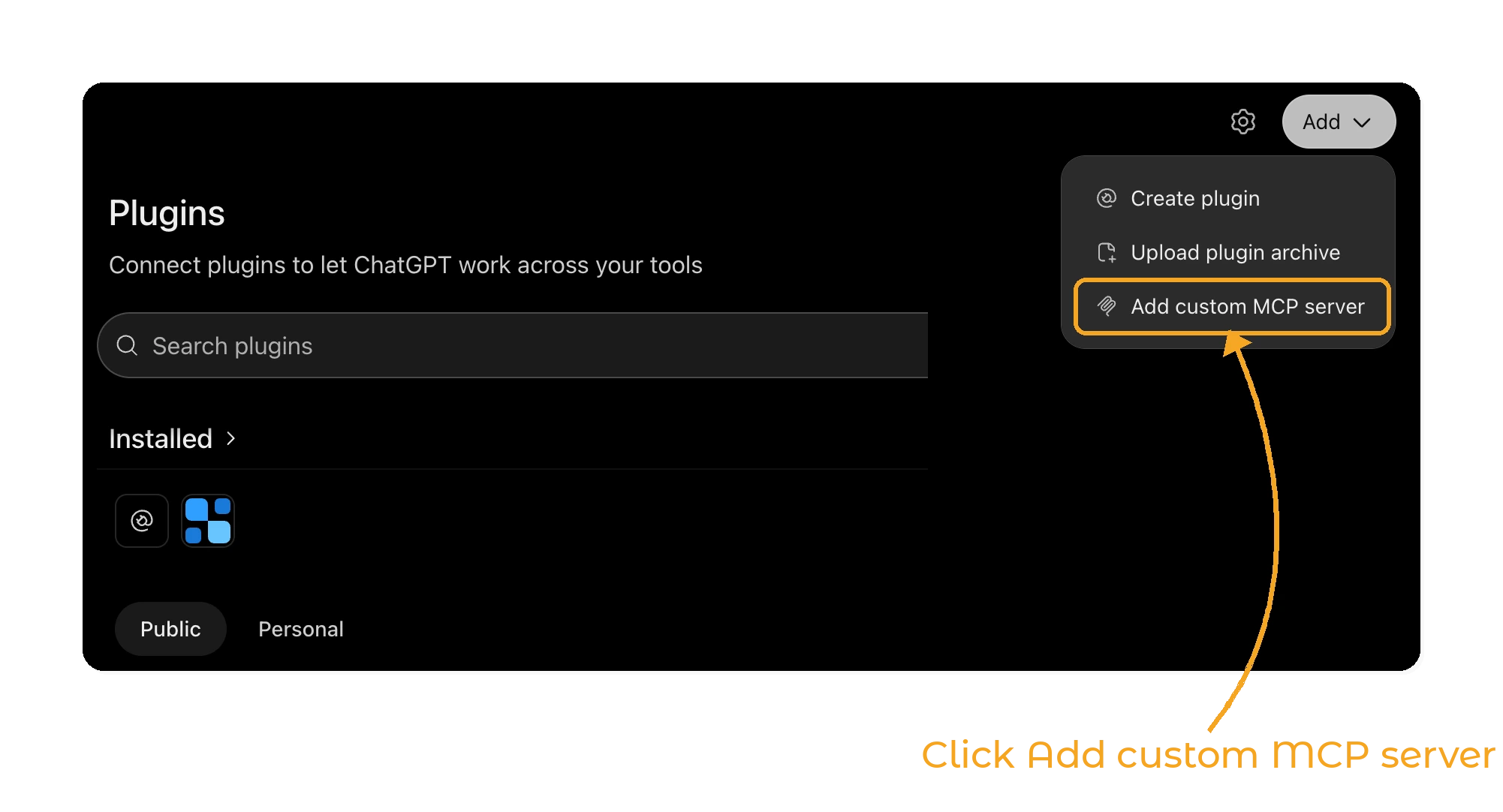
In ChatGPT, open Plugins in the sidebar. Click Add and choose Add custom MCP server.
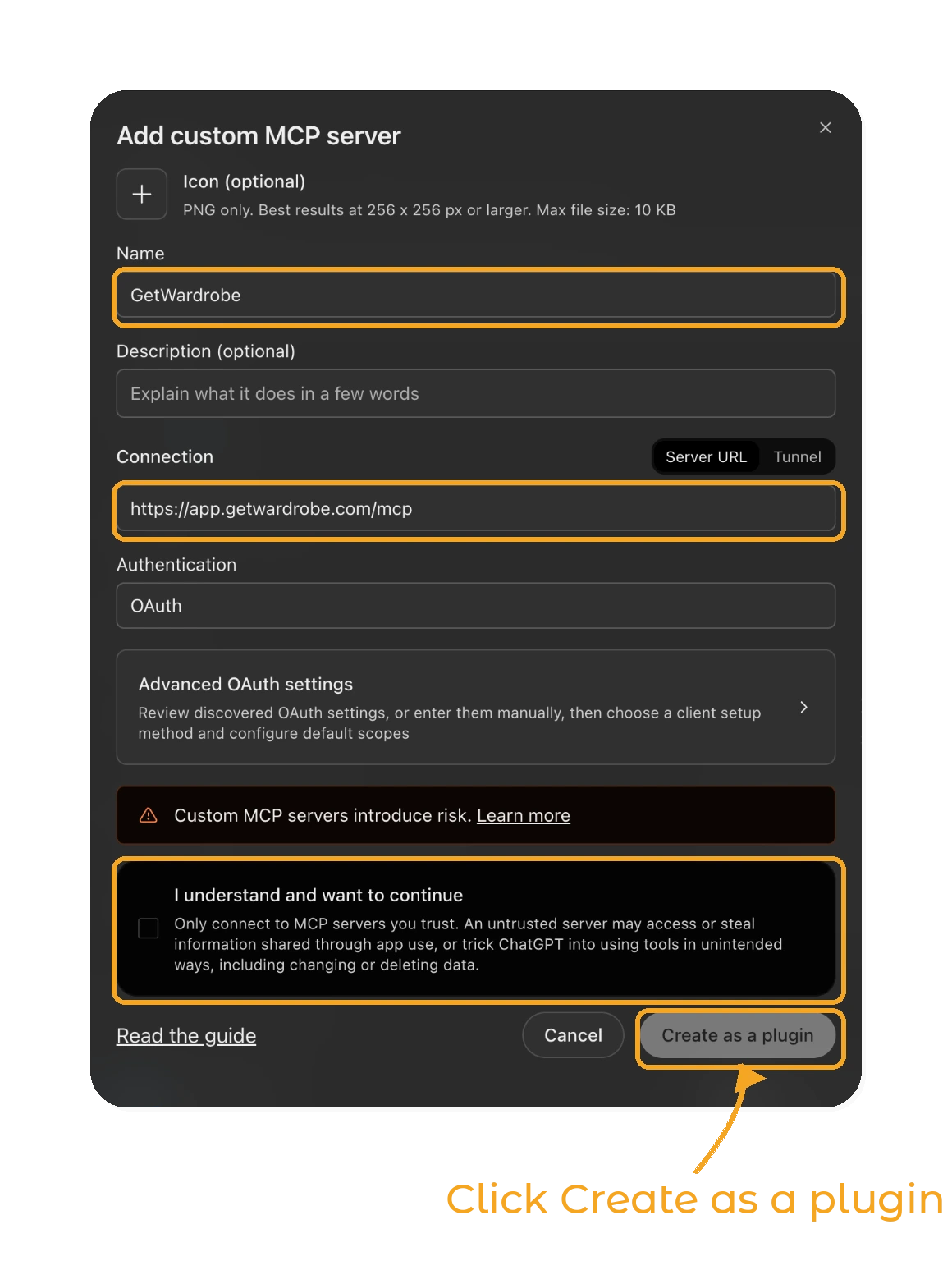
Enter GetWardrobe as the Name and https://app.getwardrobe.com/mcp under Connection (Server URL). Leave Authentication set to OAuth. Read the warning, tick I understand and want to continue and click Create as a plugin.
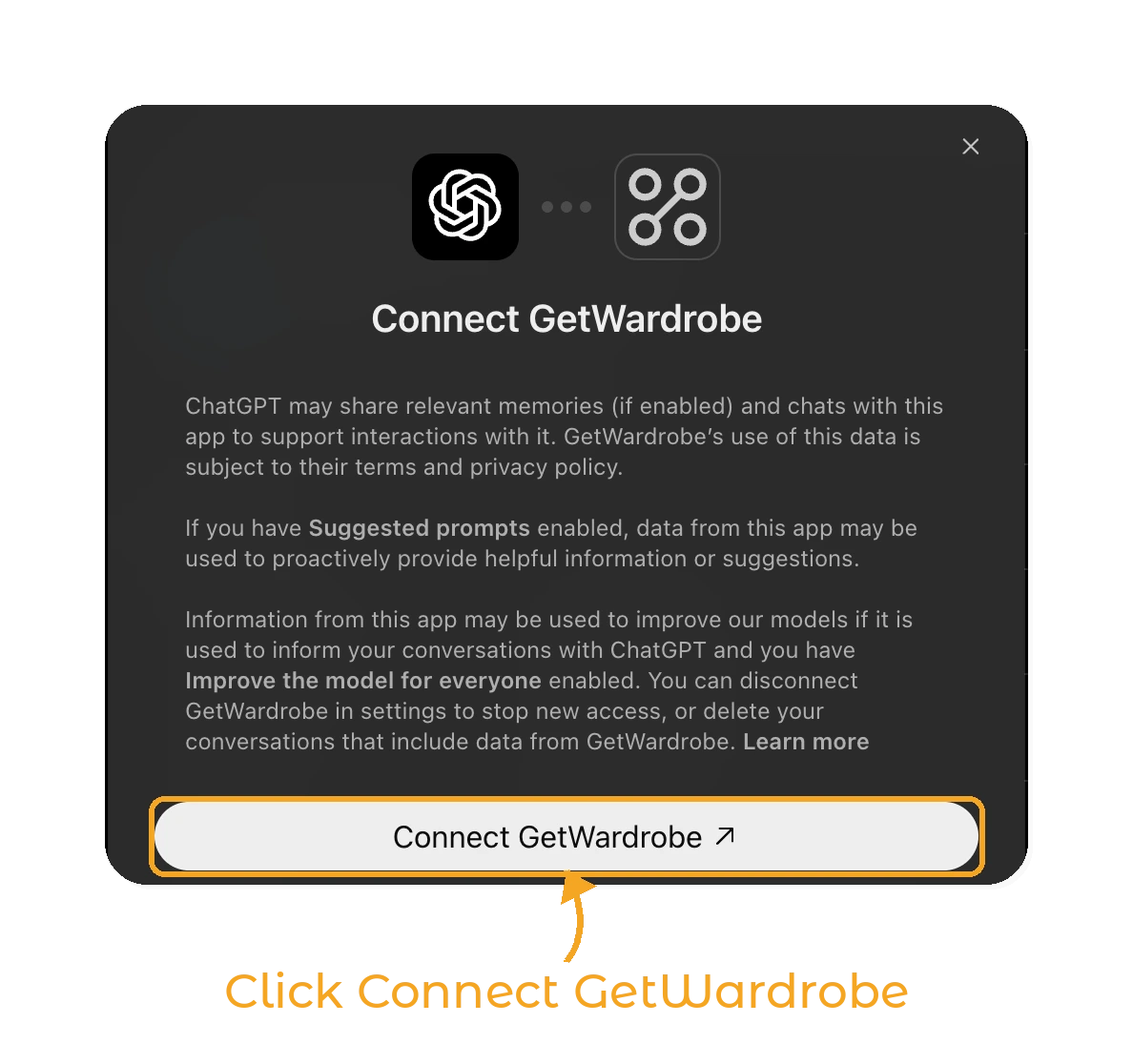
ChatGPT asks you to connect GetWardrobe and explains what it may share with the plugin. Click Connect GetWardrobe. A GetWardrobe sign-in page opens.
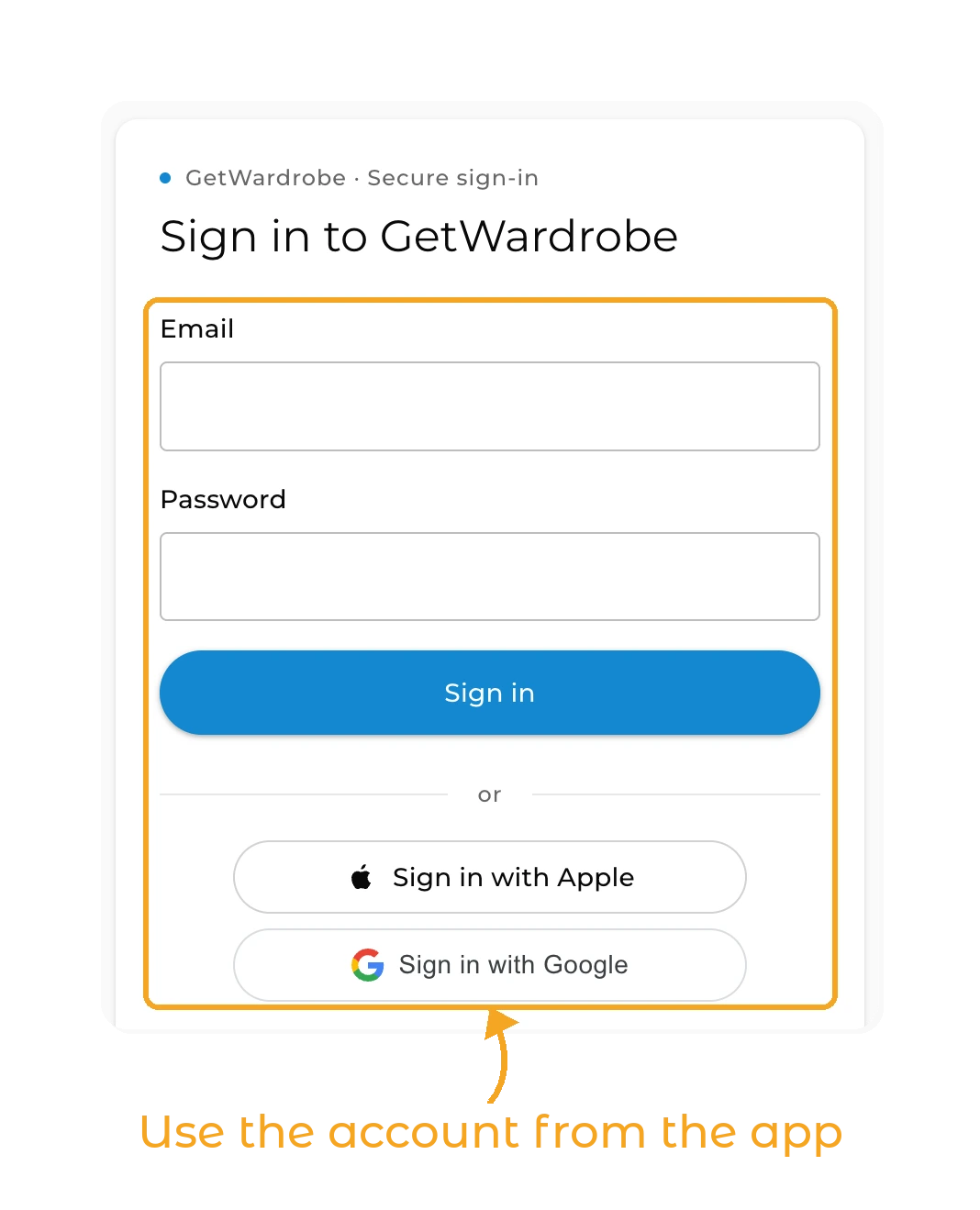
Sign in with the account you use in the GetWardrobe app: email and password, Sign in with Apple or Sign in with Google. If you're already signed in to the GetWardrobe web app, this step is skipped.
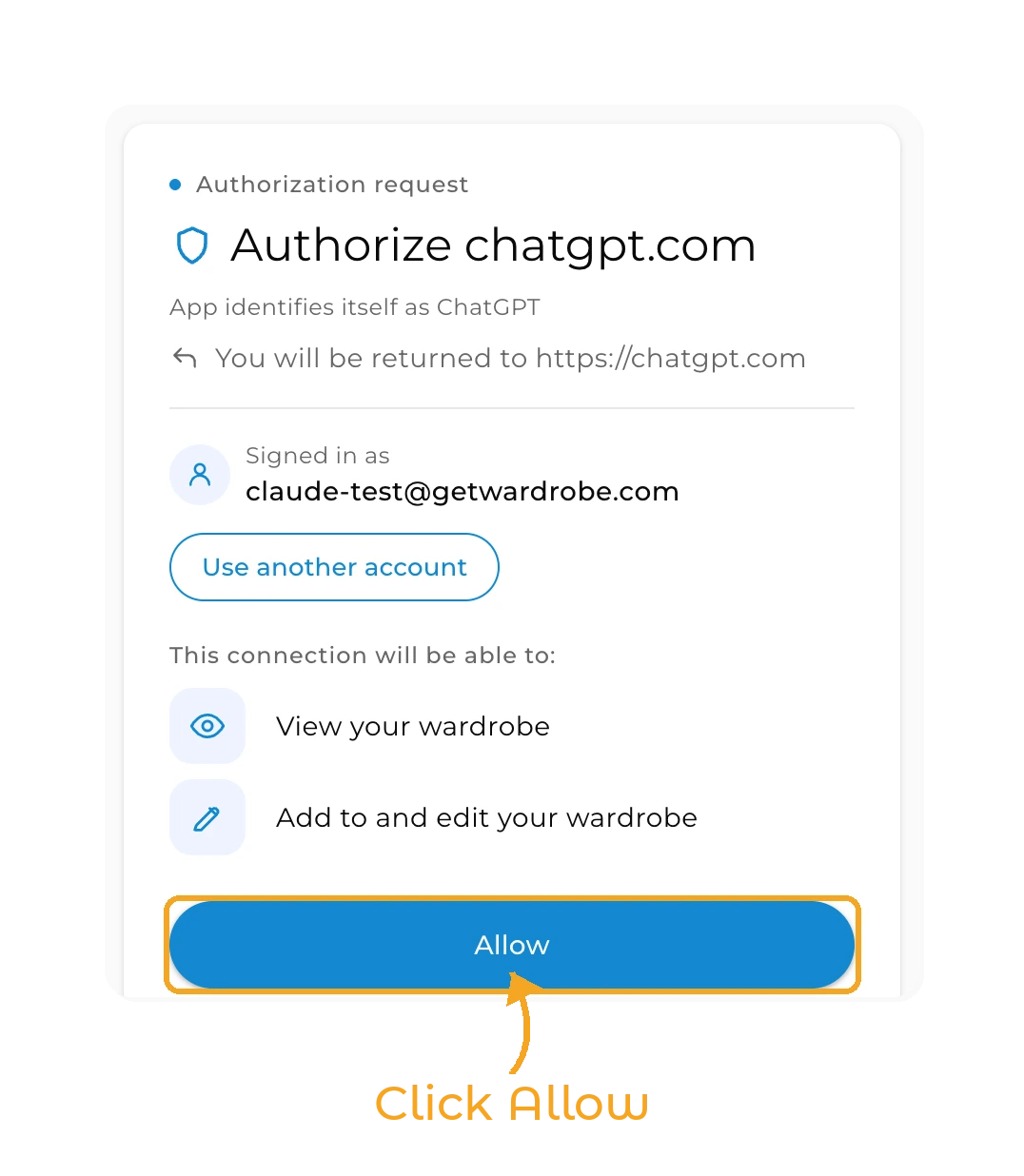
The GetWardrobe page shows which account you're signed in as and what the connection will be able to do: view your wardrobe, and add to and edit it. If it's the wrong account, click Use another account and sign in again. Then click Allow.
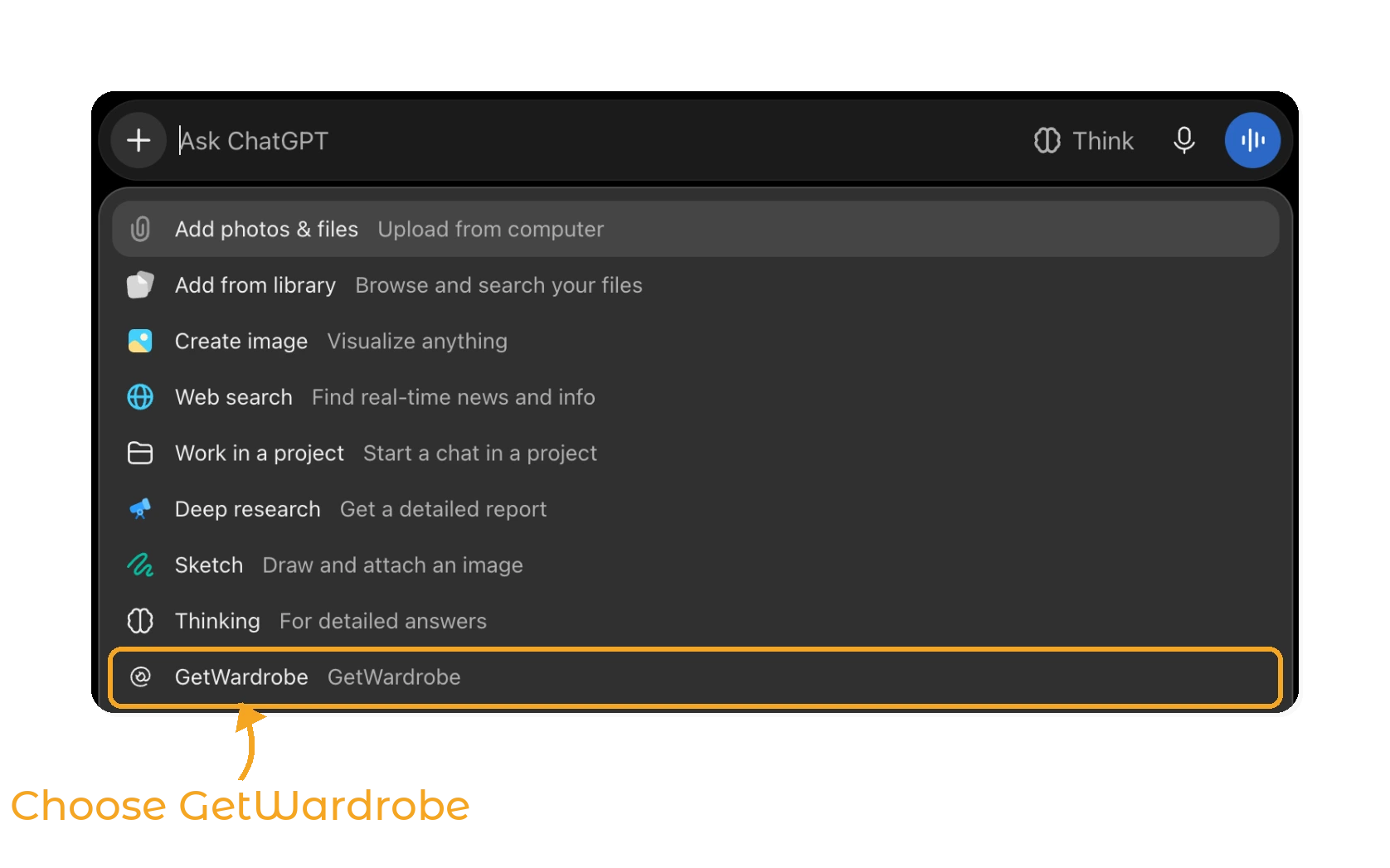
You're returned to ChatGPT. To use GetWardrobe in a chat, open the + menu and choose GetWardrobe, or type @GetWardrobe.
Things to ask ChatGPT
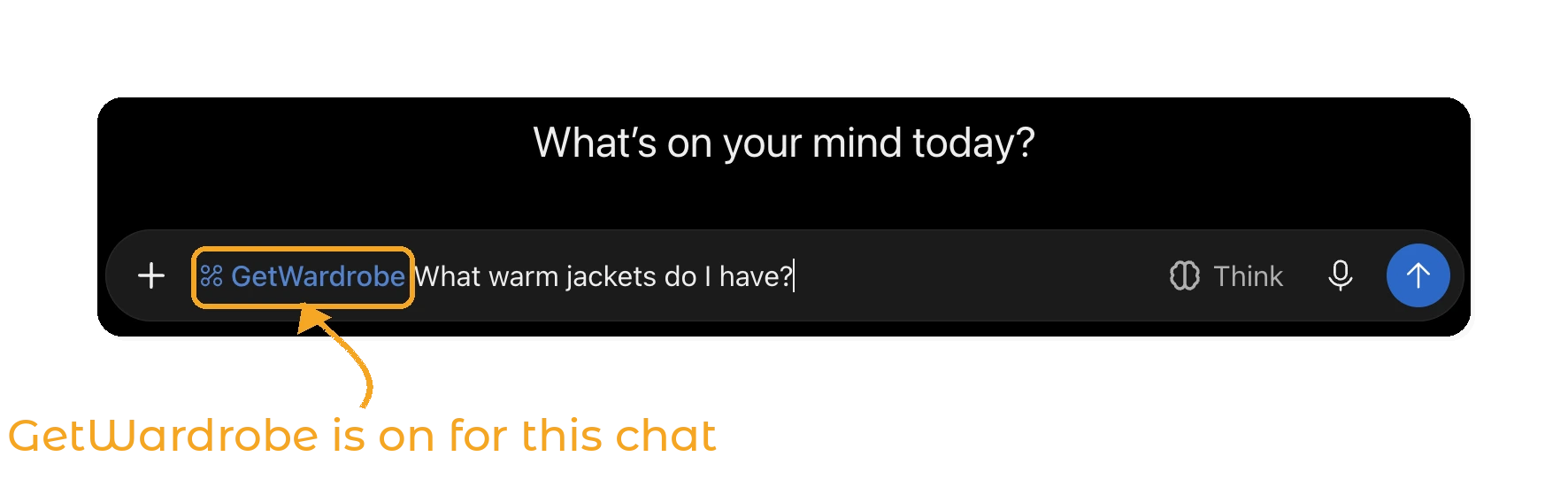
Choose GetWardrobe in the chat, then ask in your own words and in your own language.
Some ideas:
- "What warm jackets do I have?"
- "Which items haven't I worn in the last three months?"
- "What did I wear last week?"
- "Suggest an outfit for a rainy office day from my outfits."
- "I'm going to Lisbon from 12 to 16 November. Plan an outfit for each day and make a packing list from my clothes."
- "Find items that look like duplicates."
- "Save the outfit you just suggested as 'Friday dinner'." (Premium)
- "Plan my 'Office navy' outfit for Monday." (Premium)
- "Add the tag 'summer' to all my linen shirts." (Premium)
- "Archive the items tagged 'to sell'." (Premium)
You decide what ChatGPT can change
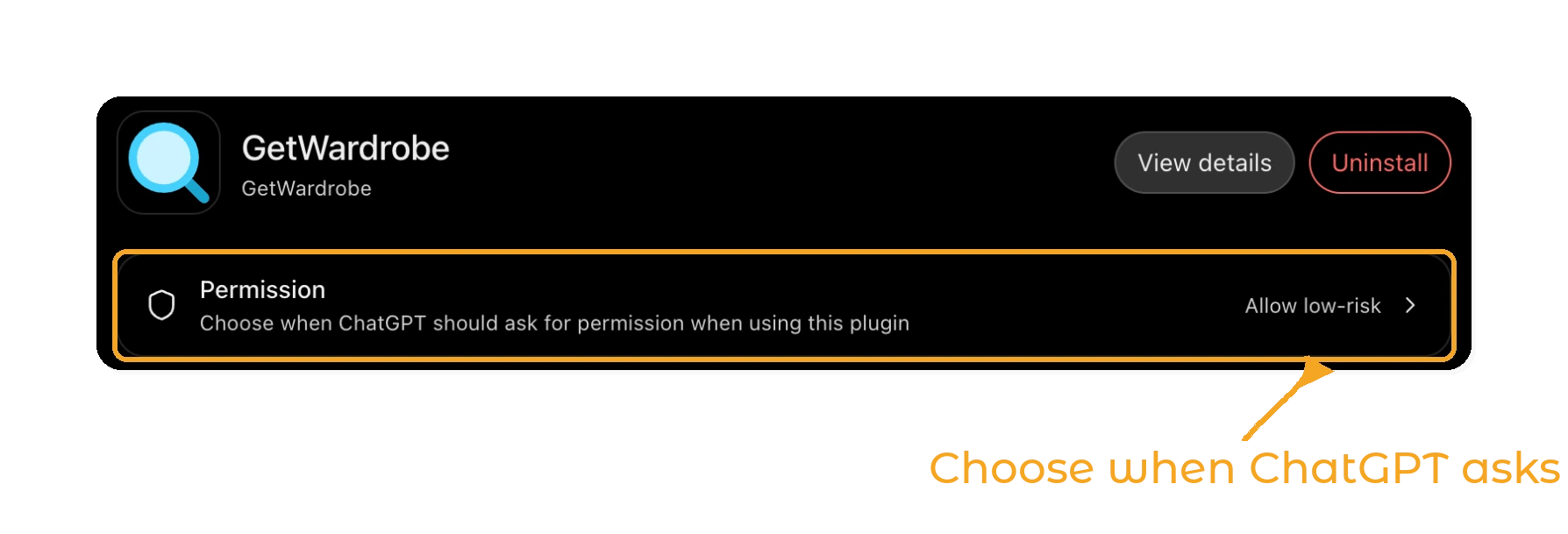
Each change ChatGPT makes in your wardrobe is a separate request to GetWardrobe. You decide how ChatGPT handles them: in Settings > Plugins > GetWardrobe, open Permission and choose:
- Always ask: ChatGPT asks before it reads or changes anything.
- Allow read-only tools: ChatGPT reads your wardrobe without asking, but asks before it makes a change.
- Allow low-risk tools: ChatGPT approves low-risk tools on its own.
Choose Allow read-only tools if you want to confirm every change. When ChatGPT asks, check the request before you approve it.
A few things are good to know:
- Changes sync to the GetWardrobe app on all your devices, the same way edits made in the app do.
- When ChatGPT changes the items in an outfit, the outfit's layout is rebuilt. Positions you set in the Outfit Editor, and any text or color tiles, are reset.
- When ChatGPT logs today's outfit, it can also appear in your Community feed, the same way it does when you log it in the app.
- Deleting an outfit also removes it from your feed and from every calendar day. Your items stay.
- If you use Family Wardrobe, ChatGPT sees your family members' items too and knows whose wardrobe each item is in. When ChatGPT plans or logs a day for one person, the other family members' outfits on that day stay as they are.
Disconnect GetWardrobe
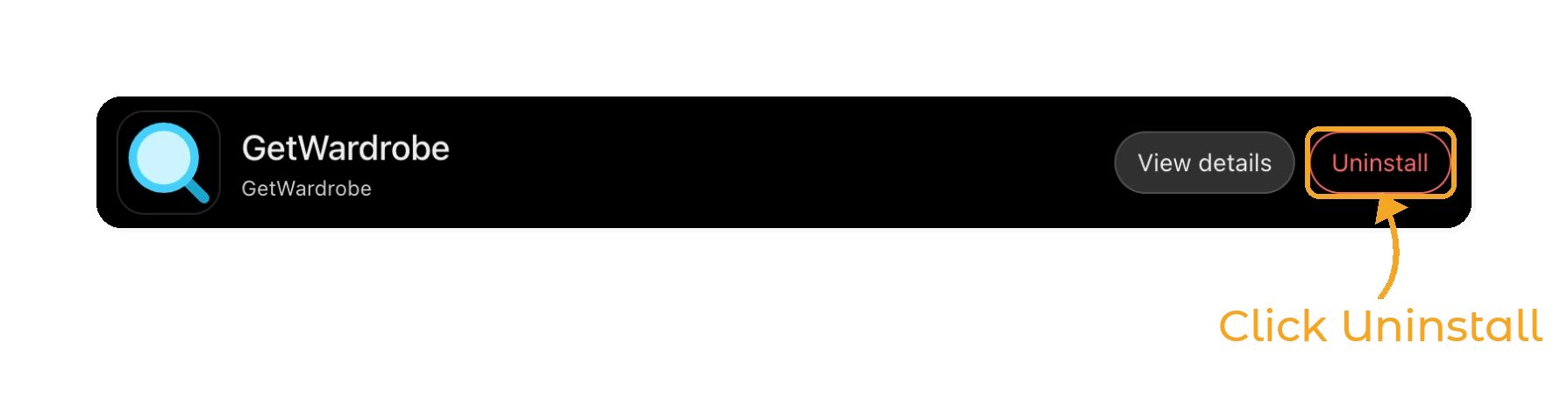
In ChatGPT, go to Settings > Plugins, open GetWardrobe and click Uninstall.
Your GetWardrobe account also ends the connection when:
- you change or reset your GetWardrobe password,
- you delete your GetWardrobe account,
- the connection isn't used for 90 days. Connect GetWardrobe in ChatGPT again to sign in.
Signing out of the GetWardrobe app does not disconnect ChatGPT.
Privacy
- GetWardrobe sends data to ChatGPT only when ChatGPT asks for it during a chat you started. ChatGPT asks only for what your request needs, and item and outfit pictures only when you want to see them.
- What ChatGPT receives is processed by OpenAI under your ChatGPT account's terms and OpenAI's privacy policy. The Connect GetWardrobe window in ChatGPT explains how ChatGPT uses data from plugins.
- GetWardrobe doesn't receive your chat. We keep a technical log of which tools were used, for security and support.
- Locations saved with your calendar days are never shared with ChatGPT.
Read the full GetWardrobe Privacy Policy.
Troubleshooting
I don't see Add custom MCP server. Your ChatGPT plan or workspace may not allow custom servers yet, or you may need to turn on developer mode. See OpenAI's guide Developer mode and custom apps in ChatGPT. In a work or school workspace, ask your admin.
ChatGPT doesn't use GetWardrobe. Choose GetWardrobe in the chat's + menu or type @GetWardrobe before your question.
ChatGPT says Premium is required, or that it can't make changes. Changes need GetWardrobe Premium. If you just subscribed, wait up to 10 minutes and ask again.
ChatGPT says my wardrobe is empty. Make sure you signed in with the same account you use in the app. In ChatGPT, uninstall GetWardrobe and add it again. On the GetWardrobe page, check the Signed in as line. If it shows the wrong account, click Use another account and sign in with the right one.
The GetWardrobe page says the sign-in session expired. The sign-in link expired or was opened in a different browser. Go back to ChatGPT and connect GetWardrobe again.
"Connection wasn't completed" in ChatGPT. You clicked Cancel on the GetWardrobe page or closed it. Connect again and click Allow.
ChatGPT stops for a moment and says it's waiting. GetWardrobe limits how many requests ChatGPT can make in a few minutes. Wait a minute and ask again.
FAQ
Q: Do I need GetWardrobe Premium to use ChatGPT?
No. Any GetWardrobe account can connect and ask ChatGPT about its items, outfits and calendar. Creating or changing anything from ChatGPT, and seeing the archive, needs Premium.
Q: Is GetWardrobe in the ChatGPT Plugins directory?
Not yet. For now, you add GetWardrobe to ChatGPT yourself as a custom MCP server with the address https://app.getwardrobe.com/mcp.
Q: Why does ChatGPT say custom MCP servers introduce risk?
ChatGPT shows this warning for every server it hasn't reviewed. The GetWardrobe server is run by GetWardrobe at app.getwardrobe.com. Use only that exact address.
Q: Can ChatGPT add new items to my wardrobe?
No. Items are added in the GetWardrobe app, where photos are processed. ChatGPT can edit the details of items you already have if you have Premium.
Q: How do I disconnect GetWardrobe from ChatGPT?
In ChatGPT, go to Settings > Plugins, open GetWardrobe and click Uninstall. Changing your GetWardrobe password also ends the connection.
Q: Does GetWardrobe see my conversations with ChatGPT?
No. GetWardrobe only receives the requests ChatGPT makes to read or change your wardrobe, such as listing your jackets or saving an outfit. Your chat stays in ChatGPT.
Q: I upgraded to Premium but ChatGPT still says Premium is required. Why?
Your new subscription can take up to 10 minutes to reach the connector. Wait a few minutes and ask ChatGPT to try again. You don't need to reconnect.
Q: Does GetWardrobe work with Claude too?
Yes. GetWardrobe is listed in the Claude Connectors Directory. See Use GetWardrobe with Claude.
Need help?
Contact us at support@getwardrobe.com