Getting Started with GetWardrobe
If you've just installed GetWardrobe and aren't sure where to begin, this guide will help you get up and running quickly.
GetWardrobe works with your own wardrobe. The app doesn't include a built-in clothing catalog — first you add your own items, then you create outfits from them, plan what to wear, and see what you actually wear.
Why use GetWardrobe?
GetWardrobe helps you get more from the wardrobe you already own. You'll wear your favorite pieces more often, discover new combinations with clothes you've forgotten about, and shop more intentionally by buying only what your wardrobe actually needs.
Over time, your wardrobe stops feeling like a daily "What should I wear?" problem and becomes an organized system where every piece has a purpose.
The easiest way to start is to add a few items, open AI Studio, and create your first outfit. Within a few minutes you'll already understand how the app works, and you can keep adding items as you go.
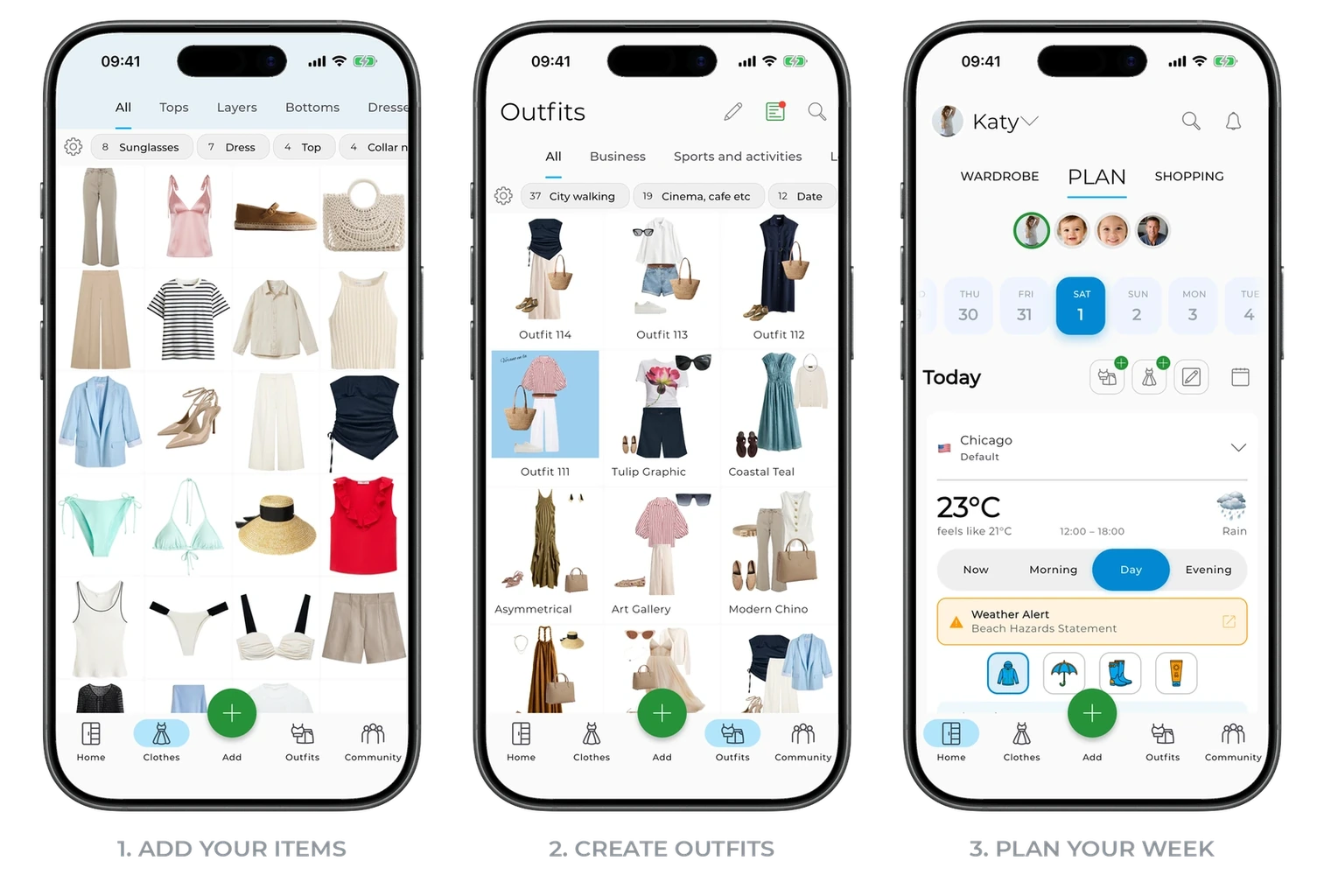
In this article:
Step 1. Add your first items
It all starts with adding a few items to your digital wardrobe. These are the items you and GetWardrobe AI will use to create outfits and discover new combinations.
Tap the green "+" button and choose "Items".
You can add clothes in several ways:
- take a photo;
- pick photos from your gallery;
- upload images from files;
- import items straight from a store website.
Choose whichever suits you best.
You don't have to photograph every item yourself. If you recently bought an item and it's still listed in an online store, just paste the link — GetWardrobe will add the photo, name, brand, price, and other details automatically. You can also use photos you already have in your gallery or saved images.
After you add a photo, GetWardrobe removes the background and identifies the item's category, color, and status. In most cases nothing else is needed.
And if you want your wardrobe to look like a tidy catalog, you can enhance the item photo. The app makes it cleaner and neater — more like a product photo from an online store.
Tip
Don't try to add your whole wardrobe at once. 10–15 items are plenty to begin with. The simplest place to start is the clothes you're wearing today.
You can use all the core features of GetWardrobe for free. A subscription unlocks extra features, but you don't need one to get to know the app. The free plan lets you store up to 100 items and outfits — enough for most smaller wardrobes.
Step 2. Create your first outfit
Once your wardrobe has its first items, try creating an outfit. The app offers four ways to do it.
AI Generator Best when you want several outfits at once. AI generates 10, 20, or 30 outfits in a single generation from the items in your wardrobe, taking the season, weather, occasion, and your style notes into account. It works best once you have more than 20 items: the more items there are, the easier it is for AI to find good matches.
AI Studio Best when you want to create one outfit at a time and refine it step by step. You can start from one specific item and let AI pick the rest. AI Studio needs just 15 items.
Outfit Editor If you already know what you want to wear, pick the items and assemble the outfit yourself.
Combinations If you've already chosen one item and want to know what goes with it, use Combinations. AI suggests the items from your wardrobe that go best with the one you've chosen.
Tip
If you're only getting started, AI Studio is the easiest place to begin.
Step 3. Start planning
Once you've added items and created a few outfits, you can start using the app every day.
- Add outfits to the calendar to plan what to wear in advance.
- Use the weather forecast to pick clothes for the conditions ahead.
- Heading on a trip? Create a packing list and choose items based on your destination and travel dates.
The Outfit calendar shows what you plan to wear and when, along with the history of what you've already worn.
As you use the app, GetWardrobe keeps a wear history for your items and calculates cost per wear (CPW) — how much each wear costs. Over time you'll see which pieces really work in your wardrobe and which are barely used.
FAQ
What is the difference between Tops and Layers?
These are different clothing categories. T-shirts, shirts, and blouses belong to Tops, while blazers, cardigans, jackets, and outerwear belong to Layers. If you can't find an item, check the neighboring category.
What is the archive and when should you use it?
The archive moves items out of your active wardrobe without deleting them for good. It's handy for seasonal clothes, pieces you no longer wear, or items you're not ready to part with yet. Your wardrobe history stays intact, and you can restore archived items at any time. To restore an item, open the Archive section, select the item or outfit, and return it to your wardrobe.
Where do you find the archive?
The Archive section sits at the bottom of the home screen — it also shows how many items and outfits it holds.
Where are the packing lists I created?
Packing lists live on the Plan tab — scroll down to the Packing lists section. You can create a new one there too. See Packing Lists for details.
How do you find the items you wear most and least?
The sorting options on the Items screen help you understand your wardrobe better. Never Used shows items you have never worn, while Most Worn shows the clothes you use most often. The longer you use the app, the more useful these views become.
To set up sorting, open the Items screen and tap the gear icon above the grid.
What are tags for?
Tags let you create your own categories for items and outfits — for example "office", "vacation", "date", or "sport". This makes them easier to find and filter. See Edit Your Items and Create Occasions for details.
Why does AI not use some of my items?
AI only suggests combinations using items that work well together. If there aren't many suitable matches yet, some items may stay unused for a while. The more varied your wardrobe becomes in the app, the more options AI can offer.
If you have questions
If you're stuck or something isn't clear, write to us at support@getwardrobe.com — we will be glad to help.
What's next
You now know everything you need to start using GetWardrobe. Once you're comfortable with the first steps, explore the features that interest you most.
If you want to:
- add items to your wardrobe faster — open Add Items;
- explore every way to create outfits — read Outfit Creation Basics;
- learn to plan outfits, pack for trips, and create capsules — go to More Features;
- organize your wardrobe and find items faster — browse the Items section;
- digitize a large wardrobe quickly — read How to Digitize Your Wardrobe;
- understand how to organize your wardrobe and make smarter shopping decisions — read Basic Wardrobe.
Need help?
Contact us at support@getwardrobe.com