Cómo empezar en el modo estilista
El modo estilista te permite trabajar con los armarios de tus clientes directamente en GetWardrobe.
A continuación verás cómo configurar el modo estilista, añadir tu primer cliente y empezar a trabajar con su armario.
Cambiar al modo estilista
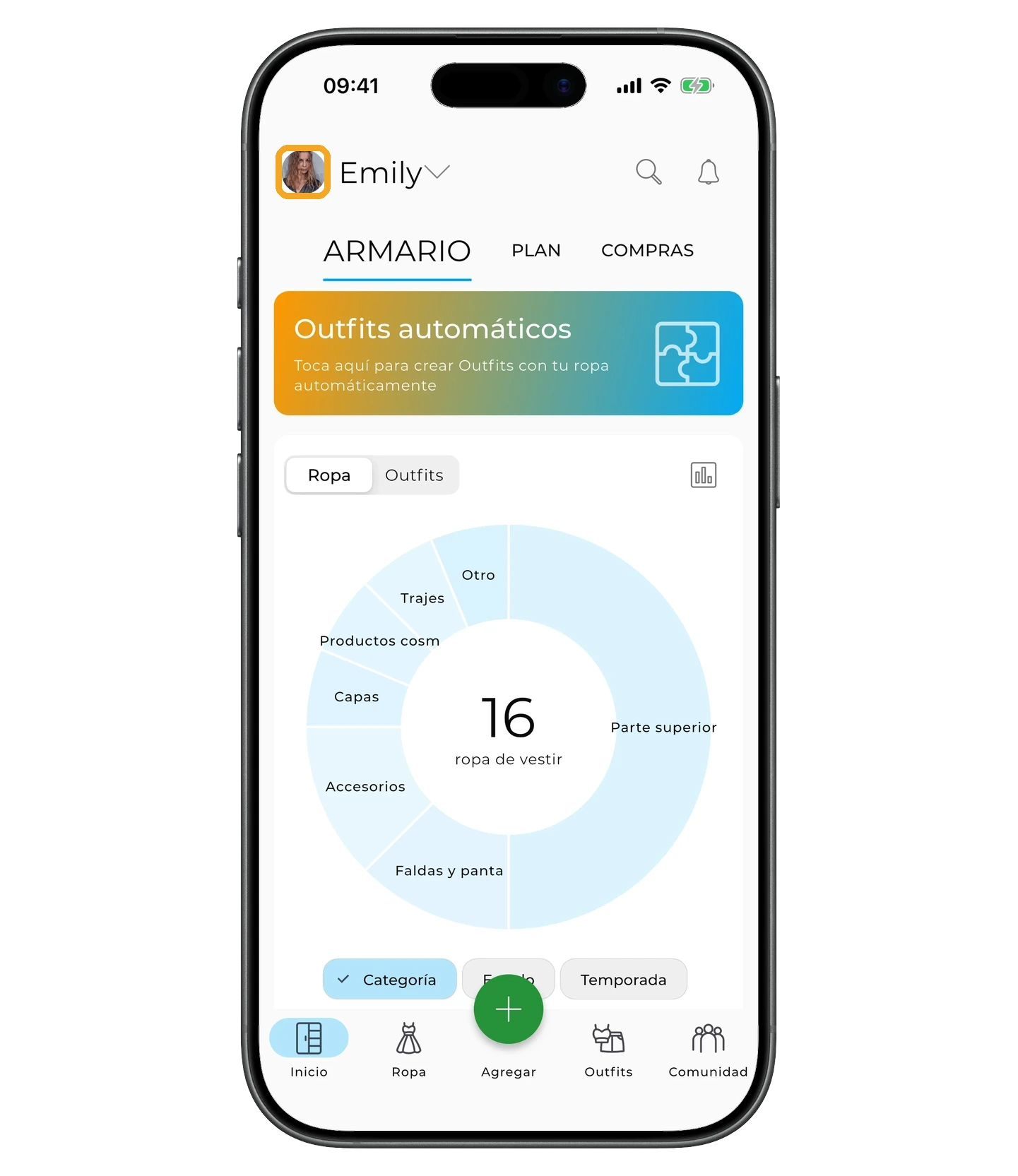
Toca tu avatar en la esquina superior izquierda de la pantalla principal.
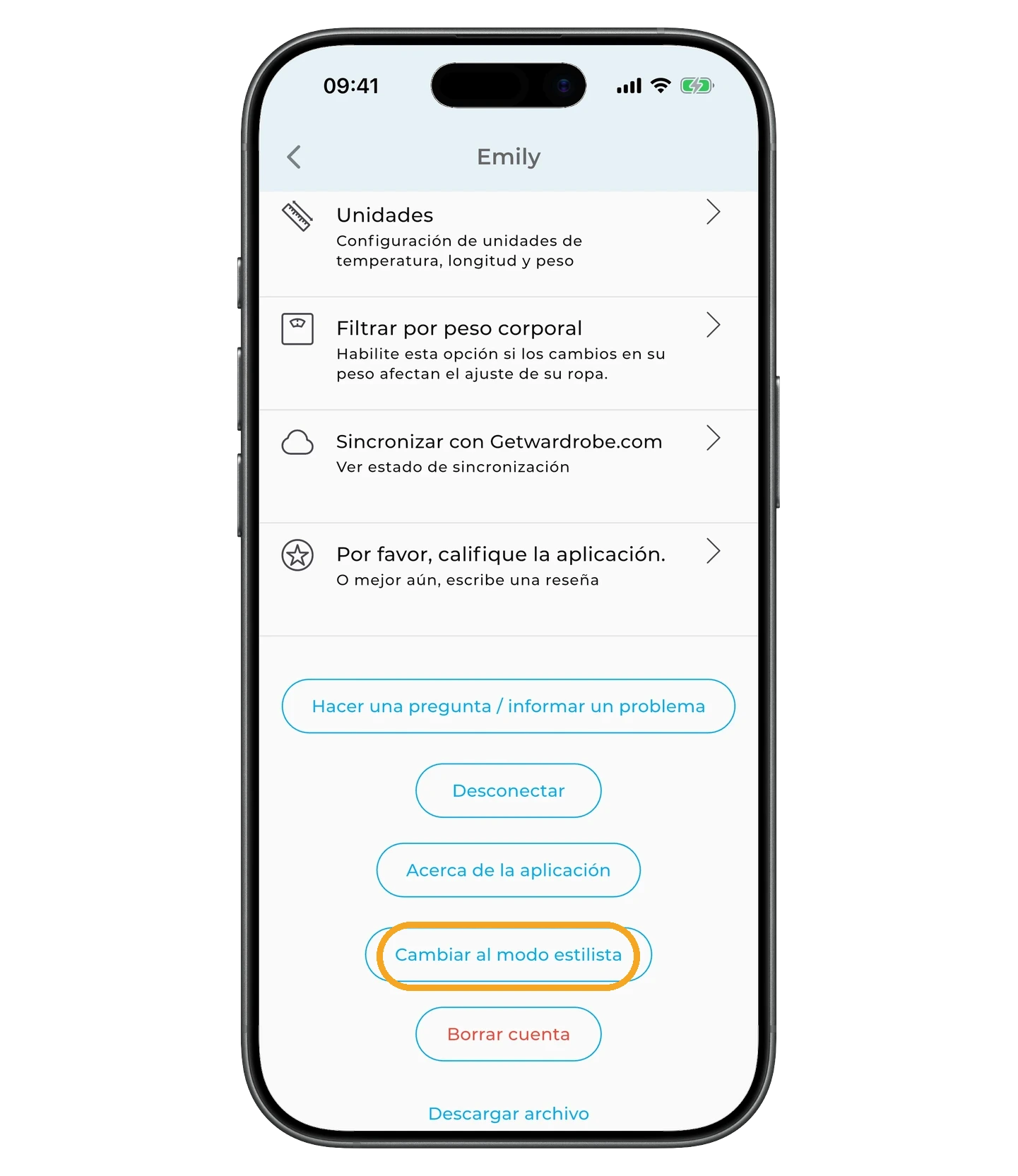
En Ajustes, desplázate hacia abajo y toca «Cambiar al modo estilista».
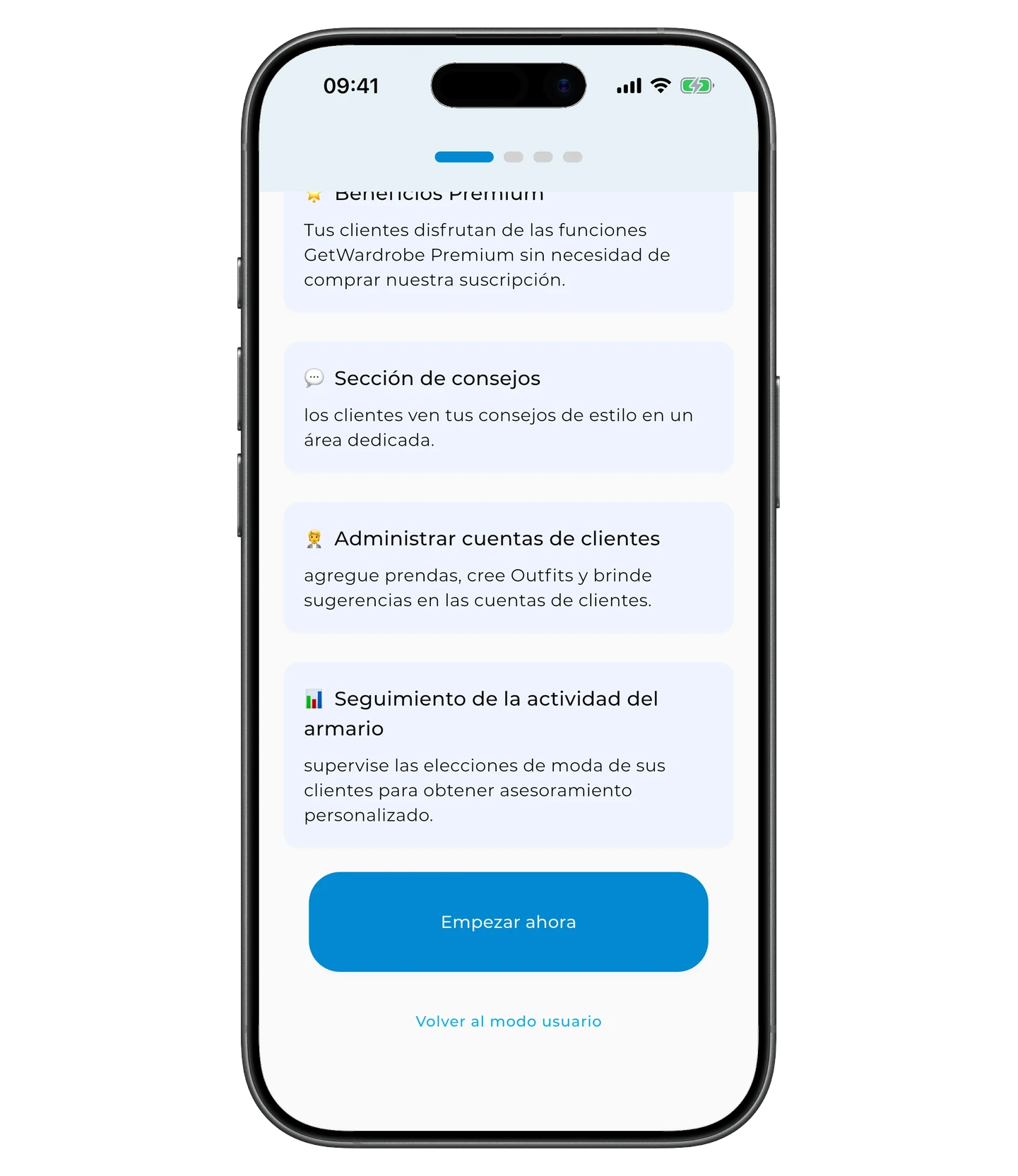
En la pantalla del modo estilista, desplázate hacia abajo y toca «Empezar ahora».
Configurar tu perfil
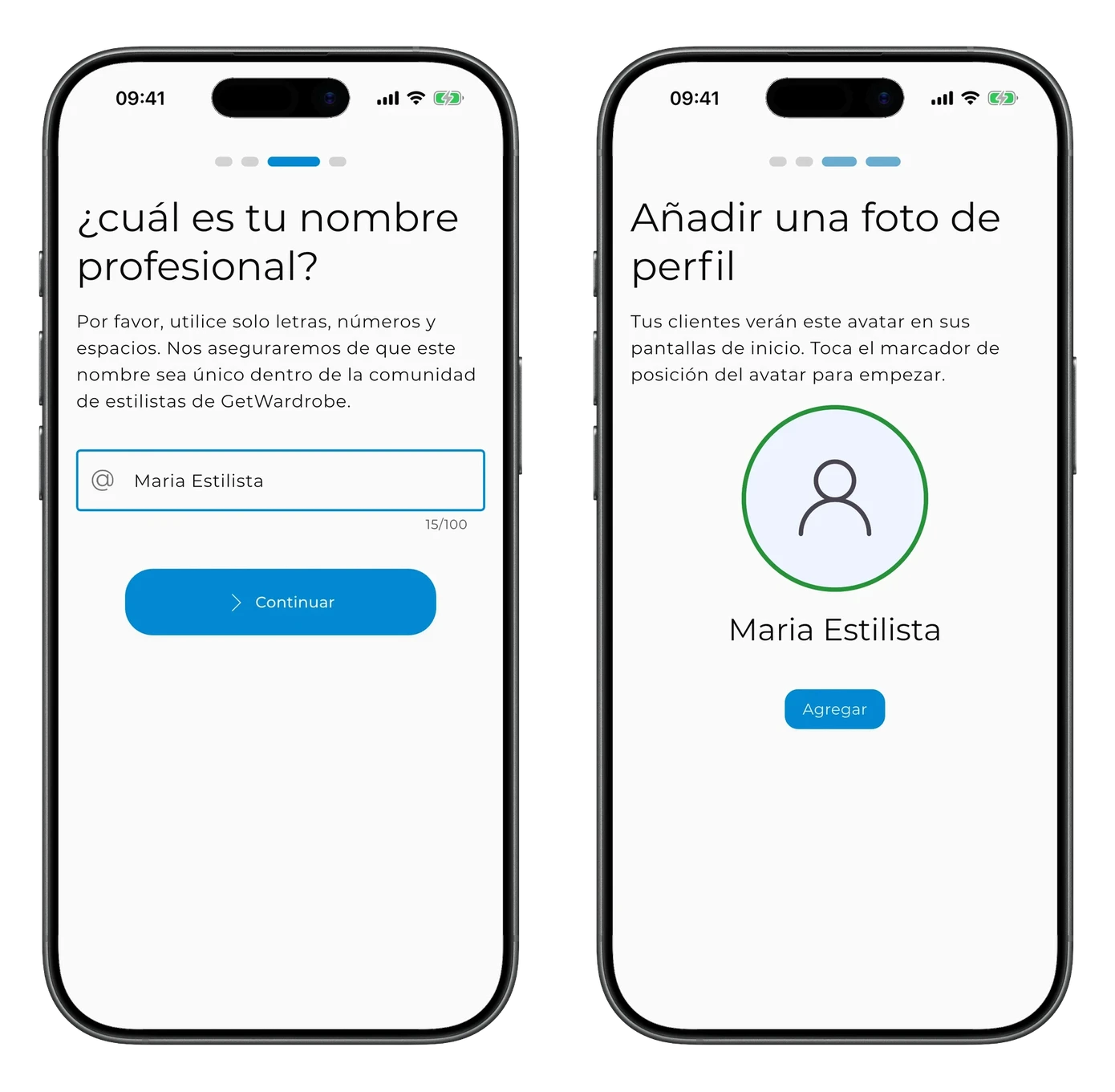
Introduce el nombre que verán tus clientes y toca «Continuar». En la siguiente pantalla, añade una foto de perfil y toca «Continuar».
Después aparece una pantalla donde puedes añadir tu primer cliente.
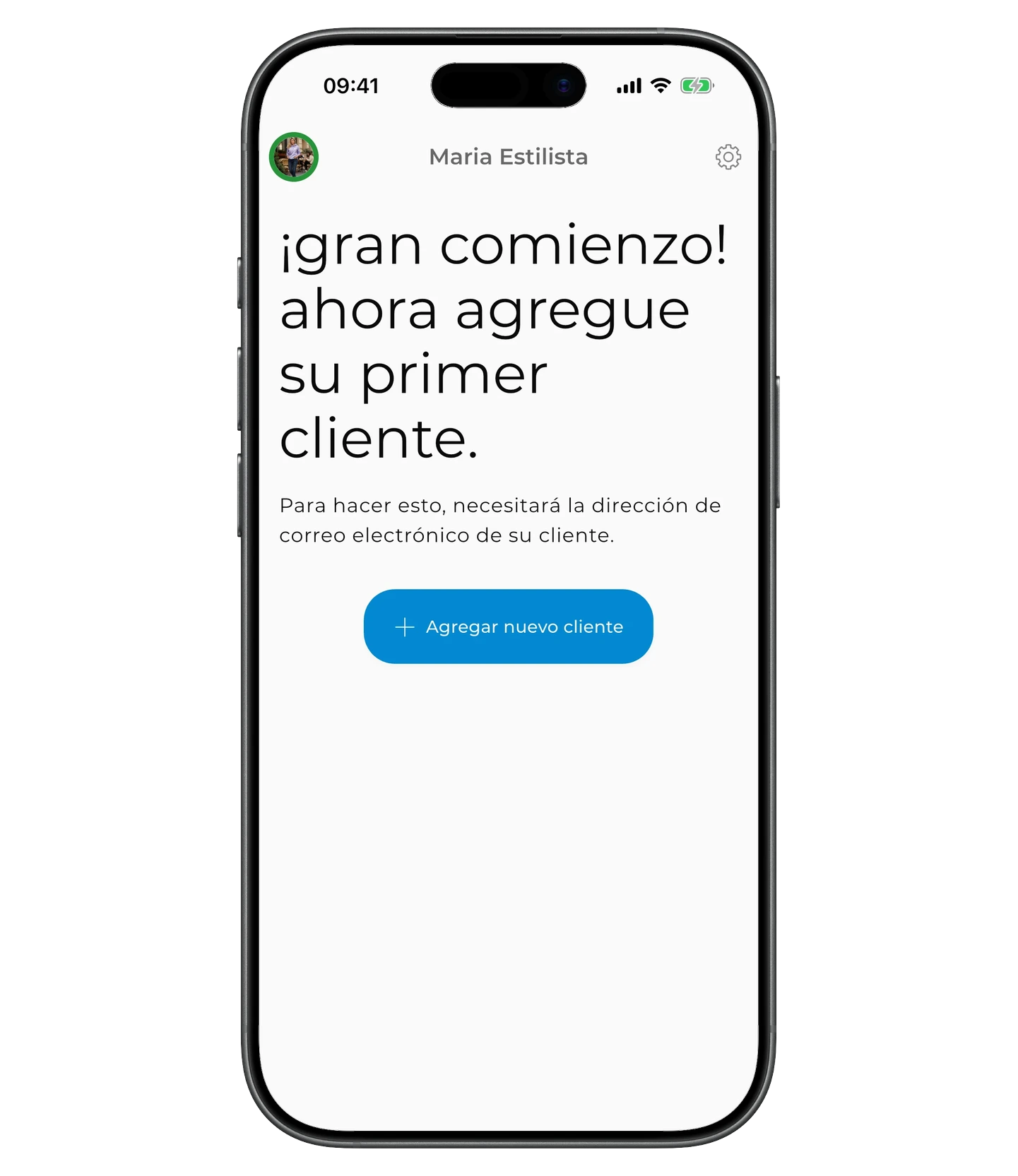
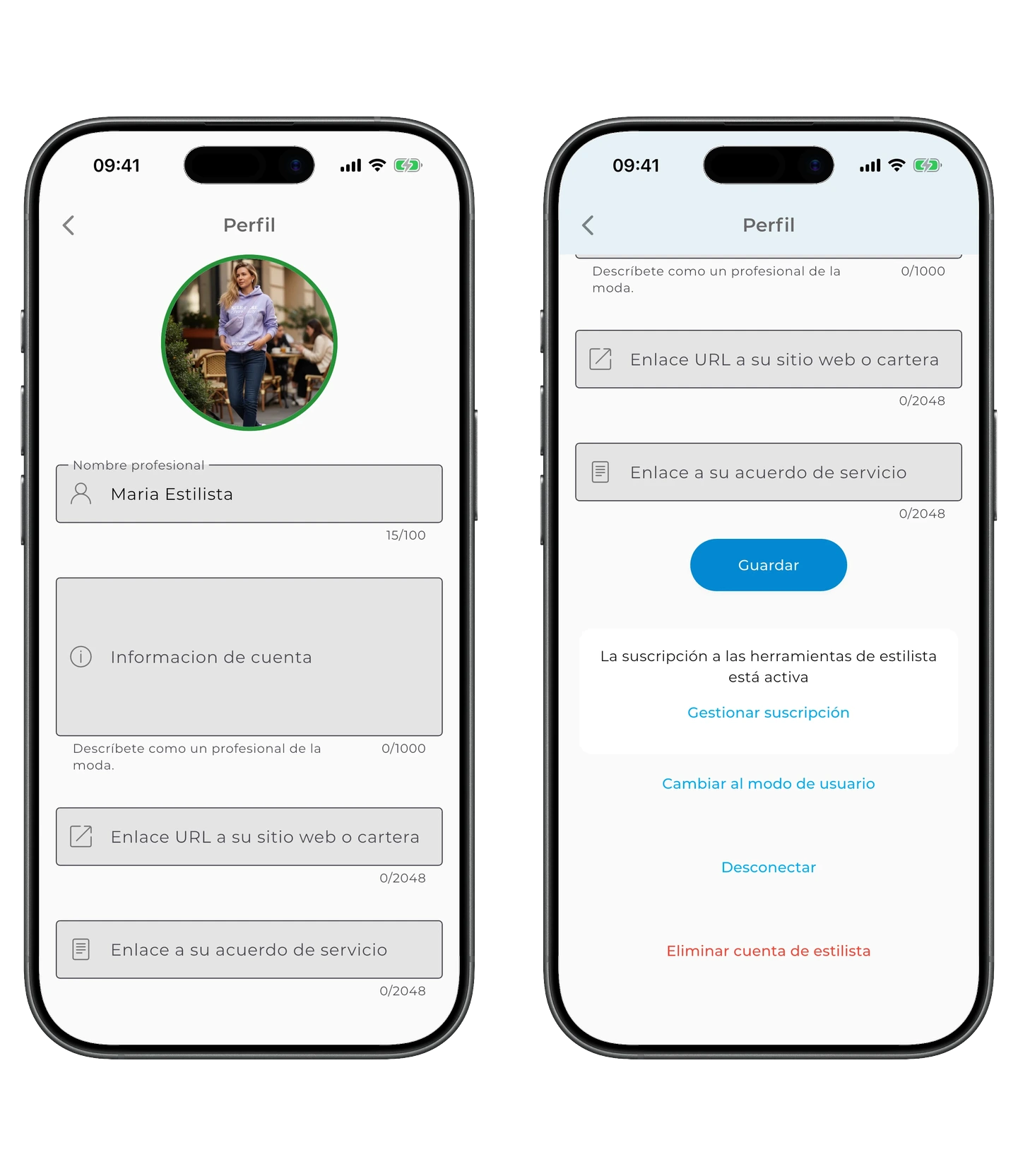
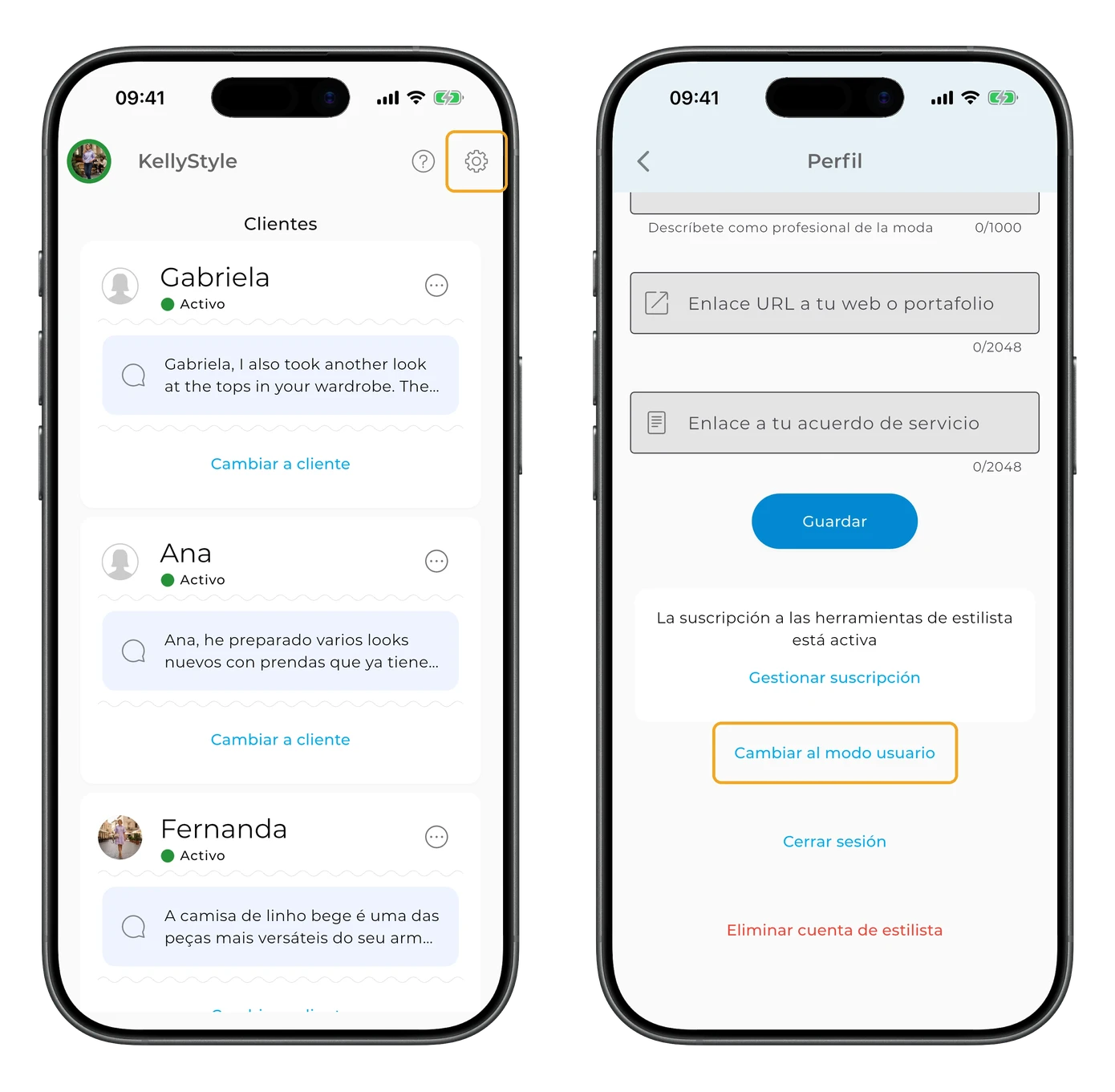
La configuración básica del perfil está completa. Puedes añadir más información más adelante desde el icono del engranaje en la esquina superior derecha del panel de clientes.
Aquí puedes indicar tus áreas de especialización, añadir un enlace a tu web o redes sociales y subir un contrato de prestación de servicios.
Después de los cambios, toca «Guardar».
GetWardrobe Pro
Para trabajar con clientes en el modo estilista necesitas una suscripción a GetWardrobe Pro. Si aún no la tienes, la app te propondrá suscribirte al añadir tu primer cliente.
Añadir tu primer cliente
El cliente ya tiene una cuenta de GetWardrobe
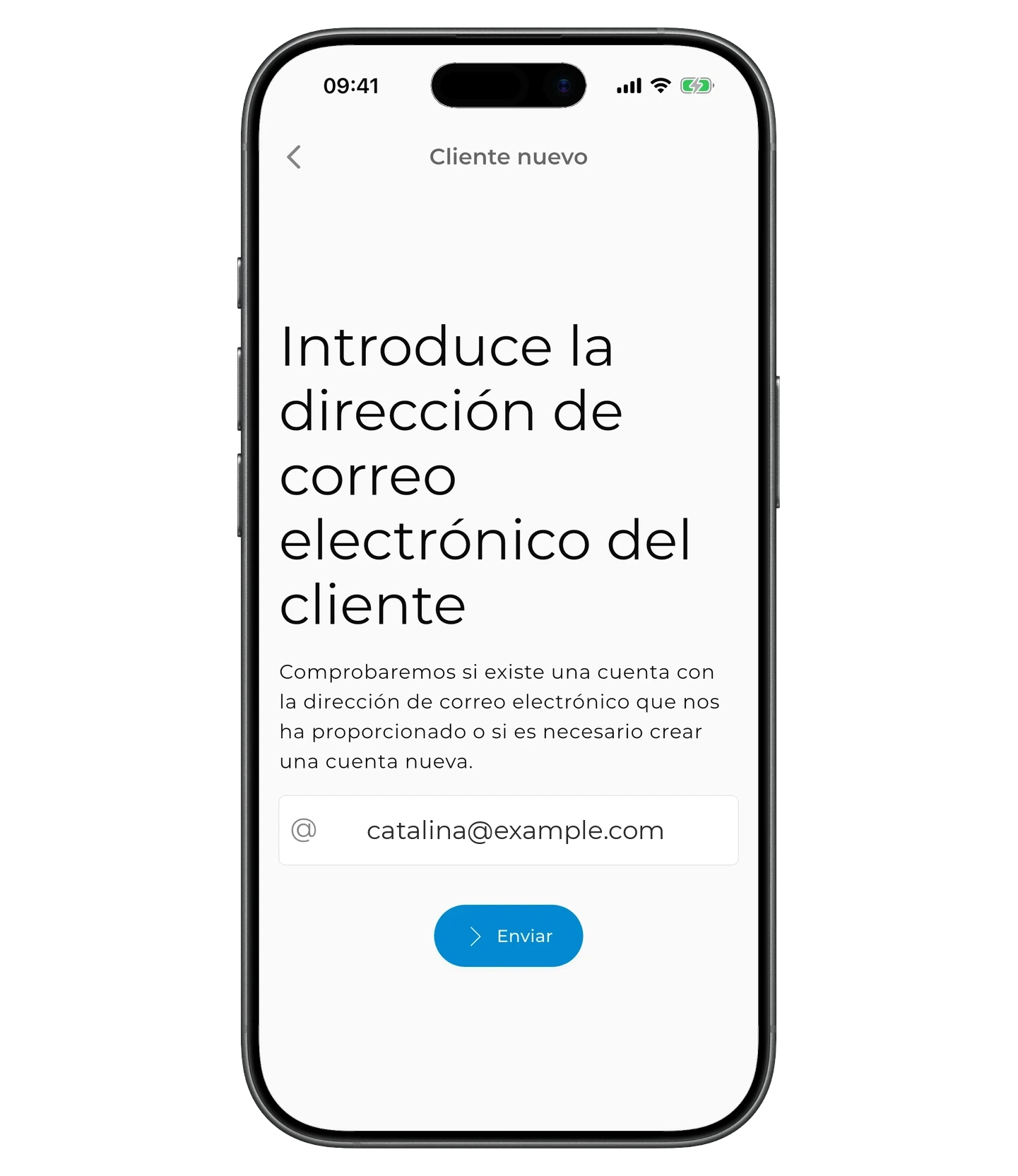
Toca «+ Agregar nuevo cliente», introduce el correo con el que el cliente está registrado en GetWardrobe y toca «Enviar».
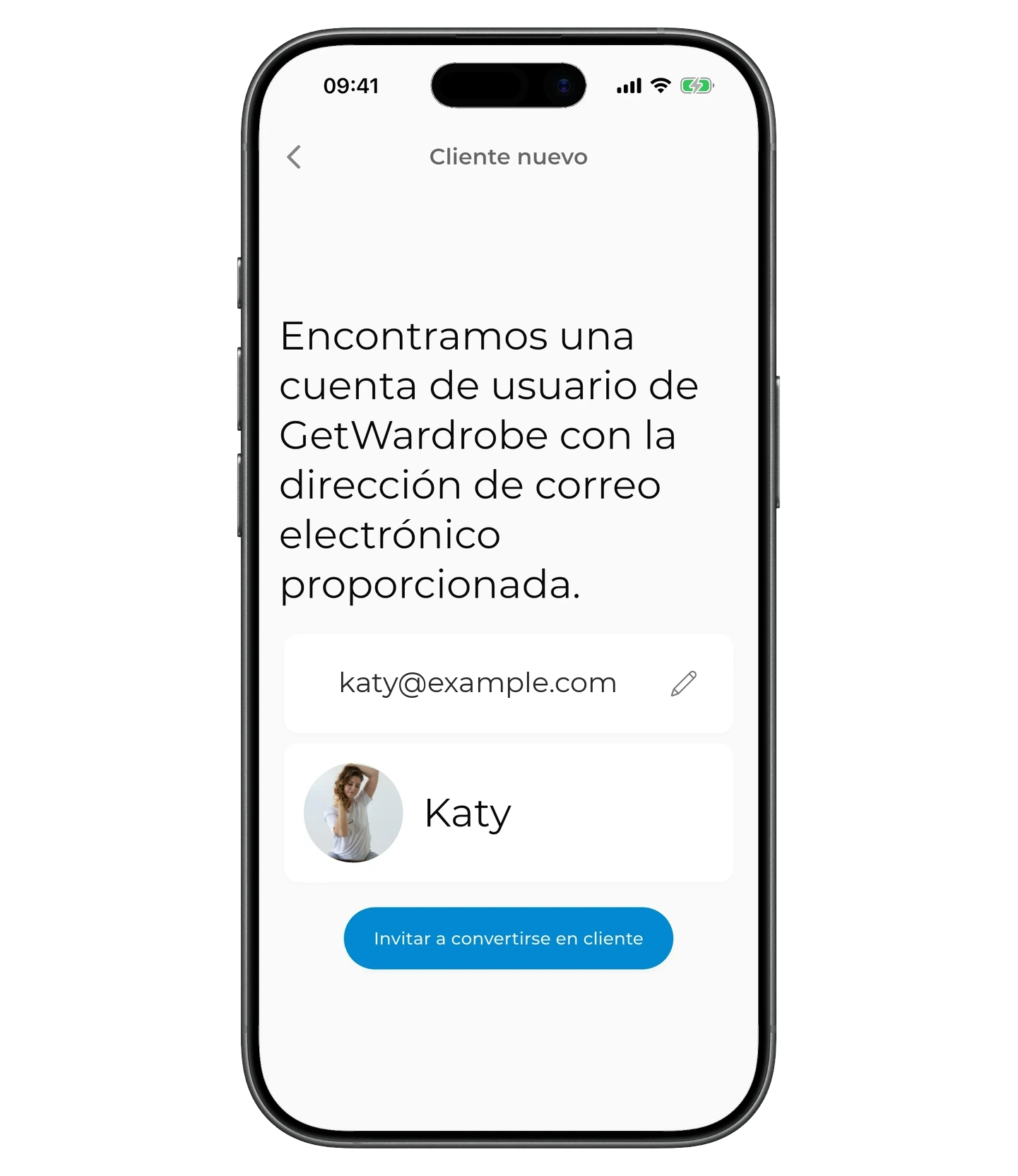
Si se encuentra una cuenta con ese correo, verás el nombre y el avatar del cliente. Comprueba que es la persona correcta y toca «Invitar a convertirse en cliente».
La invitación se crea al instante.
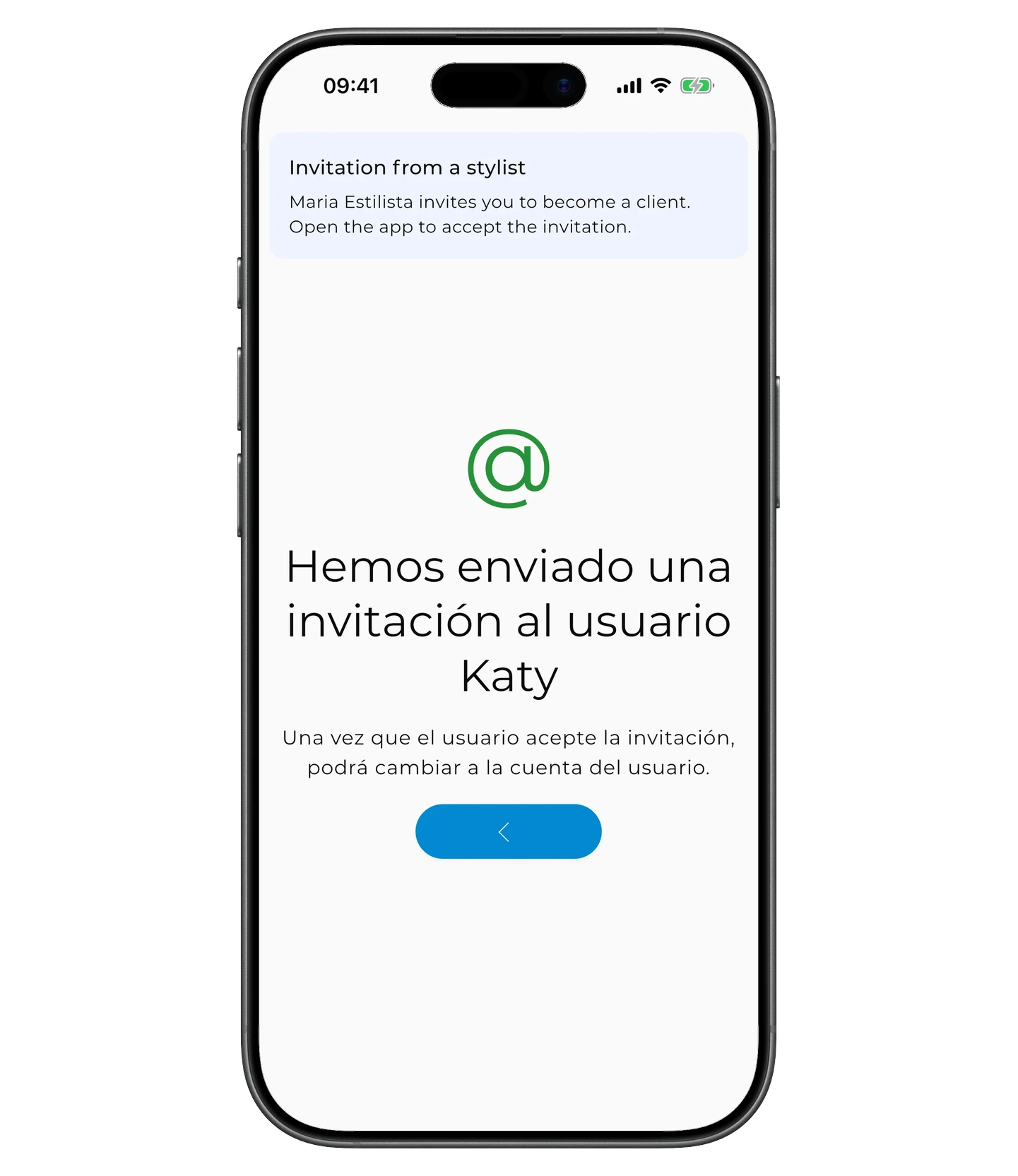
Ahora el cliente debe abrir GetWardrobe y aceptar la invitación. Aparece en la pantalla principal de la app y también está disponible en Ajustes → Acceso al armario.
Mientras la invitación no se acepte, la tarjeta del cliente muestra «Invitación pendiente».
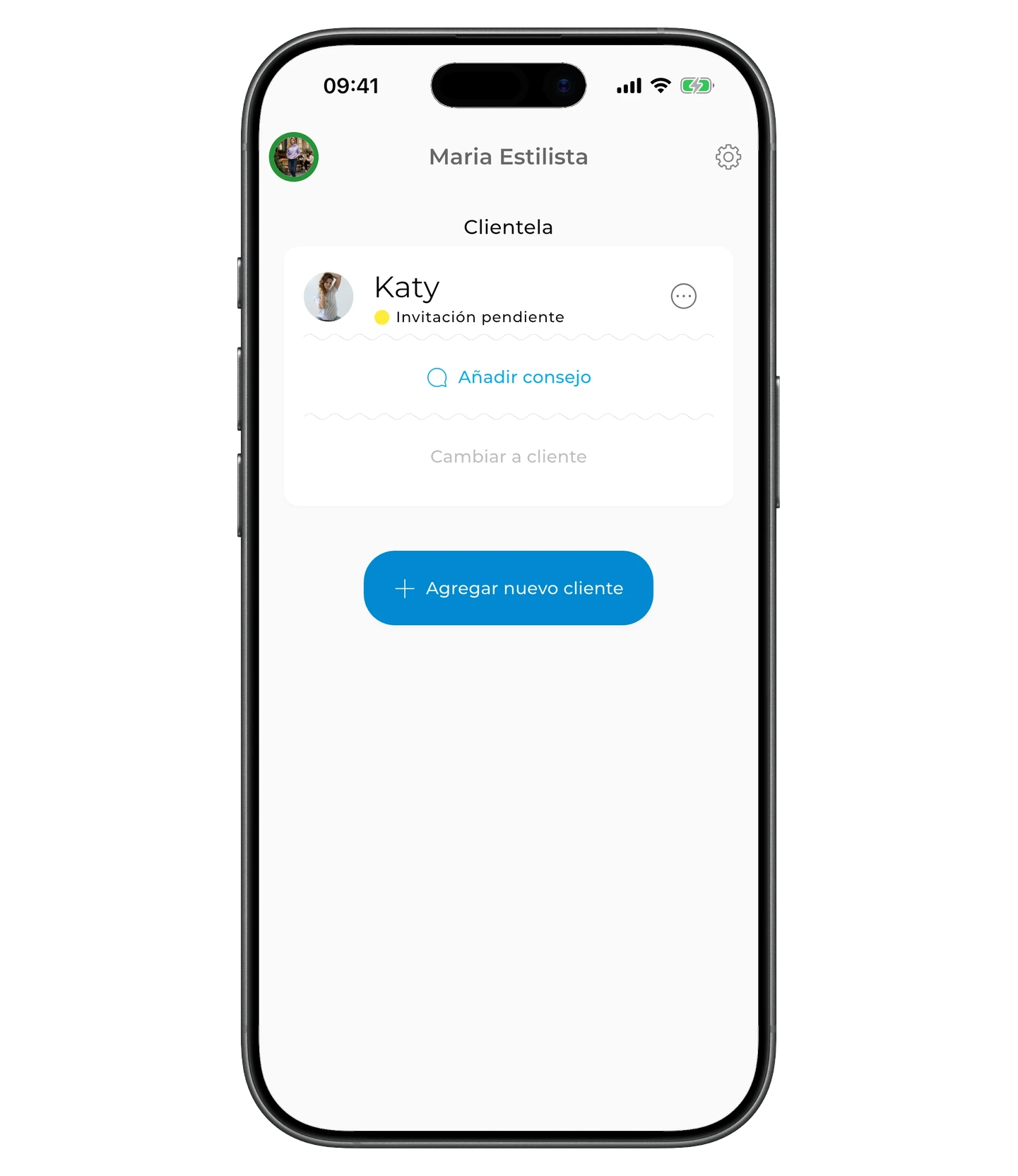
Una vez aceptada la invitación, el estado cambia a «Activo», y podrás cambiar a la cuenta del cliente desde el panel y empezar a trabajar con su armario.
El cliente no tiene cuenta en GetWardrobe
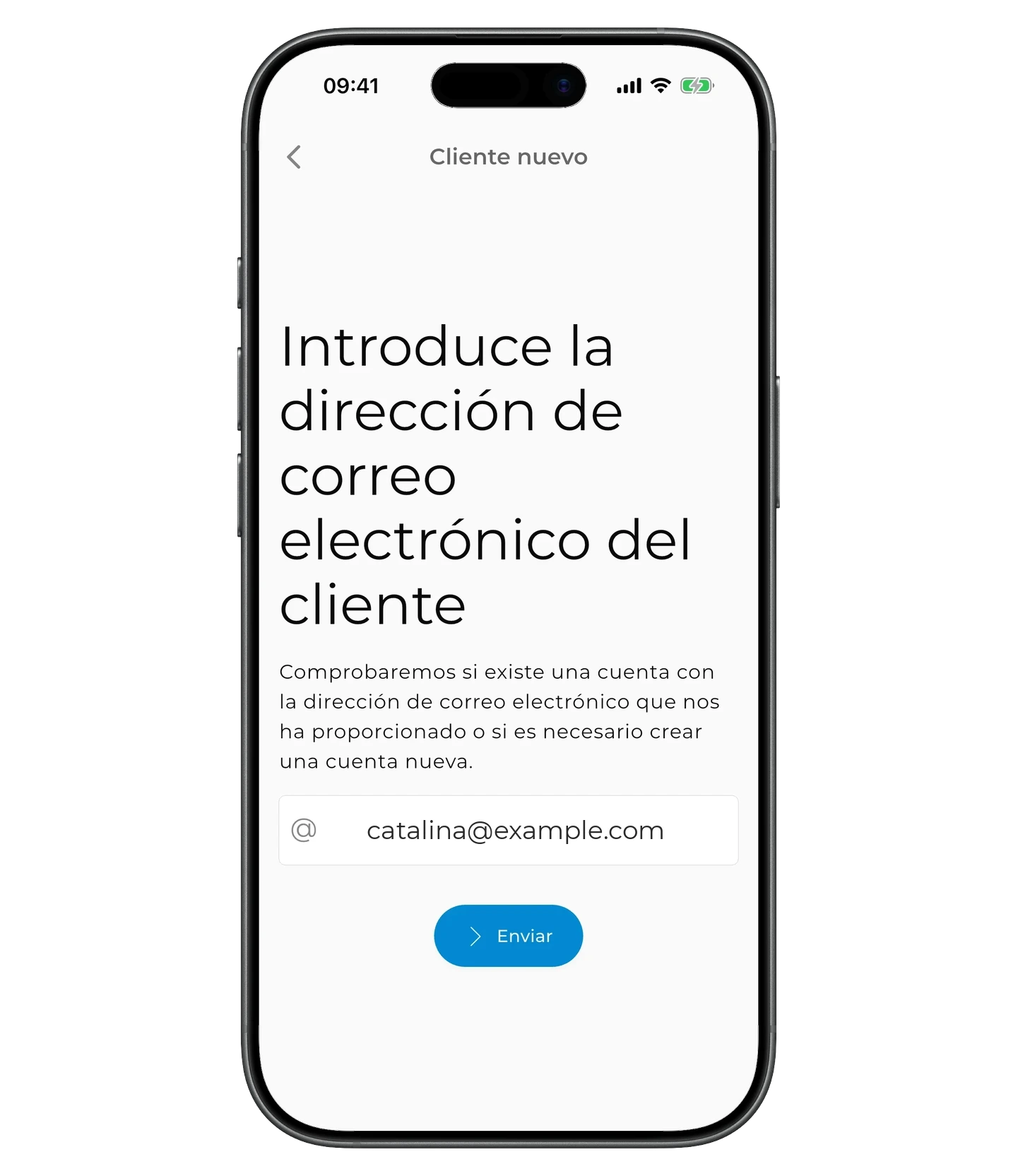
Toca «+ Agregar nuevo cliente», introduce el correo que el cliente usará para su cuenta de GetWardrobe y toca «Enviar».
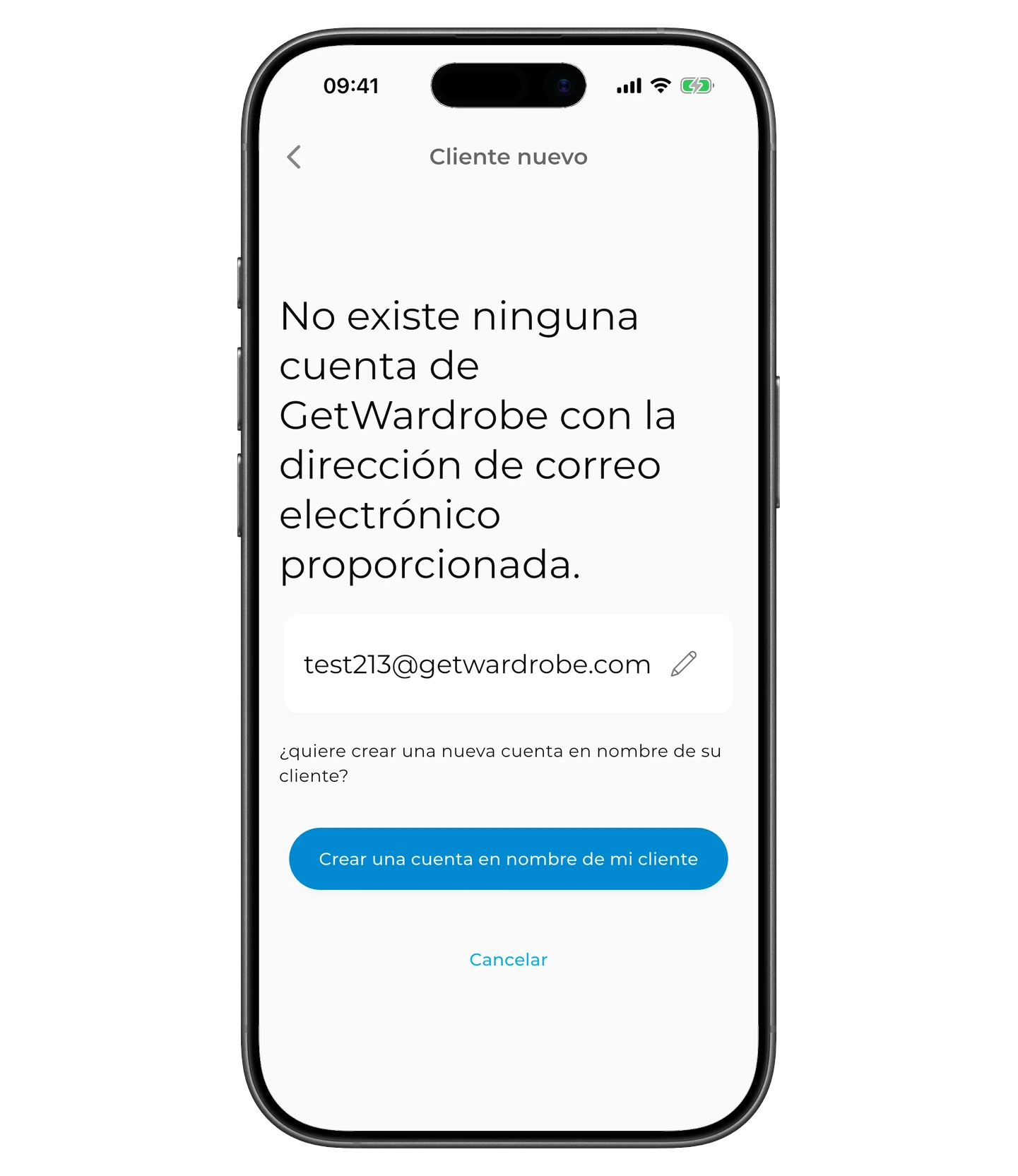
Si no se encuentra ninguna cuenta con ese correo, toca «Crear una cuenta en nombre de mi cliente».
Crear la cuenta del cliente
Introduce el nombre y el género del cliente. El género seleccionado determina qué categorías de ropa aparecen en la aplicación.
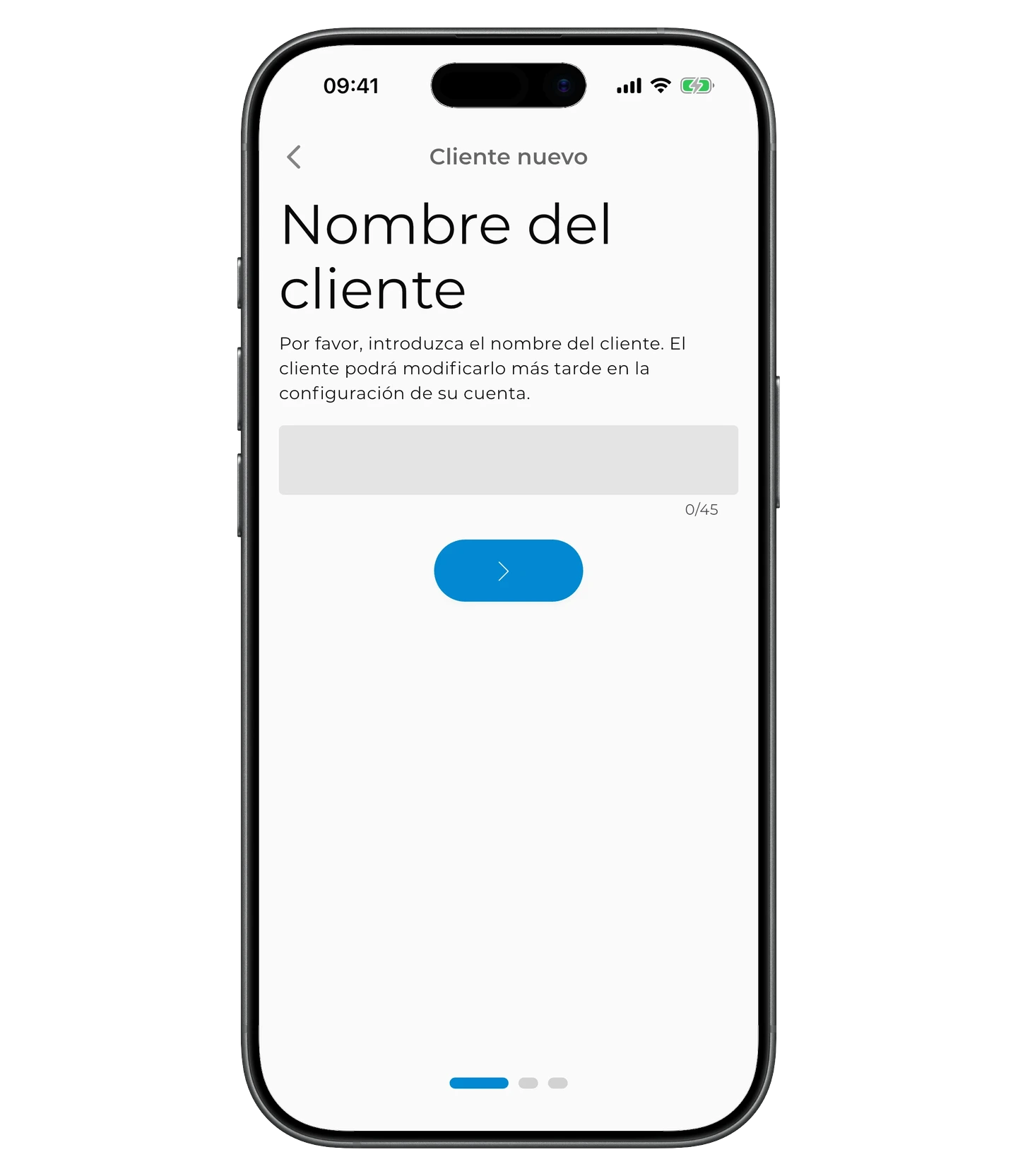
Revisa los datos y confirma la creación de la cuenta.
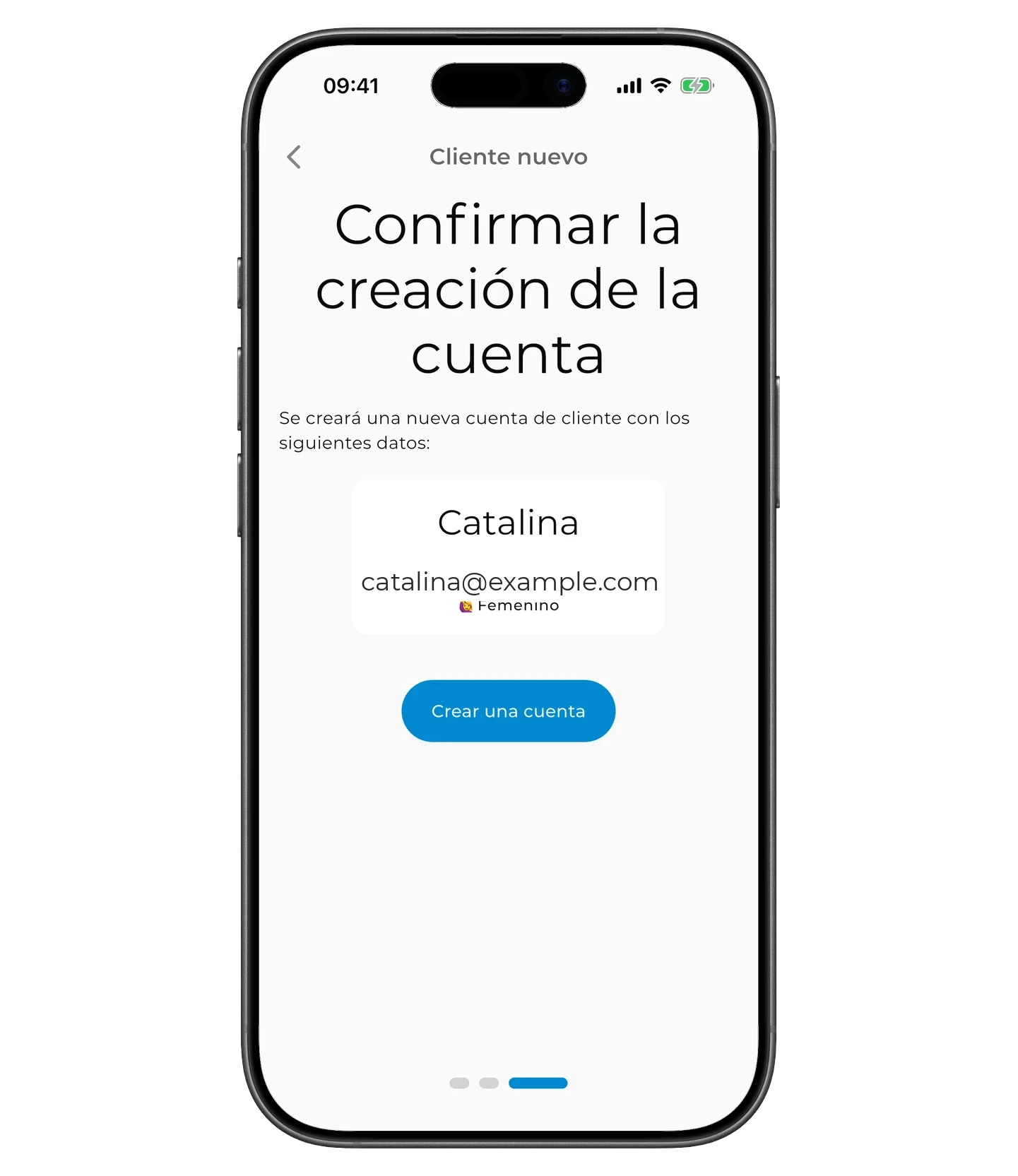
Una vez creada la cuenta, puedes cambiar a ella de inmediato y empezar a montar el armario del cliente, sin esperar a que active la cuenta.
El cliente solo tendrá que activar la cuenta cuando quiera iniciar sesión en GetWardrobe y acceder al armario que has preparado.
Activar la cuenta del cliente
Una vez creada la cuenta, en la tarjeta del cliente aparecen un enlace y un código de activación de un solo uso. Envíaselos al cliente cuando esté listo para iniciar sesión en GetWardrobe.
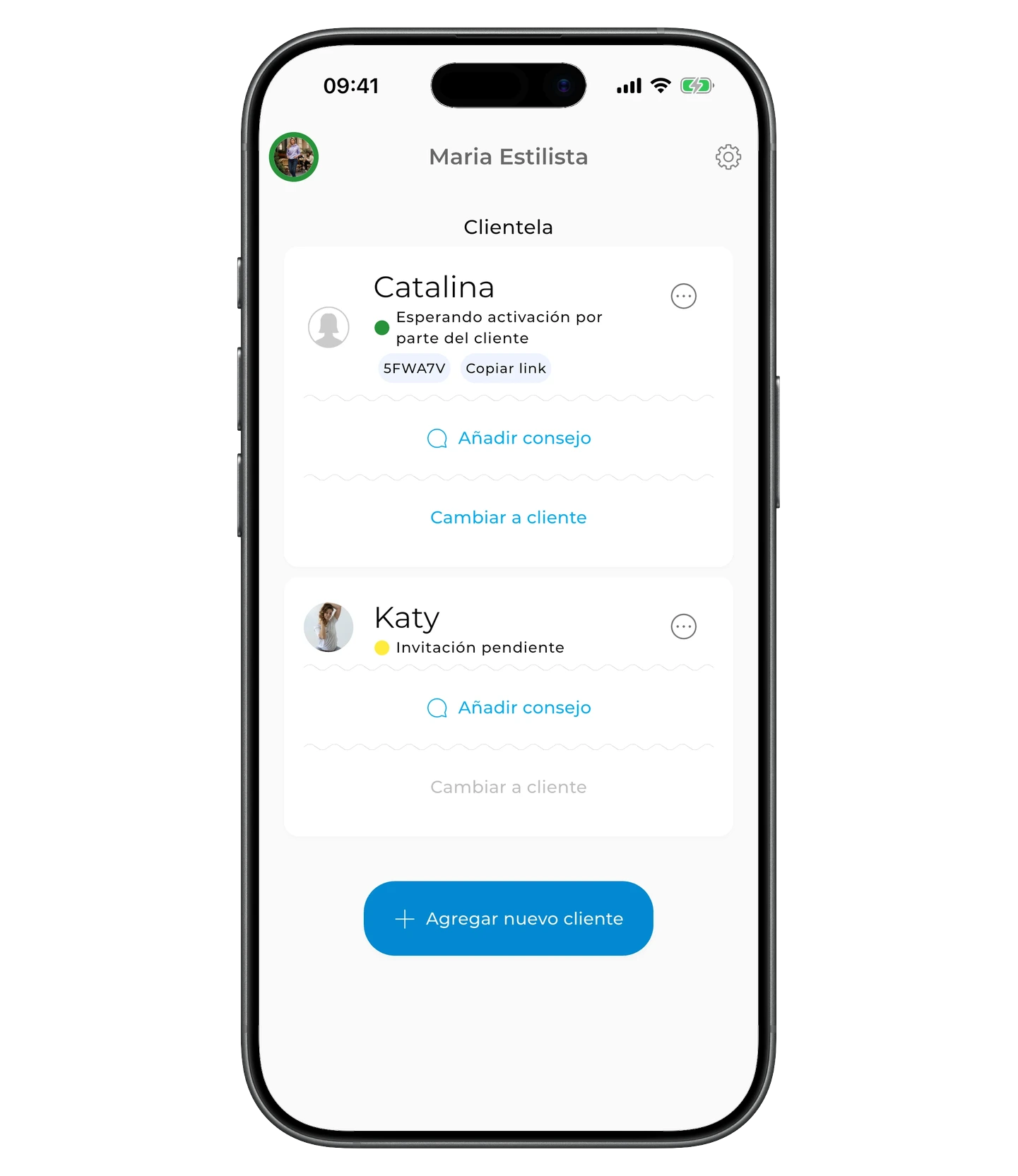
Hasta que se active la cuenta, el código vigente sigue disponible en la tarjeta del cliente, así que puedes copiarlo y reenviarlo si hace falta.
El cliente puede activar la cuenta siguiendo las instrucciones de Cómo activar una cuenta con un código de estilista.
Puedes comprobar el estado en la tarjeta del cliente:
- «Esperando activación por parte del cliente» — el cliente aún no ha activado la cuenta;
- «Activo» — la activación se ha completado.
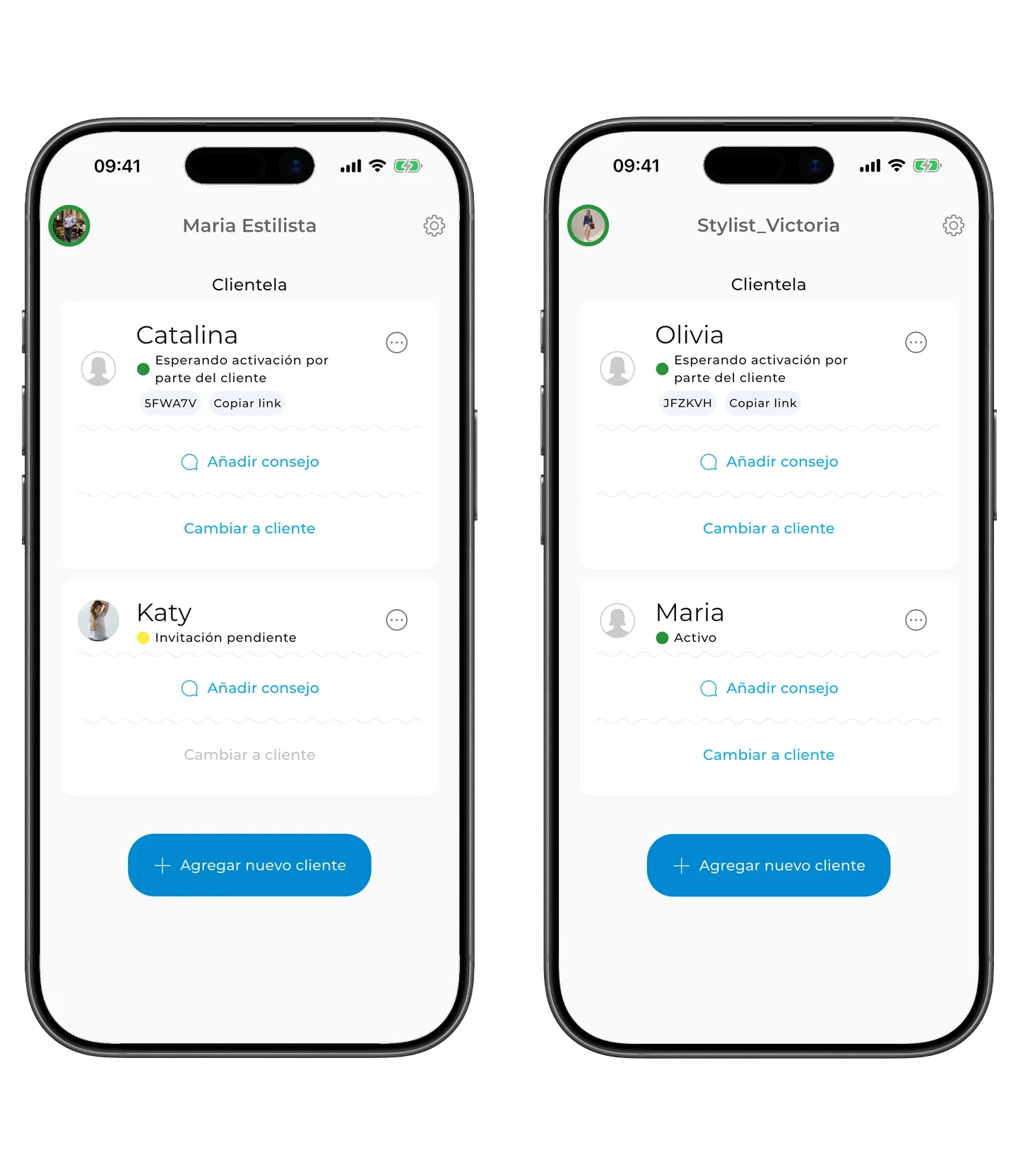
Tras la activación, el cliente podrá iniciar sesión en su cuenta de GetWardrobe. En la pantalla principal verá una tarjeta de bienvenida que explica que Premium está disponible a través de su estilista y que aquí aparecerán los consejos del estilista.
No pruebes el código en tu propio dispositivo
El código es para el cliente y solo puede utilizarse una vez. Si lo activas en tu propio dispositivo para comprobarlo, el cliente ya no podrá usarlo.
Cambiar a la cuenta del cliente
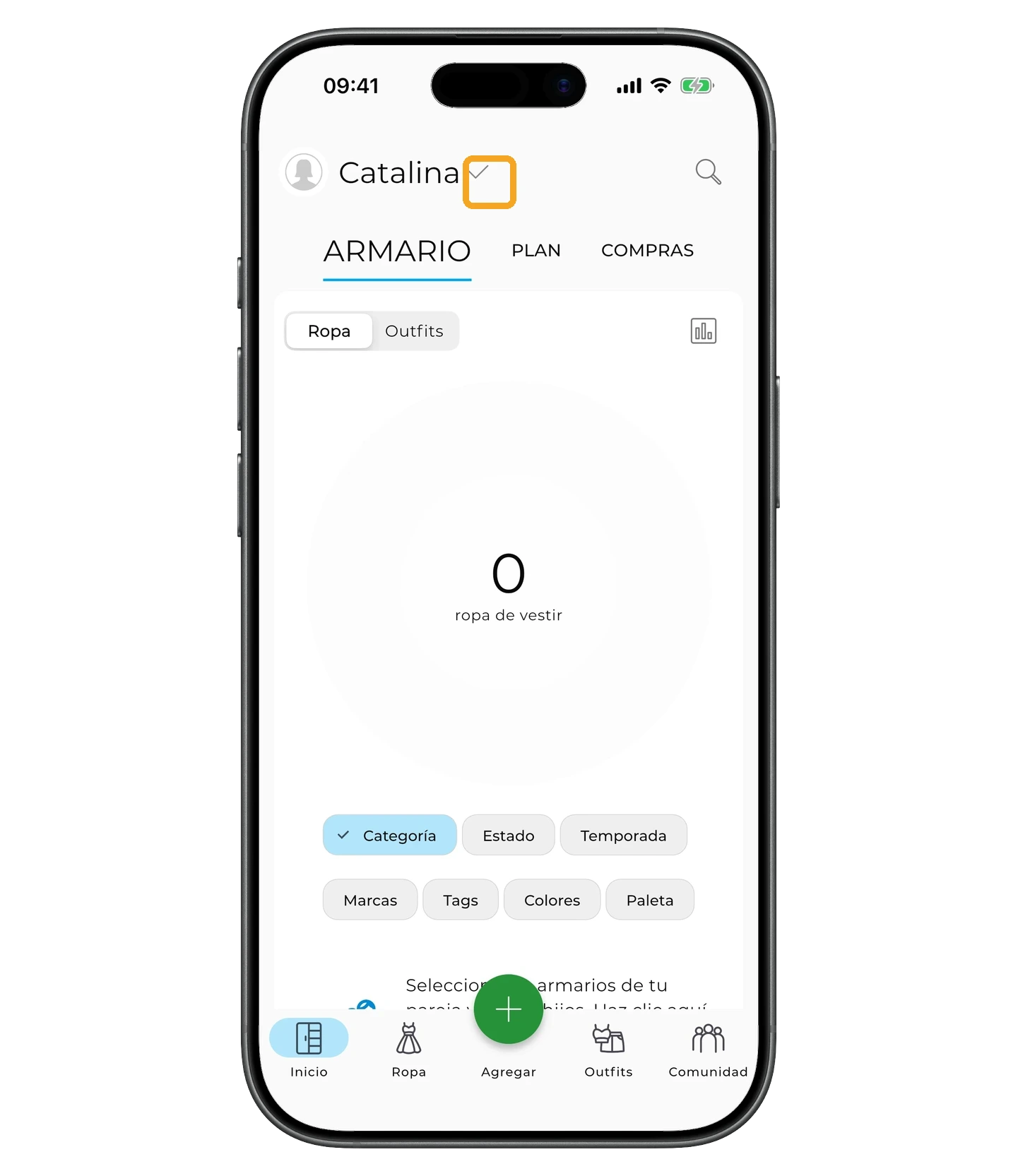
En la tarjeta del cliente, toca «Cambiar a cliente».
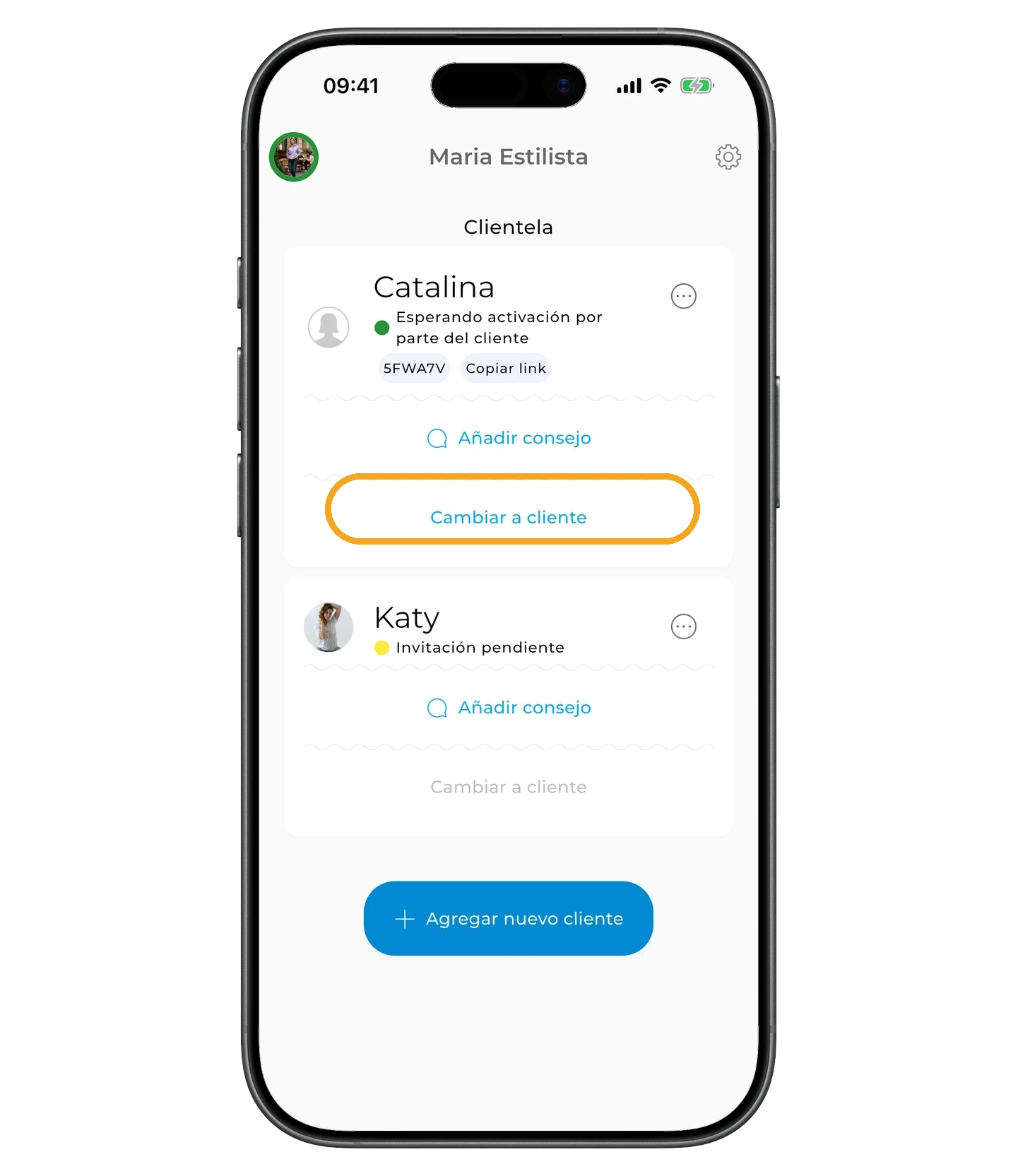
Si creaste tú la cuenta del cliente, puedes cambiar a ella de inmediato. Si el cliente ya tenía una cuenta de GetWardrobe, el botón se activa cuando el cliente acepta la invitación.
Tras cambiar, se abre la cuenta del cliente, donde puedes trabajar con su armario.
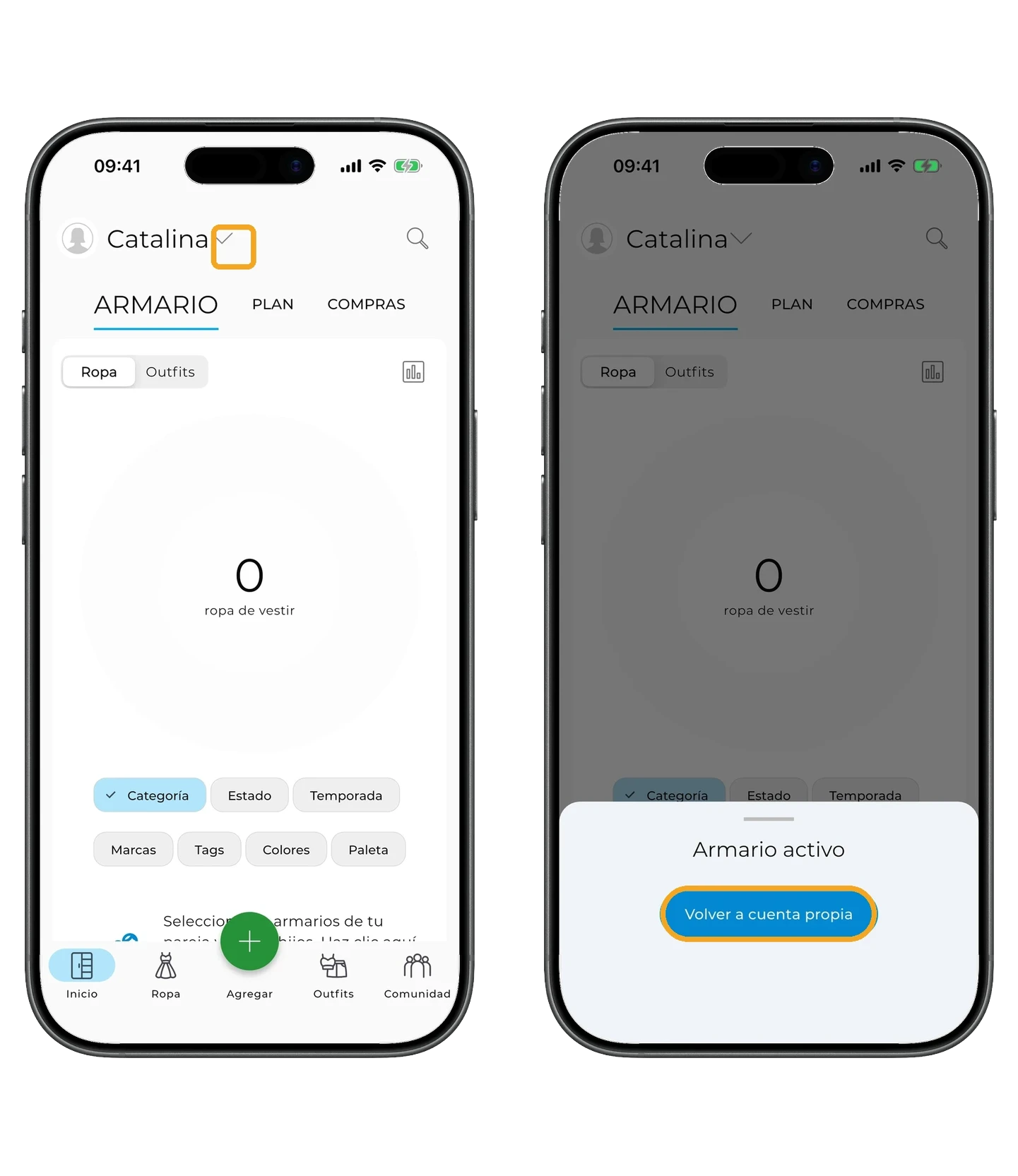
Para volver a tu cuenta de estilista, toca la flecha y selecciona «Volver a cuenta propia».
Dejar un consejo a un cliente
En la tarjeta del cliente, toca «Añadir consejo».
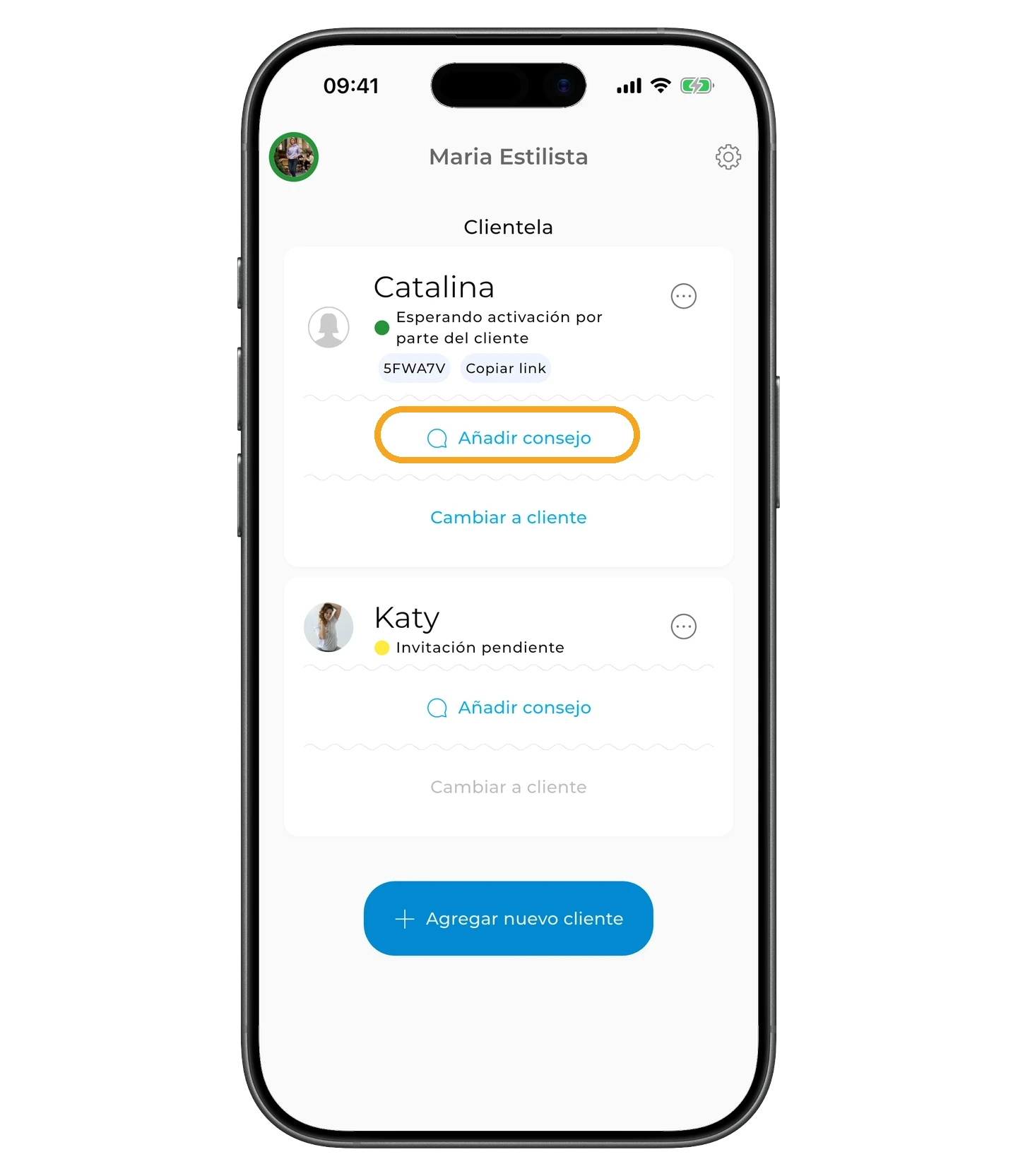
Escribe tu consejo y, si lo necesitas, añade un enlace, por ejemplo, a un PDF, una prenda o una tienda.
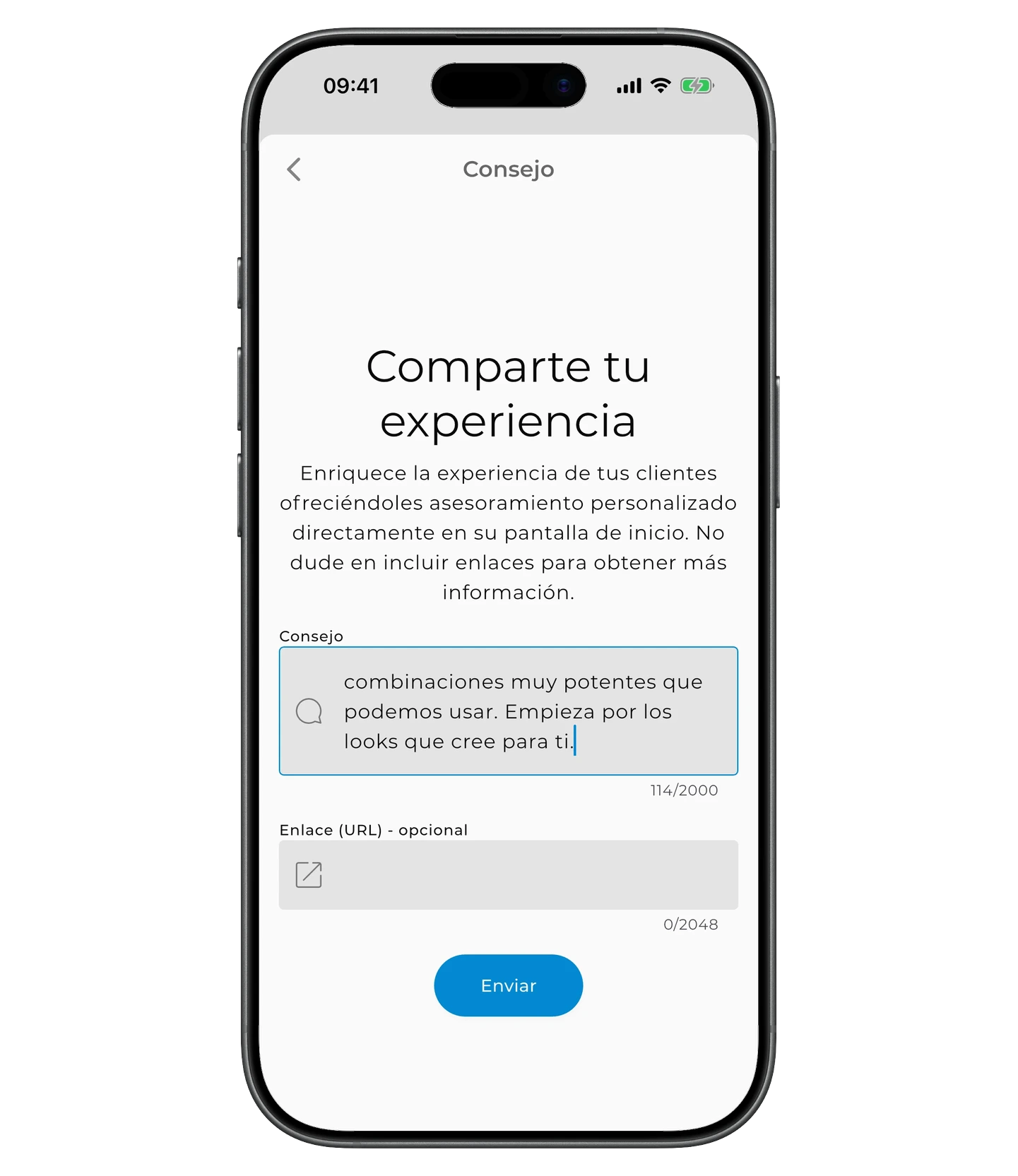
Toca «Enviar».
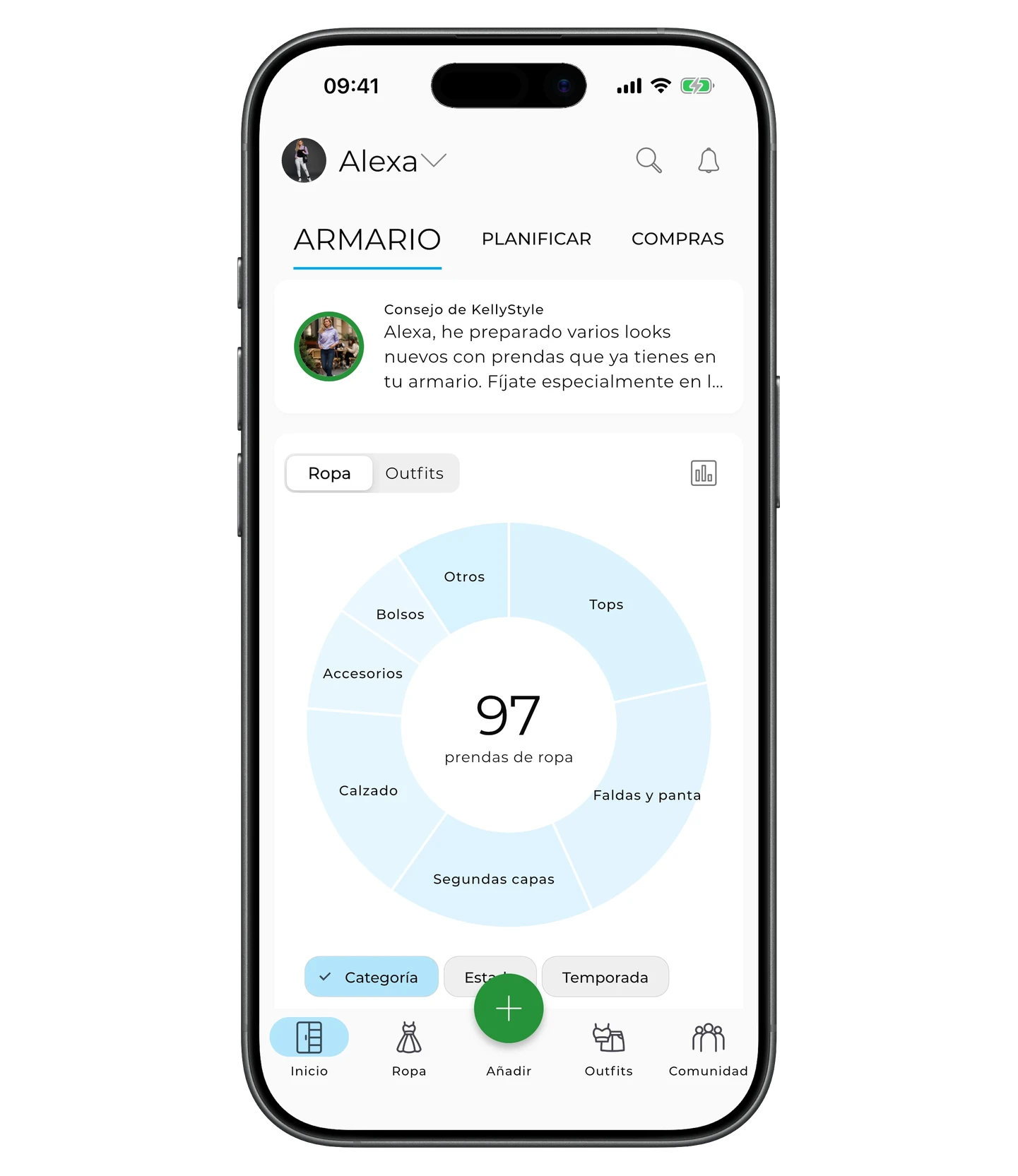
Así se muestra el consejo al cliente. En la pantalla principal aparecerá una tarjeta «Consejo de [nombre del estilista]» con las primeras líneas del último consejo.
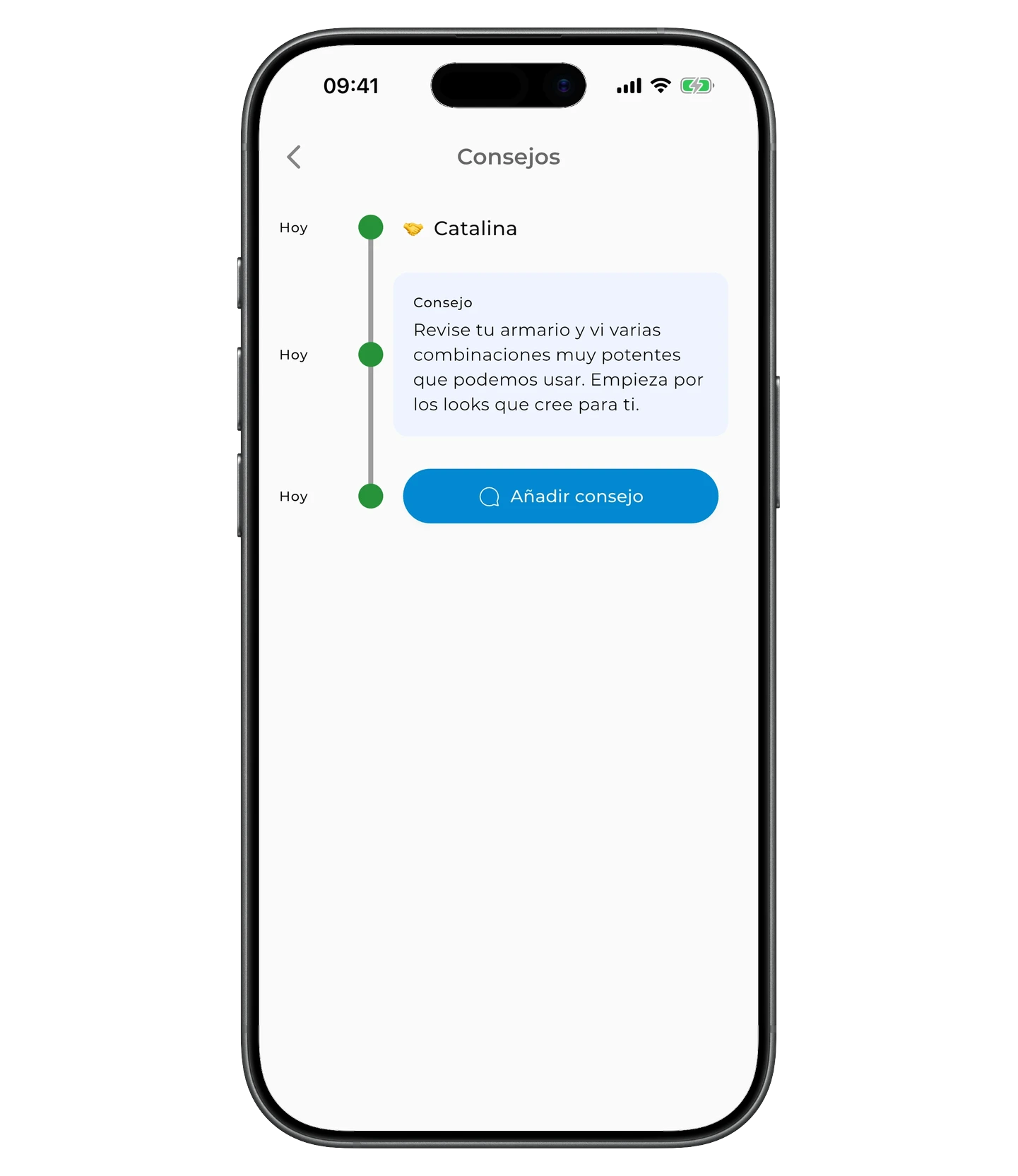
Toca el consejo para abrir todo el historial de consejos que has enviado a este cliente.
El cliente no recibe una notificación aparte cuando añades un nuevo consejo.
Finalizar el trabajo con un cliente
Cuando termines de trabajar con un cliente, puedes eliminarlo del panel de clientes.
La cuenta y el armario del cliente se conservan.
Para saber más sobre qué pasa con Premium tras la desconexión y cómo volver a conectar a un cliente más tarde, consulta GetWardrobe Pro: suscripción para estilistas.
Cambiar al modo usuario
Para volver al modo usuario, en el panel de clientes toca el icono de engranaje en la esquina superior derecha, desplázate hacia abajo y toca «Cambiar al modo usuario».
Preguntas frecuentes
¿Qué hago si el cliente no ve la invitación?
Pide al cliente que abra GetWardrobe y revise la invitación en la pantalla principal o en Ajustes → Acceso al armario.
¿Puedo empezar a trabajar antes de que el cliente active su cuenta?
Sí. Si creaste la cuenta en nombre del cliente, puedes cambiar a ella de inmediato y empezar a añadir prendas y crear outfits. El cliente solo necesita activar la cuenta para iniciar sesión en su propia cuenta de GetWardrobe.
¿Necesitas ayuda?
Escríbenos a support@getwardrobe.com