Explorar combinaciones
Encuentra prendas que combinan con cualquier pieza de tu armario: explora las sugerencias de la IA, marca tus favoritas y convierte cada pareja en un outfit completo.
Con las combinaciones de GetWardrobe puedes:
- Descubrir combinaciones inesperadas con la ayuda de la IA y darle nuevas posibilidades a tu armario.
- Guardar tus combinaciones favoritas para volver a ellas o crear outfits sin esfuerzo.
- Comprar con criterio teniendo en cuenta cómo encajan las prendas nuevas con lo que ya tienes.
- Elegir piezas nuevas que complementen tu armario actual.
En esta guía
- Abrir las combinaciones
- Sugerencias de la IA
- Filtrar por categoría
- Marcar combinaciones favoritas
- Marcar prendas que no combinan
- Filtrar prendas compatibles
- Crear un outfit con las prendas
- Salir de la pantalla de Combinaciones
Abrir las combinaciones
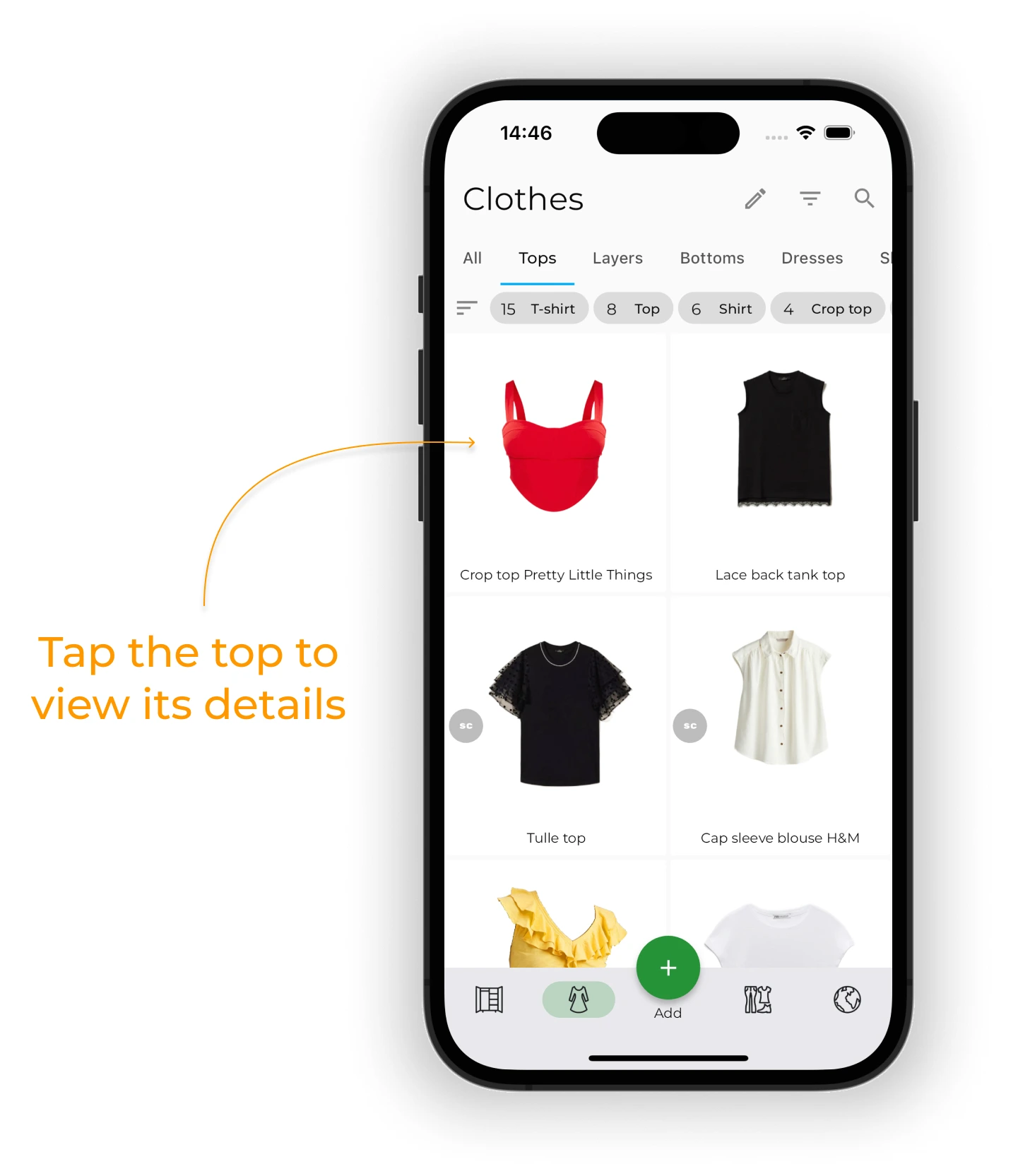
En la pantalla Ropa, toca la prenda cuyas combinaciones quieras ver.
Tip
También puedes dejar pulsada una prenda y elegir «Combinaciones» en el menú emergente.
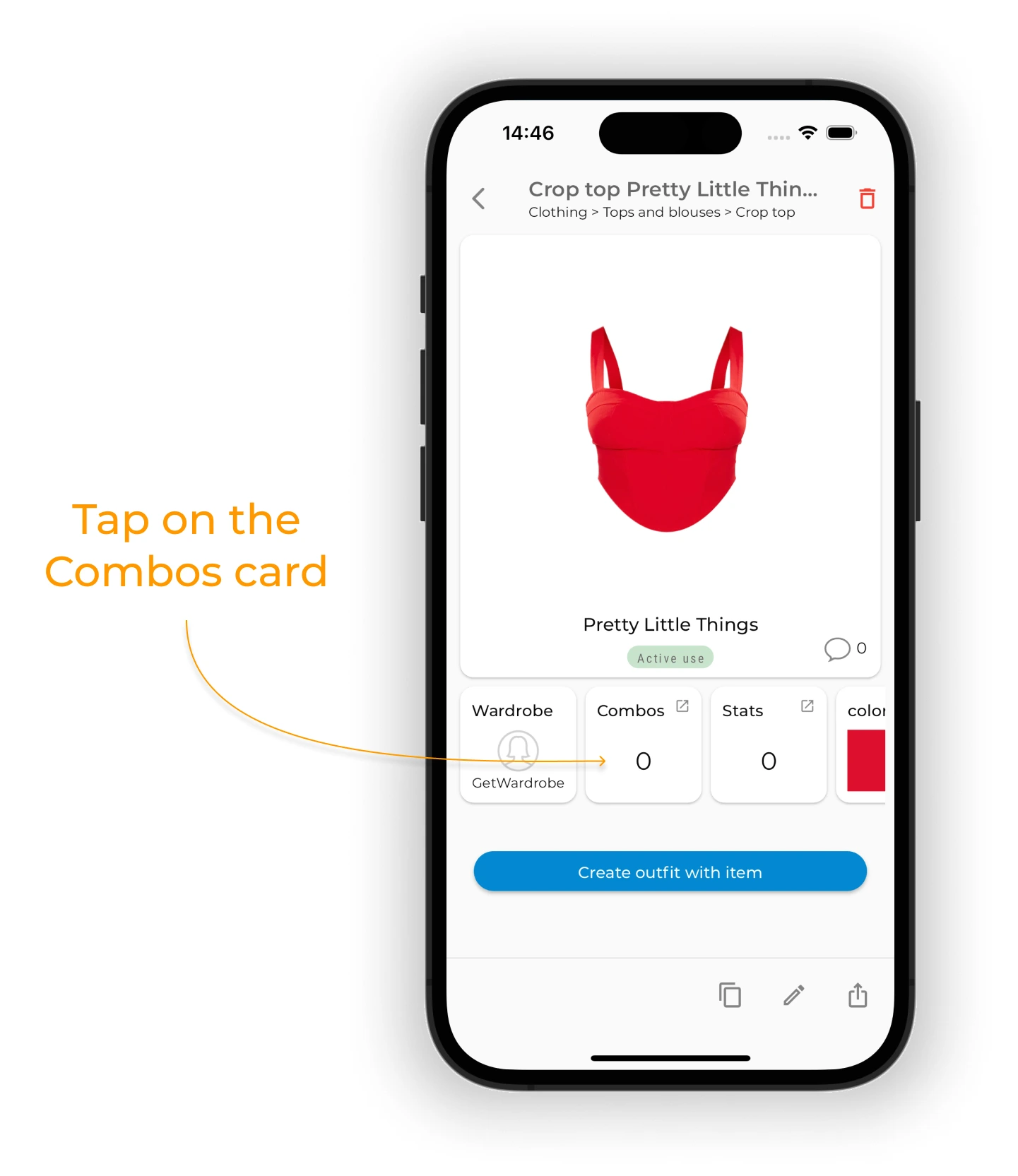
En la pantalla de la prenda, toca la tarjeta del número de Combos. Ese número indica las combinaciones que ya has marcado para esa prenda.
Sugerencias de la IA
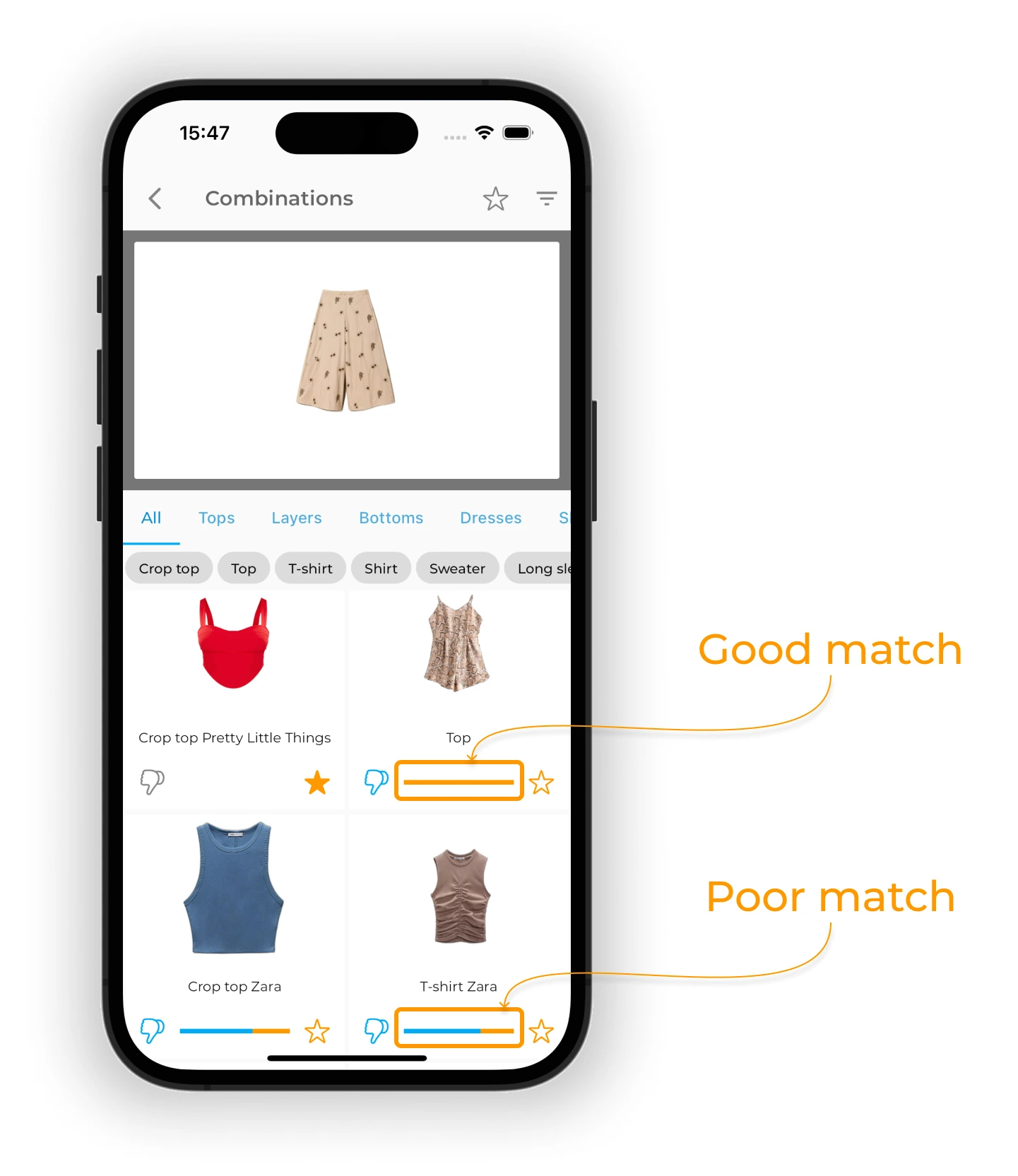
En la pantalla de Combinaciones verás las sugerencias de la IA de GetWardrobe.
Debajo de cada prenda hay una línea de color que indica su compatibilidad con la prenda principal. Una línea predominantemente azul indica poca afinidad, y una naranja indica mucha afinidad. Las prendas más compatibles aparecen arriba; desplázate hacia abajo para ver las menos compatibles.
Filtrar por categoría
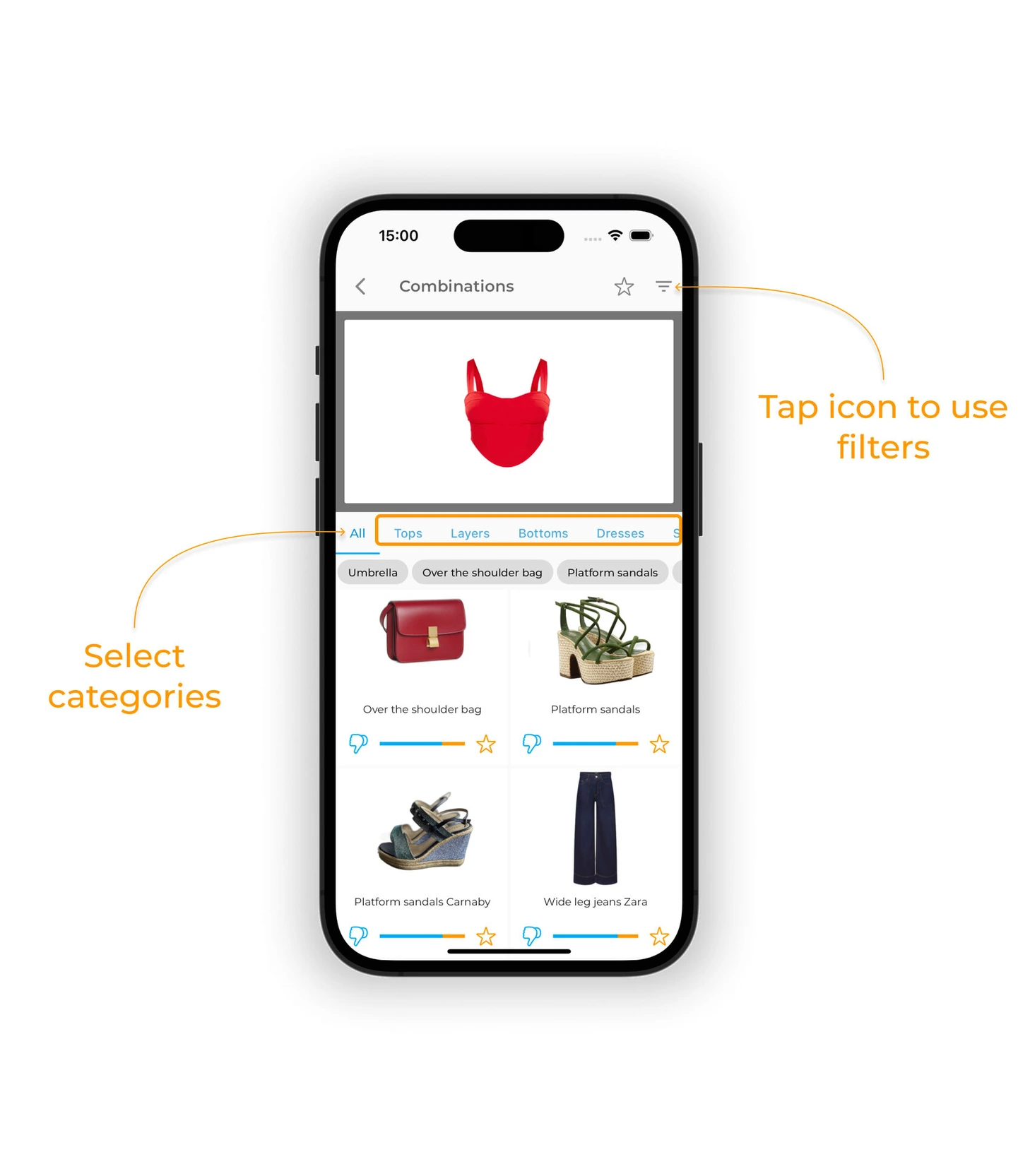
Elige una categoría para ver combinaciones de la prenda principal con prendas de esa categoría. También puedes usar los filtros para acotar la lista.
Marcar combinaciones favoritas
Toca el icono de la estrella en la tarjeta de una prenda para marcarla como favorita. La estrella se vuelve naranja.
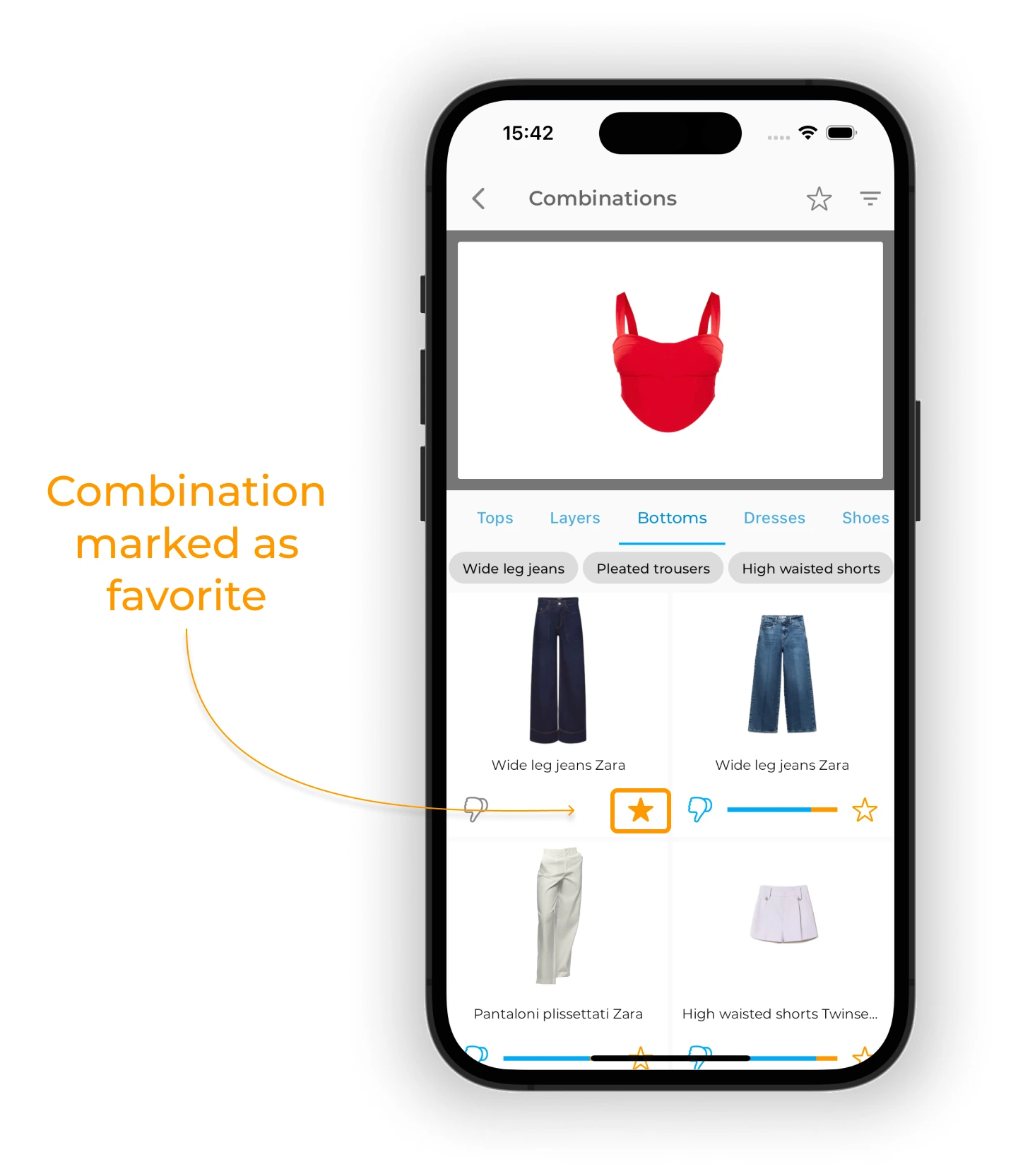
Tip
La IA de GetWardrobe tiene en cuenta tus combinaciones favoritas a la hora de generar outfits automáticamente.
Marcar prendas que no combinan
Para indicar que dos prendas no van bien juntas, toca el icono del pulgar hacia abajo en la tarjeta de cualquiera de las dos.
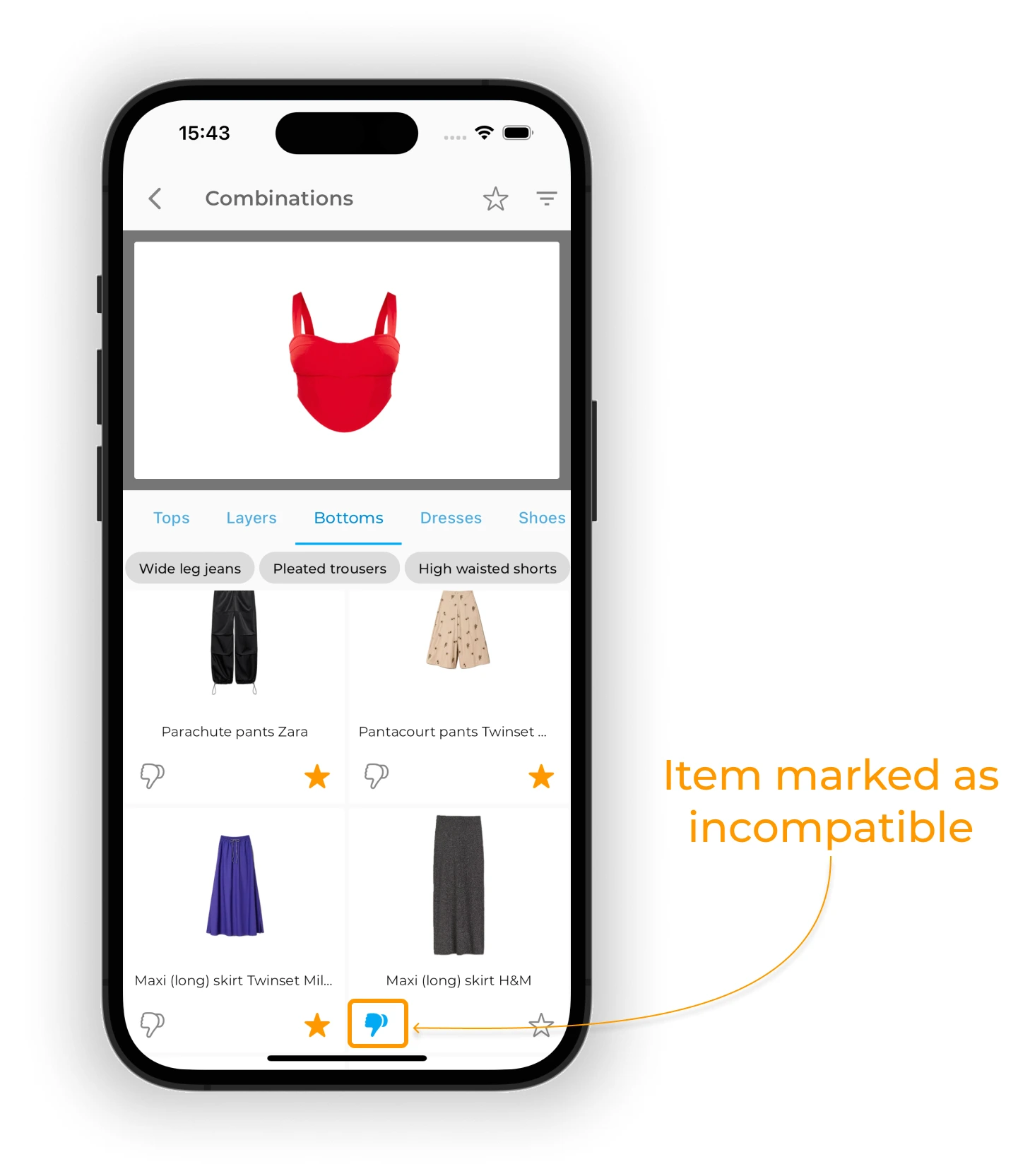
Filtrar prendas compatibles
Para ver todas las prendas compatibles, toca el icono de la estrella en la esquina superior derecha.
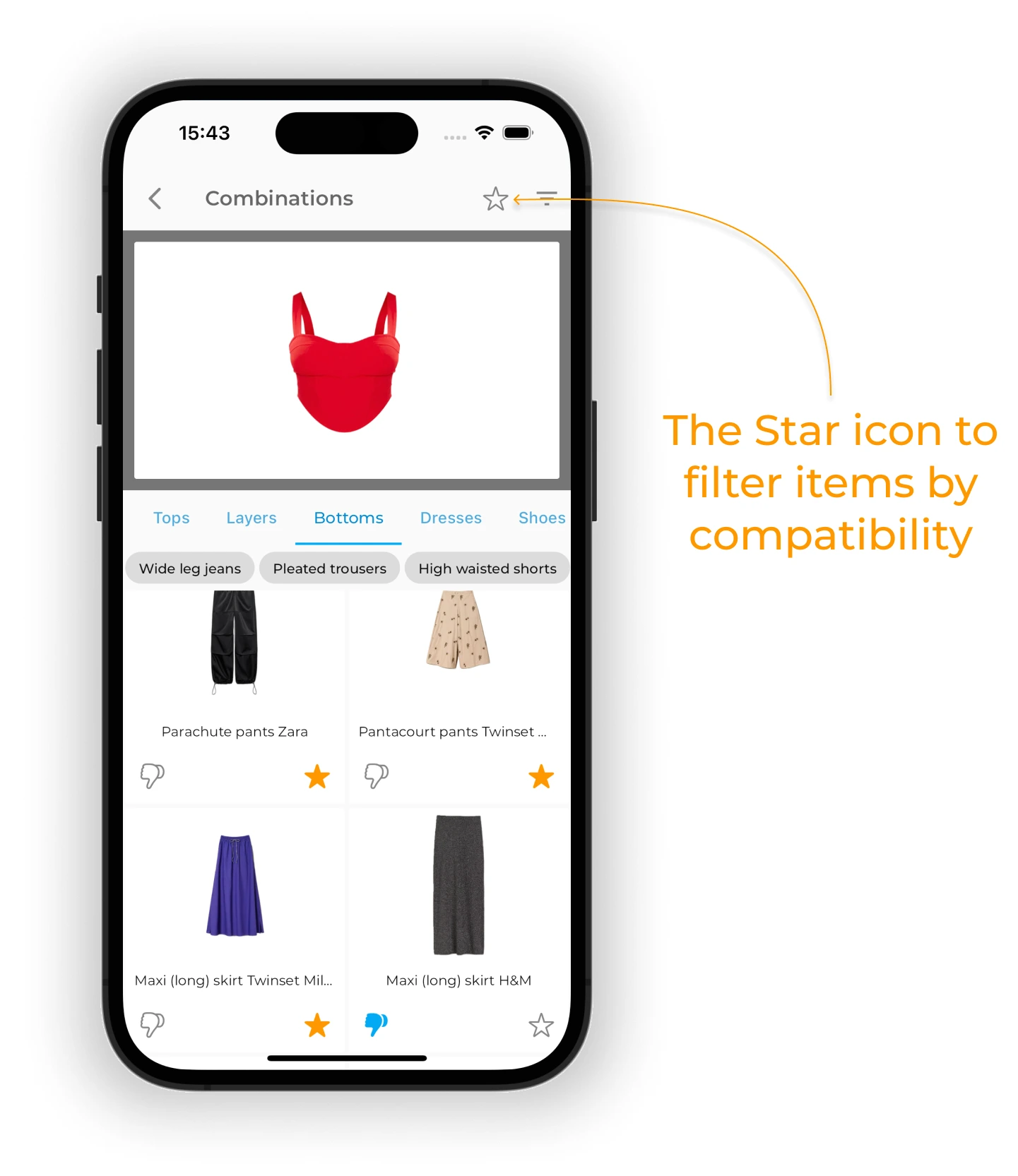
La estrella se vuelve naranja para indicar que se están mostrando las prendas compatibles, incluidas tus favoritas y las que sugiere la IA.
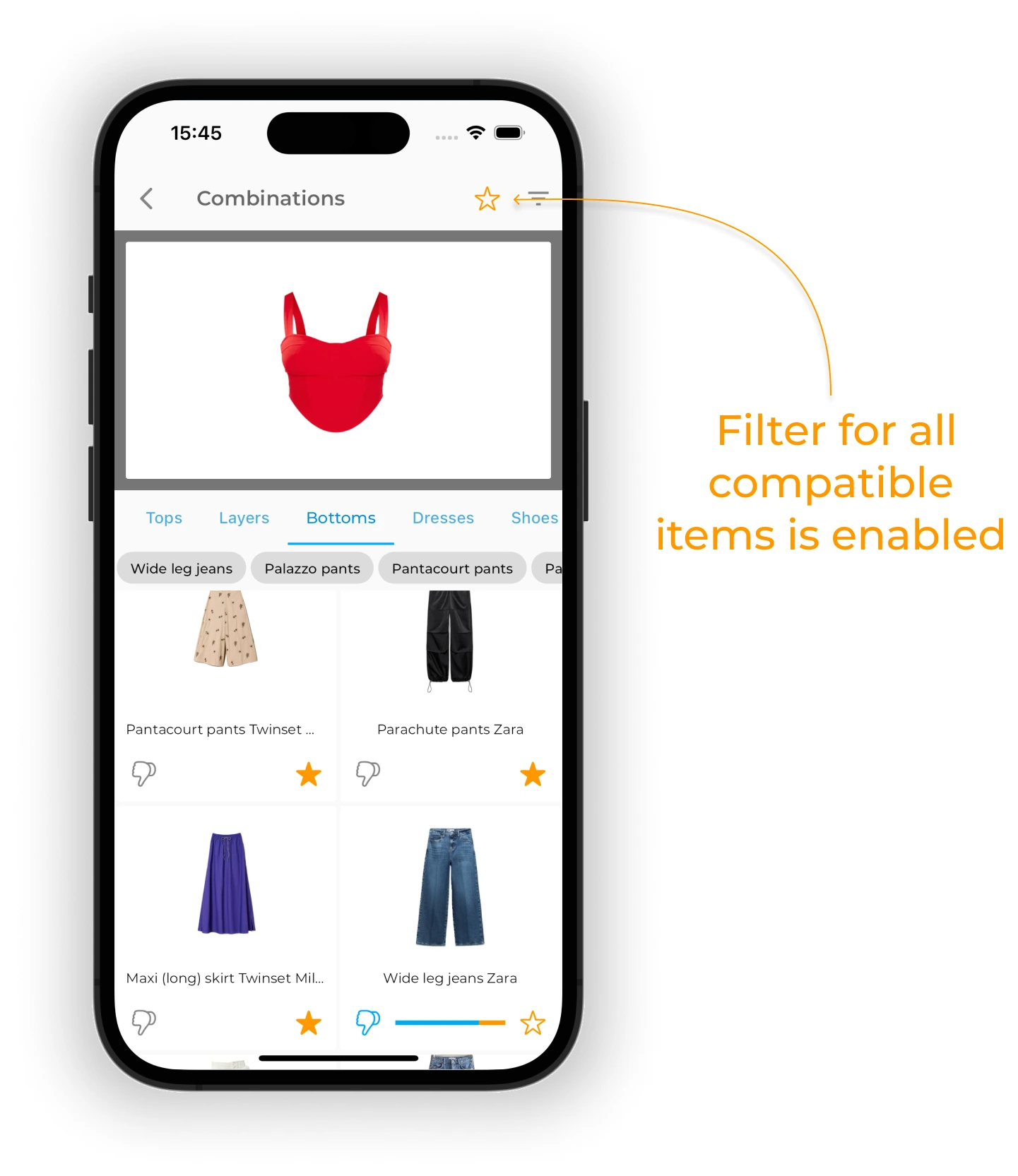
Toca otra vez la estrella para ver solo tus favoritas compatibles. La estrella se vuelve naranja sólido para indicar que ese filtro está activo.
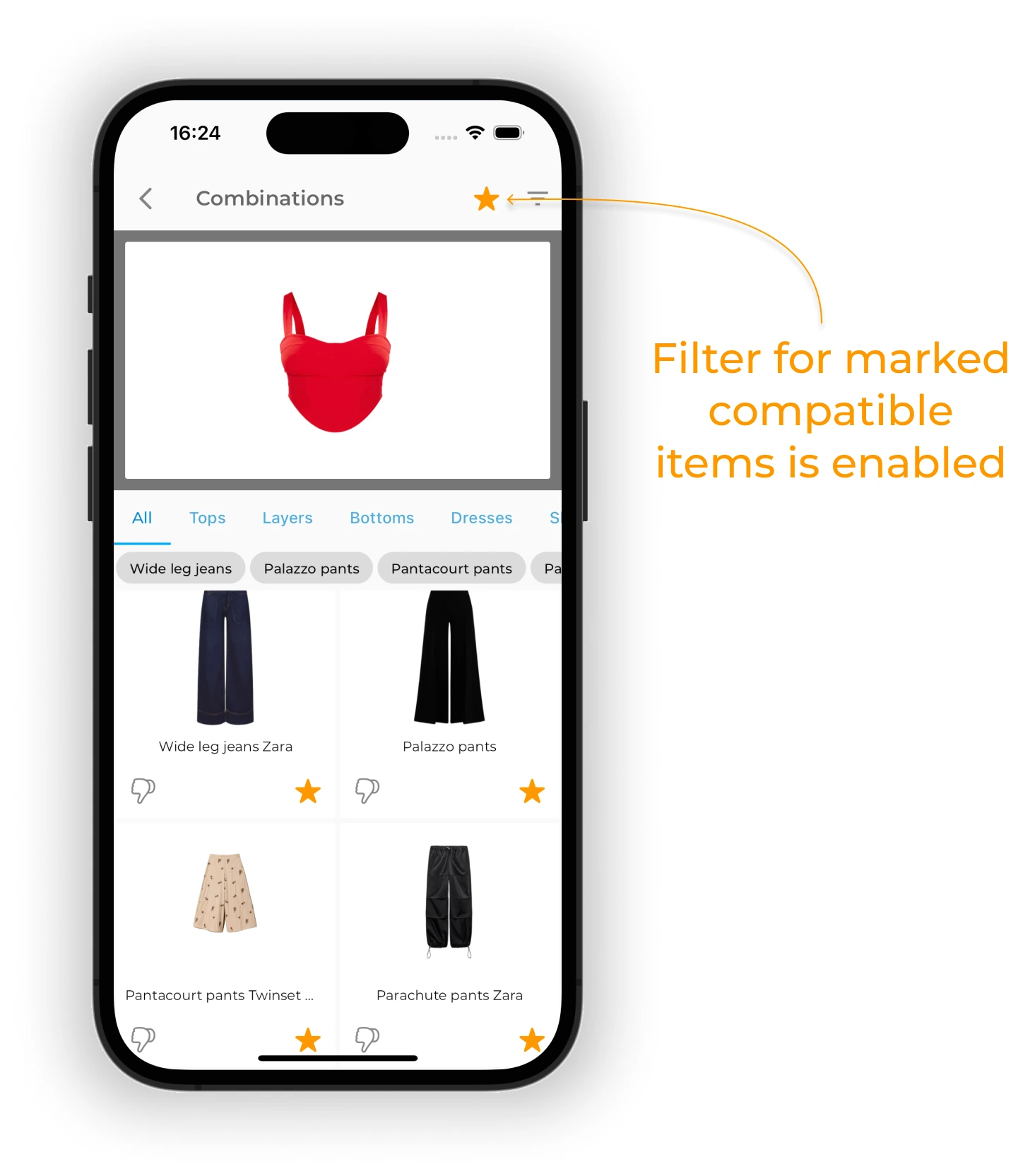
Toca la estrella una vez más para ver todas las prendas. Volverá a gris.
Crear un outfit con las prendas
Toca las tarjetas de las prendas para añadirlas a tu outfit. Las prendas seleccionadas se agrupan automáticamente.
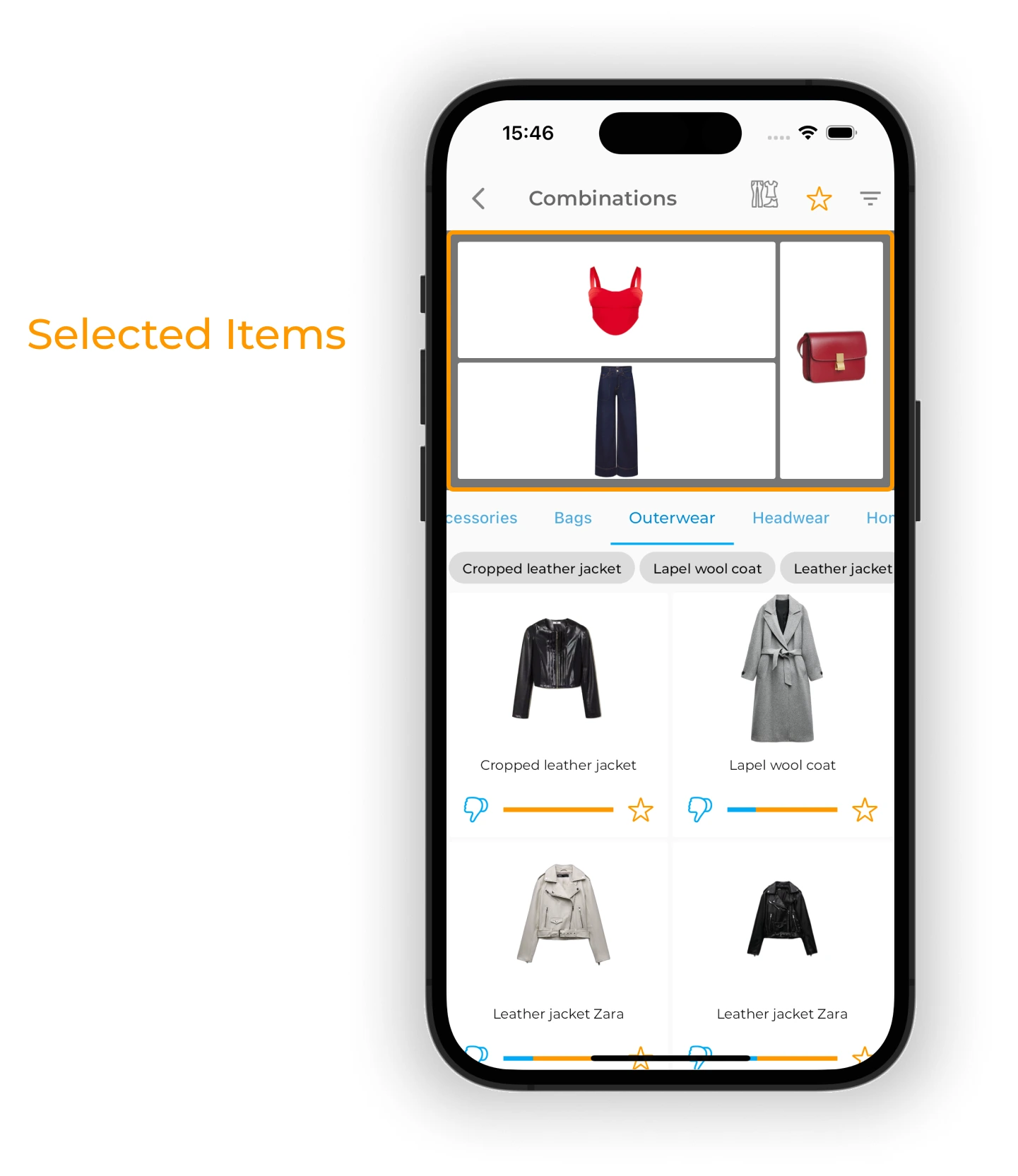
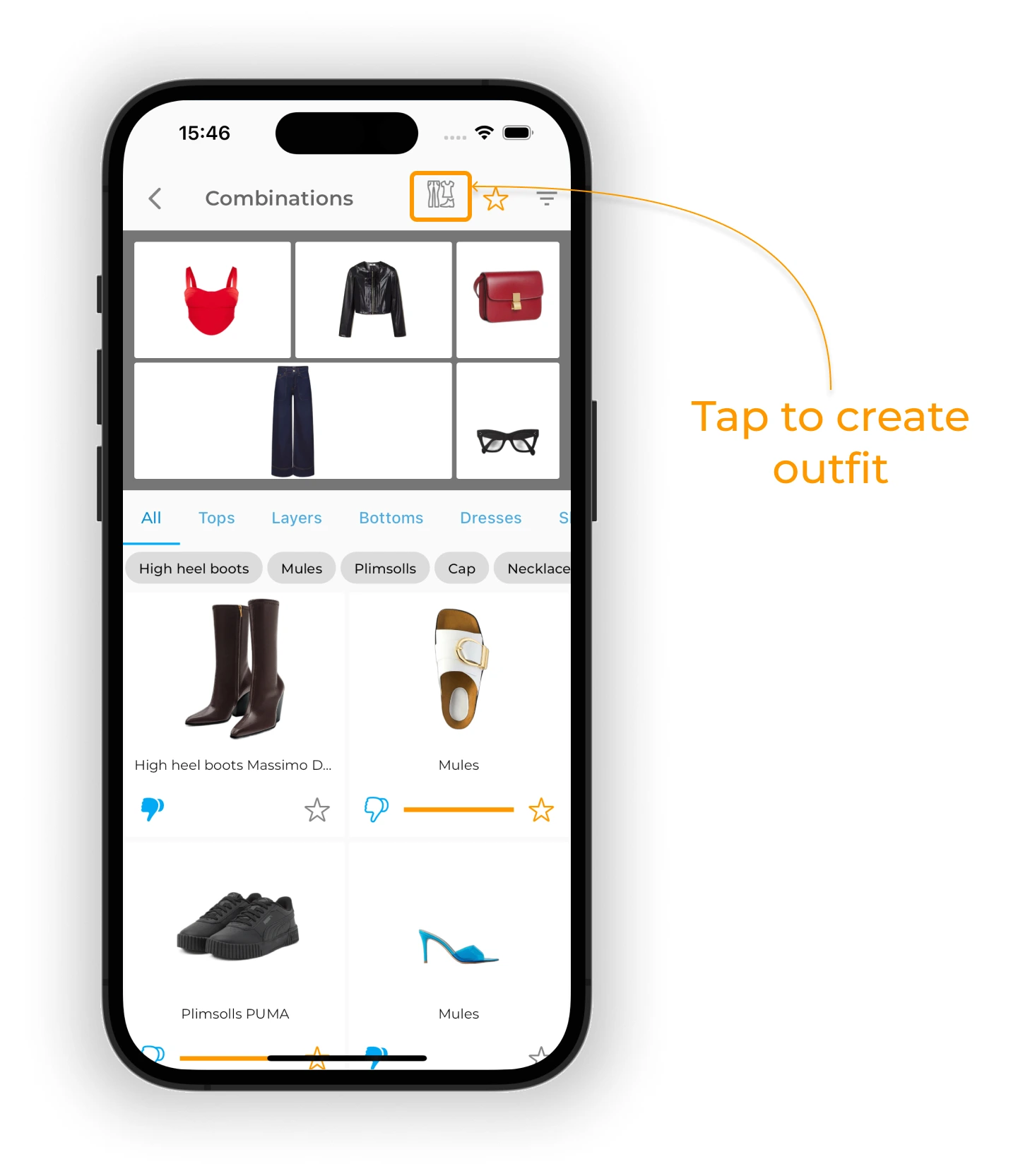
Cuando ya hayas elegido todo, toca el icono de outfit para crear el look.
Salir de la pantalla de Combinaciones
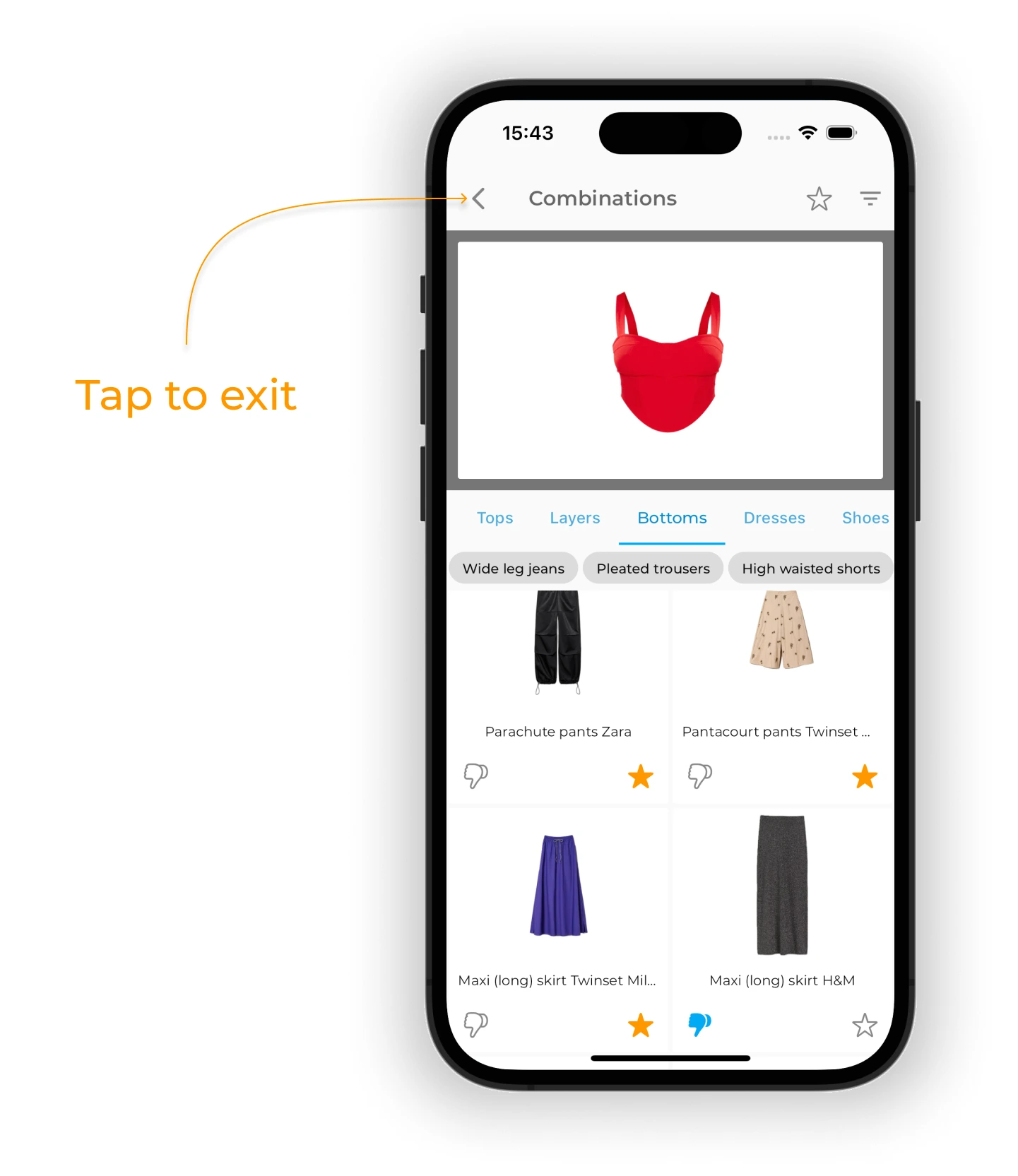
Para salir de la pantalla de Combinaciones, toca la flecha atrás en la esquina superior izquierda.
Preguntas frecuentes
¿Cómo decide la app qué prendas combinan?
La app usa IA para analizar la afinidad de color, estilo y categoría. Las líneas naranjas indican mucha afinidad; las azules, poca.
¿Puedo marcar prendas que no combinan?
Sí. Toca el icono del pulgar hacia abajo para indicar que una pareja no te funciona. Eso ayuda a personalizar las sugerencias.
¿Puedo crear un outfit directamente desde las combinaciones?
Sí. Selecciona las tarjetas de las prendas para añadirlas a tu outfit y toca el icono de outfit para abrir el editor y terminarlo.
¿Necesitas ayuda?
Escríbenos a support@getwardrobe.com